A factory-fresh Cisco router or switch trusts whoever reaches the console, answers to the generic name Router or Switch, and offers no way in over the network except plaintext telnet. Before that device carries a single production packet, six things have to happen: give it a real name, lock privileged mode behind a hashed secret, protect the console and VTY lines, turn on SSH so you can drop telnet, post a legal banner, and save the config so it survives a reload.
This Cisco device base configuration is the “always do this first” set of commands every router and switch gets before anything else. We set it on a router and a switch below, then prove each step took with real show output, including a live SSH login between the two devices.
Ran every command below on IOS 15.2 in our own GNS3 lab (a c7200 router talking to an IOSvL2 switch) in June 2026; the output blocks are copied straight off those devices.
If you are working through the exam blueprint, this maps to the device-access objectives in our CCNA 200-301 study guide. Knowing your way around config mode helps; the IOS CLI editing shortcuts cover the keystrokes used throughout.
What the Cisco device base configuration covers
The base configuration is the ordered set of commands every Cisco device needs before it goes into service: a hostname, a privileged-mode secret, protected console and VTY lines, SSH instead of telnet, a banner, and a saved startup config. Most of it maps directly to CCNA 200-301 security and access objectives.
| Task | Key command | Maps to objective |
|---|---|---|
| Name the device | hostname | identity (operational) |
| Protect privileged mode | enable secret | 5.3 device access control |
| Encrypt stored passwords | service password-encryption | 5.4 password policy |
| Secure console and VTY | login local | 5.3 device access control |
| Enable remote access | crypto key generate rsa | 4.8 remote access (SSH) |
| Post a login banner | banner motd | operational |
| Persist the config | copy run start | operational |
The topology is deliberately small: one router, one switch, a single management subnet. That is enough to configure SSH on both and then prove it works by logging in across the link.
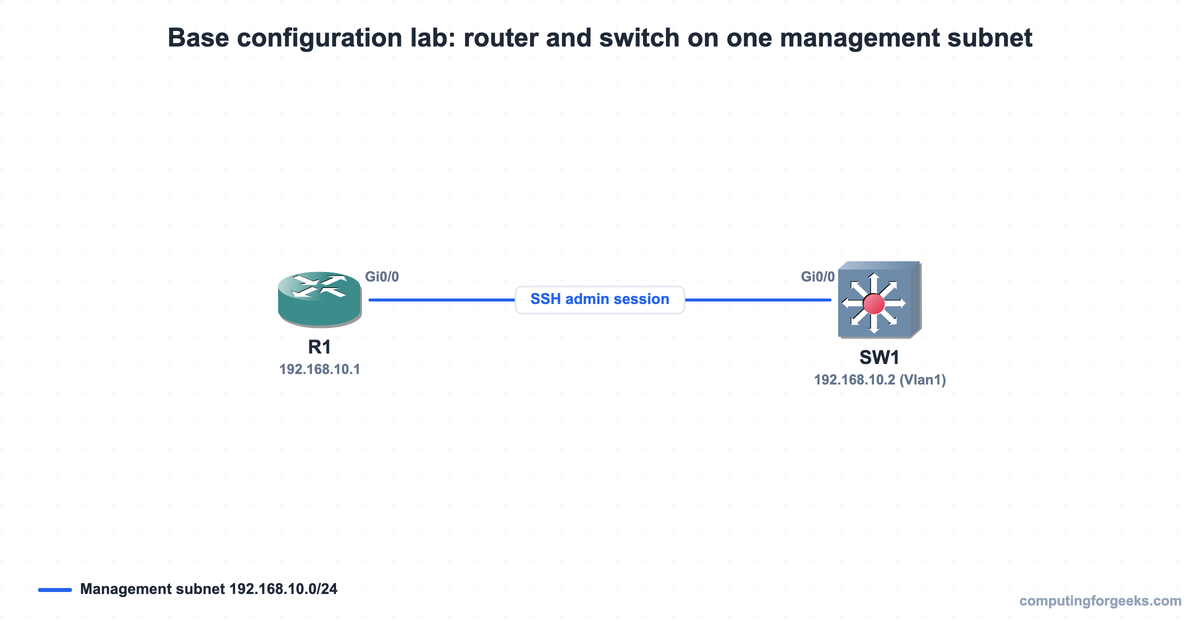
Every command below was captured on real Cisco IOS in GNS3. The router is a c7200 (R1), the switch an IOSvL2 (SW1), cabled Gi0/0 to Gi0/0 on the management subnet. Here is that lab on the GNS3 canvas:
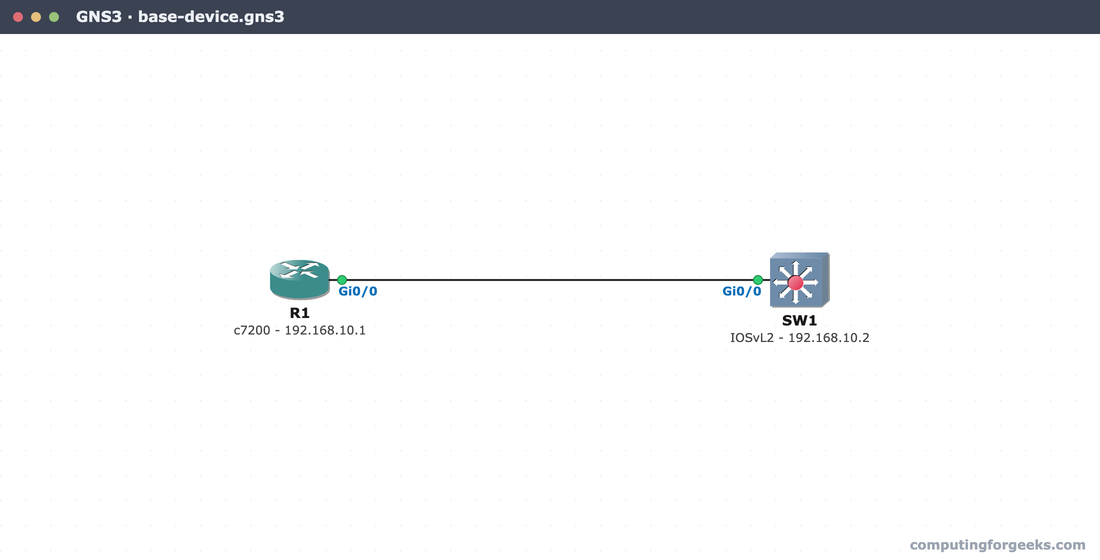
We work through every command on R1 below and apply the same access block to SW1, so both devices end up named, locked down, and reachable over SSH.
Skip the typing. Paste-ready R1 and SW1 configs, the topology, and load steps for GNS3, Packet Tracer, and real gear, free on GitHub.
Get the configs on GitHub1. Set the hostname and enable secret
The hostname is what every prompt, log line, and CDP neighbor entry shows, so set it first. The enable secret is the password that guards privileged EXEC mode, the # prompt where every configuration command lives. Enter global configuration mode and set both:
enable
configure terminal
hostname R1
enable secret Cisc0-Lab!
Use enable secret, never enable password. They look interchangeable but they are not. The older enable password stores the value in cleartext in the running config; enable secret stores a one-way hash. If both exist, IOS ignores the cleartext one anyway.
| Command | How it stores the value | Reversible? | Use it? |
|---|---|---|---|
enable password | Cleartext | It is plaintext | Never |
enable secret | One-way hash (type 5, 8, or 9) | No | Always |
service password-encryption | Type 7 (Vigenere) | Yes, trivially | Supplement only |
Confirm what landed in the config. This include filter pulls just the lines we care about:
show running-config | include hostname|enable secret|service password|username adminThe secret and the local user are stored hashed, not in cleartext:
service password-encryption
hostname R1
enable secret 4 1Oh.kO55gz5s56NxloT4pDpP.z4HjsCU63H3YeYSkVA
username admin privilege 15 secret 4 5yrJHP8DwgEf/TNk.5p1YTN0ek8b9Mb6uNP5hCia1WM
The 4 after enable secret is the hash type IOS stored. Type 4 is a single, unsalted SHA-256 pass that Cisco shipped around this 15.2 era, then withdrew in 15.3(3) because it turned out weaker than the type 5 (salted MD5) it was meant to replace. Current IOS generates type 5 by default, with the stronger type 8 (PBKDF2) and type 9 (scrypt) available on request. The detail that matters for the exam is simpler: every one of these is a one-way hash, so anyone reading the config cannot recover Cisc0-Lab! from it. The cleartext enable password, by contrast, hands it straight over.
2. Encrypt the remaining passwords
The enable secret is hashed automatically, but line passwords (console, VTY) sit in cleartext by default. service password-encryption scrambles every plaintext password in the config with a type 7 cipher:
configure terminal
service password-encryption
security passwords min-length 8
Be honest about what this buys you. Type 7 is reversible, and decoders have existed for two decades, so it only stops a shoulder-surfer reading the screen over your shoulder. It is not real cryptography. Secrets are; type 7 is cosmetic. The security passwords min-length 8 line is the more useful of the two: it refuses any new password under eight characters.
3. Secure console and VTY access
Two paths reach the CLI: the physical console port and the virtual terminal (VTY) lines that telnet and SSH land on. Both need a login method. The console gets a line password; the VTY lines check the local user database instead.
configure terminal
line console 0
 password Con-Lab!
 login
 exit
line vty 0 4
 login local
 exit
The difference between login and login local trips people up. Plain login prompts for the line password set right above it. login local ignores the line password and authenticates against a username in the local database, so it asks for a username and a password. The VTY lines use login local because that is what SSH expects, and it ties remote access to the admin account created next.
4. Enable SSH and stop using telnet
SSH is the part the exam pushes hardest, and it is where the ordering bites. The RSA key that SSH needs cannot be generated until the device has both a hostname and a domain name, because the key is named after them. Set the domain, create a local user for login, then generate the key:
configure terminal
ip domain-name lab.example.com
username admin privilege 15 secret Adm1n-Lab!
crypto key generate rsa modulus 2048
The key generation prints its progress and confirms the modulus. A 2048-bit key is the practical floor; anything smaller is rejected by SSH version 2:
The name for the keys will be: R1.lab.example.com

% The key modulus size is 2048 bits
% Generating 2048 bit RSA keys, keys will be non-exportable...
[OK] (elapsed time was 2 seconds)
With the key in place, force SSH version 2 and restrict the VTY lines to SSH only. That last command is the one that actually turns telnet off:
ip ssh version 2
line vty 0 4
 transport input ssh
 exit
The gotcha here is transport input. Generating a key and setting ip ssh version 2 turns SSH on, but it does not turn telnet off. Until you set transport input ssh, the VTY lines still accept telnet alongside SSH. With it, telnet connections are refused outright. Skip this line and you have built a “secure” SSH setup that still answers plaintext telnet on port 23, which is exactly the legacy access this baseline replaces.
Verify the SSH server is up and running version 2:
show ip sshThe first line is the one to read: SSH is enabled at version 2.0, with the default authentication timeout and retry count. The base64 block below it is the public half of the RSA key you just generated:
SSH Enabled - version 2.0
Authentication timeout: 120 secs; Authentication retries: 3
Minimum expected Diffie Hellman key size : 1024 bits
IOS Keys in SECSH format(ssh-rsa, base64 encoded):
ssh-rsa AAAAB3NzaC1yc2EAAAADAQABAAABAQC39ZwqbQ5IXbm71e2lSeEsJYH/cPgJr1YtKSnHRjoI
IwscbDlMMlPVgSXpGgPkpnDmk623w4shUQldQ7CPpNHF52YkdTQlJmL95rbENATrjOQIlJ5KwEv/fHdX
pmo+wwDl146m3IL5OFxISXw6wj7F1CI79rCk3lxVC3JJMJQ28vmc9wZIhopKIQ6FBaiSCrvXIhELKlkj
YIt25J/Y0mpQA6aHtajhwvrtvUUIZDWhH0KsfBRgeyY4N+OVC/nbr0r3iWmgmv9lFOzCR687FrmvH7t5
jOijCuyqqsTm/bDl6YFW18MSTITzM/849wa63XzAABagf57uFnNc8mTpilnz
The real test is logging in. We run the same flow in Packet Tracer in our SSH access lab; here we do it device to device in GNS3. From the switch (which already has its own SSH config and an IP on the management subnet), open a session to the router as the admin user:
ssh -l admin 192.168.10.1A password prompt appears first. Type the password (it is not echoed), and on this IOS build the banner prints right after authentication as you land on the router’s privileged prompt:
Password:
Authorized access only. Activity is logged.
R1#
Still in that session, show users on the router proves it is real. The starred line is the active session: VTY 0, user admin, with the switch (192.168.10.2) as the peer:
    Line       User       Host(s)              Idle       Location
   0 con 0                idle                 00:00:43
*  2 vty 0     admin      idle                 00:00:00 192.168.10.2

  Interface    User               Mode         Idle     Peer Address
Here is the whole exchange in one view, captured straight from the lab: the login on the switch, the banner, and the resulting VTY session on the router.
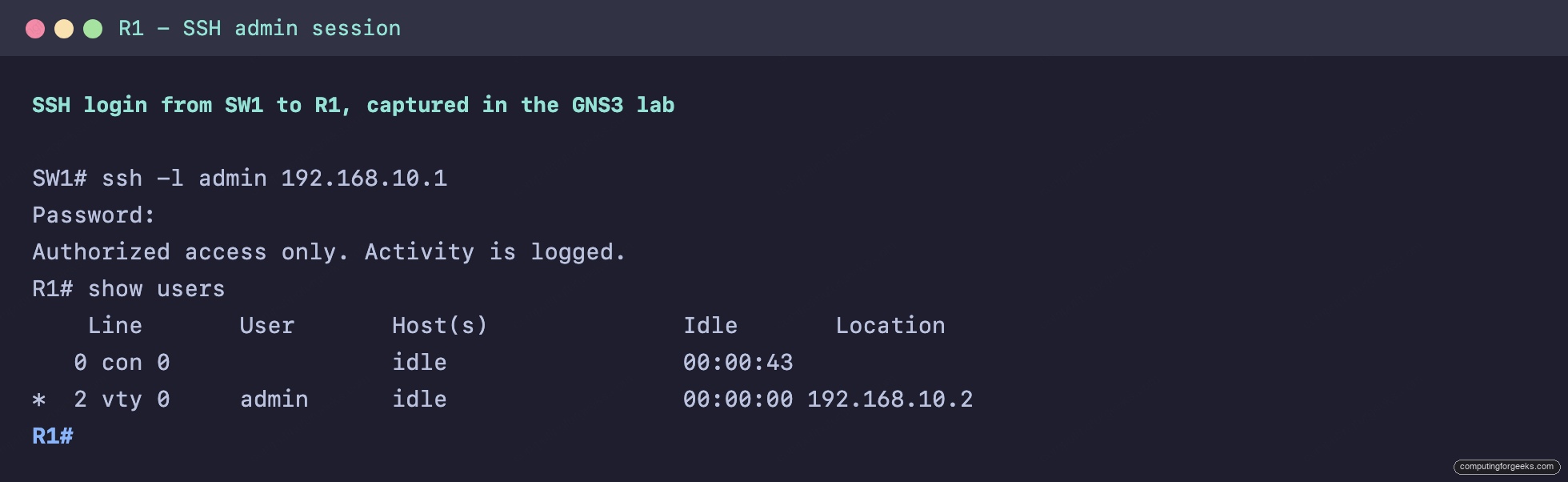
That is SSH working end to end: the switch authenticates to the router as admin, the banner displays, and the router reports the live session. Telnet, meanwhile, is refused.
5. Add a login banner
A message-of-the-day banner shows before login. Keep it legal, not friendly: a “Welcome” banner has been used by defendants to argue a system invited access. State that access is restricted and activity is logged.
configure terminal
banner motd #Authorized access only. Activity is logged.#
The # characters are delimiters, not part of the message. IOS reads everything between the first # and the next one as the banner text, so the delimiter character must not appear inside the message itself. Pick a character your text never uses; # or ^ are common choices.
6. Save and verify the configuration
Everything so far lives in the running config, which is in RAM and gone after a power cycle. Copy it to the startup config so the device reboots into the same state:
copy running-config startup-configOne last check confirms the management interface is actually up and carrying the address SSH is reachable on:
show ip interface briefGi0/0 is up/up with the management IP; the other interfaces are administratively down, which is the safe default for ports not in use:
Interface              IP-Address      OK? Method Status                Protocol
Ethernet0/0            unassigned      YES unset  administratively down down
GigabitEthernet0/0     192.168.10.1    YES manual up                    up
GigabitEthernet1/0     unassigned      YES unset  administratively down down
GigabitEthernet2/0     unassigned      YES unset  administratively down down
The switch gets the same access block, with its management IP on interface Vlan1 instead of a routed port, so both devices end up reachable over SSH on the same subnet.
Troubleshooting the base config
These are the errors that actually came up while building the lab, with the fix for each. For link-level faults beyond config typos (notconnect ports, duplex mismatches, climbing CRC counters), the interface troubleshooting guide decodes every status code and counter.
% Please define a domain-name first
crypto key generate rsa fails immediately with this message when the device has no domain name. The RSA key is named hostname.domain, so IOS refuses to build it until both exist. Set ip domain-name (and confirm the hostname is no longer the default) before generating the key.
SSH connects but authentication fails
If the VTY lines have login local but no username exists in the config, every SSH login is rejected because there is no account to check against. Create the local user with username admin privilege 15 secret .... The reverse also bites: login (not login local) on a VTY line with no line password set locks SSH out entirely with “password required, but none set”.
Telnet still works after enabling SSH
Generating the RSA key and setting ip ssh version 2 does not disable telnet. The VTY lines keep their default transport input, which still permits telnet. Set transport input ssh on line vty 0 4 to refuse everything except SSH. Confirm with show run | section line vty.
Key generation is slow or the modulus is rejected
A 2048-bit key takes a few seconds on real hardware and noticeably longer on a virtual switch, so let it finish. SSH version 2 rejects modulus sizes below 768 bits, and 2048 is the sensible minimum; if you generated a smaller key earlier, regenerate it with crypto key generate rsa modulus 2048, which overwrites the old one.
Test yourself
Seven quick questions on the commands in this base configuration. Answer each, then check your score and read the explanation.
To lock these commands into memory, flip through the base-config flashcards, marking the ones you know. Download the Anki deck to keep them in your spaced-repetition rotation.
With the baseline locked in, the device is safe to put on the wire. The next thing most builds configure is interface addressing and routing, which is where our guide on IP routing and routing protocols picks up.