Telnet sends your username and enable password across the wire in cleartext. SSH does not, and on a Cisco router or switch it takes a short, ordered block of commands to switch from one to the other. This guide configures SSH on a Cisco device end to end, logs in over it from a second device, and then proves the part most tutorials skip: that telnet is actually refused once SSH is locked in.
This is the SSH-focused companion to the broader device base configuration guide. If you also need the hostname, enable secret, console line, and banner, set those there first. Here we go deep on remote access. Every command below was run on Cisco IOS 15.2 in a GNS3 lab (one router, one switch) in June 2026, and the output blocks are copied from those devices.
How SSH access works on a Cisco device
SSH listens on the virtual terminal (VTY) lines, the same lines telnet uses. Three things have to exist before the SSH server will start: a hostname, a domain name, and an RSA key pair. The key is named hostname.domain, so the device refuses to generate it until both are set. After that you point the VTY lines at the local user database and restrict them to SSH only.
The whole sequence on the router:
configure terminal
hostname R1
ip domain-name lab.example.com
username admin privilege 15 secret Adm1n-Lab!
crypto key generate rsa modulus 2048
ip ssh version 2
line vty 0 4
 login local
 transport input ssh
 exit
Generating the key prints its progress. A 2048-bit modulus is the sensible floor; the old 1024-bit default is no longer worth using:
The name for the keys will be: R1.lab.example.com

% The key modulus size is 2048 bits
% Generating 2048 bit RSA keys, keys will be non-exportable...
[OK] (elapsed time was 2 seconds)
Two commands carry the security here. login local tells the VTY lines to authenticate against the username database instead of a shared line password, so every login needs a real account. transport input ssh restricts those lines to SSH. Leave it off and the lines keep their default, which accepts telnet too.
Verify the SSH server is running
Check the server state before trying to log in. The first line is the one that matters:
show ip sshSSH is enabled at version 2.0, with the default 120-second timeout and three authentication retries:
SSH Enabled - version 2.0
Authentication timeout: 120 secs; Authentication retries: 3
Minimum expected Diffie Hellman key size : 1024 bits
IOS Keys in SECSH format(ssh-rsa, base64 encoded):
ssh-rsa AAAAB3NzaC1yc2EAAAADAQABAAABAQC39ZwqbQ5IXbm71e2lSeEsJYH/cPgJr1YtKSnHRjoI
IwscbDlMMlPVgSXpGgPkpnDmk623w4shUQldQ7CPpNHF52YkdTQlJmL95rbENATrjOQIlJ5KwEv/fHdX
pmo+wwDl146m3IL5OFxISXw6wj7F1CI79rCk3lxVC3JJMJQ28vmc9wZIhopKIQ6FBaiSCrvXIhELKlkj
YIt25J/Y0mpQA6aHtajhwvrtvUUIZDWhH0KsfBRgeyY4N+OVC/nbr0r3iWmgmv9lFOzCR687FrmvH7t5
jOijCuyqqsTm/bDl6YFW18MSTITzM/849wa63XzAABagf57uFnNc8mTpilnz
If this command reports SSH disabled, the RSA key never generated. Go back and confirm the hostname and domain name are set, then run crypto key generate rsa modulus 2048 again.
Log in over SSH from another device
The IOS SSH client lives on every router and switch, so a second device on the same subnet can test the server directly. From the switch (192.168.10.2), open a session to the router as admin:
ssh -l admin 192.168.10.1The password prompt comes first; a correct password lands you on the router’s privileged prompt:
Password:
R1#
On the router, show users confirms the session: VTY 0, user admin, peer 192.168.10.2 (the switch). To see what the session actually negotiated, show ssh reports the version, cipher, and HMAC for each active connection:
show sshTwo rows appear for the one session, inbound and outbound, both on SSH 2.0:
Connection Version Mode Encryption  Hmac         State                 Username
0          2.0     IN   aes128-cbc  hmac-sha1    Session started       admin
0          2.0     OUT  aes128-cbc  hmac-sha1    Session started       admin
%No SSHv1 server connections running.
Note the cipher: aes128-cbc with hmac-sha1. That is the strongest pairing this IOS 15.2 image offers by default, and it matters when you connect from a modern computer rather than another router. The troubleshooting section below covers what happens then.
Confirm telnet is refused
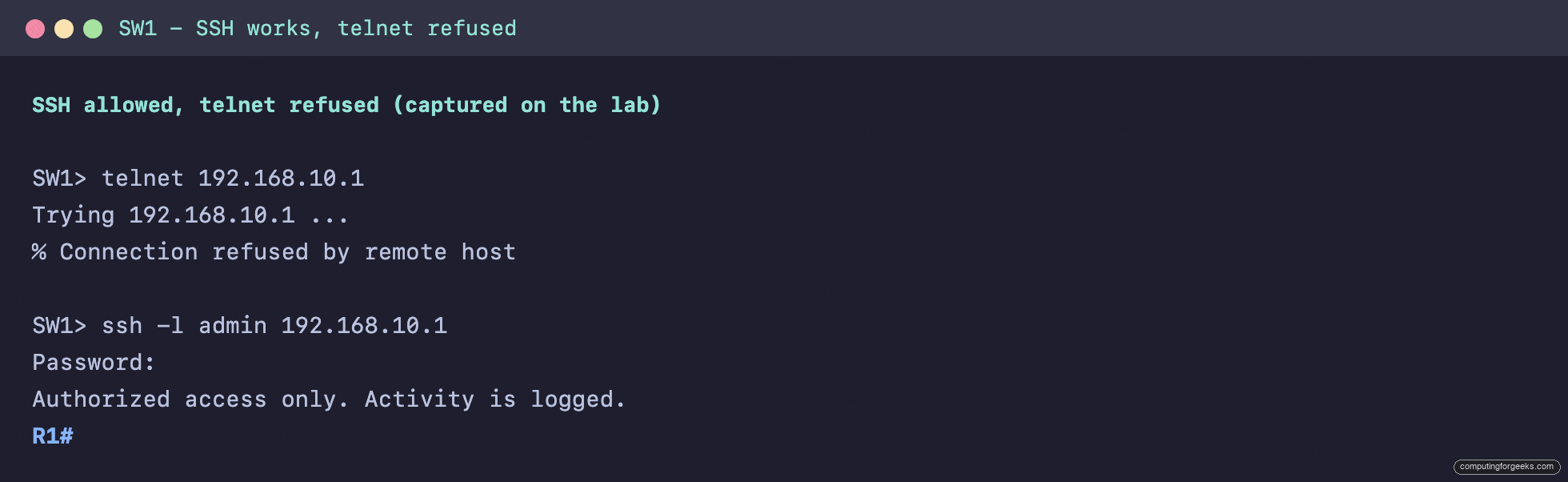
This is the test that proves the configuration did its job. From the switch, try telnet to the same router:
telnet 192.168.10.1The router refuses the connection outright, because transport input ssh excludes telnet from the VTY lines:
Trying 192.168.10.1 ...
% Connection refused by remote host
That refusal is the whole point. SSH on, telnet off, both proven from a real device rather than assumed. That exact wording comes from the IOS telnet client; a telnet client on Linux or Windows reports the same rejection as “Connection refused” or “Connection closed by foreign host”.
If you skip transport input ssh, the lines keep the default transport input all and telnet still works alongside SSH, which means port 23 is open and your passwords cross the network in the clear. Check what the lines actually allow:
show running-config | section line vtyThe relevant block should read SSH only:
line vty 0 4
 login local
 transport input ssh
That short block is the line between a device that only speaks SSH and one that still answers telnet on port 23. Check it on every device you secure.
Run this lab in GNS3 or Packet Tracer
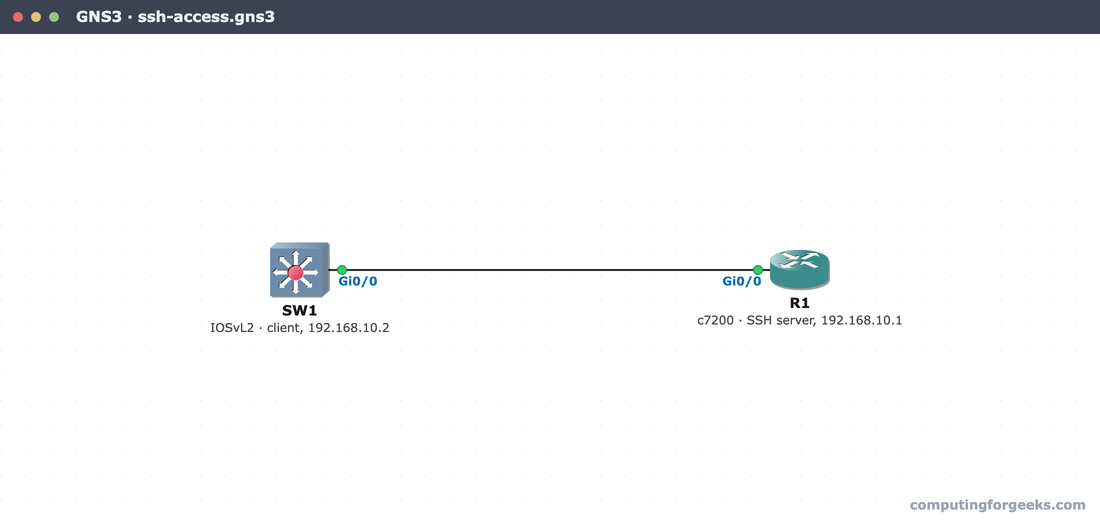
The topology is two devices on one management subnet: the router at 192.168.10.1, the switch at 192.168.10.2 on its Vlan1 interface, linked Gi0/0 to Gi0/0. That is enough to configure SSH on the router and test it from the switch.
Skip the typing. Paste-ready R1 and SW1 configs, the topology, and load steps for GNS3, Packet Tracer, and real gear, free on GitHub.
Get the configs on GitHub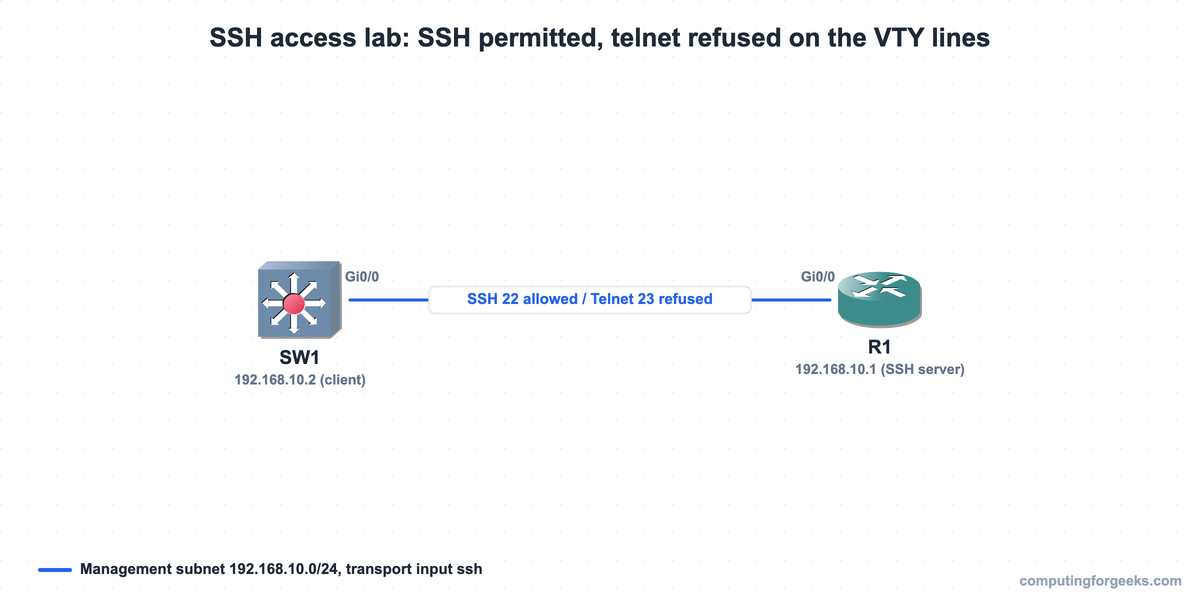
Both devices run real Cisco IOS in GNS3: the c7200 router is the SSH server and the IOSvL2 switch is the client. Here is the lab on the GNS3 canvas:
The commands are identical in both simulators because both run real Cisco IOS images: GNS3 with an IOSv or 7200 image, Packet Tracer with its built-in router and switch models. The only practical difference is that Packet Tracer’s SSH client uses ssh -l admin 192.168.10.1 from the device CLI, exactly as above. If you have not set GNS3 up yet, the GNS3 install guide covers it, and the IOS CLI editing shortcuts make moving around the config faster. This lab maps to objective 4.8 (configure remote access using SSH) in the CCNA 200-301 study guide.
Common SSH problems on Cisco IOS
These are the failures that come up most often when SSH will not start or will not let you in.
% Please define a domain-name first
crypto key generate rsa fails with this message when the device has no domain name. The key is named hostname.domain, so both must be set before it will build. Run ip domain-name lab.example.com (and make sure the hostname is no longer the default Router), then generate the key again.
SSH login is rejected with “% Authentication failed”
The VTY lines use login local, which checks the local user database, but no username exists, so every login fails. Create the account with username admin privilege 15 secret Adm1n-Lab!. The privilege 15 drops the user straight to the # prompt; without it the session lands in user EXEC and needs the enable secret to go further.
A modern computer refuses to connect: “no matching host key type” or “no matching cipher”
Logging in router to router works because both ends speak the same old algorithms. Connect from a current laptop and OpenSSH 9.x often refuses before the password prompt, because it disabled the ssh-rsa host key and CBC ciphers by default. The show ssh output above is the reason: this IOS offers aes128-cbc and hmac-sha1, which modern clients no longer accept silently. Re-enable them for that one connection:
ssh -o HostKeyAlgorithms=+ssh-rsa -o KexAlgorithms=+diffie-hellman-group14-sha1 -o Ciphers=+aes128-cbc [email protected]That is a workaround for talking to old gear, not a fix. On a current IOS or IOS-XE device, set stronger algorithms on the server side instead with ip ssh server algorithm encryption aes256-ctr and ip ssh server algorithm mac hmac-sha2-256, so the legacy client flags are never needed.
Lock the SSH and base-access commands into memory with the flashcards, then keep them in rotation with the Anki deck.
Harden SSH for production
The baseline above is correct, but a production device gets a few more controls. Tighten the session limits and force version 2 explicitly:
configure terminal
ip ssh version 2
ip ssh time-out 60
ip ssh authentication-retries 2
Then restrict which addresses may even reach the VTY lines with an access class, so SSH is only reachable from your management network:
access-list 10 permit 192.168.10.0 0.0.0.255
line vty 0 4
 access-class 10 in
 exec-timeout 5 0
 exit
The access-class drops SSH attempts from anything outside 192.168.10.0/24 before authentication even starts, and exec-timeout 5 0 logs out an idle session after five minutes. Together with transport input ssh, that is the difference between SSH being on and SSH being safe to leave on.