When a Cisco link misbehaves, the interface counters usually told you why long before anyone noticed the slowdown. A port stuck in notconnect, a CRC count climbing by the second, or a link that says it is up while throughput crawls: each of these has a signature in the output of two commands. This guide is the ordered way to read that output, decode every counter that matters, and map what you see to a root cause and a fix.
The focus is the two commands you will live in, show interfaces status and show interfaces, plus the status codes and error counters they expose. Get comfortable here and most physical-layer and data-link problems become a 30-second diagnosis instead of a guessing game.
Tested in June 2026 on a GNS3 c7200 router and an IOSvL2 switch; the command output shown below is real lab capture.
If you are new to moving around the IOS prompt, skim the CLI navigation guide first. This article uses the same R1 and SW1 lab from the base device configuration, so the interfaces already have IPv4 addresses.
To follow along on your own gear, the R1 and SW1 base-device topology and paste-ready configs are in our CCNA labs repo: load them in GNS3, EVE-NG, or Packet Tracer, or paste straight onto real hardware.
Read interface status at a glance
Start wide, not deep. On a switch, show interfaces status prints one line per port, and that summary tells you which ports to investigate before you read a single counter.
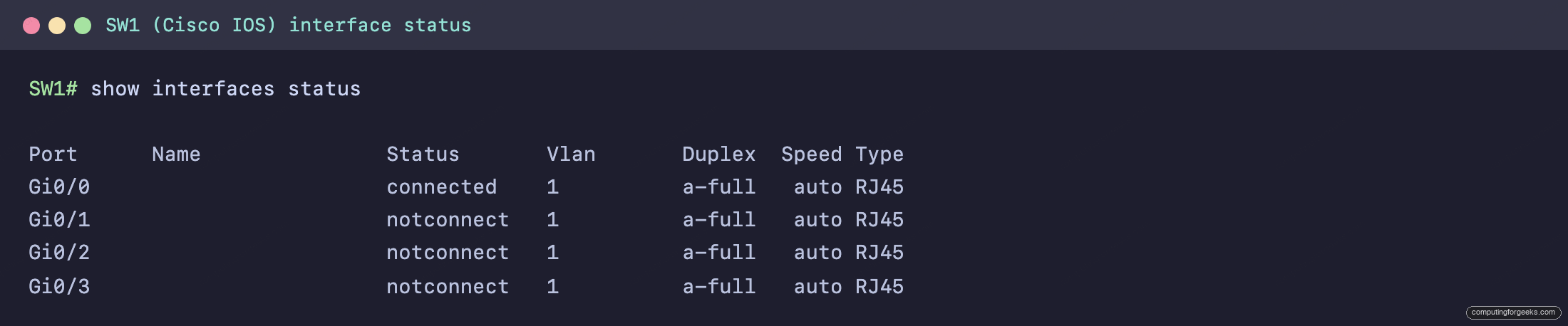
Read the Status column first. connected means the port is up and passing traffic. notconnect means the port is enabled but has no working link, the single most common state on a port that should be working: no cable, the far end is down, or a speed mismatch dropped the link. disabled means someone shut the port (or port security did). Here Gi0/0 is connected to R1, and the unused ports sit at notconnect.
Now the Duplex and Speed columns, and the detail people miss: the a- prefix. a-full and auto mean the value was autonegotiated, not configured by hand. That prefix is your fastest tell for a duplex problem. If one side reads a-half while its neighbor reads a hardcoded full, you have found your mismatch without reading another line. Routers do not have show interfaces status; use show ip interface brief for the same fast sweep on a router.
Decode the show interfaces counter block
show interfaces on a single interface is where the real diagnosis happens. The first lines confirm the physical and data-link state, the speed and duplex, and the MTU. The block at the bottom is the counter history, and that is what you came for.
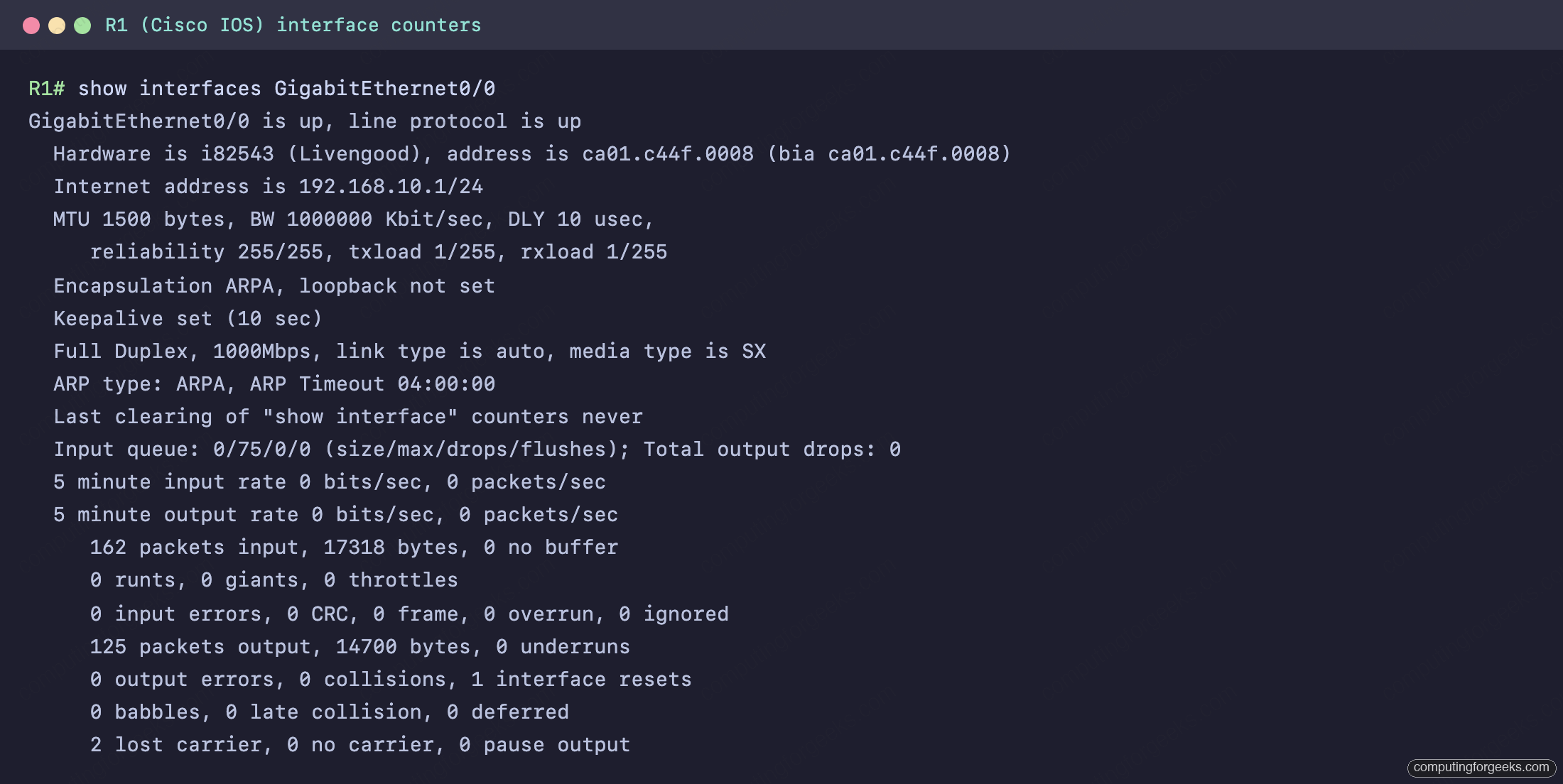
The opening line, GigabitEthernet0/0 is up, line protocol is up, is the two-part status you will decode in the next section. Full Duplex, 1000Mbps confirms the negotiated duplex and speed. Then the counters. The ones worth memorizing:
- input errors: the parent counter. It sums runts, giants, CRC, frame, overrun, ignored, and no-buffer drops. A single frame can carry more than one error, so this total will not always equal the children added up exactly. A non-zero value here means drill into the children to find which one dominates.
- CRC: a frame arrived but failed its frame check sequence. The frame was corrupted in transit. This is a physical-layer problem.
- runts and giants: frames smaller than 64 bytes or larger than the MTU. Runts often come from collisions; giants usually mean a misconfigured MTU or VLAN tagging issue.
- collisions and late collision: collisions inside the first 64 bytes are normal on a half-duplex segment. A late collision (after byte 64) on a switched point-to-point link is almost always a duplex mismatch, and nothing else.
One thing the counters give you that nothing else does: clear before you test. clear counters GigabitEthernet0/0 zeroes the history so you can watch what increments under live traffic instead of staring at numbers that accumulated since the last reload.
Interface status codes and their causes
That two-part status line (line protocol first part, the interface itself second) maps directly to a root cause. Learn this table and you will name the problem before you open the cable tester.
| Status | Meaning | What to do |
|---|---|---|
| administratively down / down | The port is shut down in config | Run no shutdown on the interface |
| down / down (notconnect) | No working link: no cable, far end down, or speed mismatch | Check the cable and the far end; confirm both speeds match |
| up / down | Layer 1 is fine, the data-link is not (rare on Ethernet) | Check encapsulation or keepalives |
| up / up | The interface is working | Nothing; look elsewhere |
| down / down (err-disabled) | A feature shut the port (port security, BPDU guard) | Fix the trigger, then shut/no shut to recover |
Defaults differ by device type, and it trips people up. A router interface comes up administratively down until you type no shutdown. A switch access port comes up on its own the moment a cable is present. So a freshly cabled router port that shows nothing is usually waiting for no shutdown, while a freshly cabled switch port that shows notconnect has a real link problem.
Duplex mismatch: the silent link killer
This is the failure that hurts most, because the link stays up and basic pings succeed, so monitoring looks green while throughput collapses under load. It happens when one side runs autonegotiation and the other is hardcoded.
Under IEEE 802.3u, a port set to autonegotiate will sense the neighbor’s speed, but if the neighbor has autonegotiation disabled, the autonegotiating side cannot learn the duplex and falls back to a default: half duplex at 10 and 100 Mbps. Gigabit is exempt, because 1000BASE-T defaults to full duplex and its autonegotiation is mandatory, so this is a 10/100 problem in practice. So you end up with one side at full duplex and the other at half. The full-duplex side transmits whenever it likes; the half-duplex side treats those transmissions as collisions once they arrive after byte 64, and its late collision counter climbs. Throughput drops hard under real traffic while the link still reports up/up.
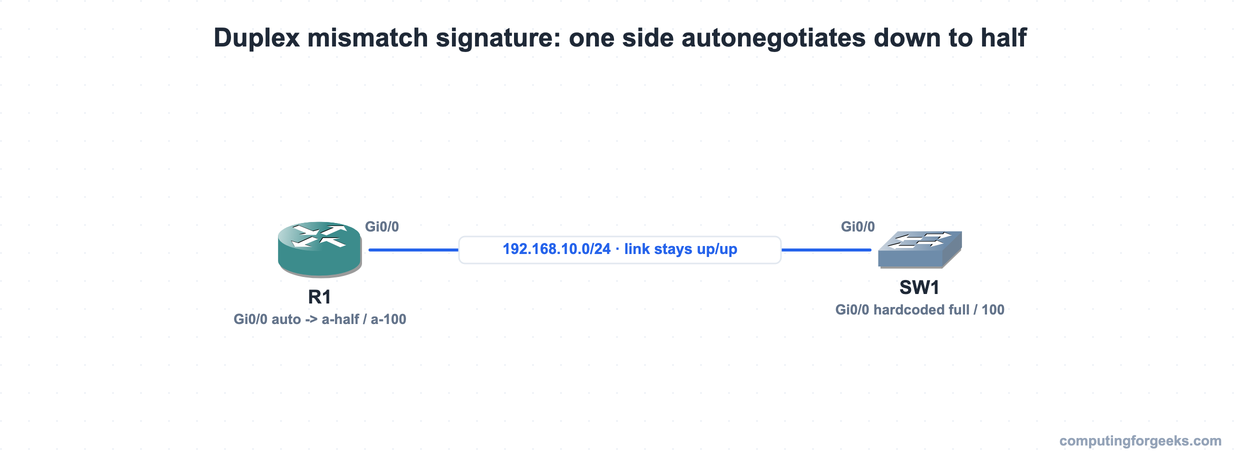
The signature is visible in show interfaces status: one side shows a-half (autonegotiated, defaulted to half) while the other shows a plain full (hardcoded). Confirm it with show interfaces on the half-duplex side: the late collision counter increments under traffic while the full-duplex side stays clean.
One honest heads-up if you try to reproduce this in a lab: you usually cannot. Hardcoding speed 100 duplex full on the emulated switch port in our GNS3 lab did nothing visible, the port stayed a-full at auto speed and every collision counter held at zero, because virtual interfaces in GNS3, EVE-NG, and Packet Tracer do not model the physical collision domain. Duplex mismatch and late collisions are a real-hardware behavior. Learn the signature now so you recognize it on production gear, where it absolutely does happen.
CRC errors and physical cabling problems
A CRC error means a frame arrived with a checksum that does not match its contents: it was corrupted somewhere on the wire. The causes are physical, electromagnetic interference, a damaged or sharply bent cable, a marginal connector, or dirty fiber. The diagnostic that separates this from a duplex mismatch is simple: with a cabling problem, CRC errors grow while collisions and late collisions stay at zero, because corruption is not a collision-domain event.
So read the two together. CRC climbing with zero late collisions points at the cable or a noise source: reseat or replace the cable, check the run length, move it away from interference. CRC climbing alongside late collisions on a half-duplex port points back at a duplex mismatch, with the half-duplex side also logging runts from the truncated frames. The counters tell you which problem you have before you touch anything.
Fix a speed or duplex mismatch
The right fix is almost always to let autonegotiation do its job on both ends. Set speed auto and duplex auto on each side and let them agree. Mismatches happen because someone hardcoded one side and forgot the other, so the cleanest cure is to stop hardcoding.
If a specific link genuinely needs hardcoded settings, a server NIC on a known-capable switch port, then hardcode both ends to the same values (speed 100 and duplex full on each), never one. After any change, verify with show interfaces status: a healthy hardcoded link reads full and 100 on both sides with no a- prefix, and a healthy autonegotiated link reads a-full on both. Then watch the late collision counter on the previously half-duplex side; once it stops incrementing under traffic, the mismatch is gone. For a port stuck at notconnect, the speed fix is the same idea: confirm both ends are set to a matching speed, because a hard speed mismatch drops the link entirely.
Interface counter quick reference
Keep this within reach. When a counter is non-zero, this is what it is telling you and where to look first.
| Counter | A non-zero value means | Likely cause |
|---|---|---|
| Late collision | Collisions after byte 64 on a switched link | Duplex mismatch (one side half, one full) |
| CRC | Frames arriving corrupted | Physical layer: cable, connector, EMI, dirty fiber |
| Runts | Frames shorter than 64 bytes | Collisions or a duplex mismatch |
| Giants | Frames larger than the MTU | Misconfigured MTU or a tagging issue |
| Input errors | The sum of the receive-side errors | Drill into CRC, runts, giants to find the child |
| Output drops | Frames dropped on egress | Congestion or output queue overflow |
The discipline is the same every time: sweep with show interfaces status, drill with show interfaces, read the status code and the counters, and let them name the problem. The numbers are rarely subtle once you know what each one points at. For where this sits in the larger path, the CCNA 200-301 study roadmap lays out every topic in order.
Practice reading interface output
Flip the cards to lock in the counters and status codes, then take the quiz to check the diagnoses that matter most, like telling a duplex mismatch apart from a cabling fault.