The FreeRADIUS package in your distribution repository is almost always behind upstream. Ubuntu ships a 3.0.x or 3.2.x build a few point releases back, Debian carries an older release, and the RHEL family lags by a version or two as well. For a service that sits on the authentication path for your network, running a build that predates the current stable release is a bug-fix and security gap you control. Compiling from source closes it, and it gives you the modules and TLS options the packaged build may have left out.
This guide shows how to build FreeRADIUS from source, using the current stable release, on the RHEL family (Rocky Linux and AlmaLinux), Ubuntu, and Debian, then wire it to a MariaDB SQL backend and authenticate a real user end to end. The dependency step is split per distribution because that is the only part that genuinely differs. Everything after it, the download, the build, the service, and the SQL test, is shared. Every step below was run in June 2026 on Rocky Linux 10 with SELinux enforcing, Ubuntu 26.04, and Debian 13 against FreeRADIUS 3.2.10, and the build was checked on Rocky Linux 9, Ubuntu 24.04, and Debian 12 as well. If you would rather not compile anything, the package route with a daloRADIUS web front end is covered for Ubuntu, Debian, and Rocky Linux and AlmaLinux.
Prerequisites
- A server running Rocky Linux, AlmaLinux, or RHEL 10 or 9; Ubuntu 26.04 or 24.04; or Debian 13 or 12.
- A user with
sudoprivileges. - Outbound HTTPS to GitHub to fetch the source tarball.
- About 1 GB of free space for the source tree and build objects.
- A MariaDB or MySQL server for the SQL backend. The steps below install MariaDB locally; on Ubuntu you can follow the dedicated MariaDB install guide if you want it on a separate host.
Step 1: Set the build variables
A handful of values repeat across the build and the SQL setup: the release you are compiling and the database name, user, and password. Export them once at the top of your shell so you change them in one place and paste the rest as written.
export FR_VER="3.2.10"          #https://github.com/FreeRADIUS/freeradius-server/releases
export FR_TAG="release_${FR_VER//./_}"
export DB_NAME="radius"
export DB_USER="radius"
export DB_PASS="Strong#RadiusPass2026"
Pick the latest stable from the release page in the comment, and choose a real database password. These variables hold only for the current shell, so re-run the block if you reconnect. Confirm they are set before going further:
echo "Building FreeRADIUS ${FR_VER} (tag ${FR_TAG}) -> db ${DB_NAME}/${DB_USER}"With those values set, install the libraries the compiler needs.
Step 2: Install the build dependencies
FreeRADIUS auto-detects optional modules at configure time. The rule is simple: a module is built only if its development library is present. That is why the MySQL driver hinges on the MariaDB connector headers being installed now, before you configure. The packages differ between the two distribution families, so use the section that matches your server.
On RHEL, Rocky Linux, and AlmaLinux
Two of the headers FreeRADIUS needs, talloc and libpcap, live in the CRB repository, which ships disabled. Enable it first, then pull the toolchain and the development libraries:
sudo dnf install -y dnf-plugins-core
sudo dnf config-manager --set-enabled crb
sudo dnf groupinstall -y "Development Tools"
sudo dnf install -y wget bzip2 libtalloc-devel openssl-devel libpcap-devel \
  readline-devel pcre2-devel python3-devel perl-devel \
  mariadb-connector-c-devel libidn2-devel libcurl-devel gdbm-devel libnl3-devel
On Rocky Linux 8 and RHEL 8 the repository is named powertools instead of crb, so swap that one word. SELinux can stay enforcing for the rest of this guide; nothing here asks you to turn it off.
On Ubuntu and Debian
The Debian family keeps every header in the main archive, so no extra repository is needed. Refresh the index and install the toolchain with the same set of development libraries:
sudo apt update
sudo apt install -y build-essential wget bzip2 libtalloc-dev libssl-dev \
  libpcap-dev libreadline-dev libpcre2-dev libperl-dev python3-dev \
  libmariadb-dev libcap-dev libidn-dev libkrb5-dev libcurl4-openssl-dev \
  libnl-3-dev libnl-genl-3-dev
The package names map cleanly between the families once you know the pattern. This table covers the ones that matter for a working SQL build:
| Build dependency | RHEL / Rocky / Alma | Ubuntu / Debian |
|---|---|---|
| C toolchain | "Development Tools" group | build-essential |
| talloc | libtalloc-devel | libtalloc-dev |
| OpenSSL / TLS | openssl-devel | libssl-dev |
| MariaDB client (for the SQL driver) | mariadb-connector-c-devel | libmariadb-dev |
| PCRE2 regex | pcre2-devel | libpcre2-dev |
| Perl / Python bindings | perl-devel, python3-devel | libperl-dev, python3-dev |
| Extra repository | CRB (PowerTools on 8) | none |
Step 3: Download the FreeRADIUS source
Pull the release tarball straight from the project’s GitHub release assets and unpack it in your home directory. Building as a normal user keeps the source tree out of system paths; only the install step at the end needs root.
cd ~
wget "https://github.com/FreeRADIUS/freeradius-server/releases/download/${FR_TAG}/freeradius-server-${FR_VER}.tar.bz2"
tar xjf "freeradius-server-${FR_VER}.tar.bz2"
cd "freeradius-server-${FR_VER}"
You are now sitting in the unpacked source tree, ready to configure.
Step 4: Configure the build
The configure script probes for compilers and libraries and decides which modules to build. Setting the paths explicitly puts the binaries under /usr/local while keeping the configuration in the conventional /etc/raddb and runtime state in /var, which matches how most administrators expect to find a RADIUS server.
./configure --prefix=/usr/local --sysconfdir=/etc --localstatedir=/varBecause you installed the MariaDB connector headers in Step 2, the configure run picks up the MySQL driver automatically. There is no separate flag to enable it; the presence of the library is the switch. If the script stops with a missing-library error, install the matching development package from the table above and run it again.
Step 5: Compile and install FreeRADIUS
Compile with one job per CPU core, then install. The install step writes to /usr/local and /etc/raddb, so it needs root, but the compile itself does not.
make -j$(nproc)
sudo make install
On the RHEL family the linker does not search /usr/local/lib by default, so register it and refresh the cache. The Debian family already includes that path, but running ldconfig there does no harm:
echo "/usr/local/lib" | sudo tee /etc/ld.so.conf.d/freeradius.conf
sudo ldconfig
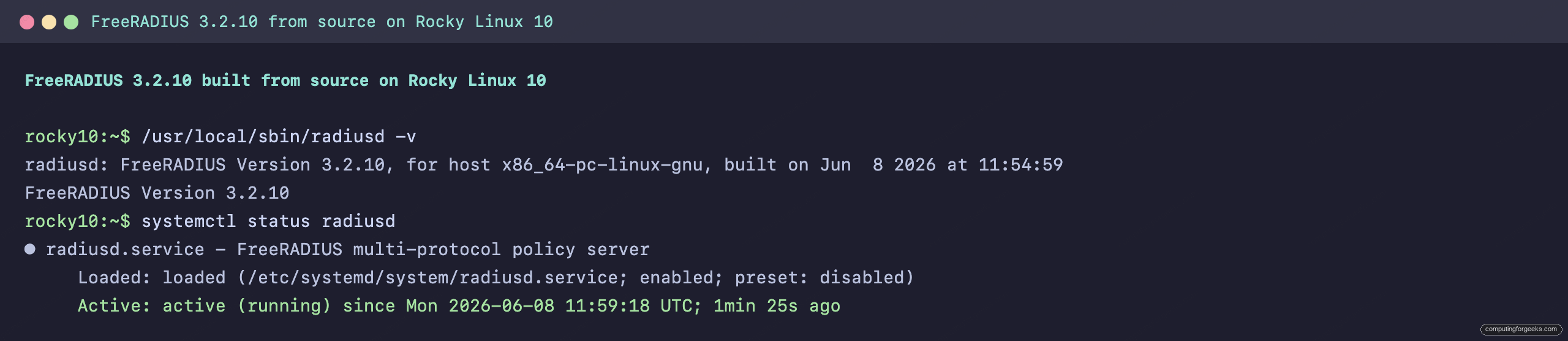
Confirm the binary runs and reports the version you just built:
/usr/local/sbin/radiusd -vThe banner names the version and build date, which is your proof the source build replaced whatever the package manager would have given you:
radiusd: FreeRADIUS Version 3.2.10, for host x86_64-pc-linux-gnu, built on Jun  8 2026
FreeRADIUS Version 3.2.10
Copyright (C) 1999-2026 The FreeRADIUS server project and contributors
Here is the same build verified on Rocky Linux 10 with the service already running under systemd, which is the next step:
The binary works, but nothing keeps it running across reboots yet. That is the job of a service unit.
Step 6: Create the service account and systemd unit
A source install does not ship a systemd unit or a dedicated user, so create both. Running the daemon as an unprivileged radiusd account is least privilege: if the service is ever compromised, the blast radius is one locked-down account, not root.
sudo useradd -r -d /etc/raddb -s /usr/sbin/nologin radiusd
sudo mkdir -p /var/log/radius
sudo chown -R radiusd:radiusd /etc/raddb /var/log/radius
Tell the daemon which account to drop to by setting the user and group in the main configuration file:
sudo sed -i 's|^\s*#\?\s*user = .*|\tuser = radiusd|'  /etc/raddb/radiusd.conf
sudo sed -i 's|^\s*#\?\s*group = .*|\tgroup = radiusd|' /etc/raddb/radiusd.conf
Now create the unit. Open the file:
sudo nano /etc/systemd/system/radiusd.servicePaste the following. Running the service as the radiusd user with RuntimeDirectory=radiusd is deliberate: it lets systemd create a /run/radiusd the daemon actually owns, which is where it writes its PID file.
[Unit]
Description=FreeRADIUS multi-protocol policy server
After=network.target mariadb.service
Wants=network-online.target

[Service]
Type=forking
User=radiusd
Group=radiusd
PIDFile=/run/radiusd/radiusd.pid
RuntimeDirectory=radiusd
RuntimeDirectoryMode=0755
ExecStartPre=/usr/local/sbin/radiusd -C
ExecStart=/usr/local/sbin/radiusd -d /etc/raddb
ExecReload=/bin/kill -HUP $MAINPID
Restart=on-failure

[Install]
WantedBy=multi-user.target
The ExecStartPre line runs a configuration check before every start, so a typo fails fast instead of leaving you with a dead service. Reload systemd and start it. It will not authenticate anything yet, since the SQL backend is still empty, but it should come up:
sudo systemctl daemon-reload
sudo systemctl enable --now radiusd
systemctl is-active radiusd
On Ubuntu 26.04 the service comes up cleanly and the compiled SQL driver is in place under /usr/local/lib:

With the daemon supervised by systemd, give it a database to authenticate against.
Step 7: Prepare the MariaDB backend
Install and start MariaDB, then create the database and a dedicated account scoped to it. Granting the FreeRADIUS user rights on only the radius database, never the whole server, keeps the credential useless to an attacker who finds it in the config.
sudo dnf install -y mariadb-server     # RHEL family
sudo apt install -y mariadb-server     # Ubuntu and Debian
sudo systemctl enable --now mariadb
Create the database and the user with the values from Step 1:
sudo mariadb -e "CREATE DATABASE ${DB_NAME};"
sudo mariadb -e "CREATE USER '${DB_USER}'@'localhost' IDENTIFIED BY '${DB_PASS}';"
sudo mariadb -e "GRANT ALL ON ${DB_NAME}.* TO '${DB_USER}'@'localhost'; FLUSH PRIVILEGES;"
FreeRADIUS ships the schema that creates its accounting and authorization tables. Load it now, and here is the first thing that bites people: the schema file lives under /etc/raddb, which you handed to the radiusd user in Step 6, so it is no longer readable by your shell. A plain redirect reads nothing and silently leaves you with empty tables. Run the import as root so the file is opened with the right privileges:
sudo bash -c "mariadb ${DB_NAME} < /etc/raddb/mods-config/sql/main/mysql/schema.sql"Confirm the tables landed:
sudo mariadb ${DB_NAME} -e "SHOW TABLES;"You should see the nine tables FreeRADIUS uses for authorization, replies, group mapping, and accounting:
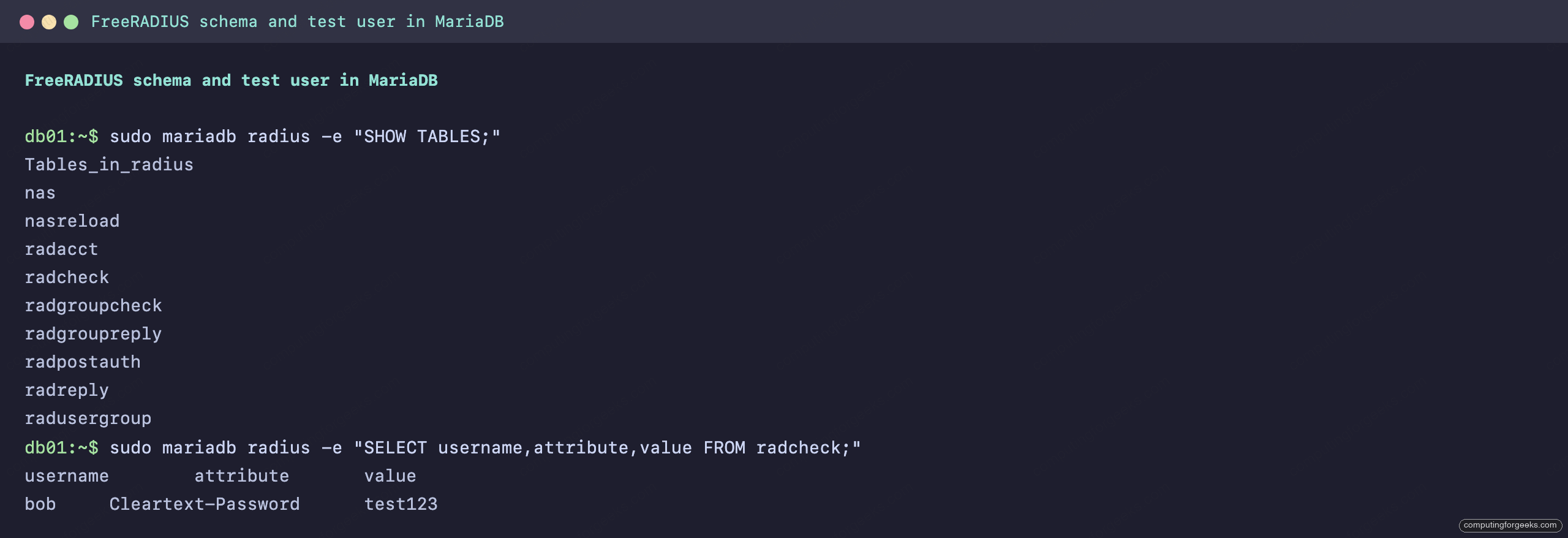
The tables exist, but FreeRADIUS will not read them until the SQL module is switched on and pointed at this database.
Step 8: Enable the SQL module
The SQL module exists in mods-available but ships configured for nothing useful, and two of its defaults will stop the server from starting. Open it:
sudo nano /etc/raddb/mods-available/sqlMake four changes. First, the driver ships as rlm_sql_null, which accepts queries and returns nothing, so every login is rejected. Point it at the MySQL driver and set the dialect to match:
driver = "rlm_sql_${dialect}"
dialect = "mysql"
Second, set the connection details to the database and user you created. Find the server, port, login, password, and radius_db lines and set them like this:
server = "localhost"
port = 3306
login = "radius"
password = "Strong#RadiusPass2026"
radius_db = "radius"
Third, and this is the one that produces a confusing startup abort, the mysql subsection ships with an example TLS block whose certificate paths do not exist. FreeRADIUS treats any set ca_file as a request to enable TLS, then fails to read the missing file and refuses to start. Comment the example lines out inside the mysql { tls { ... } } block:
		tls {
			# ca_file = "/etc/ssl/certs/my_ca.crt"
			# ca_path = "/etc/ssl/certs/"
			# certificate_file = "/etc/ssl/certs/private/client.crt"
			# private_key_file = "/etc/ssl/certs/private/client.key"
			# cipher = "DHE-RSA-AES256-SHA:AES128-SHA"
			# tls_required = yes
		}
Save the file. FreeRADIUS only loads modules that are symlinked into mods-enabled, so enable it and hand the link to the service account:
sudo ln -s /etc/raddb/mods-available/sql /etc/raddb/mods-enabled/sql
sudo chown -h radiusd:radiusd /etc/raddb/mods-enabled/sql
The default site already calls the sql module in its authorize section, so no further wiring is needed for a password lookup.
Step 9: Authenticate a user against SQL
Add a test user straight into the radcheck table. The Cleartext-Password attribute with the := operator is the simplest credential FreeRADIUS understands:
sudo mariadb ${DB_NAME} -e "INSERT INTO radcheck (username,attribute,op,value) VALUES ('bob','Cleartext-Password',':=','test123');"Restart the server so it reads the user from SQL, then send a test request with radtest. The last argument, testing123, is the shared secret for the localhost client defined in clients.conf:
sudo systemctl restart radiusd
radtest bob test123 127.0.0.1 0 testing123
A successful lookup returns Access-Accept, which means the source-built MySQL driver reached MariaDB, found bob, and matched the password:
Sent Access-Request Id 157 from 0.0.0.0:33292 to 127.0.0.1:1812 length 73
	User-Name = "bob"
	User-Password = "test123"
Received Access-Accept Id 157 from 127.0.0.1:1812 to 127.0.0.1:33292 length 38
That same Access-Accept on Debian 13 confirms the build behaves identically across the distribution families:

If you get Access-Reject instead, the lookup did not find the user. The usual cause is the driver still being on rlm_sql_null; run sudo radiusd -X and watch the SQL lines to see which driver loaded.
Lock it down before you expose it
The server authenticates, but a test build is not a production one. The default localhost secret, testing123, is published in every FreeRADIUS guide on the internet, including this one. Before this box answers a single request from a real network device, edit /etc/raddb/clients.conf, replace that secret with a long random string, and define each NAS or switch with its own client block and its own secret. A shared secret reused everywhere is the same failure mode as a reused password.
RADIUS authentication and accounting use UDP 1812 and 1813. Open only those ports, and only from the network segment where your access points and switches live. On the RHEL family that is firewalld:
sudo firewall-cmd --permanent --add-port=1812/udp --add-port=1813/udp
sudo firewall-cmd --reload
On Ubuntu and Debian the same two ports go through UFW:
sudo ufw allow 1812/udp
sudo ufw allow 1813/udp
Two more things worth knowing. The cleartext test user was fine for proving the pipeline, but real accounts should store hashed credentials or come from an existing directory; the radcheck table accepts attributes like Crypt-Password and SHA2-Password for that. And on the RHEL family, because the binary lives in /usr/local/sbin rather than the packaged location, SELinux does not apply the radiusd_t confinement domain to it. The service runs, which you saw on Rocky Linux with SELinux still enforcing, but it runs without the tight policy the distribution package would have given it. If that confinement matters in your environment, label the binary with semanage fcontext and restorecon, or run the packaged build and upgrade only the modules you compiled. For most internal RADIUS deployments behind a firewall, the source build with a hardened client list is the right trade.