Ubiquiti shipped UniFi OS Server in 2024 as a way to self-host the UniFi stack on your own Linux box, no Cloud Key, Dream Machine, or UNVR appliance required. It bundles the UniFi Network controller, identity, updates, and the UniFi OS shell into a single podman-managed container, with a systemd wrapper for lifecycle. Run it on a small Ubuntu server and you adopt access points, switches, and gateways the same way the appliances do, while keeping data on your own hardware.
This guide walks through a tested install on Ubuntu 24.04.4 LTS: prerequisites, podman as the required container runtime, downloading the installer from Ubiquiti, running it, opening the firewall, finishing the first-run wizard, and the uosserver commands you will actually use day to day. The same steps work on Ubuntu 22.04 LTS, which is also officially supported.
Tested May 2026 on Ubuntu 24.04.4 LTS (kernel 6.8) with UniFi OS Server 5.0.8, container image uosserver:0.0.56, podman 4.9.3.
Prerequisites
- Ubuntu 24.04 LTS or Ubuntu 22.04 LTS, x86_64 (the installer is a Linux x64 ELF binary).
- Minimum 2 vCPU, 4 GB RAM, 25 GB free. Recommended 4 vCPU, 8 GB RAM, 60 GB. The installer pre-checks free space and refuses to run without it.
- Root or a user with full
sudorights. - A Ubiquiti account (free) is needed to download the installer from ui.com/download/software/unifi-os-server and to remote-manage the server via the Ubiquiti Site Manager. Local accounts work too.
- Network: the host needs a static or DHCP-reserved IP on the LAN you will adopt UniFi devices from. Layer 2 discovery and STUN traffic do not cross routers cleanly.
You will need UniFi network devices to adopt through this controller. Common starting points are the UniFi U6 Lite (WiFi 6 ceiling-mount AP) or the U6 Pro for higher-density rooms. To power APs without per-port injectors, pair them with the UniFi Switch Lite 8 PoE, which provides four PoE+ ports in a compact desktop unit.
Step 1: Set reusable shell variables
Every command below uses a couple of shell variables so you change one block at the top of your SSH session and paste the rest as-is. Export them once:
export UOS_HOST_IP="192.168.1.117"          # the LAN IP this box will keep
export UOS_INSTALLER="/root/unifi-os-server.bin"
export UOS_WEBUI_PORT="11443"               # default HTTPS web UI port
Confirm they are set before doing anything destructive:
echo "Host IP:   ${UOS_HOST_IP}"
echo "Installer: ${UOS_INSTALLER}"
echo "Web UI:    https://${UOS_HOST_IP}:${UOS_WEBUI_PORT}/"
These hold only for the current shell session. Append the three export lines to /root/.bashrc if you want them to survive reconnects.
Step 2: Update Ubuntu and install podman
UniFi OS Server runs inside a podman container under a dedicated uosserver system user. The installer fails fast if podman is missing, so install it before anything else. Refresh the apt index and apply pending security updates first:
sudo apt-get update
sudo apt-get -y upgrade
Now install podman from the universe repo along with uidmap, which podman needs for subuid mapping:
sudo apt-get install -y podman uidmapConfirm the version. The UniFi OS Server installer checks for podman at /usr/bin/podman:
podman --version
which podman
You should see podman version 4.9.3 or newer and a path of /usr/bin/podman. If you need to dig deeper into podman itself before continuing, the podman on Ubuntu walkthrough covers the same package plus its rootless setup.
Step 3: Download the UniFi OS Server installer
The installer is a single ~818 MB ELF binary that bundles the container image and the systemd wiring. Ubiquiti hosts it on their CloudFront CDN and publishes the current download link on the official downloads page. Open ui.com/download/software/unifi-os-server in a browser, copy the latest Linux x64 or arm64 download URL depending on your CPU type, then pull it on the server with curl:
curl -fL --progress-bar \
  -o "${UOS_INSTALLER}" \
  "https://fw-download.ubnt.com/data/unifi-os-server/<your-signed-installer-url>"
Replace the trailing portion of the URL with whatever the downloads page shows you. The filename pattern is c2e4-linux-x64-<version>-<uuid>.<build>-x64. Verify the file is the expected size and ELF binary:
ls -lh "${UOS_INSTALLER}"
file "${UOS_INSTALLER}"
You should see ELF 64-bit LSB pie executable, x86-64 and a size around 818 MB. Make it executable:
chmod +x "${UOS_INSTALLER}"Step 4: Run the installer
The installer is interactive. It pre-checks disk space, listens on the required ports, confirms podman is present, creates the uosserver user and group, lays down the systemd units, loads the container image, and starts the service. Run it as root:
sudo "${UOS_INSTALLER}"Answer y when it prompts You are about to install UOS Server version X.Y.Z. Proceed? (y/N):. Expect output like:
 INFO Checking disk space for required directories...
 INFO All disk space requirements met.
 INFO Checking ports...
 INFO Adding uosserver user and group...
 INFO Setting up /usr/local/bin/uosserver binary...
 INFO Initializing podman conf...
 INFO Creating systemd services...
 INFO Loading container image...
 INFO Starting container...
 INFO Container 'uosserver' is running. (elapsed: 0.0s)
 INFO Waiting for UOS Server to start...
!!! INSTALLATION COMPLETE !!!
UOS Server is running at: https://192.168.1.117:11443/
Two systemd units are created and enabled: uosserver.service (the container lifecycle wrapper) and uosserver-updater.service (background self-update). Check both are active:
systemctl is-active uosserver
systemctl is-active uosserver-updater
Both should print active. The uosserver status command gives a richer view:
sudo uosserver statusSample output from a fresh install:
CONTAINER ID  NAMES       CREATED         STATUS
a408f482be18  uosserver   8 minutes ago   Up 8 minutes (healthy)

Host service:
● uosserver.service - Unifi OS Service
     Loaded: loaded (/etc/systemd/system/uosserver.service; enabled; preset: enabled)
     Active: active (running)
     CGroup: /system.slice/uosserver.service
             ├─6959 /var/lib/uosserver/bin/uosserver-service
             └─6983 /var/lib/uosserver/bin/discovery
Step 5: Open the firewall for UniFi traffic
UniFi OS Server publishes a long list of ports for the web UI, device adoption, STUN, syslog ingest, and the legacy controller. The full inventory and its purposes are documented in Ubiquiti’s Required Ports Reference. Ubuntu cloud images ship with UFW inactive, so the host firewall is open by default, but you should still enable UFW with the right rules before exposing the host to the rest of the network. The full UFW workflow lives in the UFW configuration guide; the rules you need for UniFi OS Server are:
sudo ufw allow OpenSSH
sudo ufw allow 11443/tcp comment 'UniFi OS Server Web UI (HTTPS)'
sudo ufw allow 8080/tcp  comment 'UniFi device inform'
sudo ufw allow 8443/tcp  comment 'UniFi legacy controller'
sudo ufw allow 8880/tcp  comment 'UniFi guest portal HTTP'
sudo ufw allow 8843/tcp  comment 'UniFi guest portal HTTPS'
sudo ufw allow 3478/udp  comment 'UniFi STUN'
sudo ufw allow 10001/udp comment 'UniFi device discovery'
sudo ufw allow 1900/udp  comment 'UPnP/UniFi discovery'
Enable UFW:
sudo ufw --force enable
sudo ufw status numbered
The first line ensures you do not lock yourself out by allowing SSH before enabling. If you need to add more ports later, see the broader reference of common UFW commands.
Step 6: Complete the first-run wizard
Open https://${UOS_HOST_IP}:11443/ in a browser. The server uses a self-signed certificate, so you will see a TLS warning the first time. Accept it and proceed (you can replace the cert later via Settings → Identity → Certificate).
The first screen asks for a display name for this UniFi OS Server. Pick something matching your hostname or location so the device shows up sensibly in the Ubiquiti Site Manager later:
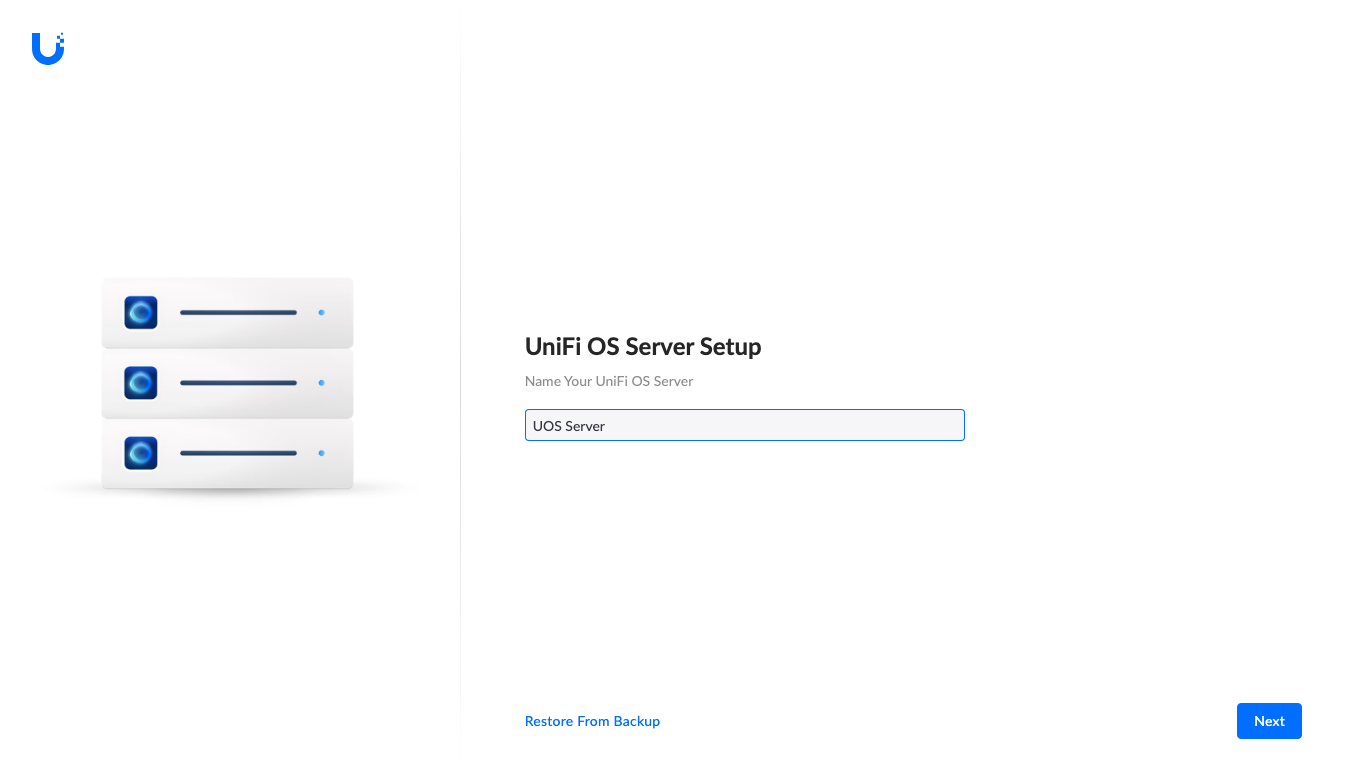
Click Next. The next screen handles identity. You have three options:
- Sign in with an existing Ubiquiti (UI) account, which links this server to unifi.ui.com remote management and your Site Manager.
- Create a UI account from scratch on the same screen.
- Proceed without a UI account for purely local administration. Useful for air-gapped or paranoid setups but you lose remote console and the Site Manager view.
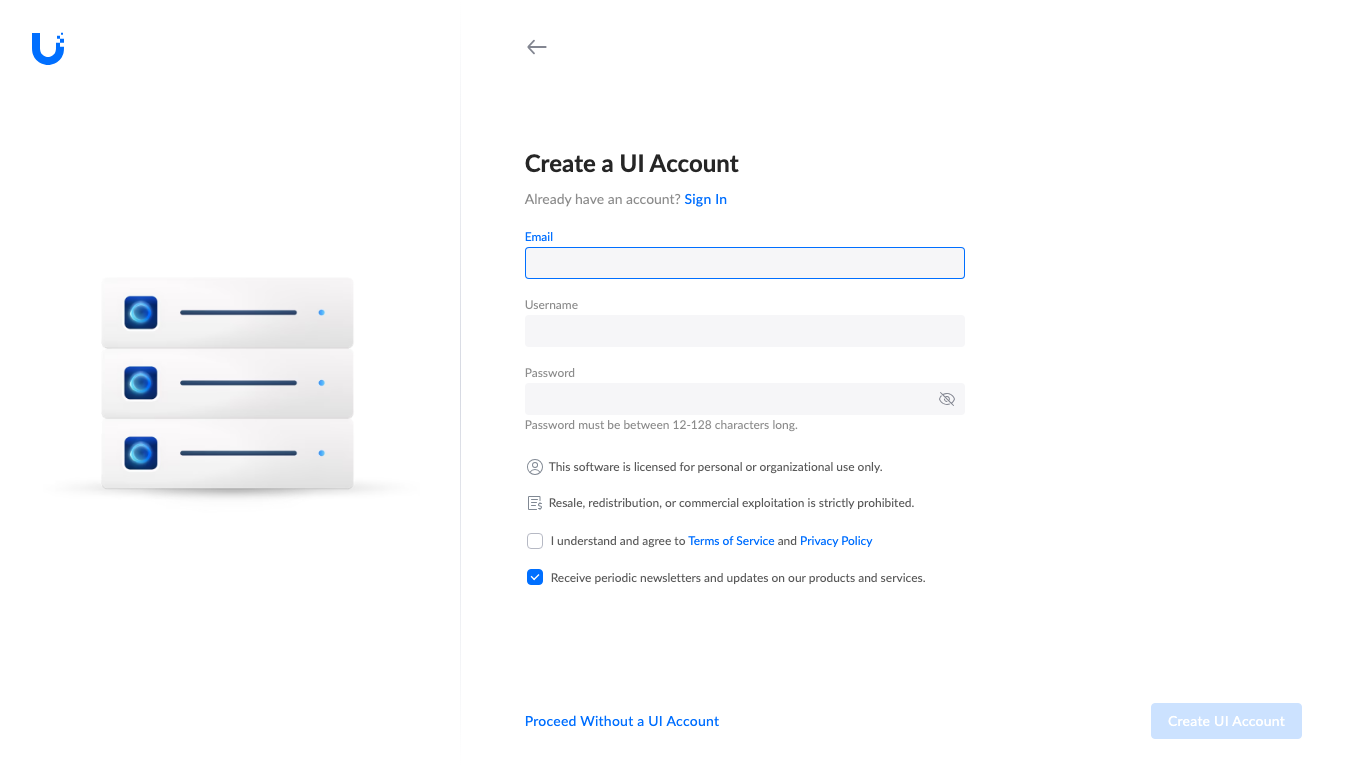
Pick the path that fits your deployment, agree to the Terms of Service, and continue. The wizard then provisions the UniFi Network application (currently the only app shipped with UniFi OS Server) and configures the server’s network identity. The progress bar quotes about one minute on a 4 vCPU / 8 GB box:
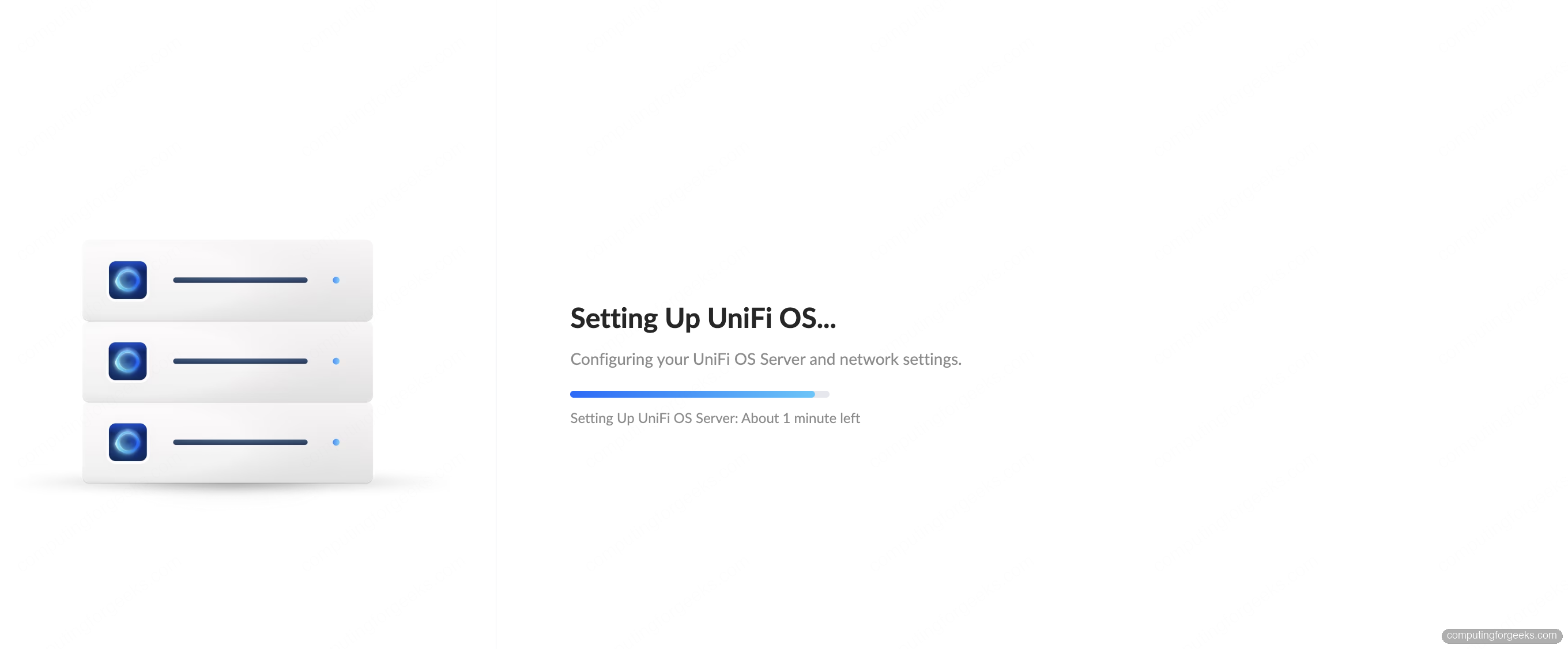
Behind the scenes this is MongoDB initializing its data directory, RabbitMQ generating SSL material for its broker, and Network bootstrapping its default site. Once it finishes you get the confirmation screen:
Click through and the dashboard loads. Two tabs sit at the top: UOS Server for host-level admin and Network for the actual UniFi controller. The Network tab is empty on a fresh install with no devices adopted yet, but the left column shows the server’s LAN IP, system uptime, and shortcut buttons for Adoption Instructions and Inform URL:
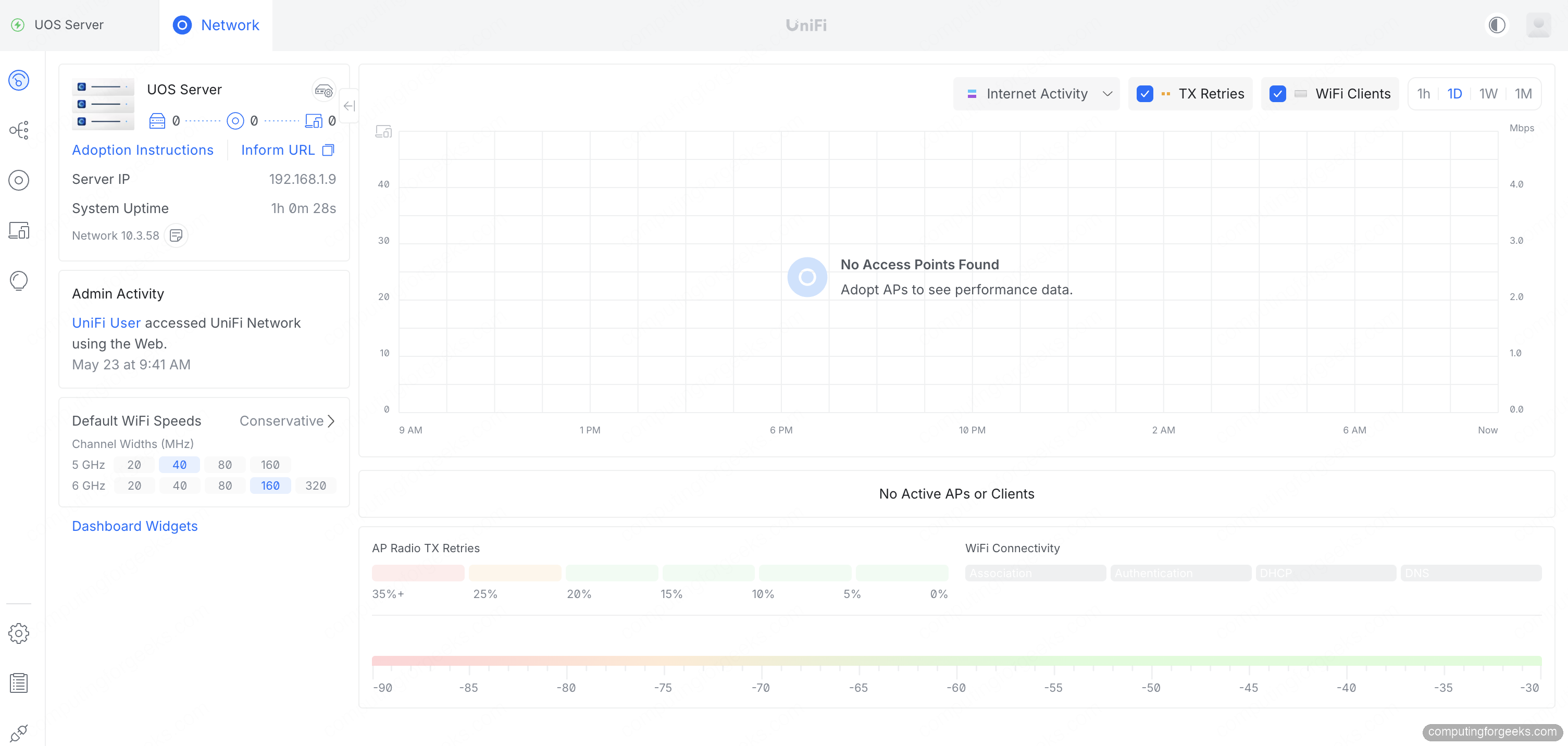
From here you adopt UniFi devices the same way you would on a Cloud Key. The next step covers what to do when those devices are already adopted by another console.
Step 7: Adopt devices already managed by another console
If you are switching from a previous UniFi setup (an older Network Application VM, a Cloud Key, a Dream Machine, or another self-hosted controller), your existing access points and switches show up under UniFi Devices with the status Managed by Another Console. They are visible because UDP discovery still reaches them on the LAN, but the new server cannot push configuration until they release the old controller:
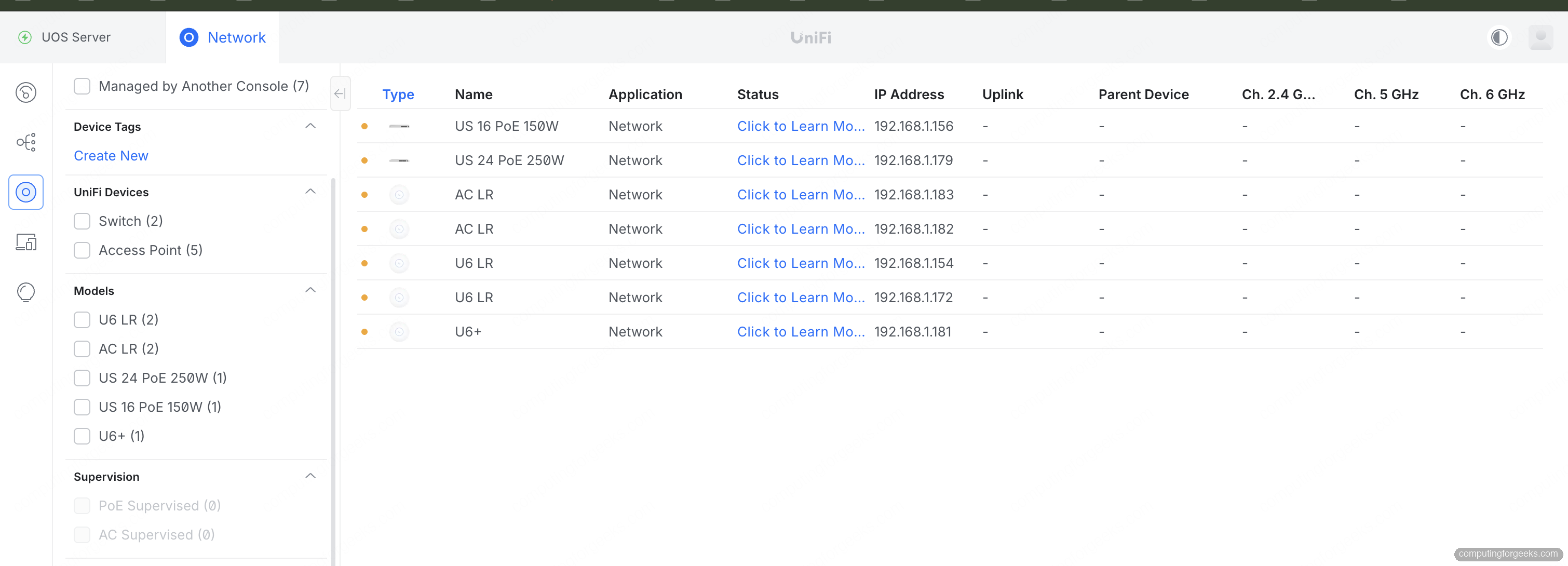
Two clean paths exist. Pick based on whether you want to keep existing site config or start fresh.
Path 1: Backup from the old controller, restore here
This is the migration path Ubiquiti officially supports and the one you want for production sites with custom settings, WLANs, firewall rules, and tagged client groups. On the old controller open Settings → System → Backups and download the .unf backup. Then on UniFi OS Server, also under Settings → System → Backups, click Upload Backup and choose the file. The full procedure with edge cases lives in UniFi Backups and Migration. Devices stay adopted, just under the new console URL.
Path 2: Forget on the old controller, re-adopt here
For a clean slate, log into the old controller, open each device, and click Forget (or Forget & Restore Factory Defaults). Within a few seconds the device shows up as Pending Adoption in the new console. Click Adopt and it joins the new site with default config. You lose the per-device tweaks but gain a known-clean state, which is worth it on long-running networks that have accumulated cruft.
Layer 3 adoption when devices are on a different subnet
Adoption uses UDP broadcasts on port 10001, which do not cross routers. If your access points sit on a VLAN that does not share L2 with UniFi OS Server, you need a Layer 3 adoption hint. The fastest fix is DHCP option 43 on the device VLAN; the second-fastest is setting the inform URL directly on each device. Both methods plus the byte-string format for option 43 are covered in Ubiquiti’s Remote Adoption (Layer 3) guide. The inform URL you point devices at is http://${UOS_HOST_IP}:8080/inform.
Last resort: SSH into the device and set the inform URL by hand
For devices that refuse to discover the new controller even after a factory reset (often older UAPs flashed with custom firmware), SSH directly into the device with the default credentials (ubnt/ubnt) and run set-inform http://${UOS_HOST_IP}:8080/inform. The device then appears as Pending Adoption. Running this from the device console plus other diagnostic commands is documented in Connecting to UniFi with Debug Tools and SSH.
Step 8: Manage the service with uosserver
The installer drops a top-level uosserver CLI on PATH. The verbs are intentionally small. Run it with help to see them all:
sudo uosserver helpOutput:
UOS Server: 5.0.8
Usage: uosserver <command>

Commands:
  start     Start the container
  stop      Stop the running container
  status    Display the status of the container and services
  shell     Open a shell session inside the container
  support   Generate support file
  version   Show current version
  help      Show this help message
The two you will hit most are shell when you need to poke around inside the running container, and support when Ubiquiti support asks for a tarball:
sudo uosserver shell
sudo uosserver support
To run uosserver without sudo, add your login user to the uosserver group and log out / back in:
sudo usermod -aG uosserver "${USER}"Step 9: Upgrade and uninstall
Upgrades happen automatically via uosserver-updater.service, which polls Ubiquiti for new container images and rolls them in place. You can disable that and pin a version manually by stopping the timer:
sudo systemctl disable --now uosserver-updaterManual upgrade: download the new installer binary from ui.com/download/software/unifi-os-server and run it again. The installer detects the existing install, stops the container, swaps the image, and restarts the service. Configuration and data in the named podman volumes survive.
To remove UniFi OS Server completely (container, volumes, systemd units, the uosserver user, every byte of config), use the dedicated purge command that ships with the installer:
sudo uosserver-purgeIt prompts twice before wiping anything. There is no undo, so make sure you have a backup from Settings → System → Backups in the web UI if you may want to restore later.
Troubleshooting
Error: “Missing container runtime /usr/bin/podman”
Exact error from the installer:
ERROR Failed to install UOS Server err=Error: Missing container runtime /usr/bin/podman
Please install it using your distro's package manager.
Cause: podman is not installed, or the binary is in a non-standard location. The installer hard-codes the path /usr/bin/podman and refuses anything else, including /usr/local/bin/podman from a manual build. Fix by installing the apt package as in Step 2.
Error: “Unable to correct problems, you have held broken packages”
If apt-get install -y podman fails with messages about missing dumb-init, slirp4netns, or passt, the apt indexes are partially downloaded. Wipe and refetch:
sudo rm -rf /var/lib/apt/lists/*
sudo apt-get update
sudo apt-get install -y podman uidmap
The universe component must be enabled in /etc/apt/sources.list.d/ubuntu.sources. Ubuntu Server 24.04 cloud images enable it by default; minimal Debian-derived images sometimes do not.
Web UI is unreachable on port 11443
The container binds to 0.0.0.0:11443 (mapped from :443 inside the container, because pasta rootless networking cannot bind privileged ports). If curl -k https://localhost:11443/ returns 200 from the host but the browser cannot reach it, the host firewall or an upstream device is blocking traffic. Verify the listener and check UFW:
ss -tlnp | grep ':11443'
sudo ufw status numbered
If you see no listener at all, the container failed to start. Check the service log:
sudo journalctl -u uosserver -n 100 --no-pagerDevices show up but stuck on “Managed by Another Console”
This is the expected state when you have migrated from an older controller without releasing the devices first. Step 7 covers the two clean paths (backup-restore and factory reset), and the Layer 3 + SSH inform URL fallbacks for stubborn devices. If a device sits in Adopting for more than a couple of minutes after Adopt, the device cannot reach the inform URL on TCP 8080. The same Layer 3 diagnostics from Step 7 apply.
Container is running but no devices appear at all
UniFi adoption uses UDP discovery on port 10001 and L2 broadcasts. If the server is on a different subnet from the access points, discovery fails silently and the device list stays empty. Confirm both the server and the devices share an L2 segment, or use DHCP option 43 / inform URL per Layer 3 Adoption. The option 43 byte-string format is 01:04:<hex-encoded-server-ip>; most home routers expose this as a custom DHCP option field.
You now have a working self-hosted UniFi OS Server on Ubuntu, with existing devices either migrated via backup or freshly adopted. If you are coming from the older UniFi Network Application install on Ubuntu, the backup-and-restore path in Step 7 preserves your sites, WLANs, and firewall rules. The UniFi controller in a Docker container route stays viable for users who want plain Docker over podman, but UniFi OS Server is the path Ubiquiti supports going forward for self-hosters.