

FreeRADIUS is an open-source, high-performance RADIUS server that handles authentication, authorization, and accounting (AAA) for network access. It supports request proxying with failover and load balancing, and connects to many backend databases including MySQL, PostgreSQL, and LDAP.
This guide covers installing FreeRADIUS with the daloRADIUS web management interface on Ubuntu 26.04, 24.04, and 22.04 LTS. The install steps are identical across all three releases; only the package versions differ, which the table below lists. daloRADIUS provides a PHP-based web dashboard for managing RADIUS users, NAS devices, billing plans, and accounting reports, mainly used for hotspot and ISP deployments. If you need a newer FreeRADIUS than the Ubuntu repositories ship, you can build FreeRADIUS from source instead.
Tested in June 2026 on Ubuntu 26.04, 24.04, and 22.04 with daloRADIUS 2.3. Every command and screenshot below comes from those runs.
| Component | Ubuntu 26.04 | Ubuntu 24.04 | Ubuntu 22.04 |
|---|---|---|---|
| FreeRADIUS | 3.2.8 | 3.2.5 | 3.0.26 |
| PHP | 8.5 | 8.3 | 8.1 |
| daloRADIUS | 2.3 | 2.3 | 2.3 |
| Config directory | /etc/freeradius/3.0/ on all three | ||
Prerequisites
- A server running Ubuntu 26.04, 24.04, or 22.04 LTS with at least 1GB RAM
- Root or sudo access
- Ports to open: 1812/UDP (RADIUS auth), 1813/UDP (RADIUS accounting), 80/TCP (daloRADIUS users portal), 8000/TCP (daloRADIUS operators portal)
Step 1: Update Ubuntu System
Start by updating all system packages to the latest available versions:
sudo apt update && sudo apt -y upgradeReboot if the kernel was updated:
[ -f /var/run/reboot-required ] && sudo reboot -fStep 2: Install Apache and PHP
daloRADIUS needs Apache and PHP with several extensions. Install the web server first:
sudo apt -y install apache2Then install PHP and all required extensions:
sudo apt -y install php libapache2-mod-php php-{gd,common,mail,mail-mime,mysql,pear,db,mbstring,xml,curl,zip}Confirm PHP is installed and working:
php -vYou should see the active PHP version. The output below is from Ubuntu 24.04; on 26.04 you get PHP 8.5 and on 22.04 PHP 8.1:
PHP 8.3.6 (cli) (built: Jan 27 2026 03:09:47) (NTS)
Copyright (c) The PHP Group
Zend Engine v4.3.6, Copyright (c) Zend Technologies
    with Zend OPcache v8.3.6, Copyright (c), by Zend Technologies
Step 3: Install MariaDB and Create Database
FreeRADIUS stores user credentials, NAS information, and accounting data in a database. Install MariaDB server:
sudo apt -y install mariadb-serverCreate the RADIUS database and a dedicated user. Log into MariaDB and run these SQL statements:
sudo mariadbAt the MariaDB prompt, create the database and grant permissions:
CREATE DATABASE radius;
GRANT ALL ON radius.* TO radius@localhost IDENTIFIED BY "Str0ngR@diusPass";
FLUSH PRIVILEGES;
QUIT;
Replace Str0ngR@diusPass with your own strong password. If you have a dedicated database server, replace localhost with the IP address of the FreeRADIUS server.
Step 4: Install and Configure FreeRADIUS
Ubuntu ships FreeRADIUS in its default repositories: 3.2.8 on 26.04, 3.2.5 on 24.04, and 3.0.26 on 22.04. Check what is available on your system:
sudo apt policy freeradiusThe output shows the candidate version from the Ubuntu repositories:
freeradius:
  Installed: (none)
  Candidate: 3.2.5+dfsg-3~ubuntu24.04.3
  Version table:
     3.2.5+dfsg-3~ubuntu24.04.3 500
        500 http://archive.ubuntu.com/ubuntu noble-updates/main amd64 Packages
Install FreeRADIUS along with the MySQL module and utility tools:
sudo apt -y install freeradius freeradius-mysql freeradius-utilsImport the FreeRADIUS MySQL Schema
FreeRADIUS includes a SQL schema that creates the tables it needs for storing users, groups, and accounting records. The schema file is readable only by root and the freerad user, so the import must run inside a root shell. A plain sudo mysql with a shell redirect fails with Permission denied because your unprivileged shell opens the file, not sudo:
sudo bash -c "mysql -u root radius < /etc/freeradius/3.0/mods-config/sql/main/mysql/schema.sql"Verify the tables were created:
sudo mysql -u root -e "USE radius; SHOW TABLES;"You should see the core FreeRADIUS tables including radcheck, radacct, and nas:
+------------------+
| Tables_in_radius |
+------------------+
| nas              |
| nasreload        |
| radacct          |
| radcheck         |
| radgroupcheck    |
| radgroupreply    |
| radpostauth      |
| radreply         |
| radusergroup     |
+------------------+
Enable and Configure the SQL Module
Create a symbolic link to enable the SQL module:
sudo ln -s /etc/freeradius/3.0/mods-available/sql /etc/freeradius/3.0/mods-enabled/Open the SQL module configuration file:
sudo vi /etc/freeradius/3.0/mods-enabled/sqlUpdate the connection parameters in the sql block to match your database credentials:
sql {
    driver = "rlm_sql_mysql"
    dialect = "mysql"

    # Connection info:
    server = "localhost"
    port = 3306
    login = "radius"
    password = "Str0ngR@diusPass"

    # Database table configuration for everything except Oracle
    radius_db = "radius"

    # Set to 'yes' to read radius clients from the database ('nas' table)
    # Clients will ONLY be read on server startup.
    read_clients = yes

    # Table to keep radius client info
    client_table = "nas"
}
The default values for driver and dialect are set to rlm_sql_null and sqlite. Change them to rlm_sql_mysql and mysql. The server, port, login, password, and radius_db lines are commented out by default, so uncomment and set them.
In the same file, find the mysql block and comment out the entire tls section inside it. FreeRADIUS will fail to start if the TLS certificate files do not exist:
        mysql {
                # If any of the files below are set, TLS encryption is enabled
#               tls {
#                       ca_file = "/etc/ssl/certs/my_ca.crt"
#                       ca_path = "/etc/ssl/certs/"
#                       certificate_file = "/etc/ssl/certs/private/client.crt"
#                       private_key_file = "/etc/ssl/certs/private/client.key"
#                       cipher = "DHE-RSA-AES256-SHA:AES128-SHA"
#
#                       tls_required = yes
#                       tls_check_cert = no
#                       tls_check_cert_cn = no
#               }

                # If yes, (or auto and libmysqlclient reports warnings are
                # available), will retrieve and log additional warnings from
                # the server if an error has occured. Defaults to 'auto'
                warnings = auto
        }
Set the correct ownership on the SQL module files so the freerad user can read them:
sudo chgrp -h freerad /etc/freeradius/3.0/mods-available/sql
sudo chown -R freerad:freerad /etc/freeradius/3.0/mods-enabled/sql
Restart FreeRADIUS to load the SQL module:
sudo systemctl restart freeradius.serviceVerify the service is running:
systemctl status freeradius.serviceThe output should show active (running) with "Processing requests" as the status:
● freeradius.service - FreeRADIUS multi-protocol policy server
     Loaded: loaded (/usr/lib/systemd/system/freeradius.service; enabled; preset: enabled)
     Active: active (running) since Sat 2026-03-21 20:43:48 UTC; 9ms ago
       Docs: man:radiusd(8)
             man:radiusd.conf(5)
             http://wiki.freeradius.org/
             http://networkradius.com/doc/
    Process: 15105 ExecStartPre=/usr/sbin/freeradius $FREERADIUS_OPTIONS -Cx -lstdout (code=exited, status=0/SUCCESS)
   Main PID: 15107 (freeradius)
     Status: "Processing requests"
      Tasks: 6 (limit: 2315)
     Memory: 42.9M (max: 2.0G)
        CPU: 261ms
     CGroup: /system.slice/freeradius.service
             └─15107 /usr/sbin/freeradius -f
If the restart fails with Job for freeradius.service failed because the control process exited with error code, check the log with journalctl -u freeradius -n 30. The most common cause is ERROR 1146 (Table 'radius.nas' doesn't exist), which means the schema import above never actually ran; with read_clients = yes FreeRADIUS reads the nas table at startup and refuses to start without it. Re-run the import with the sudo bash -c form, confirm SHOW TABLES lists the nine tables, then restart again. The second cause is a typo in the SQL credentials, and the third is a missed tls block comment-out; sudo freeradius -XC pinpoints either one.
Step 5: Install and Configure daloRADIUS
daloRADIUS provides a web-based management interface for FreeRADIUS with user management, billing, graphical reporting, and NAS configuration. Clone the latest stable release from GitHub:
sudo apt -y install git
git clone --branch 2.3 https://github.com/lirantal/daloradius.git #https://github.com/lirantal/daloradius/tags
Import daloRADIUS Database Tables
The clone is pinned to the tested 2.3 release on purpose. The active development branch currently ships an operators table whose seed row no longer matches its columns, so its mariadb-daloradius.sql aborts the import with ERROR 1136 (21S01): Column count doesn't match value count at row 1 and leaves daloRADIUS half-installed. The tagged release imports cleanly.
daloRADIUS ships two SQL schema files. One extends the FreeRADIUS tables and the other creates daloRADIUS-specific tables for operators, billing, and hotspot management:
sudo mysql -u root radius < daloradius/contrib/db/fr3-mariadb-freeradius.sql
sudo mysql -u root radius < daloradius/contrib/db/mariadb-daloradius.sql
Configure daloRADIUS Database Connection
Move the daloRADIUS directory to the web server root:
sudo mv daloradius /var/www/Create the configuration file from the sample and set the correct ownership:
cd /var/www/daloradius/app/common/includes/
sudo cp daloradius.conf.php.sample daloradius.conf.php
sudo chown www-data:www-data daloradius.conf.php
Open the configuration file:
sudo vi daloradius.conf.phpUpdate the database connection variables to match what you configured in Step 3. The defaults use raduser, radpass, and raddb, so change them to your actual values:
$configValues['CONFIG_DB_HOST'] = 'localhost';
$configValues['CONFIG_DB_PORT'] = '3306';
$configValues['CONFIG_DB_USER'] = 'radius';
$configValues['CONFIG_DB_PASS'] = 'Str0ngR@diusPass';
$configValues['CONFIG_DB_NAME'] = 'radius';
Create the log and backup directories that daloRADIUS needs:
cd /var/www/daloradius/
sudo mkdir -p var/{log,backup}
sudo chown -R www-data:www-data var
Step 6: Configure Apache Virtual Hosts for daloRADIUS
daloRADIUS 2.x has two separate portals: an operators portal for administration (port 8000) and a users self-service portal (port 80). Each needs its own Apache virtual host.
First, add port 8000 to Apache's listening ports. Open the ports configuration file:
sudo vi /etc/apache2/ports.confAdd the Listen 8000 directive so Apache accepts connections on both ports:
Listen 80
Listen 8000

<IfModule ssl_module>
    Listen 443
</IfModule>

<IfModule mod_gnutls.c>
    Listen 443
</IfModule>
Create the operators virtual host on port 8000. Create a new file:
sudo vi /etc/apache2/sites-available/operators.confAdd the following virtual host configuration:
<VirtualHost *:8000>
    ServerAdmin operators@localhost
    DocumentRoot /var/www/daloradius/app/operators

    <Directory /var/www/daloradius/app/operators>
        Options -Indexes +FollowSymLinks
        AllowOverride None
        Require all granted
    </Directory>

    <Directory /var/www/daloradius>
        Require all denied
    </Directory>

    ErrorLog ${APACHE_LOG_DIR}/daloradius/operators/error.log
    CustomLog ${APACHE_LOG_DIR}/daloradius/operators/access.log combined
</VirtualHost>
Create the users virtual host on port 80:
sudo vi /etc/apache2/sites-available/users.confAdd this configuration:
<VirtualHost *:80>
    ServerAdmin users@localhost
    DocumentRoot /var/www/daloradius/app/users

    <Directory /var/www/daloradius/app/users>
        Options -Indexes +FollowSymLinks
        AllowOverride None
        Require all granted
    </Directory>

    <Directory /var/www/daloradius>
        Require all denied
    </Directory>

    ErrorLog ${APACHE_LOG_DIR}/daloradius/users/error.log
    CustomLog ${APACHE_LOG_DIR}/daloradius/users/access.log combined
</VirtualHost>
Enable the new virtual hosts, create the log directories, and disable the default site:
sudo a2ensite users.conf operators.conf
sudo mkdir -p /var/log/apache2/daloradius/{operators,users}
sudo a2dissite 000-default.conf
Restart both Apache and FreeRADIUS to apply all changes:
sudo systemctl restart apache2 freeradiusStep 7: Open Firewall Ports
If UFW firewall is active, allow the required ports for RADIUS and daloRADIUS:
sudo ufw allow 1812/udp
sudo ufw allow 1813/udp
sudo ufw allow 80/tcp
sudo ufw allow 8000/tcp
sudo ufw reload
Step 8: Verify the Installation
Confirm both services are running:
systemctl status apache2 freeradiusBoth services should show active (running):
● apache2.service - The Apache HTTP Server
     Loaded: loaded (/usr/lib/systemd/system/apache2.service; enabled; preset: enabled)
     Active: active (running) since Sat 2026-03-21 20:44:47 UTC; 3s ago
...
● freeradius.service - FreeRADIUS multi-protocol policy server
     Loaded: loaded (/usr/lib/systemd/system/freeradius.service; enabled; preset: enabled)
     Active: active (running) since Sat 2026-03-21 20:44:47 UTC; 3s ago
Test RADIUS authentication by adding a test user and running radtest:
sudo mysql -u root -e "INSERT INTO radcheck (username, attribute, op, value) VALUES ('testuser', 'Cleartext-Password', ':=', 'testpass123');" radius
radtest testuser testpass123 127.0.0.1 0 testing123
A successful authentication returns Access-Accept:
Sent Access-Request Id 190 from 0.0.0.0:40859 to 127.0.0.1:1812 length 78
	User-Name = "testuser"
	User-Password = "testpass123"
	NAS-IP-Address = 127.0.1.1
	NAS-Port = 0
	Message-Authenticator = 0x00
	Cleartext-Password = "testpass123"
Received Access-Accept Id 190 from 127.0.0.1:1812 to 127.0.0.1:40859 length 38
Step 9: Access daloRADIUS Web Interface
Open a browser and navigate to the daloRADIUS portals using your server's IP address:
- Operators portal (administration):
http://your-server-ip:8000/ - Users portal (self-service):
http://your-server-ip/
The operators portal on port 8000 opens to a login screen:
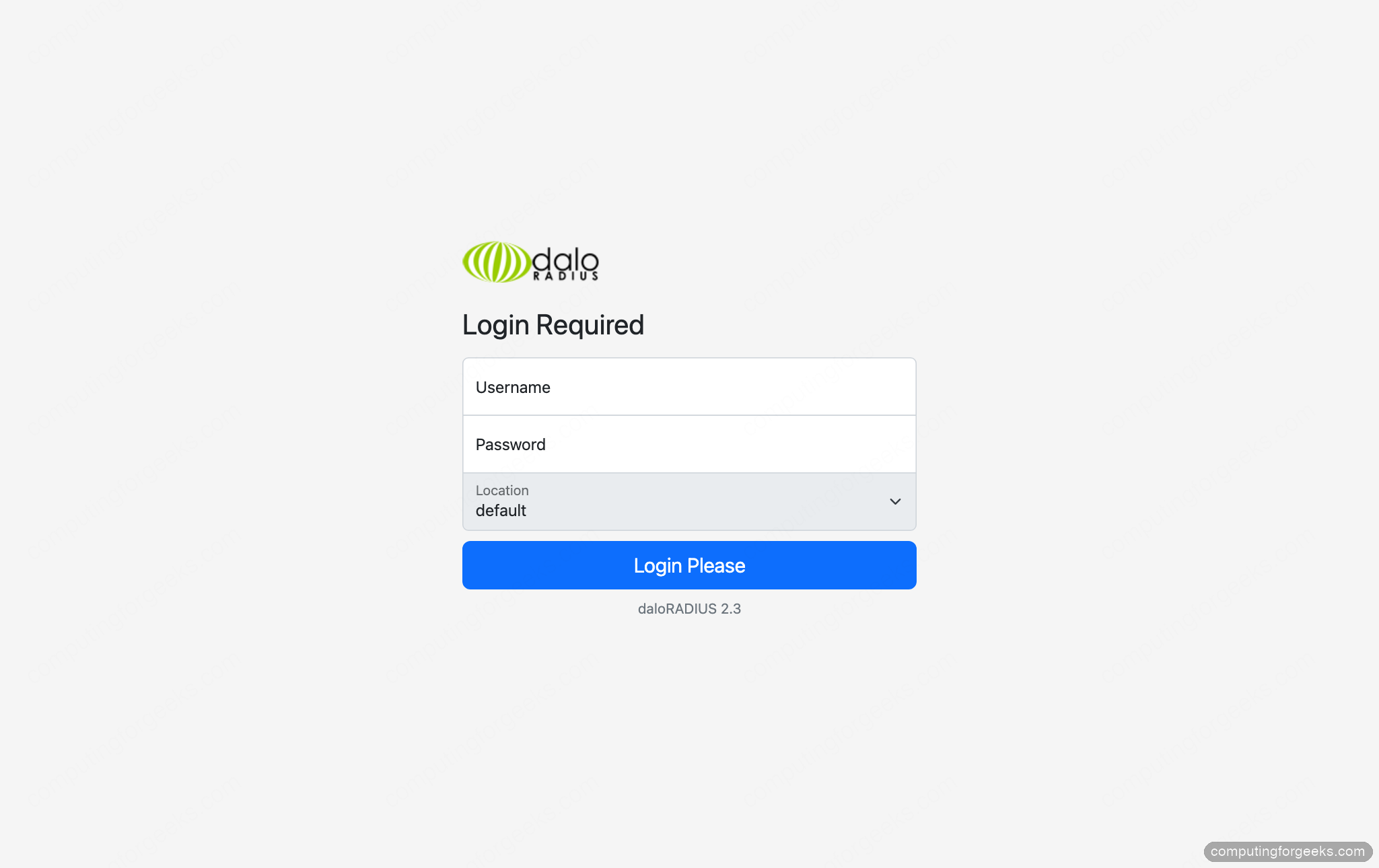
The default login credentials for the operators portal are:
Username: administrator
Password: radius
Change this password immediately after first login from the operators portal under Config > Operators.
After signing in, the dashboard summarizes server status, the latest connection attempts, and the count of registered users and NAS devices:
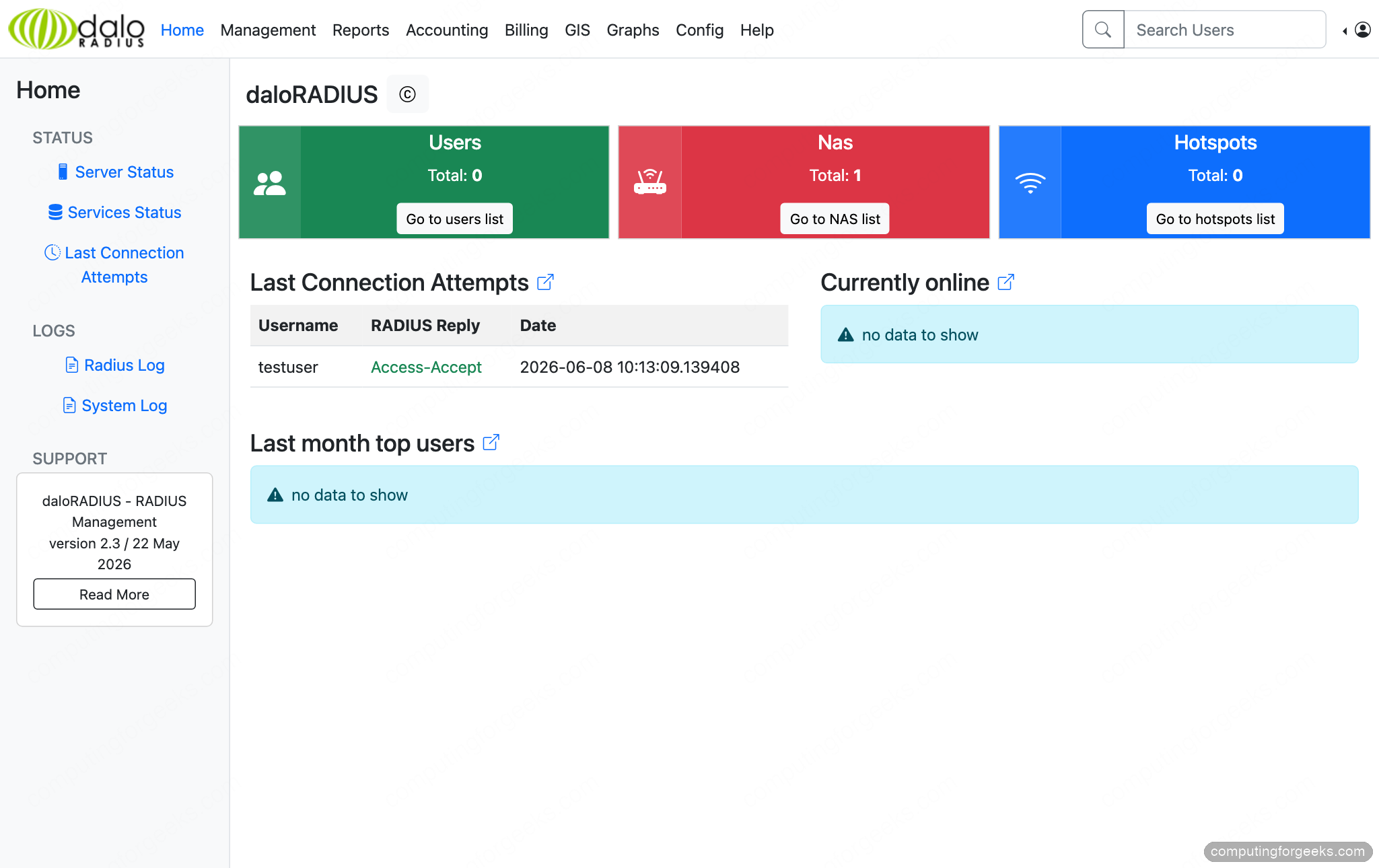
Register your network access servers (routers, switches, or access points) under Management > Nas before they authenticate against FreeRADIUS:
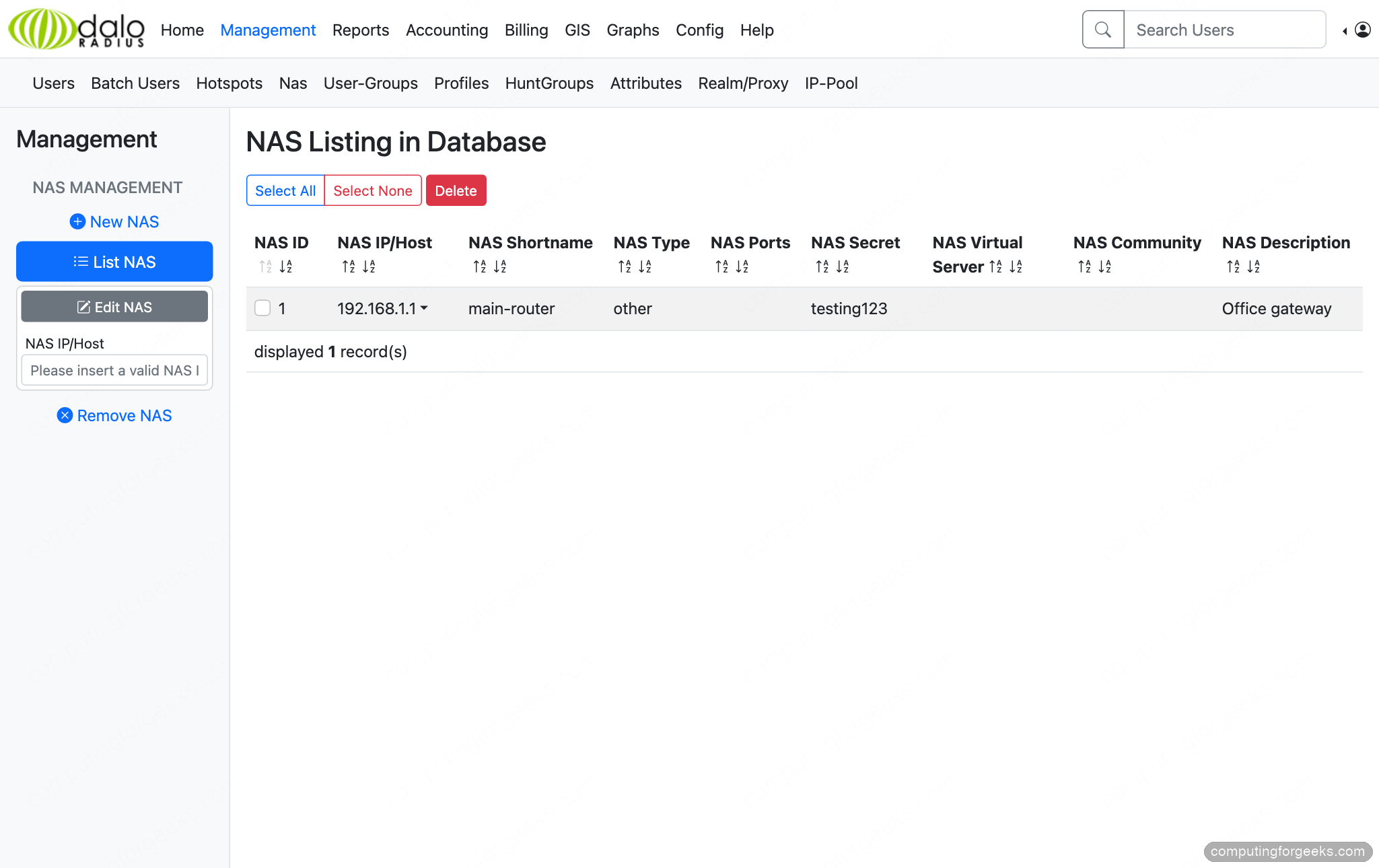
With a NAS registered and a user in place, daloRADIUS becomes the single console for managing users, tracking accounting, and running reports against FreeRADIUS.
Next steps
FreeRADIUS and daloRADIUS are now running on your Ubuntu server with MariaDB as the backend database. The RADIUS server handles authentication on ports 1812/1813 UDP while daloRADIUS provides web management on ports 80 and 8000.
For production deployments, secure the daloRADIUS web interface with HTTPS using Let's Encrypt, restrict access to the operators portal by IP, and set up regular database backups. You can find the installation guide for other Linux distributions below:




You should not run this command sudo mysql -u root -p radius < contrib/db/fr2-mysql-daloradius-and-freeradius.sql. It will drop all of your tables in the previous steps.
Hi,
I have the connection page but after clic on connect button, i have a white page and nothing
Any Idea
Please try with the updated article.
you save me
thank very much
Thanks and welcome.
When I run this command
root@svr-radius01:~# sudo mysql -u root radius < daloradius/contrib/db/mariadb-daloradius.sql
I get
————–
INSERT INTO `operators` VALUES (1,'administrator','radius','','','','','','','','','','','','',NULL,CURRENT_TIMESTAMP,'admin',NULL,NULL)
————–
ERROR 1136 (21S01) at line 10299: Column count doesn't match value count at row 1
can someone help please
thanks
This is an upstream daloRADIUS bug, not your setup. The development branch you cloned added five TOTP columns to the operators table but never updated its seed row, so the INSERT has 20 values against 25 columns and the import aborts at that line. The guide now clones the tagged 2.3 release, which imports cleanly.
Since the failed import left the database half-built, switch to the release and rebuild it:
cd daloradius
git checkout 2.3
sudo mysql -e “DROP DATABASE radius; CREATE DATABASE radius;”
sudo mysql -u root radius < /etc/freeradius/3.0/mods-config/sql/main/mysql/schema.sql sudo mysql -u root radius < daloradius/contrib/db/fr3-mariadb-freeradius.sql sudo mysql -u root radius < daloradius/contrib/db/mariadb-daloradius.sql The operators portal then logs in with administrator / radius.
When I execute the following command
sudo systemctl restart freeradius.service
Job for freeradius.service failed because the control process exited with error code.
See “systemctl status freeradius.service” and “journalctl -xeu freeradius.service” for details.
Any help is apreciated
That failure is almost always an empty radius database. The schema import command in the earlier revision of this guide failed silently with Permission denied when run from a sudo user, and with read_clients = yes FreeRADIUS will not start because the nas table is missing. Check journalctl -u freeradius -n 30; if you see ERROR 1146 (Table radius.nas does not exist), re-run the import as
sudo bash -c “mysql -u root radius < /etc/freeradius/3.0/mods-config/sql/main/mysql/schema.sql" then restart the service. The guide now carries the corrected command. If the tables already exist, run sudo freeradius -XC and it will point at the actual failing line, usually a credentials typo or a tls block in mods-enabled/sql that was not commented out.