

If you opened a terminal on a fresh Fedora install lately, you ran DNF5 whether you knew it or not. The legacy dnf binary is gone from the default workstation; /usr/bin/dnf is a direct symlink to /usr/bin/dnf5, and the old Python-based DNF4 isn’t even in the base package set. Most online tutorials still show DNF4 syntax that quietly works through compatibility shims, which means readers paste outdated flags and miss the genuinely useful new subcommands.
This dnf5 cheatsheet collects the commands that actually earn their place on a working Fedora box. Real syntax, captured from a Fedora 44 lab clone, covering search and install, groups and environments, COPR, transaction history and rollback, offline release upgrades, versionlock, and the speed knobs that most installs leave on conservative defaults. Every command in the article was executed; nothing was extrapolated from the man page. For the broader RHEL-family picture, the DNF package manager guide for Rocky and AlmaLinux stays accurate for those distros.
Tested May 2026 on Fedora 44 (kernel 7.0.8-200.fc44), dnf5 5.4.2.1, libdnf5 5.4.2.1. Commands also verified on Fedora 43 and Fedora 42 clones.
Verify DNF5 is your default
On Fedora 44 there is no DNF4 left on the system, but a quick sanity check pays for itself the first time someone hands you a borrowed VM. Check the binary and version:
readlink -f /usr/bin/dnf
dnf5 --version
The first line should resolve to /usr/bin/dnf5. The version line confirms the engine and lists every loaded plugin. On a default F44 install, you should see something like this:
dnf5 version 5.4.2.1
dnf5 plugin API version 2.0
libdnf5 version 5.4.2.1
libdnf5 plugin API version 2.2

Loaded dnf5 plugins:
  name: builddep
  name: changelog
  name: config-manager
  name: copr
  name: needs_restarting
  name: repoclosure
  name: repomanage
  name: reposync
If dnf is missing on Fedora 43 or 42 (rare but possible after aggressive minimization), reinstall the metapackage with sudo dnf5 install dnf5 dnf5-plugins. A clean run of the verification commands on a freshly-cloned Fedora 44 box looks like this:
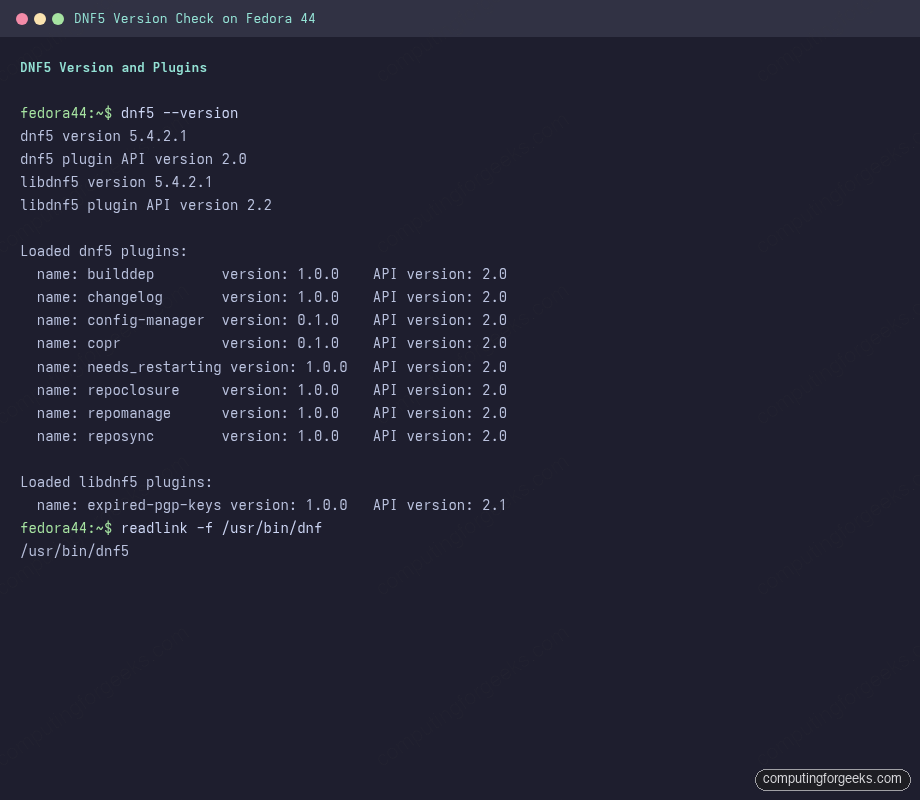
The eight loaded plugins are what give DNF5 its modern feature surface: copr for community repos, changelog for RPM changelog inspection, config-manager for repo management, and so on. Older Fedora releases that still shipped DNF4 alongside DNF5 typically loaded fewer plugins by default.
Search and inspect packages
Most DNF5 sessions start by figuring out whether the thing you want is even packaged. Four commands cover 90% of that work: search, info, list, and provides.
dnf5 search htop
dnf5 info htop
dnf5 list --installed "kernel*"
dnf5 provides /usr/bin/htop
The output of dnf5 list --installed "kernel*" on a recently updated box shows every kernel still on disk, which is useful when GRUB is misbehaving or you need to free space:
Installed packages
kernel-core.x86_64         6.19.10-300.fc44 4e4a4f70cfdd4047b39087e8606c2591
kernel-core.x86_64         7.0.8-200.fc44   updates
kernel-core.x86_64         7.0.9-205.fc44   updates
kernel-modules-core.x86_64 6.19.10-300.fc44 4e4a4f70cfdd4047b39087e8606c2591
kernel-modules-core.x86_64 7.0.8-200.fc44   updates
kernel-modules-core.x86_64 7.0.9-205.fc44   updates
For richer queries, repoquery handles dependency walks. Common variants:
dnf5 repoquery --requires htop
dnf5 repoquery --whatrequires libcurl
dnf5 repoquery --installonly
dnf5 changelog htop
The changelog subcommand is the DNF5 way to read RPM changelog entries without dropping into rpm -q --changelog. It pulls from the repo metadata, so you can read changelogs for packages that aren’t installed yet.
Install, reinstall, and remove packages
Single-package installs work exactly how you would expect. The verbs that pay off on F44 are swap (atomic replace, useful for switching codec stacks) and autoremove (clears leaf packages no longer needed). For a fresh install:
sudo dnf5 install -y htop
sudo dnf5 install -y --setopt=install_weak_deps=False htop
sudo dnf5 reinstall -y htop
sudo dnf5 remove -y htop
sudo dnf5 autoremove -y
The install_weak_deps=False flag is the cleanest way to get a slim install when a package pulls a long Recommends list you don’t want on a server. For the codec-swap pattern from the RPM Fusion multimedia codecs guide:
sudo dnf5 swap ffmpeg-free ffmpeg --allowerasing
sudo dnf5 swap libavcodec-free libavcodec-freeworld --allowerasing
To see only the user-installed packages sitting at the top of the dependency tree (the ones you’d actually miss if they vanished), use the leaves command. It’s perfect for auditing what’s actually on a box versus what came along as deps:
dnf5 leaves | tail -20Output is grouped: top-level user packages are flagged with a leading dash, and packages installed as their dependencies are indented underneath. A live install transaction shows DNF5’s per-step progress bars, which separate download, verify, prepare, and install phases distinctly:
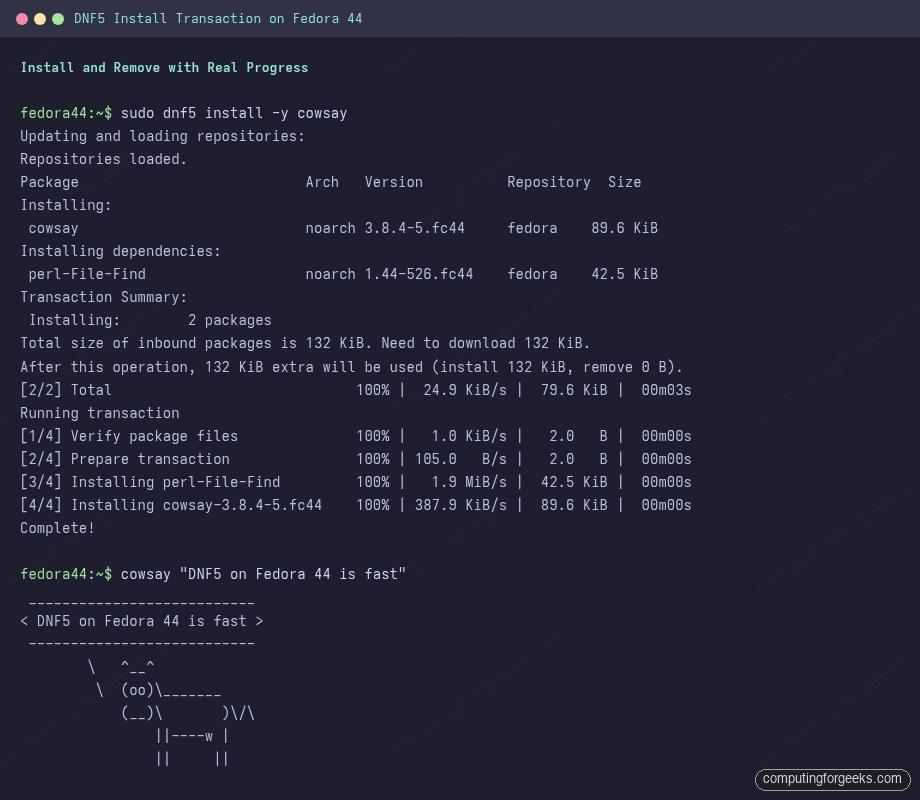
Notice the four numbered phases at the bottom: each step’s bandwidth and elapsed time is reported separately, so a slow mirror or a failing GPG check shows up as a stalled bar in a specific phase rather than a generic timeout.
Update and upgrade
DNF5 separates security advisories, minimal patches, and full upgrades into distinct verbs. Pick the one that matches your patching policy:
sudo dnf5 check-upgrade
sudo dnf5 upgrade -y
sudo dnf5 upgrade-minimal -y
sudo dnf5 distro-sync -y
sudo dnf5 upgrade --advisory=FEDORA-2026-66bba52149
The upgrade-minimal command picks the lowest version that fixes outstanding bugs, instead of the latest. On servers where you only want CVE fixes, this is the safer default. distro-sync aligns every installed package with what the enabled repos currently ship, including downgrades, which is the command you want after disabling a third-party repo whose packages now outrank Fedora’s.
To freeze a specific package at a known version (typical for kernel, glibc, or anything tied to a vendor support matrix), use versionlock:
sudo dnf5 install -y dnf5-plugins
sudo dnf5 versionlock add kernel-core
sudo dnf5 versionlock list
sudo dnf5 versionlock delete kernel-core
Versionlock writes its entries to /etc/dnf/versionlock.toml (TOML, not the old INI format), so config-management tools can drop the file in directly.
Groups and environments
Groups bundle related packages so you can install a whole role in one shot. Fedora ships dozens of them, from the obvious (Development Tools) to the niche (Neuron Modelling Simulators). List them, then inspect what a group actually contains before installing:
dnf5 group list
dnf5 group info "Development Tools"
sudo dnf5 group install -y "Development Tools"
Environments are the layer above groups. The workstation-product-environment is what Anaconda installs when you pick “Fedora Workstation” at install time; kde-desktop-environment is the Plasma equivalent. List and inspect:
dnf5 environment list
dnf5 environment info workstation-product-environment
The list output names every environment and whether it is installed on the current box:
ID                                Name                                 Installed
custom-environment                Fedora Custom Operating System              no
workstation-product-environment   Fedora Workstation                          no
server-product-environment        Fedora Server Edition                       no
cloud-server-environment          Fedora Cloud Server                        yes
kde-desktop-environment           KDE Plasma Workspaces                       no
kde-mobile-environment            KDE Plasma Mobile                           no
To swap a server install into a Plasma desktop without reinstalling, install the matching environment and reboot. The same machinery is what the KDE Plasma 6.6 on Fedora 44 walkthrough uses under the hood.
Repositories, COPR, and config-manager
Adding third-party repos used to mean dropping a .repo file into /etc/yum.repos.d/ by hand. DNF5 wraps that in a proper subcommand, with both repo-file URLs and ad-hoc baseurl options supported:
dnf5 repo list
sudo dnf5 config-manager addrepo --from-repofile=https://download.docker.com/linux/fedora/docker-ce.repo
sudo dnf5 config-manager setopt fedora-cisco-openh264.enabled=1
sudo dnf5 config-manager disable fedora-cisco-openh264
The setopt command is the per-repo equivalent of --setopt on a single invocation, but it persists. Use it for things like raising priority or pinning excludepkgs for a specific repo.
COPR (Cool Other Package Repo) is Fedora’s user-contributed package hosting. The plugin gives you a clean enable/disable interface without touching repo files:
sudo dnf5 copr enable atim/starship
sudo dnf5 install -y starship
sudo dnf5 copr list
sudo dnf5 copr disable atim/starship
sudo dnf5 copr remove atim/starship
The difference between disable and remove is important: disable sets enabled=0 in the repo file (reversible), remove deletes the file. For temporary debugging, always pick disable.
Manage transaction history and rollback changes
Every DNF5 transaction is journalled in /var/lib/dnf/history.sqlite. The history subcommand lists, inspects, undoes, and replays them. Start with the list:
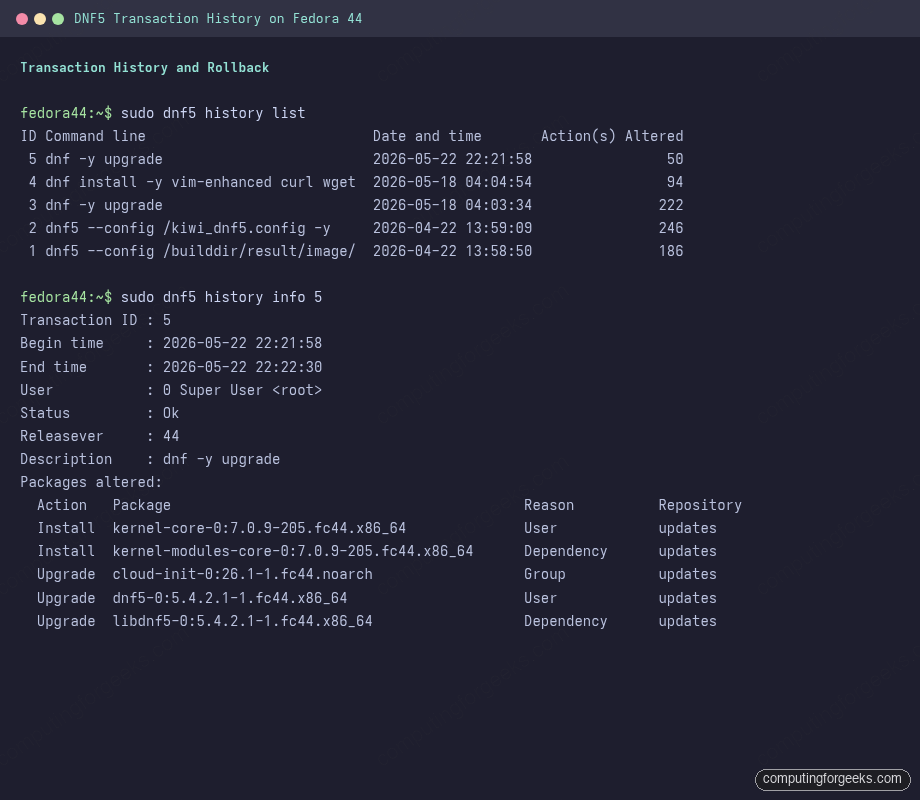
sudo dnf5 history listYou get one row per transaction with the actual command line, the timestamp, and how many packages were touched:
ID Command line                           Date and time       Action(s) Altered
 5 dnf -y upgrade                         2026-05-22 22:21:58                50
 4 dnf install -y vim-enhanced curl wget  2026-05-18 04:04:54                94
 3 dnf -y upgrade                         2026-05-18 04:03:34               222
 2 dnf5 --config /kiwi_dnf5.config -y     2026-04-22 13:59:09               246
 1 dnf5 --config /builddir/result/image/  2026-04-22 13:58:50               186
Drill into a specific transaction to see exactly which packages moved and why (User, Dependency, Group):
sudo dnf5 history info 5The output groups everything for that transaction by action type, with the install reason tagged per package. Real history list and drill-down on a recently upgraded Fedora 44 box:
To undo a bad transaction (uninstalls anything it installed, reinstalls anything it removed), name it by ID:
sudo dnf5 history undo 5The replay command goes further. You can store any transaction with --store=PATH, then re-run that exact transaction on another box. This is the modern answer to “how do I reproduce my dev install on the prod box?”:
sudo dnf5 install --store=/tmp/dev-install htop tmux fish
sudo rsync -a /tmp/dev-install/ user@prod:/tmp/dev-install/
ssh user@prod "sudo dnf5 replay /tmp/dev-install"
Speed up DNF5 with parallel downloads and cache
The compiled default for max_parallel_downloads is 3, which is conservative for modern fibre links. The max DNF5 will accept is 20. For most home and office connections, 10 is a sensible upper bound that doesn’t trip rate limits on Fedora’s mirror network. Edit the main config:
sudo vi /etc/dnf/dnf.confReplace the bare [main] stub Fedora ships with these tuned defaults:
[main]
gpgcheck=True
installonly_limit=3
clean_requirements_on_remove=True
best=False
skip_if_unavailable=True
max_parallel_downloads=10
fastestmirror=True
defaultyes=True
keepcache=True
Setting fastestmirror=True tells libdnf5 to pick mirrors by TCP socket latency rather than the order in the mirrorlist. The cost is a one-time latency probe; the win is download speed on every subsequent transaction. keepcache=True means downloaded RPMs survive between transactions, so a retry after a failed upgrade doesn’t re-download 800 MB.
Force a metadata refresh after editing the config and clear the cache if a previous transaction looks stale:
sudo dnf5 makecache
sudo dnf5 clean all
sudo dnf5 clean packages
Upgrade between Fedora releases offline
Major-version upgrades (F43 to F44, F44 to F45) run as offline transactions: DNF downloads everything, you reboot, the actual upgrade runs in a minimal early-boot environment with no graphical session to interfere. The flow lives under the system-upgrade subcommand. The full walkthrough is in the Fedora 43 to 44 upgrade guide; the quick reference is here:
sudo dnf5 upgrade -y
sudo dnf5 system-upgrade download --releasever=44
sudo dnf5 system-upgrade reboot
sudo dnf5 system-upgrade status
sudo dnf5 system-upgrade log
sudo dnf5 system-upgrade clean
The download step pulls the new release’s metadata and every upgraded package into a staging area without touching the running system. reboot arms the early-boot transaction. After the upgrade boots back to your normal desktop, status confirms the result and log shows the dnf log from inside the upgrade transaction, which is invaluable when a package conflict aborts the upgrade mid-flight.
For point-release sync without crossing a release boundary, offline-distrosync is the sibling command. It runs a full distro-sync as an offline transaction, useful when you want to align everything in one atomic reboot.
DNF4 to DNF5 quick reference
If you came from DNF4 (Fedora 40 and older, or RHEL/Rocky/Alma 10), most muscle memory still works, but a handful of changes will trip you up. Worth knowing:
| Task | DNF4 | DNF5 |
|---|---|---|
| Repo enable/disable | dnf config-manager --enable repo | dnf5 config-manager enable repo |
| Add repo file | dnf config-manager --add-repo URL | dnf5 config-manager addrepo --from-repofile=URL |
| Persist a repo option | dnf config-manager --save --setopt | dnf5 config-manager setopt |
| List groups | dnf grouplist | dnf5 group list (subcommand, not concatenated) |
| Show environments | dnf grouplist --hidden | dnf5 environment list |
| Versionlock | INI in /etc/dnf/plugins/versionlock.list | TOML in /etc/dnf/versionlock.toml |
| Top-level packages | (no equivalent) | dnf5 leaves |
| Replay a transaction | (no equivalent) | dnf5 replay PATH |
| Offline distro-sync | dnf system-upgrade only | dnf5 offline-distrosync |
The DNF Python API was rewritten end to end; if you depended on DNF4’s Python module in custom scripts, port to libdnf5 bindings via python3-libdnf5. The signatures are not source-compatible.
Troubleshoot common DNF5 errors
Some failures are common enough to memorize the fix. Two that catch readers most often on Fedora 44:
Error: “Public key for … is not installed”
This appears after enabling a new repo that ships its key separately. The fix imports the key and retries:
sudo rpm --import https://download.docker.com/linux/fedora/gpg
sudo dnf5 install -y docker-ce
For RPM Fusion and other community repos, the GPG keys ship inside the bootstrap RPM, so installing the release package first is enough. The RPM Fusion setup guide shows the full pattern.
Error: “Problem: package X-Y.fc44.x86_64 from updates requires Z, but none of the providers can be installed”
A dependency a package needs is held back by a third-party repo or a versionlock. List active locks and disable suspect repos one at a time:
sudo dnf5 versionlock list
sudo dnf5 repo list --enabled
sudo dnf5 upgrade --disablerepo=docker-ce-stable
If the conflict survives every repo being disabled except fedora and updates, you’ve hit a genuine packaging bug; report it in Fedora Bugzilla with the full transaction output. Otherwise the culprit is whichever repo, once disabled, lets the transaction resolve.
Error: “Cannot download Packages/X.rpm: All mirrors were tried”
Mirror selection went sideways. Force a fresh cache and retry, optionally raising retries:
sudo dnf5 clean all
sudo dnf5 --setopt=retries=20 makecache
sudo dnf5 upgrade -y
Annotated /etc/dnf/dnf.conf reference
The keys most worth knowing for everyday Fedora work, all of which go under the [main] section:
gpgcheck: verify package signatures. AlwaysTrue. The day this is False is the day you ship a poisoned package.installonly_limit: how many kernels to keep on disk before pruning the oldest. Default 3; bump to 5 on systems where you bisect kernels for hardware issues.clean_requirements_on_remove: when you uninstall a package, also remove its dependencies that nothing else needs.Trueby default on Fedora; leave it that way.best: if the absolute newest version of a package can’t be installed because of a dep conflict, fall back to an older one. Setting thisFalsemakes upgrades survive transient dep issues at the cost of leaving you on an older point release.skip_if_unavailable: skip a temporarily-unreachable repo instead of failing the whole transaction. WorthTrueon machines with flaky third-party repos.max_parallel_downloads: covered above. 10 is a balanced default.fastestmirror: pick mirrors by latency, not metalink order.Trueon home connections.defaultyes: skip the y/n confirmation. Saves keystrokes; bypasses your last chance to read what’s about to run.keepcache: keep downloaded RPMs after a successful transaction. Costs disk; saves bandwidth when an upgrade fails and needs a retry.tsflags: hand flags directly to RPM.nodocsdrops man pages and docs for slim container images,justdbupdates the package database without touching files (for advanced disaster recovery).
Once this file is in place, the rest of the F44 stack stops fighting the package manager. Pair the tuned config with the firewalld zones walkthrough for network policy, the Btrfs snapshots with Snapper guide for rollback below the package layer, and the Flatpak and Flathub setup for desktop apps that don’t belong in the RPM tree.