KDE Plasma 6.6 landed in late April 2026 and reached Fedora 44 the same week the new release shipped. It is the most polished Plasma 6 cycle so far: Wayland is fully production-grade, KWin’s tiling has been rebuilt around the half-tile keyboard workflow popularised by Hyprland, and the new System Settings overlay rolls 60 plus pages into a fast search-first surface. Fedora 44 packages all of that and lets you run Plasma side by side with GNOME on the same Workstation install, picking the session at the GDM login prompt.
This guide walks through the full install, the first-boot Welcome Center, the panels of System Settings most newcomers wrestle with, and the customization knobs that make Plasma feel like home: global themes, panel position, Application Launcher, and the new tiling shortcuts. Every screenshot is from a Fedora 44 Workstation VM with Plasma 6.6.5 freshly layered on top of GNOME.
Tested May 2026 on Fedora 44 Workstation (kernel 7.0.9-202.fc44, KDE Plasma 6.6.5, KWin Wayland, Qt 6.11.1).
Install KDE Plasma 6.6 on Fedora 44
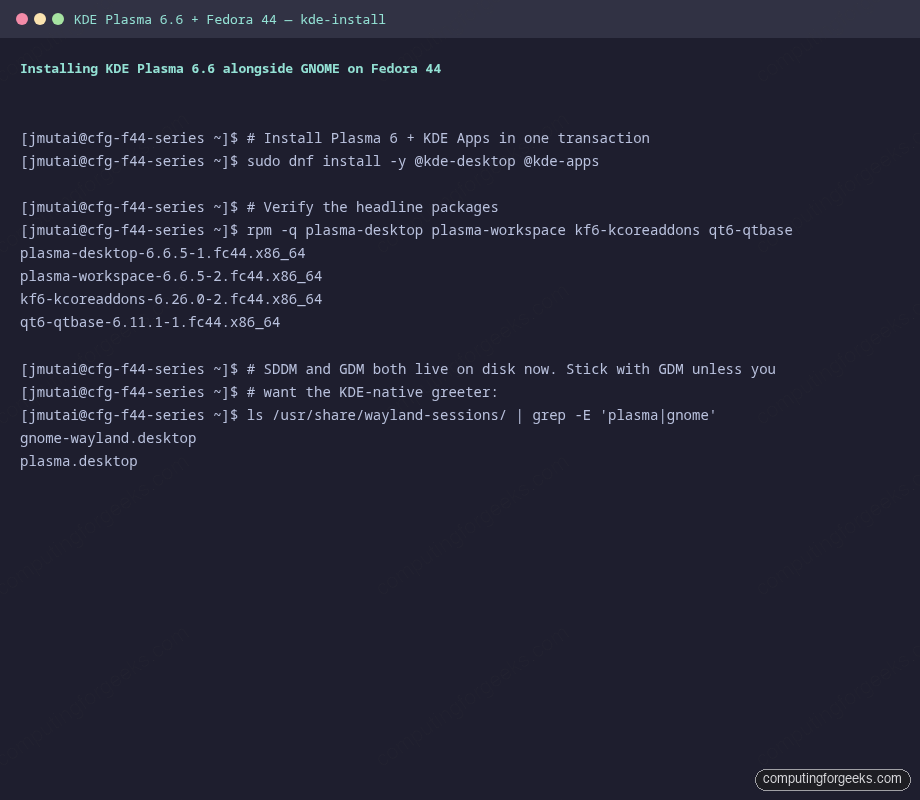
If you are on a fresh Fedora 44 Workstation install, layer Plasma and the core KDE apps in one dnf transaction. The group pulls in Plasma itself, KWin, SDDM, Dolphin, Konsole, Discover, KCalc, KWrite, Gwenview, Spectacle, Ark, and a few dozen other essentials:
sudo dnf install -y @kde-desktop @kde-appsIf you are starting from the KDE Plasma Spin instead, Plasma is already installed and this guide picks up at the customization section. If you are starting from Fedora 44 Server or Cloud Base, install the workstation environment first or stick with a tiling WM. Plasma assumes a graphical seat and accessibility services.
Switch sessions at the GDM login screen
Fedora installs GDM as the display manager by default and keeps it even when you add Plasma. GDM 50 reads both Wayland and X11 session files from /usr/share/wayland-sessions/ and /usr/share/xsessions/, so after the install you will see four session entries at the login prompt: GNOME on Wayland, GNOME on Xorg, Plasma on Wayland, Plasma on X11. Click the gear icon next to the password field to switch.
For an autologin user, write the session preference to AccountsService so GDM picks Plasma without prompting:
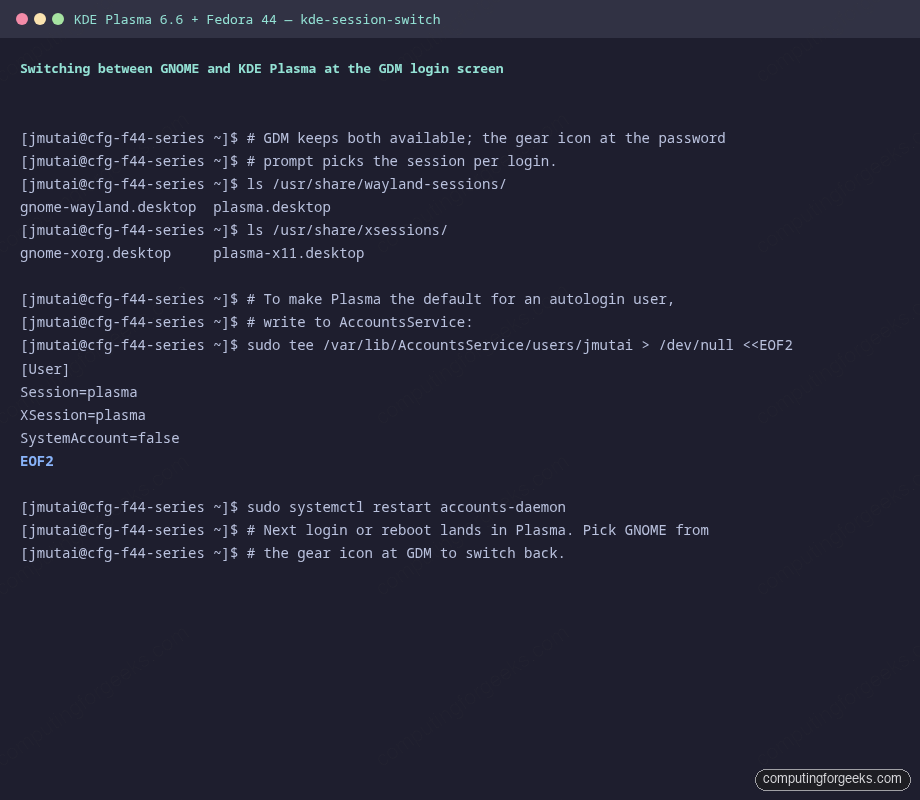
If you would rather replace GDM with SDDM (the KDE-native greeter) for a fully KDE experience:
sudo dnf install -y sddm sddm-themes
sudo systemctl disable --now gdm
sudo systemctl enable --now sddm
SDDM picks up Plasma’s Breeze theme out of the box. The trade-off: SDDM has weaker Wayland-input handling for accessibility users than GDM. Stick with GDM unless you actively prefer SDDM.
First boot: the Welcome Center
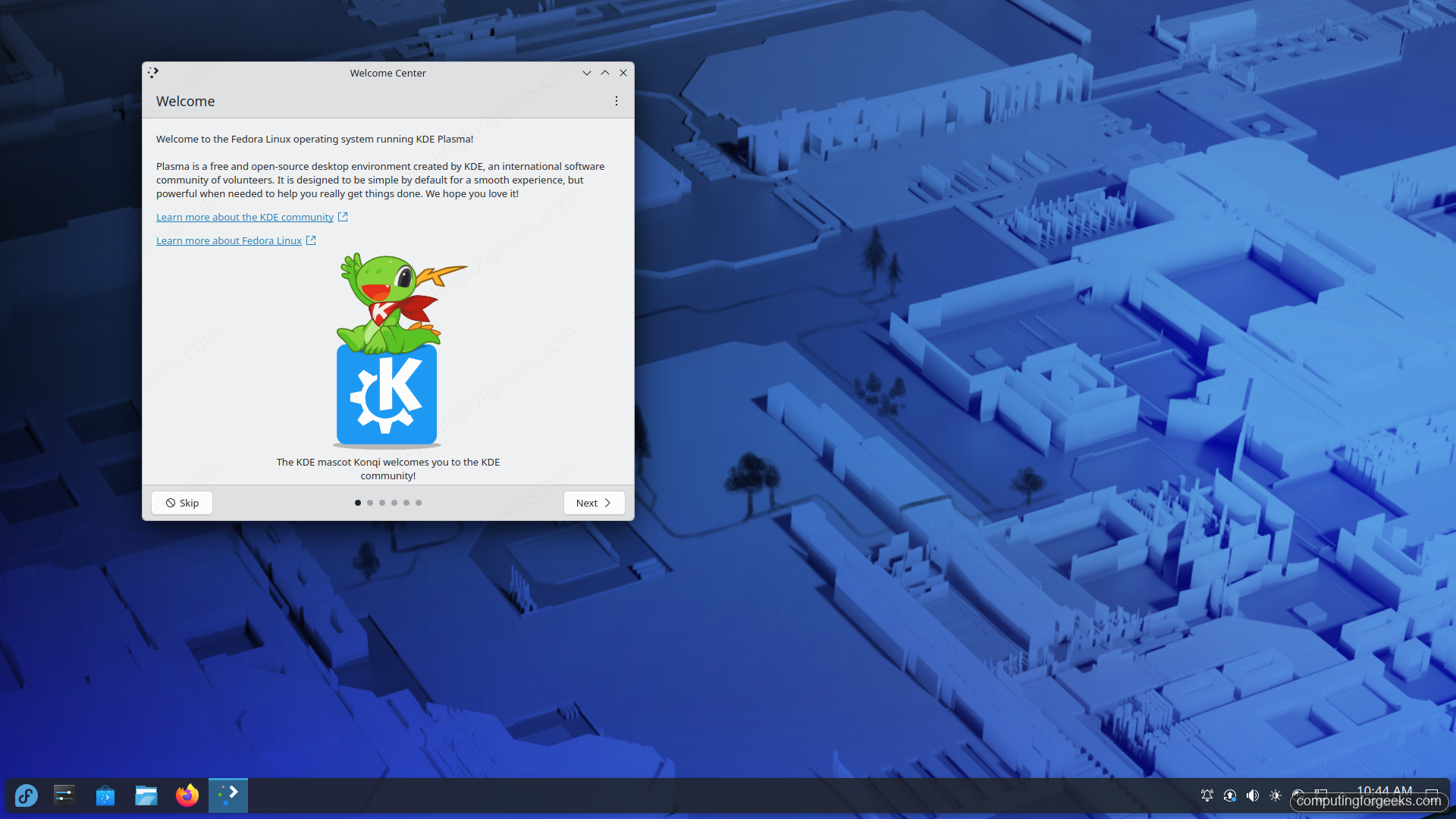
The first time you log into Plasma, the new Welcome Center dialog appears: five short pages that introduce the desktop, point to the System Settings shortcut, walk through Spectacle’s screenshot tool, and link to the KDE community. The pages are non-blocking; you can dismiss them with Skip at any point and re-open them later via plasma-welcome.
Right-click the desktop and pick Show Desktop Toolbox to surface the small floating widgets icon that lets you add a panel, change wallpaper, or unlock widgets. The default Breeze wallpaper, taskbar at the bottom, and Kickoff Application Launcher in the bottom-left make for the most familiar layout for users coming from Windows or Linux Mint.
Verify versions
Open Konsole (top-left Kickoff: System: Konsole) and run fastfetch to confirm what you are sitting on:
fastfetch -l noneThe command output is above.
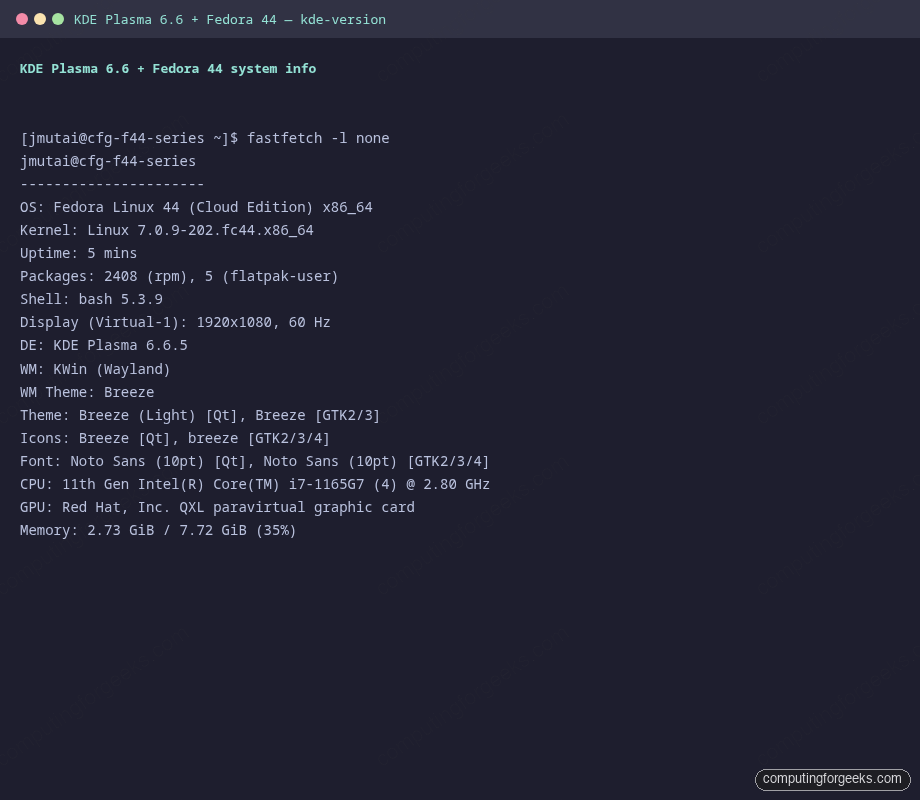
The lines that matter: DE: KDE Plasma 6.6.5, WM: KWin (Wayland), Theme: Breeze (Light) [Qt]. If WM reads KWin (Xorg) you picked the X11 session at login; log out and select the Wayland one. Wayland is the default and gets the lion’s share of testing in this cycle.
System Settings on Plasma 6.6
Press Super (or click Kickoff: System Settings) to open the new Quick Settings overlay. Six categories live in the sidebar, every page is searchable from the top bar:
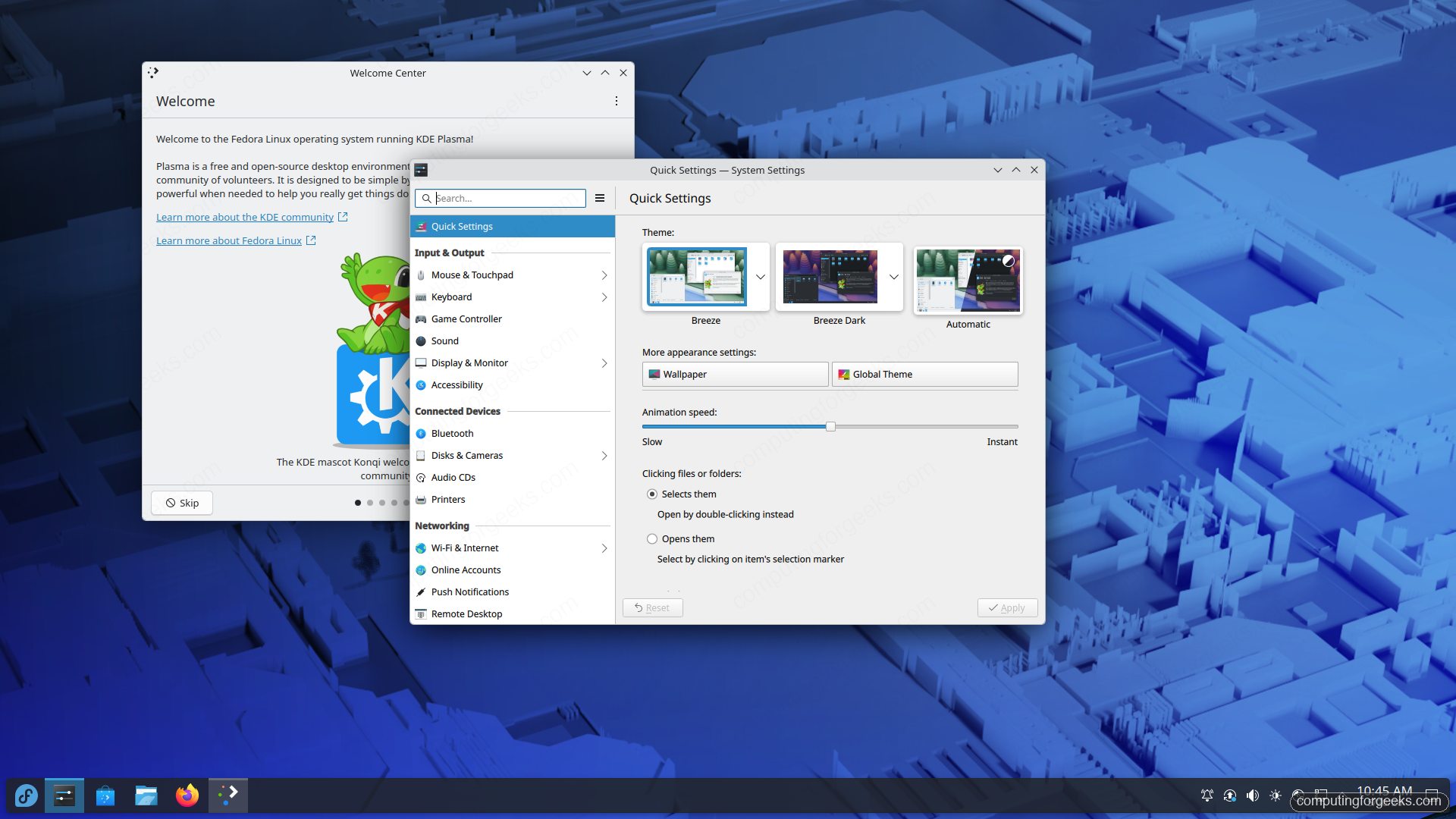
- Quick Settings: Wallpaper, Global Theme, Window Decorations, Pointer, Application Style. Start here on a fresh install to pick Breeze (Light), Breeze Dark, or Automatic (matches the time-of-day system theme).
- Input and Output: Mouse and Touchpad, Keyboard, Stylus Controller, Sound, Display and Monitor (including fractional scaling and per-monitor refresh rate), Accessibility.
- Connected Devices: Bluetooth pairing, USB and disk management, audio devices, printers via CUPS.
- Networking: Wi-Fi and Internet (NetworkManager front-end), Online Accounts, Auto Mounting, Remote Desktop (the new RDP host with hardware H.264 encoding).
- Workspace Behavior: Activities, Desktop Effects, KWin tiling, Virtual Desktops, Screen Edges (the hot-corner controls Plasma is famous for).
- System: KDE wallet, login screen (SDDM only), notifications, regional formats, autostart.
Spend ten minutes in Workspace Behavior. The hot-corner and tiling defaults reward investment more than any other Plasma panel.
Application Launcher and search
Press the Super key. The Kickoff launcher pops out of the taskbar with a Windows-Start-menu-style layout: Favorites pinned in the sidebar, Applications grouped by category, plus a unified search across apps, settings, files, calculator, and unit conversion:
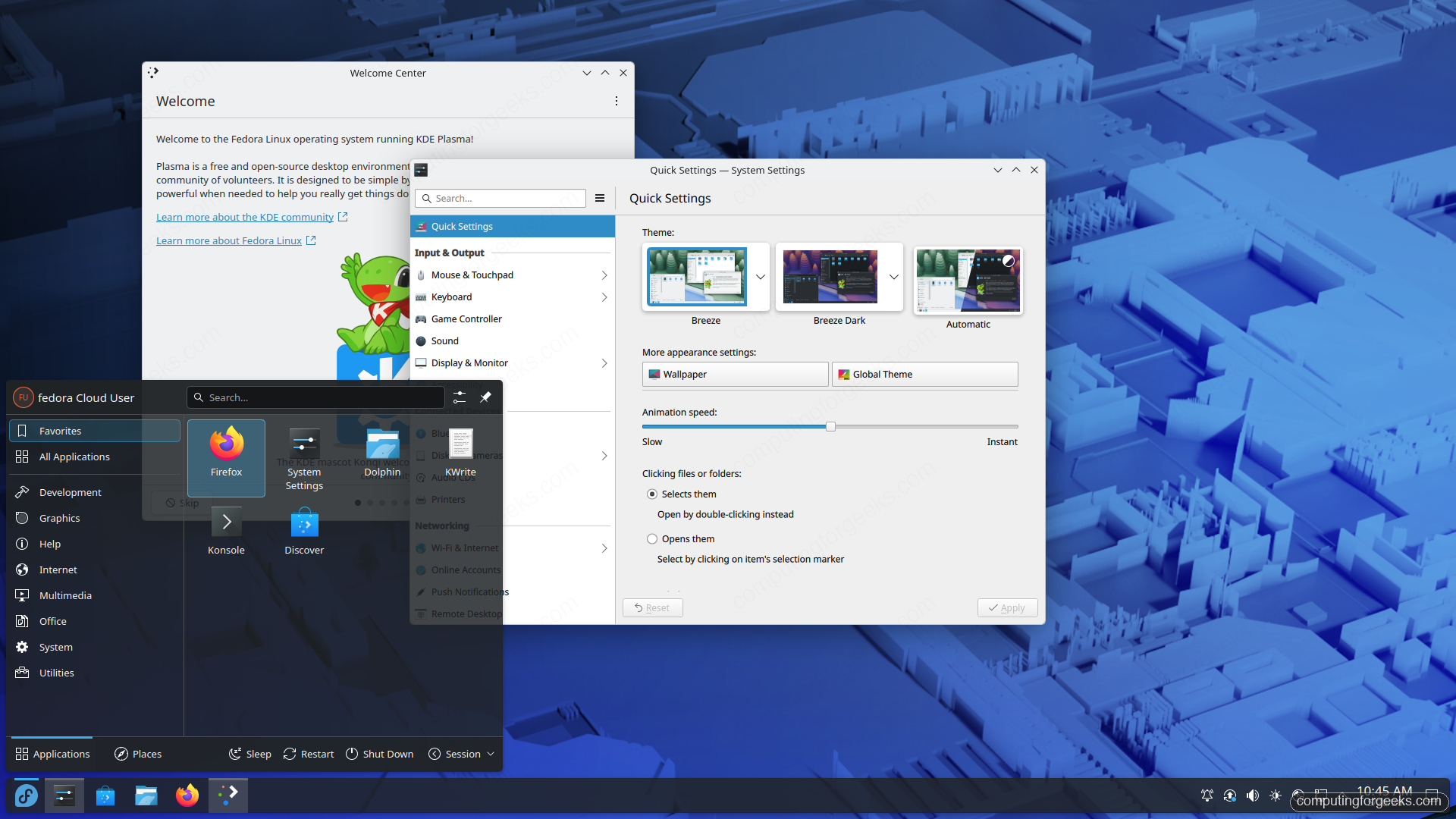
If you prefer a full-screen GNOME-Activities-style launcher, right-click the Kickoff icon: Show Alternatives: Application Dashboard. KRunner (Alt+Space) gives you the fastest possible search-only launcher; pair it with the KRunner plugins for VS Code workspaces, browser history, and clipboard.
KWin tiling on Plasma 6.6
KWin’s tiling shortcuts are easily Plasma 6.6’s biggest power-user upgrade. Out of the box:
Meta + Left/Right: tile to left/right halfMeta + Up: maximizeMeta + Shift + Arrow: send window to adjacent quarterMeta + T: open the tiling editor (drag dividers, save layouts per virtual desktop)Meta + Numpad N: jump to virtual desktop N
For Hyprland-style “windows snap to the layout you drew” behaviour, enable Custom Tiling in System Settings: Workspace Behavior: KWin Tiling: Lock Tiling Layout for new windows. After that, new windows slot into the next free pane without overlap.
Theming with Global Themes and Plasma Get Hot New Stuff
Plasma is famous for theming. The Global Theme bundles wallpaper, panel layout, icons, cursor, splash screen, and SDDM theme in one click. To browse community themes from within System Settings, open Quick Settings: Global Theme: Get New Themes. The dialog talks to store.kde.org and shows ratings, screenshots, and one-click install. The same workflow exists for icon sets, application styles, cursors, wallpapers, splash screens, and SDDM themes.
The safe starting picks for a non-jarring upgrade from default:
- Layan or Sweet Global Themes for a Material-style look.
- Tela or Papirus for the icon set.
- Bibata for cursors.
- Klassy window decorations: window controls that match Breeze but with a thinner titlebar.
Panel customization without breaking your layout
Right-click the taskbar: Enter Edit Mode. The panel turns into a draggable strip with handles at each end. From here you can:
- Drag widgets between panel slots or onto the desktop.
- Add new widgets (Add Widget button at the right edge): popular picks are System Monitor Sensor, KDE Connect Devices, Color Picker, Network Connections, Pager (virtual desktop switcher), and Quick Launch.
- Change panel position (top, bottom, left, right).
- Switch panel mode to Always Visible, Auto-Hide, Windows Can Cover, or Windows Go Below.
Exit Edit Mode by pressing Escape or clicking outside the panel. If you make a mess and want to revert, run:
plasma-apply-desktoptheme default
rm -rf ~/.config/plasma-org.kde.plasma.desktop-appletsrc
kquitapp6 plasmashell && kstart plasmashell
That nukes panel and widget customizations and restores the default Plasma layout without affecting your global theme or KWin settings.
Discover, Plasma’s Software Center
Discover is the KDE Software Center. On Fedora 44 it speaks dnf, Flatpak, and Snap (when snapd is installed). The Flatpak/Flathub remote you add for GNOME Software is shared with Discover; both apps see the same installs. The companion Flatpak guide in this series covers Flathub setup once and it works equally for both desktops.
Roll back to GNOME or remove Plasma
If Plasma is not for you, log out and pick the GNOME session at the GDM prompt. To uninstall the whole Plasma stack:
sudo dnf group remove kde-desktop kde-apps
sudo dnf autoremove
sudo rm -rf ~/.config/plasma* ~/.config/kde* ~/.local/share/plasma*
The config wipe is what most “I removed KDE but it lingers” guides skip. Plasma writes a couple of dozen files under ~/.config and ~/.local/share; removing them is what makes the next desktop you boot into clean.
Where to go next
The Fedora 44 series builds on Plasma in two practical directions. The Flatpak and Flathub guide sets up Discover’s primary install path. The GNOME Tweaks and Extensions guide is a useful counter-point if you keep GNOME alongside Plasma and want both desktops looking consistent. The classic version-spanning Install KDE Plasma Desktop on Fedora piece on this site stays the reference for older Fedora releases.