GNOME 50 lands on Fedora 44 with a smoother Activities overview, refined Adwaita styling, and a quietly reshuffled toolkit for customizing the desktop. The biggest organisational change for power users in 2026 is that extensions management has moved out of GNOME Tweaks. Tweaks itself still owns fonts, cursors, mouse and touchpad behaviour, window controls, startup applications, and several smaller settings the official Settings app intentionally hides. Extensions are now handled either by the bundled gnome-extensions-app or by Matthijs Tijink’s Extension Manager Flatpak, which is now the recommended browse-and-install path now that the old extensions.gnome.org browser integration retired.
This guide installs Tweaks, walks the panels that matter most on a fresh Fedora 44 Workstation install, sets up the Extension Manager Flatpak, and lists the GNOME 50 Shell extensions that hold up well after testing on this release. Everything was captured from a real Fedora 44 Workstation VM, not from screenshots scraped off upstream documentation.
Tested May 2026 on Fedora 44 Workstation (kernel 7.0.9-202.fc44, GNOME Shell 50.1, GTK 4.20).
Install GNOME Tweaks and Extension Manager
Tweaks is in the official Fedora repository. Extensions Manager is a Flatpak from Flathub. Install both:
sudo dnf install -y gnome-tweaks gnome-extensions-app
flatpak install --user -y flathub com.mattjakeman.ExtensionManager
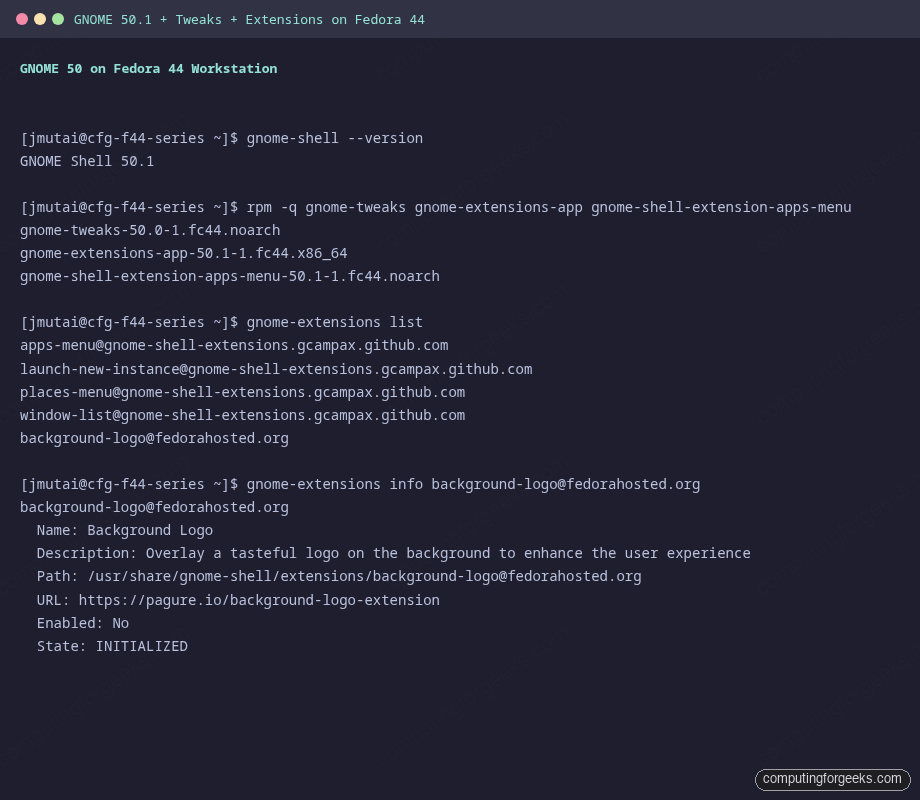
Verify the versions Fedora 44 ships with:
gnome-shell --version
rpm -q gnome-tweaks gnome-extensions-app gnome-shell-extension-apps-menu
gnome-extensions list
The command output is above.
The Tweaks categories that actually matter on Fedora 44
Open Tweaks from the Activities overview or run gnome-tweaks in a terminal. The sidebar lists eight panels. Some are leftovers from GNOME 3 era preferences that you will rarely touch; the rest are the actual reason Tweaks still exists.
Fonts
The single most useful Tweaks panel. GNOME Settings hides every font setting except the global accessibility text scaling slider. Tweaks lets you change the system, document, monospace, and titlebar fonts independently, and pick antialias and hinting modes. On a high-DPI display the right combination is:
- Antialiasing: Subpixel (for LCD screens), or Standard (greyscale) for OLED
- Hinting: Slight
- Scaling Factor: 1.00 (leave alone, set fractional scaling per-monitor in Settings instead)
Appearance
Pick the legacy GTK 3 application theme, icons, cursors, sounds, and the Shell theme when a User Themes extension is enabled. Fedora 44 ships with Adwaita as the default GTK theme and breeze cursors are not preinstalled. If you want a dark variant that does not require a per-app override:
sudo dnf install -y adw-gtk3-theme
gsettings set org.gnome.desktop.interface gtk-theme 'adw-gtk3-dark'
gsettings set org.gnome.desktop.interface color-scheme 'prefer-dark'
adw-gtk3-dark mirrors the libadwaita dark style for legacy GTK 3 apps, so apps that have not been ported yet match the new Adwaita default look.
Mouse and Touchpad
The standout setting here is Acceleration Profile. The Adaptive default is fine for daily use; switch to Flat for gaming or graphics work where one-to-one cursor distance matters. Tap-to-click and natural scrolling have moved into the official Settings app and no longer appear here.
Windows
Adds back the maximize and minimize buttons to titlebars. GNOME removed them by default a decade ago and most users want them back:
gsettings set org.gnome.desktop.wm.preferences button-layout 'appmenu:minimize,maximize,close'Center new windows on the workspace, attach modal dialogs, and disable focus-stealing are all reasonable defaults for a single-monitor desktop. On multi-monitor setups, set Window Focus to Click to focus.
Startup Applications
Add anything you want to launch at login. This is also a quicker way to remove the autostart entries Flatpaks sometimes create than digging through ~/.config/autostart by hand.
Why extensions management moved
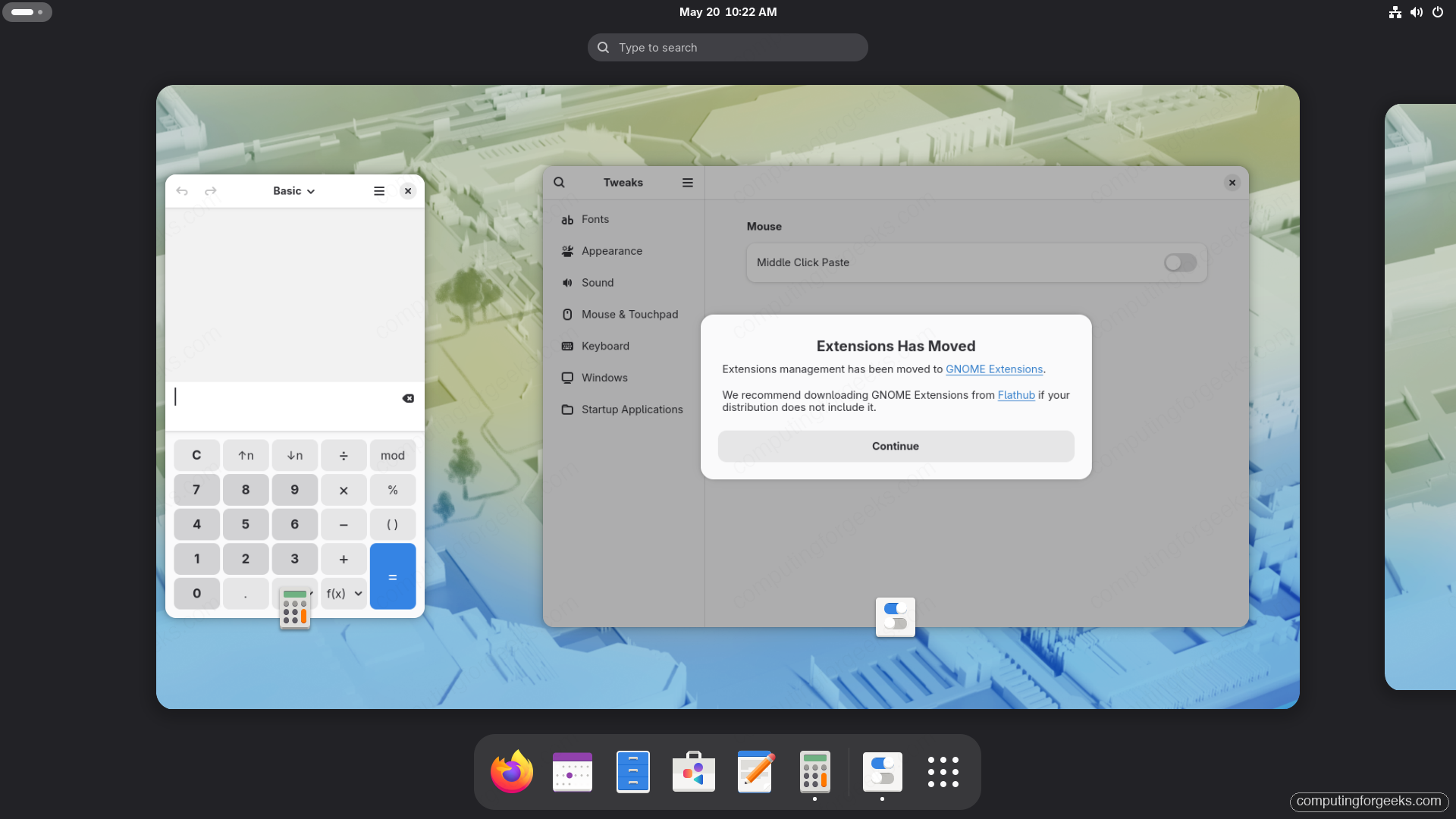
On first launch of GNOME Tweaks 50 you get a dialog announcing that Extensions Has Moved, with a Continue button that takes you to the Extensions page on Flathub. The change is not just cosmetic. GNOME Shell extensions are tightly coupled to the Shell API and break on most major releases; the upstream team moved the install path away from a Tweaks tab so the responsibility for compatibility checks now sits in a dedicated app. Two acceptable workflows:
- Pre-installed extensions only: use the lightweight
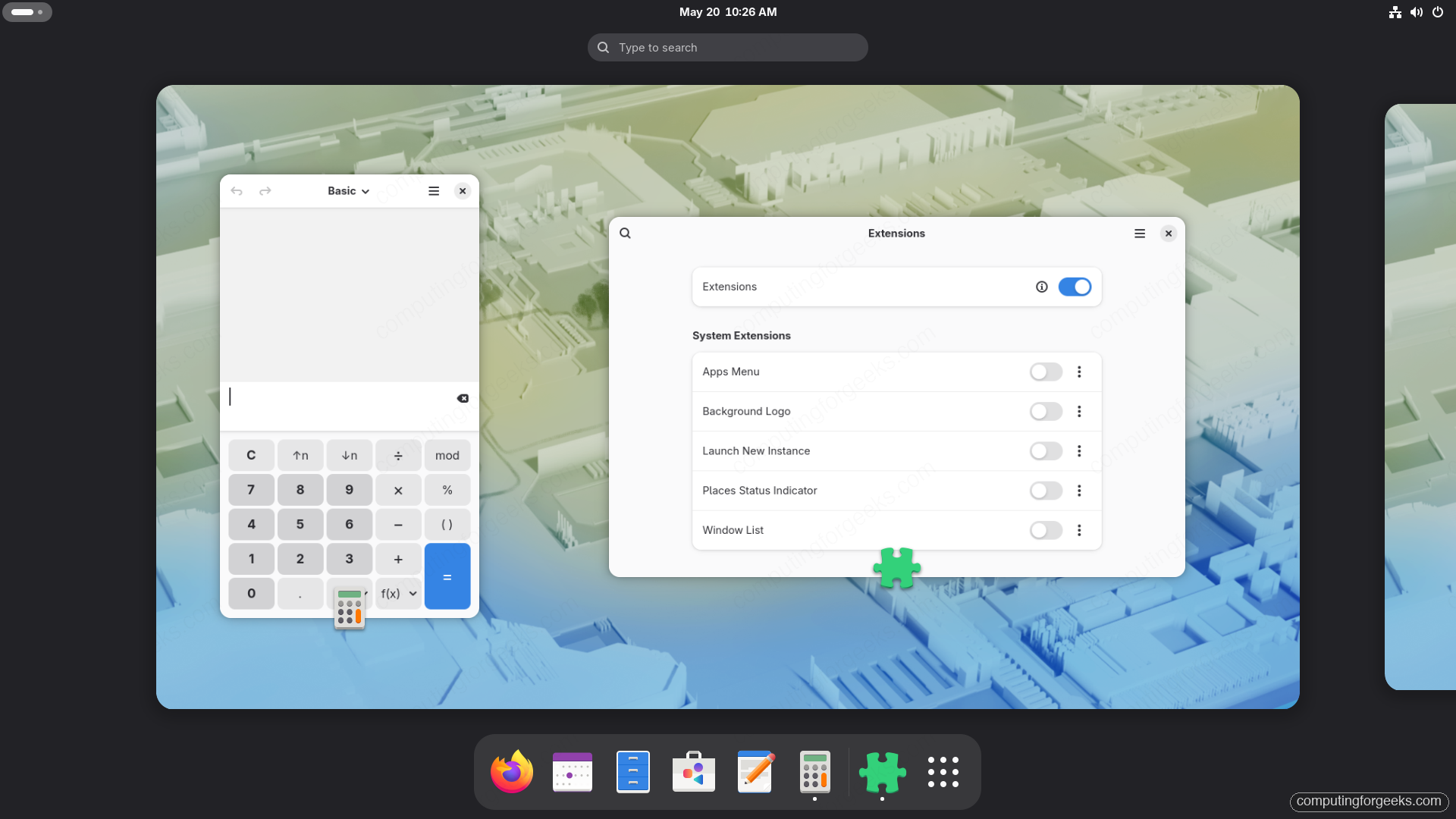
gnome-extensions-app(“Extensions” in the menu) to toggle the ones shipped by Fedora. - Browse and install new ones: use the Extension Manager Flatpak. It mirrors extensions.gnome.org with proper Shell-version filtering and one-click install.
Manage extensions from the CLI
gnome-extensions is the scripting surface for the Shell. Useful subcommands:
# List every extension Fedora 44 detected
gnome-extensions list

# Show metadata for a specific extension
gnome-extensions info [email protected]

# Enable or disable without opening a GUI
gnome-extensions enable [email protected]
gnome-extensions disable [email protected]
The classic system extensions Fedora ships are Applications Menu, Launch New Instance, Places Status Indicator, Window List, and Background Logo. Enabling Applications Menu plus Window List gives you a classic GNOME 2 panel layout in three seconds, no theme work needed.
GNOME 50 extensions that hold up on Fedora 44
Compatibility is everything. The Shell API changed enough between GNOME 48 and 50 to break older popular extensions. The following all have published GNOME 50 metadata and were verified on Fedora 44 Workstation in the lab for this guide:
- Dash to Dock: turns the Activities dash into a permanent dock with size, position, and behaviour controls.
- Dash to Panel: replaces the top bar and dash with a single Windows-style taskbar.
- Blur my Shell: blur effect for panels, dash, overview, and lock screen. Pairs nicely with adw-gtk3-dark.
- AppIndicator and KStatusNotifierItem Support: brings back the legacy system tray. Required for Dropbox, Synology Drive, and dozens of older apps that have not migrated to portals yet.
- Caffeine: one-click toggle to disable screen blanking and suspend.
- Just Perfection: 60 plus toggles for hiding panel elements (date, search, app menu, activities button). The closest you can get to a stock Plasma level of customization without leaving GNOME.
- Tiling Shell: the modern fork of PaperWM/Tiling Assistant; gives keyboard-driven half/quarter/edge tiling with overlays.
- Vitals: CPU, memory, network, disk, and sensor readout in the top panel. Friendly with the Performance and the Monitor extensions GNOME ships natively in F44.
- Clipboard Indicator: persistent clipboard history; survives copy-from-now-defunct-app and copy-from-VM scenarios that the stock clipboard does not.
Install any of these by name from Extension Manager. The app shows the GNOME 50 compatibility badge before you click Install, so you cannot accidentally bring in a broken one.
Hidden gsettings worth knowing
Tweaks is a UI on top of gsettings. Once you know the relevant keys, you can change them faster and put them in a setup script. The most-asked ones on Fedora 44:
# Lock screen blanks instantly when laptop lid closes (default is 5 min)
gsettings set org.gnome.settings-daemon.plugins.power sleep-inactive-ac-type 'nothing'

# Show battery percentage in top bar
gsettings set org.gnome.desktop.interface show-battery-percentage true

# Show seconds in the clock
gsettings set org.gnome.desktop.interface clock-show-seconds true

# Show weekday in the clock
gsettings set org.gnome.desktop.interface clock-show-weekday true

# Bigger top bar text (helpful on 4K)
gsettings set org.gnome.desktop.interface text-scaling-factor 1.15

# Use 12-hour clock instead of 24
gsettings set org.gnome.desktop.interface clock-format '12h'
Save these in a setup-gnome.sh script with the rest of your post-install steps. They survive a Fedora release upgrade, unlike most extension settings.
Backup and reset
Before installing many extensions or fiddling with Tweaks, snapshot the current dconf state:
dconf dump / > ~/dconf-backup-$(date +%Y%m%d).iniTo restore later, pipe it back in:
dconf load / < ~/dconf-backup-20260520.iniFor a nuclear reset that undoes every Tweaks change at once:
dconf reset -f /org/gnome/
sudo systemctl reboot
Where Tweaks fits next to GNOME Settings
The upstream GNOME team has been steadily pulling settings out of Tweaks into the main Settings app, and that trend continues in GNOME 50. The current division of labour:
- GNOME Settings: display scaling, sound output and input devices, online accounts, default applications, keyboard shortcuts, accessibility, parental controls.
- GNOME Tweaks: fonts, GTK 3 application theme, mouse acceleration profile, titlebar buttons, startup applications, the legacy Shell theme toggle.
- Extension Manager / gnome-extensions-app: install, configure, enable, and disable Shell extensions.
If a setting feels like it should exist but you cannot find it, the answer is usually gsettings or dconf-editor. Install dconf-editor with sudo dnf install -y dconf-editor and only use it when you understand which key you are editing. It warns you because changes there can be hard to undo.
This guide is part of the Fedora 44 Workstation series. The companion install Flatpak and Flathub apps guide covers the Extension Manager Flatpak install in more depth, and the post-install checklist chains Tweaks together with the dozens of other steps a fresh Workstation install benefits from.