

Fedora Workstation uses Btrfs as the default root filesystem. A stock Anaconda install creates two subvolumes: root (mounted at /) and home (mounted at /home). On that default, /var lives inside the root subvolume rather than on its own, so a root snapshot already captures it. That layout makes Snapper a natural fit for system rollback: capture a snapshot before every risky package operation, and if anything breaks, boot back into the snapshot from the GRUB menu. With grub-btrfs handling the menu generation automatically, you get openSUSE-style rollback on Fedora without writing a single shell hook.
This guide sets up Snapper for the root subvolume on a fresh Fedora install, creates pre- and post-install snapshots around a real dnf transaction, configures grub-btrfs to expose those snapshots in the boot menu, and walks through the actual rollback workflow. Every command was executed on a real Fedora VM; the output and screenshots are what you will see when you follow along.
Tested May 2026 on Fedora 44 (kernel 7.0.9-202.fc44, snapper 0.13.0, grub-btrfs 4.13.1, btrfs-progs 6.19.1). Package availability and CLI parity verified on Fedora 43 (snapper 0.11.0) and Fedora 42 (snapper 0.11.0); the snapper CLI subset used in this article is stable across both branches.
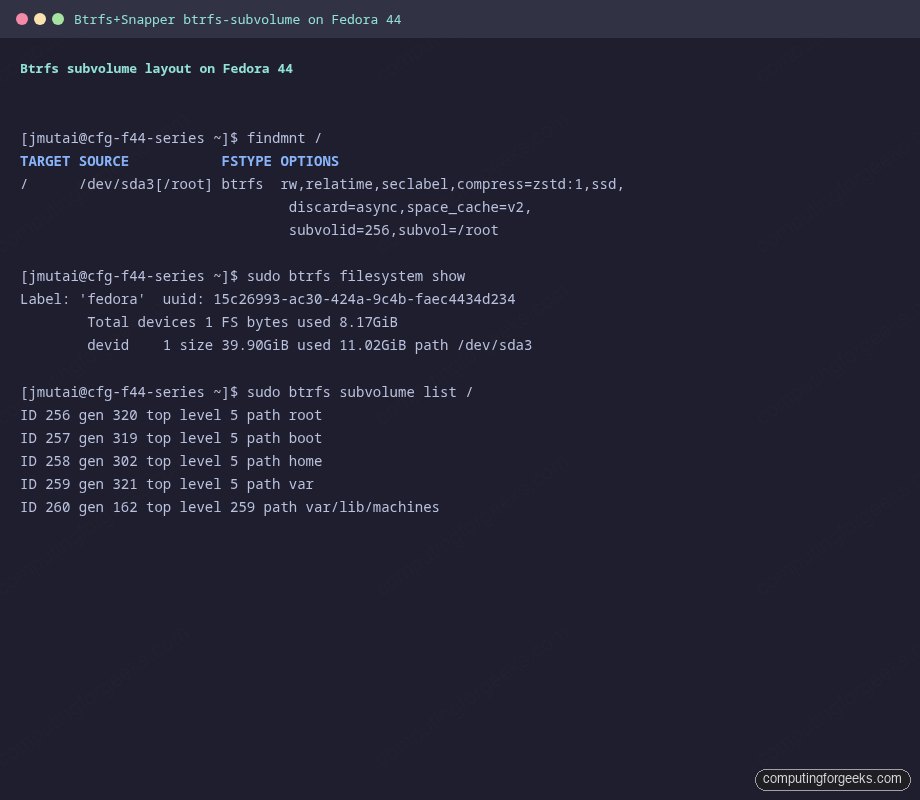
Verify the Btrfs layout on Fedora
Before touching Snapper, confirm that Fedora installed itself onto Btrfs and not onto ext4 or XFS. The Anaconda installer offers both filesystems in current release cycles. Cloud Base and Workstation use Btrfs by default; Server and custom partitioning are the cases that flip to other filesystems.
findmnt /
sudo btrfs filesystem show
sudo btrfs subvolume list /
The findmnt output should show btrfs with a subvol=/root mount option. The subvolume list will include at least root and home. Some install paths add more: custom partitioning and the Atomic/ostree spins (Silverblue, Kinoite) carve out separate var and boot subvolumes, and systemd auto-creates var/lib/machines, so your exact list may have more entries than a stock Workstation install (which shows just root and home). Either way Snapper targets the root subvolume, so the steps below are identical. If you do not see Btrfs here, the rest of this guide does not apply: stop and either reinstall on Btrfs or use LVM snapshots instead.
Install Snapper and create a config for /
Snapper is in the official Fedora repo. The companion snapper-tools package adds the dnf integration we use later.
sudo dnf install -y snapper snapper-tools inotify-toolsCreate a Snapper configuration named root for the root subvolume:
sudo snapper -c root create-config /
sudo snapper list-configs
create-config generates /etc/snapper/configs/root, mounts a hidden .snapshots subvolume under /, and starts the snapper-timeline and snapper-cleanup timers. From this point on, hourly timeline snapshots accumulate automatically.
Create pre- and post-install snapshots around a dnf transaction
Manual snapshots before and after a risky package operation are the bread and butter of the workflow. Create a baseline, install a package, then create a follow-up snapshot:
sudo snapper -c root create --description "pre-flatpak-install"
sudo dnf install -y cowsay
sudo snapper -c root create --description "post-cowsay-install"
sudo snapper -c root list
The command output is shown above.
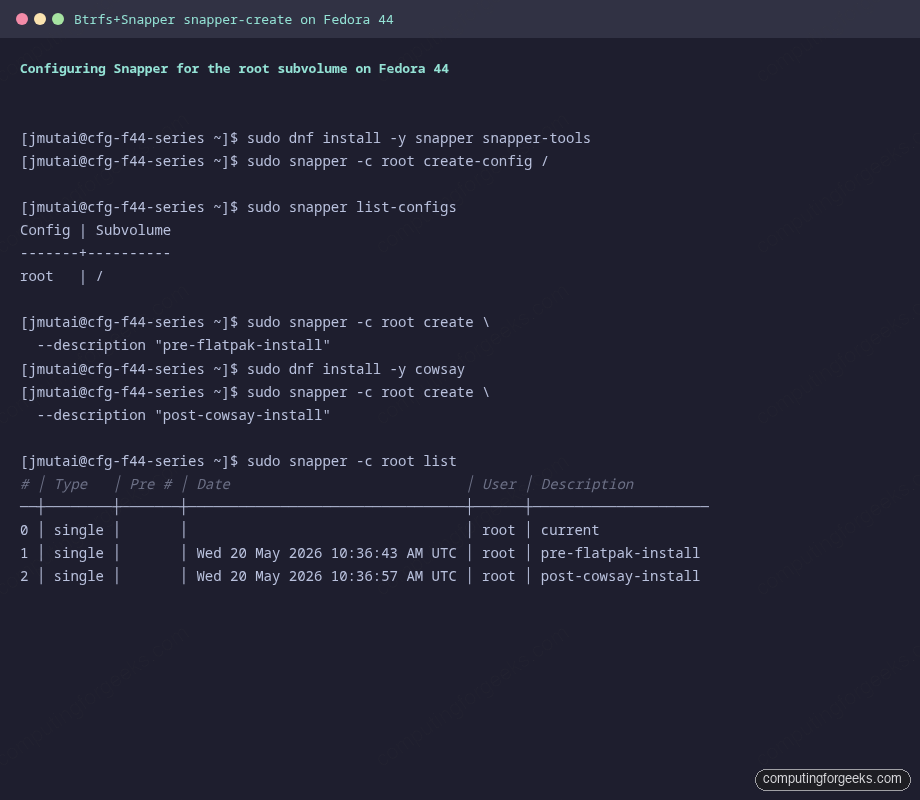
The list shows every snapshot with its ID, type (single, pre, post), date, description, and userdata. Number 0 is always the live filesystem. Pre/post pairs are linked together by Pre # so you can see exactly what changed for any given dnf transaction.
See what changed between two snapshots
Two commands you will use often:
sudo snapper -c root status 1..2
sudo snapper -c root diff 1..2 /usr/bin/cowsay
The command output is shown above.
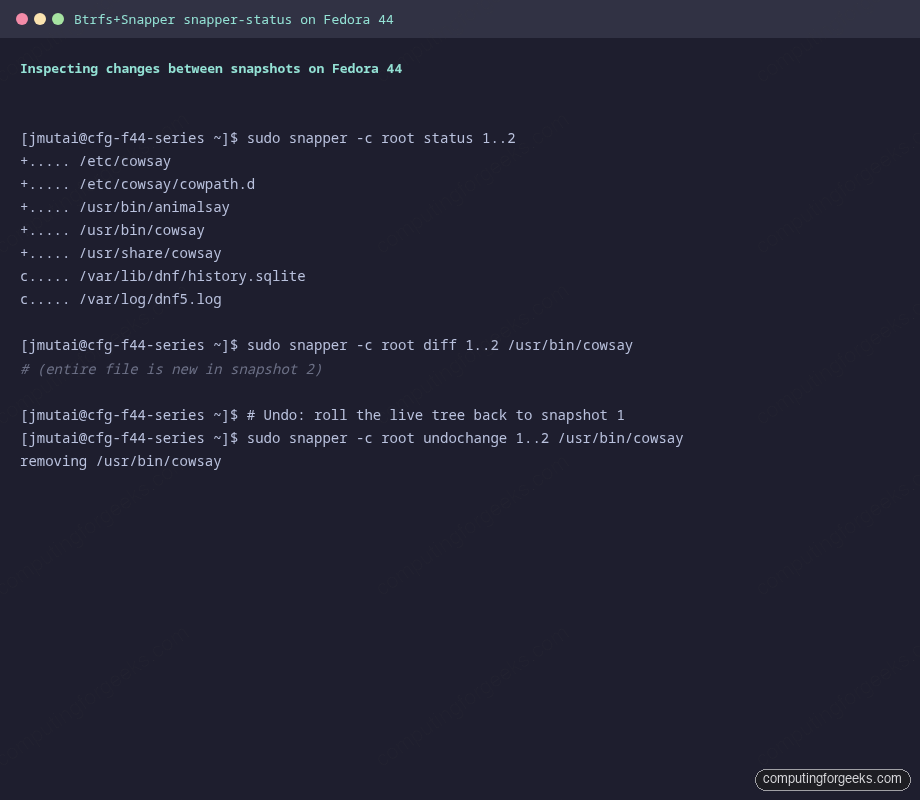
The first column of status output is a five-character flag string. + means “new file in the newer snapshot”, - “deleted”, c “content changed”, p “permissions changed”, g “gid changed”, u “uid changed”. For a typical dnf install you will see hundreds of + entries; for a quick config change just one or two c lines.
Selective rollback for a single file (without rebooting):
sudo snapper -c root undochange 1..2 /etc/myconfig.confThis restores myconfig.conf from snapshot 1 onto the live filesystem and leaves everything else untouched. Use it for “I edited a file, broke the daemon, and want just that file back” scenarios; reach for full rollback (next section) for “the whole system needs to go back to before this dnf transaction”.
Install grub-btrfs for boot-menu rollback
grub-btrfs hooks into Snapper and writes a “Fedora Linux snapshots” submenu into your GRUB config. From there you can boot directly into any snapshot and roll back from inside that snapshot.
grub-btrfs is not in Fedora’s main repo. Enable the well-maintained COPR by kylegospo and install:
sudo dnf copr enable -y kylegospo/grub-btrfs
sudo dnf install -y grub-btrfs
Run the snapshot detector once manually to confirm it sees your Snapper snapshots, then regenerate the GRUB config:
sudo /etc/grub.d/41_snapshots-btrfs
sudo grub2-mkconfig -o /boot/grub2/grub.cfg
The command output is shown above.
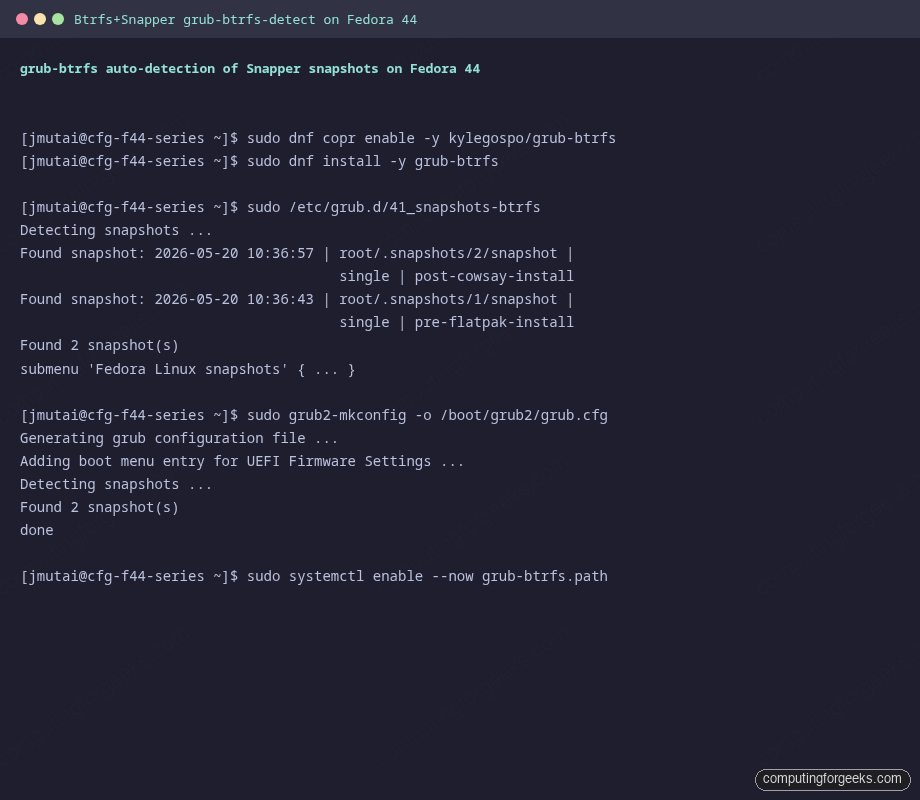
To make grub-btrfs update the menu automatically every time Snapper creates a new snapshot, enable the path unit:
sudo systemctl enable --now grub-btrfs.pathOn Fedora the path unit expects a .snapshots.mount dependency. If you get a “Unit \x2esnapshots.mount not found” message, create the mount unit manually with sudo systemd-mount /var/lib/snapshots or skip the path unit and run grub2-mkconfig by hand or via a dnf hook after each snapshot. The COPR ships a working hook that handles this for most users.
Boot from a snapshot and roll back the system
Reboot. Hold Shift at the BIOS POST screen to display the GRUB menu if you set a zero timeout, or it appears automatically with the default Fedora settings. You will see a new Fedora Linux snapshots submenu with one entry per Snapper snapshot.
Pick a snapshot. The system boots into a read-only snapshot mount; that read-only mode is the safety feature that lets you verify “yes, this snapshot does have the working state I expected” before committing to the rollback. To make the rollback permanent (the live root subvolume becomes the snapshot’s contents):
sudo btrfs subvolume get-default /
sudo snapper -c root rollback 1
sudo systemctl reboot
The command output is shown above.
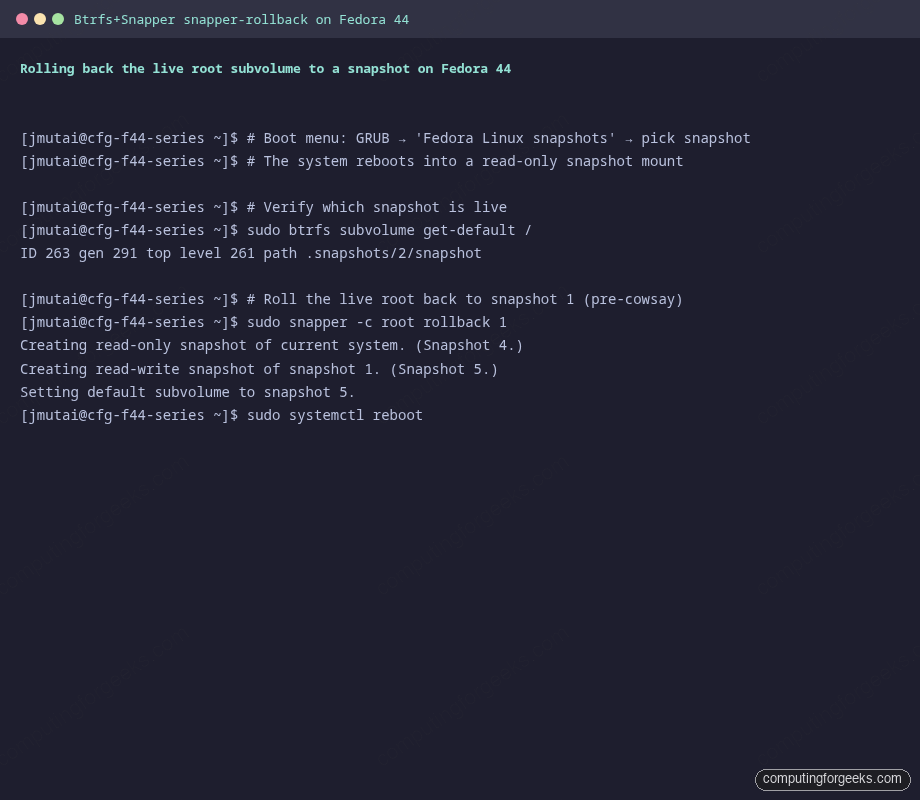
snapper rollback N does three things in one transaction: creates a read-only snapshot of the broken current state (so you can come back from your rollback if needed), creates a writable snapshot from snapshot N, and sets the new writable snapshot as the default subvolume. After reboot, the system is back in the state of snapshot N. The dnf transaction that caused the problem is gone.
Automatic timeline snapshots and cleanup
Snapper’s timeline timer creates a snapshot every hour and runs a cleanup that prunes old ones. The defaults are conservative but on a busy desktop they fill up a couple of GB per week. Tune them in /etc/snapper/configs/root:
TIMELINE_CREATE="yes"
TIMELINE_CLEANUP="yes"
TIMELINE_MIN_AGE="1800"
TIMELINE_LIMIT_HOURLY="10"
TIMELINE_LIMIT_DAILY="10"
TIMELINE_LIMIT_WEEKLY="0"
TIMELINE_LIMIT_MONTHLY="10"
TIMELINE_LIMIT_YEARLY="10"

NUMBER_LIMIT="50-100"
NUMBER_LIMIT_IMPORTANT="10-20"
SPACE_LIMIT="0.5"
SPACE_LIMIT="0.5" means “snapshots may use up to 50 percent of the filesystem”. On a 40 GB root that is plenty. After editing the config, restart the cleanup timer so it picks up the new policy:
sudo systemctl restart snapper-cleanup.timer
sudo systemctl list-timers | grep snapper
Auto-snapshot every dnf transaction
snapper-tools ships a small dnf plugin that creates pre/post snapshot pairs automatically around every transaction, mirroring what zypper does on openSUSE. Enable it:
sudo dnf install -y python3-dnf-plugin-snapper
sudo dnf list --installed | grep snapper
sudo dnf install -y nano
sudo snapper -c root list | tail -5
After the install you should see two new snapshots labeled “pre” and “post” with the dnf command line as the description. Every future dnf install, dnf upgrade, and dnf remove creates the same pair automatically. Roll back any single transaction with snapper rollback <post-snapshot-id>.
What about /home, /var, and /boot
Fedora keeps /home on its own Btrfs subvolume, so a root rollback never touches your downloads, browser history, or dotfiles. /var is the one to watch. On a stock Workstation install it lives inside the root subvolume, which means a snapper rollback of / also reverts /var, including systemd journals, container images, and database storage under /var/lib. Confirm which layout you have with sudo btrfs subvolume list /. If you want snapshots of /home too, create a separate Snapper config:
sudo snapper -c home create-config /home
sudo snapper -c home create --description "baseline"
sudo snapper list-configs
If your install does have /var on a separate subvolume (custom partitioning or an Atomic spin), a root rollback leaves it untouched, which is usually what you want for volatile data. If /var is part of root (the Workstation default), every root rollback rewinds it too, so the safe habit is to snapshot / right before a risky change instead of restoring a day-old snapshot that would also throw away today’s container images and database writes. The recommended pattern is: snapshot / aggressively before risky operations, snapshot /home daily for safety, and know which side of that /var split your system is on before you roll back.
Where this fits in the Fedora 44 Workstation series
Snapper plus grub-btrfs is the per-host rollback layer. For shipping multiple Fedora boxes from a known-good baseline you want a separate strategy: golden images, Ansible playbooks, or rpm-ostree if you can switch to Silverblue. The companion Fedora 44 post-install guide in this series covers where Snapper fits next to firewalld, SELinux, and DNS over TLS. For openSUSE and other multi-distro Btrfs snapshot setups, the existing cross-distro Btrfs Snapshots with Snapper guide stays the reference.




A fresh install of Fedora 44 does not create a /var subvolume in my case.
You are right. A stock Fedora Workstation install creates only root and home subvolumes, with /var sitting inside root; a separate var subvolume only shows up with custom partitioning or on the Atomic spins like Silverblue. The catch worth knowing: on that default layout, a snapper rollback of / also reverts /var (journals, container images, databases), since /var rides inside the root subvolume. I have updated the guide to cover both layouts and how to check which one you have.