Setting up a Kubernetes cluster from scratch on Ubuntu 26.04 requires one non-obvious change: configuring containerd for cgroup v2. Ubuntu 26.04 dropped cgroup v1 entirely with systemd 259, so the old default won’t work. Skip this step and kubelet will fail to start with a cryptic cgroup error that sends you down the wrong rabbit hole.
This guide walks through installing a single-node Kubernetes 1.33 cluster using kubeadm on Ubuntu 26.04 LTS. It covers containerd configuration, the cgroup v2 fix, CNI networking with Calico, and deploying a test workload. If you need a fresh Ubuntu 26.04 server, get that sorted first.
Tested April 2026 on Ubuntu 26.04 LTS (kernel 7.0, cgroup v2), Kubernetes 1.33.10, containerd 2.2.2, Calico 3.29.3
Prerequisites
Before starting, make sure you have the following:
- Ubuntu 26.04 LTS server with at least 2 CPUs and 2 GB RAM (4 GB recommended)
- Root or sudo access
- A static IP address or stable DHCP lease
- Tested on: Ubuntu 26.04 LTS (Resolute Raccoon), kernel 7.0.0, systemd 259
Kubernetes has strict requirements around swap and kernel networking. The next sections handle all of that.
Disable Swap
Kubelet refuses to start if swap is active. Turn it off and remove any swap entries from fstab so it stays off after reboot:
sudo swapoff -a
sudo sed -i '/\sswap\s/d' /etc/fstab
Confirm swap is disabled:
free -hThe Swap row should show all zeros:
               total        used        free      shared  buff/cache   available
Mem:           3.8Gi       447Mi       3.2Gi       1.0Mi       397Mi       3.4Gi
Swap:             0B          0B          0B
Load Kernel Modules and Set Sysctl Parameters
Kubernetes networking requires the overlay and br_netfilter kernel modules. Load them and make them persist across reboots:
cat <<MODEOF | sudo tee /etc/modules-load.d/k8s.conf
overlay
br_netfilter
MODEOF

sudo modprobe overlay
sudo modprobe br_netfilter
Verify both modules are loaded:
lsmod | grep -E "overlay|br_netfilter"You should see both listed:
br_netfilter           32768  0
bridge                425984  1 br_netfilter
overlay               233472  0
Now set the required sysctl parameters for bridge networking and IP forwarding:
cat <<SYSCTLEOF | sudo tee /etc/sysctl.d/k8s.conf
net.bridge.bridge-nf-call-iptables  = 1
net.bridge.bridge-nf-call-ip6tables = 1
net.ipv4.ip_forward                 = 1
SYSCTLEOF

sudo sysctl --system
Verify the values are active:
sysctl net.bridge.bridge-nf-call-iptables net.bridge.bridge-nf-call-ip6tables net.ipv4.ip_forwardAll three should return 1:
net.bridge.bridge-nf-call-iptables = 1
net.bridge.bridge-nf-call-ip6tables = 1
net.ipv4.ip_forward = 1
Install containerd as the Container Runtime
Kubernetes needs a CRI-compatible container runtime. containerd is the standard choice and ships in Docker’s apt repository with the latest stable builds. Ubuntu 26.04 also supports Docker CE and Podman, but for kubeadm clusters, standalone containerd is the cleanest approach.
Add Docker’s GPG key and repository:
sudo apt-get update
sudo apt-get install -y ca-certificates curl gnupg
sudo install -m 0755 -d /etc/apt/keyrings
curl -fsSL https://download.docker.com/linux/ubuntu/gpg | sudo gpg --dearmor -o /etc/apt/keyrings/docker.gpg
sudo chmod a+r /etc/apt/keyrings/docker.gpg
Add the repository to apt sources:
echo "deb [arch=$(dpkg --print-architecture) signed-by=/etc/apt/keyrings/docker.gpg] https://download.docker.com/linux/ubuntu $(. /etc/os-release && echo "$VERSION_CODENAME") stable" | sudo tee /etc/apt/sources.list.d/docker.list > /dev/nullInstall containerd:
sudo apt-get update
sudo apt-get install -y containerd.io
Verify the installed version:
containerd --versionThe output confirms containerd 2.2.2:
containerd containerd.io v2.2.2 301b2dac98f15c27117da5c8af12118a041a31d9Configure containerd for cgroup v2 (Critical Step)
This is the step that trips up most people. Ubuntu 26.04 uses cgroup v2 exclusively (systemd 259 removed cgroup v1 support). containerd’s default config sets SystemdCgroup = false, which tells it to use the cgroupfs driver. On a cgroup v2 system where kubelet expects the systemd driver, this mismatch causes kubelet to fail at startup.
Generate the default containerd configuration:
sudo containerd config default | sudo tee /etc/containerd/config.toml > /dev/nullChange SystemdCgroup from false to true:
sudo sed -i 's/SystemdCgroup = false/SystemdCgroup = true/' /etc/containerd/config.tomlConfirm the change took effect:
grep SystemdCgroup /etc/containerd/config.tomlThe output should show true:
SystemdCgroup = trueRestart containerd to apply the change:
sudo systemctl restart containerd
sudo systemctl enable containerd
sudo systemctl is-active containerd
You should see active confirming the service is running with the new config.
Install kubeadm, kubelet, and kubectl
Kubernetes publishes official packages at pkgs.k8s.io. Add the repository for the 1.33 release series:
sudo apt-get install -y apt-transport-https
curl -fsSL https://pkgs.k8s.io/core:/stable:/v1.33/deb/Release.key | sudo gpg --dearmor -o /etc/apt/keyrings/kubernetes-apt-keyring.gpg
echo 'deb [signed-by=/etc/apt/keyrings/kubernetes-apt-keyring.gpg] https://pkgs.k8s.io/core:/stable:/v1.33/deb/ /' | sudo tee /etc/apt/sources.list.d/kubernetes.list
Install the packages:
sudo apt-get update
sudo apt-get install -y kubelet kubeadm kubectl
Pin the versions so apt upgrade doesn’t accidentally bump them and break your cluster:
sudo apt-mark hold kubelet kubeadm kubectlConfirm the installed versions:
kubeadm version -o shortThe output shows Kubernetes 1.33.10:
v1.33.10Initialize the Kubernetes Cluster
With all prerequisites in place, run kubeadm init to bootstrap the control plane. The --pod-network-cidr flag sets the IP range for pod networking, which the CNI plugin uses:
sudo kubeadm init --pod-network-cidr=10.244.0.0/16This pulls the required container images, generates TLS certificates, and starts the control plane components as static pods. The process takes about a minute. When it finishes, you see output like this:
[init] Using Kubernetes version: v1.33.10
[preflight] Running pre-flight checks
[preflight] Pulling images required for setting up a Kubernetes cluster
[certs] Using certificateDir folder "/etc/kubernetes/pki"
[certs] Generating "ca" certificate and key
...
[kubelet-check] The kubelet is healthy after 507.744416ms
[control-plane-check] kube-controller-manager is healthy after 8.976271437s
[control-plane-check] kube-scheduler is healthy after 9.978240529s
[control-plane-check] kube-apiserver is healthy after 12.002938899s
...
[addons] Applied essential addon: CoreDNS
[addons] Applied essential addon: kube-proxy

Your Kubernetes control-plane has initialized successfully!
The output also prints a kubeadm join command with a token. Save this if you plan to add worker nodes later.
Configure kubectl Access
Set up kubectl for your user account. For a non-root user:
mkdir -p $HOME/.kube
sudo cp -i /etc/kubernetes/admin.conf $HOME/.kube/config
sudo chown $(id -u):$(id -g) $HOME/.kube/config
If you are running as root, export the KUBECONFIG variable instead:
export KUBECONFIG=/etc/kubernetes/admin.conf
echo 'export KUBECONFIG=/etc/kubernetes/admin.conf' >> ~/.bashrc
Check the node status:
kubectl get nodesThe node shows NotReady because no CNI plugin is installed yet:
NAME        STATUS     ROLES           AGE   VERSION
u2604-k8s   NotReady   control-plane   11s   v1.33.10
Install Calico CNI Plugin
The cluster needs a CNI plugin for pod networking. Calico is a solid choice that supports network policies out of the box. Apply the Calico manifest:
kubectl apply -f https://raw.githubusercontent.com/projectcalico/calico/v3.29.3/manifests/calico.yamlWait about 30 seconds for Calico pods to initialize, then check the node status again:
kubectl get nodes -o wideThe node should now show Ready:
NAME        STATUS   ROLES           AGE   VERSION    INTERNAL-IP     EXTERNAL-IP   OS-IMAGE                                       KERNEL-VERSION     CONTAINER-RUNTIME
u2604-k8s   Ready    control-plane   80s   v1.33.10   10.0.1.50       <none>        Ubuntu Resolute Raccoon (development branch)   7.0.0-10-generic   containerd://2.2.2
Verify all system pods are running:
kubectl get pods -AEvery pod should show Running with all containers ready:
NAMESPACE     NAME                                      READY   STATUS    RESTARTS   AGE
kube-system   calico-kube-controllers-79949b87d-66q28   1/1     Running   0          116s
kube-system   calico-node-9j68k                         1/1     Running   0          116s
kube-system   coredns-674b8bbfcf-7zns6                  1/1     Running   0          2m4s
kube-system   coredns-674b8bbfcf-xf8t5                  1/1     Running   0          2m4s
kube-system   etcd-u2604-k8s                            1/1     Running   0          2m8s
kube-system   kube-apiserver-u2604-k8s                  1/1     Running   0          2m8s
kube-system   kube-controller-manager-u2604-k8s         1/1     Running   0          2m8s
kube-system   kube-proxy-t77jl                          1/1     Running   0          2m4s
kube-system   kube-scheduler-u2604-k8s                  1/1     Running   0          2m8s
Deploy a Test Application
On a single-node cluster, the control-plane node has a taint that prevents regular pods from being scheduled. Remove it to allow workloads on this node. For lighter alternatives, K3s gives you a production cluster in under 30 seconds, and Minikube is ideal for local development and testing:
kubectl taint nodes $(hostname) node-role.kubernetes.io/control-plane:NoSchedule-Deploy a simple nginx application with two replicas:
kubectl create deployment nginx-test --image=nginx:latest --replicas=2Expose it as a NodePort service so you can access it from outside the cluster:
kubectl expose deployment nginx-test --port=80 --type=NodePortCheck the deployment and pods:
kubectl get deploymentsBoth replicas should be available:
NAME         READY   UP-TO-DATE   AVAILABLE   AGE
nginx-test   2/2     2            2           30s
Check which NodePort was assigned:
kubectl get svc nginx-testThe service maps port 80 to a high port on the node:
NAME         TYPE       CLUSTER-IP     EXTERNAL-IP   PORT(S)        AGE
nginx-test   NodePort   10.96.20.104   <none>        80:30801/TCP   34s
Test the service with curl using the NodePort (30801 in this example):
curl -sI http://localhost:30801A successful response confirms the nginx pod is serving traffic through the Kubernetes service:
HTTP/1.1 200 OK
Server: nginx/1.29.8
Content-Type: text/html
View the cluster information:
kubectl cluster-infoThis confirms the control plane and CoreDNS are running:
Kubernetes control plane is running at https://10.0.1.50:6443
CoreDNS is running at https://10.0.1.50:6443/api/v1/namespaces/kube-system/services/kube-dns:dns/proxy
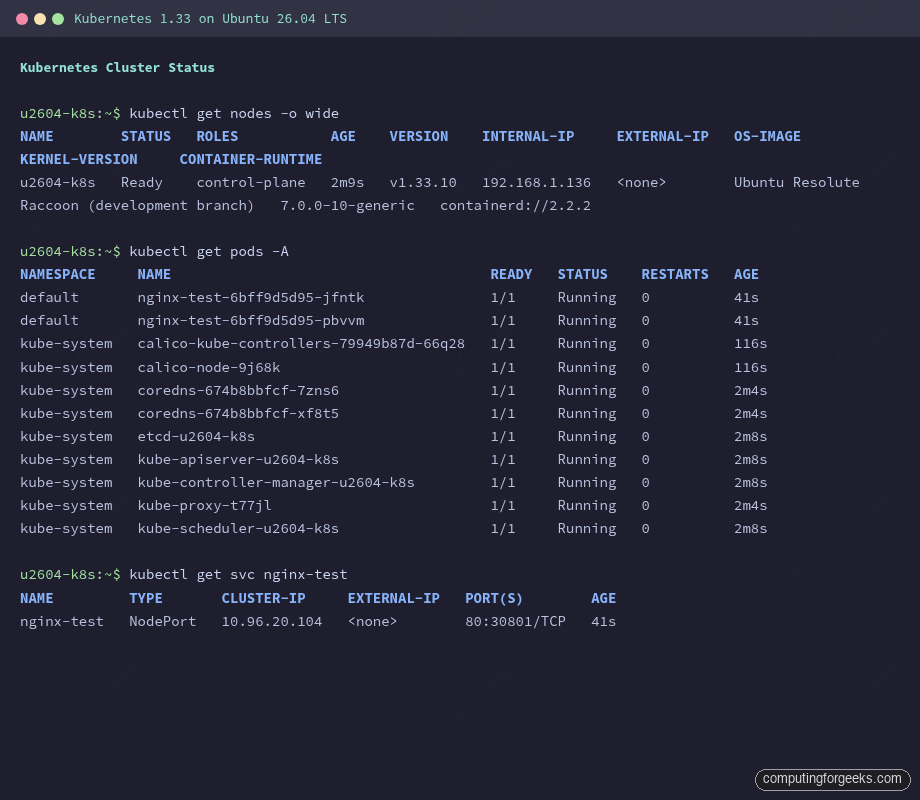
The screenshot below shows the cluster with all system pods running, the test deployment active, and the NodePort service exposing nginx:
Adding Worker Nodes
To add more nodes to the cluster, repeat the steps on each worker node up to and including the kubeadm/kubelet/kubectl installation. Do not run kubeadm init on workers. Instead, run the join command that was printed during initialization:
sudo kubeadm join 10.0.1.50:6443 --token YOUR_TOKEN \
    --discovery-token-ca-cert-hash sha256:YOUR_HASH
If you lost the join command, generate a new token from the control plane node:
kubeadm token create --print-join-commandAfter joining, the new node appears in kubectl get nodes within a few seconds.
Troubleshooting
These are the errors that come up most often during kubeadm setup on Ubuntu 26.04.
“failed to create kubelet: misconfiguration: kubelet cgroup driver: systemd is different from docker cgroup driver: cgroupfs”
This means containerd is still using the cgroupfs driver while kubelet expects systemd. The fix is in the containerd config. Open /etc/containerd/config.toml, find SystemdCgroup = false under the [plugins.'io.containerd.cri.v1.runtime'.containerd.runtimes.runc.options] section, and change it to true. Restart containerd with sudo systemctl restart containerd, then retry kubeadm init.
kubelet fails to start after kubeadm init
Check the kubelet logs for the actual error:
journalctl -u kubelet -n 50 --no-pagerCommon causes: swap is still on (check with swapon --show), the containerd socket is not reachable, or the cgroup driver mismatch described above. On Ubuntu 26.04 specifically, also verify that /sys/fs/cgroup is mounted as cgroup2fs with stat -fc %T /sys/fs/cgroup.
CoreDNS pods stuck in CrashLoopBackOff
Check CoreDNS logs:
kubectl logs -n kube-system -l k8s-app=kube-dnsThis usually means the CNI plugin is not installed or is misconfigured. CoreDNS requires pod networking to function. Install the CNI (Calico, Flannel, or Cilium) and CoreDNS pods should recover automatically within a minute.
Node stays in NotReady state
Describe the node to find the reason:
kubectl describe node $(hostname) | grep -A5 ConditionsThe most common cause is a missing CNI plugin. The node reports KubeletNotReady with message “container runtime network not ready: NetworkReady=false reason:NetworkPluginNotReady”. Installing the CNI resolves this. If the CNI is installed but the node is still NotReady, check that the Calico or Flannel pods are actually running with kubectl get pods -n kube-system.
For further context on Ubuntu 26.04 LTS features including the cgroup v2 changes, check the release overview. If you are also setting up container tooling alongside Kubernetes, guides for Docker Compose on Ubuntu 26.04 are available as well.