A password protects your SSH login until someone phishes it, reads it off a sticky note, or pulls it from a breached password manager. A hardware security key changes the math. The private key lives on a chip you hold, it never touches the disk, and a login only completes when you physically tap the key. Even an attacker with your laptop and your passphrase gets nowhere without the metal.
Two things make 2026 the year to actually do this. FIDO2 is now everywhere, so one key covers your SSH logins, your GitHub account, your cloud console, and your password manager. And OpenSSH’s ed25519-sk support has aged into every current distro, so the setup that used to need bleeding-edge packages now works with the stock OpenSSH on Ubuntu 24.04, Debian 13, and RHEL 10. Everything in the setup section below was run on Ubuntu 24.04 with OpenSSH 9.6 in July 2026, using OpenSSH’s own software FIDO2 test authenticator to exercise the key-generation flow end to end. A hardware key behaves identically, with an added physical touch and, when you enforce it, a PIN prompt on the key itself.
This guide does two jobs. First it ranks the best security keys for SSH on a Linux and DevOps desk, with specs verified against Yubico’s own product pages and every Amazon listing checked live. Then it walks the exact commands to bind your SSH access to that key. If you only care about SSH, the good news up front is that you do not need the expensive model.
The quick picks
Four keys cover almost everyone. The one distinction that decides most of this: the cheaper “Security Key” line does FIDO2 and nothing else, and FIDO2 is all that SSH needs. The pricier YubiKey 5 line adds smart card, OpenPGP, and one-time passwords on top. Buy for the ports on your machines, and buy two so you have a backup enrolled.
- Best value for SSH: Yubico Security Key C NFC (USB-C, around $29). FIDO2 is the whole job for SSH, and this is the cheapest key that does it well.
- Best overall: YubiKey 5C NFC (USB-C, around $58). One key for SSH, smart card login, OpenPGP, and TOTP codes.
- Best for USB-A machines: YubiKey 5 NFC (USB-A, around $58). Same capabilities as the 5C, for servers and desktops that still run USB-A.
- Best for iPhone and Mac: YubiKey 5Ci (USB-C and Lightning, around $85). The dual connector is the reason to pay more.
How we picked and tested
Every spec in this guide comes from Yubico’s own product pages, not from memory. We cross-checked each model’s connector, NFC support, and protocol list, then confirmed every Amazon listing resolves to the exact model and is currently in stock, with real review counts in the thousands. Prices move, especially on Amazon, so we quote bands and tell you to check the live price rather than printing a number that ages badly.
For the SSH setup, we ran the full ssh-keygen workflow on Ubuntu 24.04 with OpenSSH 9.6 and verified the server-side options actually parse with sshd -t. Because this environment has no physical key attached, we used OpenSSH’s bundled software FIDO2 authenticator to generate the keys, so the command output you see is real ssh-keygen output. With a hardware key in the port, the only difference is that the tool waits for you to tap the key, and, if you turn on PIN enforcement, prompts for the key’s FIDO2 PIN. We call out exactly where those two prompts appear.
Security keys compared at a glance
The table lines up what actually drives the decision: which ports the key fits, whether it taps over NFC, and whether it is a FIDO-only key or a full multi-protocol one.
| Key | Connector | NFC | Protocols | Best for | Price band |
|---|---|---|---|---|---|
| Security Key C NFC | USB-C | Yes | FIDO2, U2F only | SSH, WebAuthn logins on a budget | ~$29 |
| YubiKey 5C NFC | USB-C | Yes | FIDO2, U2F, PIV, OpenPGP, OATH, OTP | One key for everything | ~$58 |
| YubiKey 5 NFC | USB-A | Yes | FIDO2, U2F, PIV, OpenPGP, OATH, OTP | USB-A servers and desktops | ~$58 |
| YubiKey 5Ci | USB-C + Lightning | No | FIDO2, U2F, PIV, OpenPGP, OATH, OTP | iPhone, iPad, and Mac | ~$85 |
Notice that all three YubiKey 5 models carry the same protocol stack. The choice between them is purely physical: pick the connector your hardware actually has.
1. Yubico Security Key C NFC, the value pick for SSH
If SSH is your reason for buying, start here. The Security Key line supports FIDO2 and U2F and nothing else, and that is the entire feature set OpenSSH uses for hardware-backed keys. You are not paying for smart card or OpenPGP features you will not touch. It is USB-C, taps over NFC for phone logins, and lands at roughly half the price of a YubiKey 5.
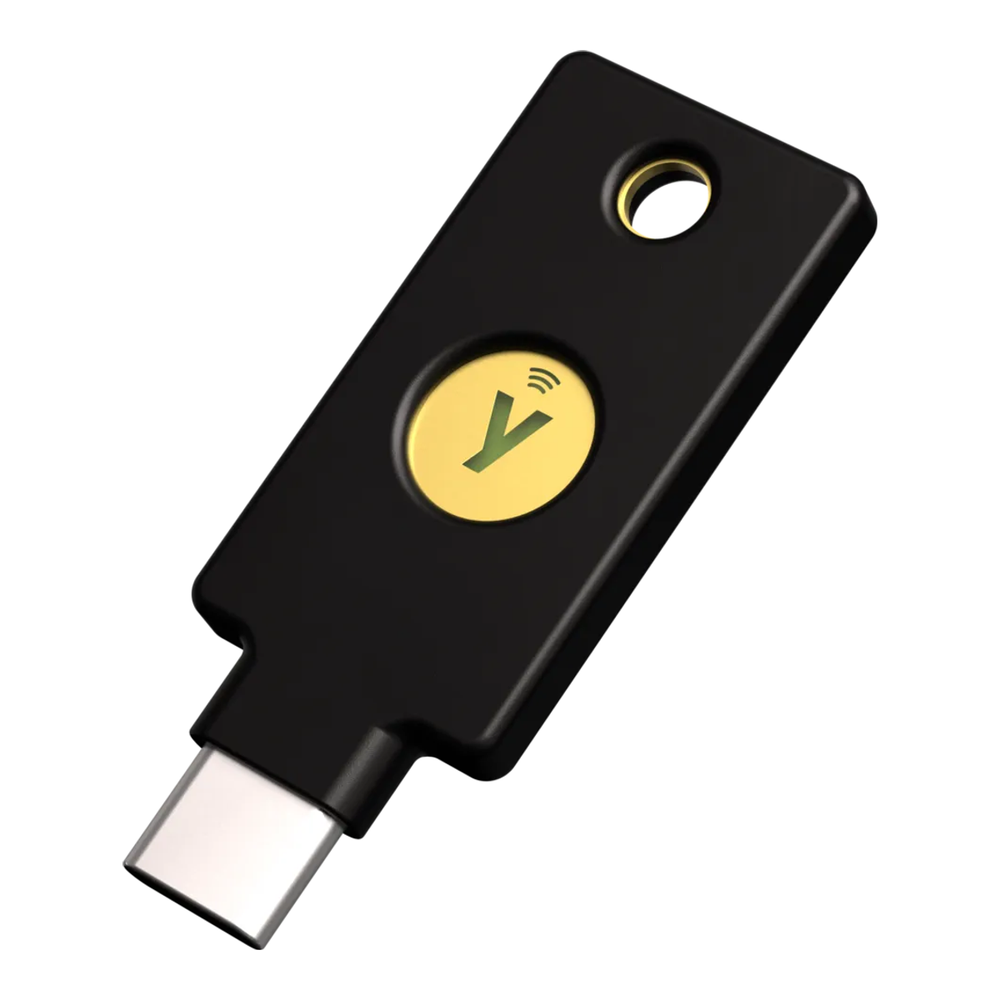
Who it is for: anyone whose goal is hardware-backed SSH, GitHub, and passwordless WebAuthn logins, and who wants two keys without paying twice as much.
Skip it if: you also want to store an OpenPGP key on the token, use it as a PIV smart card, or generate TOTP codes. Those live on the YubiKey 5 line, not here. There is also a USB-A version of this same FIDO-only key if your machines are older, though on Amazon the USB-C model is the one with the clean, in-stock listing.
The trade-off is deliberately narrow: less capability, much lower price, and no compromise at all on the FIDO2 security that SSH relies on. Check the current price on Amazon.
2. YubiKey 5C NFC, the one key for everything
This is the key most people should own if they want a single token for their whole security life. On top of the FIDO2 that handles SSH and WebAuthn, the YubiKey 5C NFC is a PIV smart card, an OpenPGP card for signing Git commits and encrypting mail, and an authenticator that stores OATH TOTP and HOTP codes. It is USB-C with NFC for phone taps.
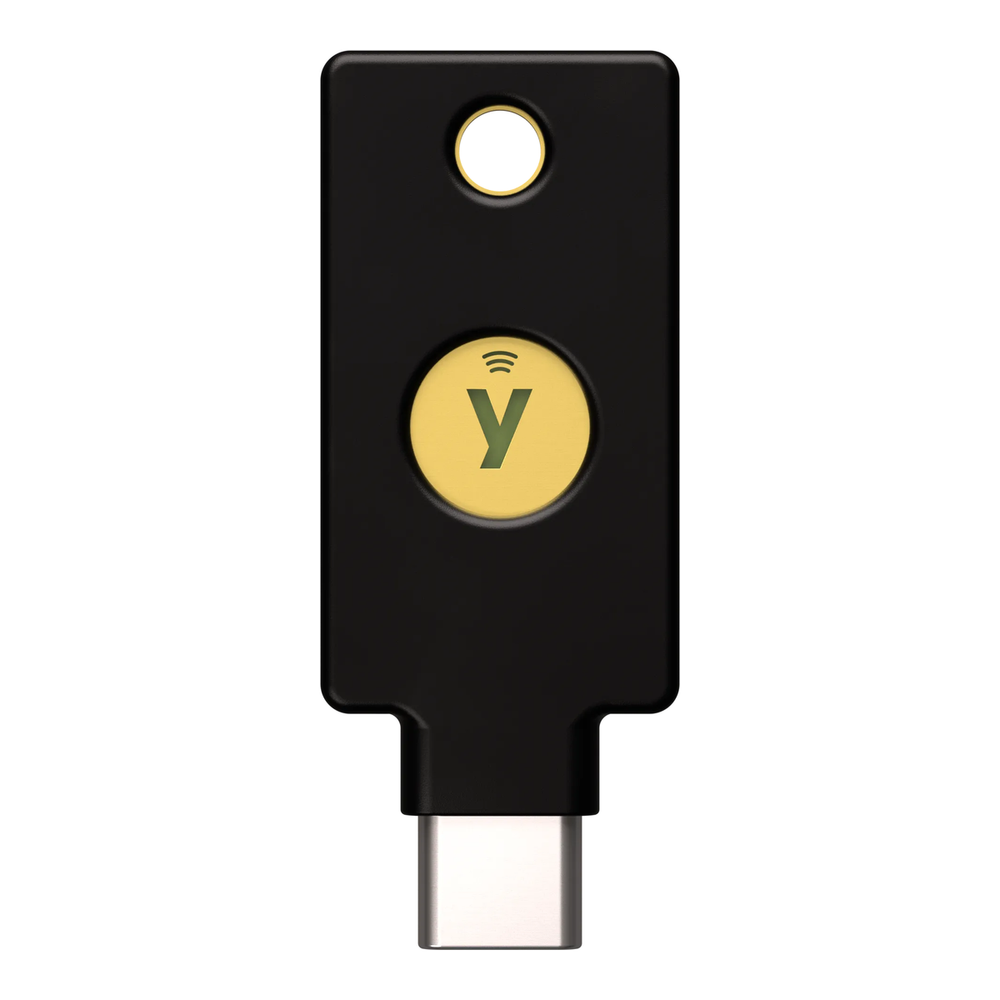
Who it is for: engineers who want one token for SSH, signed Git commits, smart card login, and their TOTP codes, and who would rather not carry a drawer of single-purpose devices.
Skip it if: your only goal is SSH. In that case the extra protocols are dead weight and the Security Key C NFC does the same FIDO2 job for around half the money. Interestingly, the Security Key C NFC and this key are physically identical from the outside; Yubico even uses the same product photo. The difference is entirely inside the chip.
In practice this is the key we hand to someone who asks for one recommendation and does not want to think about it again. Check the current price on Amazon.
3. YubiKey 5 NFC, the USB-A workhorse
Servers, KVM consoles, and plenty of desktops still expose USB-A. The YubiKey 5 NFC is the exact same capability stack as the 5C, in a USB-A body. If you administer machines that predate USB-C, this is the one to keep on the keyring.
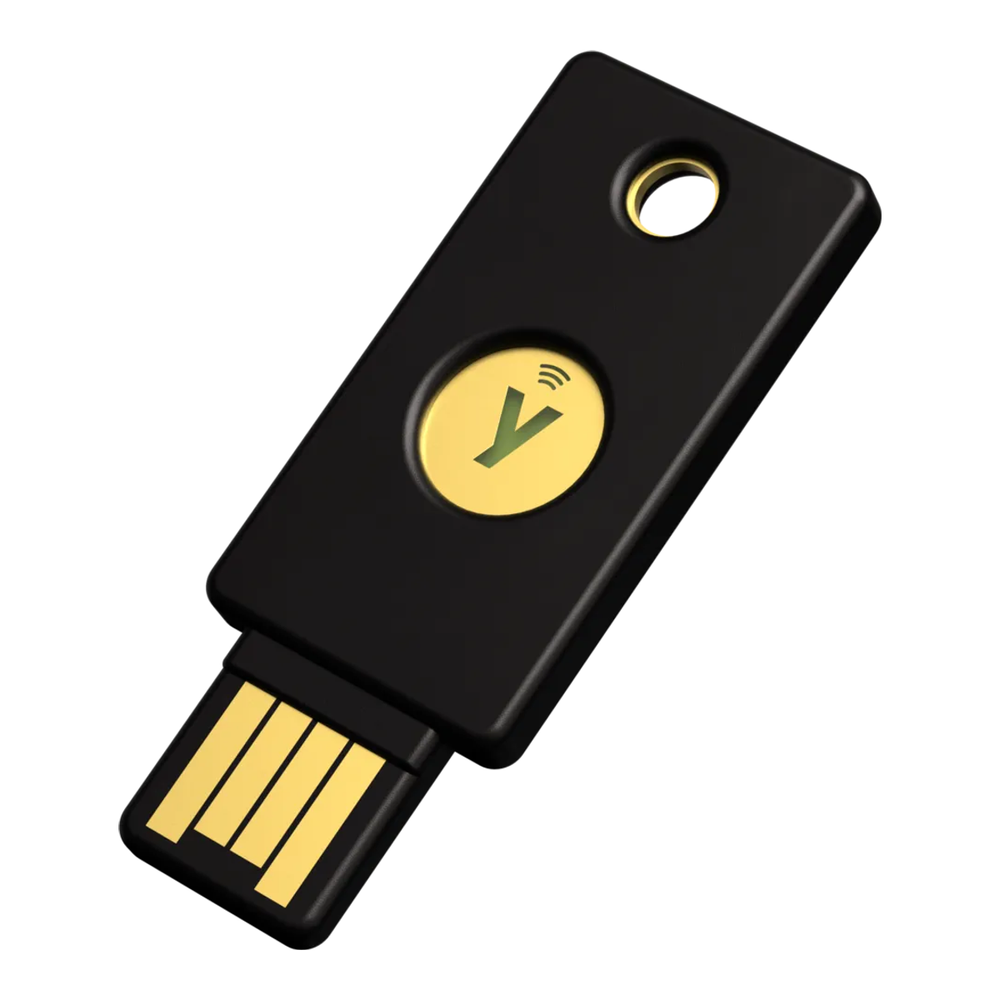
Who it is for: anyone whose fleet is USB-A, or who wants the classic form factor that fits a front-panel port without an adapter.
Skip it if: your laptop is USB-C only. Buy the 5C NFC instead so you are not living on adapters. A common, sensible move is to keep one USB-A and one USB-C key so you are covered on any machine you touch.
It carries more logged reviews than any other key in this guide, which is a decent proxy for how long it has been the default admin token. Check the current price on Amazon.
4. YubiKey 5Ci, for iPhone and Mac
The 5Ci earns its higher price with one thing: two connectors on one key, USB-C on one end and Lightning on the other. If you move between a MacBook and an older iPhone, it plugs into both without adapters or relying on NFC. It runs the same full protocol stack as the other YubiKey 5 models.
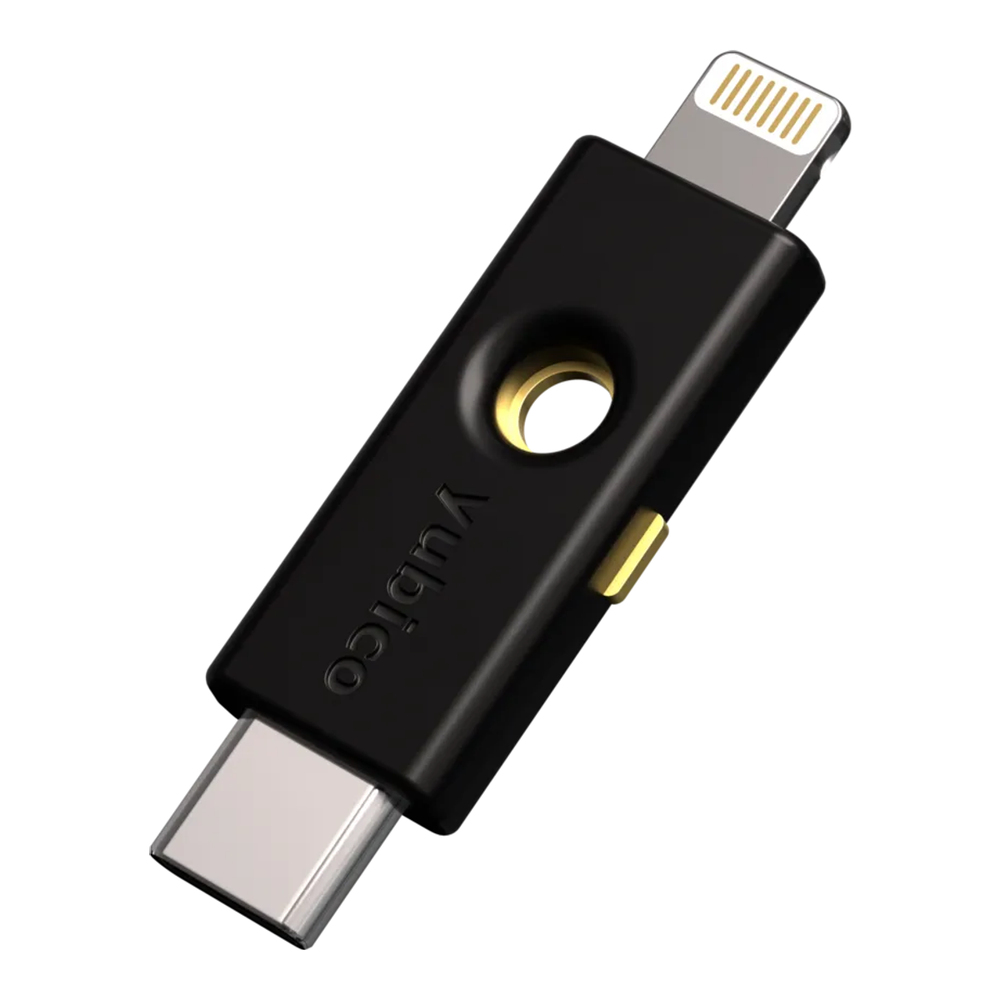
Who it is for: people deep in the Apple ecosystem who need physical plug-in on both a Lightning iPhone and a USB-C Mac.
Skip it if: your phone is already USB-C or you are fine tapping over NFC. Then a 5C NFC covers the same ground for less, and you are not paying for a Lightning connector Apple is phasing out. The 5Ci also drops NFC, so on Android you are plugging in rather than tapping.
The cost angle is simple: pay the premium only for the dual connector, because that is the sole reason it exists. Check the current price on Amazon.
Bind your SSH login to the key with FIDO2
Here is the payoff. Once your key is enrolled, an SSH login needs the private key that only lives on that token, plus a physical tap. This is far stronger than a passphrase-protected key file, because the file can be copied and the token cannot. The whole flow rides on OpenSSH’s ed25519-sk key type, where the sk stands for security key.
First confirm your OpenSSH is new enough. The ed25519-sk and ecdsa-sk key types arrived in OpenSSH 8.2, and PIN enforcement (verify-required) landed in 8.4. Every current distro is well past that, but it is worth a look on older servers:
ssh -V
ssh -Q key | grep sk
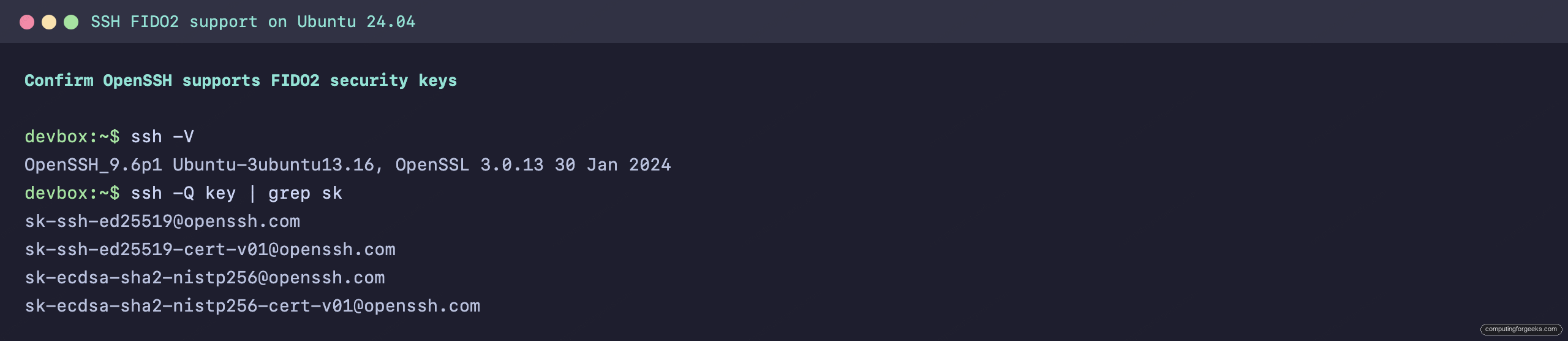
The version prints first, then the key types your client supports. Seeing [email protected] in the list confirms FIDO2 keys will work:
OpenSSH_9.6p1 Ubuntu-3ubuntu13.16, OpenSSL 3.0.13 30 Jan 2024
[email protected]
[email protected]
[email protected]
[email protected]
Here is that check on the test box, the version line and the supported key types together:
One package caveat on Linux: OpenSSH talks to the key through libfido2. Debian and Ubuntu ship it, but if ssh-keygen complains it cannot find a provider, install it:
sudo apt install libfido2-1Generate a FIDO2-backed SSH key
Plug in the key and generate the pair. The -O resident flag stores a discoverable credential on the token so you can recover the key on any machine, and -O verify-required forces a FIDO2 PIN on every use, not just a tap:
ssh-keygen -t ed25519-sk -O resident -O verify-required -C "admin@server"The tool prints its progress and writes the key files. On a real key, this is the moment it waits for your tap, and with verify-required it asks for the key’s PIN first:
Generating public/private ed25519-sk key pair.
You may need to touch your authenticator to authorize key generation.
Your identification has been saved in /home/admin/.ssh/id_ed25519_sk
Your public key has been saved in /home/admin/.ssh/id_ed25519_sk.pub
The key fingerprint is:
SHA256:csayRDjC9JfX53xYQBxd/1deVBjMno5pSX1zUYeQibI admin@server
The same generation run, captured from the prompt through the fingerprint:
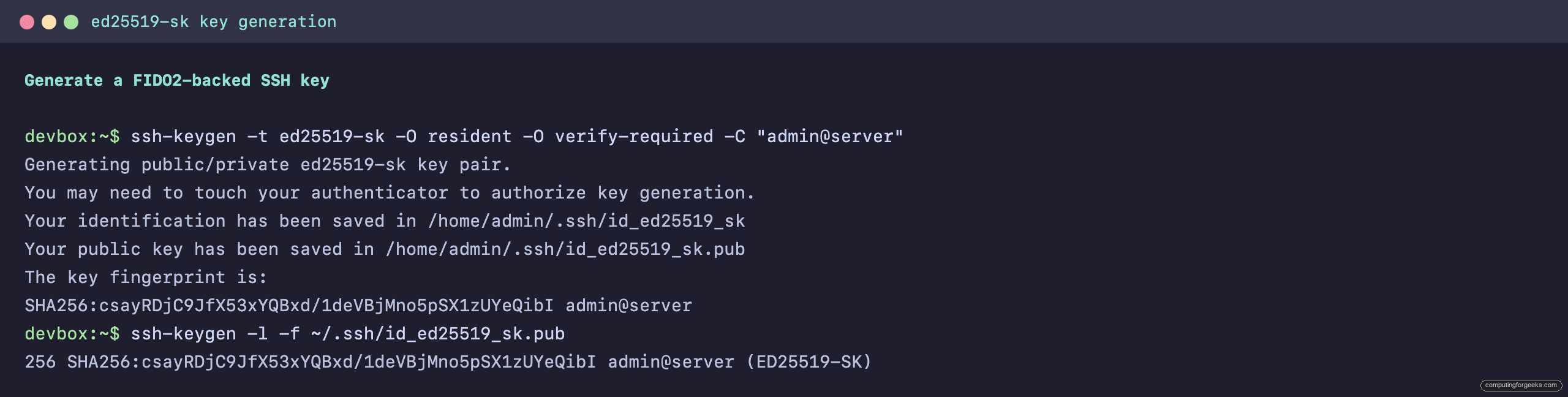
The private file on disk holds no usable secret. It is only a handle that points back to the key inside the token, which is why copying it does an attacker no good. One version note: ed25519-sk needs YubiKey firmware 5.2.3 or newer, which every key sold today ships with. On an older key, swap the type for ecdsa-sk, which works on all FIDO2 YubiKeys. On the oldest firmware (5.1.2) neither resident keys nor verify-required is available whichever type you pick, so drop those flags there:
ssh-keygen -t ecdsa-sk -C "admin@server"Add the public key to your server
This part is identical to normal key auth. Copy the public half to the server, exactly as you would with a software key. If you have never done key-based SSH before, our walkthrough on SSH key authentication covers the basics this builds on:
ssh-copy-id -i ~/.ssh/id_ed25519_sk.pub [email protected]From now on, logging in requires the token in the port. SSH will pause for your tap, and if you set verify-required, for your PIN. A stolen laptop and a known passphrase are no longer enough.
Carry the key to a new machine
Because you generated a resident credential, you do not need to copy any files to a fresh workstation. Plug the key in and pull the credential back down from the token:
ssh-keygen -KOpenSSH prompts for the key’s PIN, asks for a tap to authorize the download, and writes id_ed25519_sk_rk and its public counterpart into the current directory. Move them into ~/.ssh and you are logged in from the new box with nothing carried over but the key on your keyring.
Enforce the key on the server side
The steps so far protect the client. To make the server itself demand a real tap and PIN for every session, set a global policy. Open the SSH daemon config:
sudo vim /etc/ssh/sshd_config.d/fido2.confRequire both user presence and a verified PIN for every public-key login:
PubkeyAuthentication yes
PubkeyAuthOptions verify-required
Validate the syntax before you reload, so a typo never locks you out. On RHEL and Rocky the daemon is named sshd, so use systemctl reload sshd there:
sudo sshd -t && sudo systemctl reload sshWith verify-required set on the server, a key enrolled without a PIN is refused outright. You can pin the same requirement to a single key by prefixing its line in authorized_keys with verify-required, which is handy when you want the policy on one account rather than the whole host. For the wider picture of locking down the daemon, our SSH hardening guide pairs well with this, and the same sk key type works on BSD too, as covered in the FreeBSD key-auth walkthrough.
Bonus: tap-to-sudo with the same key
The key can gate more than SSH. With the pam_u2f module you can require a tap for sudo, so a shoulder-surfed password no longer grants root. Install the module:
sudo apt install libpam-u2fEnroll your key into a mapping file with pamu2fcfg > ~/.config/Yubico/u2f_keys, which taps the key once to record it, then add auth required pam_u2f.so near the top of /etc/pam.d/sudo. Test it in a second terminal before you close the first, the same caution you would take with any PAM change.
What to look for when you buy
A few decisions matter more than the model name.
- FIDO-only or full stack. If the job is SSH and WebAuthn, a FIDO-only Security Key is the honest choice and saves real money. Pay for a YubiKey 5 only when you actually want smart card, OpenPGP, or on-device TOTP.
- Match the connector to your machines. A USB-C key on a USB-A server means adapters in your bag. Inventory your ports first, and if they are mixed, buy one of each rather than one of the priciest.
- Buy two. A single key is a single point of failure. Enroll a backup at the same time and store it somewhere separate. This is the step people skip and regret.
- NFC if you log in on a phone. Tapping a key to the back of a phone is far nicer than juggling a dongle. Every pick here except the 5Ci has it.
- Want open source? The Nitrokey 3 runs open, auditable firmware and supports FIDO2 with
ed25519, so the SSH flow above works on it too. Stock can be intermittent and it is not reliably on Amazon, so treat it as the pick for people who specifically want a fully open token rather than the default.
Which key to actually buy
Strip it down to the decision. If SSH is the whole reason, buy the Security Key C NFC and a second one as backup, and you are done for around the price of a single fancier key. If you want one token to also carry your OpenPGP key, act as a smart card, and hold your TOTP codes, the YubiKey 5C NFC is the buy, or the 5 NFC when your machines are USB-A. Reach for the 5Ci only for the Lightning connector.
Whichever you pick, the hardening win is the same. Moving SSH from a copyable key file to a tap-gated token closes off the most common ways access gets stolen, and it takes the ten minutes of ssh-keygen above to set up. Once your logins are on a key, the natural next step is putting the rest of your secrets behind hardware too, which is where a self-hosted vault like Vaultwarden and a mesh layer such as Tailscale fit, both of which take the same FIDO2 key you just bought.



![Install Kali Linux 2026.1 Step by Step [Full Guide]](https://computingforgeeks.com/wp-content/uploads/2026/03/install-kali-linux-20261-step-by-step-768x403.png "Install Kali Linux 2026.1 Step by Step [Full Guide] 9")