A self-hosted password manager is no longer a weekend project. It is table stakes for anyone who cares about where master-password-protected secrets live. Vaultwarden is the unofficial Bitwarden-compatible server written in Rust. It runs in a single container, uses ~50 MB of RAM, and speaks the same API as the official Bitwarden server, so every Bitwarden mobile app, desktop client, browser extension, and CLI connects to it unchanged.
This guide shows how to install Vaultwarden with Docker Compose on Ubuntu 24.04 LTS, put Nginx in front as a reverse proxy, and issue a real Let’s Encrypt TLS certificate. The end state is an HTTPS vault at your chosen subdomain that works with every Bitwarden client without any tweaks. Every command below was run on a fresh test VM before publish.
Tested April 2026 on Ubuntu 24.04.4 LTS with Vaultwarden 1.35.7, Web-Vault 2026.2.0, Docker CE 29.4.1, Nginx 1.24.0, and certbot 2.9.0
Why Vaultwarden instead of Bitwarden server
The upstream Bitwarden server is a .NET microservices stack that pulls MSSQL, Identity, Admin, API, Icons, Notifications, and Events into separate containers. On a 2 vCPU / 4 GB VM it idles around 1.2 GB RAM. Vaultwarden reimplements the same API in Rust, ships as one container, and idles at 40-60 MB. You lose the paid enterprise features (Duo SSO, policies, event logs UI), but everything a personal or small-team vault needs, organizations, collections, sends, emergency access, 2FA, attachments, works against Vaultwarden. Bitwarden mobile, desktop, browser extensions, and bw CLI connect without modification.
If you prefer the upstream path, the Bitwarden Docker walkthrough covers it. For a plain desktop password manager with no server, KeeWeb on Ubuntu is the classic alternative.
Prerequisites
- A Linux host with at least 1 vCPU, 1 GB RAM, 10 GB free disk. Tested on Ubuntu 24.04.4 LTS, works on Debian 13, Rocky 10, and AlmaLinux 10 with the same commands.
- Root or sudo access on that host.
- A domain with an A record pointing to your server’s public IP (any DNS provider works, Cloudflare, Route 53, Namecheap, GoDaddy, DigitalOcean, your hoster).
- Port 80 and 443 reachable from the internet so Let’s Encrypt can complete the HTTP-01 challenge.
Step 1: Set reusable shell variables
Every command in this guide uses shell variables so you change one block at the top and paste the rest as-is. SSH to the server and export them:
export VAULT_DOMAIN="vault.example.com"
export ADMIN_EMAIL="[email protected]"
export VAULT_DIR="/opt/vaultwarden"
Confirm the values are set before running anything else:
echo "Domain: ${VAULT_DOMAIN}"
echo "Email:  ${ADMIN_EMAIL}"
echo "Data:   ${VAULT_DIR}"
These variables hold for the current SSH session only. If you reconnect or drop into sudo -i, re-export them. Do not save the master password or admin token to .bashrc.
Step 2: Install Docker Engine and the Compose plugin
Vaultwarden ships as a single container. Docker Engine from the official Docker repo gives you the up-to-date engine plus the v2 docker compose plugin. Full repo setup is in the Docker CE install guide; the condensed flow for Ubuntu 24.04 is:
sudo install -m 0755 -d /etc/apt/keyrings
curl -fsSL https://download.docker.com/linux/ubuntu/gpg | sudo gpg --dearmor -o /etc/apt/keyrings/docker.gpg
sudo chmod a+r /etc/apt/keyrings/docker.gpg

echo "deb [arch=$(dpkg --print-architecture) signed-by=/etc/apt/keyrings/docker.gpg] https://download.docker.com/linux/ubuntu $(. /etc/os-release && echo $VERSION_CODENAME) stable" | \
  sudo tee /etc/apt/sources.list.d/docker.list > /dev/null

sudo apt-get update
sudo apt-get install -y docker-ce docker-ce-cli containerd.io docker-buildx-plugin docker-compose-plugin
sudo systemctl enable --now docker
Confirm Docker and Compose are both on the PATH:
docker --version
docker compose version
You should see the current Docker CE and a Compose v2 plugin:
Docker version 29.4.1, build 055a478
Docker Compose version v5.1.3
Step 3: Deploy Vaultwarden with Docker Compose
Create the data directory and a docker-compose.yml. The compose file binds the container’s port 80 to 127.0.0.1:8080 only, so Vaultwarden is never reachable directly from the internet. Nginx is the single HTTPS entry point:
sudo mkdir -p "${VAULT_DIR}"
cd "${VAULT_DIR}"
sudo tee docker-compose.yml > /dev/null <<YML
services:
  vaultwarden:
    image: vaultwarden/server:latest
    container_name: vaultwarden
    restart: unless-stopped
    environment:
      DOMAIN: "https://${VAULT_DOMAIN}"
      SIGNUPS_ALLOWED: "true"
      WEBSOCKET_ENABLED: "true"
    volumes:
      - ./data:/data
    ports:
      - "127.0.0.1:8080:80"
YML
The environment block uses three knobs that matter: DOMAIN must match the public URL you will serve through Nginx (Vaultwarden bakes it into the web vault so clients follow redirects correctly), SIGNUPS_ALLOWED stays on while you create the first account, and WEBSOCKET_ENABLED lets mobile and desktop clients receive instant vault updates over the same HTTPS port.
Pull the image and start the container:
sudo docker compose pull
sudo docker compose up -d
sudo docker compose ps
After a few seconds the container should report healthy:
NAME          IMAGE                       STATUS                   PORTS
vaultwarden   vaultwarden/server:latest   Up 2 minutes (healthy)   127.0.0.1:8080->80/tcp
Confirm the running image version inside the container:
sudo docker exec vaultwarden /vaultwarden --versionThe output shows the server build and the bundled web vault:
Vaultwarden 1.35.7
Web-Vault 2026.2.0
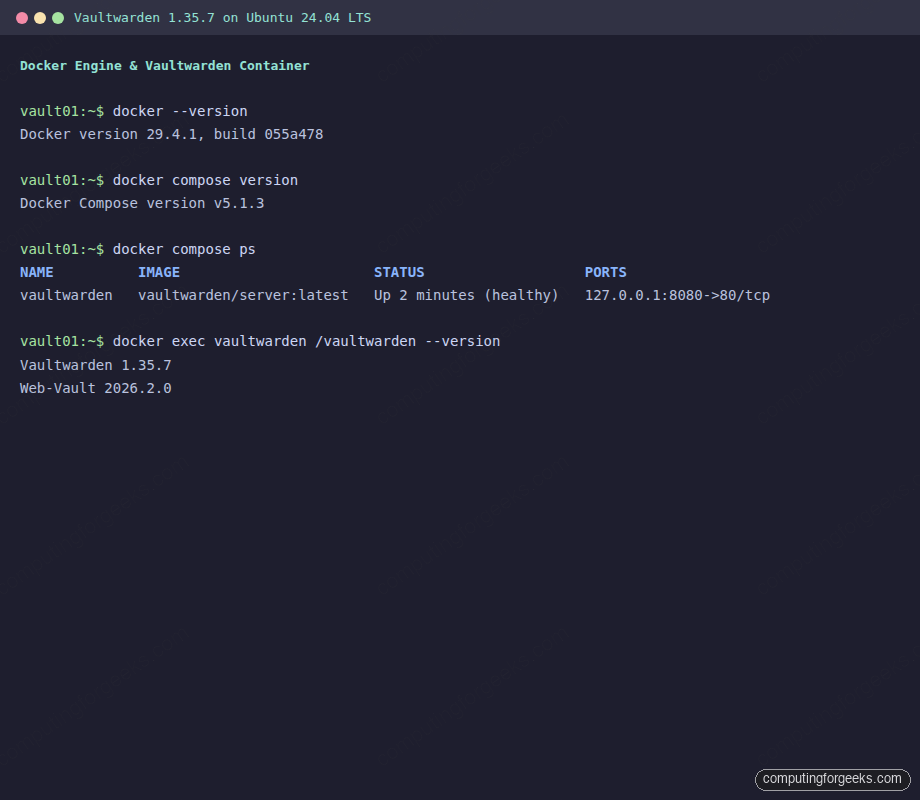
The terminal capture below puts everything together, Docker version, Compose plugin, running container health check, and Vaultwarden’s self-reported version, in one frame:
A quick local curl check confirms Vaultwarden is answering HTTP on 127.0.0.1:
curl -sI http://127.0.0.1:8080/ | head -3It returns a 200 from the Rocket framework, the app is alive but not yet reachable over HTTPS. Nginx is next.
Step 4: Install Nginx and create the reverse proxy vhost
Install Nginx from the distro repos. The core config is identical across Debian and RHEL family, only the package manager differs:
# Ubuntu / Debian
sudo apt-get install -y nginx

# Rocky Linux / AlmaLinux / RHEL
sudo dnf install -y nginx

sudo systemctl enable --now nginx
Open the vhost file for the Vaultwarden domain:
sudo nano /etc/nginx/sites-available/vaultwarden.confOn RHEL family, place the file at /etc/nginx/conf.d/vaultwarden.conf instead. Drop in this configuration. The map block enables the HTTP/1.1 Upgrade header Vaultwarden’s WebSocket endpoint needs, and the upstream keepalive reduces per-request TCP churn:
upstream vaultwarden {
  zone vaultwarden 64k;
  server 127.0.0.1:8080;
  keepalive 4;
}

map $http_upgrade $connection_upgrade {
    default upgrade;
    ''      "";
}

server {
    listen 80;
    listen [::]:80;
    server_name VAULT_DOMAIN_HERE;

    location / {
        return 301 https://$host$request_uri;
    }
}

server {
    listen 443 ssl http2;
    listen [::]:443 ssl http2;
    server_name VAULT_DOMAIN_HERE;

    # certbot will fill these in during Step 5
    # ssl_certificate     /etc/letsencrypt/live/VAULT_DOMAIN_HERE/fullchain.pem;
    # ssl_certificate_key /etc/letsencrypt/live/VAULT_DOMAIN_HERE/privkey.pem;

    ssl_protocols TLSv1.2 TLSv1.3;
    ssl_prefer_server_ciphers on;

    client_max_body_size 525M;

    location / {
      proxy_http_version 1.1;
      proxy_set_header Upgrade            $http_upgrade;
      proxy_set_header Connection         $connection_upgrade;

      proxy_set_header Host               $host;
      proxy_set_header X-Real-IP          $remote_addr;
      proxy_set_header X-Forwarded-For    $proxy_add_x_forwarded_for;
      proxy_set_header X-Forwarded-Proto  $scheme;

      proxy_pass http://vaultwarden;
    }
}
Replace every VAULT_DOMAIN_HERE with the real hostname from ${VAULT_DOMAIN} in one shot:
sudo sed -i "s/VAULT_DOMAIN_HERE/${VAULT_DOMAIN}/g" /etc/nginx/sites-available/vaultwarden.conf
sudo ln -sf /etc/nginx/sites-available/vaultwarden.conf /etc/nginx/sites-enabled/vaultwarden.conf
sudo rm -f /etc/nginx/sites-enabled/default
Test the syntax and reload:
sudo nginx -t
sudo systemctl reload nginx
A clean syntax check looks like this:
nginx: the configuration file /etc/nginx/nginx.conf syntax is ok
nginx: configuration file /etc/nginx/nginx.conf test is successful
Nginx is now listening on 80 and 443 for the domain but doesn’t yet have a certificate, so 443 will fail. The next step fixes that. Open ports 80 and 443 on the host firewall and any upstream cloud security group:
# Ubuntu / Debian
sudo ufw allow 80,443/tcp
sudo ufw reload

# Rocky / AlmaLinux / RHEL
sudo firewall-cmd --permanent --add-service=http --add-service=https
sudo firewall-cmd --reload
Step 5: Issue a Let’s Encrypt certificate with certbot
Install certbot and the Nginx integration. The --nginx plugin uses the HTTP-01 challenge, which works with any DNS provider because Let’s Encrypt reaches your server on port 80 to verify the domain:
# Ubuntu / Debian
sudo apt-get install -y certbot python3-certbot-nginx

# Rocky / AlmaLinux / RHEL
sudo dnf install -y epel-release
sudo dnf install -y certbot python3-certbot-nginx
Issue the certificate. Certbot reads the existing Nginx vhost, completes the ACME challenge, edits the vhost to uncomment the ssl_certificate lines, and reloads Nginx. One command does all of it:
sudo certbot --nginx --redirect \
  -d "${VAULT_DOMAIN}" \
  --non-interactive --agree-tos -m "${ADMIN_EMAIL}"
On a fresh account and domain the output confirms the certificate was saved and deployed:
Saving debug log to /var/log/letsencrypt/letsencrypt.log
Account registered.
Requesting a certificate for vault.example.com

Successfully received certificate.
Certificate is saved at: /etc/letsencrypt/live/vault.example.com/fullchain.pem
Key is saved at:         /etc/letsencrypt/live/vault.example.com/privkey.pem
This certificate expires on 2026-07-19.
These files will be updated when the certificate renews.
Certbot has set up a scheduled task to automatically renew this certificate in the background.

Deploying certificate
Successfully deployed certificate for vault.example.com to /etc/nginx/sites-enabled/vaultwarden.conf
Congratulations! You have successfully enabled HTTPS on https://vault.example.com
Certbot installs a systemd timer that renews 30 days before expiry. Dry-run the renewal to prove the timer and hooks work:
sudo certbot renew --dry-run
sudo systemctl list-timers | grep certbot
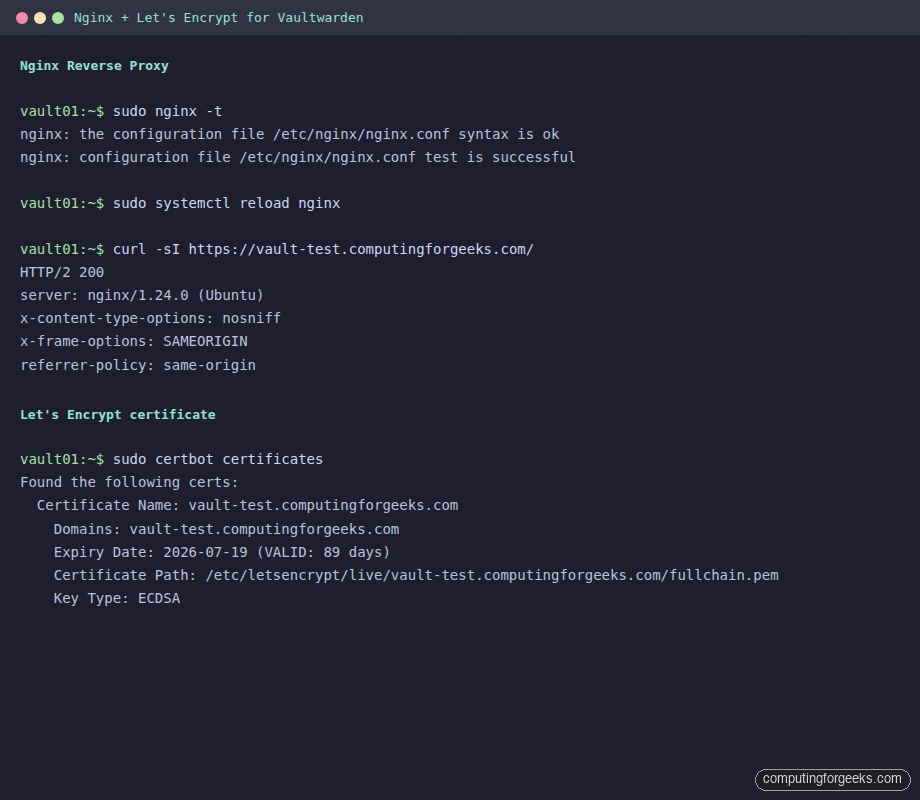
A successful dry-run ends with Congratulations, all simulated renewals succeeded. The terminal capture below shows nginx syntax check, the HTTPS 200 from the live origin, and the certificate metadata from certbot certificates:
DNS-01 alternative for private or NAT’d servers
HTTP-01 requires the Let’s Encrypt servers to reach port 80 on the public internet. If your Vaultwarden box is on a private LAN, behind strict NAT, or you need a wildcard cert, use DNS-01 instead. Certbot ships DNS plugins for most providers:
| Provider | Plugin package |
|---|---|
| Cloudflare | python3-certbot-dns-cloudflare |
| AWS Route 53 | python3-certbot-dns-route53 |
| DigitalOcean | python3-certbot-dns-digitalocean |
| Google Cloud DNS | python3-certbot-dns-google |
| Linode | python3-certbot-dns-linode |
| OVH | python3-certbot-dns-ovh |
| Standards-based BIND | python3-certbot-dns-rfc2136 |
The Cloudflare variant, as one example, needs a token with Zone:DNS:Edit scope. Substitute your provider’s plugin if you’re on something else:
sudo apt-get install -y certbot python3-certbot-dns-cloudflare
echo "dns_cloudflare_api_token = your-api-token-here" | \
  sudo tee /etc/letsencrypt/cloudflare.ini
sudo chmod 600 /etc/letsencrypt/cloudflare.ini

sudo certbot certonly --dns-cloudflare \
  --dns-cloudflare-credentials /etc/letsencrypt/cloudflare.ini \
  --dns-cloudflare-propagation-seconds 30 \
  -d "${VAULT_DOMAIN}" \
  --non-interactive --agree-tos -m "${ADMIN_EMAIL}"
DNS-01 does not edit the Nginx vhost automatically, so point the ssl_certificate and ssl_certificate_key lines at /etc/letsencrypt/live/${VAULT_DOMAIN}/ manually and reload Nginx.
Step 6: Create the first Vaultwarden account
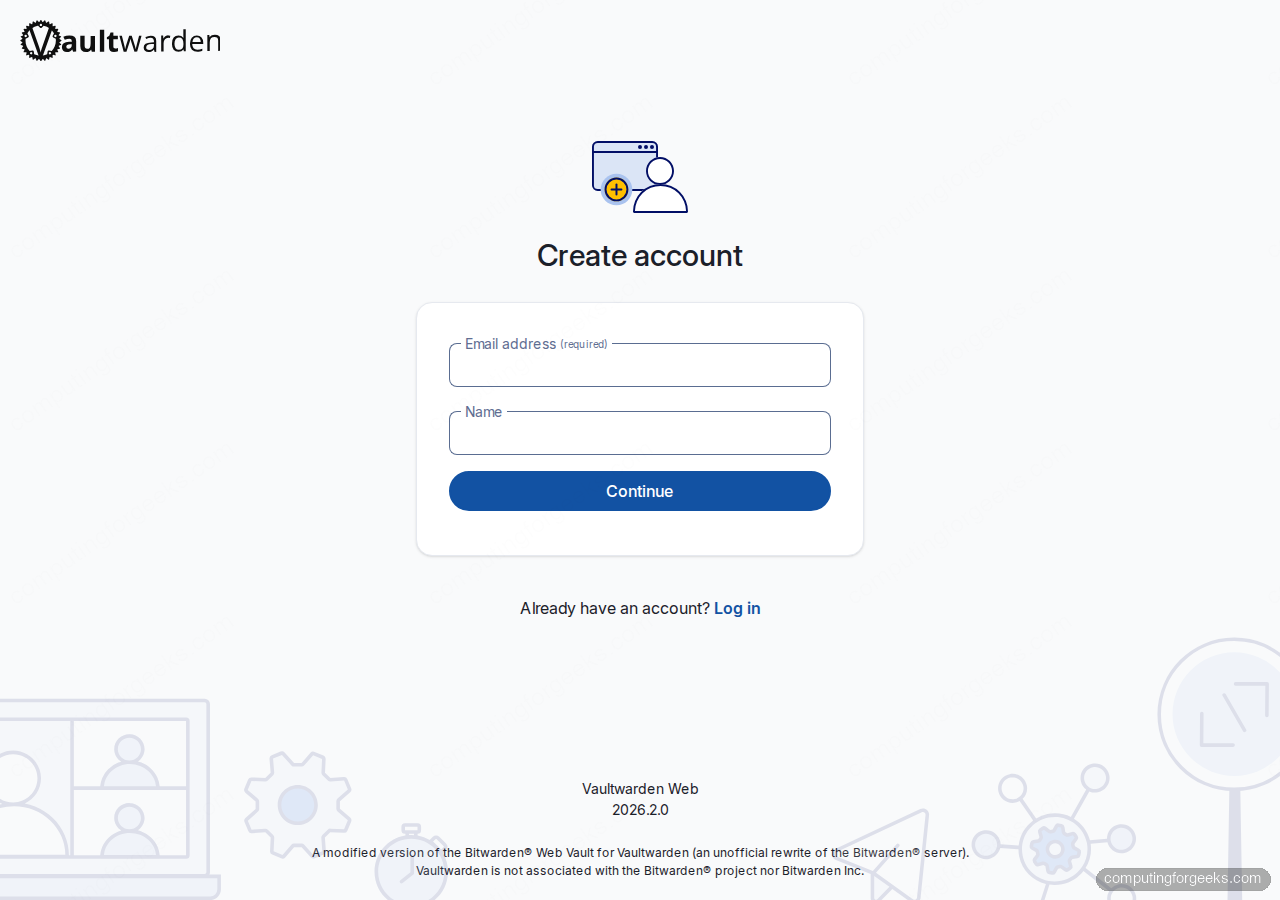
Open https://${VAULT_DOMAIN}/#/register in a browser. The web vault loads over HTTPS, note the padlock, and prompts for an email address and a display name. Use the email you’ll actually read because the server sends password hint reminders there:
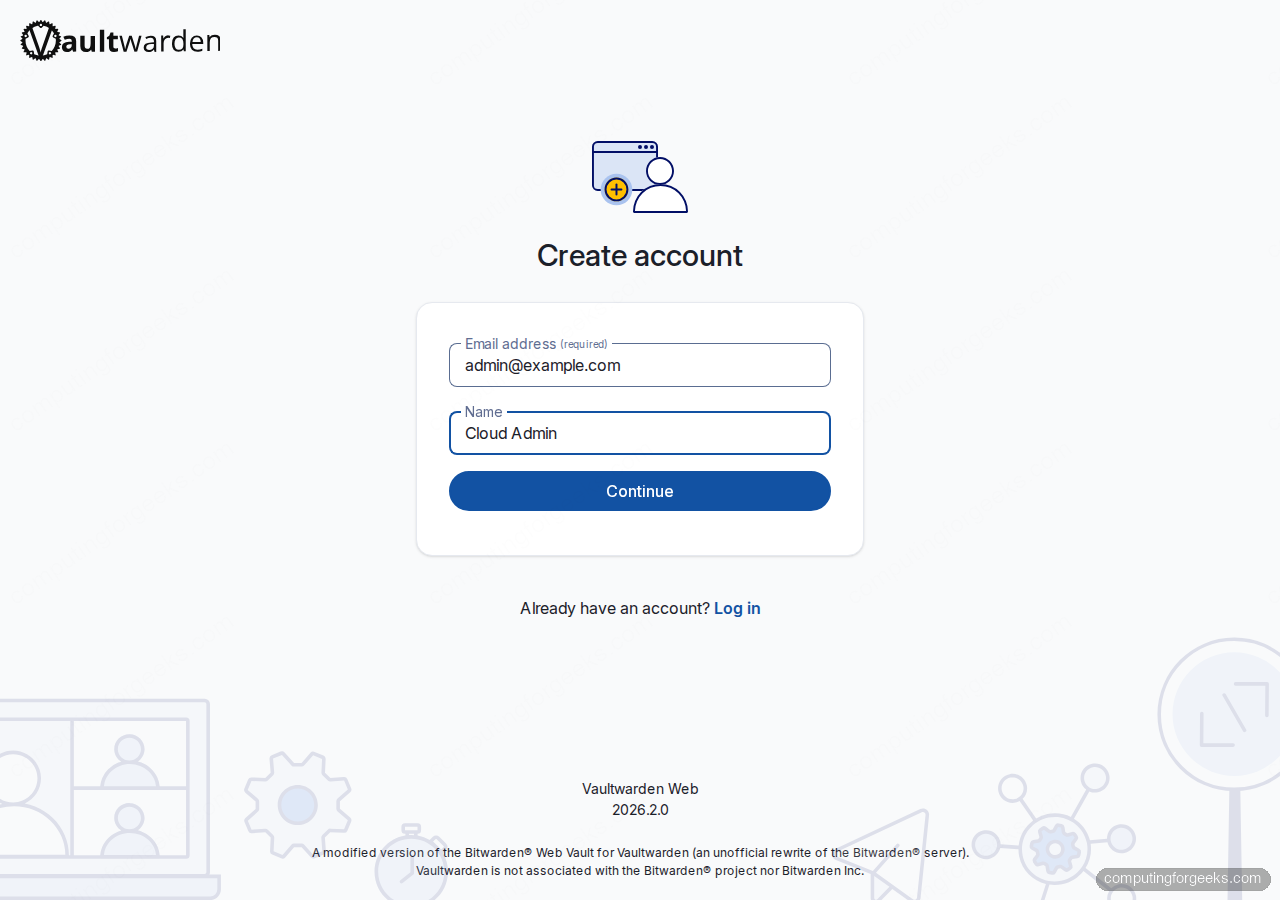
Fill the fields and click Continue. Vaultwarden does not send a verification email by default, so the address is a label more than a proof of ownership:
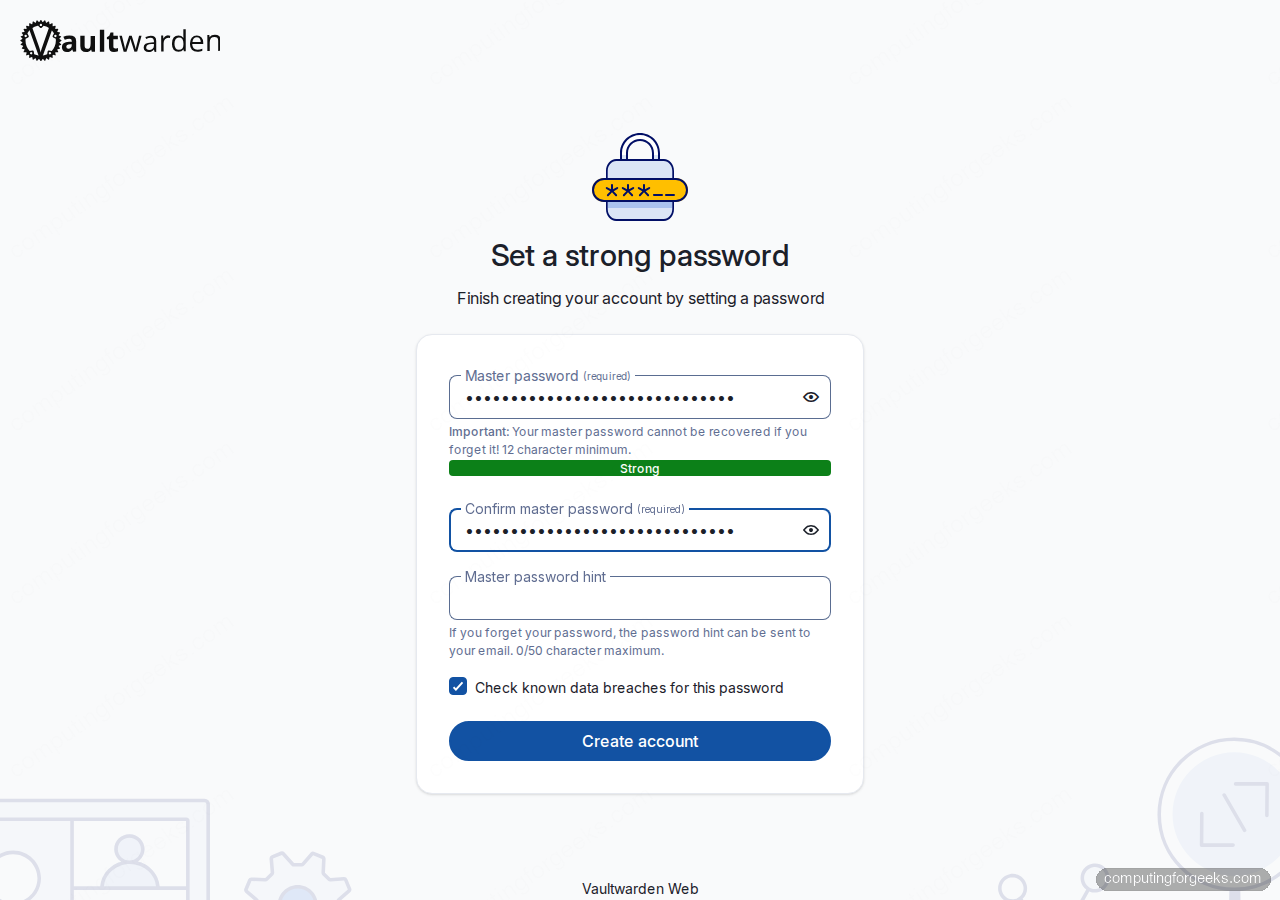
The next screen asks for a master password. This is the only secret that unlocks your vault, Vaultwarden (and Bitwarden) does not have a password reset. Forget it and every entry is lost. Use a 16+ character passphrase that only you know. The strength meter turns green once it’s strong enough:
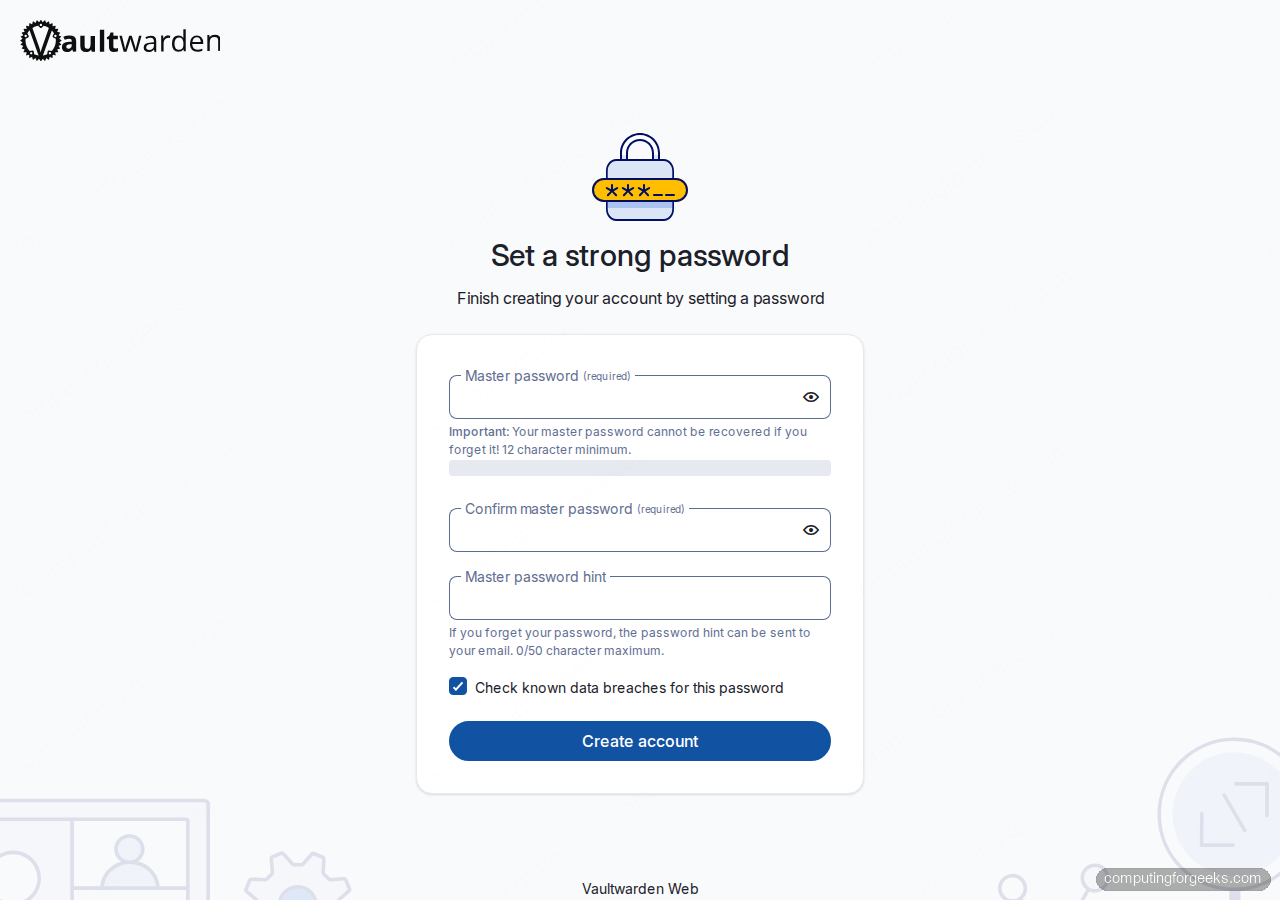
Leaving the Check known data breaches for this password checkbox on is free and uses the k-anonymity HIBP API (only a 5-character SHA-1 prefix leaves your browser). Once both password fields show Strong, click Create account:
Step 7: Log in and unlock the vault
After registration, the web vault redirects to the login flow. Vaultwarden uses a two-step sign-in, enter the email first so the server can look up the correct KDF parameters, then the master password:
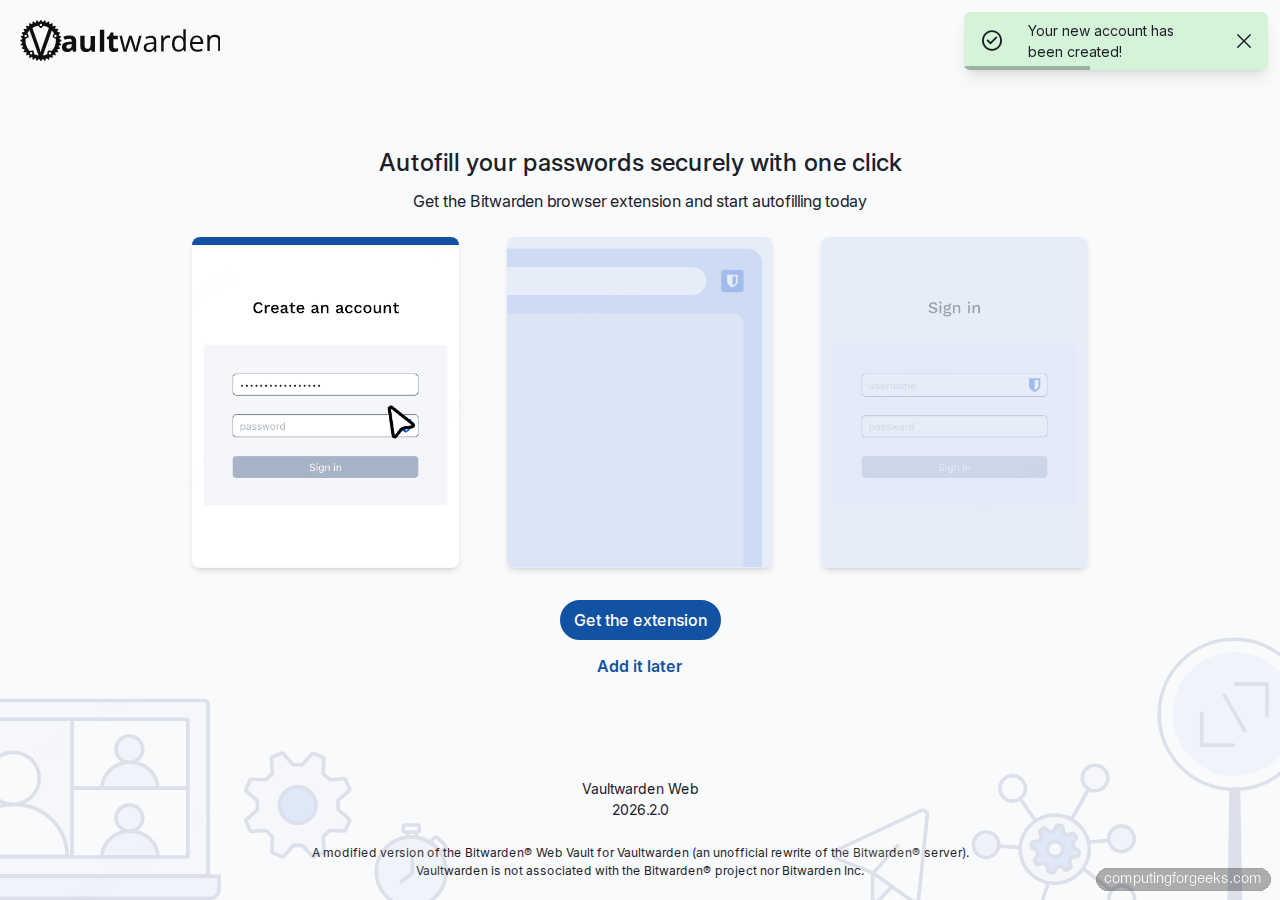
On the master password screen, paste the passphrase you set. The Get master password hint link under the button triggers an email if you configured SMTP in the compose file (see the hardening section below):
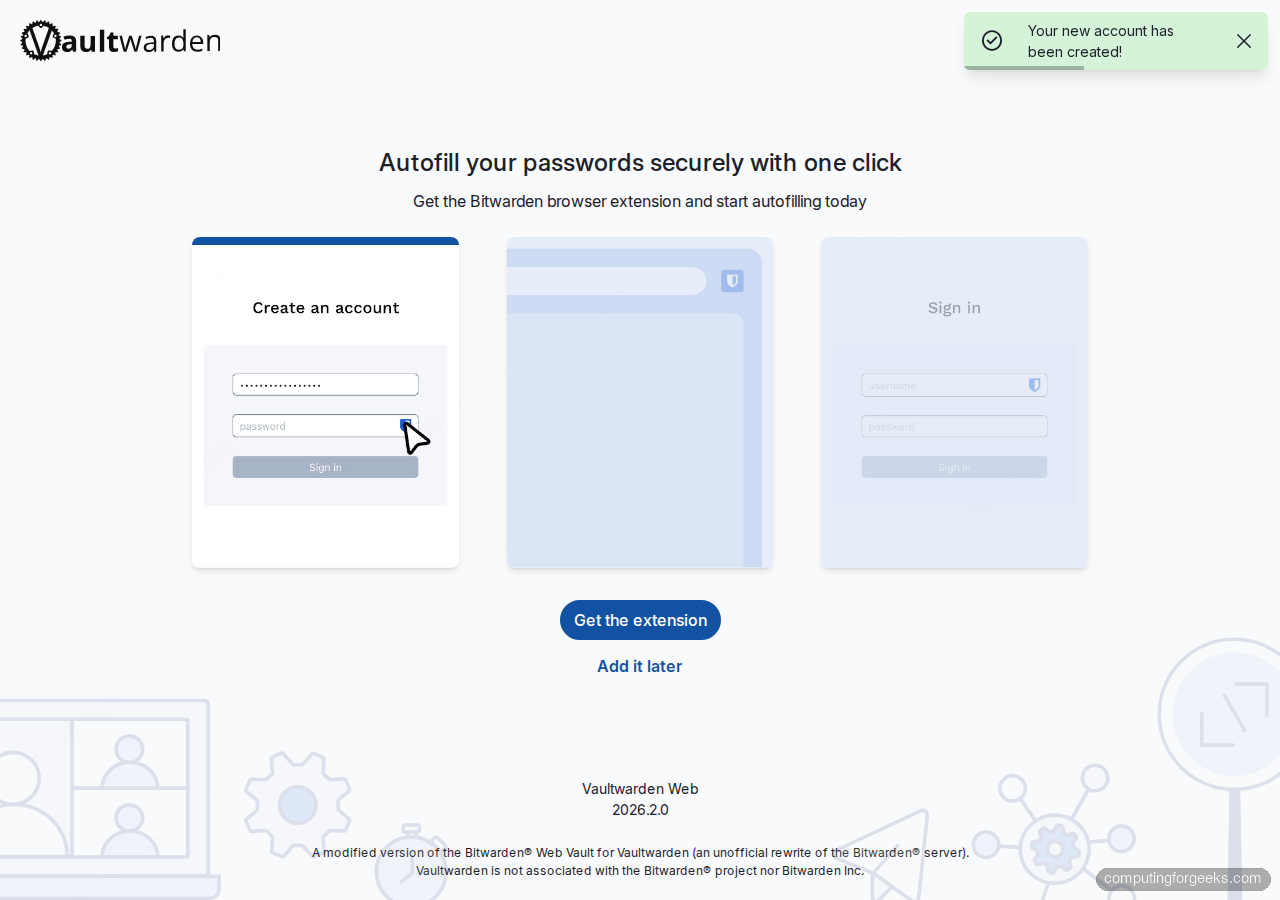
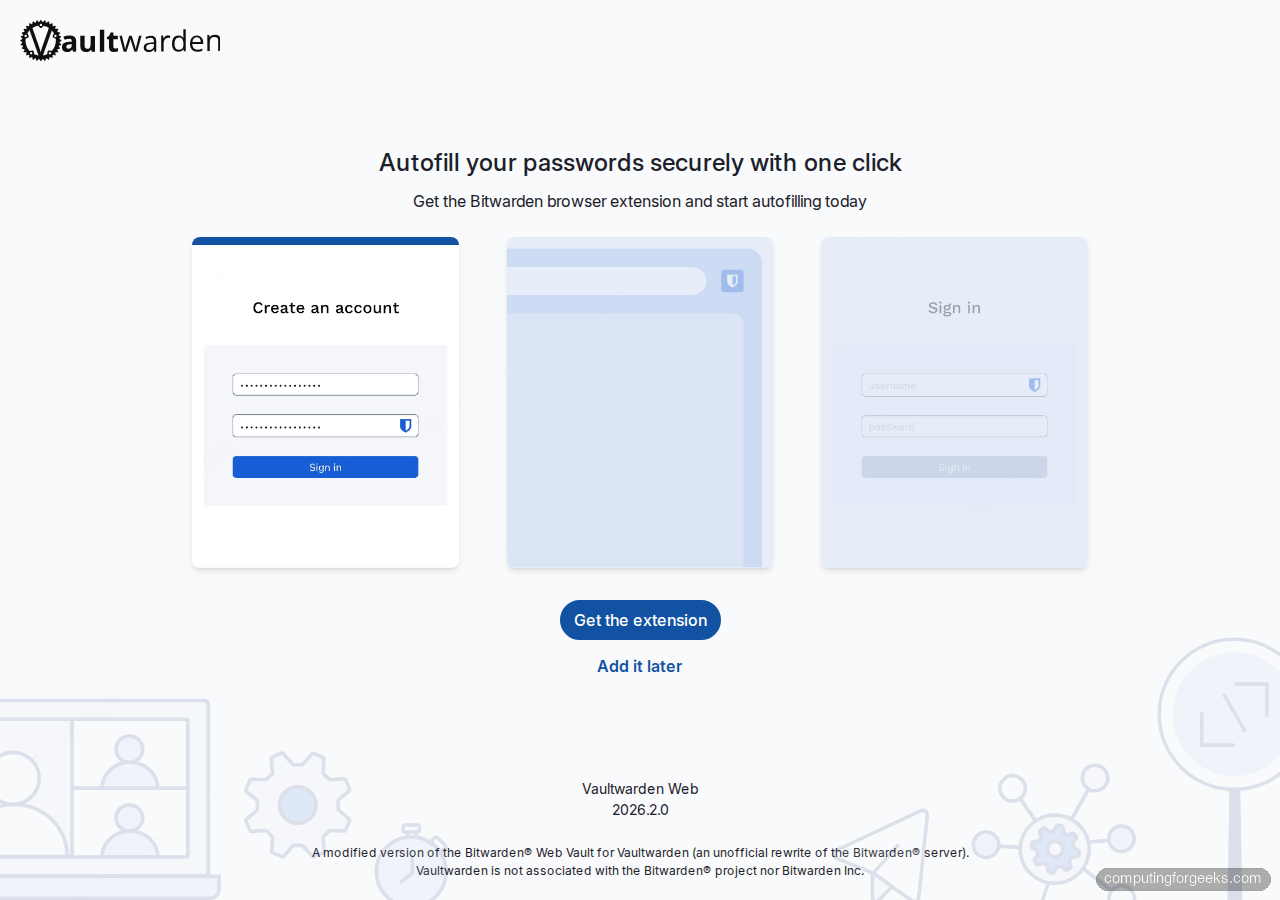
On a successful login, Vaultwarden first nudges you to install the Bitwarden browser extension. Click Add it later for now, the web vault already does everything the extension does, just without autofill:
Step 8: Close registration and protect the admin page
With your user created, switch SIGNUPS_ALLOWED off so nobody else can register by guessing the URL. Also set an ADMIN_TOKEN so you can reach https://${VAULT_DOMAIN}/admin to invite users, edit config, and watch diagnostics. Vaultwarden recommends a hashed Argon2 token, generate one with the container’s built-in hasher:
cd "${VAULT_DIR}"
sudo docker exec -it vaultwarden /vaultwarden hash --preset bitwarden
# Paste a strong passphrase twice; copy the PHC string starting with $argon2id$
Copy the full PHC string it prints. Because the string contains $ characters and Docker Compose will interpolate them, store it in a separate .env file and reference it safely:
sudo tee "${VAULT_DIR}/.env" > /dev/null <<ENV
ADMIN_TOKEN_PHC=PASTE_THE_FULL_PHC_STRING_HERE
ENV
sudo chmod 600 "${VAULT_DIR}/.env"
Then update docker-compose.yml to load from .env and flip signups off. The trick with the PHC string is that every $ must be doubled to $$ so Compose treats it as literal. Using env_file avoids that pitfall entirely:
sudo tee "${VAULT_DIR}/docker-compose.yml" > /dev/null <<YML
services:
  vaultwarden:
    image: vaultwarden/server:latest
    container_name: vaultwarden
    restart: unless-stopped
    env_file:
      - .env
    environment:
      DOMAIN: "https://${VAULT_DOMAIN}"
      SIGNUPS_ALLOWED: "false"
      WEBSOCKET_ENABLED: "true"
      ADMIN_TOKEN: "\${ADMIN_TOKEN_PHC}"
    volumes:
      - ./data:/data
    ports:
      - "127.0.0.1:8080:80"
YML
sudo docker compose up -d
Verify the admin page accepts the passphrase (the plaintext you hashed, not the PHC string) at https://${VAULT_DOMAIN}/admin. From the admin UI you can invite additional users, set SMTP for password hint emails, tune the push-notification backend, and watch live diagnostics without touching the container.
Step 9: Back up the vault data
Everything Vaultwarden writes, accounts, encrypted entries, attachments, the admin settings, the RSA keys, lives under ${VAULT_DIR}/data. Back up that directory and you can rebuild from scratch in minutes. A nightly tarball keeps history cheap:
sudo tee /usr/local/bin/vaultwarden-backup.sh > /dev/null <<'SH'
#!/bin/bash
set -euo pipefail

VAULT_DIR="/opt/vaultwarden"
BACKUP_DIR="/var/backups/vaultwarden"
STAMP="$(date -u +%Y%m%dT%H%M%SZ)"

mkdir -p "${BACKUP_DIR}"
docker exec vaultwarden sqlite3 /data/db.sqlite3 ".backup /data/db-backup.sqlite3"
tar --exclude='icon_cache' -czf "${BACKUP_DIR}/vw-${STAMP}.tar.gz" -C "${VAULT_DIR}" data
rm -f "${VAULT_DIR}/data/db-backup.sqlite3"
find "${BACKUP_DIR}" -type f -name 'vw-*.tar.gz' -mtime +14 -delete
SH
sudo chmod +x /usr/local/bin/vaultwarden-backup.sh
echo "15 3 * * * root /usr/local/bin/vaultwarden-backup.sh" | sudo tee /etc/cron.d/vaultwarden-backup
The sqlite3 .backup hot-copy is consistent even while Vaultwarden is running. Test the restore path on a throwaway VM every few months, a backup you never restored is not a backup.
Production hardening checklist
Vaultwarden now works. The items below are the 80/20 of running it safely in the long term:
- Fail2ban on the admin endpoint. The admin page is a juicy target once someone knows the URL. Add a
vaultwarden-adminjail that watchesdata/vaultwarden.logfor repeated 401s and bans on 5 failures in 10 minutes. - SMTP for password hints and invites. Without SMTP, the Send hint flow silently fails and admin-page invites don’t reach new users. Add
SMTP_HOST,SMTP_FROM,SMTP_PORT,SMTP_SECURITY,SMTP_USERNAME, andSMTP_PASSWORDto.env. - Rate-limit the /identity/connect/token endpoint at Nginx. Vaultwarden itself doesn’t throttle master-password attempts; a
limit_req_zoneon the login POST gives you a cheap brute-force brake. - Require 2FA for every account. Turn it on from Account Settings → Security → Two-step Login with a TOTP app (Aegis, 2FAS, Google Authenticator). WebAuthn keys work too if you have a YubiKey.
- Pin the image tag.
vaultwarden/server:latestis fine for testing; in production, pin to a specific tag (e.g.,1.35.7-alpine) and bump manually after reading release notes. - Set WAL mode on SQLite for heavy-use multi-user vaults. Vaultwarden already enables WAL, but confirm with
docker exec vaultwarden sqlite3 /data/db.sqlite3 'PRAGMA journal_mode;', it should saywal.
Troubleshooting
502 Bad Gateway from Nginx
Nginx returned 502 the first time I tested because the compose file was binding to a different host port than the upstream. Run ss -tlnp | grep 8080 on the host, if nothing is listening, your compose file maps a different port than the Nginx upstream block references. Align the two and reload Nginx.
Error: “Invalid admin token” even with the correct passphrase
Two things cause this, both silent. First, you hashed the token with the distro argon2 binary which uses different defaults than Vaultwarden expects, always use docker exec vaultwarden /vaultwarden hash --preset bitwarden. Second, the PHC string sits inline in docker-compose.yml and Compose interpolated every $. Move the token to an env_file or double every $ to $$.
Error: “Failed to validate TOTP” on mobile clients
TOTP codes depend on clock sync. On the Vaultwarden host run timedatectl and confirm System clock synchronized: yes. If not, sudo systemctl restart systemd-timesyncd (Debian family) or sudo chronyc makestep (RHEL family) fixes it.
Mobile apps report “We could not process your request”
The Bitwarden app on iOS/Android is strict about TLS. Confirm the cert chain is complete with curl -sI https://${VAULT_DOMAIN}/ and verify you are serving the fullchain.pem, not cert.pem. The Nginx config in Step 4 already does this; if you swapped it, put fullchain.pem back.
Connect Bitwarden clients to your Vaultwarden server
Download any official Bitwarden client, desktop, browser extension, Android, iOS, or the bw CLI. On first launch, click the gear icon or Logging in on selector and change the server URL from bitwarden.com to https://${VAULT_DOMAIN}. Log in with the email and master password you just created. Vault entries sync instantly over the same HTTPS port.
The companion guide Install Vaultwarden on Ubuntu 26.04 walks through the same flow on the next Ubuntu LTS, and the Nginx install and config guide is the place to start if Nginx is new to you. The upstream Vaultwarden wiki documents every environment variable referenced above.
From here the vault is yours. Add logins as you rotate passwords, turn on 2FA for every high-value account, and run the backup script nightly. Every additional item you add pays compounding interest on the hour spent setting the server up.



![Install Kali Linux 2026.1 Step by Step [Full Guide]](https://computingforgeeks.com/wp-content/uploads/2026/03/install-kali-linux-20261-step-by-step-768x403.png "Install Kali Linux 2026.1 Step by Step [Full Guide] 12")