A fresh ParrotOS install drops you straight into a fully loaded pentest desktop, but the machine underneath it is not hardened yet. The firewall is off, automatic security patching is not set up, and the rolling base is already a few weeks behind upstream the moment the ISO finishes writing. None of that is a problem if you spend ten minutes on it first.
This guide covers what to do after installing ParrotOS, the post-install checklist that actually matters: pulling the first full update, switching on the firewall, turning on unattended security upgrades, confirming AppArmor is doing its job, and getting a feel for anonsurf, the anonymity tool that ships with the distro. Every command here was run on ParrotOS 7.3 (Security Edition) in July 2026.
Run the first full system update
ParrotOS sits on a Debian 13 stable base with its own rolling tool repositories layered on top, so a downloaded image is never fully current. Before you install a single extra tool, bring the system level with the echo suite. The maintained way to do that is the parrot-upgrade wrapper, not plain apt upgrade:
sudo parrot-upgradeOn the freshly installed test box this pulled 19 packages from the security and backports components in one pass. The wrapper runs a full upgrade rather than a held-back partial one, which is the only correct behaviour on a rolling base. The mechanics of why, and how to automate it, are covered in the rolling-release update guide.
Turn on the firewall
ParrotOS ships ufw but leaves it switched off. A fresh install reports the firewall as inactive:
sudo ufw statusThe default state is open:
Status: inactiveIf you reach this machine over SSH, allow the SSH port before you enable the firewall, or the default deny-incoming policy will lock you out the moment it comes up. On a desktop you sit in front of, skip the allow line and go straight to enable:
sudo ufw allow 22/tcp
sudo ufw enable
Confirm the policy with a verbose status check:
sudo ufw status verboseThe output should show incoming traffic denied by default and outgoing allowed:
Status: active
Logging: on (low)
Default: deny (incoming), allow (outgoing), disabled (routed)
New profiles: skip

To                         Action      From
--                         ------      ----
22/tcp                     ALLOW IN    Anywhere
22/tcp (v6)                ALLOW IN    Anywhere (v6)
That is the right baseline: nothing reaches the box unless you open it explicitly. For day-to-day rule management, the common ufw commands reference covers adding and removing ports.
Enable automatic security updates
ParrotOS does not install unattended-upgrades out of the gate, so security fixes sit waiting until you next run an upgrade by hand. On any machine you do not log into daily, install the package and switch it on:
sudo apt install unattended-upgrades
sudo dpkg-reconfigure -plow unattended-upgrades
There is one Parrot-specific catch worth knowing: the config the package ships watches only Debian’s security origin, so as installed it skips Parrot’s own echo-security stream entirely. The one-line fix to point it at the Parrot origin is documented in the update and maintenance guide. Add that line, or the timer runs but never patches the tools you actually care about.
Confirm AppArmor is enforcing
AppArmor is loaded and active on a default ParrotOS install, which is one of the reasons the distro is a sensible daily driver and not just a live-boot toolkit. Check what it is confining:
sudo aa-statusOn the test system 161 profiles were loaded with 38 of them in enforce mode:
apparmor module is loaded.
161 profiles are loaded.
38 profiles are in enforce mode.
123 profiles are in complain mode.
Profiles in enforce mode block anything the policy does not allow; complain mode only logs. You do not need to change anything here, but it is worth knowing the mechanism exists before you start running untrusted binaries. The AppArmor cheat sheet covers switching a profile between the two modes.
Get comfortable with anonsurf
anonsurf is the piece that makes ParrotOS feel different from a stock Debian. It pushes all system traffic through Tor as a transparent proxy, so every tool on the box, not just a browser, comes out the other side anonymised. Check the current state first:
sudo anonsurf statusOn a clean install it is off, and you are on the clearnet:
[+] AnonSurf is not running
  Your are not under Tor network
The commands you will reach for are start, stop, status, and changeid (the last requests a new Tor circuit), with myip and dns on hand to confirm your exit address and DNS path once Tor is up. One warning that bites people: anonsurf start reroutes the entire system through Tor, so if you are administering the box over SSH, it will drop your connection the instant it takes effect. Run it from the desktop, not a remote shell.
After working through the firewall, AppArmor, and anonsurf steps, a single posture check confirms the box is in the state you want:
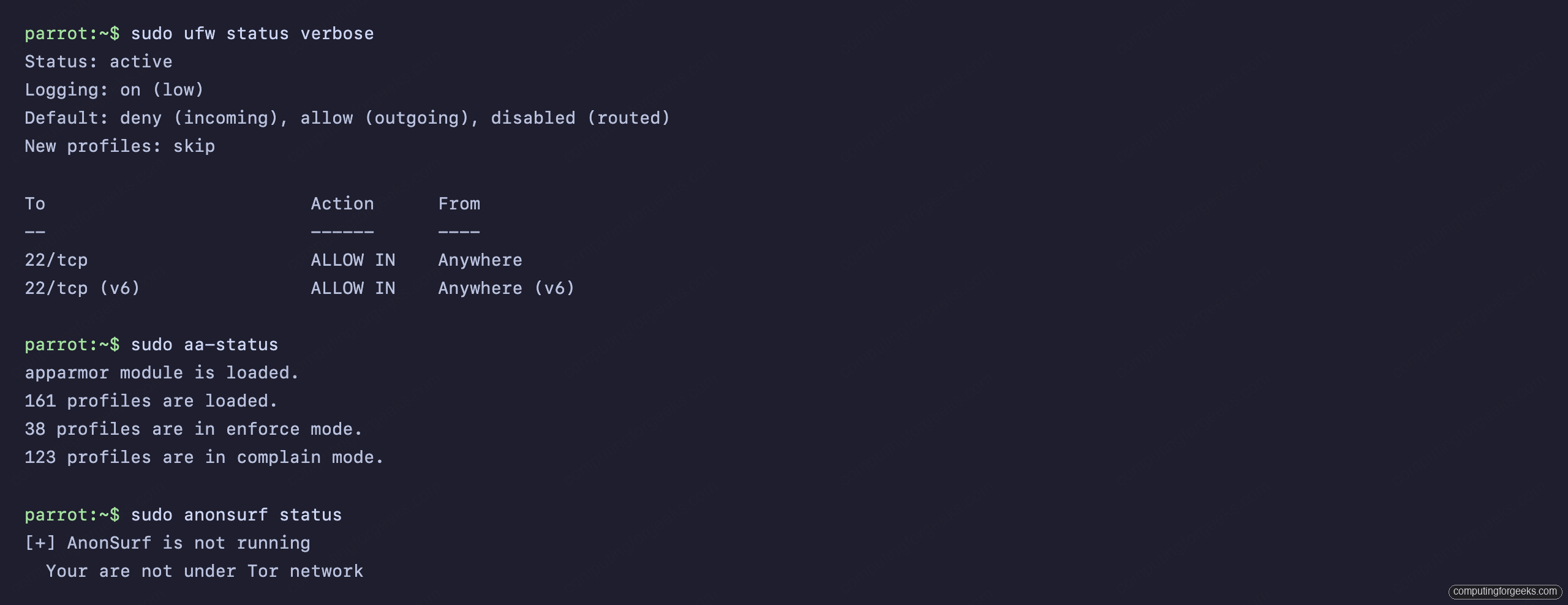
Firewall active, AppArmor enforcing, anonsurf ready when you need it. That is the baseline a hardened ParrotOS workstation should sit at.
Where the actual work starts
With the system patched and the basics locked down, the box is ready for what you installed it for. ParrotOS runs the same toolset as Kali, so the existing guides apply directly: point Nmap at a target to map a network, or stand up an isolated pentest lab on Proxmox so you have something legal to practice against. If you came here straight after the step-by-step install, this checklist is the gap between a working desktop and one you can trust.



![Install Kali Linux 2026.1 Step by Step [Full Guide]](https://computingforgeeks.com/wp-content/uploads/2026/03/install-kali-linux-20261-step-by-step-768x403.png "Install Kali Linux 2026.1 Step by Step [Full Guide] 4")