Plain apt upgrade is the wrong command on ParrotOS. It refuses to upgrade any package whose new version needs other packages added or removed, and on a rolling release that is most of them, so the system drifts into a half-updated state. ParrotOS layers its own rolling echo suite on a Debian 13 stable base and ships a wrapper, parrot-upgrade, that does the update correctly: refresh the indexes, repair any interrupted state, then run a full upgrade.
Run on ParrotOS 7.3 (Security Edition) in July 2026.
Step 1: Use parrot-upgrade, not apt upgrade
ParrotOS is a rolling release, so there is no point release to jump to. You keep one install current indefinitely. The maintained path is the parrot-upgrade wrapper, which runs this sequence in order:
apt update
dpkg --configure -a
apt --fix-broken --fix-missing install
apt -y --fix-broken --fix-missing full-upgrade
apt -y full-upgrade
flatpak update --assumeyes --noninteractive
The two things plain apt upgrade never does are the full-upgrade (which allows packages to be added or removed to satisfy new dependencies) and the Flatpak refresh. Both matter on a rolling base.
Step 2: Run the update
One command does the whole job:
sudo parrot-upgradeOn the test system, 19 packages were pending after a fresh install. The full-upgrade pass reports the exact count, the download size, and any space reclaimed:
Summary:
  Upgrading: 19, Installing: 0, Removing: 0, Not Upgrading: 0
  Download size: 21.5 MB
  Freed space: 1,196 kB
The packages come from the echo-backports and echo-security components, for example the ATK accessibility stack at 2.60.4-1~bpo13+1. When the wrapper finishes, a second full-upgrade pass confirms there is nothing left:
Summary:
  Upgrading: 0, Installing: 0, Removing: 0, Not Upgrading: 0
That clean second pass is the signal the upgrade finished without leaving anything half-applied.
Step 3: Know which repositories you are tracking
ParrotOS pulls from three components, all on the echo suite that names the 7.x line. Understanding them explains why full-upgrade is mandatory: echo moves continuously, echo-security carries the urgent fixes, and echo-backports brings newer userspace onto the stable base.
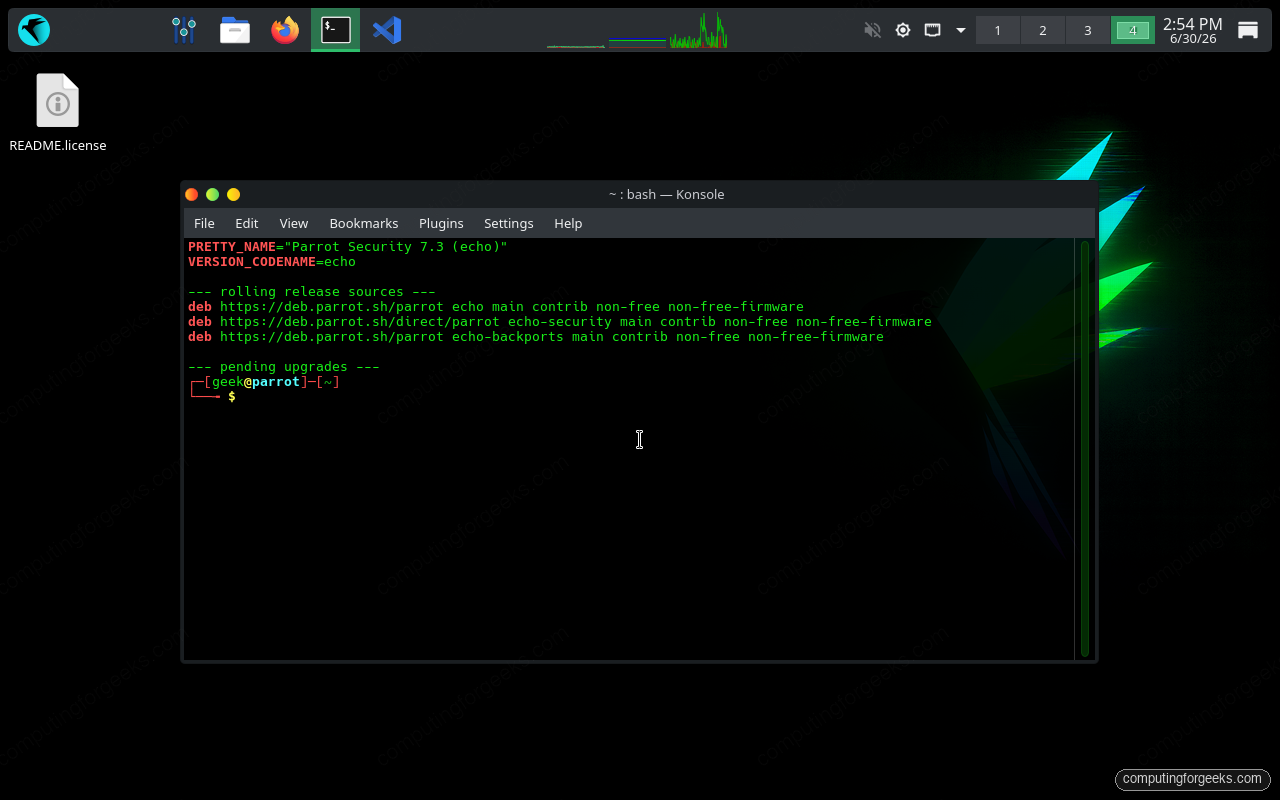
The capture above shows the three echo components in place with nothing left pending, which is the state you are aiming for after every run.
Step 4: The manual path if you skip the wrapper
If you prefer to drive apt yourself, the only rule that matters is to use full-upgrade, never upgrade:
sudo apt update
sudo apt full-upgrade
Flatpak is a separate package system that apt does not touch, so refresh it on its own when you go manual:
flatpak updateApt and Flatpak version their packages independently, so a system can be fully apt-current and still run an outdated Flatpak app until this runs.
Step 5: Reclaim disk space
A rolling release accumulates orphaned dependencies and a large package cache over months. Two commands clear both:
sudo apt autoremove --purge
sudo apt clean
autoremove --purge drops packages nothing depends on any more and deletes their config; clean empties the downloaded .deb cache under /var/cache/apt/archives.
Step 6: Automate the security updates
ParrotOS does not install unattended-upgrades by default, so security fixes wait for you to run the upgrade. On a machine you do not babysit, install it and turn it on:
sudo apt install unattended-upgrades
sudo dpkg-reconfigure -plow unattended-upgrades
Answer Yes to the prompt. There is a Parrot-specific catch here that most guides miss: the config the package ships watches only Debian’s security origin, so as installed it ignores Parrot’s own echo-security stream. Check the allowed origins for yourself:
grep -A5 'Origins-Pattern' /etc/apt/apt.conf.d/50unattended-upgradesThe default block lists only origin=Debian lines. Parrot publishes its security fixes under origin=Parrot, archive=parrot-security, which none of those patterns match. Edit the file to add it:
sudo vim /etc/apt/apt.conf.d/50unattended-upgradesAdd the Parrot security origin inside the Unattended-Upgrade::Origins-Pattern block, on its own line next to the Debian entries:
"origin=Parrot,archive=parrot-security";A dry run confirms the change took:
sudo unattended-upgrade --dry-run -d 2>&1 | grep "Allowed origins"The Parrot security suite is now in the allowed-origins list, ahead of the Debian entries:
Allowed origins are: origin=Parrot,archive=parrot-security, origin=Debian,codename=echo,label=Debian, ...Now the daily timer applies Parrot’s security patches on its own. Treat it as a safety net for urgent fixes, not a replacement for the periodic full parrot-upgrade, which is still where the rolling base actually moves forward.
Step 7: Reboot when the kernel changes
Most updates apply live, but a new kernel or core library does not take effect until you reboot. Check whether one is needed:
[ -f /var/run/reboot-required ] && echo "reboot needed" || echo "no reboot needed"That run upgraded 19 packages without touching the kernel, which stayed at 7.0.9+parrot7-amd64, so no reboot was required. When a kernel update does land, reboot before you trust the system to be running the patched build.
What to watch after an update
A rolling release rewards a quick check after each upgrade rather than a blind reboot. Two things tell you the update landed cleanly. First, confirm you are not deliberately holding any package back, since a held package silently sits out every future upgrade until you unhold it:
apt-mark showholdThe output should be empty unless you held a package on purpose. Then confirm the services you rely on came back, and that the kernel matches what is installed on disk. If the install itself is new, the step-by-step ParrotOS install guide covers the baseline this maintenance routine keeps current, and the same tooling you will be updating is documented in the Nmap scanning guide and the pentest lab walkthrough.



![Install Kali Linux 2026.1 Step by Step [Full Guide]](https://computingforgeeks.com/wp-content/uploads/2026/03/install-kali-linux-20261-step-by-step-768x403.png "Install Kali Linux 2026.1 Step by Step [Full Guide] 4")