Stirling-PDF is a self-hosted PDF toolbox that does the jobs people normally hand to a random website: merge, split, compress, convert, sign, redact, and run OCR on scanned documents. The difference is that your files never leave your own server. For invoices, contracts, ID scans, and anything else you would rather not upload to a stranger, that one fact is the whole reason to run it.
This guide sets it up the practical way: Docker Compose for the app, an Nginx reverse proxy with a real Let’s Encrypt certificate in front, and optional login so it is not wide open. After that you get a tour of the everyday tools and the no-code pipeline feature that chains several steps into one click. By the end you will have a private “Adobe Acrobat in a browser tab” running on your own box.
Ran through this with Docker on both Ubuntu 24.04 and Rocky Linux 10 in June 2026, so the steps cover Debian and RHEL based systems alike. Stirling-PDF 2.13.1 and Docker 29.6.0 were the versions under test.
Prerequisites
- A Linux server running a Debian or Ubuntu release, or a RHEL-based one such as Rocky Linux, AlmaLinux, or RHEL, with Docker and the Compose plugin (installed below if you do not have them).
- A domain name with an A record pointing at the server, and port 80 reachable, so Let’s Encrypt can validate over HTTP. Any DNS provider works.
- Sudo access and a few minutes.
On sizing: the app itself is light at idle, but two features are memory-hungry. Office conversions spin up a headless LibreOffice, and OCR runs tesseract plus Ghostscript over every page. The working number is driven by those, not by idle usage. Two vCPUs and 4 GB of RAM handle a single user converting and OCRing comfortably; a busy multi-user instance that processes large scans wants 8 GB and room to grow. The container caps its JVM at 70% of available RAM, so give it a host where that 70% is a sensible figure. The lab for this guide ran 2 vCPUs and 4 GB, which is a floor for following along, not a recommendation for a shared production box.
Step 1: Set reusable shell variables
A handful of values show up in many commands below. Set them once at the top of your SSH session and paste the rest as-is. Swap in your real domain and email:
export SITE_DOMAIN="stirling.example.com"
export ADMIN_EMAIL="[email protected]"
export APP_DIR="/opt/stirling-pdf"
These hold only for the current shell. If you reconnect or jump into a root shell, export them again. Confirm they are set before going further:
echo "Domain: ${SITE_DOMAIN}"
echo "Dir:    ${APP_DIR}"
Step 2: Install Docker and the Compose plugin
Skip this step if Docker is already running. Pick the block for your distribution; both pull the engine and the Compose plugin straight from Docker’s own repository.
Debian and Ubuntu
The repository line keys off your distribution ID and codename, so one block covers Debian and every current Ubuntu release:
sudo apt update
sudo apt install -y ca-certificates curl gnupg
sudo install -m 0755 -d /etc/apt/keyrings
. /etc/os-release
curl -fsSL https://download.docker.com/linux/$ID/gpg | sudo gpg --dearmor -o /etc/apt/keyrings/docker.gpg
sudo chmod a+r /etc/apt/keyrings/docker.gpg
echo "deb [arch=$(dpkg --print-architecture) signed-by=/etc/apt/keyrings/docker.gpg] https://download.docker.com/linux/$ID $VERSION_CODENAME stable" | sudo tee /etc/apt/sources.list.d/docker.list
sudo apt update
sudo apt install -y docker-ce docker-ce-cli containerd.io docker-buildx-plugin docker-compose-plugin
RHEL-based systems (Rocky, AlmaLinux, RHEL)
Add Docker’s CentOS repository, which serves the whole RHEL family, then install the same set of packages. On genuine RHEL you can swap centos for rhel in the URL; on Rocky and AlmaLinux the CentOS repo is the right one:
sudo dnf -y install dnf-plugins-core
sudo dnf config-manager --add-repo https://download.docker.com/linux/centos/docker-ce.repo
sudo dnf install -y docker-ce docker-ce-cli containerd.io docker-buildx-plugin docker-compose-plugin
On any distribution, start the service and enable it at boot:
sudo systemctl enable --now dockerConfirm the engine and the Compose plugin are both present:
docker --version
docker compose version
One gotcha shows up only on slim RHEL-based cloud images: the daemon refuses to start with an iptables error about a missing kernel module, because the image shipped kernel-core without the netfilter modules Docker’s bridge networking needs. Pull the full module set and reboot into it, after which Docker starts cleanly:
sudo dnf install -y kernel-modules
sudo reboot
A standard Rocky Linux or AlmaLinux server install already carries those modules, so this only bites trimmed-down cloud images, never a full install.
Step 3: Create the docker-compose file
Create the project directory and open a Compose file:
sudo mkdir -p "${APP_DIR}"
sudo vim "${APP_DIR}/docker-compose.yml"
Add the following. Login is off for now so you can confirm the app works before locking it down, and the four volumes keep your settings, logs, OCR language data, and saved pipelines on the host:
services:
  stirling-pdf:
    image: stirlingtools/stirling-pdf:latest
    container_name: stirling-pdf
    ports:
      - "127.0.0.1:8080:8080"
    volumes:
      - ./stirling-data/tessdata:/usr/share/tessdata
      - ./stirling-data/configs:/configs
      - ./stirling-data/logs:/logs
      - ./stirling-data/pipeline:/pipeline
    environment:
      - SECURITY_ENABLELOGIN=false
      - LANGS=en_GB
    restart: unless-stopped
Binding the port to 127.0.0.1 instead of 0.0.0.0 means the container is only reachable from the host. Nginx will be the only thing exposed to the internet, which is exactly what you want once TLS is in place.
Step 4: Start Stirling-PDF and verify
Pull the image and bring the stack up:
cd "${APP_DIR}"
sudo docker compose up -d
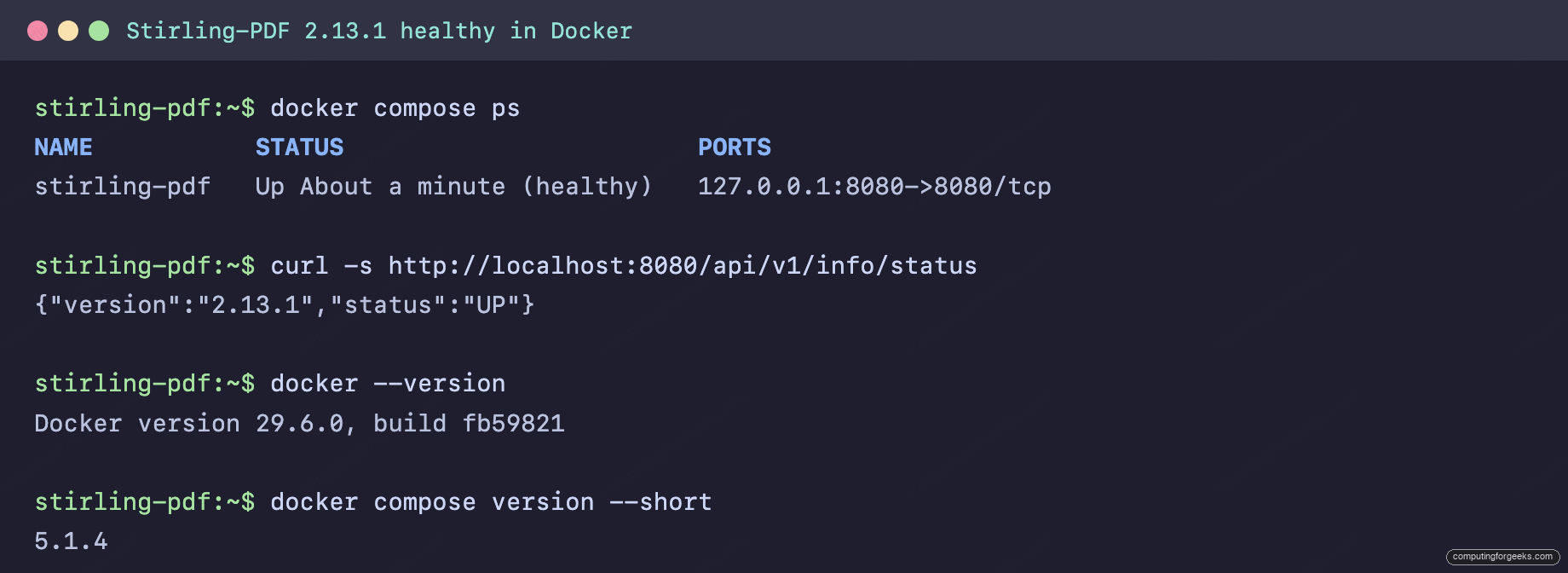
The first start takes a minute while it initializes LibreOffice and the OCR engine. Check the container and ask the app for its status:
sudo docker compose ps
curl -s http://localhost:8080/api/v1/info/status
A healthy container and a status of UP mean it is ready:
If the status call returns nothing for the first thirty seconds, that is normal on a cold start. Give it another moment and try again. If it ever returns “This endpoint is disabled,” usage metrics are turned off on your instance; the docker compose ps health column is the reliable readiness signal in that case.
Step 5: Put Nginx and HTTPS in front
Serving a PDF tool over plain HTTP is a bad idea, since every file and any login travel in the clear. Nginx terminates TLS and proxies to the container, with a free Let’s Encrypt certificate doing the encryption. Install Nginx and Certbot. On Debian and Ubuntu:
sudo apt install -y nginx certbot python3-certbot-nginxOn RHEL-based systems, Nginx is in the default repos and Certbot lives in EPEL:
sudo dnf install -y nginx epel-release
sudo dnf install -y certbot python3-certbot-nginx
sudo systemctl enable --now nginx
Create a server block. Dropping it in conf.d keeps the path identical across distributions, since both the Debian and RHEL packages include that directory by default:
sudo vim /etc/nginx/conf.d/stirling.confUse a literal placeholder for the hostname, since an Nginx file is not a shell and will not expand your variable. A larger body size lets you push big PDFs through the proxy:
server {
    listen 80;
    server_name SITE_DOMAIN_HERE;
    client_max_body_size 200M;

    location / {
        proxy_pass http://127.0.0.1:8080;
        proxy_set_header Host $host;
        proxy_set_header X-Real-IP $remote_addr;
        proxy_set_header X-Forwarded-For $proxy_add_x_forwarded_for;
        proxy_set_header X-Forwarded-Proto $scheme;
    }
}
Swap the placeholder for your real domain, test the config, and reload:
sudo sed -i "s/SITE_DOMAIN_HERE/${SITE_DOMAIN}/" /etc/nginx/conf.d/stirling.conf
sudo nginx -t
sudo systemctl reload nginx
Open ports 80 and 443 in the firewall. On Debian and Ubuntu that is ufw:
sudo ufw allow 'Nginx Full'On RHEL-based systems it is firewalld:
sudo firewall-cmd --permanent --add-service=http --add-service=https
sudo firewall-cmd --reload
Now issue the certificate. The Nginx plugin validates over port 80 and rewrites the server block to serve HTTPS with an automatic HTTP redirect:
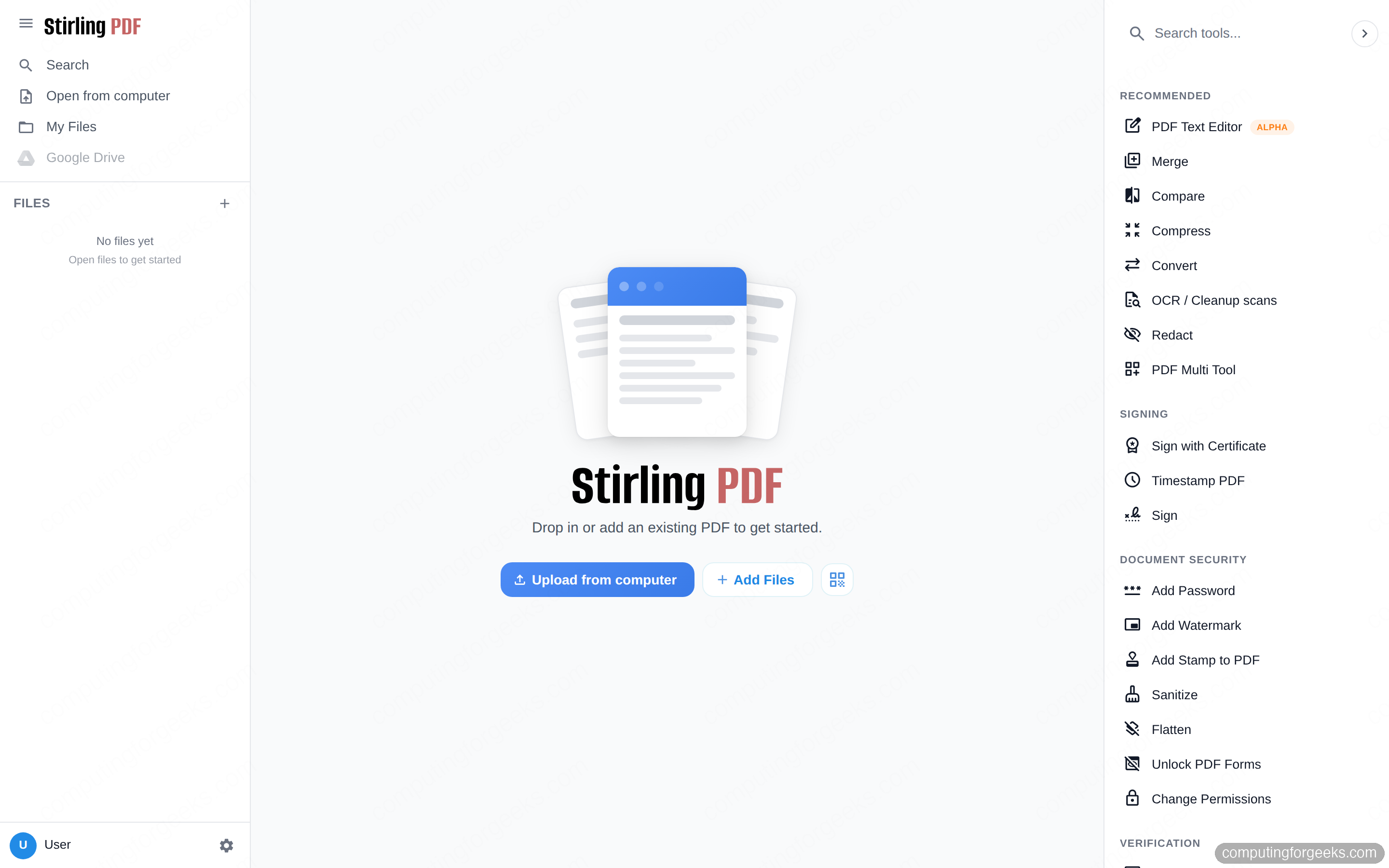
sudo certbot --nginx -d "${SITE_DOMAIN}" --non-interactive --agree-tos --redirect -m "${ADMIN_EMAIL}"Open https://your-domain in a browser and the Stirling-PDF workspace loads, with the full tool list down the right-hand side. This is the same catalog you will use for the rest of the guide:
A note on SELinux
On RHEL-based systems with SELinux in enforcing mode, this proxy works with no extra steps, because port 8080 is already a recognized HTTP port type that Nginx is allowed to reach. You only need to flip a boolean if you move Stirling-PDF to a non-HTTP port, in which case run sudo setsebool -P httpd_can_network_connect 1 so Nginx can connect to the backend.
If your server has no public port 80
On a home server behind NAT, a private LAN box, or when you want a wildcard certificate, the HTTP challenge will not reach you. Use the DNS challenge instead. Certbot has plugins for most providers (Cloudflare, Route 53, DigitalOcean, Google Cloud DNS, Linode, OVH, and others); the Cloudflare one looks like this:
sudo apt install -y python3-certbot-dns-cloudflare
echo "dns_cloudflare_api_token = your-scoped-token" | sudo tee /etc/letsencrypt/cloudflare.ini
sudo chmod 600 /etc/letsencrypt/cloudflare.ini
sudo certbot certonly --dns-cloudflare \
  --dns-cloudflare-credentials /etc/letsencrypt/cloudflare.ini \
  -d "${SITE_DOMAIN}" --non-interactive --agree-tos -m "${ADMIN_EMAIL}"
Substitute your provider’s plugin if you are not on Cloudflare. With certonly you point the ssl_certificate and ssl_certificate_key directives at the files under /etc/letsencrypt/live/your-domain/ by hand and add a listen 443 ssl; block to the Nginx file.
Step 6: Turn on login
An exposed PDF tool with no authentication is an open invitation. Edit the Compose file to enable login and set your own first-run credentials:
sudo vim "${APP_DIR}/docker-compose.yml"Change the environment block to switch login on and seed an admin account:
    environment:
      - SECURITY_ENABLELOGIN=true
      - SECURITY_INITIALLOGIN_USERNAME=admin
      - SECURITY_INITIALLOGIN_PASSWORD=ChangeMe#Strong2026
      - LANGS=en_GB
Recreate the container so the new settings take effect:
cd "${APP_DIR}"
sudo docker compose up -d
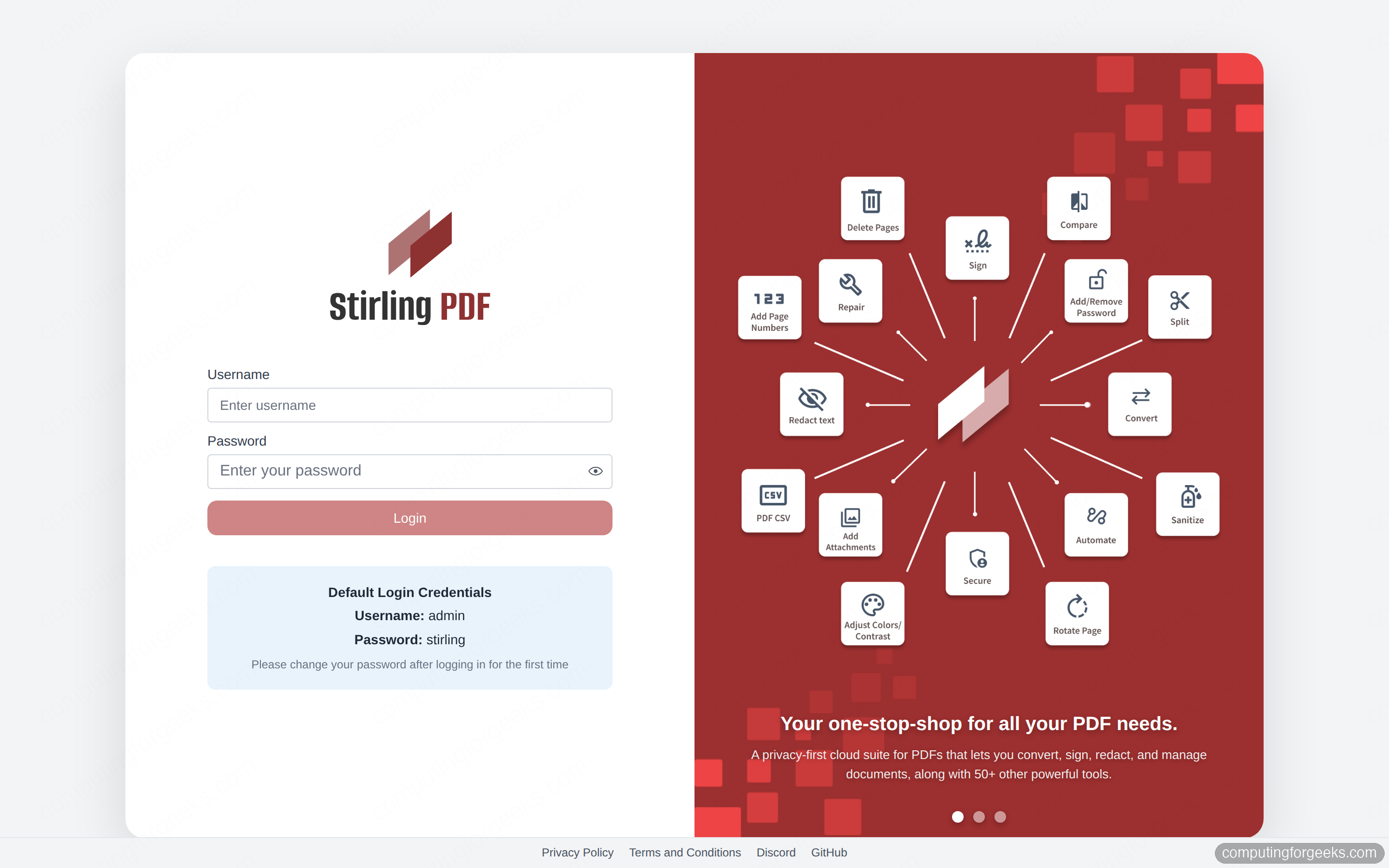
Reload the page and you now get a login screen. If you did not set the initial credentials above, Stirling-PDF falls back to admin / stirling and prints the defaults right on the form so you are never locked out. Either way, change the password from the user menu after the first login:
For a team, this same login layer supports per-user accounts and OAuth single sign-on, so you are not stuck sharing one password. Worth a look once you outgrow the single admin.
Use the everyday PDF tools
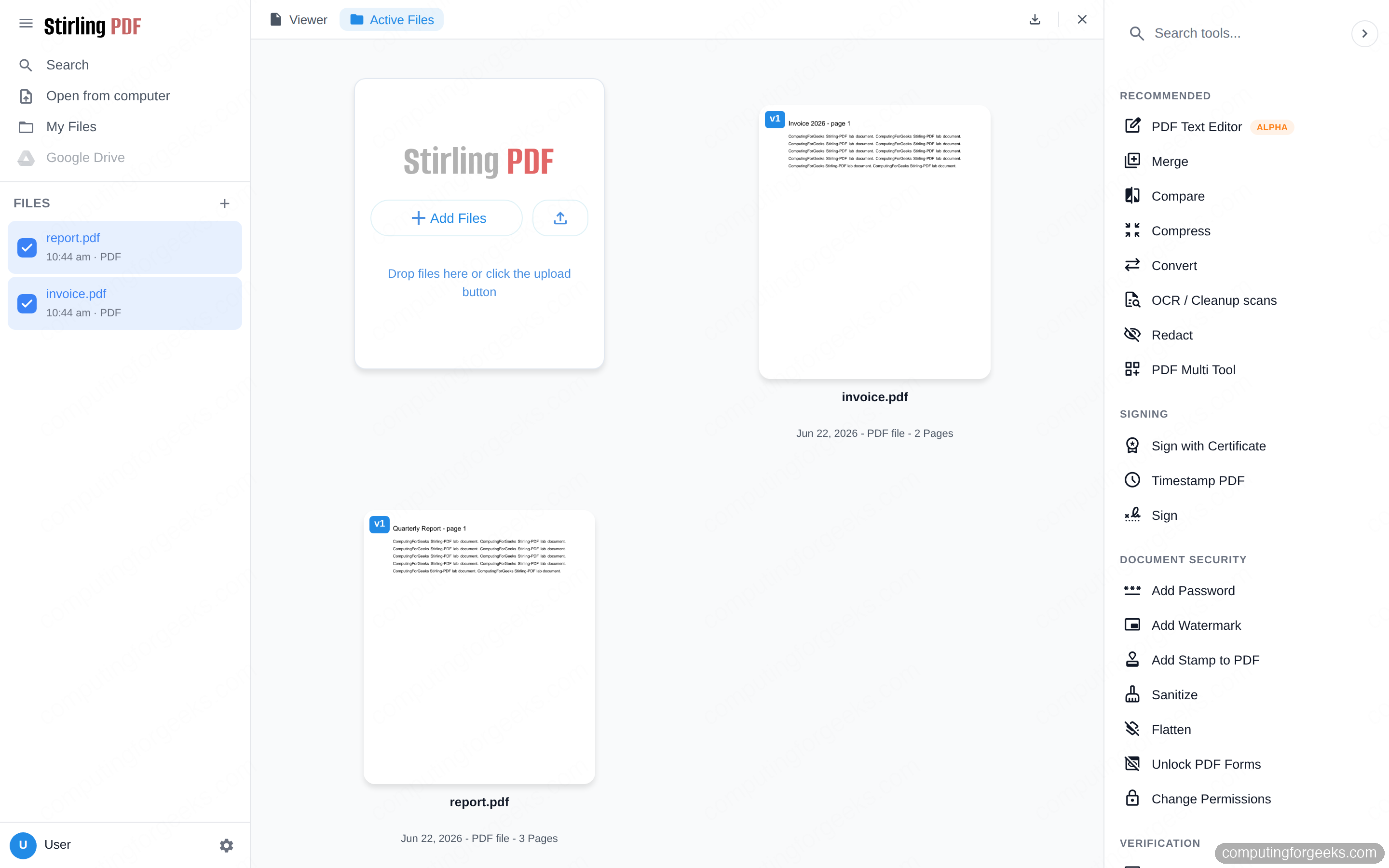
Everything starts the same way: add files, pick a tool, run it, download the result. Click Upload from computer or drag a few PDFs in, and they show up in the workspace with page counts and thumbnails:
Merge several PDFs into one
Select the files you want, open Merge, and drag the rows into the order you want them stitched. The settings let you drop digital signatures or build a table of contents from the source files. A two-page invoice and a three-page report combined into a single five-page document, exactly as ordered:
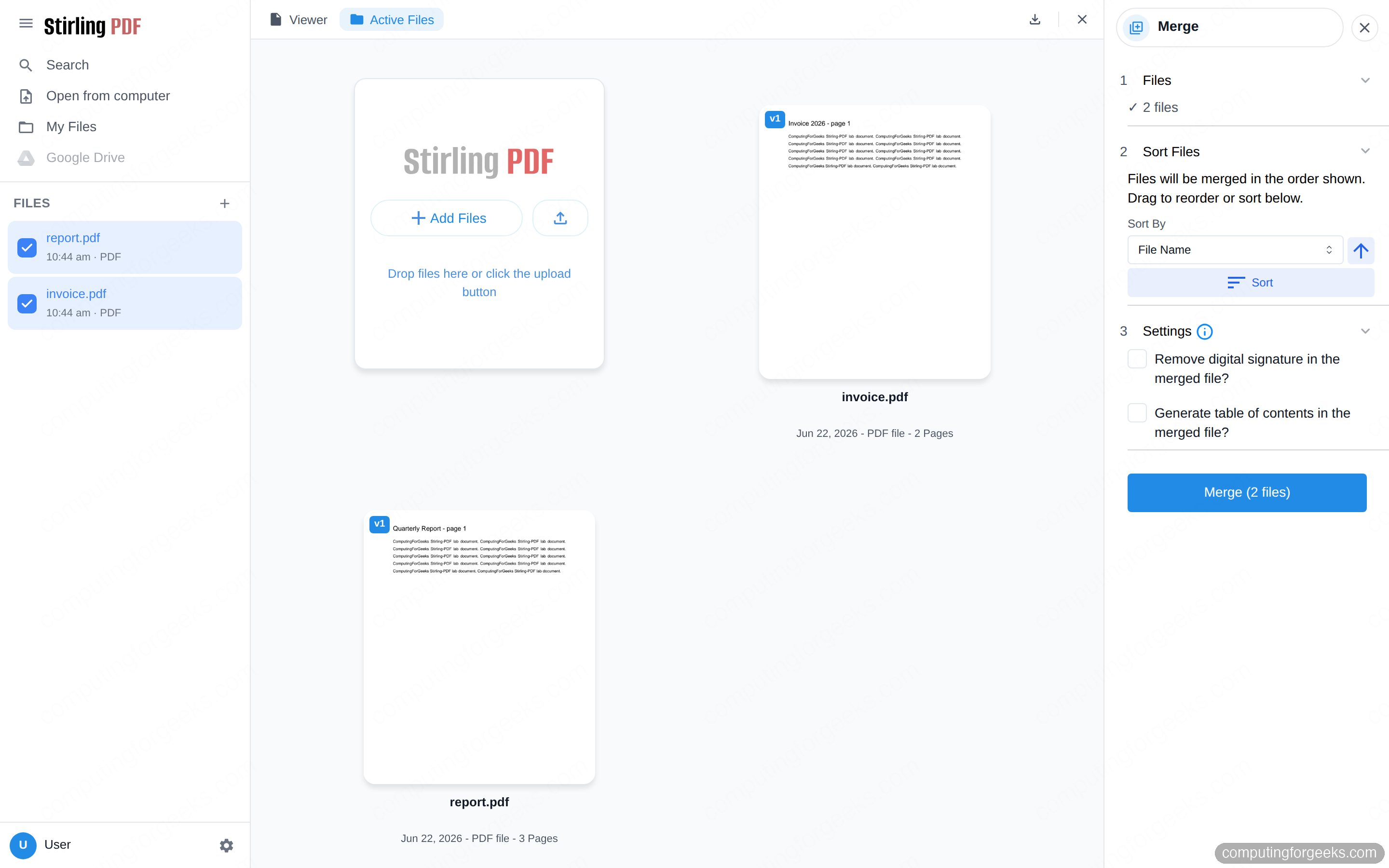
Splitting is the mirror image. The Split tool takes a page number or a range and hands back a zip with each section as its own file, which is handy for pulling one chapter out of a long scan.
Shrink a bloated PDF
Open Compress and you choose between targeting a quality level or an exact output size. There are extra knobs for grayscale conversion and web-optimized linearization when you need to squeeze harder. On the test documents the quality setting trimmed a merged file by roughly a third with no visible change:
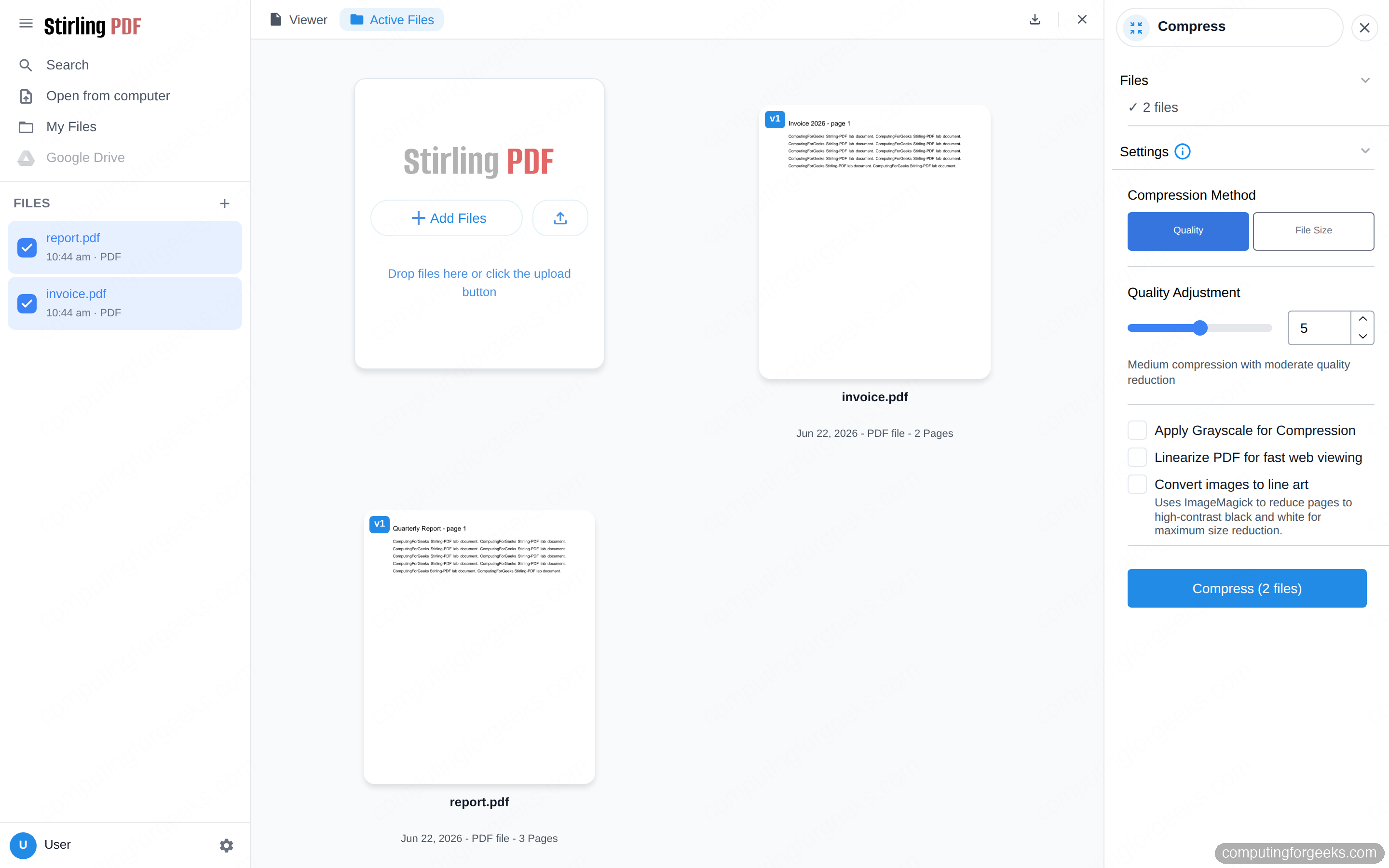
Convert to and from PDF
The Convert group is the longest list in the app. PDF to Word, Excel, images, HTML, and plain text go one way; images, Office files, Markdown, and HTML come back the other. The Office conversions are where that LibreOffice process from the prerequisites earns its keep, so the first conversion after a restart is a little slow while it warms up. A merged PDF turned into a valid .docx in a couple of seconds on the lab box.
OCR a scanned document
This is the one that earns Stirling-PDF a permanent spot. OCR / Cleanup scans takes an image-only PDF, recognizes the text with tesseract, and writes a searchable text layer back into the file. Pick your languages, choose whether to skip pages that already have text, and run it:
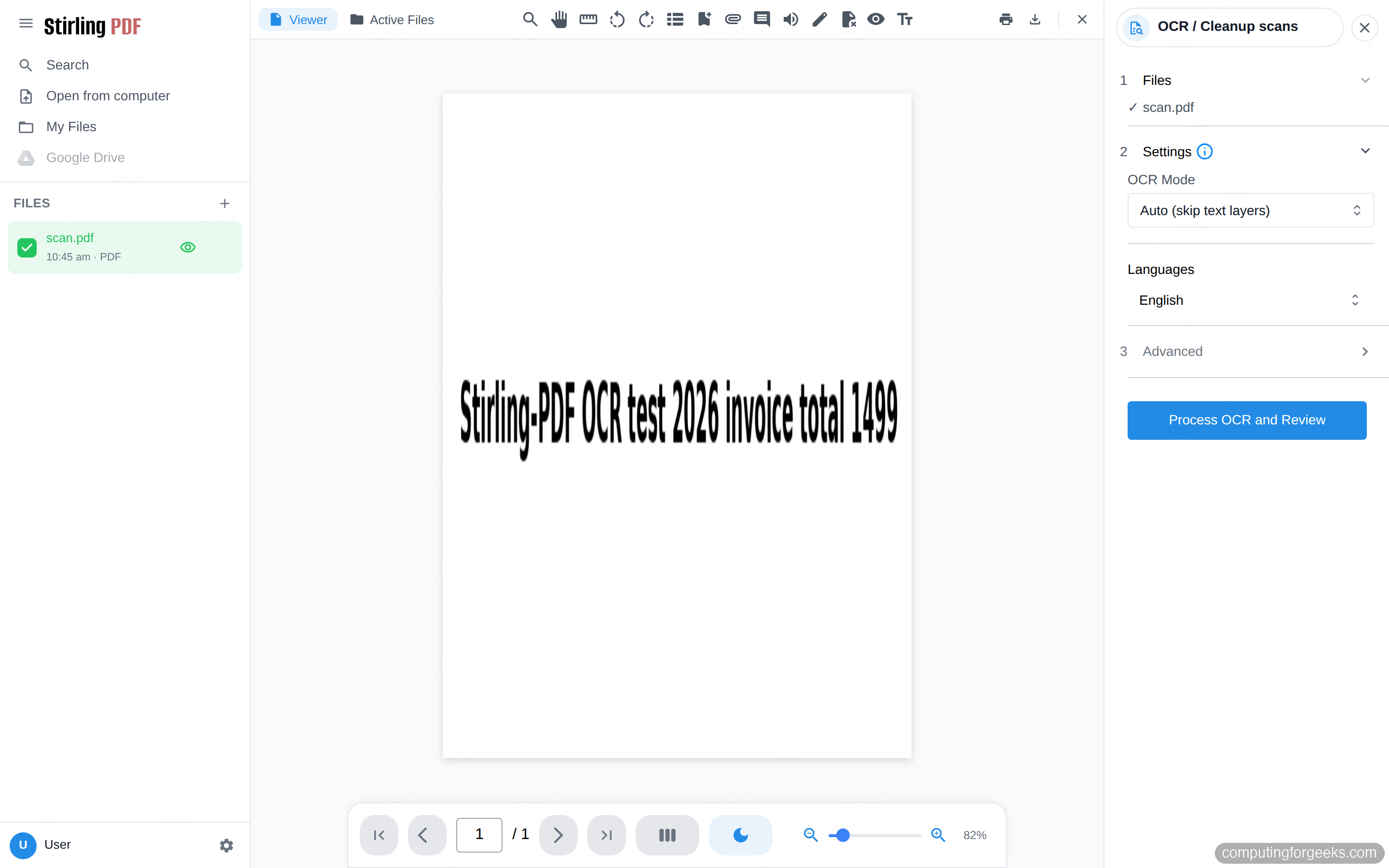
Before OCR, a scanned PDF has zero selectable text. After, the same file is fully searchable. The English, German, French, Portuguese, Chinese, and orientation data ship in the image; for anything else, drop the matching tesseract .traineddata into the tessdata volume.
One real gotcha worth flagging: on some virtualized hosts OCR fails with a NumPy error about “baseline optimizations.” That happens when the virtual machine advertises a stripped-down CPU model that hides instruction sets the OCR renderer expects. The fix is to give the VM a host-passthrough CPU type (on Proxmox, set the CPU to host) and restart. Bare-metal and most cloud instances never see this.
Automate multi-step jobs with pipelines
The single tools are useful, but the Automate feature is what turns Stirling-PDF into infrastructure. A pipeline chains operations so a file runs through several steps in one go, no code involved. It ships with ready-made workflows like sanitizing a PDF before publishing, preparing documents for email, and processing images, and you can build your own:
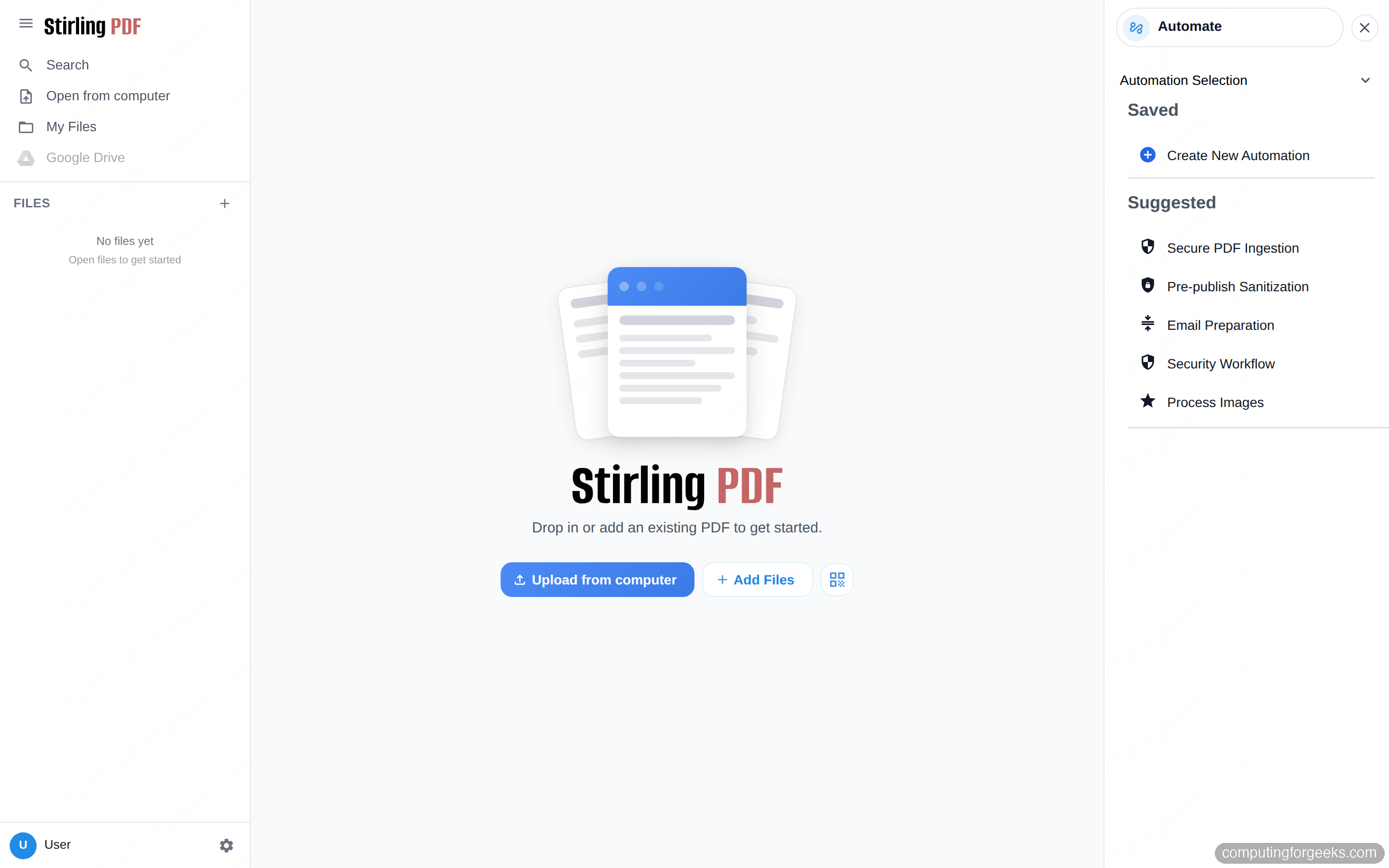
A simple example is rotate then compress: every file dropped in gets straightened and shrunk in a single pass, with the output named to a template you set. Because each step maps to a REST endpoint under /api/v1/, the same logic is callable from a script. That is the bridge from “click the tool” to “watch a folder and process everything that lands in it,” which is where Stirling-PDF starts replacing a pile of one-off scripts. If you already run containers, it sits naturally next to a manager like Portainer and a file host like Nextcloud in the same self-hosted stack.
Back up and restore your Stirling-PDF data
All the state that matters lives in the stirling-data folder next to your Compose file: user accounts and settings in configs, your saved pipelines in pipeline, and any extra OCR languages in tessdata. The uploaded PDFs themselves are processed in memory and not stored, so a backup is small and quick. Stop the stack, archive the folder, and start again:
cd "${APP_DIR}"
sudo docker compose down
sudo tar czf "stirling-backup-$(date +%Y%m%d).tar.gz" stirling-data
sudo docker compose up -d
Restoring on a new host is the reverse: install Docker, copy your Compose file and the archive over, extract it, and bring the stack up. Because the certificate is managed by Certbot and the app data is one tarball, moving the whole thing to a bigger server is a five-minute job. Keep that archive on whatever you use for the rest of your backups, behind a properly configured firewall, and your private PDF suite survives a rebuild without losing a single setting.