Portainer is the browser interface Docker admins install the day after they install Docker. It shows every container, image, volume, and network at a glance, deploys Compose stacks from a textarea, and lets you exec into a container without ever typing a docker command. This guide installs Portainer CE on Ubuntu 26.04 LTS with Docker 29.1, Nginx reverse proxy, and Let’s Encrypt TLS.
The ending is a printable UI-to-CLI cheatsheet that maps every common Portainer action to its raw docker equivalent. Pin it next to your monitor and you stop context-switching when you read the UI but someone else wrote a script.
Tested April 2026 on Ubuntu 26.04 LTS (kernel 7.0.0-10) with Docker 29.4.1, Compose v5.1.3, and Portainer Community Edition 2.39.1 LTS.
Prerequisites
- Ubuntu 26.04 LTS server, 1 vCPU and 1 GB RAM is enough for Portainer itself; the apps you manage need their own resources.
- Domain with A record pointing at the server, port 80 reachable for Let’s Encrypt.
- Sudo user. Finish the post-install baseline checklist and enable SSH key authentication before anything else.
Step 1: Set reusable shell variables
Export the values once and the rest of the guide uses them:
export APP_DOMAIN="portainer.example.com"
export PORTAINER_ROOT="/opt/portainer"
export DATA_VOLUME="portainer_data"
export ADMIN_EMAIL="[email protected]"
Confirm before running the rest:
echo "Domain: ${APP_DOMAIN}"
echo "Volume: ${DATA_VOLUME}"
The output above confirms the step worked. The next section builds on it.
Step 2: Install Docker Engine
Portainer runs as a Docker container that talks to the host Docker daemon through the Unix socket. Install Docker CE from the official repository:
sudo apt-get update
sudo DEBIAN_FRONTEND=noninteractive apt-get install -y ca-certificates curl gnupg
sudo install -m 0755 -d /etc/apt/keyrings
sudo curl -fsSL https://download.docker.com/linux/ubuntu/gpg -o /etc/apt/keyrings/docker.asc
sudo chmod a+r /etc/apt/keyrings/docker.asc
echo 'deb [arch=amd64 signed-by=/etc/apt/keyrings/docker.asc] https://download.docker.com/linux/ubuntu noble stable' \
    | sudo tee /etc/apt/sources.list.d/docker.list
sudo apt-get update
sudo DEBIAN_FRONTEND=noninteractive apt-get install -y \
    docker-ce docker-ce-cli containerd.io docker-compose-plugin
docker --version
The Docker install walkthrough lives in the dedicated Docker install guide. The noble suite is what Docker currently ships for Ubuntu; packages work cleanly on 26.04’s kernel 7.0.
Step 3: Deploy Portainer CE
Portainer CE ships one container and one named volume. Bind the volume for persistent state; mount the Docker socket read-only is tempting but Portainer needs write access to start containers and pull images, so keep it read-write.
sudo docker volume create ${DATA_VOLUME}
sudo docker run -d \
    -p 127.0.0.1:9443:9443 -p 127.0.0.1:9000:9000 \
    --name portainer --restart=always \
    -v /var/run/docker.sock:/var/run/docker.sock \
    -v ${DATA_VOLUME}:/data \
    portainer/portainer-ce:lts
The port bindings are scoped to 127.0.0.1 on purpose. Portainer only listens on loopback; Nginx is the public entry. This keeps raw port 9000/9443 off the firewall.
Confirm the container started:
sudo docker ps --filter name=portainer --format 'table {{.Names}}\t{{.Status}}'
curl -s -o /dev/null -w "%{http_code}\n" http://localhost:9000/
The HTTP endpoint returns 200 on the landing page. Nginx is next.
Step 4: Install Nginx with Let’s Encrypt
Run the commands below to complete this step.
sudo DEBIAN_FRONTEND=noninteractive apt-get install -y \
    nginx certbot python3-certbot-nginx ufw
Write the vhost with a placeholder; sed substitutes the real domain in the next command:
sudo tee /etc/nginx/sites-available/portainer.conf > /dev/null <<'EOF'
server {
    listen 80;
    server_name PTR_DOMAIN_HERE;
    return 301 https://$host$request_uri;
}

server {
    listen 443 ssl;
    http2 on;
    server_name PTR_DOMAIN_HERE;

    ssl_certificate     /etc/letsencrypt/live/PTR_DOMAIN_HERE/fullchain.pem;
    ssl_certificate_key /etc/letsencrypt/live/PTR_DOMAIN_HERE/privkey.pem;

    client_max_body_size 100M;
    add_header Strict-Transport-Security "max-age=15552000; includeSubDomains" always;

    location / {
        proxy_pass http://127.0.0.1:9000;
        proxy_http_version 1.1;
        proxy_set_header Upgrade $http_upgrade;
        proxy_set_header Connection "upgrade";
        proxy_set_header Host $host;
        proxy_set_header X-Real-IP $remote_addr;
        proxy_set_header X-Forwarded-For $proxy_add_x_forwarded_for;
        proxy_set_header X-Forwarded-Proto $scheme;
        proxy_read_timeout 600;
    }
}
EOF

sudo sed -i "s/PTR_DOMAIN_HERE/${APP_DOMAIN}/g" /etc/nginx/sites-available/portainer.conf
sudo rm -f /etc/nginx/sites-enabled/default
sudo ln -sf /etc/nginx/sites-available/portainer.conf /etc/nginx/sites-enabled/portainer.conf
sudo nginx -t
Open the firewall and issue the certificate:
sudo ufw allow OpenSSH
sudo ufw allow 'Nginx Full'
sudo ufw --force enable

sudo certbot --nginx -d "${APP_DOMAIN}" \
    --non-interactive --agree-tos --redirect \
    -m "${ADMIN_EMAIL}"
The Nginx and Let’s Encrypt walkthrough covers DNS-01 for private networks.
Step 5: Create the admin account
Browse to https://${APP_DOMAIN}/. Portainer’s first-run screen prompts for an admin username and password:
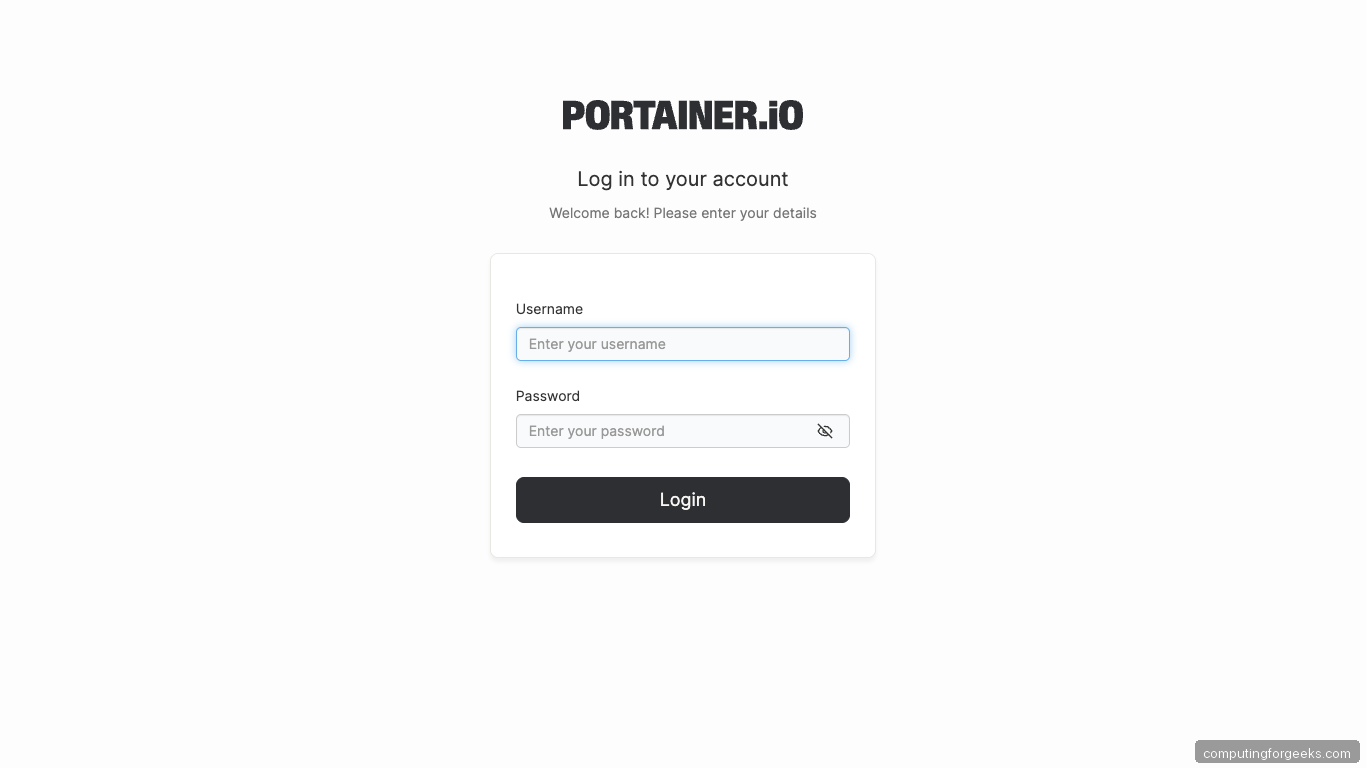
Set a username, a password that meets the Portainer minimum (12 characters, 1 number, 1 uppercase, 1 symbol), and finish. Portainer signs you in and opens the environment picker.
Step 6: Connect the local Docker endpoint
The first-run wizard adds the local Docker socket as an environment automatically. You land on the Environments page showing one card:
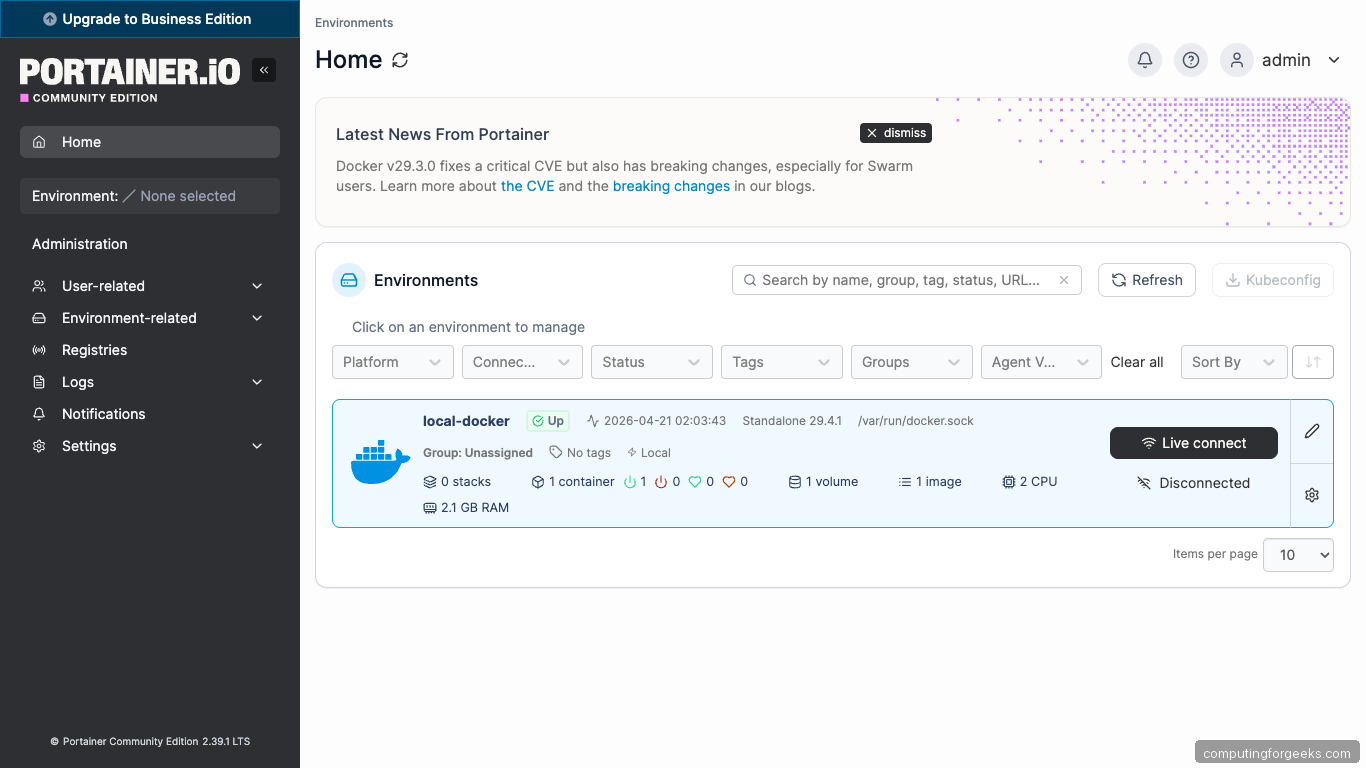
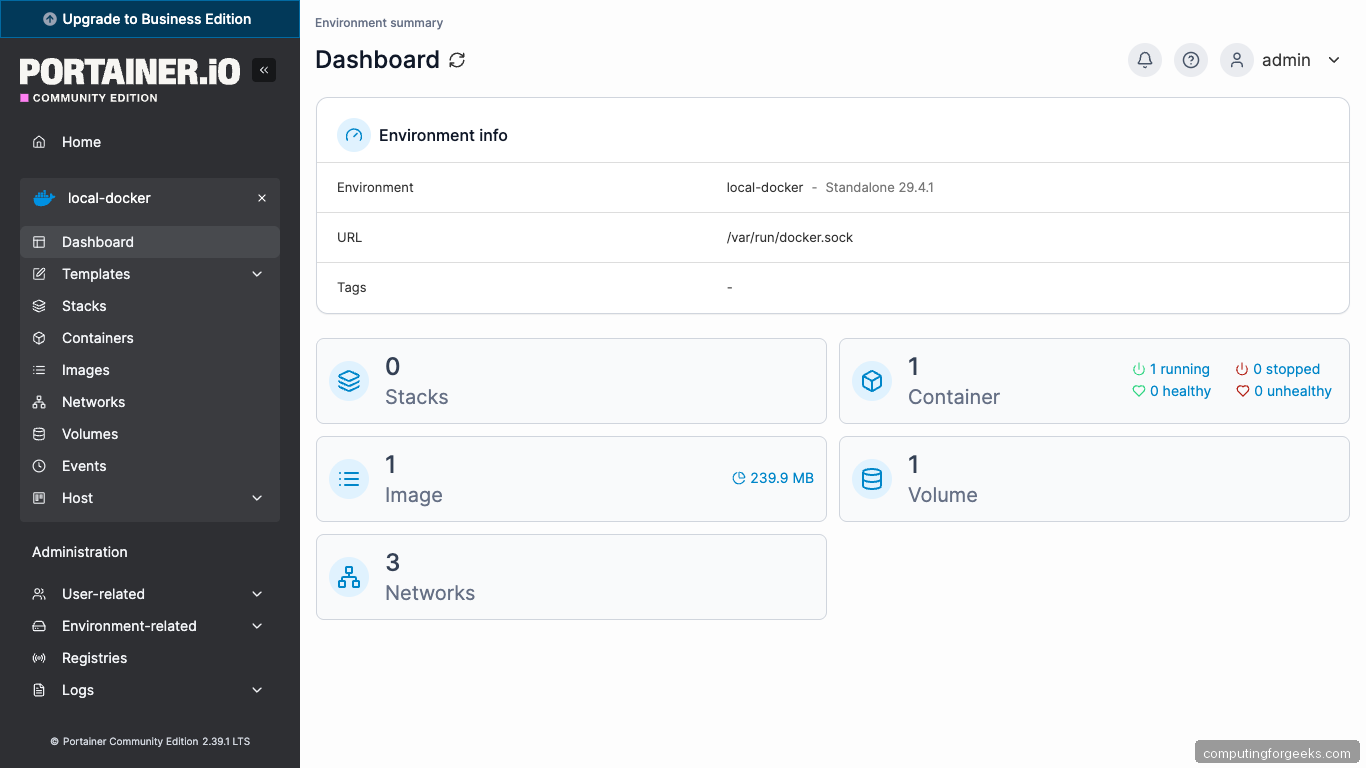
Click through to the dashboard. The Environment info panel shows Docker 29.4.1 in standalone mode, 1 container (Portainer itself), 1 image, 1 volume, and 3 networks (bridge/host/none):
With that step done, move on to the next one.
Step 7: Tour the UI
The left sidebar is where you will spend most of your time. Five pages do 90% of the daily work:
- Containers: every running and stopped container with a Quick actions column for logs, stats, exec, and inspect.
- Images: pull, tag, push, and prune Docker images without touching a CLI.
- Volumes: inspect, browse, and delete named volumes and bind mounts.
- Networks: create user-defined networks, attach containers, and trace routing.
- Stacks: deploy docker-compose.yml files with a paste-in editor that handles templating and webhook redeploys.
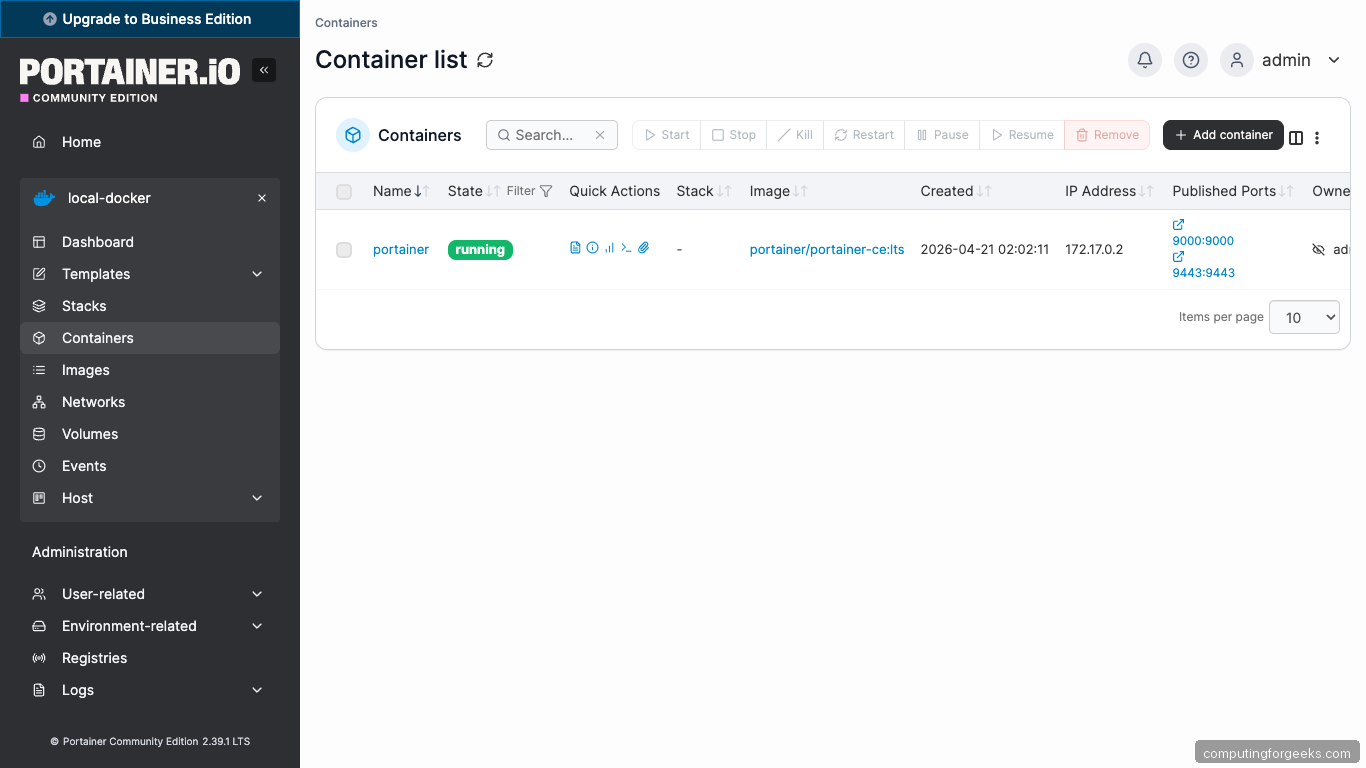
The Containers page lists everything in the local Docker daemon, including Portainer itself:
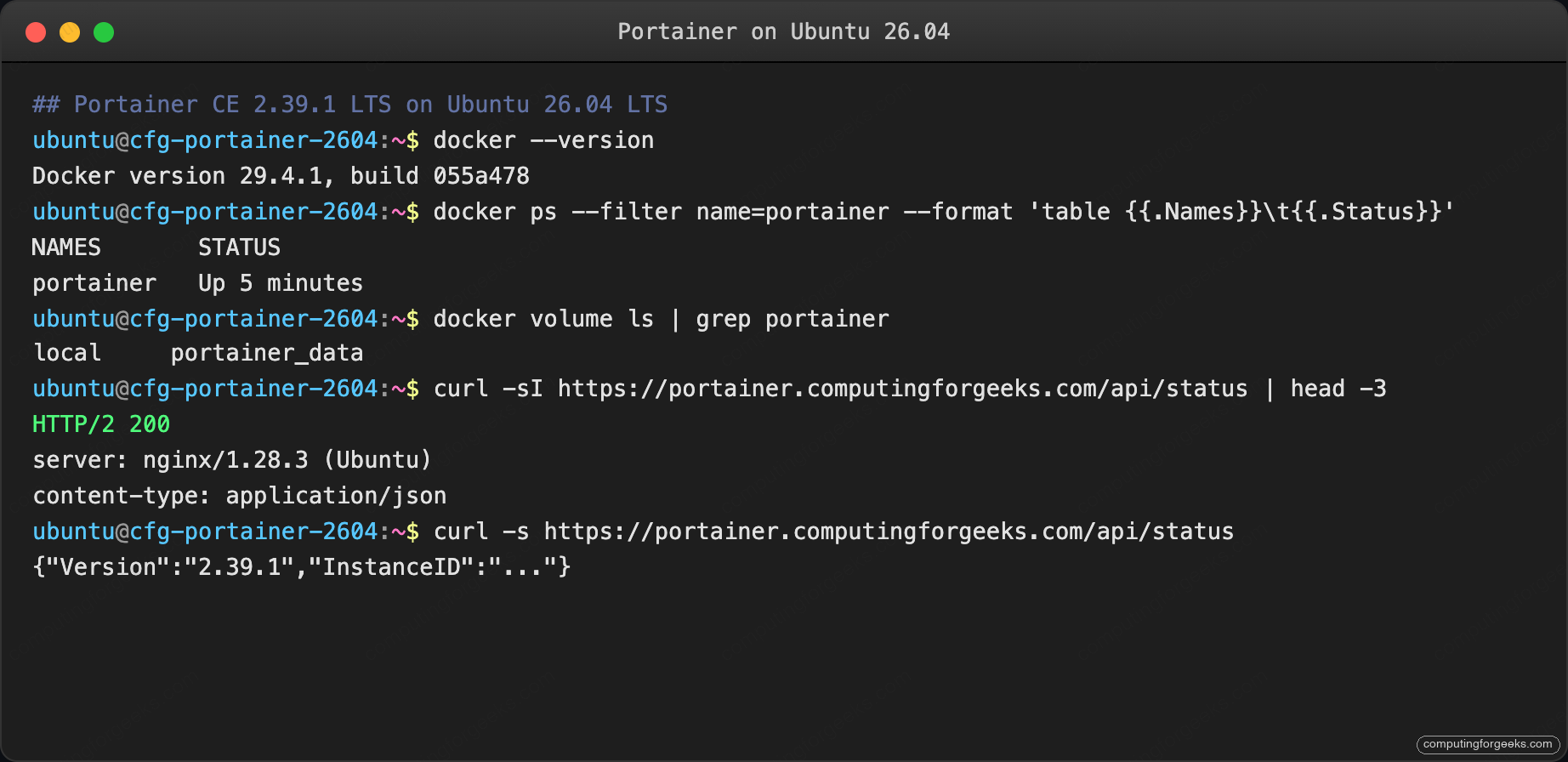
Terminal check of the stack:
Those commands set the baseline. Continue with the next step.
Step 8: Deploy your first stack
Stacks are Portainer’s name for Docker Compose files. Copy the compose YAML below into Stacks → Add stack → Web editor to deploy a simple whoami service behind a Traefik sidecar:
services:
  whoami:
    image: traefik/whoami:latest
    container_name: whoami
    restart: unless-stopped
    ports:
      - "127.0.0.1:8080:80"
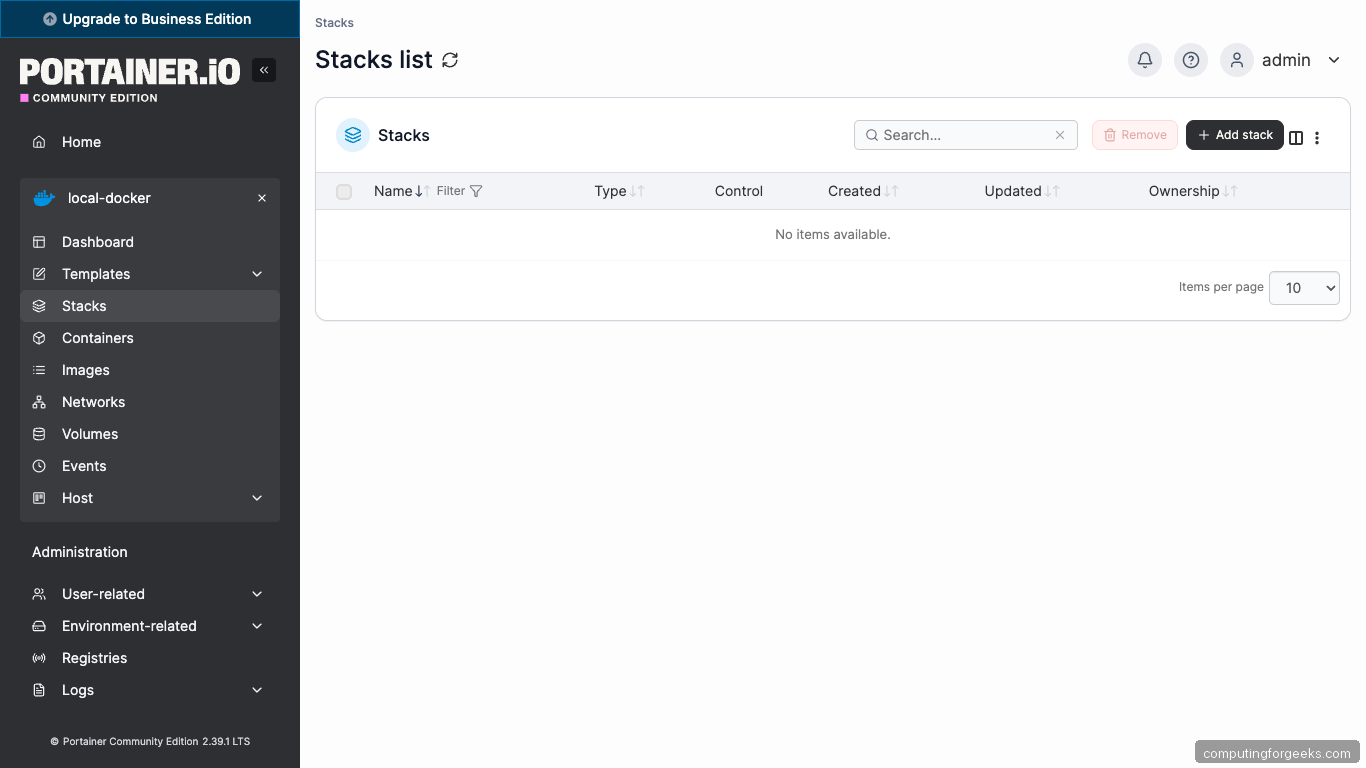
Portainer’s stacks page shows the new stack as soon as deployment completes:
Test the new service:
curl -s http://localhost:8080/ | head -10From here you can add Traefik, attach the whoami service to it, and expose multiple stacks behind a single reverse proxy. That is a normal homelab next step.
Step 9: Add a second Docker host via the Portainer Agent
The power of Portainer scales when you manage multiple Docker hosts from one UI. On the second host, install Docker (same as Step 2), then run the Portainer Agent:
sudo docker run -d \
    -p 127.0.0.1:9001:9001 \
    --name portainer_agent --restart=always \
    -v /var/run/docker.sock:/var/run/docker.sock \
    -v /var/lib/docker/volumes:/var/lib/docker/volumes \
    -v /:/host \
    portainer/agent:lts
On the Portainer UI host, open a reverse SSH tunnel or expose port 9001 over WireGuard, then in the main Portainer: Environments → Add environment → Docker Standalone → Agent, set the URL to the agent’s address and port 9001. Portainer auto-discovers the remote stack and you manage both hosts from the same sidebar.
Step 10: Set up access control
Portainer CE supports teams and role-based access without a license. Users → Add user creates standard users that can only see environments you assign them. For read-only dashboards (for example, giving a junior engineer visibility into production without the ability to restart containers), create a team, assign the environment with “Standard user” access, and add the user to the team.
For Business Edition features (OAuth login, RBAC, activity audit), Portainer CE includes a small upgrade banner; the community edition covers everything this guide needs.
Troubleshooting
“Unable to connect to endpoint: Get unix:///var/run/docker.sock: dial unix: permission denied”
The Portainer container cannot read the Docker socket. Two causes:
- The socket path in the
docker runcommand is wrong. Ubuntu 26.04 uses/var/run/docker.sock; verify withsudo ls -la /var/run/docker.sock. - AppArmor blocked the access. Check
sudo dmesg | grep -i apparmor | tail. If blocked, add the Portainer container to the allowlist or re-run with--security-opt apparmor=unconfined(only for local debugging).
“Login failed” immediately after the admin was created
Portainer rate-limits failed logins. Wait 60 seconds and retry. If the rate-limit does not clear, the admin account password hash is corrupted:
sudo docker stop portainer
sudo docker run --rm -v portainer_data:/data \
    portainer/helper-reset-password
The helper container resets the admin password to a random string printed in the container logs. Start Portainer again with sudo docker start portainer.
WebSocket closes during container terminal exec
Nginx proxy_read_timeout defaults to 60 seconds. The vhost in Step 4 sets 600 seconds, which covers most cases. For long-running docker exec sessions, raise to 3600:
sudo sed -i 's/proxy_read_timeout 600/proxy_read_timeout 3600/' \
    /etc/nginx/sites-enabled/portainer.conf
sudo nginx -t && sudo systemctl reload nginx
Configuration is now in place. Proceed to the next section.
“docker: Error response from daemon: Conflict. The container name ‘/portainer’ is already in use”
A previous run left the container record in Docker. Remove and redeploy:
sudo docker rm -f portainer
# Re-run the docker run command from Step 3
The named volume portainer_data is not deleted; your admin account and environment config survive the container replacement.
Portainer UI to Docker CLI cheatsheet
This cheatsheet maps every common Portainer action to its raw docker or docker compose equivalent. Print it, bookmark it, share it with teammates who need to translate between the two.
| Portainer UI action | Docker CLI equivalent |
|---|---|
| Home → Environments → click | docker context use <name> |
| Containers → click name | docker inspect <name> |
| Containers → Quick actions → Logs | docker logs -f <name> |
| Containers → Quick actions → Stats | docker stats <name> |
| Containers → Quick actions → Exec | docker exec -it <name> sh |
| Containers → Restart | docker restart <name> |
| Containers → Stop | docker stop <name> |
| Containers → Remove | docker rm -f <name> |
| Containers → Recreate | docker rm -f <name> && docker run ... |
| Containers → Duplicate/Edit → Deploy | docker run ... with edited flags |
| Images → Pull image | docker pull <image:tag> |
| Images → Build a new image | docker build -t <tag> . |
| Images → Remove unused | docker image prune -a -f |
| Volumes → Add volume | docker volume create <name> |
| Volumes → Remove | docker volume rm <name> |
| Volumes → Browse | docker run --rm -v <name>:/data alpine ls /data |
| Networks → Add network | docker network create <name> |
| Networks → Connect container | docker network connect <net> <container> |
| Stacks → Add stack → Web editor → Deploy | docker compose -f stack.yml up -d |
| Stacks → Stop | docker compose -f stack.yml down |
| Stacks → Redeploy with pulled image | docker compose pull && docker compose up -d |
| Stacks → Editor → Edit YAML → Update | Edit stack.yml and docker compose up -d |
| Host → System → Prune all | docker system prune -a --volumes -f |
| Registries → Add registry | docker login <registry> |
| Events | docker events --since 1h |
The UI and the CLI are not competing; they are different lenses on the same Docker daemon. Portainer wins for discovery (what containers exist, what images are wasting disk) and for non-Docker-native teammates. The CLI wins for scripting, CI/CD, and for the ten common tasks you do a hundred times a day. Pair them with the server hardening guide so the underlying Ubuntu host stays tight as the container set grows.