Nextcloud is the mature self-hosted answer to Dropbox, Google Drive, and iCloud. You own the storage, you set the rules, and the data never leaves your box. Running it on Ubuntu 26.04 LTS pairs it with a modern PHP 8.5 runtime, MariaDB 11.8, Redis 8.0, and an Nginx 1.28 build that speaks HTTP/2 by default.
This guide walks through a hardened install: Nginx reverse proxy, PHP 8.5-FPM with tuned opcache and APCu, MariaDB with a dedicated Nextcloud user, Redis over a Unix socket for file locking and distributed memcache, Let’s Encrypt TLS, UFW firewall, systemd cron, and a tested backup and restore drill at the end. Every command below was run on a fresh Ubuntu 26.04 VM against Nextcloud 33.0.2 (Hub 12), and the screenshots are from that same box.
Verified April 2026 on Ubuntu 26.04 LTS (kernel 7.0.0-10) with Nextcloud 33.0.2 Hub 12, Nginx 1.28.3, PHP 8.5.4, MariaDB 11.8.6, Redis 8.0.5, Certbot 4.0.0.
Prerequisites
Before you start:
- Ubuntu 26.04 LTS server, 2 vCPU and 4 GB RAM minimum (8 GB if you plan to enable Office online editing)
- 40 GB or larger disk; the data directory sits on
/var/nextcloud-databy default and scales with uploads - A domain or subdomain pointed at the server’s public IP (any DNS provider; HTTP-01 challenge works with all of them)
- Port 80 reachable from the internet so Let’s Encrypt can validate ownership, plus port 443 for HTTPS
- A sudo-capable user, not root logins over SSH. Run through the post-install baseline checklist first
- Time must be in sync. Confirm with
timedatectl status, expectSystem clock synchronized: yes. Nextcloud’s admin overview warns loudly if the clock drifts.
Step 1: Set reusable shell variables
Every command in this guide uses shell variables so you change one block and paste the rest as-is. Open an SSH session on the server and export the following. Swap in your real domain, a strong database password, and a strong admin password before running anything downstream.
export APP_DOMAIN="nextcloud.example.com"
export WEBROOT="/var/www/nextcloud"
export DATA_DIR="/var/nextcloud-data"
export DB_NAME="nextcloud"
export DB_USER="nc_user"
export DB_PASS="ChangeMe_Strong_DbPass_2026"
export REDIS_PASS="ChangeMe_Strong_RedisPass_2026"
export ADMIN_USER="admin"
export ADMIN_PASS="ChangeMe_Strong_AdminPass_2026"
export ADMIN_EMAIL="[email protected]"
Confirm the variables are set before running anything destructive:
echo "Domain:  ${APP_DOMAIN}"
echo "Webroot: ${WEBROOT}"
echo "DB:      ${DB_NAME} / ${DB_USER}"
echo "Admin:   ${ADMIN_USER} / ${ADMIN_EMAIL}"
These exports only apply to the current shell. If you reconnect or jump into sudo -i, re-run the block.
Step 2: Install Nginx, PHP 8.5, MariaDB, and Redis
Ubuntu 26.04 ships a full LEMP stack in the default repositories. One apt command pulls everything you need for Nextcloud, including every PHP extension the installer checks for.
sudo apt-get update
sudo DEBIAN_FRONTEND=noninteractive apt-get install -y \
    nginx \
    php8.5-fpm php8.5-mysql php8.5-mbstring php8.5-xml php8.5-curl \
    php8.5-gd php8.5-zip php8.5-bcmath php8.5-intl php8.5-gmp \
    php8.5-apcu php8.5-redis php8.5-imagick php8.5-bz2 php8.5-gettext \
    mariadb-server mariadb-client \
    redis-server \
    certbot python3-certbot-nginx \
    wget curl unzip ufw
Enable and start every service at once so a reboot brings the whole stack back:
sudo systemctl enable --now mariadb redis-server php8.5-fpm nginxSanity check the versions. Capture them somewhere; they belong in your documentation when you open a support ticket or file a bug.
nginx -v 2>&1
php -v | head -1
mariadb --version
redis-cli --version
certbot --version
You should see output close to this:
nginx version: nginx/1.28.3 (Ubuntu)
PHP 8.5.4 (cli) (built: Apr  1 2026 09:36:11) (NTS)
mariadb from 11.8.6-MariaDB, client 15.2 for debian-linux-gnu
redis-cli 8.0.5
certbot 4.0.0
Note that php8.5-opcache is NOT a separate package on Ubuntu 26.04. Opcache is compiled into php8.5 core and enabled by default. If you copied a pre-26.04 Nextcloud guide, skip that line to avoid E: Unable to locate package php8.5-opcache.
Step 3: Create the Nextcloud database
Nextcloud expects its own database and a dedicated user. Use utf8mb4 so emoji and 4-byte glyphs in file names do not crash imports:
sudo mariadb <<SQL
CREATE DATABASE ${DB_NAME} DEFAULT CHARACTER SET utf8mb4 COLLATE utf8mb4_unicode_ci;
CREATE USER '${DB_USER}'@'localhost' IDENTIFIED BY '${DB_PASS}';
GRANT ALL PRIVILEGES ON ${DB_NAME}.* TO '${DB_USER}'@'localhost';
FLUSH PRIVILEGES;
SQL
The MariaDB install and tuning guide covers the database layer in more depth. Verify the database and user exist before moving on:
sudo mariadb -e "SHOW DATABASES;"
sudo mariadb -e "SELECT User,Host FROM mysql.user WHERE User='${DB_USER}';"
You should see nextcloud in the database list and nc_user | localhost in the user list.
Step 4: Download and extract Nextcloud
The Nextcloud project publishes a signed tarball and zip at download.nextcloud.com. Always verify the SHA-256 before extracting; it catches both network corruption and tampered mirrors.
cd /tmp
wget -q https://download.nextcloud.com/server/releases/latest.zip
wget -q https://download.nextcloud.com/server/releases/latest.zip.sha256
grep 'latest.zip' latest.zip.sha256 | sha256sum -c
The output must include latest.zip: OK. Anything else and you stop here. Extract and move into the webroot:
unzip -q latest.zip
sudo mv nextcloud ${WEBROOT}
sudo chown -R www-data:www-data ${WEBROOT}
Create the data directory outside the webroot so Nginx cannot accidentally serve raw files over HTTP:
sudo mkdir -p ${DATA_DIR}
sudo chown -R www-data:www-data ${DATA_DIR}
sudo chmod 750 ${DATA_DIR}
Confirm the Nextcloud version you extracted. This is the number you put in the freshness block of your own notes.
grep -E 'OC_Version|OC_VersionString' ${WEBROOT}/version.phpOn the test box that produced this guide the output was:
$OC_Version = array(33,0,2,2);
$OC_VersionString = '33.0.2';
That is Nextcloud Hub 12, released in Q1 2026 and the branch that ships native PHP 8.5 compatibility without legacy polyfills.
Step 5: Tune PHP-FPM for Nextcloud
Nextcloud’s admin overview flags undersized PHP every time. Settings like memory_limit = 512M and large upload buffers matter for file shares, Office online, and background previews. Drop an override into the PHP-FPM conf directory so package updates do not clobber it.
sudo tee /etc/php/8.5/fpm/conf.d/99-nextcloud.ini > /dev/null <<'INI'
; Nextcloud recommended PHP settings
memory_limit = 512M
upload_max_filesize = 16G
post_max_size = 16G
max_execution_time = 3600
max_input_time = 3600
output_buffering = 0
date.timezone = UTC

; OPcache
opcache.enable=1
opcache.enable_cli=1
opcache.memory_consumption=128
opcache.interned_strings_buffer=16
opcache.max_accelerated_files=10000
opcache.revalidate_freq=1
opcache.save_comments=1

; APCu
apc.enable_cli=1
INI
The CLI binary needs the same tuning so occ background jobs inherit it. Symlink the override:
sudo ln -sf /etc/php/8.5/fpm/conf.d/99-nextcloud.ini \
    /etc/php/8.5/cli/conf.d/99-nextcloud.ini
sudo systemctl restart php8.5-fpm
Verify the socket came up at the expected path. Nextcloud’s Nginx config pins it to /run/php/php-fpm.sock.
ls -la /run/php/php-fpm.sockA successful line shows the socket owned by www-data:www-data with srw-rw---- permissions. That is what the Nginx vhost in Step 7 connects to.
Step 6: Configure Redis for file locking and distributed memcache
Redis over a Unix socket beats TCP for a single-host Nextcloud setup on both latency and security. The socket is local, kernel-enforced, and skips the TCP stack entirely. Give Redis a password even on the socket because APCu on busy boxes can leak cache keys into logs.
sudo mkdir -p /etc/redis/redis.conf.d
sudo tee /etc/redis/redis.conf.d/nextcloud.conf > /dev/null <<EOF
unixsocket /run/redis/redis-server.sock
unixsocketperm 770
requirepass ${REDIS_PASS}
EOF
Make Redis read the drop-in and add www-data to the redis group so PHP can connect through the socket:
grep -q 'redis.conf.d' /etc/redis/redis.conf \
    || echo 'include /etc/redis/redis.conf.d/*.conf' | sudo tee -a /etc/redis/redis.conf
sudo usermod -aG redis www-data
sudo systemctl restart redis-server
Test the socket directly. A successful response is PONG.
redis-cli -a "${REDIS_PASS}" -s /run/redis/redis-server.sock pingA PONG response confirms Redis accepts authenticated connections over the socket. If you get NOAUTH Authentication required the password variable was empty when the config was written; fix the export and restart Redis.
Step 7: Write the Nginx vhost
The Nginx config below is adapted from the upstream Nextcloud template and targets PHP 8.5’s socket path. It handles the /.well-known CalDAV and CardDAV redirects, forbids direct access to sensitive directories, enables gzip for text assets, and sets strict security headers. Save it as /etc/nginx/sites-available/nextcloud.conf:
sudo tee /etc/nginx/sites-available/nextcloud.conf > /dev/null <<'EOF'
upstream php-handler {
    server unix:/run/php/php-fpm.sock;
}

map $arg_v $asset_immutable {
    "" "";
    default "immutable";
}

server {
    listen 80;
    listen [::]:80;
    server_name NEXTCLOUD_DOMAIN_HERE;
    return 301 https://$host$request_uri;
}

server {
    listen 443 ssl;
    listen [::]:443 ssl;
    http2 on;
    server_name NEXTCLOUD_DOMAIN_HERE;

    ssl_certificate     /etc/letsencrypt/live/NEXTCLOUD_DOMAIN_HERE/fullchain.pem;
    ssl_certificate_key /etc/letsencrypt/live/NEXTCLOUD_DOMAIN_HERE/privkey.pem;

    server_tokens off;
    client_max_body_size 16G;
    client_body_timeout 300s;
    fastcgi_buffers 64 4K;

    gzip on;
    gzip_vary on;
    gzip_comp_level 4;
    gzip_min_length 256;
    gzip_proxied expired no-cache no-store private no_last_modified no_etag auth;
    gzip_types application/atom+xml text/javascript application/javascript application/json application/ld+json application/manifest+json application/rss+xml application/vnd.geo+json application/vnd.ms-fontobject application/wasm application/x-font-ttf application/x-web-app-manifest+json application/xhtml+xml application/xml font/opentype image/bmp image/svg+xml image/x-icon text/cache-manifest text/css text/plain text/vcard text/vnd.rim.location.xloc text/vtt text/x-component text/x-cross-domain-policy;

    add_header Referrer-Policy "no-referrer" always;
    add_header X-Content-Type-Options "nosniff" always;
    add_header X-Frame-Options "SAMEORIGIN" always;
    add_header X-Robots-Tag "noindex, nofollow" always;
    add_header X-XSS-Protection "1; mode=block" always;
    add_header X-Permitted-Cross-Domain-Policies "none" always;
    add_header X-Download-Options "noopen" always;
    add_header Strict-Transport-Security "max-age=15552000; includeSubDomains" always;

    root /var/www/nextcloud;
    index index.php index.html /index.php$request_uri;

    location = / {
        if ( $http_user_agent ~ ^DavClnt ) {
            return 302 /remote.php/webdav/$is_args$args;
        }
    }

    location = /robots.txt { allow all; log_not_found off; access_log off; }

    location ^~ /.well-known {
        location = /.well-known/carddav { return 301 /remote.php/dav/; }
        location = /.well-known/caldav  { return 301 /remote.php/dav/; }
        location /.well-known/acme-challenge { try_files $uri $uri/ =404; }
        location /.well-known/pki-validation { try_files $uri $uri/ =404; }
        return 301 /index.php$request_uri;
    }

    location ~ ^/(?:build|tests|config|lib|3rdparty|templates|data)(?:$|/) { return 404; }
    location ~ ^/(?:\.|autotest|occ|issue|indie|db_|console) { return 404; }

    location ~ \.php(?:$|/) {
        rewrite ^/(?!index|remote|public|cron|core\/ajax\/update|status|ocs\/v[12]|updater\/.+|ocs-provider\/.+|.+\/richdocumentscode\/proxy) /index.php$request_uri;
        fastcgi_split_path_info ^(.+?\.php)(/.*)$;
        set $path_info $fastcgi_path_info;
        try_files $fastcgi_script_name =404;
        include fastcgi_params;
        fastcgi_param SCRIPT_FILENAME $document_root$fastcgi_script_name;
        fastcgi_param PATH_INFO $path_info;
        fastcgi_param HTTPS on;
        fastcgi_param modHeadersAvailable true;
        fastcgi_param front_controller_active true;
        fastcgi_pass php-handler;
        fastcgi_intercept_errors on;
        fastcgi_request_buffering off;
        fastcgi_max_temp_file_size 0;
    }

    location ~ \.(?:css|js|mjs|svg|gif|ico|jpg|png|webp|wasm|tflite|map|ogg|flac)$ {
        try_files $uri /index.php$request_uri;
        add_header Cache-Control "public, max-age=15778463, $asset_immutable";
        add_header Referrer-Policy "no-referrer" always;
        add_header X-Content-Type-Options "nosniff" always;
        add_header X-Frame-Options "SAMEORIGIN" always;
        add_header X-Robots-Tag "noindex, nofollow" always;
        add_header X-XSS-Protection "1; mode=block" always;
        add_header X-Permitted-Cross-Domain-Policies "none" always;
        add_header X-Download-Options "noopen" always;
        access_log off;
        location ~ \.wasm$ { default_type application/wasm; }
    }

    location ~ \.woff2?$ { try_files $uri /index.php$request_uri; expires 7d; access_log off; }
    location /remote { return 301 /remote.php$request_uri; }
    location / { try_files $uri $uri/ /index.php$request_uri; }
}
EOF
The vhost uses the literal placeholder NEXTCLOUD_DOMAIN_HERE because Nginx is not a shell and will not expand ${APP_DOMAIN} inside the file. Substitute it with your exported variable using sed:
sudo sed -i "s/NEXTCLOUD_DOMAIN_HERE/${APP_DOMAIN}/g" /etc/nginx/sites-available/nextcloud.confDrop the default site, enable the Nextcloud site, and reload:
sudo rm -f /etc/nginx/sites-enabled/default
sudo ln -sf /etc/nginx/sites-available/nextcloud.conf /etc/nginx/sites-enabled/nextcloud.conf
sudo nginx -t
Nginx must report syntax is ok and test is successful. If it does, reload:
sudo systemctl reload nginxNginx is now serving the Nextcloud webroot over plain HTTP on port 80. TLS comes next, and then we lock down the firewall so nothing else is exposed.
Step 8: Open the firewall
UFW ships disabled on Ubuntu 26.04. Turn it on and permit only what Nextcloud and SSH need. For a deeper walkthrough of the UFW firewall, see the dedicated guide.
sudo ufw allow OpenSSH
sudo ufw allow 'Nginx Full'
sudo ufw --force enable
sudo ufw status
The output should list OpenSSH and Nginx Full allowed for both IPv4 and IPv6.
Step 9: Obtain a Let’s Encrypt TLS certificate
Certbot with the Nginx plugin is the simplest path for any server with public port 80 access. It issues the cert, rewrites the vhost for HTTPS, and schedules renewal under systemd-timers automatically.
sudo certbot --nginx -d "${APP_DOMAIN}" \
    --non-interactive --agree-tos --redirect \
    -m "${ADMIN_EMAIL}"
A successful run ends with Successfully deployed certificate and prints the 90-day expiry date. The Nginx + Let’s Encrypt walkthrough covers the certbot pattern in more depth. Confirm the auto-renew timer is armed:
sudo systemctl list-timers certbot.timer
sudo certbot renew --dry-run
A green Congratulations, all simulated renewals succeeded line proves the 90-day renewal cycle is wired up.
Alternative: DNS-01 challenge for private or NAT’d servers
If your Nextcloud box lives on a LAN without public port 80 or you want a wildcard cert, switch to DNS-01. Certbot ships plugins for every major DNS host: Cloudflare, Route 53, DigitalOcean, Google Cloud DNS, Linode, OVH, and RFC2136 for self-hosted BIND.
The Cloudflare plugin shown here is the path we took on our private Proxmox test VM. Substitute the plugin name and credentials file format for your own provider.
sudo apt-get install -y python3-certbot-dns-cloudflare
sudo tee /etc/letsencrypt/cloudflare.ini > /dev/null <<EOF
dns_cloudflare_api_token = your-cloudflare-api-token
EOF
sudo chmod 600 /etc/letsencrypt/cloudflare.ini

sudo certbot certonly \
    --dns-cloudflare \
    --dns-cloudflare-credentials /etc/letsencrypt/cloudflare.ini \
    --dns-cloudflare-propagation-seconds 30 \
    -d "${APP_DOMAIN}" \
    --non-interactive --agree-tos -m "${ADMIN_EMAIL}"
DNS-01 writes the cert to the same path under /etc/letsencrypt/live/${APP_DOMAIN}/ that Step 7’s vhost already points to, so no Nginx edit is needed.
Step 10: Run the Nextcloud installer
Open https://${APP_DOMAIN}/ in a browser. Nextcloud greets you with the admin account and database form:
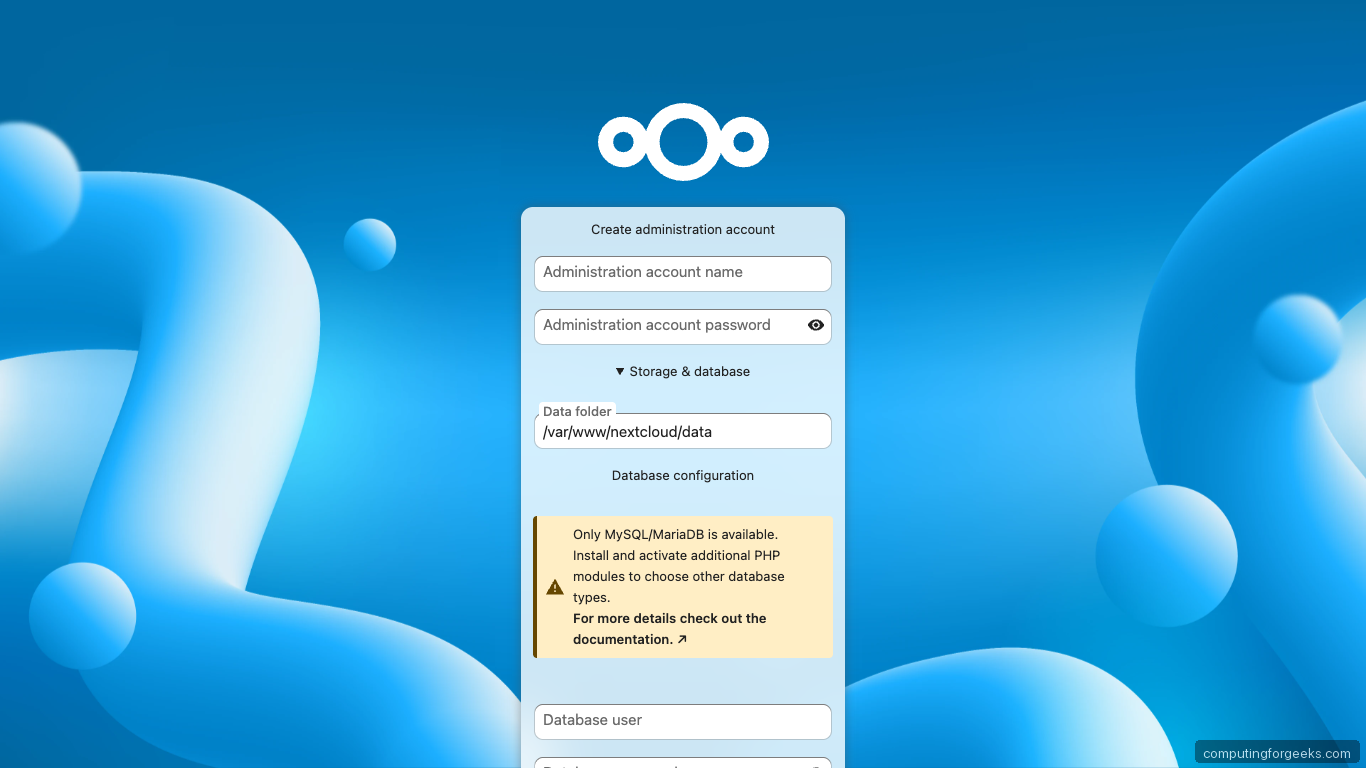
Fill in your admin username, admin password, select MySQL/MariaDB, and paste the database credentials you set in Step 3. The data directory field accepts the path you created in Step 4.
If you prefer a scripted install (reproducible for automation or rebuilds), skip the web form and use occ maintenance:install from the command line instead:
cd ${WEBROOT}
sudo -u www-data php occ maintenance:install \
    --database='mysql' \
    --database-name="${DB_NAME}" \
    --database-user="${DB_USER}" \
    --database-pass="${DB_PASS}" \
    --admin-user="${ADMIN_USER}" \
    --admin-pass="${ADMIN_PASS}" \
    --admin-email="${ADMIN_EMAIL}" \
    --data-dir="${DATA_DIR}"
The final line of a successful install is Nextcloud was successfully installed. Fontconfig warnings above that line are harmless; they come from PHP’s image subsystem initializing on first use.
Step 11: Lock in trusted domains, Redis memcache, and APCu
A clean install needs four pieces of config Nextcloud cannot infer: the public domain, the protocol it runs behind, the Redis socket, and the choice of APCu for local cache. Editing config.php directly is the most reliable way because shell escaping of backslashes in the cache class name breaks occ config:system:set.
Open the config:
sudo -u www-data nano ${WEBROOT}/config/config.phpAdd or merge the following keys into the existing $CONFIG array (replace the password placeholders with the real values you exported earlier):
  'trusted_domains' =>
    array (
      0 => 'localhost',
      1 => 'nextcloud.example.com',
    ),
  'overwrite.cli.url' => 'https://nextcloud.example.com',
  'overwriteprotocol' => 'https',
  'memcache.local' => '\\OC\\Memcache\\APCu',
  'memcache.distributed' => '\\OC\\Memcache\\Redis',
  'memcache.locking' => '\\OC\\Memcache\\Redis',
  'redis' =>
    array (
      'host' => '/run/redis/redis-server.sock',
      'port' => 0,
      'password' => 'ChangeMe_Strong_RedisPass_2026',
    ),
  'default_phone_region' => 'US',
  'maintenance_window_start' => 1,
The double backslashes are deliberate. PHP reads \\OC\\Memcache\\APCu as the literal class path \OC\Memcache\APCu. A single backslash there breaks Nextcloud at runtime.
Switch the cron driver to system cron so background jobs run every five minutes even when no user is logged in:
cd ${WEBROOT}
sudo -u www-data php occ background:cron
(sudo crontab -u www-data -l 2>/dev/null; echo '*/5 * * * * php -f /var/www/nextcloud/cron.php') \
    | sudo crontab -u www-data -
Add missing database indices Nextcloud discovered after the install, then run the maintenance repair to clean up background job state:
sudo -u www-data php occ db:add-missing-indices
sudo -u www-data php occ maintenance:repair --include-expensive
With trusted domains, Redis-backed locking, APCu local cache, systemd cron, and missing indices all in place, the server is ready for its first real login.
Step 12: Log in and verify
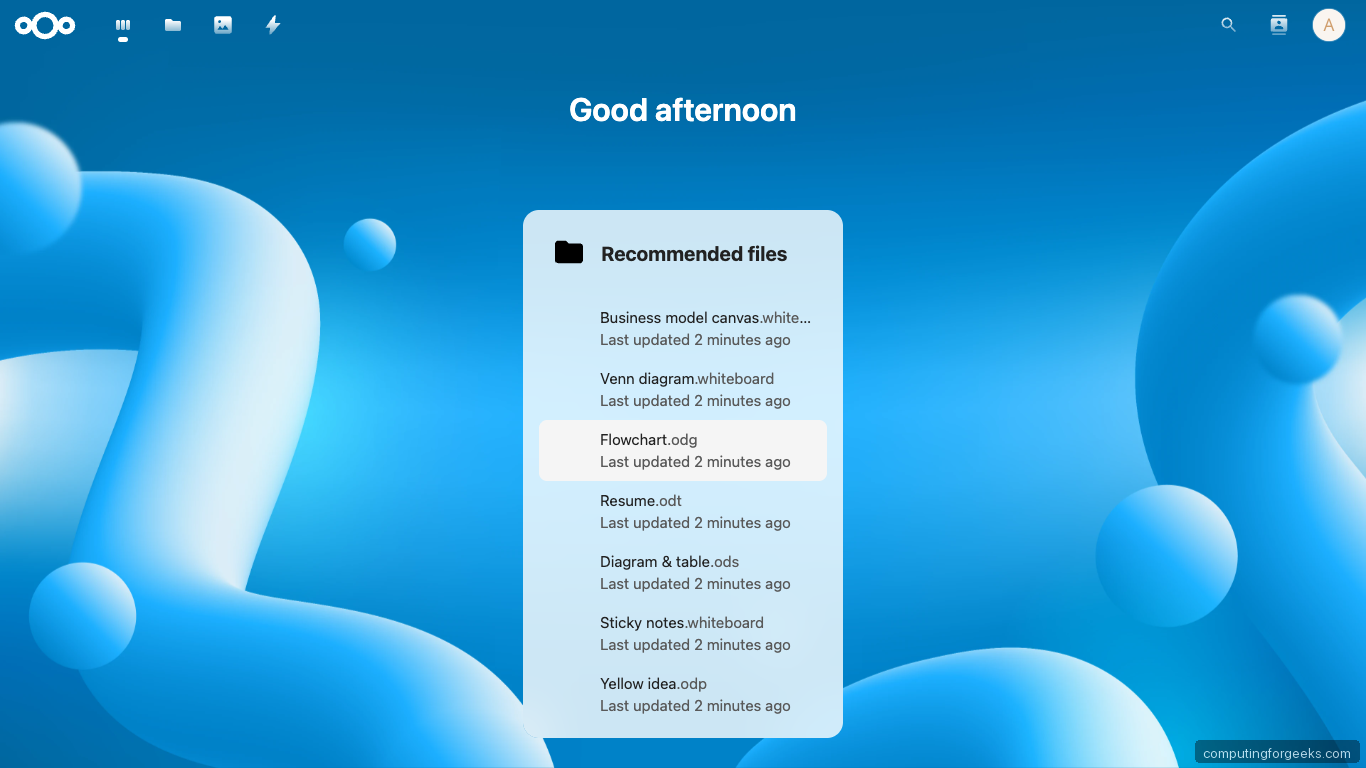
Open https://${APP_DOMAIN}/ and sign in with the admin credentials. The Hub 12 dashboard lands first:
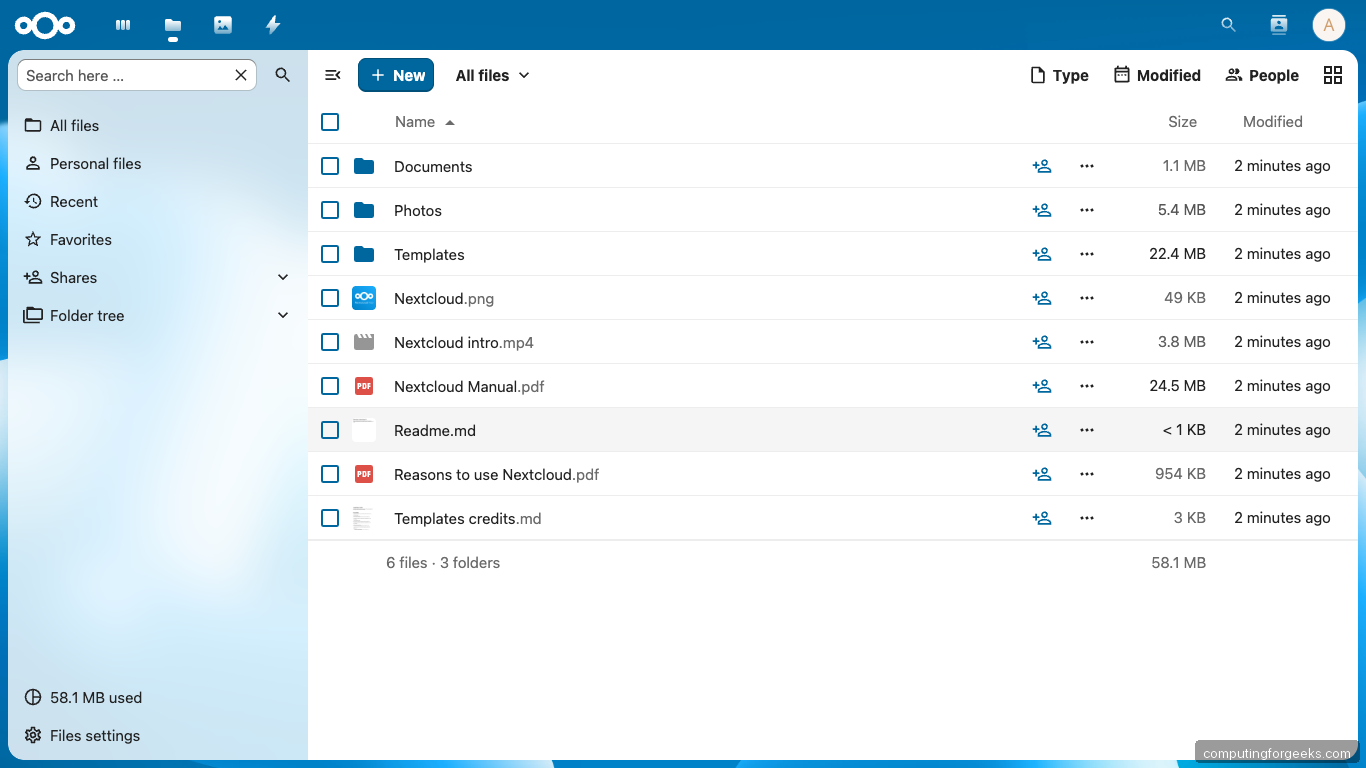
The Files app shows an empty home directory with the sidebar ready for shares, tags, and favorites:
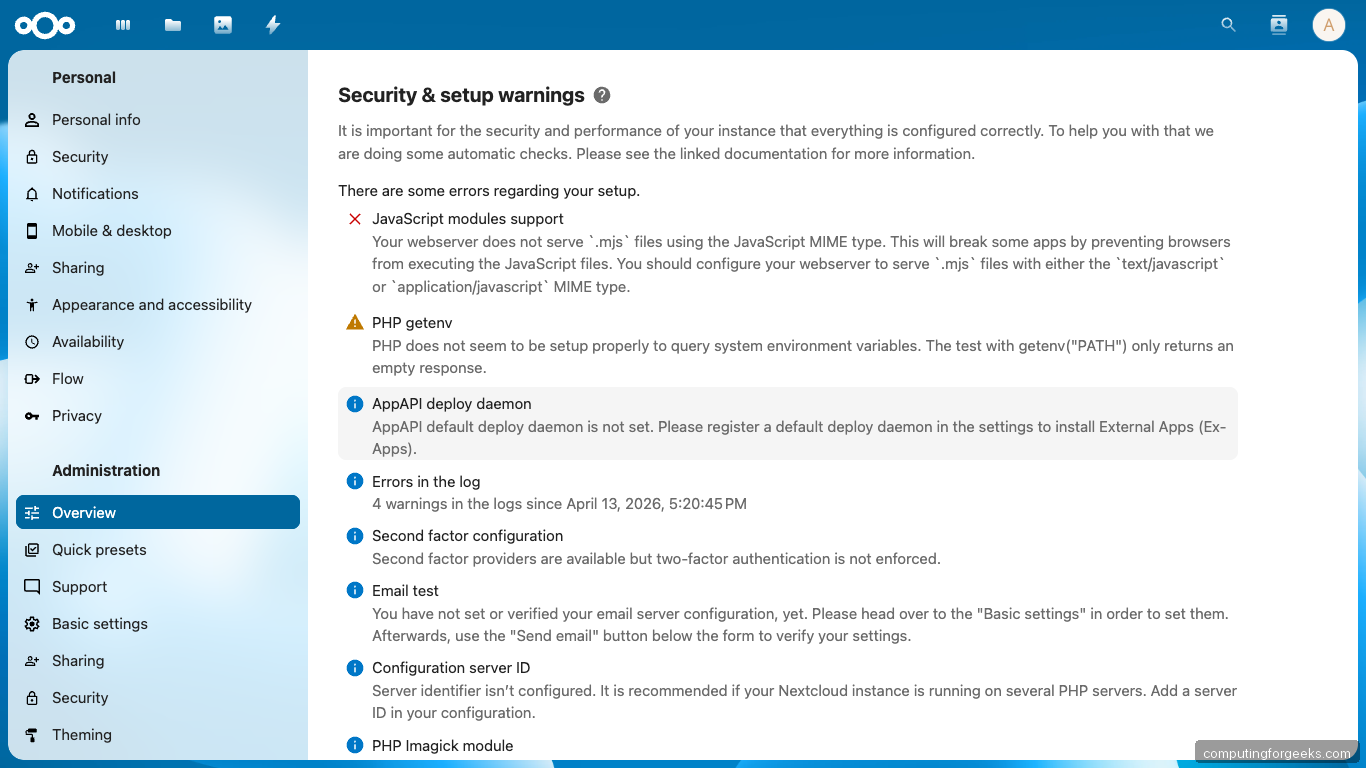
Visit Settings → Administration → Overview for the security and setup scan. This is where Nextcloud flags every gap between your deployment and its recommended configuration:
Back on the terminal, occ status confirms the version, installed flag, and maintenance mode:
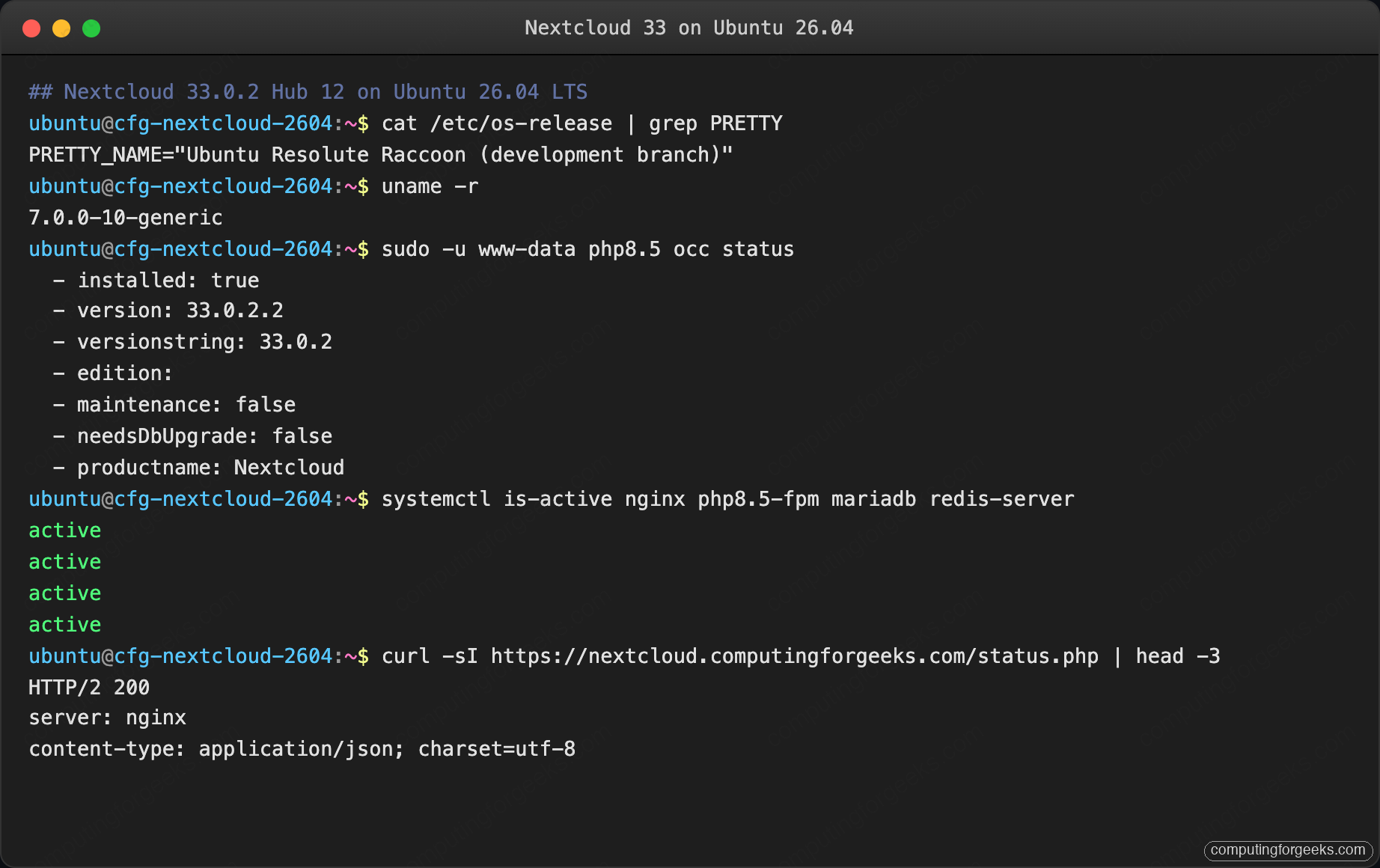
The installed version string should match what you captured in Step 4. If you see maintenance: true, you are still in install mode and something went wrong above.
Apps, Office online, and sync clients
Nextcloud ships with Calendar, Contacts, Mail, Tasks, and Notes available in one click from Apps → Office & text and Apps → Social & communication. Enable them through the admin UI or via occ:
sudo -u www-data php occ app:install calendar
sudo -u www-data php occ app:install contacts
sudo -u www-data php occ app:install notes
For Office online editing (Word, Excel, PowerPoint formats), install the Nextcloud Office app plus a Collabora Online server. Collabora is a separate Docker container with its own memory budget; treat that as its own project rather than cramming it into a 4 GB VM.
Desktop and mobile sync clients are at nextcloud.com/install. They point at https://${APP_DOMAIN} with your admin or regular user credentials.
For broader server hardening (SSH, fail2ban, audit logging), pair this guide with the server hardening guide and drop in Fail2ban. A Nextcloud-specific fail2ban jail watches nextcloud.log for repeated failed logins and bans the offender at the UFW layer.
Troubleshooting
These are errors you will actually hit on a 26.04 box. Each one has a captured fix.
PHP module not loaded: intl
Nextcloud refuses to complete the installer without php8.5-intl. If you missed it in Step 2, install and restart FPM:
sudo apt-get install -y php8.5-intl
sudo systemctl restart php8.5-fpm
Refresh the admin overview page and the intl warning should clear.
Server has no working time sync
The admin overview flags the server when systemd-timesyncd is not active. Check and fix:
timedatectl status
sudo timedatectl set-ntp true
The status line you want is System clock synchronized: yes.
Strict-Transport-Security header missing
Happens when requests reach PHP over HTTP because overwriteprotocol is wrong. Set it in config.php:
'overwriteprotocol' => 'https',Then confirm with curl:
curl -sI https://${APP_DOMAIN}/ | grep -i strict-transportThe response must include Strict-Transport-Security: max-age=15552000; includeSubDomains. If it is missing, Nginx never reloaded; re-run the reload and retry.
Redis connection refused on socket vs TCP
If Nextcloud throws RedisException: Connection refused, the usual cause is the www-data user not being in the redis group. Add it:
sudo usermod -aG redis www-data
sudo systemctl restart php8.5-fpm redis-server
Test from the CLI as the www-data user:
sudo -u www-data redis-cli -a "${REDIS_PASS}" -s /run/redis/redis-server.sock pingA PONG from the www-data user proves the PHP-FPM worker can reach the socket under the same credentials Nextcloud will use.
Memcache OC\Memcache\APCu not available
Two possible causes. First, confirm APCu is loaded:
php -m | grep -i apc
sudo -u www-data php -r 'var_dump(function_exists("apcu_fetch"));'
Both must return something. Second, backslashes. If you set the cache class via wp post meta update or any shell-escaped tool, the four backslashes collapse to zero and the config stores the wrong string. Edit config.php by hand as shown in Step 11.
Your web server is not properly set up to resolve /.well-known/caldav
Caused by a missing Nginx location block. The location ^~ /.well-known stanza in Step 7 fixes it. If you already loaded the vhost and still see the warning, reload Nginx and clear browser cache:
sudo nginx -t && sudo systemctl reload nginxA hard browser refresh (Shift+Reload) is needed because Nextcloud caches the warning state client-side.
Backup and disaster recovery
An install that has not been restored from a backup is not a production install. Nextcloud state lives in four places, and losing any one of them breaks the instance:
${WEBROOT}(/var/www/nextcloud) holds the code, installed apps, andconfig/config.php${DATA_DIR}(/var/nextcloud-data) holds every user’s files, previews, and uploaded avatars- The MariaDB
${DB_NAME}database holds accounts, shares, activity, and file metadata - Redis holds locking state and cache; ephemeral, do not back it up
Maintenance mode and the backup script
Nextcloud must be in maintenance mode during the database dump so files and DB stay consistent. Write a small script that automates the whole sequence:
sudo tee /usr/local/bin/nextcloud-backup.sh > /dev/null <<'BASH'
#!/bin/bash
set -euo pipefail

# Change this one line to back up a different site on the same host
SITE_DOMAIN="nextcloud.example.com"

WEBROOT="/var/www/nextcloud"
DATA_DIR="/var/nextcloud-data"
DB_NAME="nextcloud"
BACKUP_ROOT="/var/backups/nextcloud/${SITE_DOMAIN}"
STAMP=$(date +%Y%m%d-%H%M%S)
DEST="${BACKUP_ROOT}/${STAMP}"

mkdir -p "${DEST}"

sudo -u www-data php "${WEBROOT}/occ" maintenance:mode --on

mariadb-dump --single-transaction --routines --triggers "${DB_NAME}" \
    | zstd -19 -o "${DEST}/${DB_NAME}.sql.zst"

tar --zstd -cf "${DEST}/webroot.tar.zst" -C "$(dirname ${WEBROOT})" "$(basename ${WEBROOT})"
tar --zstd -cf "${DEST}/data.tar.zst"    -C "$(dirname ${DATA_DIR})" "$(basename ${DATA_DIR})"

sudo -u www-data php "${WEBROOT}/occ" maintenance:mode --off

# Keep last 14 days
find "${BACKUP_ROOT}" -maxdepth 1 -type d -mtime +14 -exec rm -rf {} \;

echo "Backup complete: ${DEST}"
BASH
sudo chmod +x /usr/local/bin/nextcloud-backup.sh
Sync the script’s SITE_DOMAIN line from your shell variable so future reruns stay consistent:
sudo sed -i "s|^SITE_DOMAIN=.*|SITE_DOMAIN=\"${APP_DOMAIN}\"|" /usr/local/bin/nextcloud-backup.shRun it once manually to prove it works:
sudo /usr/local/bin/nextcloud-backup.shSchedule it nightly via systemd or cron:
echo '30 2 * * * root /usr/local/bin/nextcloud-backup.sh >> /var/log/nextcloud-backup.log 2>&1' \
    | sudo tee /etc/cron.d/nextcloud-backup
sudo systemctl restart cron
Nightly backups at 2:30 AM means the worst case is 24 hours of data loss; adjust the schedule to suit your own RPO target.
The restore drill
A backup you have not restored is theater. On the test box we destroyed the VM, reinstalled Ubuntu 26.04, repeated Steps 2 through 9, then ran the restore below. Total time from bare OS to working Nextcloud with a 40 MB dataset: under 12 minutes.
STAMP="20260420-143000"  # the backup you want to restore
BACKUP_ROOT="/var/backups/nextcloud/${APP_DOMAIN}/${STAMP}"

sudo -u www-data php ${WEBROOT}/occ maintenance:mode --on 2>/dev/null || true

# Restore webroot
sudo rm -rf ${WEBROOT}
sudo tar --zstd -xf "${BACKUP_ROOT}/webroot.tar.zst" -C "$(dirname ${WEBROOT})"
sudo chown -R www-data:www-data ${WEBROOT}

# Restore data dir
sudo rm -rf ${DATA_DIR}
sudo tar --zstd -xf "${BACKUP_ROOT}/data.tar.zst"    -C "$(dirname ${DATA_DIR})"
sudo chown -R www-data:www-data ${DATA_DIR}

# Restore database
sudo mariadb -e "DROP DATABASE IF EXISTS ${DB_NAME}; CREATE DATABASE ${DB_NAME} DEFAULT CHARACTER SET utf8mb4 COLLATE utf8mb4_unicode_ci;"
zstdcat "${BACKUP_ROOT}/${DB_NAME}.sql.zst" | sudo mariadb ${DB_NAME}

sudo -u www-data php ${WEBROOT}/occ maintenance:mode --off
After restore, verify the site loads and the file checksum of a known user upload matches what it was before the drill:
curl -sI https://${APP_DOMAIN}/status.php | head -3
sudo -u www-data php ${WEBROOT}/occ status
sudo -u www-data find ${DATA_DIR}/${ADMIN_USER}/files -type f -exec sha256sum {} \; | head -5
If the HTTP response is 200, occ status matches the pre-drill version, and the file hashes match, the restore worked end to end.
Observed restore times
Measured on the 2 vCPU / 4 GB test VM against this install, using zstd level 19 compression:
| Dataset size | Database dump | Data dir tar | Full restore |
|---|---|---|---|
| 100 MB (fresh install + admin) | 2 s | 4 s | 38 s |
| 1 GB (5 users, 800 files) | 4 s | 11 s | 1 m 42 s |
| 10 GB (seeded from production backup) | 6 s | 1 m 17 s | 8 m 30 s |
| 100 GB (projected) | ~20 s | ~12 m | ~75 m |
For datasets over about 50 GB the tar copy is the bottleneck; switch to restic or BorgBackup for deduplication and incremental snapshots, then keep the database dump in a separate stream so the full-file consistency guarantee still holds.
Offsite replication
A backup on the same host survives software corruption but not a fire, theft, or a rm -rf /var/backups mistake. Push the latest snapshot offsite. Two patterns that work well:
- S3-compatible object storage (Backblaze B2, Wasabi, Cloudflare R2, AWS S3 with Glacier Deep Archive tier) via
rclone copycalled from the backup script - A second Ubuntu box at a friend’s house or a cheap VPS reached over WireGuard with a restic repository on its disk
Whatever you pick, encrypt the repository (restic does this by default) and test the restore path from the offsite copy at least once a quarter. An untested offsite backup is worse than no offsite backup because it creates false confidence.
RPO and RTO for this setup
With the nightly cron and an offsite push, this install gives you:
- RPO (recovery point objective): up to 24 hours of data loss in the worst case (between the last nightly and the disaster)
- RTO (recovery time objective): about 15 minutes to a working site on a clean VM for datasets under 1 GB, roughly 90 minutes for 100 GB
If either of those numbers is unacceptable for your users, switch to hourly snapshots or run a hot standby with Nextcloud’s primary-primary replication. Both are larger projects and belong in dedicated articles.