

Running a production DNS server used to mean building from source, fighting package dependencies, and keeping a MariaDB install bolted to the side of your PDNS box. The Docker approach collapses that into one docker-compose.yml, three containers, and a clean teardown when you’re done. This guide runs PowerDNS 4.9 with PowerDNS-Admin behind MariaDB 11, all in Docker containers on Rocky Linux 10.1.
The stack is the same whether your host is Rocky, Alma, Ubuntu, or Debian. Docker Engine and the Compose plugin are what matter. We cover the Rocky Linux 10 install for the engine, the full three-service compose file, MySQL schema bootstrapping, zone creation through pdnsutil, DNS resolution tests, first-run PowerDNS-Admin setup, and an HTTPS reverse proxy sketch for the admin UI. If you want the non-Docker path on Debian, we also publish PowerDNS and PowerDNS-Admin on Debian as a sibling guide.
Tested April 2026 on Rocky Linux 10.1 (kernel 6.12), Docker CE 29.4.0, Compose plugin v5.1.3, powerdns/pdns-auth-49, mariadb:11, powerdnsadmin/pda-legacy. SELinux enforcing.
Why run PowerDNS in Docker
Three concrete wins over package installs. First, one docker compose down -v and the whole lab is gone, which matters when you’re testing DNSSEC or backend migrations. Second, the image ships compiled with every backend (gmysql, gpgsql, gsqlite3, lmdb, bind, ldap) so switching database engines is a config edit, not a rebuild. Third, upgrades are tag swaps. Pin powerdns/pdns-auth-49:latest for the 4.9.x line, flip to powerdns/pdns-auth-50 when 5.0 ships, roll back in seconds if it misbehaves.
The downside is that DNS is infrastructure. You will eventually want volume backups, TLS on the admin panel, monitoring on the pdns container, and a proper secondary. This guide covers the first three. The secondary belongs in a dedicated replication tutorial, not a quickstart.
Prerequisites
- A Linux host with at least 2 GB RAM and 10 GB disk. Rocky 10, Alma 10, Ubuntu 24.04, and Debian 13 all work. I tested on Rocky Linux 10.1.
- Root or
sudo. - Ports 53/tcp, 53/udp (DNS) and 9191/tcp (admin UI) reachable from the clients you plan to serve. Port 8081 stays bound to
127.0.0.1because the API key lives in plain text; never expose it. - Nothing else listening on port 53. On some distros
systemd-resolvedholds it. Disable or reconfigure before starting the stack. - A VPS if you don’t have a spare host. DigitalOcean gives $200 in free credits and boots a 2 GB droplet in under a minute; Hetzner Cloud is cheaper in the EU (€4/month CX22 handles the whole stack).
On Rocky 10 specifically, confirm that the running kernel has the xt_addrtype and iptable_nat modules before installing Docker. If kernel-modules-extra is missing for the running kernel, dockerd fails on startup with a bridge-driver error. The install step below handles that.
Step 1: Install Docker Engine on Rocky Linux 10
If Docker is already installed (docker --version and docker compose version both respond), skip to Step 2. Otherwise, remove any Podman that shipped with the base image, add the Docker CE repo, and install the engine plus compose plugin.
sudo dnf remove -y podman buildah 2>/dev/null
sudo dnf install -y dnf-plugins-core
sudo dnf config-manager --add-repo https://download.docker.com/linux/rhel/docker-ce.repo
sudo dnf install -y docker-ce docker-ce-cli containerd.io docker-buildx-plugin docker-compose-plugin
The RHEL Docker repo works on Rocky 10 and Alma 10 because both are bug-for-bug RHEL rebuilds. If you hit a module load failure when dockerd starts, install the matching extra modules and reboot into the new kernel:
sudo dnf install -y kernel-modules-extra
sudo reboot
After the host comes back up, enable and start the Docker daemon, then confirm both the engine and the compose plugin respond:
sudo systemctl enable --now docker
docker --version
docker compose version
You should see something like this on a current Rocky 10 box:
Docker version 29.4.0, build 9d7ad9f
Docker Compose version v5.1.3
For the long-form install including post-install user permissions and the data-root move, see Install Docker CE on Rocky Linux and AlmaLinux. The steps above are the minimum needed for this guide.
Step 2: Set reusable shell variables
The rest of the guide uses shell variables so you can change one block and paste everything else as-is. Export them in your current session:
export STACK_DIR="/opt/powerdns-stack"
export DB_NAME="powerdns"
export DB_USER="pdns"
export DB_PASS="ChangeMeStrong2026"
export DB_ROOT_PASS="ChangeRootStrong2026"
export ADMIN_DB_NAME="powerdnsadmin"
export API_KEY="supersecret-apikey-change-me"
export ZONE="example.internal"
One practical warning on passwords. PowerDNS-Admin uses a SQLAlchemy connection URI of the form mysql://user:password@host/db. A raw # or @ in the password breaks that URI unless you percent-encode it. Stick to letters, digits, and a small set of symbols like _, -, and . for the DB password, or wrap the value with python3 -c 'import urllib.parse,sys; print(urllib.parse.quote_plus(sys.argv[1]))' "$DB_PASS" before pasting it into the environment. Confirm the values are set before running anything destructive:
echo "Stack:  ${STACK_DIR}"
echo "DB:     ${DB_NAME} / ${DB_USER}"
echo "AdminDB ${ADMIN_DB_NAME}"
echo "Zone:   ${ZONE}"
Create the project directory and move into it. The directory holds the compose file, a PowerDNS config override, and the SQL schema we’ll extract from the image:
sudo mkdir -p "${STACK_DIR}"/{pdns-conf,pdns-sql}
sudo chown -R "$USER":"$USER" "${STACK_DIR}"
cd "${STACK_DIR}"
Step 3: Write docker-compose.yml
The compose file declares three services. mariadb stores zone data for PowerDNS and a separate database for PowerDNS-Admin. pdns runs the authoritative DNS server with the gmysql backend and the HTTP API. pdns-admin is the web UI. Healthchecks drive the dependency order so pdns only starts after MariaDB is ready to accept connections, and pdns-admin waits for pdns.
Open the file with your editor:
vi "${STACK_DIR}/docker-compose.yml"Paste the following, then save:
services:
  mariadb:
    image: mariadb:11
    container_name: pdns-mariadb
    restart: unless-stopped
    environment:
      MARIADB_ROOT_PASSWORD: "${DB_ROOT_PASS}"
      MARIADB_DATABASE: "${DB_NAME}"
      MARIADB_USER: "${DB_USER}"
      MARIADB_PASSWORD: "${DB_PASS}"
    volumes:
      - mariadb_data:/var/lib/mysql
    networks:
      - pdns_net
    healthcheck:
      test: ["CMD", "healthcheck.sh", "--connect", "--innodb_initialized"]
      interval: 10s
      timeout: 5s
      retries: 10

  pdns:
    image: powerdns/pdns-auth-49:latest
    container_name: pdns-auth
    restart: unless-stopped
    depends_on:
      mariadb:
        condition: service_healthy
    volumes:
      - ./pdns-conf/pdns.conf:/etc/powerdns/pdns.conf:ro
    ports:
      - "53:53/tcp"
      - "53:53/udp"
      - "127.0.0.1:8081:8081"
    networks:
      - pdns_net
    healthcheck:
      test: ["CMD", "pdns_control", "rping"]
      interval: 15s
      timeout: 5s
      retries: 5

  pdns-admin:
    image: powerdnsadmin/pda-legacy:latest
    container_name: pdns-admin
    restart: unless-stopped
    depends_on:
      pdns:
        condition: service_healthy
    environment:
      SQLALCHEMY_DATABASE_URI: "mysql://${DB_USER}:${DB_PASS}@mariadb/${ADMIN_DB_NAME}"
      GUNICORN_TIMEOUT: "60"
      GUNICORN_WORKERS: "2"
      GUNICORN_LOGLEVEL: "INFO"
      OFFLINE_MODE: "False"
    ports:
      - "9191:80"
    volumes:
      - pdnsadmin_upload:/app/upload
    networks:
      - pdns_net

volumes:
  mariadb_data:
  pdnsadmin_upload:

networks:
  pdns_net:
    driver: bridge
Two choices in that file need calling out. The pdns image is powerdns/pdns-auth-49 (the 4.9.x line) rather than the generic powerdns/pdns tag, because PowerDNS publishes a separate repository per minor branch. When 5.0 ships, you swap the image tag to powerdns/pdns-auth-50 and docker compose up -d. The admin image is powerdnsadmin/pda-legacy, the community-maintained fork that still tracks the Python 3.11+ and Gunicorn stack. The old ngoduykhanh/powerdns-admin image and its pip-install flow break on Python 3.13 and are no longer a working path.
Compose reads environment variables from a .env file next to the compose file. Create that now so the variable expansions resolve:
{
  echo "DB_ROOT_PASS=${DB_ROOT_PASS}"
  echo "DB_NAME=${DB_NAME}"
  echo "DB_USER=${DB_USER}"
  echo "DB_PASS=${DB_PASS}"
  echo "ADMIN_DB_NAME=${ADMIN_DB_NAME}"
} | sudo tee "${STACK_DIR}/.env" > /dev/null
sudo chmod 600 "${STACK_DIR}/.env"
The chmod 600 matters. The file contains the MariaDB root password, and compose reads it on every up.
Step 4: Write pdns.conf
The pdns image ships a default /etc/powerdns/pdns.conf that launches the SQLite backend. We override that with a gmysql config so PowerDNS talks to the MariaDB service. The config is mounted read-only by the compose file above.
vi "${STACK_DIR}/pdns-conf/pdns.conf"Paste the configuration below. The hostname mariadb resolves inside the compose network to the MariaDB container:
# PowerDNS authoritative server config
local-address=0.0.0.0,::
launch=gmysql
gmysql-host=mariadb
gmysql-port=3306
gmysql-dbname=DB_NAME_HERE
gmysql-user=DB_USER_HERE
gmysql-password=DB_PASS_HERE

# HTTP API and web server for PowerDNS-Admin
api=yes
api-key=API_KEY_HERE
webserver=yes
webserver-address=0.0.0.0
webserver-port=8081
webserver-allow-from=0.0.0.0/0

default-ttl=3600
disable-syslog=yes
loglevel=4
The placeholders (DB_NAME_HERE, DB_USER_HERE, DB_PASS_HERE, API_KEY_HERE) are deliberate. Config files aren’t shell contexts, so ${DB_NAME} wouldn’t expand. Substitute the real values from your shell variables in one pass:
sed -i "s/DB_NAME_HERE/${DB_NAME}/g;
        s/DB_USER_HERE/${DB_USER}/g;
        s/DB_PASS_HERE/${DB_PASS}/g;
        s/API_KEY_HERE/${API_KEY}/g" "${STACK_DIR}/pdns-conf/pdns.conf"
Verify the substitutions landed. The output should show real values, not placeholders:
grep -E 'gmysql-(dbname|user|password)|api-key' "${STACK_DIR}/pdns-conf/pdns.conf"Step 5: Bootstrap the database schema
MariaDB auto-creates the powerdns database because we set MARIADB_DATABASE, but the schema (the domains, records, cryptokeys, and related tables) must be imported separately. The pdns image ships the canonical schema at /usr/local/share/doc/pdns/schema.mysql.sql. Copy it out of the image first:
docker run --rm --entrypoint /bin/sh powerdns/pdns-auth-49:latest \
  -c 'cat /usr/local/share/doc/pdns/schema.mysql.sql' > "${STACK_DIR}/pdns-sql/schema.mysql.sql"
wc -l "${STACK_DIR}/pdns-sql/schema.mysql.sql"
You should see 92 lines or so, depending on the point release. Start MariaDB on its own so we can import before PDNS tries to talk to empty tables:
cd "${STACK_DIR}"
docker compose up -d mariadb
Wait for the container to report healthy. The image ships a real healthcheck against the InnoDB status so this is reliable:
until docker compose ps mariadb | grep -q "(healthy)"; do sleep 2; done
echo "MariaDB is up"
Now create the second database for PowerDNS-Admin and grant the pdns user access to it, then import the PowerDNS schema:
docker exec pdns-mariadb mariadb -uroot -p"${DB_ROOT_PASS}" -e \
  "CREATE DATABASE IF NOT EXISTS ${ADMIN_DB_NAME} CHARACTER SET utf8mb4;
   GRANT ALL PRIVILEGES ON ${ADMIN_DB_NAME}.* TO '${DB_USER}'@'%';
   FLUSH PRIVILEGES;"

docker exec -i pdns-mariadb mariadb -uroot -p"${DB_ROOT_PASS}" "${DB_NAME}" \
  < "${STACK_DIR}/pdns-sql/schema.mysql.sql"
Verify both databases exist and the PowerDNS tables were created:
docker exec pdns-mariadb mariadb -uroot -p"${DB_ROOT_PASS}" \
  -e "SHOW DATABASES; USE ${DB_NAME}; SHOW TABLES;"
Expect seven tables in the powerdns database:
Tables_in_powerdns
comments
cryptokeys
domainmetadata
domains
records
supermasters
tsigkeys
Step 6: Start the full stack
With the schema in place, bring up the rest of the services:
cd "${STACK_DIR}"
docker compose up -d
Compose prints the dependency order, starting containers only after the service they depend on reports healthy:
 Container pdns-mariadb Running
 Container pdns-auth Recreate
 Container pdns-auth Recreated
 Container pdns-mariadb Waiting
 Container pdns-mariadb Healthy
 Container pdns-auth Starting
 Container pdns-auth Started
 Container pdns-auth Waiting
 Container pdns-auth Healthy
 Container pdns-admin Starting
 Container pdns-admin Started
Confirm all three containers are healthy:
docker compose psThe output shows the status, uptime, and port bindings:
NAME           IMAGE                             STATUS                     PORTS
pdns-admin     powerdnsadmin/pda-legacy:latest   Up (healthy)               0.0.0.0:9191->80/tcp
pdns-auth      powerdns/pdns-auth-49:latest      Up (healthy)               0.0.0.0:53->53/tcp/udp, 127.0.0.1:8081->8081/tcp
pdns-mariadb   mariadb:11                        Up (healthy)               3306/tcp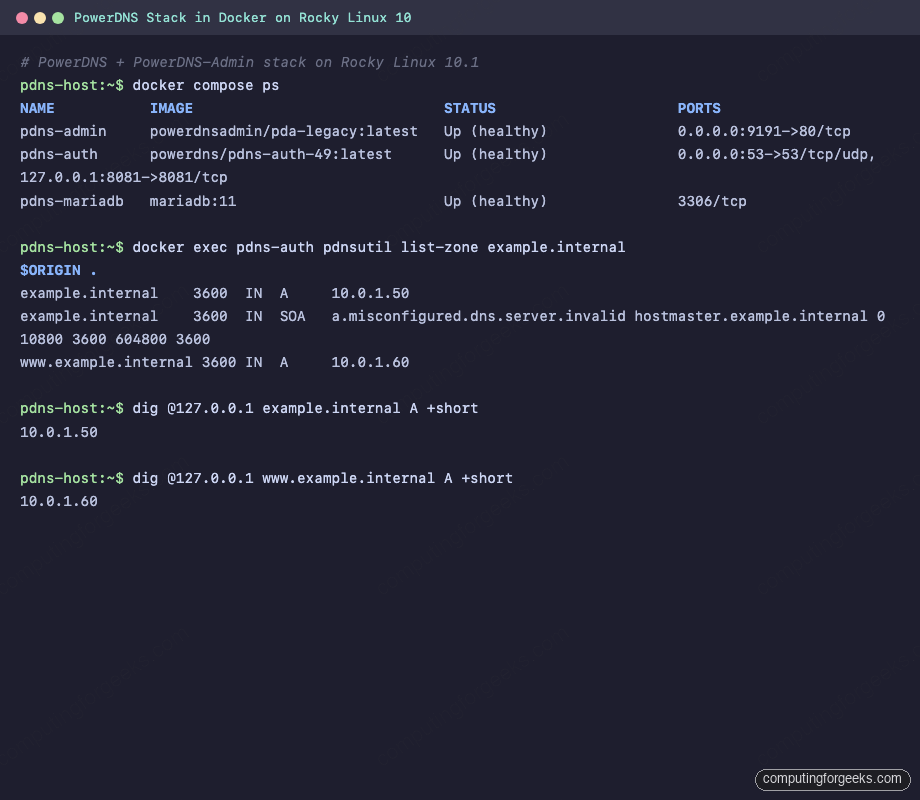
Tail the PowerDNS log briefly to catch any backend connection issues:
docker compose logs pdns --tail=15A healthy start looks like this, with UDP and TCP sockets bound, the webserver up, and the backend threads launched:
pdns-auth  | Loading '/usr/local/lib/pdns/libgmysqlbackend.so'
pdns-auth  | This is a standalone pdns
pdns-auth  | Listening on controlsocket in '/var/run/pdns/pdns.controlsocket'
pdns-auth  | UDP server bound to 0.0.0.0:53
pdns-auth  | TCP server bound to 0.0.0.0:53
pdns-auth  | PowerDNS Authoritative Server 4.9.13 (C) PowerDNS.COM BV
pdns-auth  | [webserver] Listening for HTTP requests on 0.0.0.0:8081
pdns-auth  | Polled security status of version 4.9.13 at startup, no known issues reported: OK
pdns-auth  | Creating backend connection for TCP
pdns-auth  | About to create 3 backend threads for UDP
pdns-auth  | Done launching threads, ready to distribute questions
Step 7: Create a zone and test DNS resolution
PowerDNS is serving. Now give it something to serve. pdnsutil is the admin CLI bundled in the image. Create a zone and two A records:
docker exec pdns-auth pdnsutil create-zone "${ZONE}"
docker exec pdns-auth pdnsutil add-record "${ZONE}" @   A 10.0.1.50
docker exec pdns-auth pdnsutil add-record "${ZONE}" www A 10.0.1.60
docker exec pdns-auth pdnsutil list-zone  "${ZONE}"
The last command prints the zone in BIND format so you can eyeball what’s in the backend:
$ORIGIN .
example.internal         3600  IN  A     10.0.1.50
example.internal         3600  IN  SOA   a.misconfigured.dns.server.invalid hostmaster.example.internal 0 10800 3600 604800 3600
www.example.internal     3600  IN  A     10.0.1.60
Install dig on the host if it isn’t there (dnf install -y bind-utils on Rocky, apt install -y dnsutils on Debian). PowerDNS aggressively caches query results, and a fresh zone may not show up until a cache purge:
docker exec pdns-auth pdns_control purge
dig @127.0.0.1 "${ZONE}" A +short
dig @127.0.0.1 "www.${ZONE}" A +short
dig @127.0.0.1 "${ZONE}" SOA +short
The records come back immediately:
10.0.1.50
10.0.1.60
a.misconfigured.dns.server.invalid. hostmaster.example.internal. 0 10800 3600 604800 3600
That SOA primary name (a.misconfigured.dns.server.invalid) is the image default. Fix it on the zone with pdnsutil edit-zone when you promote the zone beyond a lab. The PowerDNS HTTP API also replies now that zones exist:
curl -s -H "X-API-Key: ${API_KEY}" \
  http://127.0.0.1:8081/api/v1/servers/localhost/zones | python3 -m json.tool
The response lists the zone with its serial, kind, and REST URL:
[
    {
        "account": "",
        "dnssec": false,
        "id": "example.internal.",
        "kind": "Native",
        "name": "example.internal.",
        "serial": 0,
        "url": "/api/v1/servers/localhost/zones/example.internal."
    }
]
Step 8: Connect PowerDNS-Admin
PowerDNS-Admin is the browser UI. It does not run the DNS server itself. Instead it stores user accounts, groups, and history in its own database (the powerdnsadmin DB we created in Step 5) and talks to PowerDNS over the HTTP API. Confirm the service is accepting connections:
curl -sI http://localhost:9191/ | head -3A 302 redirect to the login page confirms Gunicorn is serving:
HTTP/1.1 302 FOUND
Server: gunicorn
Location: /login
Now open http://SERVER_IP:9191/ in a browser. The first request redirects to the login page. Returning users sign in here; first-time visitors click Create an account to bootstrap the initial admin.
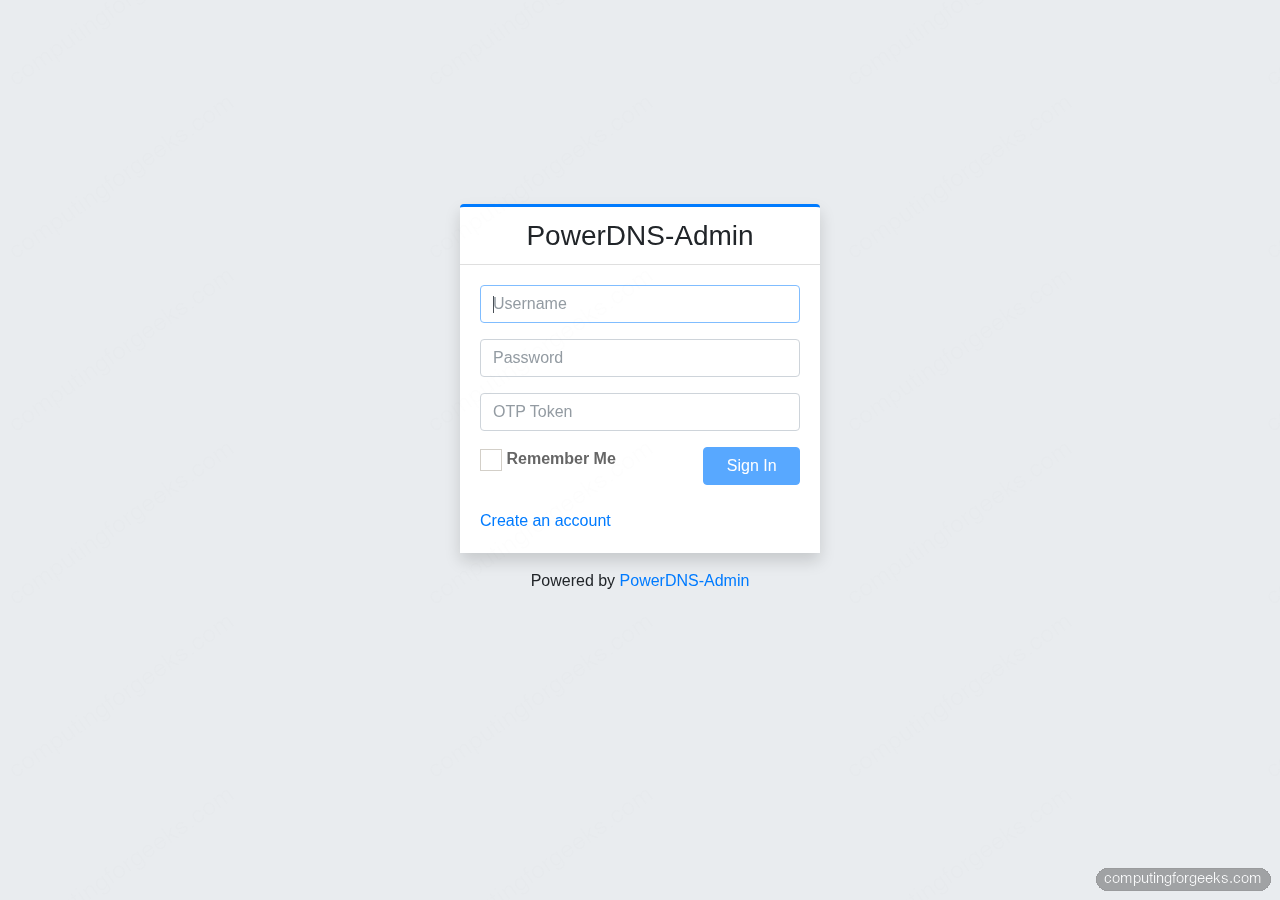
Click Create an account on first run and fill in the registration form. The first user that registers is promoted to the Administrator role automatically. Provide:
- Username, first name, last name, email, password: this account becomes the first admin.
- Submit. The app logs you in and drops you on the empty dashboard.
- Go to Settings → PDNS in the sidebar.
- PDNS API URL:
http://pdns-auth:8081(the service name resolves inside the compose network). - PDNS API Key: the value of
${API_KEY}you exported earlier. - PDNS Version: 4.9.x.
- Click Save, then Test connection. Expect a green toast.
The Dashboard now shows the example.internal zone you created in Step 7 with its record count. You can add A, CNAME, MX, TXT, SRV, and DNSSEC records through the UI, plus manage zone-level accounts and apply DNS templates. Changes made in the UI propagate to the same MariaDB tables PowerDNS reads, and dig resolves them as soon as you save.
Step 9: Put the admin UI behind HTTPS
Port 9191 is HTTP. That’s fine on a private lab but not acceptable for a production admin panel. Put the UI behind Nginx with a Let’s Encrypt certificate. Install Nginx and certbot on the host, point an A record at the server, and open port 80 so the ACME HTTP-01 challenge can complete:
sudo dnf install -y nginx certbot python3-certbot-nginx
sudo systemctl enable --now nginx
sudo firewall-cmd --permanent --add-service=http --add-service=https --add-service=dns
sudo firewall-cmd --reload
Create a vhost that proxies to the admin container on 127.0.0.1:9191:
sudo vi /etc/nginx/conf.d/pdns-admin.confPaste the following, replacing the placeholder with your real hostname:
server {
    listen 80;
    server_name PDNS_DOMAIN_HERE;

    location / {
        proxy_pass         http://127.0.0.1:9191;
        proxy_set_header   Host               $host;
        proxy_set_header   X-Real-IP          $remote_addr;
        proxy_set_header   X-Forwarded-For    $proxy_add_x_forwarded_for;
        proxy_set_header   X-Forwarded-Proto  $scheme;
        proxy_read_timeout 120s;
    }
}
Substitute your domain and reload Nginx:
export PDNS_DOMAIN="pdns-admin.example.com"
sudo sed -i "s/PDNS_DOMAIN_HERE/${PDNS_DOMAIN}/g" /etc/nginx/conf.d/pdns-admin.conf
sudo nginx -t && sudo systemctl reload nginx
Issue a certificate with the Nginx plugin (HTTP-01 challenge, works with any DNS provider that can set an A record):
sudo certbot --nginx -d "${PDNS_DOMAIN}" \
  --non-interactive --agree-tos --redirect \
  -m [email protected]
Certbot rewrites the vhost to listen on 443 with the new certificate and redirects HTTP to HTTPS. If the server sits on a private LAN with no inbound port 80, use DNS-01 instead; the sibling guide Nginx reverse proxy with Let’s Encrypt SSL walks through both challenge types. For Kubernetes-native routing with automatic certificate rotation, Traefik as an ingress controller is a cleaner fit.
Production notes
Three things separate a lab from something you can leave running. Backups. The MariaDB volume holds every zone and record. A daily mariadb-dump into a timestamped file, stored off-box, is the minimum. Restic or rclone to S3-compatible storage works well; DigitalOcean Spaces or Hetzner Storage Boxes are both cheap and S3-compatible.
docker exec pdns-mariadb mariadb-dump -uroot -p"${DB_ROOT_PASS}" --all-databases \
  | gzip > "/var/backups/pdns-$(date +%F).sql.gz"
Secrets hygiene. The API key and DB passwords are in plain text inside .env and pdns.conf. For anything beyond a lab, push them into a secrets manager and mount them at runtime rather than baking them into the file. 1Password Secrets Automation integrates with Docker via op run; HashiCorp Vault and AWS Secrets Manager are the other common choices.
A secondary DNS server. A single authoritative server is a single point of failure, and DNS resolvers retry for quite a while before giving up. Set also-notify on the primary and spin up a second pdns container on a different host configured as a secondary. The PowerDNS docs cover the AXFR-based replication and the supermasters table is already in the schema you imported.
Troubleshooting
Error: “Trying to set unknown setting ‘gsqlite3-dnssec'”
The pdns container crash-loops with that error when the default /etc/powerdns/pdns.conf inside the image still references the SQLite backend. Make sure the mount in docker-compose.yml shadows the default config:
volumes:
  - ./pdns-conf/pdns.conf:/etc/powerdns/pdns.conf:ro
Re-run docker compose up -d after fixing the mount path. A simple restart isn’t enough because compose doesn’t reread the volumes block for running containers.
Error: “docker.service failed” with iptables module error on Rocky 10
If dockerd fails to start with a message about xt_addrtype or “Extension addrtype revision 0 not supported, missing kernel module”, the running kernel is missing the extra iptables modules. The fix is two commands, but they need a reboot to take effect:
sudo dnf install -y kernel-modules-extra
sudo reboot
After reboot, uname -r should match the newer kernel version and modprobe xt_addrtype should succeed silently. Docker starts cleanly from there.
Error: “Address already in use” on port 53
Another service is already bound to 53. On Ubuntu and recent Debian releases, systemd-resolved listens there. On some Rocky images, dnsmasq ships enabled. Check what’s holding the port:
sudo ss -tunlp | grep ':53 'If systemd-resolved is the culprit, tell it to stop using port 53 but keep its local resolver for the host itself:
sudo mkdir -p /etc/systemd/resolved.conf.d
echo -e "[Resolve]\nDNSStubListener=no" | sudo tee /etc/systemd/resolved.conf.d/pdns.conf
sudo systemctl restart systemd-resolved
Queries return REFUSED after creating a zone
PowerDNS caches negative answers. A zone that didn’t exist a moment ago is still remembered as nonexistent for up to an hour. Flush the cache after any pdnsutil create-zone or rediscover:
docker exec pdns-auth pdns_control rediscover
docker exec pdns-auth pdns_control purge
Then re-run the dig query. This is the single most common surprise when scripting zone bootstrap.
PowerDNS-Admin shows “Connection test failed” when saving PDNS settings
Three things to check, in order: the PDNS API URL must use the compose service name (http://pdns-auth:8081), not localhost; the API key must match api-key in pdns.conf; and webserver-allow-from must include the compose network subnet (0.0.0.0/0 for a lab, a tight CIDR for production). If the admin container can’t resolve the pdns hostname, confirm both containers are on the pdns_net network:
docker network inspect powerdns-stack_pdns_net \
  --format '{{range .Containers}}{{.Name}} {{end}}'
All three container names (pdns-mariadb, pdns-auth, pdns-admin) should appear on one line.
Stopping and cleaning up
Stop the stack without losing data:
cd "${STACK_DIR}"
docker compose stop
Tear everything down, including the named volumes that hold the MariaDB data and the admin upload directory:
cd "${STACK_DIR}"
docker compose down -v
The -v flag deletes the volumes. Run this only if you’re sure you don’t need the zone data. For a test rebuild, prefer docker compose down without the flag so the data survives the next up.
Where to go next
If you need the same stack on a bare-metal Debian server without Docker, our PowerDNS and PowerDNS-Admin on Debian guide covers the apt-based install and systemd configuration. For other container workloads next to this DNS stack, the Docker Compose on Ubuntu 26.04 walkthrough shows the same engine on the latest Ubuntu, and the Greenbone in Docker guide is a good companion if you want to scan the DNS host for vulnerabilities after it’s deployed.
Need a hand running this in production?
We deploy, harden, and support DNS stacks like this one for small and mid-sized teams. Design review, TLS automation, off-host backups, monitoring, or a full managed handoff.
Get new guides like this by email
One email per week, covering Linux, Kubernetes, cloud, and DNS tutorials we’ve actually tested. No spam, unsubscribe in one click.




Thanks for sharing. Very clear!
Hello,
This s a very comprehensive guide and set of installations steps. Very much appreciated. However I have run into a few issues (MariaDB) with the first part of the install (ie NO SSL) and the docker-compose version vs just docker. Would you be able to assist? Please PM me directly thanks.
Bill
Hello William,
We really appreciate your feedback. I have gone through the guide and realized that if you are trying both methods, you first need to delete the
/pda-mysqlvolume, otherwise the container fails to connect to the database.Delete the volume and recreate it before you proceed.
Hello,
I am having some troubles with docker-compose approach. Could you pm me for some assistance?
Thank you. Once I actually followed you instructions step by step, it worked brillantly
We’re happy to get such positive comment from our work. Thank you!
Hi, Could you say, how i can get access to PowerDns via commandline. Example: pdnsutil, nsupdate?
Did you try inside the container?
can anyone say the PowerDNS API URL is located in which docker container?
The PowerDNS API URL is the hostname for the pdns container on port 8081. For example in my case, it will be http://pdns:8081