

Bind9 gets the muscle memory, but when the zones grow past a handful and someone on the team wants to edit records through a browser at 2am, the flat-file workflow stops scaling. PowerDNS Authoritative Server keeps zones in a database and exposes a clean REST API, which is a much friendlier fit for teams that already treat infrastructure as data. Pair it with the community PowerDNS-Admin web UI and you get a production-capable authoritative DNS stack that is genuinely enjoyable to operate.
This guide walks through a complete install of PowerDNS on Debian 13 (trixie) with the MariaDB backend, then adds PowerDNS-Admin for the web UI. Covered end to end: the classic port 53 clash with systemd-resolved, the gmysql backend wiring, API key hardening, a real zone created with pdnsutil and resolved with dig, and the Docker-based PowerDNS-Admin deployment that actually works on Debian 13’s Python 3.13 (the pip-install path is currently broken upstream).
Tested April 2026 on Debian 13.1 (trixie) with PowerDNS Authoritative 4.9.7, MariaDB 11.8.6, PowerDNS-Admin (pda-legacy container tag), and Docker CE 29.4. Debian 12 (bookworm) ships PowerDNS 4.7 and is noted where the steps differ.
Prerequisites
To follow along you need a Debian 13 (or Debian 12) host with root or sudo access, 1 GB RAM minimum (PowerDNS + MariaDB + the PDA container idle at around 350 MB), and UDP/TCP port 53 reachable from whoever needs to resolve your zones. If you are working from a laptop and want a clean test target, spin up a DigitalOcean droplet with the Debian 13 image: a $6/month instance handles a few hundred zones comfortably.
If the box is brand new, work through the Debian 13 post-install steps first (SSH hardening, unattended-upgrades, a non-root sudo user). The commands here assume an updated package index.
Step 1: Set reusable shell variables
Every block below uses shell variables so you change one set of values up front and paste the rest of the commands as-is. Export them at the top of your SSH session:
export PDNS_DB="pdns"
export PDNS_USER="pdnsuser"
export PDNS_PASS="ChangeMe#Strong2026"
export PDA_DB="pdnsadmin"
export PDA_USER="pdnsadmin"
export PDA_PASS="AdminDB#Strong2026"
export API_KEY="$(openssl rand -hex 16)"
export ZONE="example.internal"
Pick real passwords for your environment before exporting. The variables only live for the current shell session: if you reconnect or switch to sudo -i, re-run the block. Confirm they are set before doing anything that touches the database:
echo "DB:      ${PDNS_DB} / ${PDNS_USER}"
echo "PDA DB:  ${PDA_DB} / ${PDA_USER}"
echo "API key: ${API_KEY}"
echo "Zone:    ${ZONE}"
Step 2: Free port 53 from systemd-resolved
This is the single most common reason PowerDNS fails to start on a fresh Debian box. Most Debian installations have systemd-resolved bound to 127.0.0.53:53 as the local DNS stub. PowerDNS wants to listen on 0.0.0.0:53, which collides. Check first:
ss -tlnp | grep :53
ss -ulnp | grep :53
If either line shows systemd-resolve, disable the stub listener. Open the config:
sudo vi /etc/systemd/resolved.confUncomment and set DNSStubListener=no under the [Resolve] section. Then repoint /etc/resolv.conf so the host still has a working resolver (the stub file resolved wrote is now useless), and restart the service:
sudo ln -sf /run/systemd/resolve/resolv.conf /etc/resolv.conf
sudo systemctl restart systemd-resolved
ss -tlnp | grep :53 || echo "port 53 is free"
The final echo should print port 53 is free. If you still see a listener, stop and disable the service:
sudo systemctl disable --now systemd-resolvedOn a headless server with no desktop networking, disabling systemd-resolved outright is usually cleaner than the DNSStubListener=no dance. On desktop or laptop installs, prefer the stub-disable approach because NetworkManager still wants resolved alive.
Step 3: Install and secure MariaDB
PowerDNS can use SQLite, PostgreSQL, LDAP, or BIND-style zone files, but MariaDB is the most common choice for a multi-user install with a web UI in front. Debian 13 ships MariaDB 11.8 LTS in the default repos. If you want the newer upstream 12.x line instead, see the MariaDB 12 on Debian guide:
sudo apt update
sudo apt install -y mariadb-server mariadb-client
The service starts automatically. On Debian 13 the root account uses mysql_native_password with no password after install, accessible only from the local socket to the root OS user. Lock it down with a scripted version of mariadb-secure-installation: no TTY prompts, idempotent, safe to re-run:
sudo mariadb <<SQL
DELETE FROM mysql.global_priv WHERE User='';
DELETE FROM mysql.global_priv WHERE User='root' AND Host NOT IN ('localhost','127.0.0.1','::1');
DROP DATABASE IF EXISTS test;
DELETE FROM mysql.db WHERE Db='test' OR Db='test\\_%';
FLUSH PRIVILEGES;
SQL
That removes the anonymous user, restricts root to local connections, drops the default test database, and flushes privileges. No root password needed on Debian because unix_socket auth ties root to the OS user; if you prefer a password, set one with ALTER USER 'root'@'localhost' IDENTIFIED BY '...'.
Step 4: Create the PowerDNS database and user
Create an empty database and a dedicated user with privileges scoped to that database only. Never reuse the MariaDB root account for application connections:
sudo mariadb -e "CREATE DATABASE ${PDNS_DB} DEFAULT CHARACTER SET utf8mb4;"
sudo mariadb -e "CREATE USER '${PDNS_USER}'@'localhost' IDENTIFIED BY '${PDNS_PASS}';"
sudo mariadb -e "GRANT ALL ON ${PDNS_DB}.* TO '${PDNS_USER}'@'localhost'; FLUSH PRIVILEGES;"
Confirm the database and user came up as expected:
sudo mariadb -e "SHOW DATABASES;"
sudo mariadb -e "SELECT User, Host FROM mysql.user WHERE User='${PDNS_USER}';"
The output lists the pdns database and shows pdnsuser bound to localhost. If you need the database reachable from a Docker container later (for the web UI), you will widen that host at the end of Step 8. Leave it on localhost for now.
Step 5: Install PowerDNS Authoritative Server
Debian 13 trixie ships pdns-server from the upstream 4.9.x branch in the main repo. The MySQL/MariaDB backend is a separate package:
sudo apt install -y pdns-server pdns-backend-mysqlThe package post-install enables and starts pdns.service with the default BIND backend. That is fine as a no-op for now. Verify the version ships what you expect:
pdns_server --version 2>&1 | head -4You should see something like PowerDNS Authoritative Server 4.9.7 with features including lua lua-records protobuf sodium. On Debian 12 (bookworm) this will report 4.7.x, which is still supported and uses the same schema path you will load in the next step.
If you also want the newer upstream 4.8/4.9 LTS line on Debian 12, the official PowerDNS repos carry versioned packages: see the repo.powerdns.com instructions. For trixie, the distribution package is up to date enough to skip that.
Step 6: Load the MariaDB schema
The backend package ships the schema DDL as a plain SQL file. Locate it first:
ls /usr/share/pdns-backend-mysql/schema/The one you want is schema.mysql.sql. Load it into the empty pdns database using the dedicated application user, not root: that double-checks the GRANT from Step 4 actually works:
mariadb -u "${PDNS_USER}" -p"${PDNS_PASS}" "${PDNS_DB}" \
  < /usr/share/pdns-backend-mysql/schema/schema.mysql.sql
No output on success. Confirm the tables landed:
mariadb -u "${PDNS_USER}" -p"${PDNS_PASS}" "${PDNS_DB}" -e "SHOW TABLES;"You should see seven tables: comments, cryptokeys, domainmetadata, domains, records, supermasters, tsigkeys. These are the working surfaces for everything pdns-server does: zones, records, DNSSEC key material, and transfer metadata all live here.
Step 7: Configure the gmysql backend, API, and webserver
PowerDNS uses drop-in files from /etc/powerdns/pdns.d/. The default install enables the bind backend via bind.conf. Disable that first so nothing is shadowing the MySQL backend:
sudo mv /etc/powerdns/pdns.d/bind.conf /etc/powerdns/pdns.d/bind.conf.disabledCreate the gmysql drop-in. Open an editor:
sudo vi /etc/powerdns/pdns.d/gmysql.confPaste the following, then substitute the placeholders for your real values (the sed step below does that from the shell variables). The API_KEY_HERE placeholder will be replaced with the random hex string you generated in Step 1:
# MySQL / MariaDB backend
launch+=gmysql

gmysql-host=127.0.0.1
gmysql-port=3306
gmysql-user=PDNS_USER_HERE
gmysql-password=PDNS_PASS_HERE
gmysql-dbname=PDNS_DB_HERE

# HTTP API and webserver (bound to loopback only)
api=yes
api-key=API_KEY_HERE
webserver=yes
webserver-address=127.0.0.1
webserver-port=8081
webserver-allow-from=127.0.0.1
Now swap the placeholders for the real values from your shell variables:
sudo sed -i "s/PDNS_USER_HERE/${PDNS_USER}/; s/PDNS_PASS_HERE/${PDNS_PASS}/; s/PDNS_DB_HERE/${PDNS_DB}/; s/API_KEY_HERE/${API_KEY}/" \
  /etc/powerdns/pdns.d/gmysql.conf
Tighten the file permissions because it now contains a database password and the HTTP API key:
sudo chown root:pdns /etc/powerdns/pdns.d/gmysql.conf
sudo chmod 640 /etc/powerdns/pdns.d/gmysql.conf
Restart the server and check status:
sudo systemctl restart pdns
systemctl status pdns --no-pager | head -15
The service should be active (running) with log lines showing UDP server bound to 0.0.0.0:53 and TCP server bound to 0.0.0.0:53. If it is not, the two common offenders are port 53 still being held by systemd-resolved (back to Step 2) or wrong credentials in gmysql.conf.
Confirm the ports opened as expected:
ss -ulnp | grep :53
ss -tlnp | grep -E ':(53|8081)'
Port 53 UDP+TCP for DNS traffic, port 8081 TCP on 127.0.0.1 for the HTTP API. The API is the surface PowerDNS-Admin will talk to in a later step, and you do not want it exposed to the network directly.
Step 8: Create a zone and verify resolution
Use pdnsutil to create the zone, add records, and inspect the result. This is the command-line surface DNS admins reach for most often: the web UI is a convenience, not a requirement:
sudo pdnsutil create-zone "${ZONE}"
sudo pdnsutil add-record "${ZONE}" @ A 10.0.1.50
sudo pdnsutil add-record "${ZONE}" www A 10.0.1.51
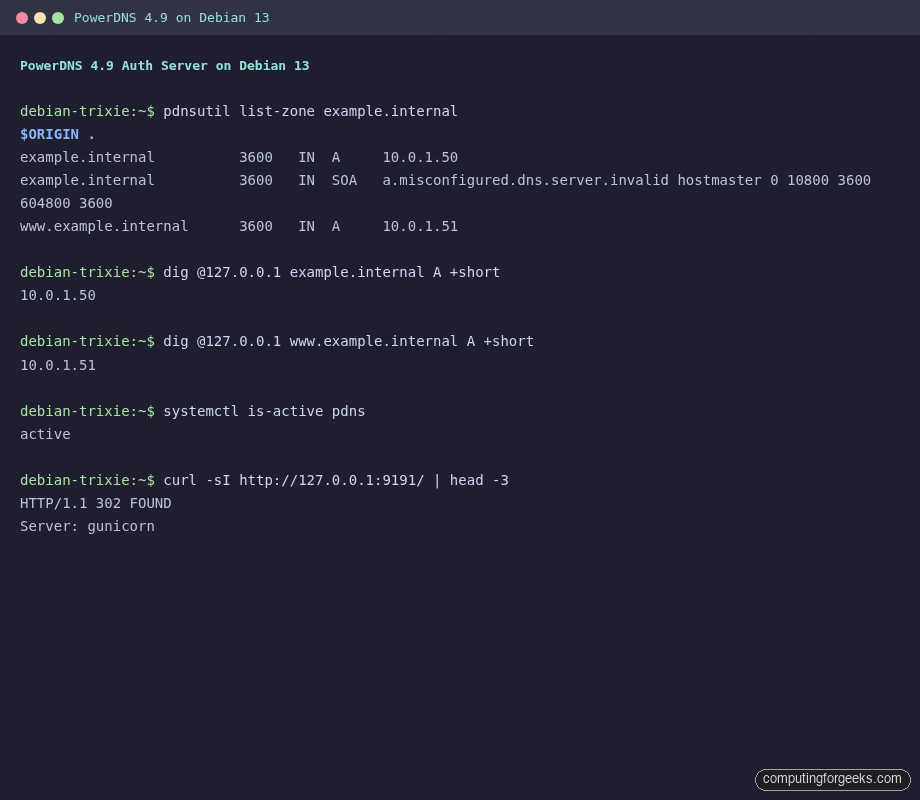
sudo pdnsutil list-zone "${ZONE}"
The list-zone output prints the SOA record PowerDNS generated and both A records you just added. The auto-generated SOA uses a clearly invalid primary nameserver (a.misconfigured.dns.server.invalid); you fix that with pdnsutil replace-rrset or by editing through the web UI later.
Now query the zone through the running PowerDNS instance. On Debian 13, dig lives in the bind9-dnsutils package; install it if you do not already have it:
sudo apt install -y bind9-dnsutils
dig @127.0.0.1 "${ZONE}" A +short
dig @127.0.0.1 "www.${ZONE}" A +short
The two queries return 10.0.1.50 and 10.0.1.51. If dig shows status: REFUSED, the server is up but does not yet know about the zone in the running cache. A quick sudo systemctl restart pdns flushes it. status: NOERROR with an empty ANSWER section means the zone exists but the specific record does not.
Sanity-check the HTTP API while you are here:
curl -s -H "X-API-Key: ${API_KEY}" http://127.0.0.1:8081/api/v1/servers | python3 -m json.toolThe JSON response lists the authoritative daemon at id: localhost with its version and the URL patterns for zones, config, and autoprimaries. This is the endpoint the web UI will hit in Step 10.
Step 9: Open the firewall
Debian 13 ships nftables as the backend, but UFW is still the simplest declarative frontend for a single-host firewall. If you are not already using UFW, install it and set the defaults:
sudo apt install -y ufw
sudo ufw default deny incoming
sudo ufw default allow outgoing
sudo ufw allow OpenSSH
DNS needs both UDP and TCP on port 53. TCP handles AXFR zone transfers and any query whose response is too large for a single UDP datagram (DNSSEC-signed responses for example). UFW has no built-in powerdns profile in Debian 13, so add the rules explicitly:
sudo ufw allow 53/tcp
sudo ufw allow 53/udp
sudo ufw --force enable
sudo ufw status numbered
Do not open 8081 (the HTTP API) or 9191 (the PowerDNS-Admin UI) to the public: both stay on loopback. You will put Nginx with Let’s Encrypt in front for external access, which the optional Step 11 covers.
Step 10: Deploy PowerDNS-Admin via Docker
PowerDNS-Admin is a Flask app maintained by the community (the project renamed internally to “pda-legacy” while a rewrite is in progress: both the code and the Docker image still work and are actively shipped). The canonical install path historically was pip + venv + gunicorn, but on Debian 13’s Python 3.13 the pinned distutils/psycopg2/Flask-SQLAlchemy versions fail to build. The clean path today is the upstream Docker image, which runs on Python 3.10 inside the container and is what the maintainers test against.
Install Docker if it is not already there. Debian 13 supports the official Docker CE repo (for the full walkthrough, see the Docker on Debian install guide):
curl -fsSL https://get.docker.com | sudo sh
sudo systemctl enable --now docker
docker --version
Create a dedicated database and user for PowerDNS-Admin. Keep it separate from the PowerDNS zone database: the admin app stores its own user accounts, RBAC data, and audit logs:
sudo mariadb -e "CREATE DATABASE ${PDA_DB} DEFAULT CHARACTER SET utf8mb4;"
sudo mariadb -e "CREATE USER '${PDA_USER}'@'%' IDENTIFIED BY '${PDA_PASS}';"
sudo mariadb -e "GRANT ALL ON ${PDA_DB}.* TO '${PDA_USER}'@'%'; FLUSH PRIVILEGES;"
Note the '%' host rather than 'localhost'. The container connects to MariaDB through the Docker bridge network (source IP 172.17.0.0/16), so the user needs wildcard-host privileges. The default MariaDB install binds only to 127.0.0.1 on Debian, which means the Docker bridge cannot reach it. Widen the bind address:
sudo sed -i 's/^bind-address.*= 127.0.0.1/bind-address            = 0.0.0.0/' \
  /etc/mysql/mariadb.conf.d/50-server.cnf
sudo systemctl restart mariadb
sudo ss -tlnp | grep 3306
MariaDB now listens on all interfaces, which is safe only because UFW blocks external 3306 traffic. Add an explicit allow for the Docker bridge so the kernel does not quietly drop the container’s packets:
sudo ufw allow from 172.17.0.0/16 to any port 3306Pull and run the PowerDNS-Admin container. Bind its port to 127.0.0.1 only so Nginx can front it with TLS later:
SECRET_KEY="$(openssl rand -hex 32)"
# URL-encode the '#' in the password for the SQLAlchemy URI
PDA_PASS_ENC="${PDA_PASS//#/%23}"

docker run -d --name pdns-admin --restart unless-stopped \
  -e SECRET_KEY="${SECRET_KEY}" \
  -e SQLALCHEMY_DATABASE_URI="mysql://${PDA_USER}:${PDA_PASS_ENC}@172.17.0.1:3306/${PDA_DB}" \
  -e GUNICORN_TIMEOUT=60 -e GUNICORN_WORKERS=2 \
  -p 127.0.0.1:9191:80 \
  powerdnsadmin/pda-legacy:latest
The container boots, runs the Alembic migrations against the empty pdnsadmin database, and starts Gunicorn on port 80 inside the container (mapped to 127.0.0.1:9191 on the host). Give it 20-30 seconds for the first-run migration and health check to settle:
docker ps | grep pdns-admin
curl -sI http://127.0.0.1:9191/ | head -3
The docker ps STATUS column should show Up ... (healthy), and curl returns HTTP/1.1 302 FOUND (a redirect to the first-run setup wizard). If the container keeps restarting, check docker logs pdns-admin: the usual culprit is the password encoding: the # in a SQLAlchemy URI must be percent-escaped as %23, which the ${PDA_PASS//#/%23} line above handles.
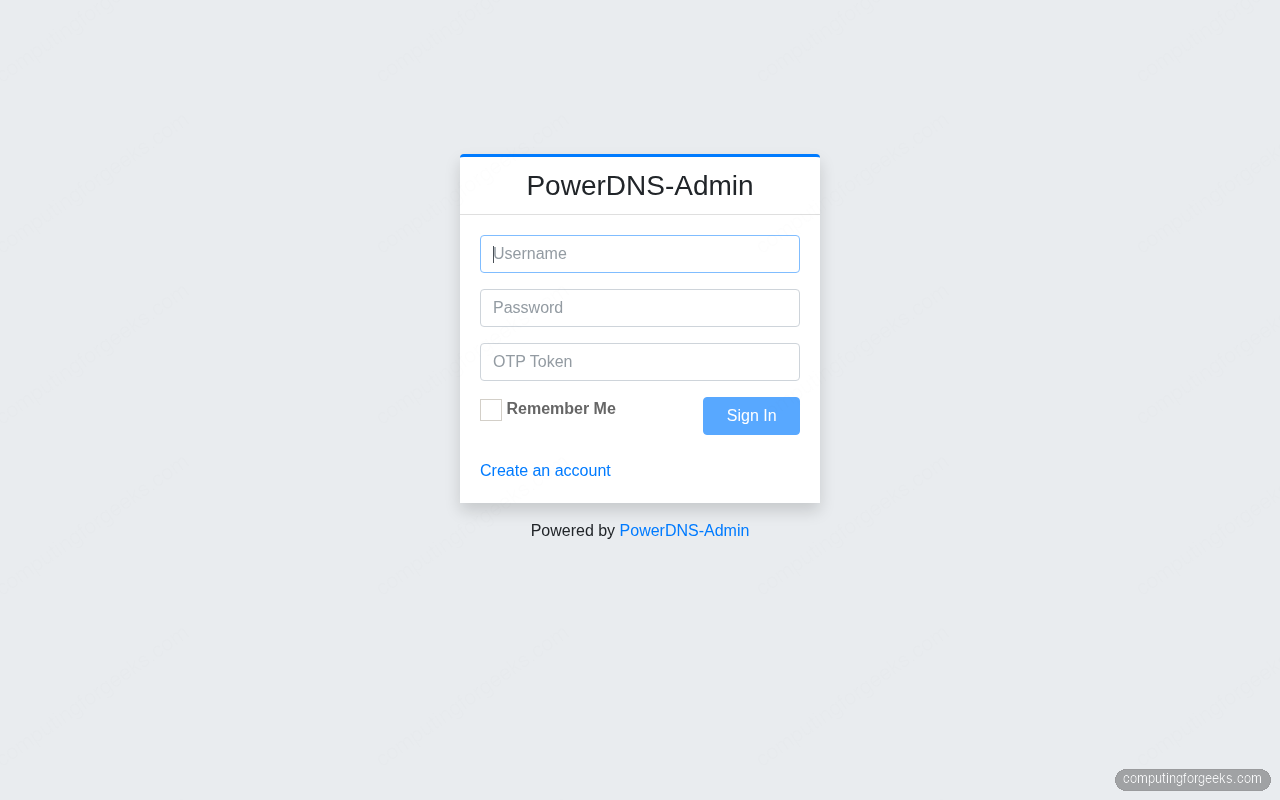
Open http://127.0.0.1:9191/ through an SSH tunnel (ssh -L 9191:127.0.0.1:9191 user@host) and follow the sign-up form: the first account created gets admin privileges. Then navigate to Settings → PDNS and paste your API key (echo ${API_KEY}), the API URL http://172.17.0.1:8081/, and the PDNS version 4.9. The Dashboard then lists your example.internal zone.
Store the API key somewhere durable before you forget it. A personal password manager like 1Password or a team-shared vault works well; do not paste the key into Slack or a shared note.
Step 11: Put Nginx and Let’s Encrypt in front (production)
For anything beyond a home lab you want the web UI behind HTTPS on a real hostname, not on a localhost port reached through SSH. The standard recipe is Nginx as a reverse proxy with certbot-managed Let’s Encrypt certificates. The Nginx + Let’s Encrypt walkthrough covers the general setup; for PowerDNS-Admin specifically, the proxy block looks like this:
export DNS_UI_FQDN="dns.example.com"
sudo tee /etc/nginx/sites-available/${DNS_UI_FQDN} >/dev/null <<NGINX_EOF
server {
    listen 80;
    server_name DNS_UI_FQDN_HERE;
    return 301 https://\$host\$request_uri;
}
server {
    listen 443 ssl http2;
    server_name DNS_UI_FQDN_HERE;

    # certbot fills these in with --nginx
    ssl_protocols TLSv1.2 TLSv1.3;
    ssl_ciphers HIGH:!aNULL:!MD5;

    location / {
        proxy_pass http://127.0.0.1:9191;
        proxy_set_header Host \$host;
        proxy_set_header X-Real-IP \$remote_addr;
        proxy_set_header X-Forwarded-For \$proxy_add_x_forwarded_for;
        proxy_set_header X-Forwarded-Proto \$scheme;
    }
}
NGINX_EOF
sudo sed -i "s/DNS_UI_FQDN_HERE/${DNS_UI_FQDN}/g" /etc/nginx/sites-available/${DNS_UI_FQDN}
sudo ln -sf /etc/nginx/sites-available/${DNS_UI_FQDN} /etc/nginx/sites-enabled/
sudo nginx -t && sudo systemctl reload nginx
Point an A record at the server (through whichever DNS provider manages your public zone: Route 53, Namecheap, DigitalOcean DNS, whatever you are already using), open port 80 so certbot can answer the HTTP-01 challenge, then:
sudo apt install -y certbot python3-certbot-nginx
sudo certbot --nginx -d "${DNS_UI_FQDN}" --non-interactive --agree-tos --redirect -m [email protected]
Certbot rewrites the vhost with the TLS directives and sets up a renewal timer. Verify:
sudo certbot renew --dry-run
curl -sI "https://${DNS_UI_FQDN}/" | head -3
If your DNS host is behind NAT with no public port 80 (home lab, on-prem gear), swap the HTTP-01 challenge for DNS-01. Any DNS provider with an API plugin works: Cloudflare, Route 53, DigitalOcean, Namecheap-via-Lego, RFC2136. The certbot DNS plugins page lists all supported providers; the plumbing (TXT record creation) is identical across them.
Alternative backends
The MariaDB backend is the right default but not the only option. PowerDNS loads backends through the launch= directive, and several ship in separate packages on Debian:
| Backend | Package | Best for |
|---|---|---|
gmysql | pdns-backend-mysql | Multi-user production (this guide) |
gsqlite3 | pdns-backend-sqlite3 | Home lab, single-box deployments |
gpgsql | pdns-backend-pgsql | Shops standardized on PostgreSQL for other services |
bind | pdns-backend-bind | Migrating from BIND with existing zone files |
ldap | pdns-backend-ldap | Corporate environments with LDAP already in place |
lua2 | built-in | Dynamic records generated from Lua code |
For a tiny home-lab zone, gsqlite3 removes MariaDB from the stack entirely: install pdns-backend-sqlite3, point launch=gsqlite3 in a drop-in, and load the schema.sqlite3.sql file into a new SQLite database file. PowerDNS-Admin still works the same way against the HTTP API.
If you want a cheap EU-hosted box to spin this up on, Hetzner Cloud CX22 instances are €5/month with 40 GB NVMe storage: plenty for a DNS box with room for MariaDB logs.
Troubleshooting
Error: “Address already in use” on pdns startup
This means something else is bound to port 53. 19 times out of 20 it is systemd-resolved on a desktop-flavor install, 20 times out of 20 on cloud-provider Debian images with NetworkManager baked in. Step 2 covers the fix. Use ss -tlnp | grep :53 and ss -ulnp | grep :53 to see exactly which process owns the port before restarting pdns.
Error: “Unable to launch pdns_backend” on restart
The journal from journalctl -u pdns -n 30 will show one of two things: either Unable to launch pdns_backend Could not initialize with a database error (wrong credentials or the schema never loaded, back to Step 6), or a generic loader failure which almost always means the launch= line names a backend whose package is not installed. Install pdns-backend-mysql (or whichever backend you picked) and restart.
Error: “Can’t connect to server on ‘172.17.0.1’ (115)” in PowerDNS-Admin logs
The PowerDNS-Admin container cannot reach MariaDB over the Docker bridge. Three things must all be true: MariaDB’s bind-address is 0.0.0.0 (Step 10), the application user exists with host '%' not 'localhost', and UFW allows 172.17.0.0/16 to 3306. Error 115 specifically is EINPROGRESS, almost always the firewall dropping packets. sudo ufw status | grep 3306 should list the allow rule.
Error: HTTP 401 from the API when PDA tries to sync
The API key in PowerDNS-Admin settings does not match the api-key line in /etc/powerdns/pdns.d/gmysql.conf. Generate a fresh one (openssl rand -hex 16), paste it into both locations, restart pdns and the PDA container, and retry. Do not shrink the key for convenience: 128 bits is the minimum for an HTTP API that can create and destroy zones.
Zone resolves locally but not from outside the server
Check two things. First, does pdns_server listen on the public interface? It does by default (local-address=0.0.0.0), but the main /etc/powerdns/pdns.conf could have been narrowed. Second, does UFW allow inbound 53/udp and 53/tcp? A cloud-provider security group or a home-router NAT can silently drop the traffic before it reaches nftables. Confirm from another host: dig @SERVER_PUBLIC_IP example.internal A.
Production hardening checklist
Before pointing real public traffic at this setup, run through the short list below. Every item matches a real incident I have seen on other people’s PowerDNS deployments:
- Rotate the API key on any change of admin staff. The key grants full zone create/delete: treat it like an AWS root access key.
pdnsutilhas no built-in rotation helper; editgmysql.conf, restartpdns, re-enter the new key in PowerDNS-Admin settings. - Fix the SOA primary NS
pdnsutilwrotea.misconfigured.dns.server.invalidinto every new zone. Real zones need a real primary:sudo pdnsutil replace-rrset "${ZONE}" @ SOA "ns1.example.com hostmaster.example.com 2026041801 10800 3600 604800 3600". - Enable DNSSEC on public zones:
sudo pdnsutil secure-zone "${ZONE}", then upload the resulting DS record to your domain registrar. PowerDNS handles rollovers automatically withpdnsutil set-meta ... PUBLISH-CDS. - Disable recursion: PowerDNS Authoritative does not recurse by default, and that is correct. Do not enable it. If you need a recursive resolver, deploy
pdns-recursorseparately on a different port or host. - Run an AXFR-restricting ACL if you have slave/secondary nameservers:
allow-axfr-ips=10.0.0.0/8,192.168.0.0/16inpdns.conf. The default is “deny all.” - Back up the MariaDB zone database. A nightly
mariadb-dump --single-transaction ${PDNS_DB} | zstd > /var/backups/pdns-$(date +%F).sql.zstin cron is enough. Restore is the reverse. - Monitor query rate through the API’s
/api/v1/servers/localhost/statisticsendpoint. Feed it to Prometheus via thepowerdns_exporteror parse the JSON directly from your monitoring scripts.
With those seven items in place, PowerDNS is ready for external traffic and the PowerDNS-Admin UI is ready for more than one administrator. The next zones you add go in through the web UI in about 30 seconds each, which is exactly the workflow improvement that made teams migrate off BIND in the first place.
Want more tested Linux infrastructure walkthroughs delivered weekly? Subscribe to our newsletter for deep-dive guides, release coverage, and real-world production notes.
Need help deploying PowerDNS, BIND, or any DNS infrastructure at production scale? Hire our team for DNS migrations, DNSSEC rollouts, multi-region authoritative setups, and monitoring integrations.




Excellent article!
I was able to create a PowerDNS in a Proxmox LXC container by following your step-by-step tutorial.
The only correction is the command “systemctl reload-daemon”: the correct is “systemctl daemon-reload”
Thank you so much!
What a spectacular guide!!!
This was my first foray into using PowerDNS and your guide was almost flawless for me.
One error is you have one of the commands around the wrong way “systemctl reload-daemon” should read “systemctl daemon-reload”.
This next error was more specific to me as I was setting this up in a domainless environment. Where you create the file “vim /etc/nginx/conf.d/powerdns-admin.conf” and set “server_name pdnsadmin.computingforgeeks.com;” line, this resulted in nginx loading the default homepage (yes I was using my own domain name that I planned to create). I had to drop the domain name, leaving only the hostname.
Hope that helps anyone else down the line!
Very nice tutorial !
Just a little typo for systemctl reload-daemon instead of systemctl daemon-reload.
Thanks we’ve updated the guide.
waiting for slave
Thank you for the instructions. Unfortunately I can’t get the web interface to work…
When I try to access the web interface, I get to the standard NGNIX start page but never get to the interface.
I am using Debain 11 the rest works except the web interface.
Can you help me out?
Does not work.
nginx starts up – but shows default page.
Once changing the default to take your config – the process the new site to login. However gives bad gateway
there is an error after “pip install -r requirements.txt”
Preparing metadata (setup.py) … error
error: subprocess-exited-with-error
× python setup.py egg_info did not run successfully.
│ exit code: 1
╰─> [23 lines of output]
running egg_info
creating /tmp/pip-pip-egg-info-bs5yvuaq/psycopg2.egg-info
writing /tmp/pip-pip-egg-info-bs5yvuaq/psycopg2.egg-info/PKG-INFO
writing dependency_links to /tmp/pip-pip-egg-info-bs5yvuaq/psycopg2.egg-info/dependency_links.txt
writing top-level names to /tmp/pip-pip-egg-info-bs5yvuaq/psycopg2.egg-info/top_level.txt
writing manifest file ‘/tmp/pip-pip-egg-info-bs5yvuaq/psycopg2.egg-info/SOURCES.txt’
Error: pg_config executable not found.
pg_config is required to build psycopg2 from source. Please add the directory
containing pg_config to the $PATH or specify the full executable path with the
option:
python setup.py build_ext –pg-config /path/to/pg_config build …
or with the pg_config option in ‘setup.cfg’.
If you prefer to avoid building psycopg2 from source, please install the PyPI
‘psycopg2-binary’ package instead.
For further information please check the ‘doc/src/install.rst’ file (also at
).
[end of output]
note: This error originates from a subprocess, and is likely not a problem with pip.
error: metadata-generation-failed
× Encountered error while generating package metadata.
╰─> See above for output.
note: This is an issue with the package mentioned above, not pip.
hint: See above for details.
can you change github url to https://github.com/PowerDNS-Admin/PowerDNS-Admin
Problem:
pg_config executable not found.
Fix:
apt install libpq-dev
Problem:
(flask) root@CT118:/var/www/html/pdns# yarn install –pure-lockfile
yarn install v1.22.19
[1/4] Resolving packages…
warning Resolution field “@fortawesome/[email protected]” is incompatible with requested version “@fortawesome/fontawesome-free@^5.15.4″
[2/4] Fetching packages…
[3/4] Linking dependencies…
warning ” > [email protected]″ has unmet peer dependency “[email protected] – 3″.
warning ” > [email protected]″ has unmet peer dependency “popper.js@^1.16.1”.
warning “admin-lte > [email protected]” has incorrect peer dependency “bootstrap@^3.1.1″.
warning ” > [email protected].5″ has unmet peer dependency “jquery@^1.7 || ^2.0 || ^3.1”.
warning “admin-lte > [email protected].2″ has unmet peer dependency “moment-timezone@^0.5.31”.
warning “admin-lte > [email protected].2″ has unmet peer dependency “[email protected]”.
warning “admin-lte > bootstrap-colorpicker > [email protected]” has unmet peer dependency “@popperjs/core@^2.11.6”.
[4/4] Building fresh packages…
[1/3] ⠂ @fortawesome/fontawesome-free
[2/3] ⠂ es5-ext
error /var/www/html/pdns/powerdnsadmin/static/node_modules/admin-lte: Command failed.
Exit code: 127
Command: npm run plugins
Arguments:
Directory: /var/www/html/pdns/powerdnsadmin/static/node_modules/admin-lte
Output:
Same. Solution found?
Solution is sudo apt-get install -y npm
i get a HTTP 500 Error when i try to register
Me too
Do you provide the correct API key for PowerDNS as defined in the
/etc/powerdns/pdns.conf?Hello.
Thanks for the help, this article really helped me sucessfuly install PowerDNS on my Ubntu server!
I was just wondering, my dns only works for the zones/host I put it on WEB, and does not resolve any “external” domain (e.g. http://www.google.com).
Did any of you guys have the same issue and how do I manage to resolve public IPs.
Best regards!
Hello @Luka,
Did you update your config as shown?
$ sudo vim /etc/resolv.conf

nameserver 8.8.8.8