

Graylog listens on port 9000 over plain HTTP by default. For anything beyond a lab, that’s not acceptable. Putting Nginx in front as a reverse proxy with a valid Let’s Encrypt certificate gives you encrypted access, WebSocket support for real-time search updates, and the flexibility to add rate limiting or access controls later without touching Graylog itself.
This guide walks through the full setup on both Debian 13 and Rocky Linux 10 with Graylog 7’s new Data Node architecture. If you haven’t installed Graylog yet, start with the Debian/Ubuntu install guide or the Rocky Linux/AlmaLinux install guide. The key difference from older Graylog versions is that http_external_uri and http_publish_uri in server.conf must be set correctly, or the web interface breaks behind a proxy. We cover that in detail below.
Current as of April 2026. Tested with Graylog 7.0.6, Nginx 1.26.3, Certbot 4.0.0 on Debian 13 and Rocky Linux 10
Prerequisites
- A working Graylog 7 installation (see Debian/Ubuntu or Rocky/AlmaLinux install guides)
- A domain name with a DNS A record pointing to your server’s IP (example:
graylog.example.compointing to10.0.1.50) - Root or sudo access on the server
- Tested on: Graylog 7.0.6, Nginx 1.26.3, Certbot 4.0.0, Debian 13 (trixie), Rocky Linux 10
Install Nginx
Nginx ships in the default repositories on both Debian and Rocky Linux. On Debian 13:
sudo apt install -y nginxOn Rocky Linux 10:
sudo dnf install -y nginxStart and enable the service so it survives reboots:
sudo systemctl enable --now nginxConfirm the installed version:
nginx -vYou should see version 1.26.x confirmed:
nginx version: nginx/1.26.3Obtain an SSL Certificate with Let’s Encrypt
There are two ways to get a certificate from Let’s Encrypt: the standalone HTTP-01 challenge (works when the server has a public IP and port 80 is reachable) and the DNS-01 challenge (works for private IPs or servers behind a firewall). The DNS method is more common in homelab and internal network setups, so we cover both.
Install Certbot
On Debian 13, install certbot along with the Cloudflare DNS plugin if you plan to use DNS validation:
sudo apt install -y certbot python3-certbot-dns-cloudflareOn Rocky Linux 10:
sudo dnf install -y certbot python3-certbot-dns-cloudflareIf you only need standalone HTTP validation, skip the python3-certbot-dns-cloudflare package.
Option A: Standalone Challenge (Public IP)
If the server has a public IP and port 80 is open, the standalone method is the simplest. Stop Nginx temporarily since certbot needs to bind to port 80:
sudo systemctl stop nginx
sudo certbot certonly --standalone -d graylog.example.com --non-interactive --agree-tos -m [email protected]
Once the certificate is issued, start Nginx again:
sudo systemctl start nginxOption B: DNS-01 Challenge (Private IP / No Public HTTP)
For servers on a private network or behind a firewall, the DNS challenge proves domain ownership by creating a TXT record through the Cloudflare API. No inbound HTTP access is needed. First, create a credentials file:
sudo mkdir -p /etc/letsencrypt
echo "dns_cloudflare_api_token = your-cloudflare-api-token" | sudo tee /etc/letsencrypt/cloudflare.ini
sudo chmod 600 /etc/letsencrypt/cloudflare.ini
Replace your-cloudflare-api-token with a real API token that has DNS edit permissions for your zone. Now request the certificate:
sudo certbot certonly --dns-cloudflare \
  --dns-cloudflare-credentials /etc/letsencrypt/cloudflare.ini \
  -d graylog.example.com \
  --non-interactive --agree-tos -m [email protected]
Certbot creates the DNS TXT record, waits for propagation, validates ownership, and removes the record automatically. The certificate files land in:
/etc/letsencrypt/live/graylog.example.com/fullchain.pem/etc/letsencrypt/live/graylog.example.com/privkey.pem
Configure Nginx as a Reverse Proxy
The Nginx configuration proxies all HTTPS traffic to Graylog’s local HTTP listener on port 9000. It also handles WebSocket upgrades, which Graylog 7 uses for the real-time search results page.
One change worth noting: Nginx 1.26+ deprecates the old listen 443 ssl http2; syntax. The http2 directive is now a separate line (http2 on;) inside the server block.
Debian: Create the Site Configuration
Create the configuration file:
sudo vi /etc/nginx/sites-available/graylogAdd the following configuration:
server {
    listen 443 ssl;
    http2 on;
    server_name graylog.example.com;

    ssl_certificate /etc/letsencrypt/live/graylog.example.com/fullchain.pem;
    ssl_certificate_key /etc/letsencrypt/live/graylog.example.com/privkey.pem;

    ssl_protocols TLSv1.2 TLSv1.3;
    ssl_ciphers HIGH:!aNULL:!MD5;
    ssl_prefer_server_ciphers on;
    ssl_session_cache shared:SSL:10m;
    ssl_session_timeout 10m;

    location / {
        proxy_pass http://127.0.0.1:9000;
        proxy_set_header Host $host;
        proxy_set_header X-Real-IP $remote_addr;
        proxy_set_header X-Forwarded-For $proxy_add_x_forwarded_for;
        proxy_set_header X-Forwarded-Proto $scheme;
        proxy_set_header Connection "";

        proxy_http_version 1.1;
        proxy_set_header Upgrade $http_upgrade;
        proxy_set_header Connection "upgrade";

        proxy_connect_timeout 150;
        proxy_send_timeout 100;
        proxy_read_timeout 100;
        proxy_buffers 4 32k;
        client_max_body_size 8m;
    }
}

server {
    listen 80;
    server_name graylog.example.com;
    return 301 https://$host$request_uri;
}
The Upgrade and Connection "upgrade" headers are essential. Without them, the Search page in Graylog 7 won’t get real-time updates because WebSocket connections fail silently.
Enable the site and remove the default configuration:
sudo ln -s /etc/nginx/sites-available/graylog /etc/nginx/sites-enabled/
sudo rm -f /etc/nginx/sites-enabled/default
Rocky Linux: Create the Site Configuration
Rocky Linux uses /etc/nginx/conf.d/ instead of the sites-available pattern:
sudo vi /etc/nginx/conf.d/graylog.confPaste the same server block shown above. The only difference is the file path. No symlink step is needed since Nginx on Rocky Linux auto-loads everything in conf.d/.
Test and Reload Nginx
Verify the configuration syntax before reloading:
sudo nginx -tA clean result looks like this:
nginx: the configuration file /etc/nginx/nginx.conf syntax is ok
nginx: configuration file /etc/nginx/nginx.conf test is successful
Reload to apply the changes:
sudo systemctl reload nginxConfigure Graylog for the Reverse Proxy
This is the step most guides skip, and it’s the one that causes the most confusion. Graylog 7 needs to know the external URL that users type in their browsers. Without this, the web interface redirects break, API calls fail, and the login page may loop endlessly.
Open the Graylog server configuration:
sudo vi /etc/graylog/server/server.confFind and set these two directives:
http_external_uri = https://graylog.example.com/
http_publish_uri = https://graylog.example.com/
http_external_uri tells Graylog what URL the browser uses to reach the web interface. Every redirect, every API response URL, and every link in the UI is built from this value. http_publish_uri is what Graylog advertises to other nodes in a cluster. For single-node setups, set both to the same HTTPS URL. The trailing slash is required.
Make sure http_bind_address is still set to listen on localhost:
http_bind_address = 127.0.0.1:9000This ensures Graylog only accepts connections from the local Nginx proxy, not directly from the network. Restart the Graylog server to pick up the changes:
sudo systemctl restart graylog-serverThe restart takes 15 to 30 seconds while Graylog reconnects to the Data Node. Check the status to confirm it came back cleanly:
sudo systemctl status graylog-serverOpen Firewall Ports
The firewall needs to allow HTTP (for the redirect) and HTTPS traffic. On Debian 13 with UFW:
sudo ufw allow 80/tcp
sudo ufw allow 443/tcp
sudo ufw reload
On Rocky Linux 10 with firewalld:
sudo firewall-cmd --permanent --add-service=http
sudo firewall-cmd --permanent --add-service=https
sudo firewall-cmd --reload
If port 9000 was previously opened for direct Graylog access, consider removing it now that everything goes through Nginx. On Rocky Linux:
sudo firewall-cmd --permanent --remove-port=9000/tcp
sudo firewall-cmd --reload
On Debian:
sudo ufw deny 9000/tcp
sudo ufw reload
Blocking external access to port 9000 forces all traffic through the encrypted Nginx proxy.
SELinux Configuration (Rocky Linux)
Rocky Linux 10 runs SELinux in enforcing mode by default. Nginx needs permission to make outbound network connections to the Graylog backend on port 9000. Without this, you get a 502 Bad Gateway error even though Graylog is running fine.
sudo setsebool -P httpd_can_network_connect 1Verify the boolean is set:
getsebool httpd_can_network_connectThe output should show:
httpd_can_network_connect --> onThis boolean allows any httpd process (including Nginx) to initiate connections to network ports. On Debian, AppArmor does not restrict Nginx by default, so no additional configuration is needed.
Verify HTTPS Access
Test from the command line first to confirm the proxy chain works end to end:
curl -I https://graylog.example.comA working setup returns a 200 status with proper headers:
HTTP/1.1 200 OK
Server: nginx/1.26.3
Content-Type: text/html; charset=utf-8
X-Graylog-Node-ID: 2F8A3C1D-...
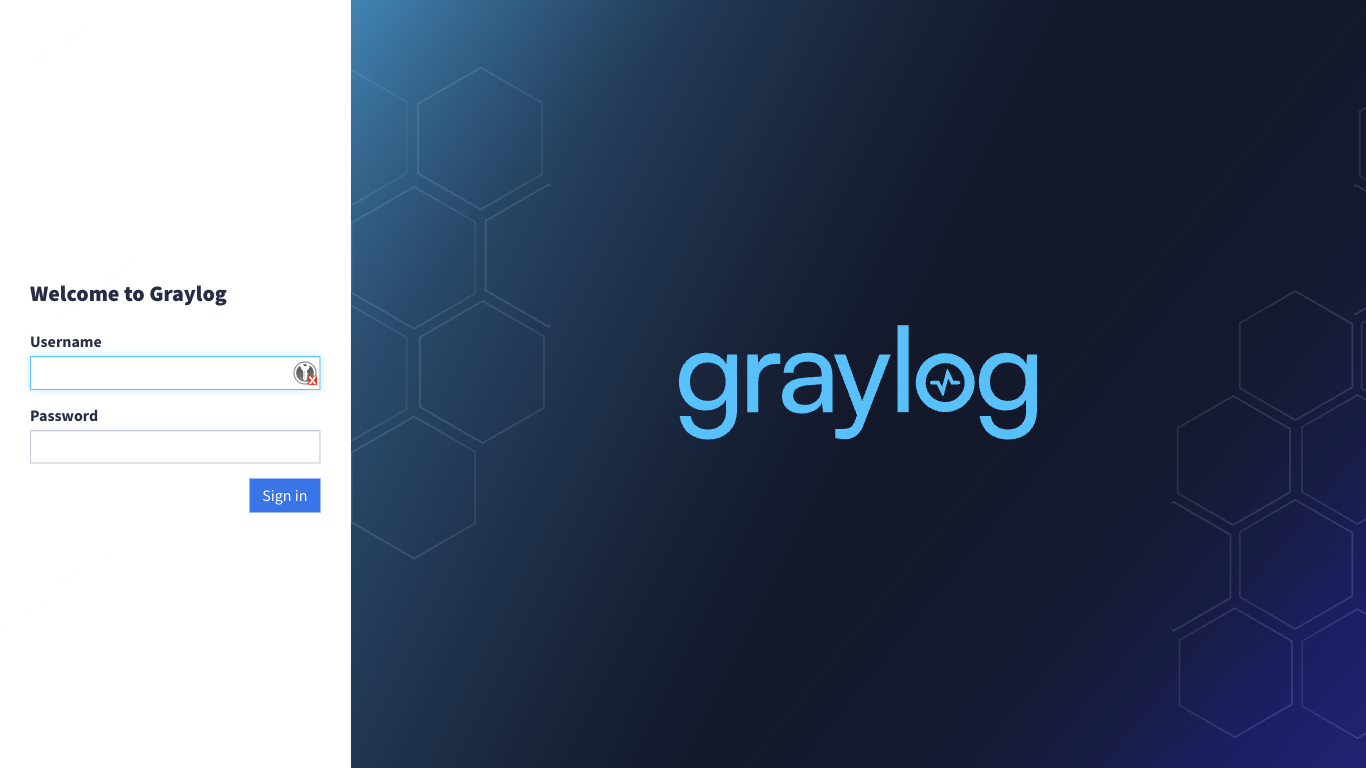
Open https://graylog.example.com in a browser. You should see the Graylog login page served over HTTPS with a valid certificate (padlock icon).
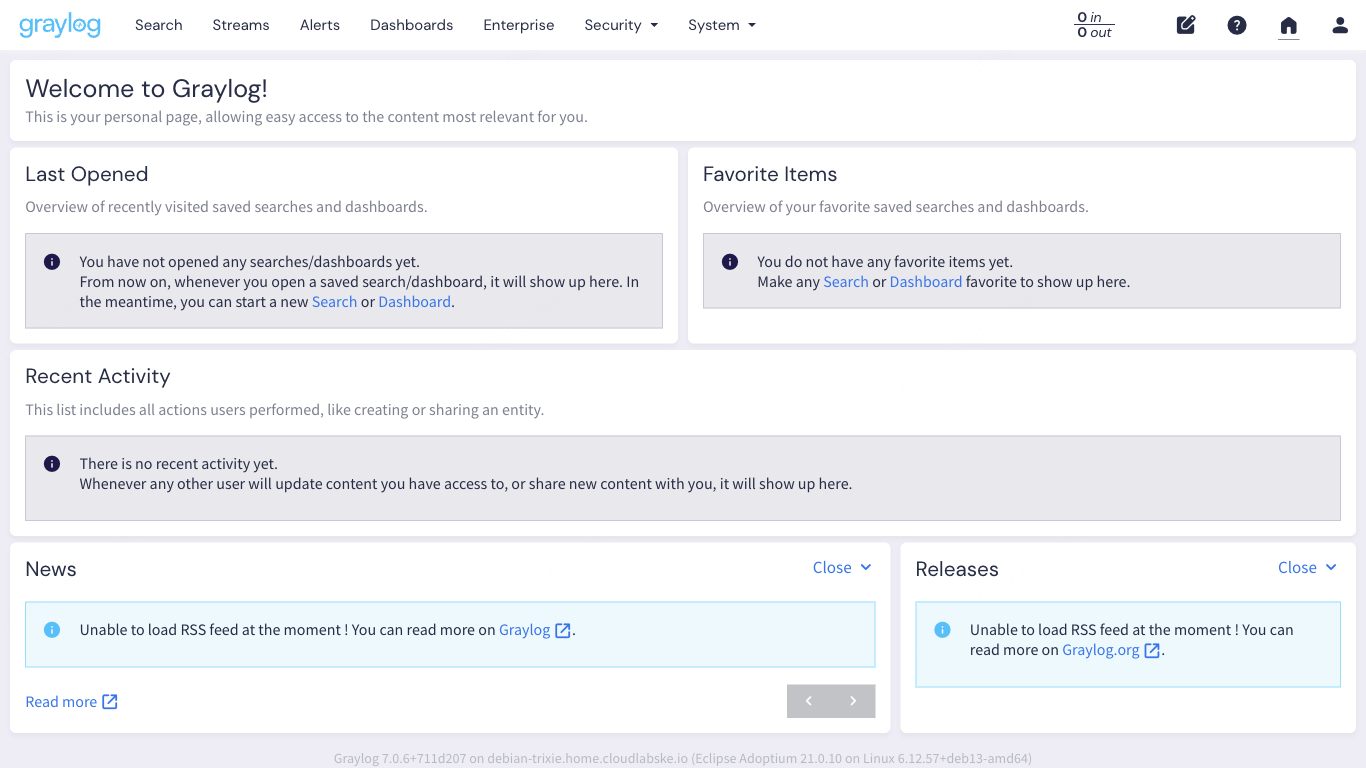
After logging in, the welcome dashboard confirms the full setup is working. The URL bar shows HTTPS, and the interface loads without mixed content warnings.
For a detailed walkthrough of the Graylog 7 web interface (inputs, streams, search, dashboards), see our companion Graylog Web UI Tour guide.
Test Certificate Auto-Renewal
Let’s Encrypt certificates expire after 90 days. Certbot sets up a systemd timer (or cron job) for automatic renewal. Verify it works with a dry run:
sudo certbot renew --dry-runIf the dry run succeeds, renewal will happen automatically before the certificate expires. No manual intervention needed.
Troubleshooting
Error: “502 Bad Gateway”
This means Nginx cannot reach Graylog on port 9000. Check three things: is the graylog-server service actually running (systemctl status graylog-server), is http_bind_address set to 127.0.0.1:9000 in server.conf, and on Rocky Linux, is the SELinux boolean set (getsebool httpd_can_network_connect should return on). The SELinux issue is by far the most common cause on RHEL-family systems. If you check the audit log, you’ll see the denial:
sudo ausearch -m avc -ts recent | grep nginxLook for denied { name_connect } entries pointing to port 9000.
Error: “WebSocket connection failed” on the Search Page
Graylog 7 uses WebSockets for streaming search results. If the Nginx configuration is missing the Upgrade and Connection "upgrade" headers, the connection silently falls back to polling or fails entirely. Double-check the location / block includes these lines:
proxy_http_version 1.1;
proxy_set_header Upgrade $http_upgrade;
proxy_set_header Connection "upgrade";
After adding them, reload Nginx with sudo systemctl reload nginx and refresh the Graylog page.
Mixed Content Warnings in the Browser
If the browser console shows mixed content errors, the http_external_uri in Graylog’s server.conf is either missing or still set to an HTTP URL. Graylog generates all its internal links (JavaScript assets, API endpoints, WebSocket URLs) based on this value. Set it to https://graylog.example.com/ with the trailing slash, restart graylog-server, and clear the browser cache.
If you’re running Graylog with Docker Compose instead of system packages, the Nginx and certificate setup is the same but the Graylog configuration goes in the docker-compose.yml environment variables. See the Graylog Docker Compose deployment guide for the container-specific setup.






Worked pretty well after I removed /api from 8th line of this nginx config.