

A fresh Debian 12 (Bookworm) install gives you a stable base with Linux kernel 6.1, systemd 252, and a careful package set. What it does not give you is a server you can actually put into production. Your user has no sudo rights, the firewall is off, SSH accepts passwords, nothing auto-patches, and Docker is not installed. Every one of those is a fix you do once per machine and never think about again.
This guide walks through the essential post-install steps on Debian 12 Bookworm, tested end to end on a freshly booted VM. Every command below has been run and verified. The sections cover user and sudo setup, firewall (UFW), SSH hardening with drop-in config files, fail2ban, unattended security upgrades, Docker CE, development runtimes (Python, Node.js), and system tooling.
Updated April 2026 for Debian 12.13 Bookworm. Verified on kernel 6.1.0-44-amd64 with apt 2.6, Docker CE 29.4.0, Python 3.11.2, and Node.js 22.22.2.
Confirm the release and kernel
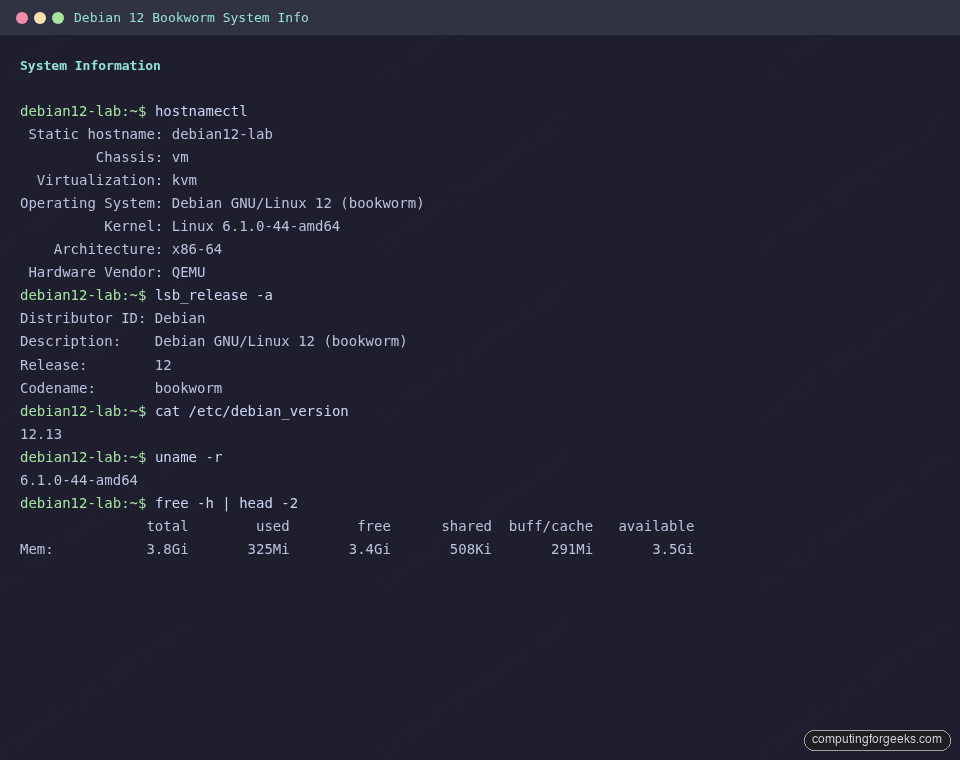
Before changing anything, record what you actually have. This output is the baseline for every decision below and the best thing to paste into a support ticket if something goes wrong later.
hostnamectl
lsb_release -a
uname -r
cat /etc/debian_version
On a fresh 12.13 minimal install you should see output matching the system info capture below:
Update every package before anything else
Cloud and ISO images lag behind the security archive. Run the update first so every tool you install next pulls current versions.
sudo apt update
sudo apt -y full-upgrade
sudo apt -y autoremove
If full-upgrade pulls in a new kernel, reboot once so subsequent work runs against the current kernel:
sudo systemctl rebootAdd a sudo user (skip the visudo mistake)
Debian’s installer does not offer to grant sudo during setup, so most fresh installs have a primary user with no elevation. The fix is one command, not an editor session.
If you need to create the account from scratch, use adduser (the interactive Debian wrapper), then add the account to the sudo group:
sudo adduser deploy
sudo usermod -aG sudo deploy
Test it before logging out of root, otherwise you can lock yourself out if the sudo group is not configured as expected:
su - deploy
sudo whoami
A return of root means elevation works. If you prefer passwordless sudo for an automation account, drop a file under /etc/sudoers.d/ instead of editing /etc/sudoers directly:
echo "deploy ALL=(ALL) NOPASSWD:ALL" | sudo tee /etc/sudoers.d/90-deploy
sudo chmod 440 /etc/sudoers.d/90-deploy
sudo visudo -c
The final visudo -c parses every sudoers file and will flag a broken one before you reboot into a locked system.
Set the hostname, timezone, and locale
A server named debian is noise in your monitoring dashboard. Set a meaningful hostname, a timezone that matches your logs, and a UTF-8 locale so Python and Docker do not throw encoding warnings.
sudo hostnamectl set-hostname debian12-lab
sudo timedatectl set-timezone Africa/Nairobi
sudo localectl set-locale LANG=en_US.UTF-8
Replace the zone with your own (timedatectl list-timezones gives the full list). Confirm the results:
hostnamectl --static
timedatectl
locale
On the test VM this yields:
debian12-lab
               Local time: Thu 2026-04-16 20:39:25 EAT
           Universal time: Thu 2026-04-16 17:39:25 UTC
                 RTC time: Thu 2026-04-16 17:39:25
                Time zone: Africa/Nairobi (EAT, +0300)
System clock synchronized: yes
NTP synchronization is handled by systemd-timesyncd on a default Bookworm install, so no extra package is required. If you need a full NTP client (chrony) for stricter sync, install it explicitly.
Install essential command-line tools
Bookworm ships lean. The list below is what most ops workflows assume is already there. Nothing exotic, just the tools you will reach for within the first week.
sudo apt -y install \
  curl wget git vim htop tmux \
  ca-certificates gnupg lsb-release \
  net-tools unzip tree ncdu rsync \
  bash-completion less jq
Two notes. net-tools gives you ifconfig, netstat, and arp for scripts that still expect them, but ip and ss are the modern equivalents. ncdu is an interactive disk usage explorer that will save you the next time /var fills up.
Enable bookworm-backports for newer kernels and tools
Debian Stable is conservative by design, but the backports archive exposes newer versions of kernel, BPF tools, Podman, and a handful of other moving targets. The archive is already referenced in a default cloud image, but on netinst you may need to add it yourself:
echo "deb http://deb.debian.org/debian bookworm-backports main" | \
  sudo tee /etc/apt/sources.list.d/bookworm-backports.list
sudo apt update
Then pin a package by suite when you need the newer version. For example, to check which kernel backports offers right now:
apt-cache policy linux-image-amd64On the test VM this returned both the stable and backports candidates side by side:
linux-image-amd64:
  Installed: 6.1.164-1
  Candidate: 6.1.164-1
  Version table:
     6.12.74-2~bpo12+1 100
        100 mirror+file:/etc/apt/mirrors/debian.list bookworm-backports/main amd64 Packages
 *** 6.1.164-1 500
        500 mirror+file:/etc/apt/mirrors/debian-security.list bookworm-security/main amd64 Packages
Installing the 6.12 kernel from backports is a one-liner: sudo apt -y install -t bookworm-backports linux-image-amd64. Worth it if you are running newer hardware or need recent BPF features, but be ready to reboot.
Turn on the firewall with UFW
A default Bookworm install runs without a firewall. UFW gives you sensible nftables rules with a tiny CLI. The full UFW command reference covers advanced matching, but this is the minimum that every internet-facing box deserves:
sudo apt -y install ufw
sudo ufw default deny incoming
sudo ufw default allow outgoing
sudo ufw allow OpenSSH
sudo ufw allow 80/tcp
sudo ufw allow 443/tcp
sudo ufw enable
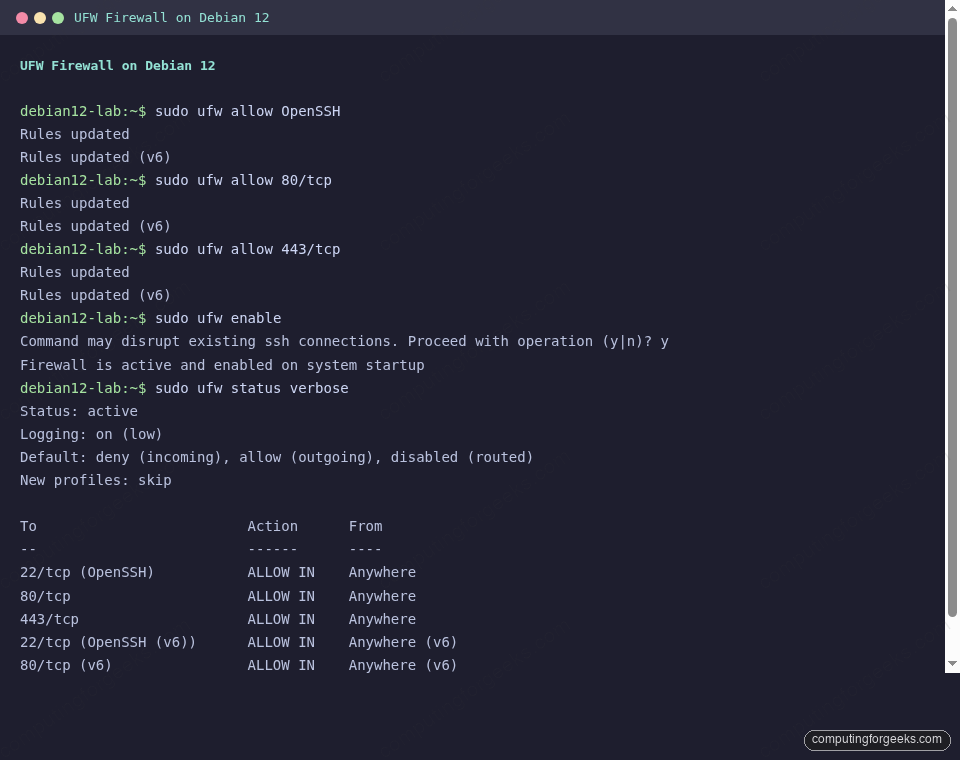
The OpenSSH application profile allows port 22/tcp. If you moved SSH, swap that line for sudo ufw allow 2222/tcp or whatever port you picked. Verify the rules:
sudo ufw status verboseThe output should show the six rules active with default deny incoming and allow outgoing, matching the capture below:
Harden SSH with a drop-in config file
Never edit /etc/ssh/sshd_config directly on a modern distro. Debian 12 ships with /etc/ssh/sshd_config.d/ already wired via an Include directive. Put your overrides there so package upgrades never stomp your changes.
Create /etc/ssh/sshd_config.d/90-hardening.conf:
sudo vi /etc/ssh/sshd_config.d/90-hardening.confPaste the following. Every directive is an opinion, not a rule, so adjust to taste:
PermitRootLogin no
PasswordAuthentication no
PubkeyAuthentication yes
KbdInteractiveAuthentication no
UsePAM yes
X11Forwarding no
AllowAgentForwarding no
MaxAuthTries 3
ClientAliveInterval 300
ClientAliveCountMax 2
Before reloading, confirm your SSH key already works on the user you will be logging in as. Then test the config and apply it:
sudo sshd -t && sudo systemctl reload ssh
sudo sshd -T | grep -E 'permitrootlogin|passwordauthentication|maxauthtries'
The output from the test box confirms the effective values are applied:
maxauthtries 3
permitrootlogin no
passwordauthentication no
Open a second SSH session to the box before closing your current one. If the second one works, your config is sane. If not, the open session lets you fix it.
Add fail2ban for brute-force protection
UFW drops unwanted traffic. fail2ban goes further by reading journald and temporarily banning IPs that fail auth too many times. It pairs with the SSH hardening above for defence in depth.
sudo apt -y install fail2banCreate a local override at /etc/fail2ban/jail.local. Never edit jail.conf, because .conf is overwritten on package upgrades:
[DEFAULT]
bantime = 1h
findtime = 10m
maxretry = 5

[sshd]
enabled = true
backend = systemd
Enable and start the service, then confirm the jail is active:
sudo systemctl enable --now fail2ban
sudo fail2ban-client status sshd
A healthy jail reports the filter on sshd.service via journald with zero failed attempts so far, as shown here:
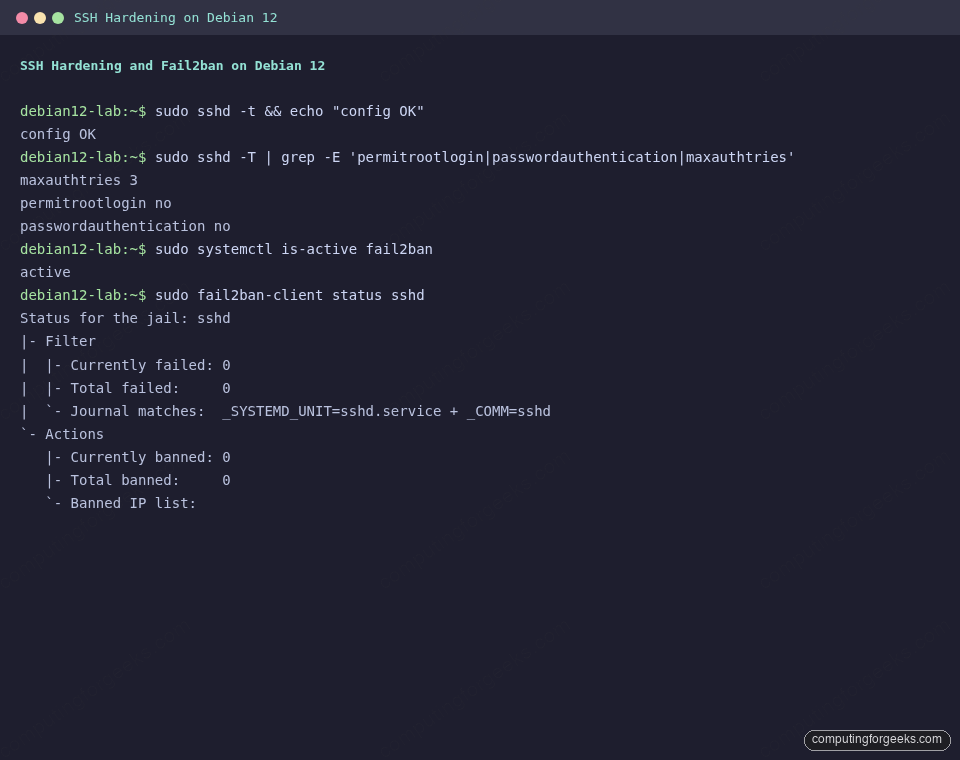
The jail output shows zero failed attempts on a fresh install. After a few hours on a public IP, that number will climb. Banned IPs appear under Currently banned.
Automate security updates with unattended-upgrades
Patching drift is the single biggest avoidable risk on a Linux server. unattended-upgrades ships in Debian and is configured to apply the security archive by default. You opt in by installing it and toggling periodic updates.
sudo apt -y install unattended-upgrades apt-listchangesWrite the periodic schedule to /etc/apt/apt.conf.d/20auto-upgrades:
APT::Periodic::Update-Package-Lists "1";
APT::Periodic::Unattended-Upgrade "1";
APT::Periodic::Download-Upgradeable-Packages "1";
APT::Periodic::AutocleanInterval "7";
Run the dry-run once to confirm the service is happy and reports what it would install:
sudo unattended-upgrade --dry-run --debug 2>&1 | head -30
systemctl is-active unattended-upgrades
On a brand-new, fully upgraded test VM the dry run returns no pending packages. The unattended-upgrades service reports active. Security patches now arrive automatically at next apt window, typically once per day.
Install Docker CE from Docker’s official repo
Debian ships docker.io in the main archive, but it lags several minor versions behind upstream. The Docker Engine team maintains a Debian-specific apt repo with same-day releases, which is the right source for any production server. The full Docker CE install guide for Debian 13 / 12 walks through rootless mode and other options. The short version looks like this:
sudo install -m 0755 -d /etc/apt/keyrings
curl -fsSL https://download.docker.com/linux/debian/gpg | \
  sudo gpg --dearmor -o /etc/apt/keyrings/docker.gpg
sudo chmod a+r /etc/apt/keyrings/docker.gpg

echo "deb [arch=amd64 signed-by=/etc/apt/keyrings/docker.gpg] \
  https://download.docker.com/linux/debian bookworm stable" | \
  sudo tee /etc/apt/sources.list.d/docker.list

sudo apt update
sudo apt -y install docker-ce docker-ce-cli containerd.io \
  docker-buildx-plugin docker-compose-plugin
Add your user to the docker group so you can skip the sudo prefix on every container command. Log out and back in for the group membership to apply:
sudo usermod -aG docker $USERConfirm Docker works with a disposable hello-world container:
docker --version
docker compose version
docker run --rm hello-world
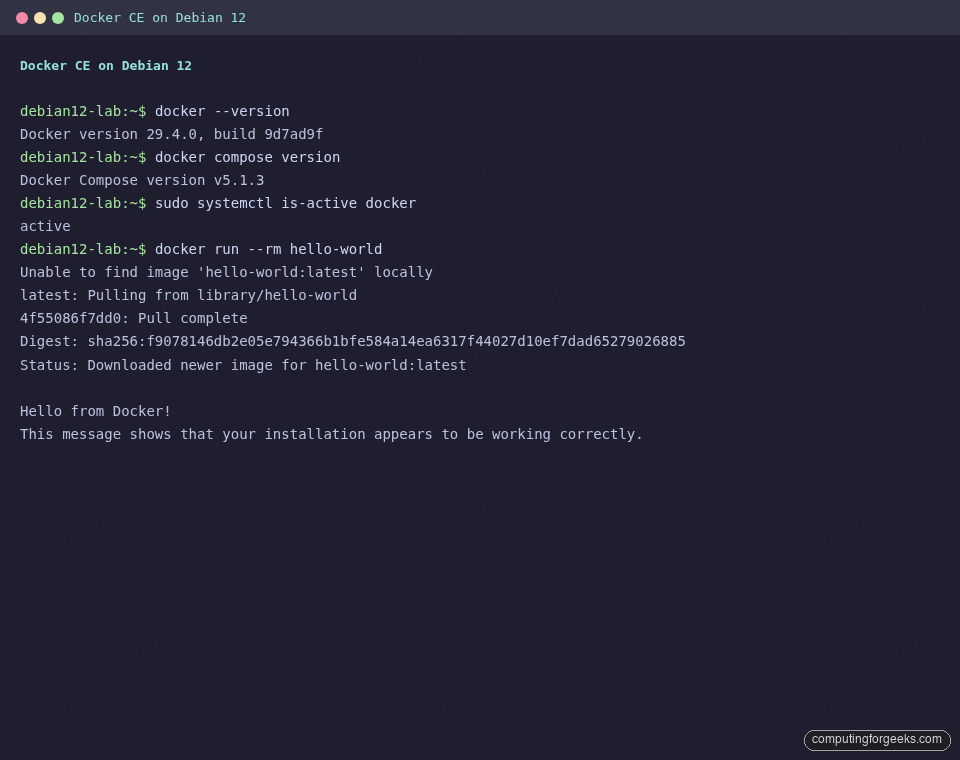
You should see Docker Engine 29.4.0 (or whatever is current at read time), the Compose plugin version, and the hello-world container pull and exit cleanly:
Install Node.js 22 and modern Python tooling
Bookworm ships Python 3.11 and Node.js 18. That is fine for a lot of work, but anything with an Active LTS expectation wants Node.js 22 or newer. The NodeSource repository keeps the 22.x and 24.x LTS channels current for Debian.
curl -fsSL https://deb.nodesource.com/setup_22.x | sudo bash -
sudo apt -y install nodejs
node --version
npm --version
On the test VM this installs v22.22.2 and npm 10.9.7. Pair that with Python’s pipx for isolated CLI tools (ruff, black, pre-commit, httpie) that should not live in the system environment:
sudo apt -y install build-essential python3-pip python3-venv pipx
pipx ensurepath
For a complete Node.js walkthrough covering version managers and alternative LTS streams, see the Node.js on Debian 13 / 12 guide. If you are leaning toward the newer LTS, there is also a dedicated Node.js 24 on Debian writeup.
Set a backup strategy before you need one
A post-install checklist that ignores backups has failed before the first outage. Two patterns work well on Debian 12 servers. For a desktop or developer workstation, Timeshift takes filesystem snapshots you can roll back to in minutes. For server-side encrypted offsite backups, BorgBackup with Borgmatic is the deduplicating, push-based option most admins pick.
Install whichever matches your risk model. A server without offsite backup is one NVMe fault from a very bad afternoon.
Clean up and confirm disk usage
After installing Docker, Node.js, and a dozen essentials, apt has cached a non-trivial amount of data. Free it up and see what the root filesystem actually has left:
sudo apt -y autoremove
sudo apt -y autoclean
df -h /
On a 20 GB root disk the test VM reported 2.5 GB used after everything in this guide was installed, which leaves plenty of room for containers and application code.
Production hardening checklist (what to do next)
The steps above turn a raw Debian 12 install into a server you can reasonably hand to a team. Before you start running real workloads, take one more pass through this checklist.
- SSH key coverage. Confirm every operator has their key in
~/.ssh/authorized_keys. Disabling password auth is only safe if keys are actually in place. - Monitoring agent. Pick one. Telegraf if you run InfluxDB, Icinga2 for classic alerting, or Prometheus’ node_exporter. A box nobody watches is a box nobody notices until it breaks.
- Configuration management. If this is the second Debian 12 server you have built this month, it is time to templatize. Semaphore UI for Ansible or a lightweight playbook pipeline will save the third one.
- Log review.
journalctl -p err -bhighlights errors since boot. Run it weekly for the first month. Anything repeating is worth chasing. - Database hardening. If this box will host data, apply the role-specific steps in the PostgreSQL 17 on Debian 13 / Ubuntu 24.04 guide or the Redis on Debian equivalent before it takes traffic.
Debian 12 Bookworm still has three years of combined security and LTS support ahead of it, so this hardened baseline is worth investing in even now. If you are provisioning a new fleet today, the same post-install flow applies to Debian 13 Trixie with two changes: newer kernel (6.12), and the apt 3.0 CLI with the deb822 .sources format. The Debian 13 version of this article covers both.





thanks man
Welcome, we really appreciate!
Thank you for this easy to follow tutorial. I appreciate all you guys do.
This is great we’re happy to hear. It’s a positive energy to us.
Thank you for the tutorial, Greetings from South America.
We are happy to learn this was helpful.
google chrome really?
and snap instead of flatpak??
google chrome really?
and snap instead of flatpak??
hmm…
stay away from snap
chrome is a crime…dont do it
haha really?