

Greenbone Vulnerability Management (GVM), built on the OpenVAS scanner engine, is one of the strongest open-source options for finding security holes across your network. Running it in Docker cuts the usual multi-component installation down to a single container that bundles gvmd, the OpenVAS scanner, PostgreSQL, Redis, and the Greenbone Security Assistant web interface.
This guide walks through deploying GVM in Docker using both the CLI and Docker Compose, then covers the full workflow: configuring scan targets, running your first vulnerability scan, and reviewing results. If you need a free alternative to Nessus or Qualys that runs entirely on your own infrastructure, GVM is worth a serious look.
Tested April 2026 on Ubuntu 26.04 with Docker 29.1.3, Docker Compose 2.40.3, and immauss/openvas (gvmd 23.x)
What GVM Includes in the Container
The immauss/openvas all-in-one image ships everything needed to run a vulnerability scanner. No separate database containers, no external Redis, no manual feed downloads:
- gvmd: the Greenbone Vulnerability Management daemon that orchestrates scans
- OpenVAS Scanner: the actual scanning engine that probes hosts for vulnerabilities
- ospd-openvas: the scanner protocol daemon bridging gvmd and OpenVAS
- notus scanner: handles local security checks on authenticated targets
- PostgreSQL 13: stores scan results, configurations, and vulnerability data
- Redis: in-memory cache used by the scanner during active scans
- Greenbone Security Assistant (GSA): the web UI for managing targets, tasks, and reports
- Postfix: for sending email notifications when scans complete
- A baseline copy of the Greenbone Community Feed (vulnerability tests updated on startup)
Prerequisites
You need a Linux server with at least 4 GB RAM (6+ GB recommended) and 20 GB free disk space. The GVM container image is approximately 2.6 GB, and the vulnerability database grows over time. If you’re setting up a dedicated pentesting environment, Kali Linux Purple is a good base OS choice since it includes defensive security tools alongside the offensive ones.
Install Docker Engine if you haven’t already. On Ubuntu/Debian:
sudo apt update
sudo apt install -y docker.io docker-compose-v2
On RHEL, Rocky Linux, or AlmaLinux, follow the Docker CE installation guide for RHEL-based systems.
Enable and start Docker:
sudo systemctl enable --now dockerAdd your user to the docker group so you can run containers without sudo:
sudo usermod -aG docker $USER
newgrp docker
Verify Docker is working:
docker versionThe output confirms Docker Engine is running and ready:
Client:
 Version:           29.1.3
 API version:       1.52
 Go version:        go1.24.13
 Built:             Tue Mar 31 13:54:03 2026
 OS/Arch:           linux/amd64

Server:
 Engine:
  Version:          29.1.3
  API version:      1.52 (minimum version 1.44)
  Go version:       go1.24.13
  Built:            Tue Mar 31 13:54:03 2026
  OS/Arch:          linux/amd64
 containerd:
  Version:          2.2.2
 runc:
  Version:          1.4.0
Option 1: Run GVM with Docker CLI
The quickest way to get GVM running. Pull the image and start the container in one command:
docker run -d \
  --name openvas \
  --publish 9392:9392 \
  -e PASSWORD="GreenB0ne@2026" \
  -e USERNAME="admin" \
  --volume openvas_data:/data \
  immauss/openvas:latest
This maps port 9392 on the host to the GSA web interface inside the container. The openvas_data volume ensures scan results and configuration persist across container restarts. Replace the PASSWORD value with a strong password for the admin user.
The container takes 3 to 10 minutes to fully start, depending on your hardware. It needs to decompress the base vulnerability database and synchronize feeds. Monitor the startup progress with:
docker logs -f openvasWait for the message indicating GVM is ready. You can also check container health:
docker ps --format "table {{.Names}}\t{{.Status}}\t{{.Ports}}"The status should show (healthy) once GVM finishes initialization:
NAMES     STATUS                   PORTS
openvas   Up 8 minutes (healthy)   0.0.0.0:9392->9392/tcp, [::]:9392->9392/tcp
Option 2: Run GVM with Docker Compose
For production setups or when you want version-controlled configuration, Docker Compose is the better approach. Clone the official repository:
git clone https://github.com/immauss/openvas.git
cd openvas/compose
Edit the .env file to set your preferred image tag:
vi .envSet the tag to latest or a specific version:
TAG="latest"Open the Compose file to review and customize the environment variables:
vi docker-compose.ymlThe key environment variables you may want to change:
| Variable | Default | Description |
|---|---|---|
PASSWORD | admin | Password for the admin web UI user |
USERNAME | admin | Username for the web UI |
RELAYHOST | 172.17.0.1 | SMTP relay for email notifications (Docker host default) |
SMTPPORT | 25 | SMTP port for the relay host |
REDISDBS | 512 | Number of Redis databases to allocate |
QUIET | false | Suppress feed sync output during startup |
SKIPSYNC | false | Skip vulnerability feed sync on container start |
HTTPS | false | Enable HTTPS on the GSA web interface |
NEWDB | false | Create a fresh database (destroys existing data) |
Start the container in detached mode:
docker compose up -dDocker pulls the image and starts the container. This is the expected output on a fresh deployment:
[+] Running 2/2
 ✔ Volume "compose_openvas"  Created
 ✔ Container openvas         Started
Check that the container is running and healthy:
docker compose psAccess the Greenbone Web Interface
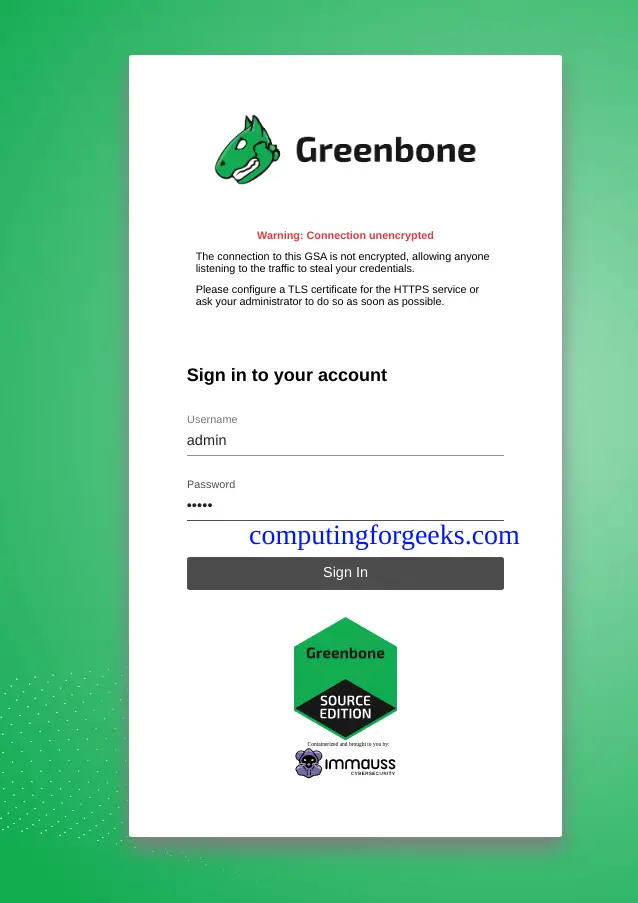
Once the container status shows (healthy), open a browser and navigate to http://10.0.1.50:9392 (replace with your server’s IP address). Log in with the username and password you configured.
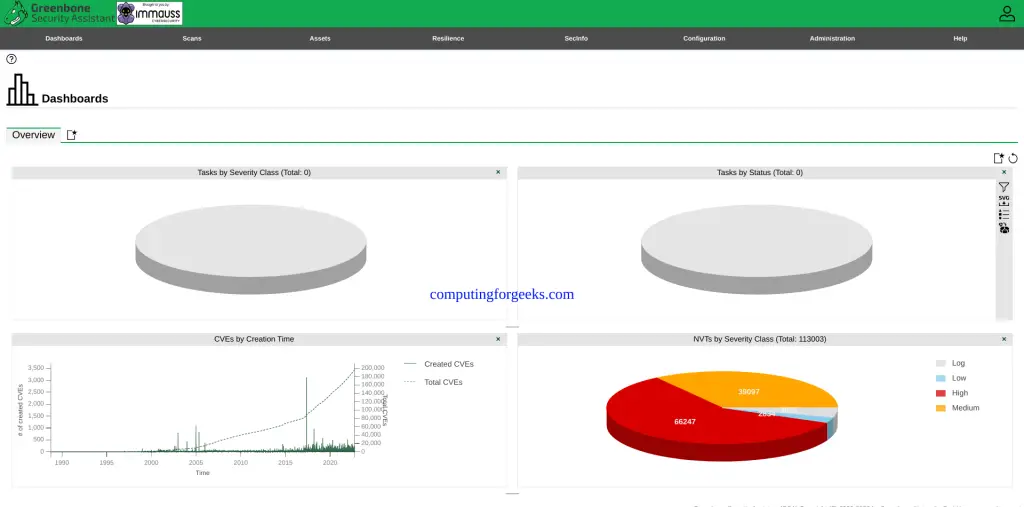
The dashboard shows an overview of your scanning environment. On a fresh installation, it will be empty until you configure targets and run your first scan.
Configure a Scan Target
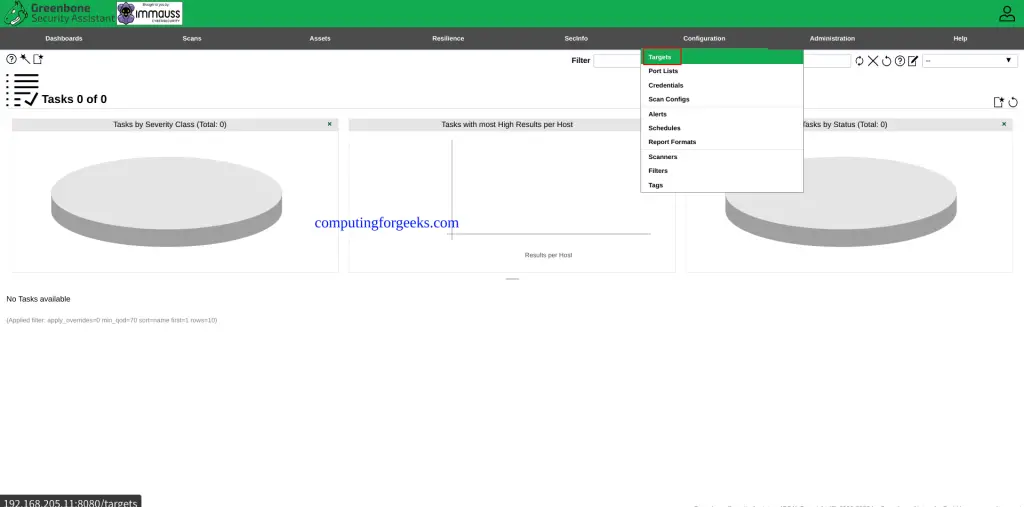
Before running a scan, you need to tell GVM what to scan. Navigate to Configuration > Targets in the top menu and click the blue star icon to create a new target.
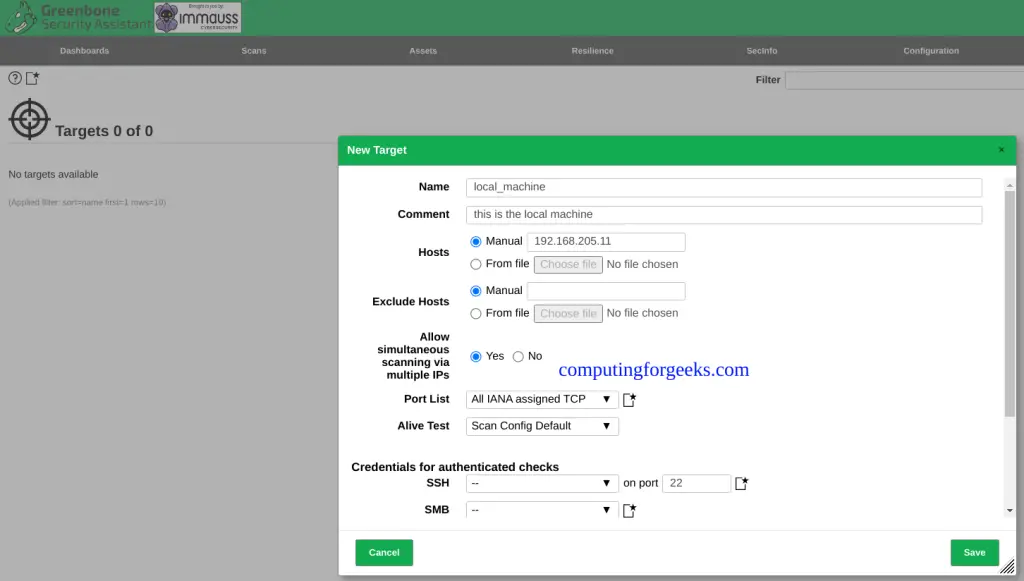
Fill in the target details:
- Name: a descriptive label (e.g., “Lab Network” or “Web Server”)
- Hosts: IP address, CIDR range, or comma-separated list (e.g.,
10.0.1.0/24or10.0.1.10,10.0.1.20) - Port List: select “All TCP and Nmap top 100 UDP” for a comprehensive scan, or “OpenVAS Default” for a faster baseline
For authenticated scans that check installed package versions and local configurations, add SSH or SMB credentials under Configuration > Credentials first, then reference them in the target.
Run a Vulnerability Scan
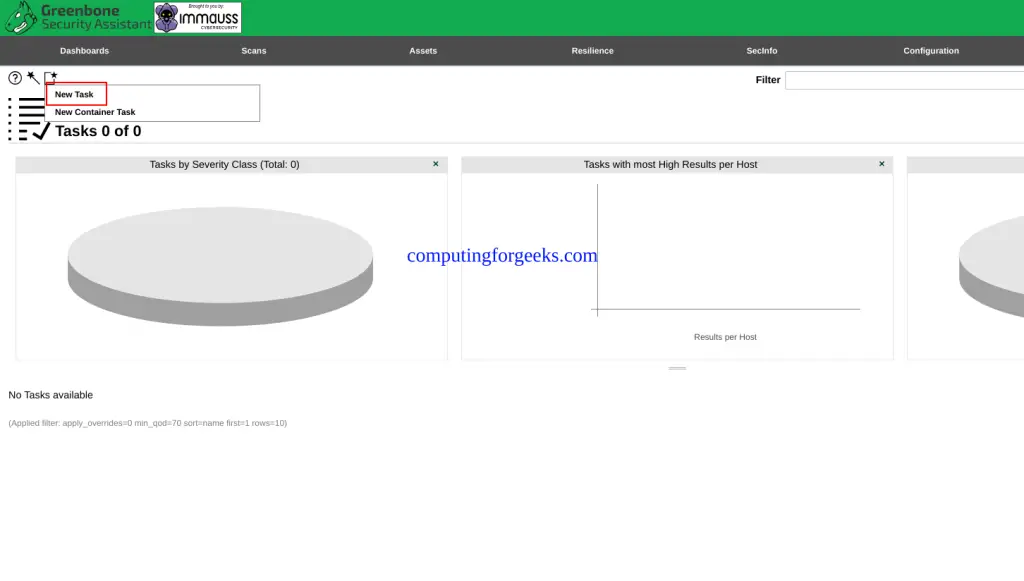
Navigate to Scans > Tasks and click the star icon to create a new task. Select the target you just created and choose a scan configuration:
- Full and fast: the default, covers most vulnerability checks without destructive tests
- Full and deep: slower but more thorough, includes additional checks
- Discovery: host and service discovery only, no vulnerability testing
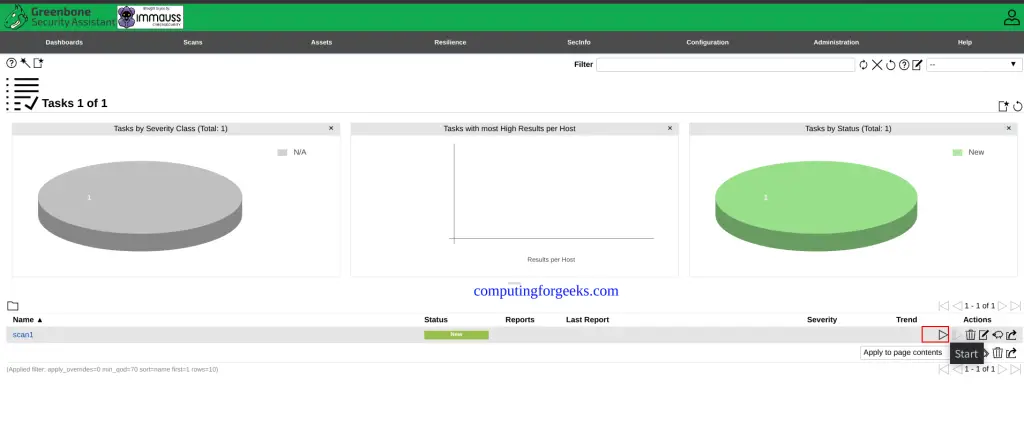
Click the play button on your task to start the scan. Progress is shown as a percentage. A “Full and fast” scan against a single host typically finishes in 10 to 30 minutes, depending on the number of open ports and services found.
The task list shows the scan progress and completion status:
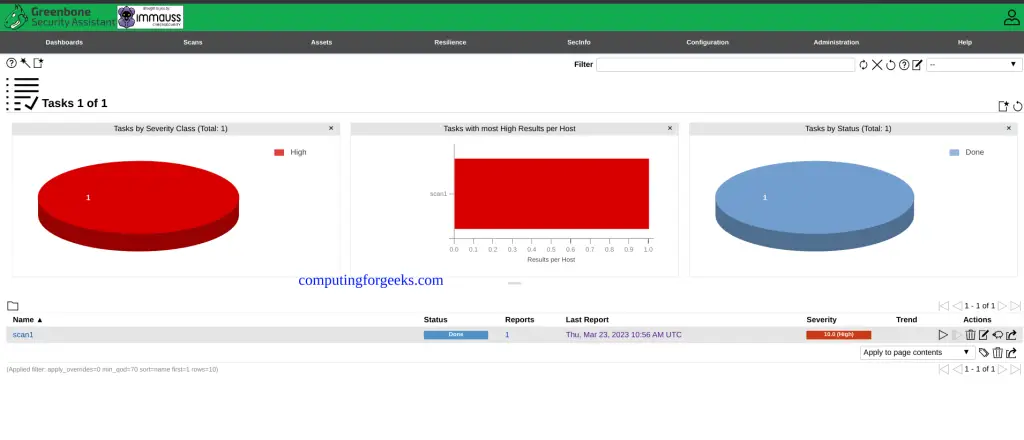
Review Scan Results
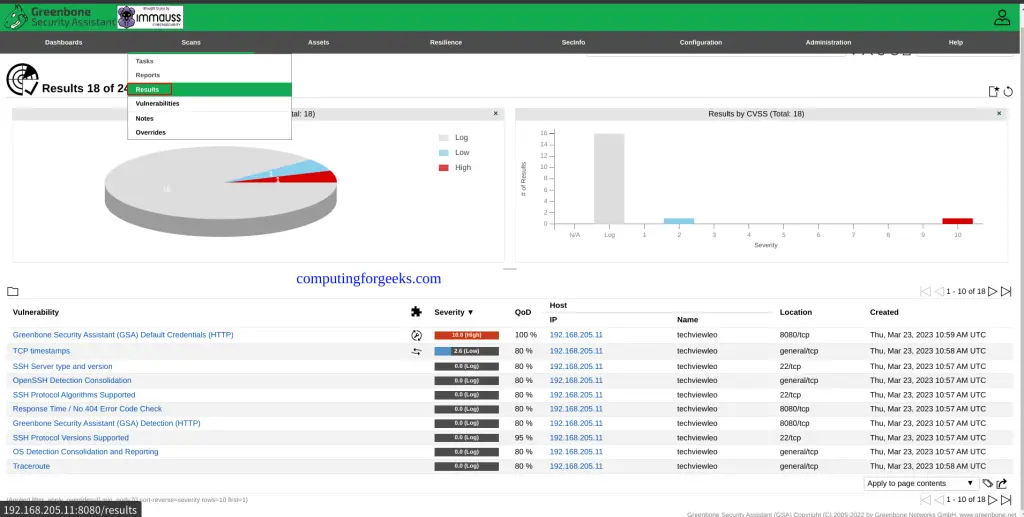
When the scan completes, click the task name to view the report. Results are grouped by severity: Critical, High, Medium, Low, and Log. Each finding includes the CVE reference, affected service, and remediation guidance.
Click through to the full results for detailed CVE information, CVSS scores, and fix recommendations:
Export reports in PDF, CSV, or XML format from the report detail page. The PDF reports are suitable for sending to stakeholders or attaching to compliance documentation. For a broader look at available scanning tools, see our roundup of the best vulnerability scanners for Linux.
Container Management
Common operations for managing the GVM container:
docker stop openvas
docker start openvas
docker restart openvas
View real-time logs to troubleshoot issues:
docker logs -f --tail 50 openvasCheck disk usage of the GVM data volume:
docker system df -v | grep openvasTo force a fresh feed sync without restarting the container:
docker exec -it openvas greenbone-feed-syncTroubleshooting
Container stays “health: starting” for more than 15 minutes
The first startup takes longer because it decompresses the base vulnerability database (approximately 1.5 GB). Check progress with docker logs -f openvas. If the container has less than 4 GB RAM available, the database import may fail silently. Verify with docker stats openvas and increase the host memory if needed.
Web UI returns “503 Service Unavailable”
This means gvmd hasn’t finished starting yet. The web server (gsad) starts before gvmd is fully initialized. Wait a few more minutes and reload the page. If it persists beyond 15 minutes, check the logs for PostgreSQL errors.
Scans show 0 results or “Scanner not available”
The feed sync may not have completed. Check the feed status under Administration > Feed Status in the web UI. All feeds should show a recent timestamp. If feeds are outdated, run docker exec -it openvas greenbone-feed-sync and wait for it to finish before scanning.
Permission denied errors on RHEL/Rocky Linux
SELinux may block Docker from accessing the bind-mounted volume. Instead of disabling SELinux (which is a security risk on a vulnerability scanner), set the correct context:
sudo semanage fcontext -a -t container_file_t "/greenbone/data(/.*)?"
sudo restorecon -Rv /greenbone/data
Or use Docker named volumes (the default in this guide), which work with SELinux without any additional configuration.
Frequently Asked Questions
What is the difference between Greenbone and OpenVAS?
How much RAM does GVM need in Docker?
How do I update the vulnerability feeds?
docker exec -it openvas greenbone-feed-sync. This downloads the latest Greenbone Community Feed, which includes new vulnerability tests, SCAP data, and CERT advisories.Is the immauss/openvas image the official Greenbone Docker image?
Can I scan hosts outside the Docker network?
--network host in the docker run command to give the container direct access to all host network interfaces.


![Install Kali Linux 2026.1 Step by Step [Full Guide]](https://computingforgeeks.com/wp-content/uploads/2026/03/install-kali-linux-20261-step-by-step-768x403.png "Install Kali Linux 2026.1 Step by Step [Full Guide] 11")

Good article…for some reason, i couldn’t access with port 9392, but works with 8080? Is this expected?
Expected, and it comes down to which docker run -p mapping you used. The article publishes -p 9392:9392 so the host port is 9392, while the upstream immauss/openvas docs use -p 8080:9392 to avoid colliding with an existing GVM install, which is likely what you copied. GSA always listens on 9392 inside the container; the host port is whatever sits on the left of -p, so 8080 working tells me your container is up and healthy.