The second card goes in, the machine posts fine, and then a model that flew on one GPU suddenly crawls. Or a fresh NVMe drive benchmarks at half the speed of the one already in the board. Nine times out of ten the culprit is the same, and it is not a bad part. You ran out of PCIe lanes, and something quietly dropped to a narrower link to make room.
PCIe lanes are the fixed budget every build spends without thinking about it. A graphics card wants sixteen of them, every NVMe drive wants four, a 10GbE card wants four or eight, and a desktop CPU hands out far fewer than the marketing slides make it look. Understanding PCIe lanes for GPU and NVMe builds is what separates a machine where every slot runs at full speed from one where the parts fight over a link back to the processor. This guide is the short, practical version: how many lanes you actually get, what steals them, and how to read what your own board negotiated.
The link-width readings below were pulled from live Intel machines in July 2026 with lspci; the per-platform lane counts come from AMD and Intel processor specs, not a bench with one of every chip.
How many PCIe lanes you actually get
Lanes come from two places, and only one of them is fast. The CPU provides a small number of direct lanes wired straight to the socket, and those are the good ones: a GPU or a boot NVMe hangs off them with a dedicated path to the processor. The chipset provides more lanes, but they all funnel through a single narrow link back to the CPU (more on that trap in a moment).
On the desktop, the CPU budget is smaller than most people expect. Here is where the common homelab platforms land.
| Platform | Usable CPU lanes | Generation | Typical split |
|---|---|---|---|
| AMD Ryzen (AM5, 7000/9000) | 24 (28 total, 4 to chipset) | PCIe 5.0 | x16 GPU + x4 NVMe + x4 spare M.2/USB4 |
| Intel Core Ultra 200S (Arrow Lake, LGA1851) | 24 | x16 + x4 at 5.0, +x4 at 4.0 | x16 GPU + x4 NVMe (Gen5) + x4 NVMe (Gen4) |
| Intel Core 12th to 14th Gen (LGA1700) | 20 | PCIe 5.0 / 4.0 | x16 GPU + x4 NVMe |
| AMD Threadripper 7000 (HEDT) | 48 | PCIe 5.0 (+32 Gen4) | multiple x16 GPUs + many NVMe |
| AMD Threadripper Pro 7000 WX / EPYC | 128 | PCIe 5.0 | anything you can physically fit |
| Intel Xeon Scalable (per socket) | ~80 | PCIe 5.0 | server layouts, many x8/x16 slots |
Read the consumer rows closely. A modern AM5 or Intel desktop gives you roughly twenty to twenty four fast lanes, and the default split spends sixteen on the graphics card and four on one NVMe drive before you have added anything. That is the entire direct budget gone on two parts. Everything else, extra drives, a capture card, a second network card, comes from the chipset. The jump to real lane counts only happens when you cross into Threadripper or a used server platform, which is exactly why lane-hungry builds land there.
The chipset gives you more slots, not more bandwidth
This is the misconception that wrecks otherwise sensible builds. A motherboard spec sheet listing four M.2 slots and three PCIe slots does not mean the CPU has lanes for all of them. The extra slots hang off the chipset, and the chipset talks to the CPU over one shared link: Intel calls it DMI (a PCIe 4.0 x8 pipe on current boards), AMD uses a PCIe x4 uplink to its Promontory chipset. Every device behind the chipset shares that one straw.
In practice that means you can happily run a boot drive on the CPU-direct M.2 at full speed, but if you fill three more chipset M.2 slots and copy between them at once, they are all contending for the same x4 or x8 back to the processor. For a homelab this is usually fine, because a bulk-storage drive rarely saturates its link. It bites when you expect two chipset NVMe drives to both hit full sequential speed simultaneously, or you put a 10GbE card and a busy drive on the same chipset and watch them steal from each other. Put the thing that needs guaranteed bandwidth on a CPU-direct slot, and let the chipset carry the parts that idle most of the time.
GPUs and the x16 slot that becomes x8
A single graphics card takes the CPU’s x16 slot and runs at full width. Add a second card in the reinforced second slot on a consumer board, and the CPU splits that x16 into x8 and x8. It has no choice: there are not enough direct lanes to give both cards sixteen. This is the number one surprise in a dual-GPU build.
The good news is that x8 on a modern board is not the disaster it sounds like. Because each generation doubles per-lane bandwidth, x8 at PCIe 4.0 moves the same data as x16 at PCIe 3.0, around 16 GB/s. For a single GPU, dropping from x16 to x8 on a Gen4 or Gen5 board costs you low single-digit percentages in almost everything, and nothing at all in local LLM inference, which is bound by memory bandwidth on the card, not the slot. That is why our local AI workstation build runs two 3090s at x8/x8 without apology.
Where it does hurt is the third card. A GPU dropped into a chipset slot runs at x4 and shares the uplink, so multi-GPU training rigs and anything moving large tensors between cards outgrow a consumer board fast. That workload wants Threadripper or a server platform with real lane counts, the same reasoning behind the top tier of the Linux DevOps workstation build. If you are still weighing which desktop platform to start on, the AMD vs Intel for a homelab breakdown covers the lane and idle-power trade-offs side by side.
NVMe drives eat lanes too
Every NVMe SSD wants a PCIe x4 link, so drives compete with the graphics card for the same small budget. Two NVMe drives is eight lanes, and on a consumer board only the first one is guaranteed a CPU-direct path. You can see it plainly on a real machine. On one of our Proxmox nodes, listing the storage controllers shows two NVMe drives:
lspci | grep -i "non-volatile"Both are Samsung NVMe controllers on the same box:
01:00.0 Non-Volatile memory controller: Samsung Electronics Co Ltd NVMe SSD Controller SM961/PM961/SM963
02:00.0 Non-Volatile memory controller: Samsung Electronics Co Ltd NVMe SSD Controller SM961/PM961/SM963
Asking each one what link it negotiated confirms both are running the full x4:
for s in 01:00.0 02:00.0; do echo "== $s =="; lspci -vvs $s | grep LnkSta; doneEach drive holds a four-lane link, which means eight of this desktop’s lanes are spent on storage alone:
== 01:00.0 ==
		LnkSta:	Speed 8GT/s, Width x4
== 02:00.0 ==
		LnkSta:	Speed 8GT/s, Width x4
Add the sixteen for a GPU and you are already at twenty four lanes, the entire direct budget on a Ryzen desktop. A third and fourth drive have to live on the chipset. For most homelabs that is the right call anyway, since only the VM datastore or the drive under active writes needs the CPU-direct slot, and bulk storage is happy behind the chipset. The choice of drive matters as much as the slot: see NVMe vs SATA for a Proxmox datastore and the best server and homelab SSDs for which drive earns the direct lanes.
PCIe generations: a lane is not a lane
A lane’s bandwidth depends on its generation, and each generation doubles the previous one. That single fact resolves most lane anxiety, because it means a narrower link on a newer generation often matches a wider link on an older one.
| Generation | Per lane (one direction) | x4 link | x16 link |
|---|---|---|---|
| PCIe 3.0 (8 GT/s) | ~1 GB/s | ~4 GB/s | ~16 GB/s |
| PCIe 4.0 (16 GT/s) | ~2 GB/s | ~8 GB/s | ~32 GB/s |
| PCIe 5.0 (32 GT/s) | ~4 GB/s | ~16 GB/s | ~64 GB/s |
So x8 at Gen4, x16 at Gen3, and x4 at Gen5 all move roughly the same 16 GB/s. A Gen5 NVMe drive squeezed onto four lanes still outruns a Gen3 drive on four lanes by a factor of four. This is also why a two-GPU board splitting to x8/x8 on a Gen5 platform barely notices.
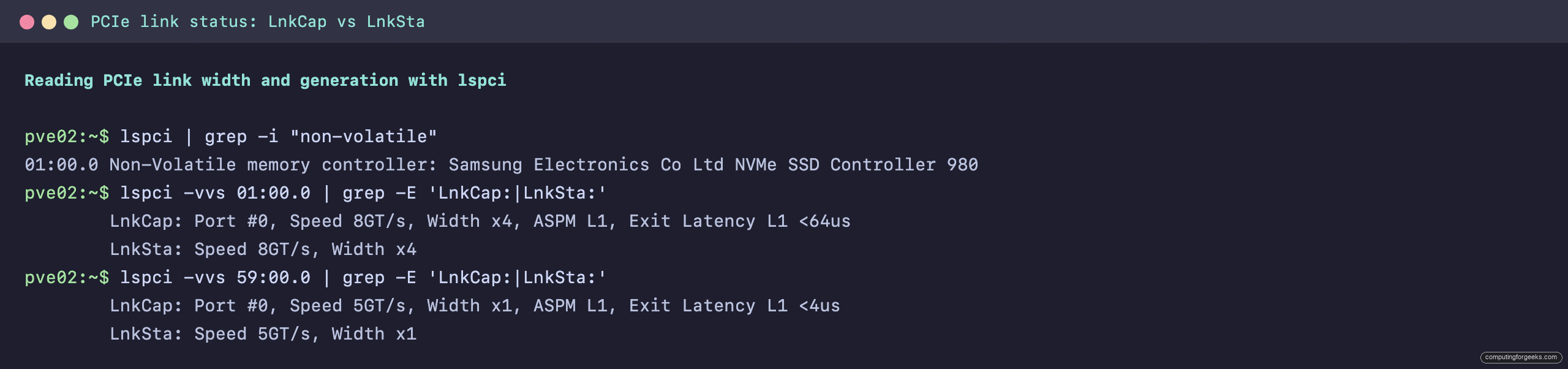
The catch is that the link runs at the slowest device in the path. A Gen4 drive in a Gen3 slot runs at Gen3, and a Gen5 drive in a Gen4 slot runs at Gen4. The part sets the ceiling, not your intentions. One of our nodes carries a Samsung 980, which is a Gen3 drive, and even on a Gen4-capable board its link tops out at 8 GT/s because that is all the drive can do. The command that shows this compares what the slot can do against what actually linked up:
lspci -vvs 01:00.0 | grep -E 'LnkCap:|LnkSta:'Here the capability and the status agree at Gen3 x4, so nothing is being wasted, the drive simply is a Gen3 part:
		LnkCap:	Port #0, Speed 8GT/s, Width x4, ASPM L1, Exit Latency L1 <64us
		LnkSta:	Speed 8GT/s, Width x4
That side-by-side capture, real numbers off a running box, is the whole diagnostic in one screen.
Once you can see where every lane went, the interesting question becomes what to do when the board simply runs out of them. That is where a slot-splitting trick earns its keep.
Bifurcation: splitting one slot into four
When you genuinely need more NVMe than the board has M.2 slots, the trick is bifurcation: telling the CPU to split one x16 slot into four x4 links, then dropping in a carrier card that holds four drives. Each drive gets a clean CPU-direct x4, no chipset uplink to share. It is the cheapest way to add a fast NVMe pool to a workstation or a Proxmox host, and it is how a lot of ZFS special-vdev and cache setups get built.
The catch is that passive carrier cards need the motherboard to support bifurcation in BIOS (look for a “PCIe x16 to x4x4x4x4” or “RAID mode” option). Most AM5, Threadripper, and workstation Intel boards have it; many cheap consumer boards do not. On a modern board a Gen5 carrier such as the ASUS Hyper M.2 x16 Gen5 card takes four NVMe drives off a single slot, running around $70 to $95 (check the live price). If your platform is PCIe 4.0 or you want the proven, cheaper option, the older ASUS Hyper M.2 x16 PCIe 4.0 card does the same job for roughly $55 to $80. If your board lacks bifurcation entirely, you need a switch-based (PLX) card instead, which works anywhere but costs several times more. Either way, plan the lanes first: a four-drive carrier in a slot that only bifurcates to x8 gives you two drives, not four. The Proxmox homelab server build walks through where those NVMe lanes come from on a real board.
How to check your own lanes before you buy
Do not guess whether your build will run at full width. Read it. On any Linux box, one command per device shows the link it negotiated, and comparing the capability line to the status line tells you instantly whether something got starved:
lspci -vvs 59:00.0 | grep -E 'LnkCap:|LnkSta:'On this node the device is a network card wired for a single lane, and the two lines agree, so it is doing exactly what its slot allows:
		LnkCap:	Port #0, Speed 5GT/s, Width x1, ASPM L1, Exit Latency L1 <4us
		LnkSta:	Speed 5GT/s, Width x1
The rule to remember: if LnkSta shows a narrower width than LnkCap, something downgraded that link. A graphics card reporting LnkCap x16 but LnkSta x8 is sharing lanes with a second card. A drive showing x2 where the card wants x4 is sitting in a slot that only wired half the pins. Run this on a machine before you spend money adding to it, and you will know whether the next GPU or NVMe drive has real lanes waiting or is about to start a fight over the ones you already spent. That five second check saves far more than the cost of the part.