You want a Notion-style notebook that lives on your own server, not in someone else’s cloud. SiYuan is the closest thing to that: a privacy-first, fully open source knowledge base where every paragraph is a block with its own permanent ID, so two-way links and references never break when you move things around. It speaks Markdown, runs as a single Go binary, and ships an official Docker image you can put behind your own domain in a few minutes.
This guide takes it end to end. You deploy SiYuan with Docker Compose, put it behind Nginx with a real Let’s Encrypt certificate, unlock the workspace, then actually use it: writing notes in the block editor, wiring two documents together with backlinks, turning a block into a spaced-repetition flashcard, and backing the whole workspace up. Where the Docker build behaves differently from the desktop app, I call it out, because that catches people.
Ran through this on Ubuntu 24.04 with Docker 29.6 and SiYuan 3.6.5 in June 2026; the whole flow works start to finish.
What self-hosting SiYuan actually gets you
The selling point is the block model. Every block (a paragraph, a list item, a heading) gets a stable ID the moment you type it. A link points at that ID, not at a file name or a line number, so refactoring a document never leaves a dead link behind. On top of that you get a Markdown WYSIWYG editor, bidirectional links with a backlinks panel, block-level transclusion, spaced-repetition flashcards, and a built-in graph view. It is AGPL-3.0, and your data sits in a plain folder on your disk.
The Docker image runs the kernel in browser mode, and that mode has limits worth knowing before you commit. There is no PDF, HTML, or Word export from the browser, and Markdown import is disabled. Those features live in the desktop and mobile apps. The container is still perfect as the always-on sync target and as a notebook you reach from any browser, but if exporting to PDF is your main workflow, pair the container with a desktop client pointed at the same data. The footprint is tiny either way: the running container idles at around 61 MB of RAM.
Prerequisites
- A Linux host with Docker Engine and the Compose plugin (this walkthrough uses Ubuntu 24.04; any modern Debian, Rocky, or Alma host works the same)
- 512 MB of free RAM is enough for a personal workspace; SiYuan idles near 61 MB
- A domain with an A record pointing at the server and port 80 reachable, so Let’s Encrypt can validate over HTTP-01 (any DNS provider works)
- Ports 80 and 443 open in your cloud security group or firewall
- Tested on: SiYuan 3.6.5, Docker 29.6.0, Compose v5.1.4, Ubuntu 24.04.1 LTS
1. Set up shell variables
A couple of values repeat across the Compose file, the Nginx vhost, and the certificate command. Set them once at the top of your SSH session so you change one block and paste the rest as-is:
export DOMAIN="notes.example.com"
export EMAIL="[email protected]"
Confirm they are set before you go further:
echo "Domain: ${DOMAIN} Email: ${EMAIL}"These hold only for the current shell. If you reconnect, export them again.
2. Install Docker and Compose
If Docker is already on the host, skip ahead. Otherwise pull it from Docker’s own repository so you get a current Engine and the Compose plugin together. The short version is below; the full walkthrough lives in the Docker CE install guide and the Compose plugin guide.
sudo install -m 0755 -d /etc/apt/keyrings
sudo curl -fsSL https://download.docker.com/linux/ubuntu/gpg -o /etc/apt/keyrings/docker.asc
sudo chmod a+r /etc/apt/keyrings/docker.asc
echo "deb [arch=$(dpkg --print-architecture) signed-by=/etc/apt/keyrings/docker.asc] https://download.docker.com/linux/ubuntu $(. /etc/os-release && echo $VERSION_CODENAME) stable" | sudo tee /etc/apt/sources.list.d/docker.list
sudo apt-get update
sudo apt-get install -y docker-ce docker-ce-cli containerd.io docker-compose-plugin
Add your user to the docker group so you can run it without sudo, then check both pieces are present:
sudo usermod -aG docker $USER
newgrp docker
docker --version
docker compose version
You should see the Engine and Compose report their versions:
Docker version 29.6.0, build fb59821
Docker Compose version v5.1.4
If a later docker command reports a permission error, log out and back in so the new group membership takes full effect. With the runtime in place, the rest is one Compose file.
3. Deploy SiYuan with Docker Compose
SiYuan stores everything in its workspace folder, so the one rule that matters is to mount that folder to the host. Lose the mount and the notes vanish with the container. Create a project directory and a workspace to mount:
mkdir -p ~/siyuan/workspace
cd ~/siyuan
The access auth code is the password that gates the whole workspace. Generate a strong one and keep it in a .env file instead of hardcoding it in the Compose file:
echo "SIYUAN_AUTH_CODE=$(openssl rand -base64 18 | tr -d '/+=' | cut -c1-20)" > .env
chmod 600 .env
Now create the Compose file:
sudo vim ~/siyuan/compose.yamlPaste the following. Note the port binding: 127.0.0.1:6806 keeps the kernel on localhost so it is never exposed directly. Nginx will be the only thing that talks to it.
services:
  siyuan:
    image: b3log/siyuan:v3.6.5 #https://github.com/siyuan-note/siyuan/releases
    container_name: siyuan
    restart: unless-stopped
    ports:
      - "127.0.0.1:6806:6806"
    volumes:
      - ./workspace:/siyuan/workspace
    environment:
      - PUID=1000
      - PGID=1000
      - TZ=Africa/Nairobi
    command: ["--workspace=/siyuan/workspace/", "--accessAuthCode=${SIYUAN_AUTH_CODE}"]
The PUID and PGID tell the entrypoint which host user should own the files. Set them to the output of id -u and id -g for your account (1000 on a fresh Ubuntu box). Bring it up:
docker compose up -dCheck the container is healthy and the kernel booted cleanly:
docker compose ps
docker logs siyuan | grep -i booted
The kernel logs the workspace path and confirms the HTTP server is up:
NAME      IMAGE                 STATUS         PORTS
siyuan    b3log/siyuan:v3.6.5   Up 8 seconds   127.0.0.1:6806->6806/tcp
I runtime.go:94: kernel is booting: workspace directory [/siyuan/workspace/]
I serve.go:231: kernel [pid=1] http server [0.0.0.0:6806] is booting
I working.go:216: kernel booted
A quick local probe should return 401, which is exactly right. It means the kernel is up and demanding the access auth code before it hands over anything:
curl -s -o /dev/null -w "%{http_code}\n" http://127.0.0.1:6806/The kernel is running and locked. The last piece is a public, encrypted way to reach it.
4. Put SiYuan behind Nginx with HTTPS
SiYuan leans on a WebSocket connection for live editing and sync, so the reverse proxy has to pass the Upgrade headers through. Skip that and the editor loads but real-time updates stall. Install Nginx and Certbot first:
sudo apt-get install -y nginx certbot python3-certbot-nginxAdd the WebSocket upgrade map in the http context. This sets the Connection header correctly whether or not a request is upgrading:
sudo vim /etc/nginx/conf.d/websocket-map.confPut this single map block in it:
map $http_upgrade $connection_upgrade {
    default upgrade;
    ''      close;
}
Now the site itself. Create the vhost:
sudo vim /etc/nginx/sites-available/siyuanUse a placeholder for the hostname so you can fill it in from your shell variable afterward. The proxy_read_timeout and unlimited body size matter for large pastes and image uploads:
server {
    listen 80;
    server_name SITE_DOMAIN_HERE;

    location / {
        proxy_pass http://127.0.0.1:6806;
        proxy_set_header Host $host;
        proxy_set_header X-Real-IP $remote_addr;
        proxy_set_header X-Forwarded-For $proxy_add_x_forwarded_for;
        proxy_set_header X-Forwarded-Proto $scheme;

        proxy_http_version 1.1;
        proxy_set_header Upgrade $http_upgrade;
        proxy_set_header Connection $connection_upgrade;

        proxy_read_timeout 600s;
        client_max_body_size 0;
    }
}
Substitute your real hostname from the variable, enable the site, drop the default, and reload:
sudo sed -i "s/SITE_DOMAIN_HERE/${DOMAIN}/g" /etc/nginx/sites-available/siyuan
sudo ln -sf /etc/nginx/sites-available/siyuan /etc/nginx/sites-enabled/siyuan
sudo rm -f /etc/nginx/sites-enabled/default
sudo nginx -t
sudo systemctl reload nginx
With port 80 answering on your domain, ask Certbot for a certificate. The --nginx plugin validates over HTTP-01, rewrites the vhost for TLS, and adds the redirect:
sudo certbot --nginx -d "${DOMAIN}" --non-interactive --agree-tos --redirect -m "${EMAIL}"Certbot confirms the cert is deployed and HTTPS is live:
Successfully deployed certificate for notes.example.com to /etc/nginx/sites-enabled/siyuan
Congratulations! You have successfully enabled HTTPS on https://notes.example.com
Open the domain in a browser and you land on the lock screen over HTTPS, not the raw kernel. If your reverse proxy setup needs a refresher, the Nginx install and configuration guide covers the basics.
No public port 80? Use a DNS-01 certificate instead
If the server sits on a private network or behind NAT, HTTP-01 cannot reach it. Switch to a DNS-01 challenge, which proves ownership with a DNS TXT record and needs no inbound port. Install your provider’s plugin (Cloudflare, Route 53, DigitalOcean, Google Cloud DNS, and others exist), drop the API credentials in a file, then issue the cert. With Cloudflare it looks like this:
sudo apt-get install -y python3-certbot-dns-cloudflare
echo "dns_cloudflare_api_token = YOUR_API_TOKEN" | sudo tee /etc/letsencrypt/cloudflare.ini
sudo chmod 600 /etc/letsencrypt/cloudflare.ini
sudo certbot certonly --dns-cloudflare \
  --dns-cloudflare-credentials /etc/letsencrypt/cloudflare.ini \
  -d "${DOMAIN}" --non-interactive --agree-tos -m "${EMAIL}"
Substitute your own provider’s plugin and credentials if you are not on Cloudflare, then point the Nginx ssl_certificate directives at the issued files.
5. Unlock the workspace on first login
Browse to your domain and SiYuan shows the access authorization screen. Enter the auth code you generated into the .env file (run grep AUTH ~/siyuan/.env if you need to read it back), tick “Remember me” so you are not retyping it every visit, and unlock.
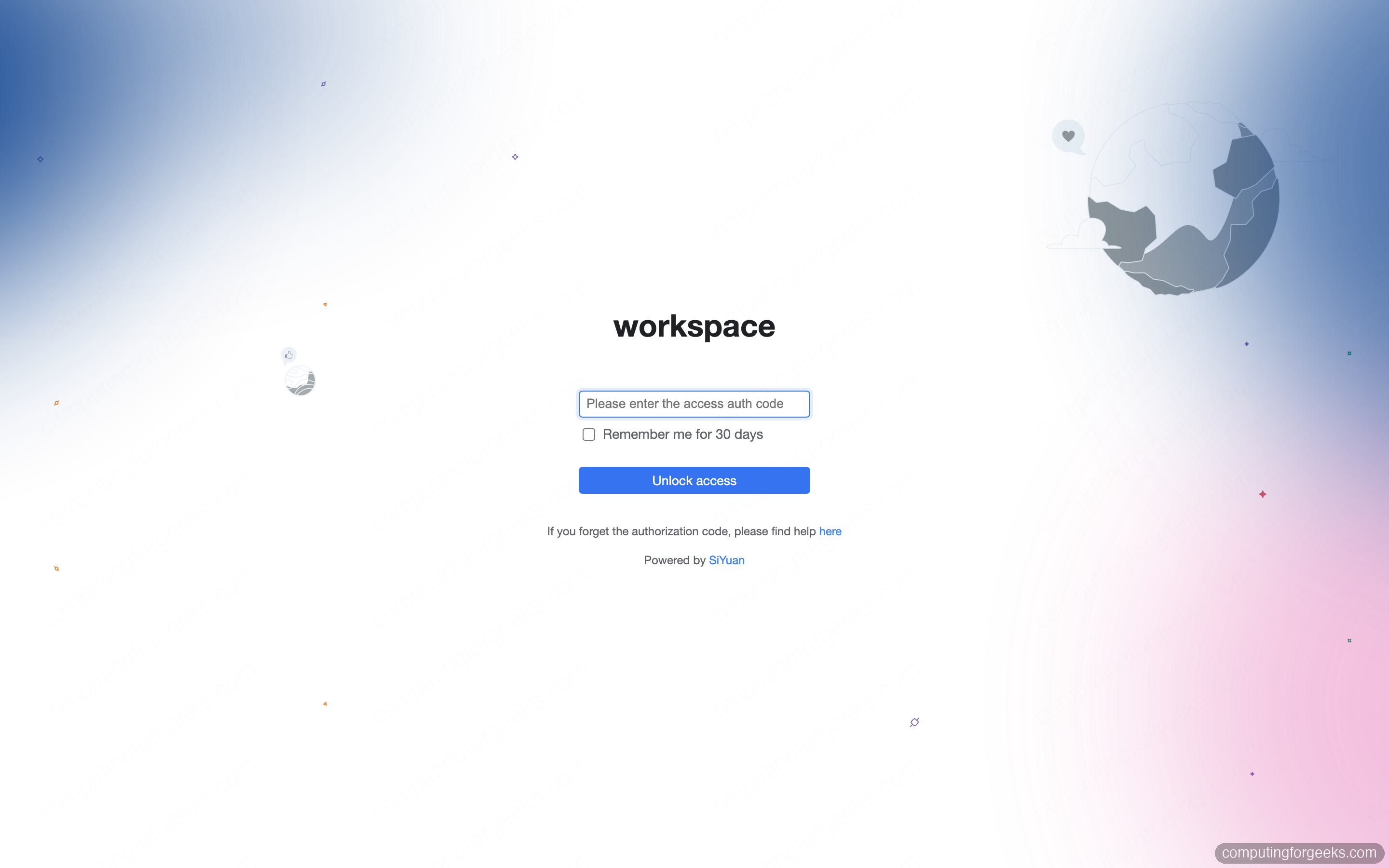
The gotcha here is the auth code is the only thing standing between the public internet and your notes, so make it long and random. After a few wrong attempts SiYuan adds a captcha to the login form to slow down brute force. Once you are in, you get the workbench: the document tree on the left, the editor in the middle, and the panel docks on the right.
6. Write notes in the block editor
SiYuan creates a default notebook for you. Click the new-document icon in the tree, give the document a title, and start typing. The editor is Markdown-native: type ## for a heading, a dash for a bullet, backticks for inline code, and triple backticks for a fenced block. It converts as you go, so you write Markdown but read formatted text.
Here is a short troubleshooting note built entirely from Markdown shortcuts. The fenced block keeps its language label and a copy button, and the inline #tags at the bottom become clickable filters:
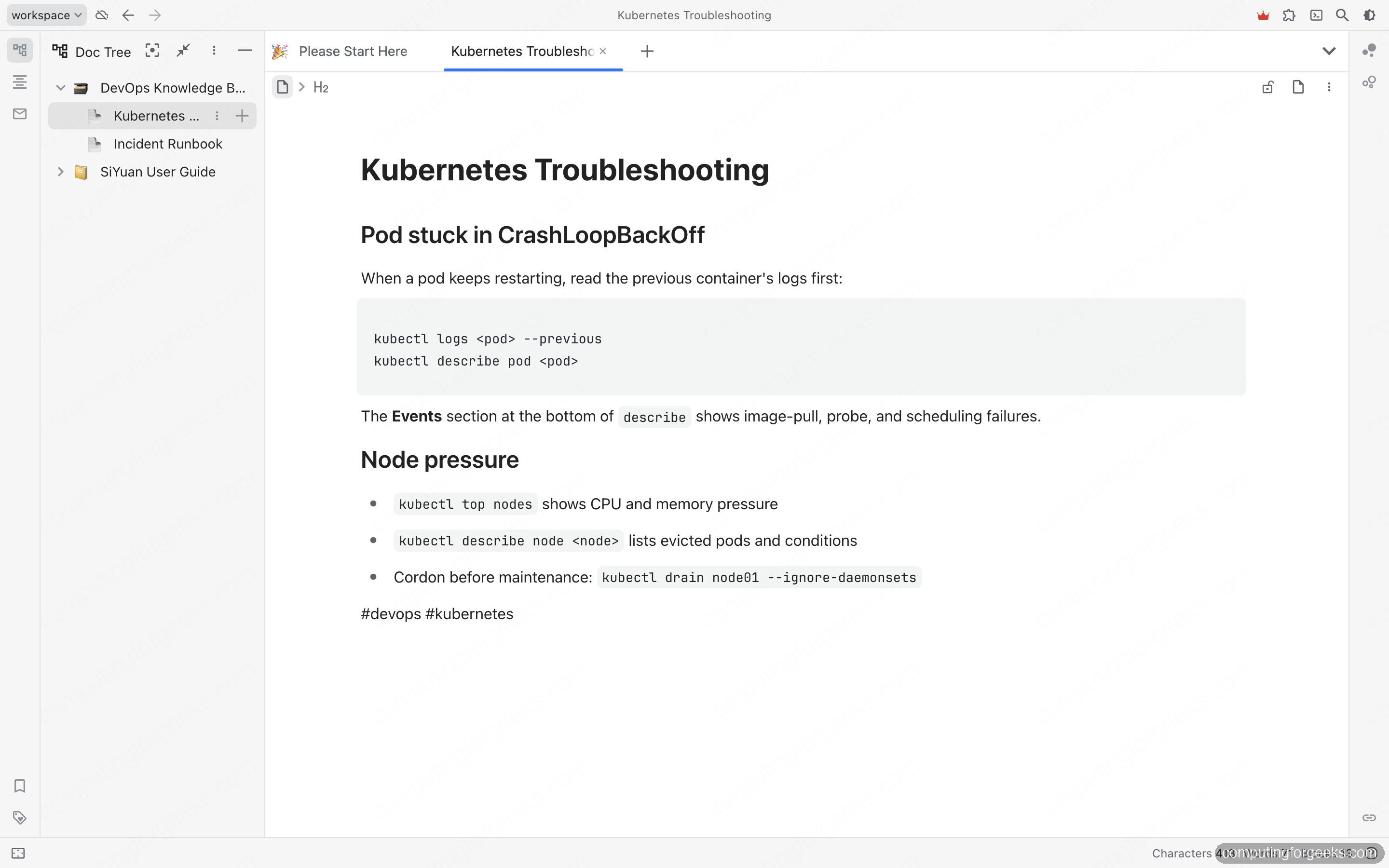
Every one of those blocks now carries its own stable ID. That is what makes the next part work.
7. Link notes and read backlinks
This is the feature people come to SiYuan for. While editing, type two opening parentheses (( to bring up a search box, pick the document or block you want, and SiYuan inserts a live reference to it. The reference carries readable anchor text, but it points at the target’s stable ID, so renaming the target never breaks the link.
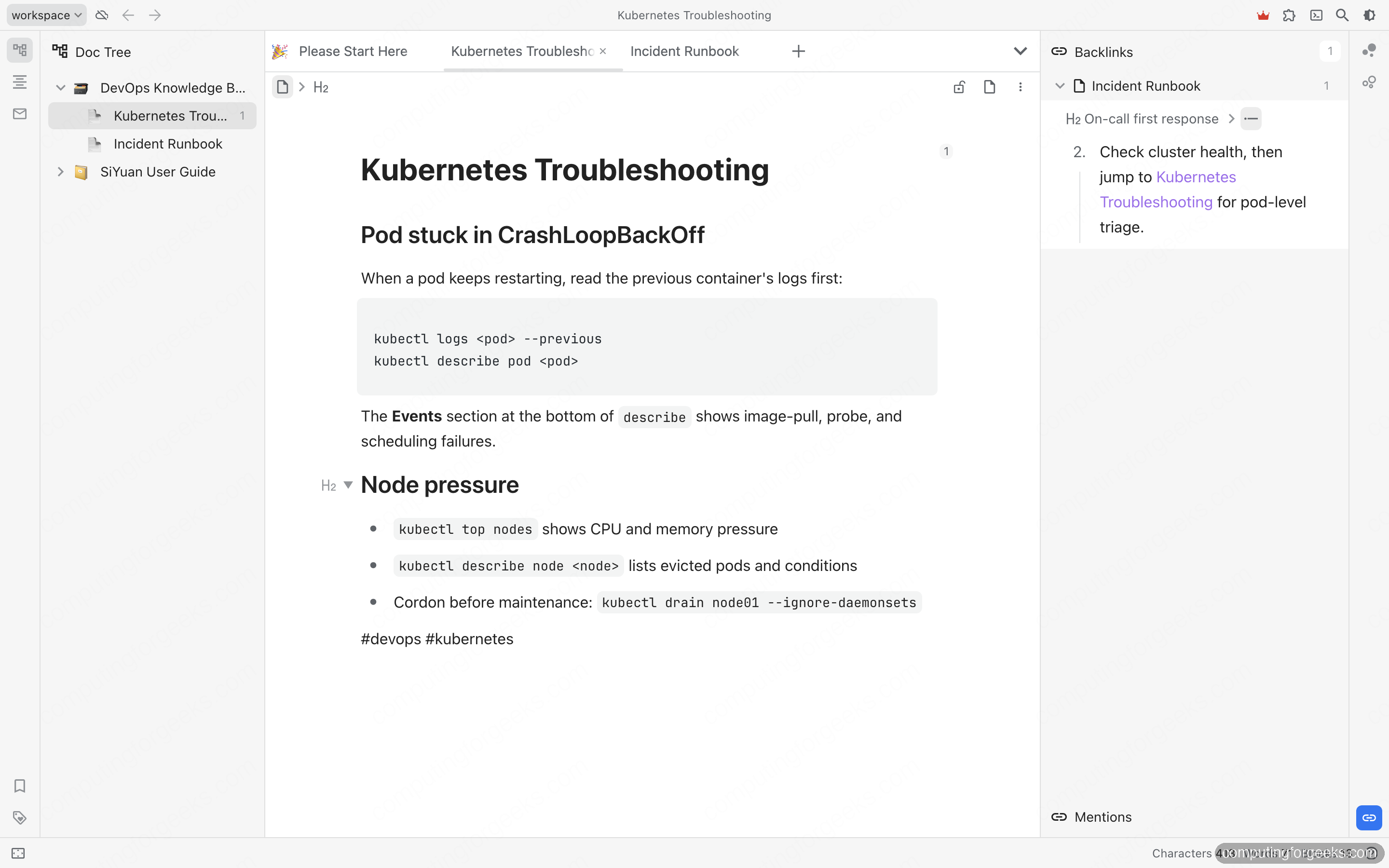
The payoff shows up on the other side. Open the document you linked to and the backlinks panel on the right lists every block that references it, in context. In the capture below, a “Kubernetes Troubleshooting” note shows that an “Incident Runbook” links to it from its on-call steps, so the relationship is visible from both ends without any manual cross-referencing:
One thing that trips people up: the [[double bracket]] shorthand only converts to a real reference when you type it live in the editor. If you import Markdown that already contains literal [[name]] text, it stays plain text. Build the links inside SiYuan and the backlinks populate themselves.
8. Turn notes into flashcards
SiYuan has spaced repetition built in, which is unusual for a notes app and genuinely useful for committing commands or facts to memory. Hover the block you want to study, open its block menu, and add it to a flashcard deck. The block keeps living in its document and also enters the review queue. Right-click a notebook and choose Spaced Repetition to start a session; SiYuan shows the front of the card, you reveal the answer, and you grade your recall so the algorithm schedules the next review. The same DevOps notes you write become the deck you drill, with no copy-pasting into a separate app.
9. Back up and restore the workspace
Because everything lives in the mounted workspace folder, a backup is just an archive of that folder. Stop the container so nothing is mid-write, tar it, and start it again:
cd ~/siyuan
docker compose stop
tar czf ~/siyuan-backup-$(date +%Y%m%d-%H%M%S).tar.gz -C ~/siyuan workspace
docker compose start
A personal workspace is small, so the archive is too. This one came out at 11 MB from a 34 MB workspace:
11M /home/ubuntu/siyuan-backup-20260623-201107.tar.gzRestoring is the reverse: stop the container, extract the archive over the workspace folder, and start again. Schedule the tar with a cron job and copy the archive off-box, and you have a working disaster-recovery story in three lines.
Tips from running it
A few things worth knowing once it is live:
- It is genuinely light. The container idles around 61 MB of RAM and almost no CPU, and the image is about 237 MB. It happily shares a small VPS with other services.
- Mount the workspace on fast storage. The kernel warns if the workspace is not on an SSD because indexing and search get slower on spinning disks. On a cloud VM this is usually a non-issue.
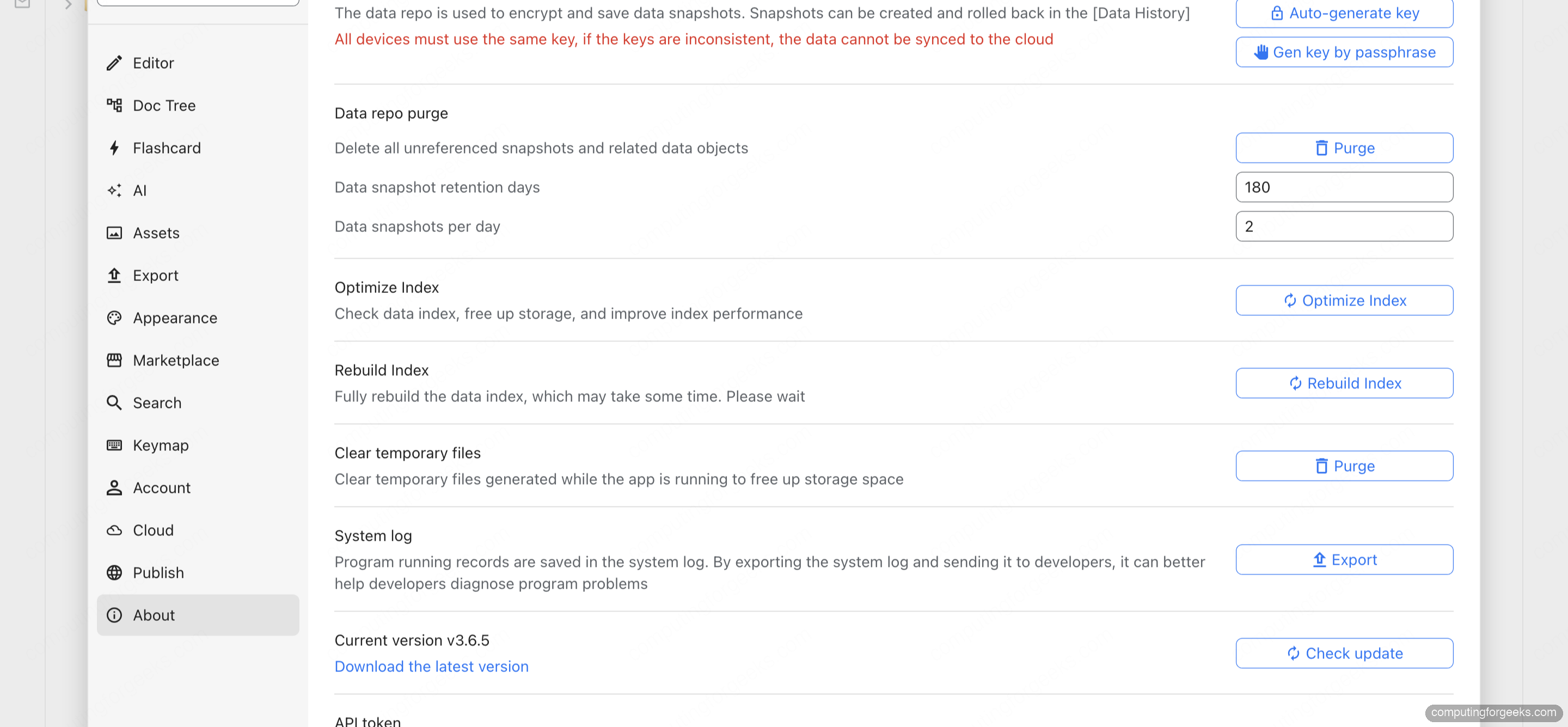
- Encrypt before you sync. Under Settings, the Data repo key encrypts the snapshots SiYuan uses for history and cloud sync. Set it (and save the passphrase somewhere safe) before you wire up any sync target.
- Keep the auth code in
.env, not the Compose file. It keeps the secret out of any compose snippet you might paste or commit.
The Settings page is also where you confirm the running version and reach the data-history, index, and export controls:
If you are building out a self-hosted stack, SiYuan slots in next to other single-container tools like a self-hosted Stirling-PDF toolbox and a FileBrowser web file manager, all behind the same Nginx and certificate workflow.
Troubleshooting
These are the snags that actually come up.
The editor loads but changes do not sync in real time
The reverse proxy is dropping the WebSocket upgrade. Confirm the map $http_upgrade $connection_upgrade block exists in the http context and that the location block sets both proxy_http_version 1.1 and the Upgrade / Connection headers. Reload Nginx after any change with sudo nginx -t && sudo systemctl reload nginx.
The page returns 401 and never shows the lock screen
A bare 401 from a direct request to port 6806 is normal; that is the kernel asking for the auth code. If the browser shows it through Nginx, the proxy is reaching the kernel but the access screen JavaScript is not loading. That is almost always a missing X-Forwarded-Proto $scheme header, which SiYuan needs to build correct asset URLs behind TLS.
Notes disappeared after recreating the container
The workspace was not mounted. Check that ./workspace:/siyuan/workspace is in the Compose file and that ~/siyuan/workspace contains conf, data, and temp directories after the first boot. If those folders are inside the container only, every docker compose down takes your notes with it. Fix the volume, then restore from your last tar.
Cannot export to PDF or import Markdown from the web UI
That is expected, not a bug. The Docker build runs in browser mode, which disables PDF, HTML, and Word export and Markdown import, and does not accept direct connections from the desktop or mobile apps. The workaround is to run the desktop app and sync it to the same workspace, then export or import from there.