Kopia is an open-source backup tool that creates encrypted, deduplicated snapshots of your files and directories. It supports local storage, network drives, Amazon S3, Backblaze B2, Google Cloud Storage, Azure Blob Storage, SFTP, and WebDAV as backup destinations. Written in Go, Kopia runs on Linux, macOS, and Windows with both CLI and GUI options.
This guide covers installing Kopia on Ubuntu 24.04, Rocky Linux 10, and Windows, creating repositories on different storage backends, taking and scheduling snapshots, setting retention policies, restoring files, running Kopia Server with web UI, and tuning encryption and compression. Every command is tested against current Kopia releases.
Prerequisites
- A system running Ubuntu 24.04 LTS, Rocky Linux 10, or Windows 10/11
- Root or sudo access on Linux, Administrator access on Windows
- At least 1 GB free RAM and storage space for the backup repository
- Internet access to download Kopia packages
- For remote repositories: S3 bucket credentials, Backblaze B2 keys, or SFTP server access
Step 1: Install Kopia on Linux and Windows
Kopia ships as two packages: kopia (CLI only) and kopia-ui (GUI application). Install whichever fits your workflow. The CLI is better for servers and automation; KopiaUI works well on desktops.
Install Kopia on Ubuntu 24.04 (apt)
Import the Kopia GPG signing key and add the apt repository.
sudo apt update && sudo apt install -y curl gnupg
curl -s https://kopia.io/signing-key | sudo gpg --dearmor -o /etc/apt/keyrings/kopia-keyring.gpg
Add the repository source list entry.
echo "deb [signed-by=/etc/apt/keyrings/kopia-keyring.gpg] http://packages.kopia.io/apt/ stable main" | sudo tee /etc/apt/sources.list.d/kopia.listUpdate package lists and install Kopia.
sudo apt update
sudo apt install -y kopia
Verify the installation.
$ kopia --version
kopia - Build version: v0.18.x ...
If you want the GUI, install the desktop package as well.
sudo apt install -y kopia-uiInstall Kopia on Rocky Linux 10 (dnf)
Import the RPM signing key first.
sudo rpm --import https://kopia.io/signing-keyCreate the repository file. We use echo with tee to avoid heredoc issues.
echo "[Kopia]
name=Kopia
baseurl=http://packages.kopia.io/rpm/stable/\$basearch/
gpgcheck=1
enabled=1
gpgkey=https://kopia.io/signing-key" | sudo tee /etc/yum.repos.d/kopia.repo
Install Kopia with dnf.
sudo dnf install -y kopiaConfirm the binary is available.
$ kopia --version
kopia - Build version: v0.18.x ...
Install Kopia on Windows
There are two ways to install Kopia on Windows: the KopiaUI installer (GUI) or Scoop (CLI).
Option A – KopiaUI Installer: Download the latest KopiaUI-Setup-X.Y.Z.exe from the Kopia GitHub releases page. Run the installer and follow the prompts.
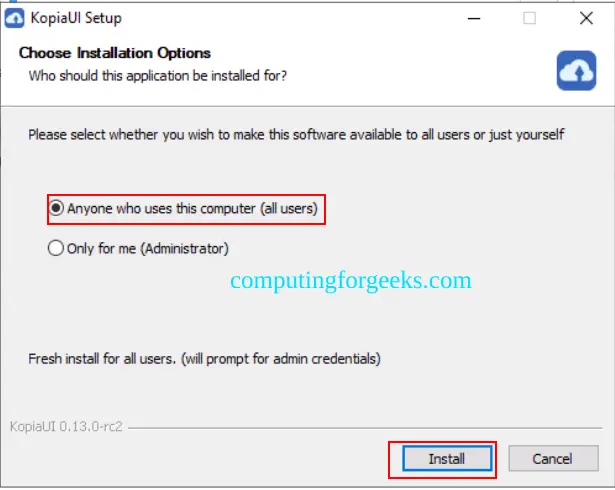
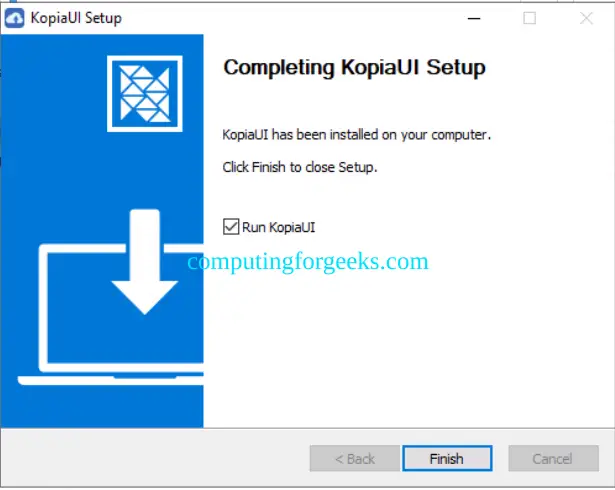
Once the installation completes, KopiaUI launches automatically.
Option B – Scoop (CLI): Open PowerShell and run these commands.
scoop bucket add kopia https://github.com/kopia/scoop-bucket.git
scoop install kopia
Verify with kopia --version in PowerShell.
Step 2: Create a Kopia Repository
A repository is where Kopia stores all snapshot data, metadata, and encryption keys. You must create one before taking any backups. Kopia supports several repository backends – here are the most common ones.
Local Filesystem Repository
Best for external drives, NAS mounts, or local testing. Create a directory for the repository first.
sudo mkdir -p /backup/kopia-repoInitialize the repository. Kopia prompts for a password that encrypts the repository.
$ kopia repository create filesystem --path /backup/kopia-repo
Enter password to create new repository:
Re-enter password for verification:
Connected to repository.
On the KopiaUI desktop app, select Local Directory or NAS and browse to your directory path.
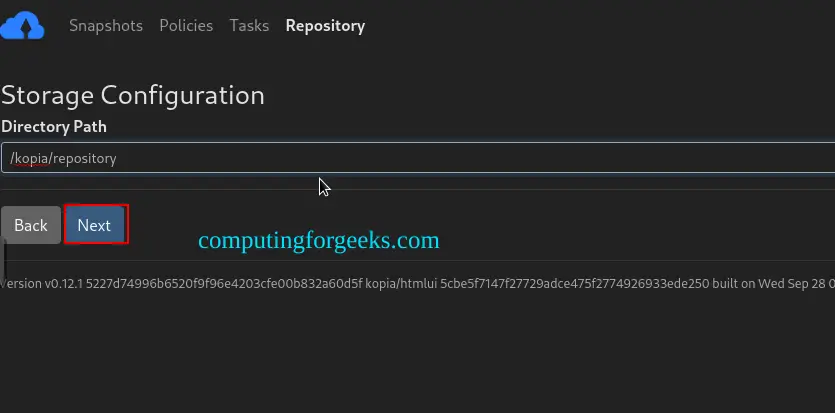
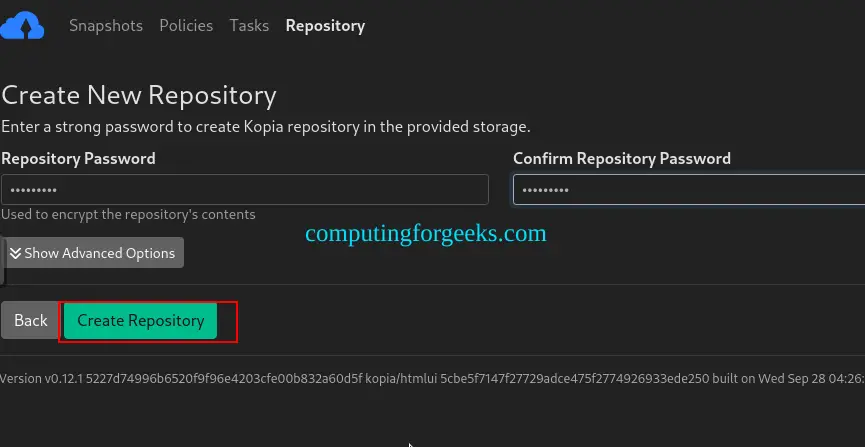
Set a strong password to secure the repository.
Amazon S3 Repository
Store backups in an S3 bucket (or any S3-compatible storage like MinIO). If you already manage backup infrastructure with S3 and Restic, Kopia works as a drop-in alternative with similar S3 support.
$ kopia repository create s3 \
  --bucket=my-kopia-backups \
  --access-key=AKIAIOSFODNN7EXAMPLE \
  --secret-access-key=wJalrXUtnFEMI/K7MDENG/bPxRfiCYEXAMPLEKEY \
  --region=us-east-1 \
  --prefix=linux-server/
The --prefix flag lets you share a single bucket across multiple machines by giving each one a unique prefix path.
Backblaze B2 Repository
Backblaze B2 is a low-cost object storage option. Create a B2 bucket and application key in the Backblaze dashboard first, then run the following command.
$ kopia repository create b2 \
  --bucket=my-kopia-b2-bucket \
  --key-id=001a2b3c4d5e6f7 \
  --key=K001AbCdEfGhIjKlMnOpQrStUvWxYz
SFTP Repository
Back up to any remote server accessible via SSH/SFTP. This is a solid choice when you have a dedicated backup server on your network.
$ kopia repository create sftp \
  --path=/backups/kopia \
  --host=192.168.1.50 \
  --username=backupuser \
  --keyfile=/home/admin/.ssh/id_ed25519 \
  --known-hosts=/home/admin/.ssh/known_hosts
The remote directory /backups/kopia must exist on the SFTP server before running this command.
Step 3: Connect to an Existing Repository
If a repository already exists (created on another machine or in a previous session), connect to it instead of creating a new one. Using connect avoids overwriting existing backup data.
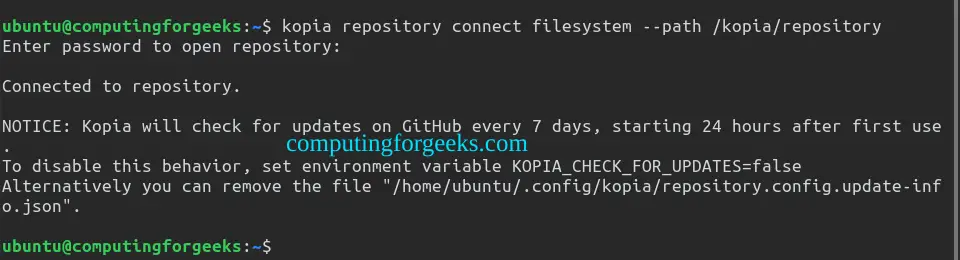
$ kopia repository connect filesystem --path /backup/kopia-repo
Enter password to open repository:
Connected to repository.
For S3, replace filesystem with s3 and pass the same bucket parameters. The same applies to b2 and sftp.
In KopiaUI, use the Repositories tab to disconnect from the current repo and connect to a different one.
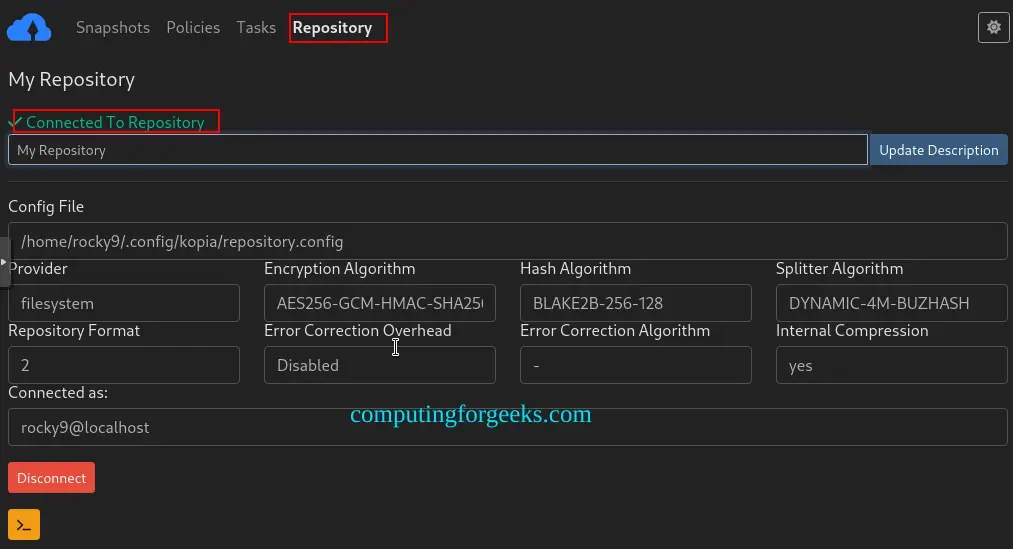
Check the repository status at any time.
$ kopia repository status
Config file:         /home/admin/.config/kopia/repository.config
Description:         My Repository
Storage type:        filesystem
Storage capacity:    unlimited
Unique ID:           a1b2c3d4e5f6...
Step 4: Create Snapshots (Backups)
A snapshot in Kopia is a point-in-time copy of a directory tree. Each subsequent snapshot is incremental – only changed blocks are stored, saving both time and space.
Create a Snapshot from CLI
Back up any directory by passing its path to kopia snapshot create.
$ kopia snapshot create /home/admin/documents
Snapshotting admin@server:/home/admin/documents ...
 * 0 hashing, 1245 hashed (45.2 MB), 0 cached (0 B), uploaded 45.2 MB, estimating...
Created snapshot with root k7d9a8420bf6b8ea280d6637ad1adbd4c5 ...
On Windows, the same command works in PowerShell.
kopia snapshot create C:\Users\admin\DocumentsCreate a Snapshot from KopiaUI
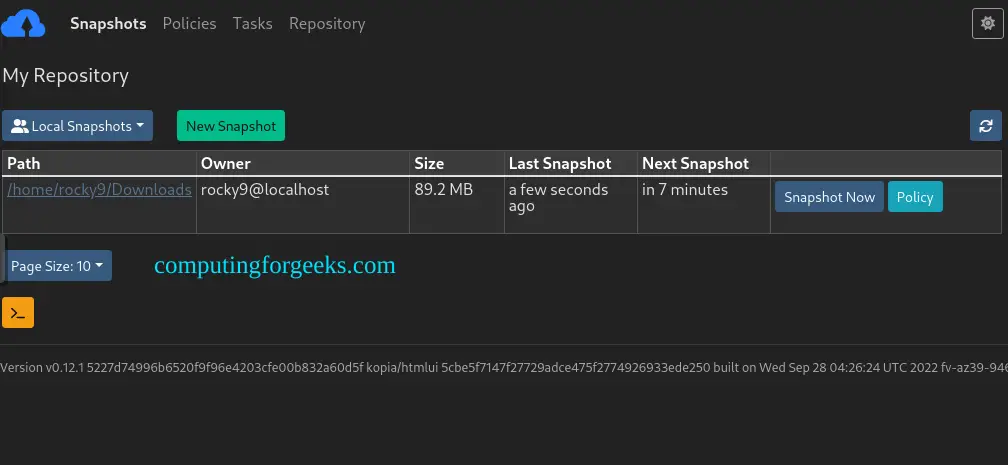
Click New Snapshot, then browse to or type the directory path.
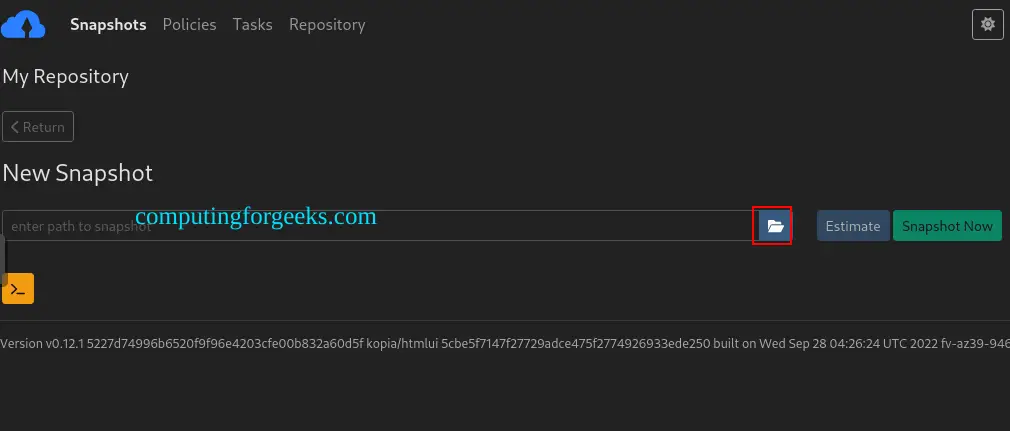
Click Snapshot Now to trigger an immediate backup. The progress bar shows files being hashed, deduplicated, and uploaded.
After completion, the snapshot appears in the snapshot list with size, file count, and timestamp.
List All Snapshots
View all snapshots for a given source directory.
$ kopia snapshot list /home/admin/documents
admin@server:/home/admin/documents
  2026-03-19 10:15:00 UTC k7d9a8420bf6b  45.2 MB  drwxr-xr-x files:1245 dirs:89
  2026-03-19 14:30:00 UTC ke2e07d38a8a90  45.3 MB  drwxr-xr-x files:1248 dirs:89
To see snapshots from all sources across all connected machines, run the following command.
kopia snapshot list --allCompare Two Snapshots
Use kopia diff to see what changed between two snapshots.
kopia diff k7d9a8420bf6b ke2e07d38a8a90This prints added, modified, and deleted files – useful for auditing changes before a restore.
Step 5: Schedule Automatic Snapshots
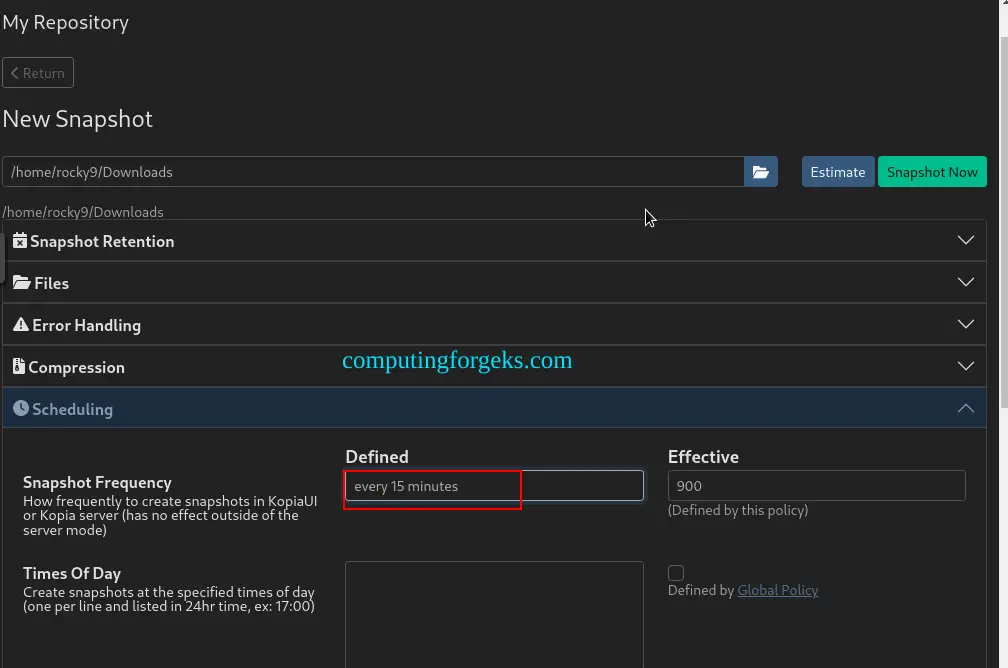
Kopia can schedule snapshots through its built-in policy system. When you define a snapshot source, Kopia automatically creates a scheduling policy. The KopiaUI runs as a background service and triggers snapshots on schedule.
Set the snapshot frequency using the policy command.
kopia policy set /home/admin/documents --snapshot-interval=6hThis creates a snapshot every 6 hours. For fine-grained control, set specific times.
kopia policy set /home/admin/documents --snapshot-time=09:00,18:00On Linux servers without KopiaUI, use a cron job or systemd timer to run Kopia periodically. Create a cron entry for daily backups at 2 AM.
echo "0 2 * * * /usr/bin/kopia snapshot create /home/admin/documents 2>&1 | logger -t kopia" | sudo tee /etc/cron.d/kopia-backupAlternatively, create a systemd timer for better logging integration. Create the service unit.
echo "[Unit]
Description=Kopia Backup Snapshot
After=network-online.target

[Service]
Type=oneshot
User=root
ExecStart=/usr/bin/kopia snapshot create /home/admin/documents
ExecStart=/usr/bin/kopia snapshot create /etc" | sudo tee /etc/systemd/system/kopia-backup.service
Create the timer unit that triggers daily at 3 AM.
echo "[Unit]
Description=Kopia Backup Timer

[Timer]
OnCalendar=*-*-* 03:00:00
Persistent=true

[Install]
WantedBy=timers.target" | sudo tee /etc/systemd/system/kopia-backup.timer
Enable and start the timer.
sudo systemctl daemon-reload
sudo systemctl enable --now kopia-backup.timer
Verify the timer is active.
$ systemctl list-timers kopia-backup.timer
NEXT                         LEFT          LAST  PASSED  UNIT                ACTIVATES
Thu 2026-03-20 03:00:00 UTC  12h left      -     -       kopia-backup.timer  kopia-backup.service
Step 6: Configure Retention Policies
Retention policies control how many snapshots Kopia keeps before pruning old ones. The default global policy retains 3 annual, 24 monthly, 4 weekly, 7 daily, 48 hourly, and 10 latest snapshots.
View the current global retention policy.
$ kopia policy show --global
Policy for (global):

Retention:
  Annual snapshots:                     3   (defined for this target)
  Monthly snapshots:                   24   (defined for this target)
  Weekly snapshots:                     4   (defined for this target)
  Daily snapshots:                      7   (defined for this target)
  Hourly snapshots:                    48   (defined for this target)
  Latest snapshots:                    10   (defined for this target)
  Ignore identical snapshots:       false   (defined for this target)
Customize retention for a specific directory. For example, keep 30 daily and 12 monthly snapshots for critical data.
kopia policy set /home/admin/documents \
  --keep-daily=30 \
  --keep-monthly=12 \
  --keep-annual=5
Set a minimal retention policy for less important data.
kopia policy set /var/log \
  --keep-daily=3 \
  --keep-weekly=2 \
  --keep-monthly=1 \
  --keep-annual=0
Verify the updated policy.
$ kopia policy show /home/admin/documents
Policy for admin@server:/home/admin/documents:

Retention:
  Annual snapshots:                     5   (defined for this target)
  Monthly snapshots:                   12   (defined for this target)
  Weekly snapshots:                     4   inherited from (global)
  Daily snapshots:                     30   (defined for this target)
  Hourly snapshots:                    48   inherited from (global)
  Latest snapshots:                    10   inherited from (global)
Step 7: Exclude Files and Directories
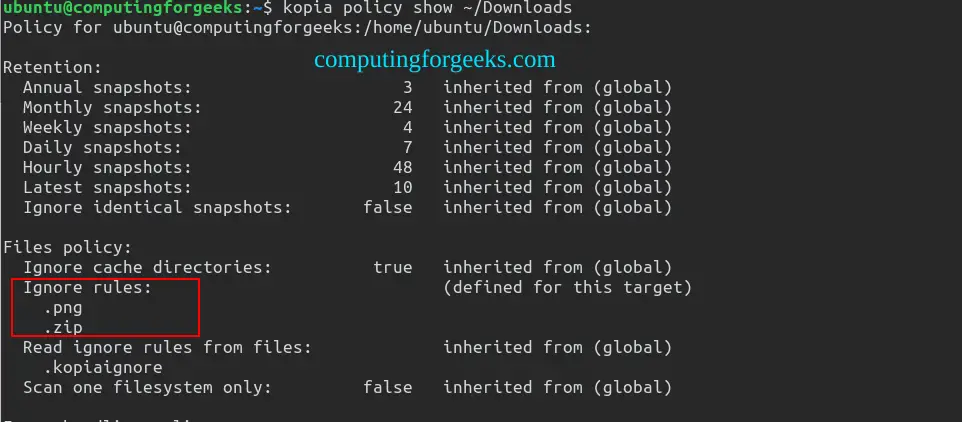
Skip unnecessary files to reduce backup size and speed up snapshots. Use the --add-ignore flag to add exclusion rules to a policy.
$ kopia policy set --add-ignore "*.log" --add-ignore "*.tmp" --add-ignore ".cache/" /home/admin
Setting policy for admin@server:/home/admin
 - adding "*.log" to "ignore rules"
 - adding "*.tmp" to "ignore rules"
 - adding ".cache/" to "ignore rules"
You can also create a .kopiaignore file in any directory. Kopia reads it automatically (similar to .gitignore).
echo "node_modules/
*.iso
.thumbnails/
*.sock" | tee /home/admin/.kopiaignore
Limit snapshots to a single filesystem (avoid crossing mount points).
kopia policy set /home/admin --one-file-systemVerify exclusions are set.
Step 8: Encryption and Compression Options
Kopia encrypts all repository data by default using AES-256-GCM. The encryption key derives from the repository password you set during creation. There is no way to access backup data without this password – store it securely.
When creating a repository, you can choose the encryption algorithm and hash function.
kopia repository create filesystem \
  --path /backup/kopia-repo \
  --block-hash=BLAKE2B-256-128 \
  --encryption=AES256-GCM-HMAC-SHA256
Supported encryption algorithms include AES256-GCM-HMAC-SHA256 (default), CHACHA20-POLY1305-HMAC-SHA256, and NONE (not recommended). Supported hash algorithms include BLAKE2B-256-128, BLAKE2S-256, HMAC-SHA256, and HMAC-SHA256-128.
Set compression per policy. Kopia supports several compression algorithms.
kopia policy set /home/admin/documents --compression=zstdAvailable compression options: gzip, zstd (recommended – best ratio/speed), zstd-fastest, zstd-better-compression, s2-default, s2-better, s2-parallel-8, pgzip, pgzip-best-speed, and none.
For servers with limited CPU, use s2-default for faster compression with less CPU usage. For archival storage where size matters more than speed, use zstd-better-compression.
Step 9: Restore Files from Kopia Snapshots
Restoring data is the whole point of backups. Kopia provides two methods: mounting a snapshot as a filesystem and using the restore command.
Method 1 – Mount and Browse a Snapshot
Mounting lets you browse the snapshot contents as a regular directory – useful when you need to restore specific files rather than the entire backup. Create a mount point first.
mkdir -p /tmp/kopia-mountGet the snapshot ID from the list command, then mount it.
kopia mount k7d9a8420bf6b /tmp/kopia-mount &Browse and copy the files you need.
ls -la /tmp/kopia-mount/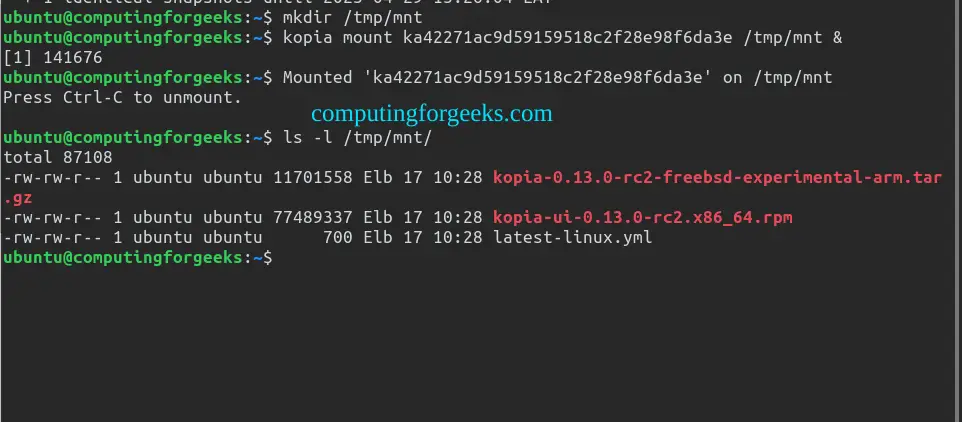
Restore specific files or the whole tree with rsync or cp.
sudo rsync -av /tmp/kopia-mount/projects/ /home/admin/documents/projects/When done, unmount the snapshot.
fusermount -u /tmp/kopia-mountMethod 2 – Direct Restore Command
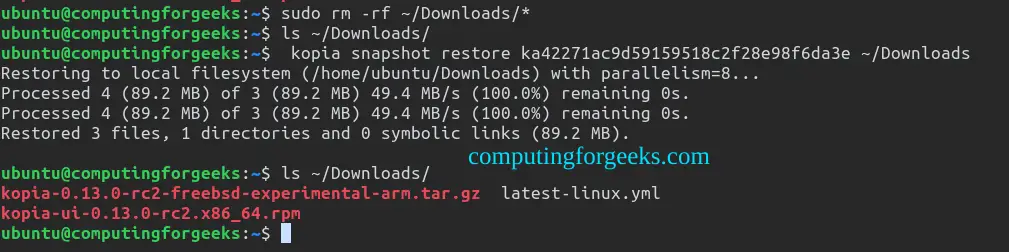
For full directory restores, the snapshot restore command writes all files directly to disk without FUSE mounting.
kopia snapshot restore k7d9a8420bf6b /home/admin/documents-restored/If you omit the target directory, Kopia creates a new directory named after the snapshot ID.
On Windows, the restore command works the same way in PowerShell.
kopia snapshot restore k7d9a8420bf6b C:\Users\admin\Documents-Restored\Step 10: Run Kopia Server (Web UI)
Kopia includes a built-in web server that exposes the full UI over HTTP. This is useful for managing backups on headless servers or centralizing backup management across multiple machines.
Start the server with TLS disabled for local testing (bind to localhost only).
kopia server start --insecure --address=127.0.0.1:51515Access the web UI at http://127.0.0.1:51515 in your browser. The interface is identical to KopiaUI and lets you create snapshots, manage policies, and browse repositories.
For production use with TLS, generate a certificate and start the server with authentication.
kopia server start \
  --tls-cert-file=/etc/kopia/server.crt \
  --tls-key-file=/etc/kopia/server.key \
  --address=0.0.0.0:51515 \
  --server-username=admin \
  --server-password=SecurePass123
Create a systemd service for persistent operation on Linux servers.
echo "[Unit]
Description=Kopia Server
After=network-online.target
Wants=network-online.target

[Service]
Type=simple
User=root
ExecStart=/usr/bin/kopia server start --insecure --address=127.0.0.1:51515
Restart=on-failure
RestartSec=10

[Install]
WantedBy=multi-user.target" | sudo tee /etc/systemd/system/kopia-server.service
Enable and start the service.
sudo systemctl daemon-reload
sudo systemctl enable --now kopia-server.service
sudo systemctl status kopia-server.service
If the server needs to accept connections from other hosts, allow port 51515 through the firewall. On Ubuntu, use the following command.
sudo ufw allow 51515/tcpOn Rocky Linux with firewalld, run the following.
sudo firewall-cmd --permanent --add-port=51515/tcp
sudo firewall-cmd --reload
Step 11: Monitor Backup Status
Regular monitoring ensures backups are running as expected. Check the status of all snapshot sources.
$ kopia snapshot list --all
admin@server:/home/admin/documents
  2026-03-19 03:00:00 UTC k7d9a842...  45.2 MB  files:1245 dirs:89
  2026-03-18 03:00:00 UTC k6c8b731...  44.9 MB  files:1240 dirs:89

admin@server:/etc
  2026-03-19 03:00:01 UTC k9f1e320...  12.1 MB  files:892 dirs:145
View detailed repository content statistics.
kopia content statsCheck repository integrity by running a full verification. This validates all stored data blocks against their checksums.
kopia snapshot verify --allRun a repository maintenance cycle to clean up unreferenced data and optimize storage. This is similar to garbage collection in tools like Restic.
kopia maintenance run --fullKopia runs quick maintenance automatically after each snapshot, but a full maintenance cycle should be run periodically (weekly or monthly) to reclaim storage from expired snapshots.
Kopia vs Restic vs BorgBackup
All three tools are open-source, encrypted, deduplicated backup solutions. Here is how they compare on the features that matter most in production.
| Feature | Kopia | Restic | BorgBackup |
|---|---|---|---|
| Language | Go | Go | Python/C |
| GUI | Yes (KopiaUI + web UI) | No (third-party only) | No (third-party only) |
| Windows support | Full (CLI + GUI) | Full (CLI) | Limited (WSL only) |
| S3/B2/cloud backends | Built-in | Built-in | Not native (via rclone) |
| SFTP backend | Yes | Yes | Yes (native SSH) |
| Deduplication | Content-defined chunking | Content-defined chunking | Content-defined chunking |
| Compression | zstd, gzip, s2, pgzip | zstd, none | lz4, zstd, zlib, lzma |
| Encryption | AES-256-GCM, ChaCha20 | AES-256-CTR + Poly1305 | AES-256-CTR + HMAC |
| Repository server | Built-in | rest-server (separate) | borg serve (built-in) |
| Snapshot mounting | FUSE | FUSE | FUSE |
| Per-directory policies | Yes | No | No |
Kopia stands out with its built-in GUI, per-directory policies, and native Windows support. Restic has a larger community and wider third-party tooling. BorgBackup excels at raw backup speed over SSH but lacks native cloud storage and Windows support. For mixed Linux/Windows environments, Kopia is the strongest choice. If you manage Ubuntu desktop backups with Timeshift for system snapshots, Kopia complements it well for user data and off-site backups.
Conclusion
We installed Kopia on Ubuntu 24.04, Rocky Linux 10, and Windows, created repositories on local filesystems, S3, Backblaze B2, and SFTP, configured snapshot scheduling with systemd timers, set retention and exclusion policies, restored files using both mount and direct restore methods, and set up the Kopia web server for centralized management. For production deployments, enable TLS on the Kopia server, store the repository password in a secret manager, and run kopia maintenance run --full on a weekly schedule to keep the repository clean.
Related Guides
- Backup Linux System to Minio S3 and SFTP using Restic
- How To Securely Backup Linux system using Restic
- Backup and Restore Ubuntu / Debian / Linux Mint using Timeshift
- Backup Linux, Mac, and Windows Systems using Duplicati
- 10 Best Free Linux Backup Tools – Secure Your System