WordPress ships with a mail function that relies on the server’s local sendmail binary. On most shared hosts and VPS providers, that either doesn’t work at all or lands every message in spam because the sending IP has no SPF, DKIM, or DMARC records tied to it. The fix is to route WordPress email through a real SMTP service, and for small sites Gmail is the cheapest, easiest option (free for personal Gmail, included with Google Workspace).
This guide configures the WP Mail SMTP plugin to send WordPress emails through Gmail using OAuth 2.0 authentication. OAuth is the secure method Google recommends: your WordPress site never stores your Gmail password, and you can revoke access from your Google account at any time. The alternative (app passwords) works with the “Other SMTP” mailer but OAuth is cleaner and more secure for production sites.
Tested April 2026 on WordPress 6.9.4 with WP Mail SMTP 4.7.1. Gmail SMTP (smtp.gmail.com:587) verified live with TLS 1.3.
What You’ll Learn
- Create a Google Cloud project and enable the Gmail API
- Generate OAuth 2.0 client credentials for WP Mail SMTP
- Move your OAuth app from Testing to Production (free Gmail accounts)
- Install and configure the WP Mail SMTP plugin
- Connect WordPress to your Gmail account and send a test email
- Troubleshoot common OAuth and delivery errors
Prerequisites
- A working WordPress 5.5+ site (tested on 6.9.4) with admin access
- A Gmail or Google Workspace account you control
- Access to the WordPress plugin installer or FTP
- PHP 7.4 or higher on your server (required by WP Mail SMTP 4.7.1)
If you do not have WordPress installed yet, follow one of our setup guides first:
- Install WordPress on Debian with Apache and Let’s Encrypt
- Install WordPress with Nginx on Ubuntu / Debian
Create a Google Cloud Project
Head to the Google Cloud Console and sign in with the Gmail account you want WordPress to send from. Click the project selector at the top of the page and choose New Project.
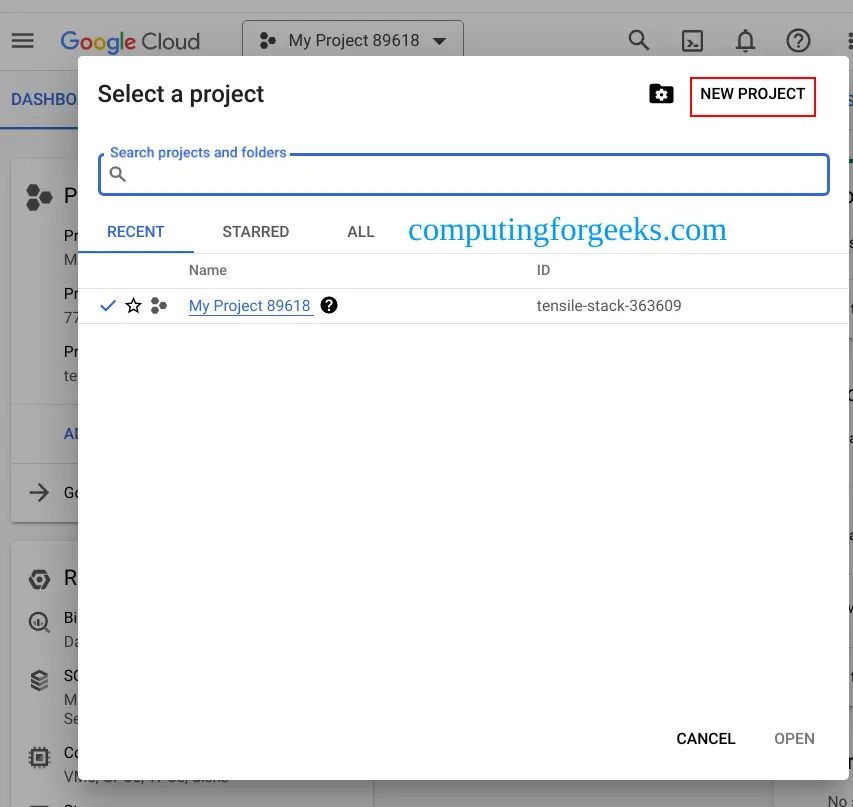
Name the project something descriptive like WordPress SMTP so you can identify it later in your Google Cloud dashboard. The organization field can stay as “No organization” for personal Gmail accounts.
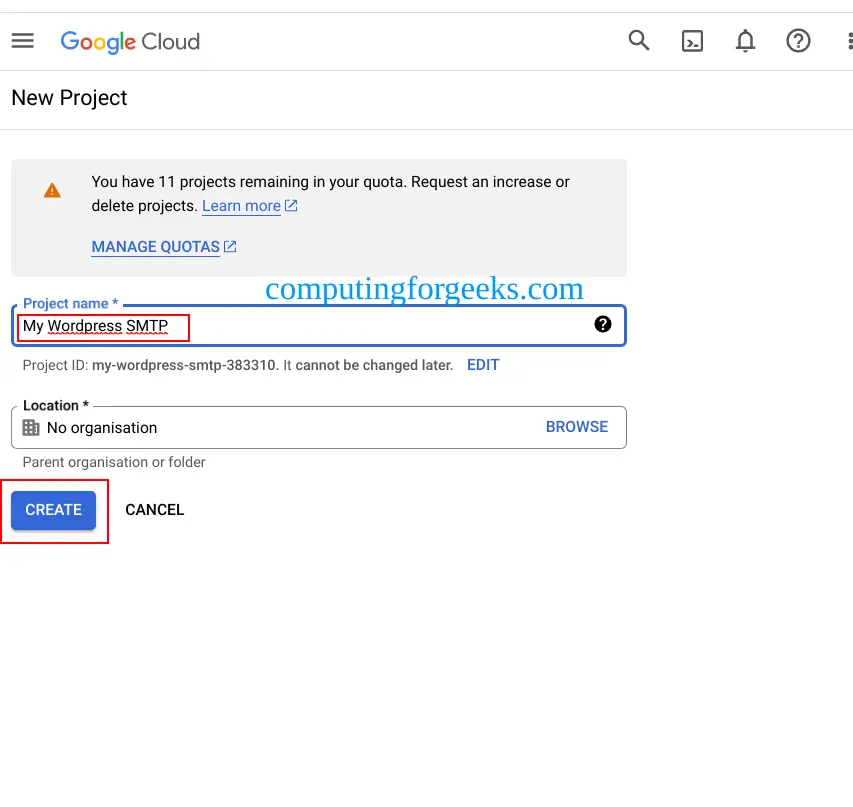
Click Create and wait for Google to provision the project. Once the notification confirms the project is ready, select it from the project selector so it becomes the active context for the next steps.
Enable the Gmail API
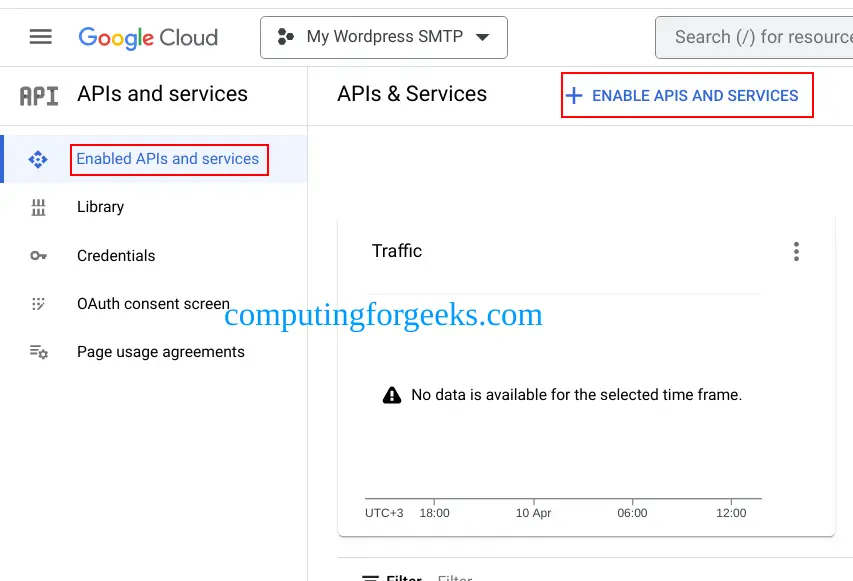
With your new project selected, open the navigation menu and go to APIs & Services > Library. This is where you enable the specific Google APIs your OAuth credentials will access.
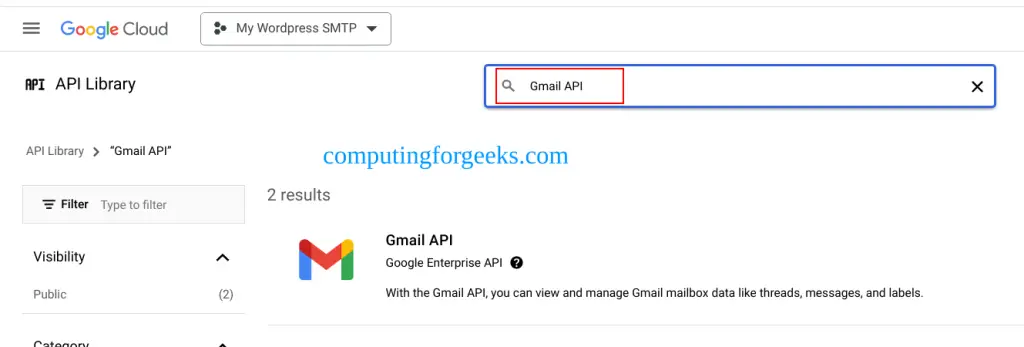
In the API library search box, type Gmail API and click the first result:
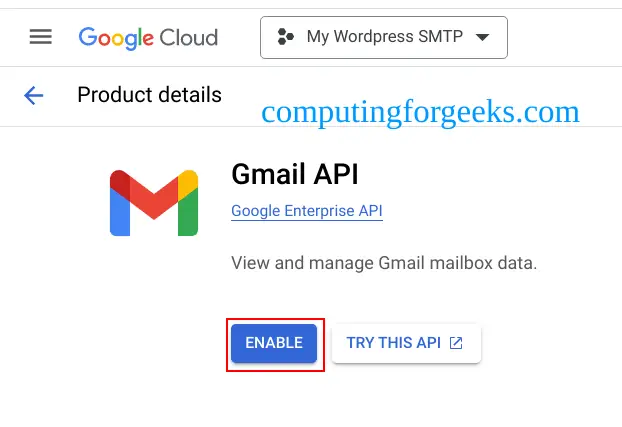
On the Gmail API product page, click the blue Enable button. This activates the API for your project and registers your project as a consumer of Gmail API quotas.
Create OAuth 2.0 Credentials
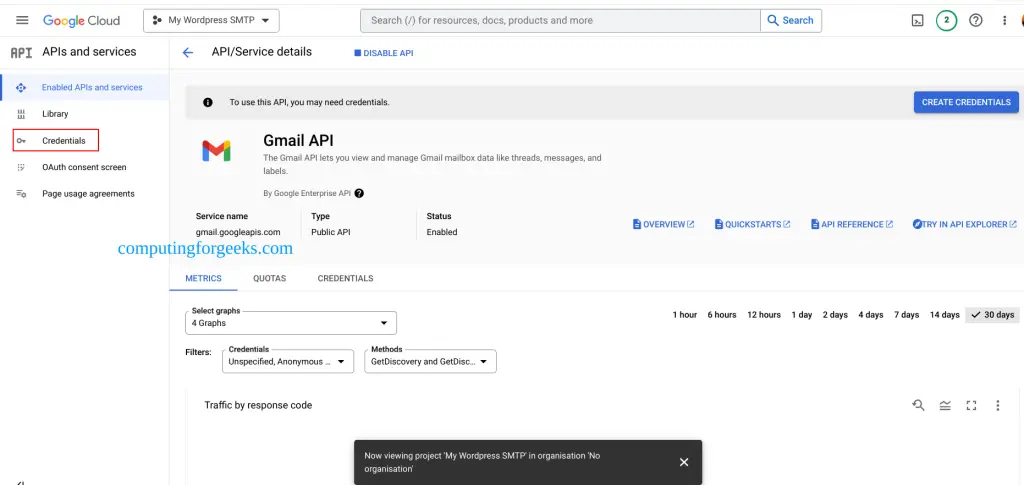
After the Gmail API is enabled, Google redirects you to the API’s overview page. Click Create Credentials at the top right to start the OAuth client creation flow.
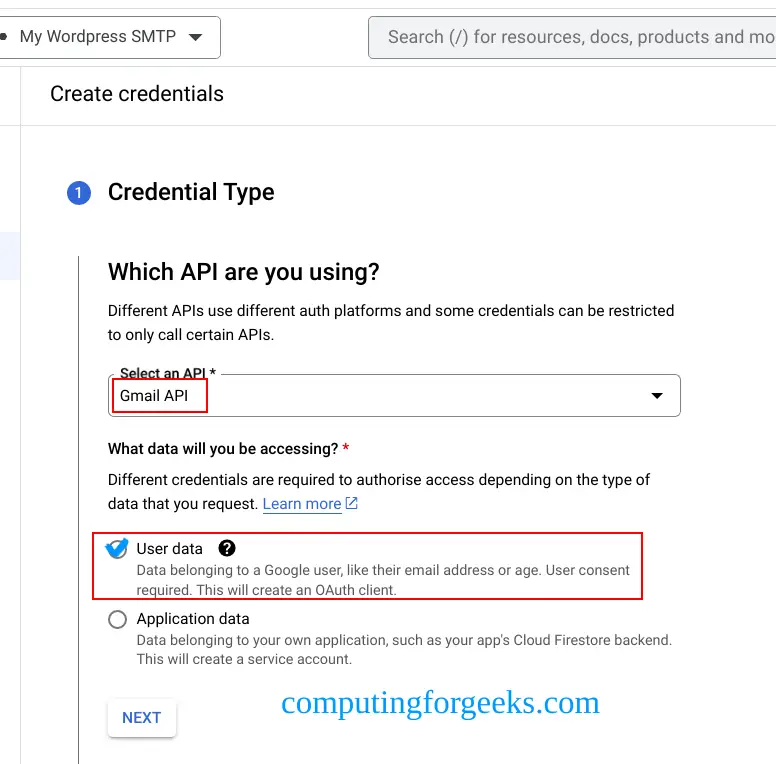
On the credentials wizard, select Gmail API as the API you’re calling from, choose User data under “What data will you be accessing”, and click Next.
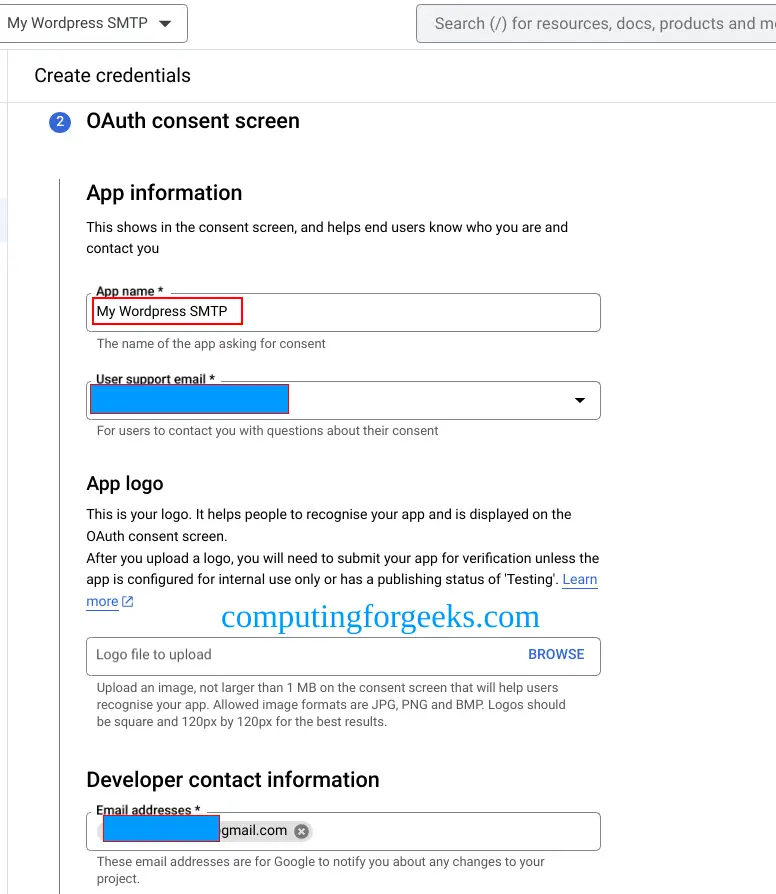
Fill in the OAuth consent screen details. The App name is what users see during the authorization prompt. Use something recognizable like “WordPress SMTP for yoursite.com”. Select your email address under User support email, optionally upload a logo, then set the Developer contact information at the bottom (same email is fine).
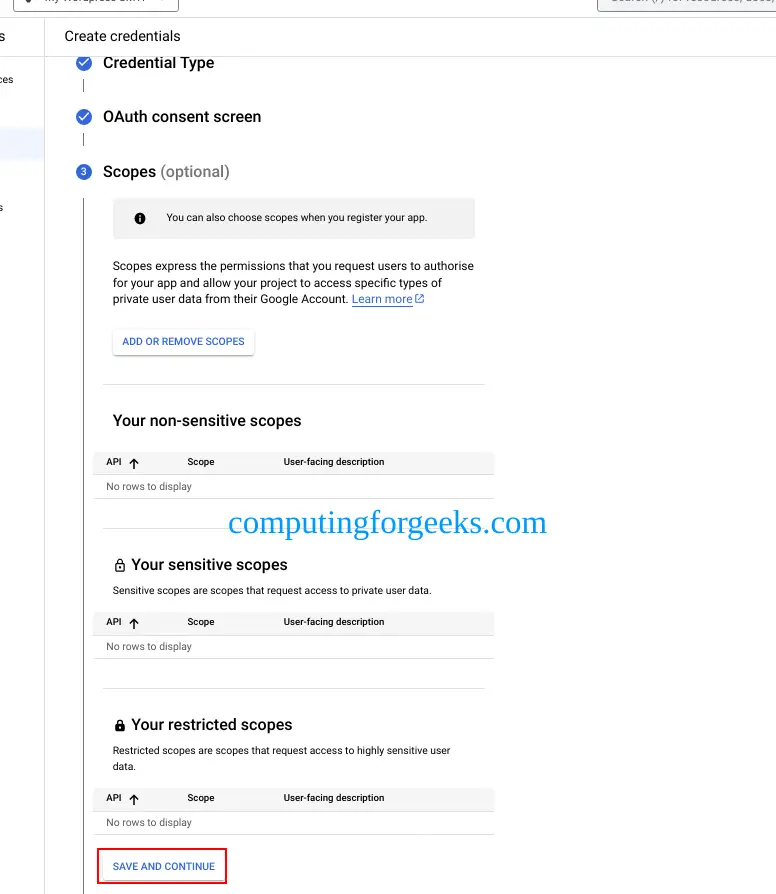
The next screen asks about scopes. You can skip this step entirely and click Save and Continue. WP Mail SMTP requests the scopes it needs at authorization time.
Now configure the OAuth client. Set Application type to Web application and give it a descriptive name (for example, WordPress OAuth Client).
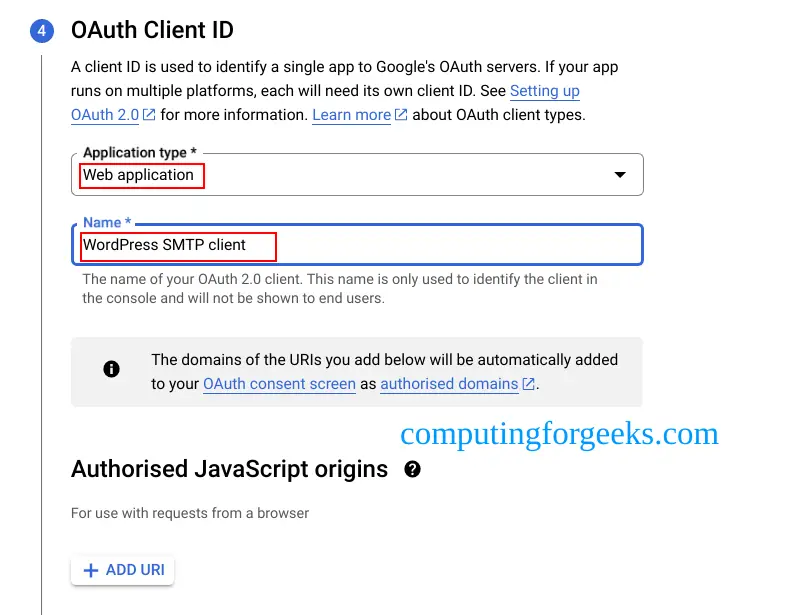
Scroll down to Authorized redirect URIs and add the WP Mail SMTP connector URL exactly as shown:
https://connect.wpmailsmtp.com/google/This is WP Mail SMTP’s OAuth callback endpoint. Google will redirect the browser here after the user approves access, and WP Mail SMTP forwards the authorization code back to your WordPress site. The trailing slash is important, and the URL is case-sensitive.
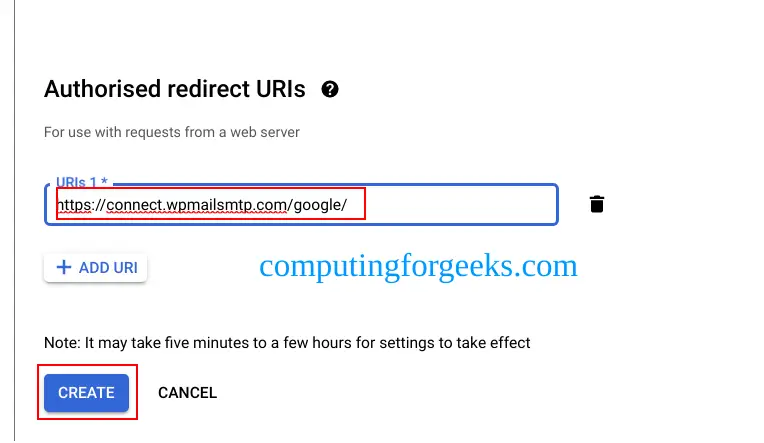
Click Create. Google generates a client ID and client secret pair. Copy both values somewhere safe (you’ll paste them into WP Mail SMTP in a moment).
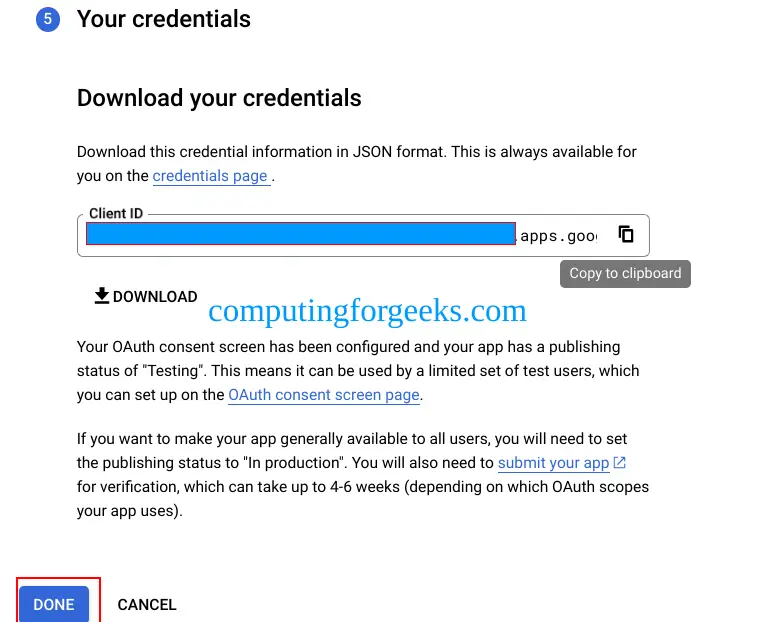
Click Done to finish. Your credentials are saved in the Credentials tab of the APIs & Services dashboard.
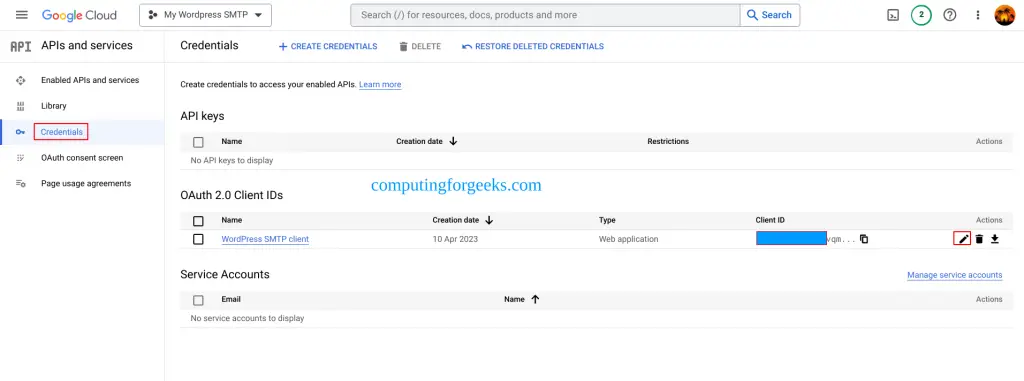
If you ever need to retrieve the client ID or secret again, click the pencil (edit) icon next to the credential. The edit page displays both values:
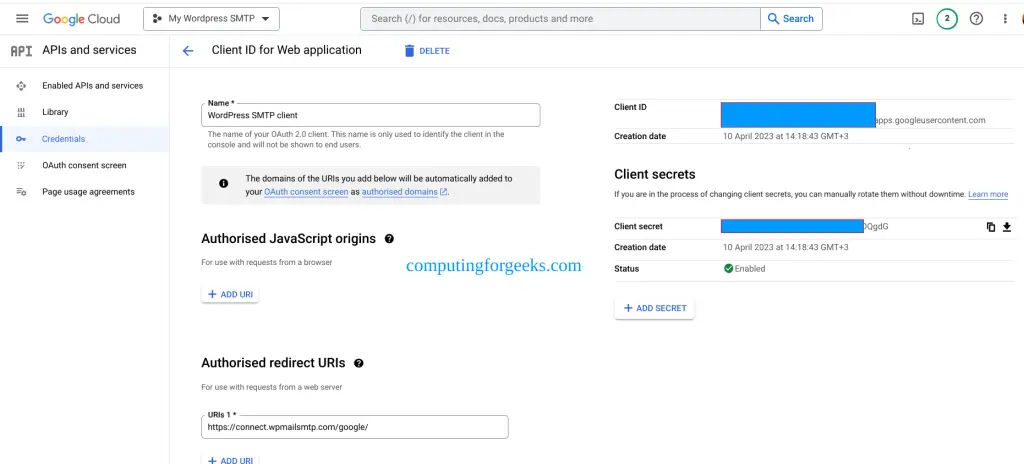
Switch the OAuth App from Testing to Production
Free Gmail accounts create OAuth apps in Testing mode by default. In Testing mode, the access token expires every 7 days, which means WordPress will stop sending emails until you re-authorize. Publishing the app to production removes that limit.
Navigate to APIs & Services > OAuth consent screen. Under Publishing status, click Publish App.
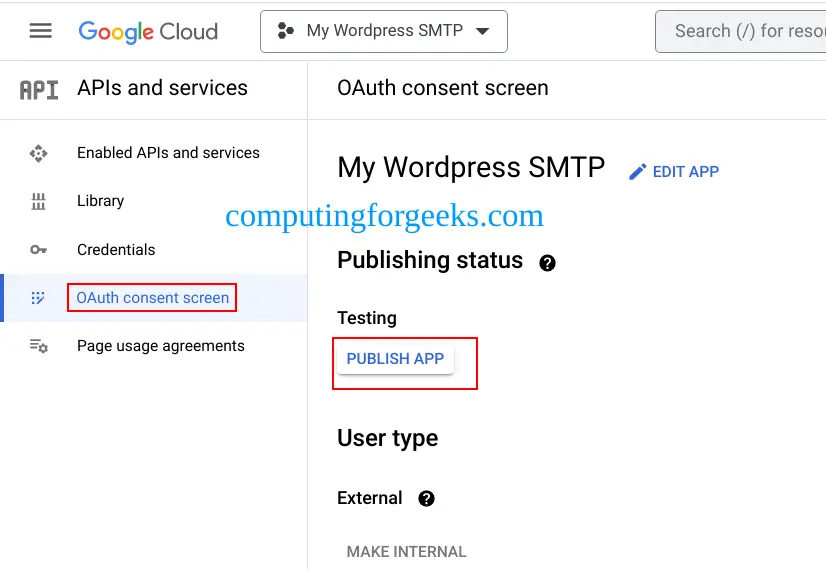
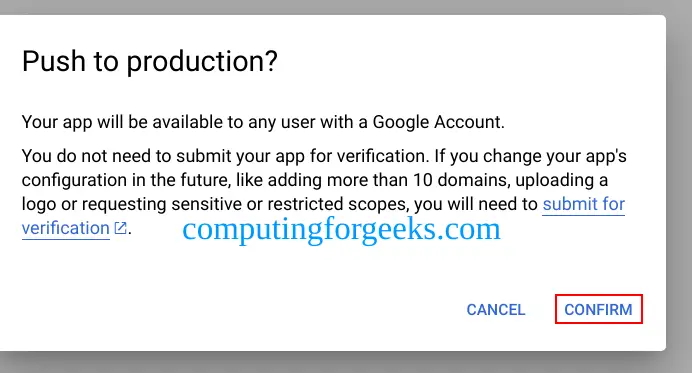
Google warns you that the app will be available to any user with a Google account. Since this app is only used by your own WordPress site authenticating with your own Gmail address, the warning doesn’t matter in practice. Click Confirm.
Google Cloud setup is done. The rest of the configuration happens in your WordPress admin dashboard.
Install WP Mail SMTP on WordPress
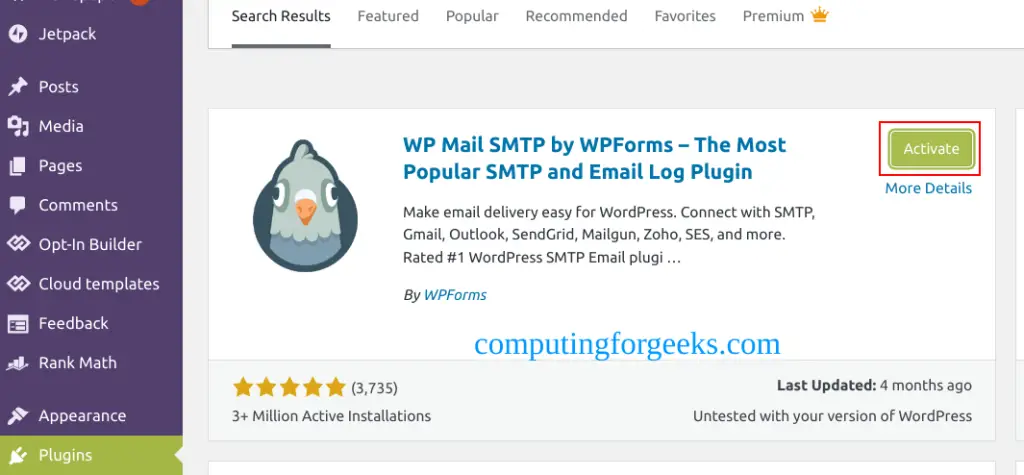
Log into your WordPress admin and go to Plugins > Add New. Search for WP Mail SMTP and locate the plugin by WPForms (not any similarly named alternatives). Click Install Now.
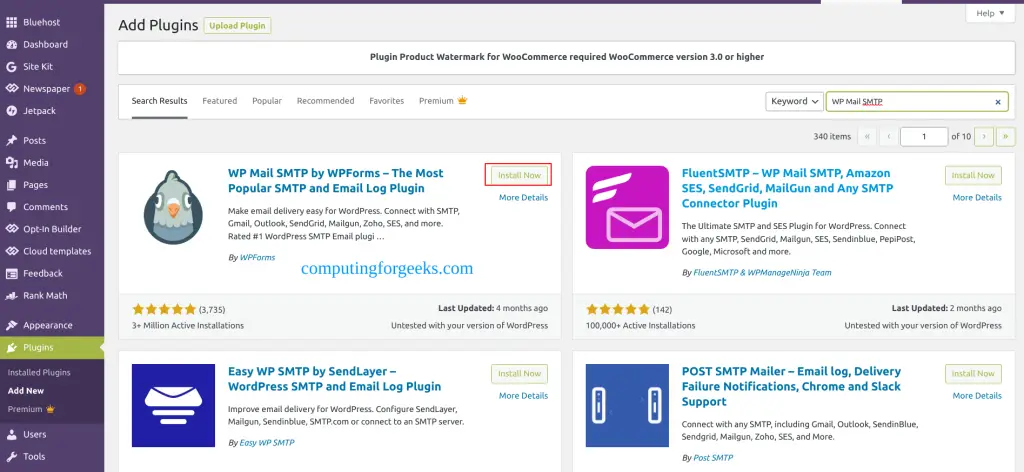
Once the install finishes, click Activate. The plugin is now ready to configure.
Configure WP Mail SMTP for Gmail
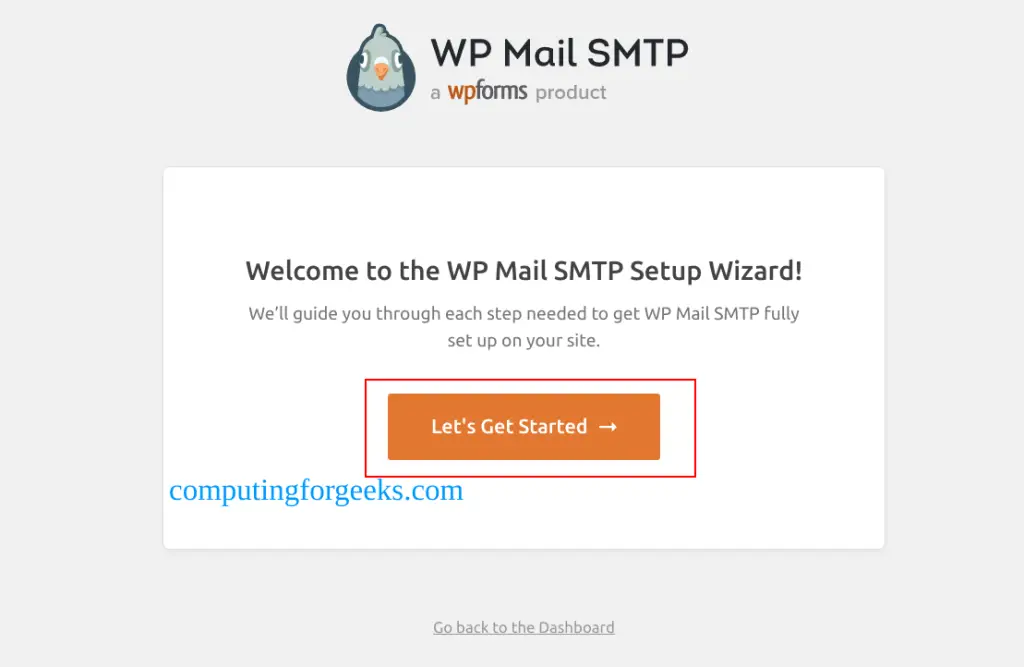
On activation, WP Mail SMTP launches its Setup Wizard automatically:
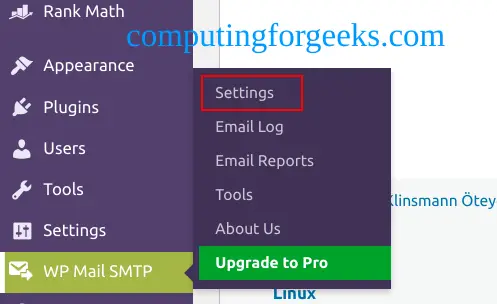
If the wizard does not appear, launch it manually from WP Mail SMTP > Settings > Launch Setup Wizard.
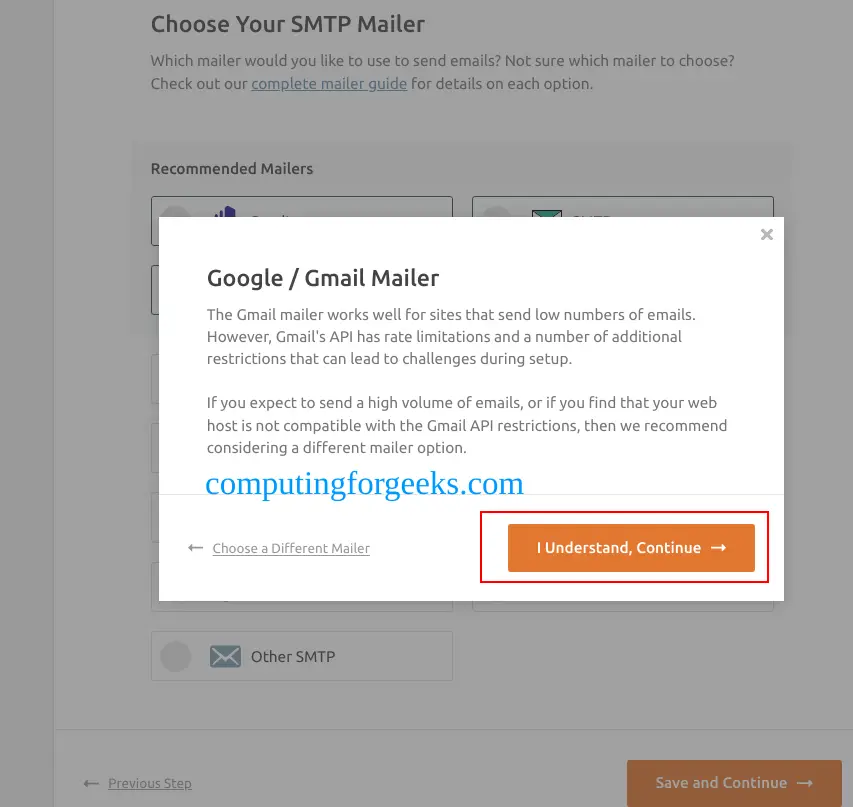
On the mailer selection screen, choose Google / Gmail:
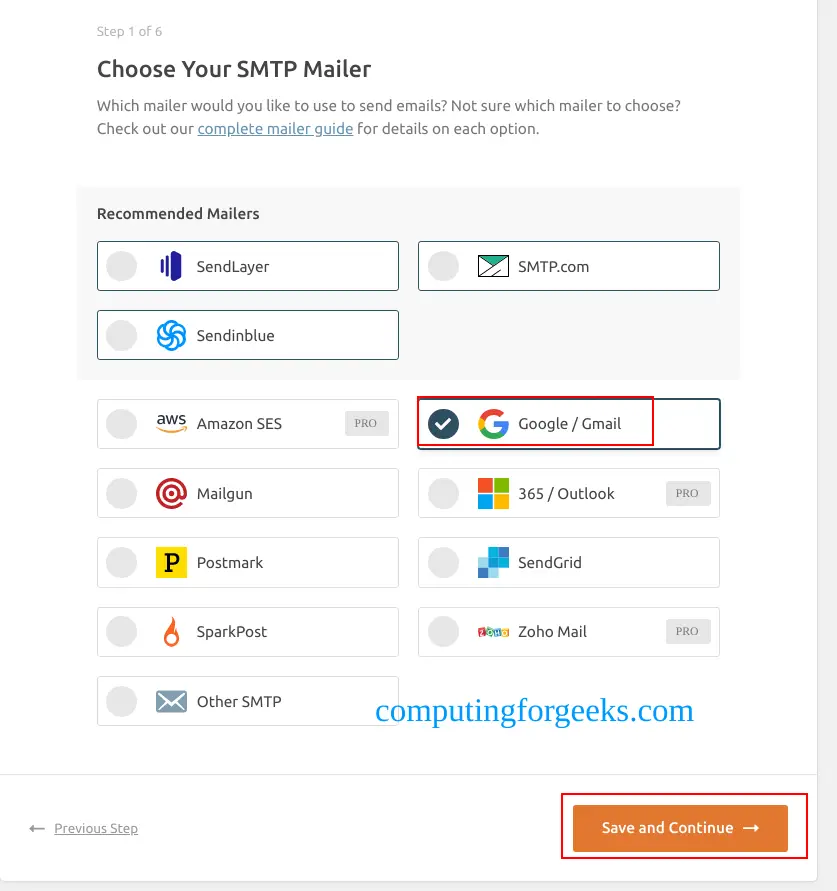
The wizard warns you that Gmail setup requires creating a Google Cloud app. You already did this above, so click Save and Continue to proceed.
Paste the Client ID and Client Secret from your Google Cloud OAuth credentials into the corresponding fields:
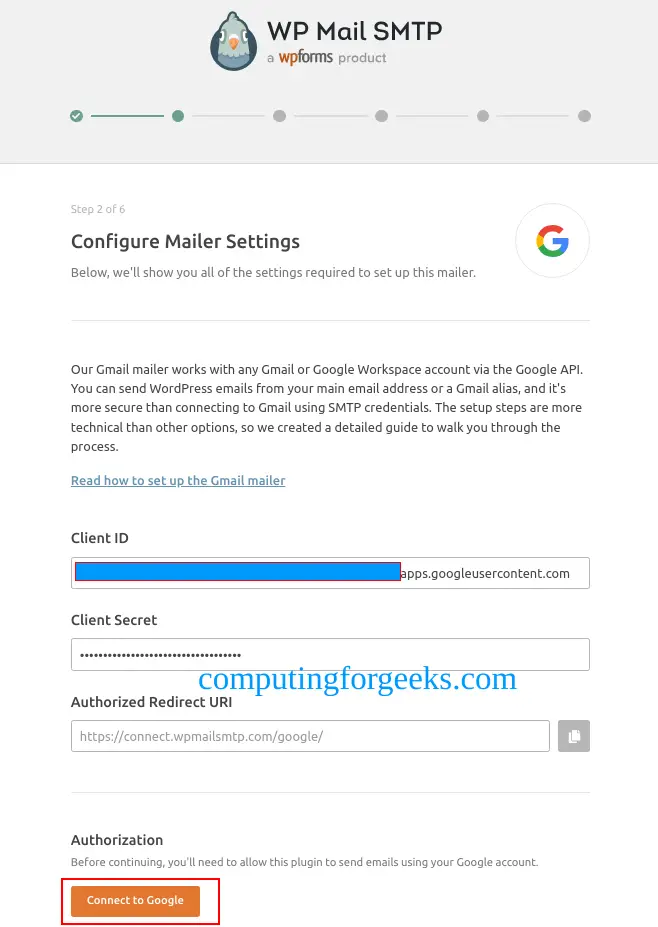
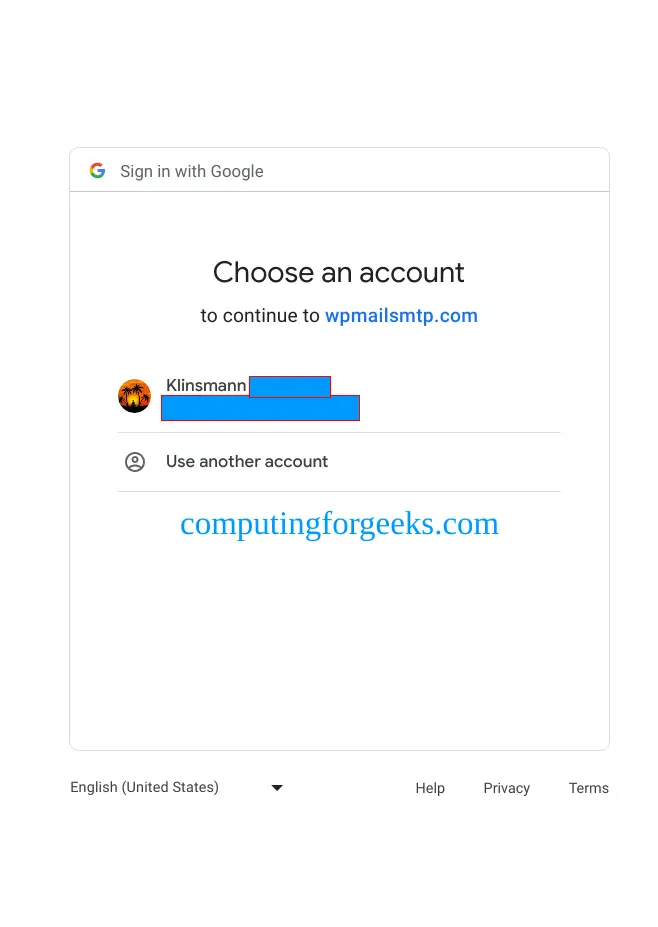
Click Connect to Google. A new browser tab opens with Google’s account chooser. Select the Gmail account you want WordPress to send from.
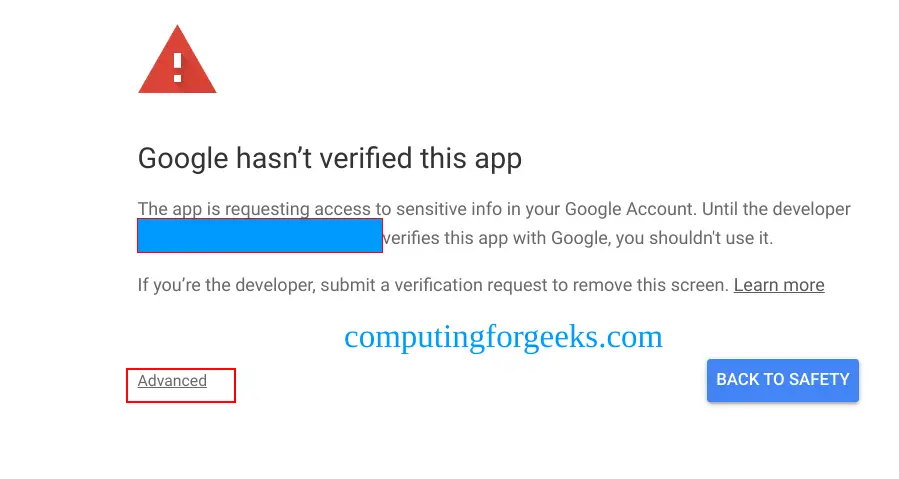
Free Gmail users see a warning that the app is not verified by Google. This is expected because you published the app yourself without going through Google’s app verification process. Click Advanced and then Go to WordPress SMTP (unsafe). The “unsafe” label is a generic warning; the app is safe because you control both sides of the connection.
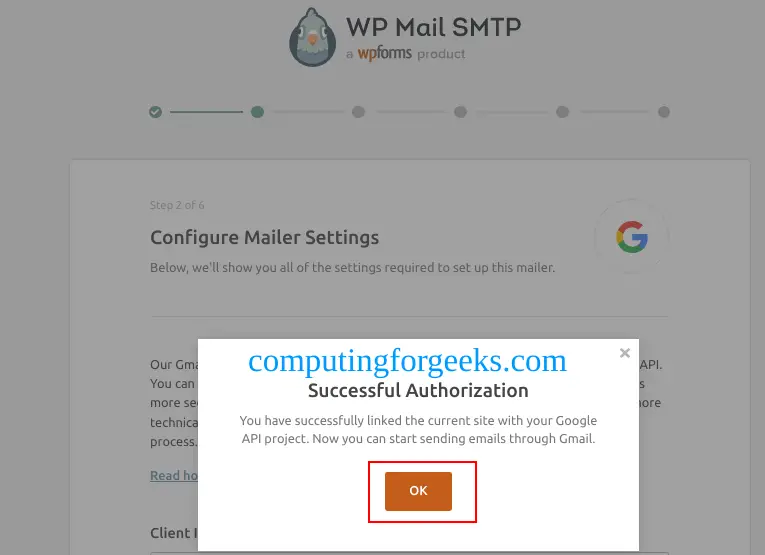
Grant the app permission to send email on your behalf. After approval, Google redirects back to your WordPress site with a success confirmation:
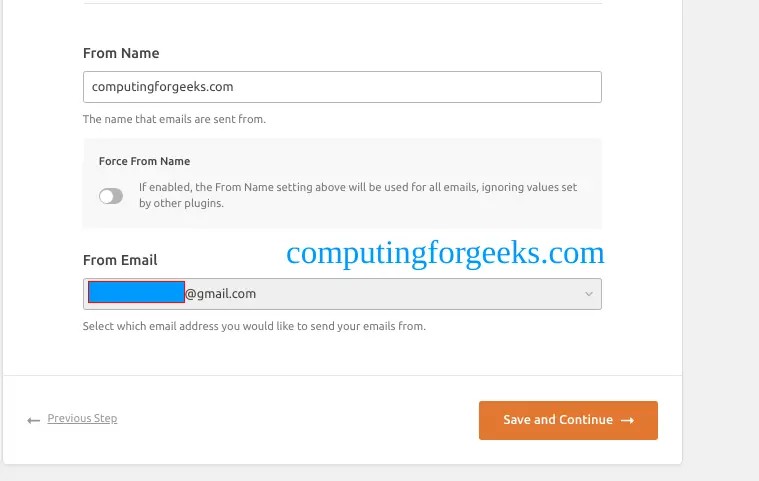
Set the From Email and Enable Email Logging
The next wizard step lets you force a specific From Name and From Email across all outgoing WordPress email. Most sites can leave the defaults alone: plugins like WooCommerce and contact forms use the addresses they were configured with.
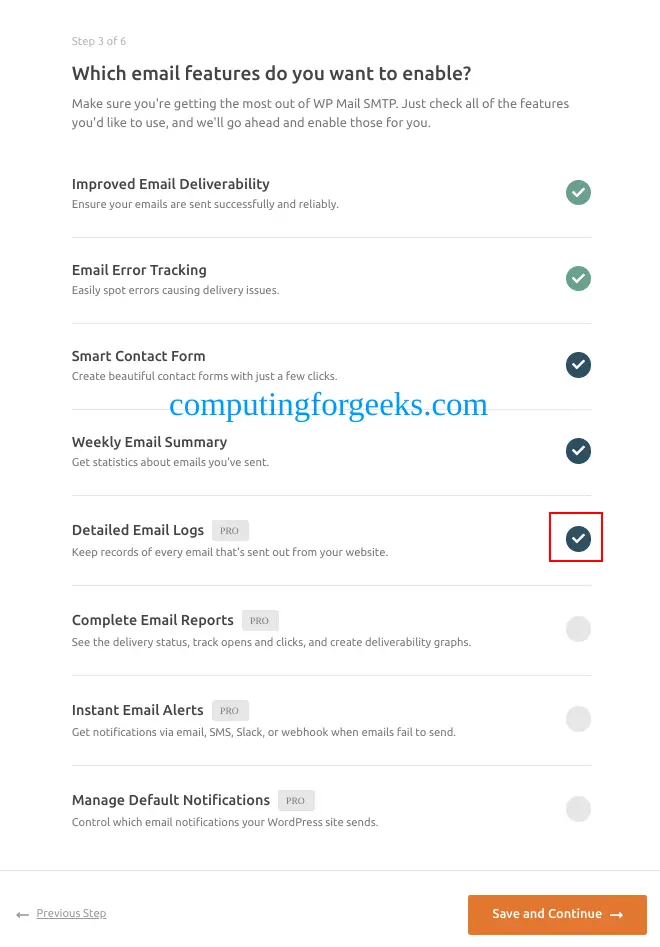
Toggle on the features you need. Improved email deliverability and Email error tracking are free. Features labeled with a lock icon require a Pro license:
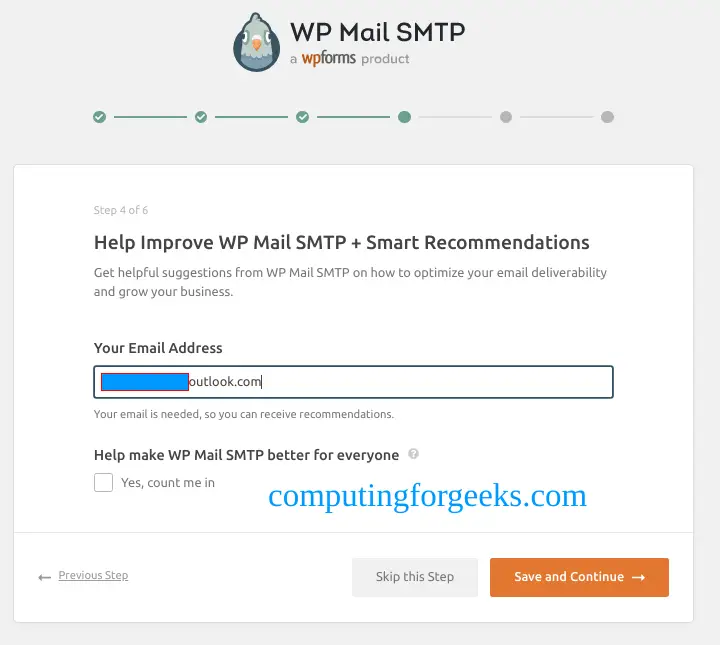
You can optionally subscribe to WP Mail SMTP’s weekly email digest for delivery statistics:
If you have a WP Mail SMTP Pro license key, enter it here. Otherwise, skip this step:
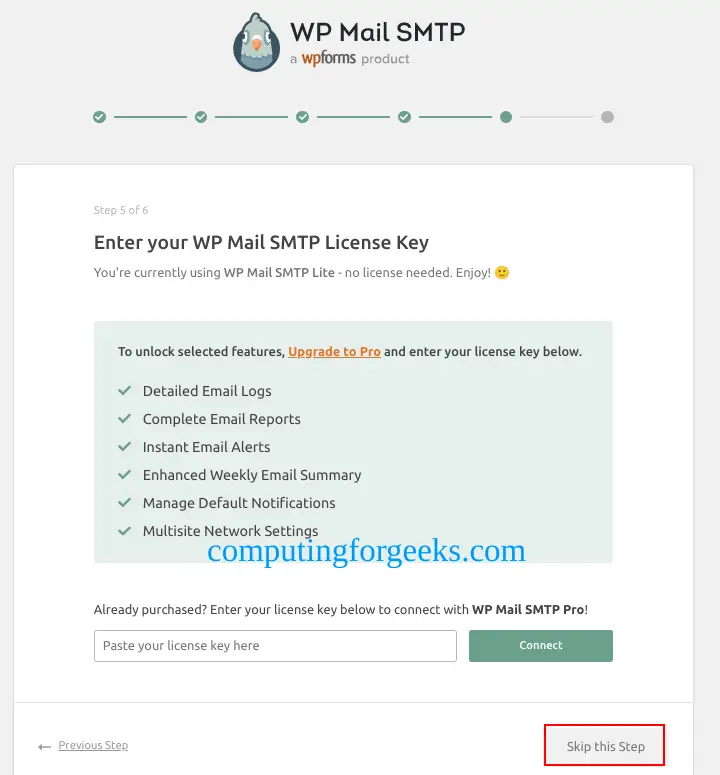
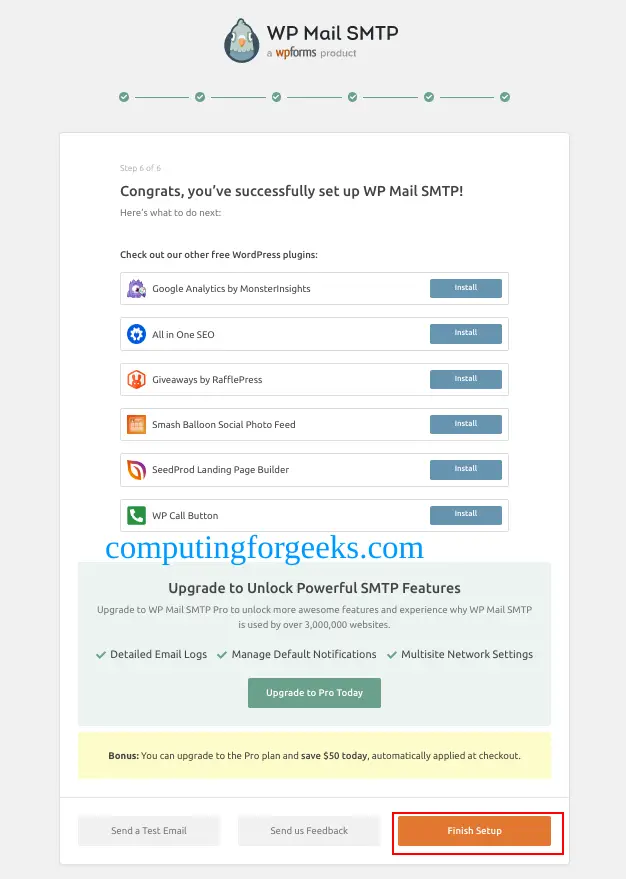
The wizard completes and shows a configuration summary:
Send a Test Email
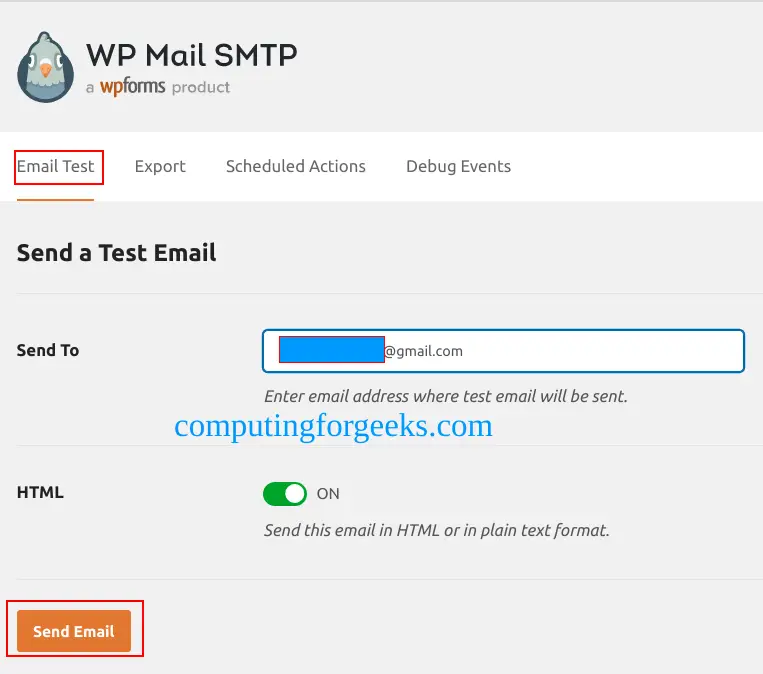
Before trusting the setup with real WordPress notifications, send a test email. Navigate to WP Mail SMTP > Tools > Email Test, enter a recipient address, and click Send Email.
Check the recipient’s inbox. The test email arrives formatted with WP Mail SMTP branding and includes the sending mailer (Gmail), the From address, and a timestamp:
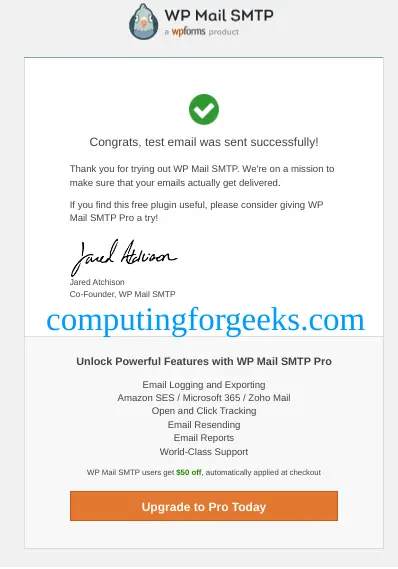
If the test email arrives, WordPress is now routing all mail through Gmail’s SMTP over an authenticated OAuth connection. Password resets, WooCommerce order confirmations, contact form submissions, and plugin notifications will all use the same path.
Verify Gmail SMTP Connectivity from the Server
If you want to verify Gmail’s SMTP is reachable from your WordPress host before troubleshooting, test the connection directly from the server shell. SSH into your server and run:
openssl s_client -connect smtp.gmail.com:587 -starttls smtp &1 | grep -E "Protocol|Cipher|Verify return"A successful TLS 1.3 handshake to Gmail looks like this:
Protocol  : TLSv1.3
Cipher    : TLS_AES_256_GCM_SHA384
Verify return code: 0 (ok)
If the connection fails or hangs, your host is blocking outbound SMTP. Shared hosts sometimes block ports 25, 465, and 587 to prevent spam. Contact your host to unblock port 587, or switch to WP Mail SMTP’s Gmail mailer which uses the Gmail API over HTTPS port 443 (which is never blocked).
Troubleshooting
Error: redirect_uri_mismatch
Google returns this error during authorization when the redirect URL in your OAuth client doesn’t exactly match the one WP Mail SMTP is sending. Go back to your credential in Google Cloud Console and confirm the Authorized redirect URIs field contains exactly https://connect.wpmailsmtp.com/google/ with the trailing slash. A missing slash or http:// instead of https:// both trigger this error.
Error: Token has been expired or revoked
This happens when the OAuth app is still in Testing mode on a free Gmail account. Testing tokens expire after 7 days. Publish the app to Production as shown in the “Switch the OAuth App from Testing to Production” section above, then reconnect WP Mail SMTP to Google.
Error: 403 access_denied
Your Gmail account is blocking WP Mail SMTP access because the OAuth scopes weren’t granted. Revoke any existing WP Mail SMTP authorization at myaccount.google.com/permissions, then click Connect to Google again in WP Mail SMTP and approve all requested permissions.
Test email sends successfully but never arrives
Check the recipient’s spam folder first. If it’s there, your domain is missing DMARC or SPF records. Because Gmail is sending on behalf of your From address, the recipient’s server may flag the message as suspicious. You can work around this by setting the From Email to your actual Gmail address (instead of [email protected]) or by adding proper email authentication records to your DNS. The cleanest fix is using a dedicated transactional mail provider like Brevo, Mailgun, or Amazon SES for production sites.
Gmail quota exceeded
Free Gmail accounts can send up to 500 emails per day. Google Workspace accounts can send up to 2,000 per day. Hitting these limits triggers the error Quota exceeded for quota metric 'Queries' and limit 'Queries per day'. For sites sending more than a few hundred emails a day, use a real transactional mail service.
FAQ
Does WP Mail SMTP store my Gmail password?
No. The Gmail mailer in WP Mail SMTP uses OAuth 2.0, which means WordPress only stores an access token and refresh token, not your actual Gmail password. The access token can be revoked at any time from your Google account permissions page.
Can I use a Gmail App Password instead of OAuth?
Yes. If you want a simpler setup, enable 2-Step Verification on your Google account, generate an App Password at myaccount.google.com/apppasswords, and configure WP Mail SMTP with the Other SMTP mailer using smtp.gmail.com, port 587, TLS encryption, your Gmail address, and the generated app password. OAuth is more secure because tokens can be scoped and revoked individually, but App Password works fine for personal sites.
Should I use Gmail SMTP for a business website?
Gmail SMTP is fine for low-volume transactional email (password resets, contact form notifications, admin alerts) on small sites. For anything beyond a few hundred emails per day, or for marketing emails, use a dedicated transactional email service like Brevo, SendLayer, Mailgun, or Amazon SES. Those services handle deliverability, bounce management, and reputation monitoring that Gmail doesn’t provide for this use case.
Will this work with Google Workspace (G Suite)?
Yes. The setup is identical. Google Workspace accounts get a higher sending quota (2,000 emails/day versus 500 for free Gmail) and the OAuth consent screen will show your workspace domain instead of personal Gmail. If your Workspace admin has restricted OAuth scope access, you may need to whitelist the WP Mail SMTP OAuth client in the Workspace admin console.