A small FreeIPA lab on Rocky Linux 10 buys you the same identity stack Red Hat ships under “RHEL Identity Management” without paying for a subscription. Three Rocky 10.1 boxes, one realm, central users, central sudo, central SSH keys, and Kerberos-backed SSO between every host. This guide walks the full build on Proxmox: one IPA server with integrated DNS, two enrolled clients, then the parts that matter once it works (HBAC, sudo, SSH SSO, and the web UI tour).
The build targets Rocky Linux 10.1 (Red Quartz) on the server and both clients, the same stable RHEL 10.1 IdM rebase that fixed the broken integrated DNS install in 10.0. We picked the same realm name (CFGLAB.LOCAL) and domain (cfglab.local) used in the rest of the FreeIPA series so the commands here line up with the FreeIPA server install on Rocky / Alma / RHEL 10 walkthrough and the FreeIPA replication setup. Reuse them as-is.
Tested April 2026 on Rocky Linux 10.1 (kernel 6.12) with FreeIPA 4.12.2, BIND integrated DNS, SELinux enforcing, three VMs on Proxmox VE 9
Lab topology
Three Rocky 10.1 VMs on a flat 192.168.1.0/24 bridge. The IPA server runs the LDAP, KDC, integrated BIND, and Apache web UI. Both clients run SSSD pointed at the server. /etc/hosts on every node carries the same three entries so the lab works even before the IPA-managed DNS comes up.
| Role | FQDN | IP | RAM | vCPU | Disk |
|---|---|---|---|---|---|
| IPA server (LDAP, KDC, BIND, Apache, Dogtag CA) | ipa.cfglab.local | 10.0.1.50 | 3 GB | 2 | 30 GB |
| IPA client 1 | client1.cfglab.local | 10.0.1.51 | 1.5 GB | 1 | 15 GB |
| IPA client 2 | client2.cfglab.local | 10.0.1.52 | 1.5 GB | 1 | 15 GB |
FreeIPA 4.12 on RHEL 10.1 ships LMDB-only 389-DS, FIPS 140-3 strict mode, RSA PKINIT removed, and NIS gone. None of that breaks the build below, but the LMDB switch means the directory uses nsslapd-mdb-max-size instead of the older Berkeley DB tuning knobs once you go past lab scale.
Prerequisites
- Three Rocky Linux 10.1 minimal installs, fully updated (
dnf upgrade -y) - One unique FQDN per host. The hostname must NOT resolve to
127.0.0.1 - Time sync on all three hosts (chrony on by default in 10.1; clock skew > 300 s breaks Kerberos)
- SELinux enforcing (don’t disable it; FreeIPA on Rocky 10 has full policy coverage)
- Outbound HTTPS to mirrors during package install
- SSH access as a sudo-capable user (
rockyvia cloud-init in this lab)
Step 1: Set reusable shell variables
Every command in this guide reuses these. Open an SSH session to the future IPA server, swap the values for your topology, then export them. Re-run the block if you reconnect or jump into sudo -i:
export IPA_REALM="CFGLAB.LOCAL"
export IPA_DOMAIN="cfglab.local"
export IPA_SERVER="ipa.${IPA_DOMAIN}"
export IPA_SERVER_IP="10.0.1.50"
export CLIENT1="client1.${IPA_DOMAIN}"
export CLIENT2="client2.${IPA_DOMAIN}"
export ADMIN_PASS="ChangeMe-Admin-2026!"
export DM_PASS="ChangeMe-DirMgr-2026!"
Confirm the values landed before running anything destructive:
echo "Realm:  ${IPA_REALM}"
echo "Domain: ${IPA_DOMAIN}"
echo "Server: ${IPA_SERVER} (${IPA_SERVER_IP})"
echo "Clients: ${CLIENT1}, ${CLIENT2}"
The Directory Manager password (DM_PASS) is the LDAP backend root password; the admin password (ADMIN_PASS) is what you use for kinit admin and the web UI. They must be different in production. Put real, strong values in there. Both end up hashed in the directory; only the admin password gets a Kerberos key.
Step 2: Prepare all three Rocky 10 hosts
Set the hostname, populate /etc/hosts, and confirm time is in sync. Run this on the future IPA server first:
sudo hostnamectl set-hostname "${IPA_SERVER}"
sudo timedatectl set-timezone UTC
chronyc tracking | head -5
Open /etc/hosts for editing:
sudo vi /etc/hostsReplace the contents with the three-host map. Substitute your IPs and hostnames before saving:
127.0.0.1 localhost
::1 localhost ip6-localhost ip6-loopback
10.0.1.50 ipa.cfglab.local ipa
10.0.1.51 client1.cfglab.local client1
10.0.1.52 client2.cfglab.local client2
Repeat the same hostname//etc/hosts block on each client (substitute the right hostname). Then verify each host resolves itself to its real IP, not loopback:
hostname -f
getent hosts $(hostname -f)
The second command must print the host’s actual IP. If it prints 127.0.0.1 the IPA install will fail with “Hostname does not have correct IP address”. This is the most common preflight error and it’s worth catching now.
Step 3: Install FreeIPA server packages
The ipa-server meta package pulls in 389-DS, MIT Kerberos, Apache, mod_wsgi, mod_auth_gssapi, Dogtag PKI, and the IPA web UI. ipa-server-dns adds the integrated BIND9 with PowerDNS-style records:
sudo dnf install -y ipa-server ipa-server-dns ipa-healthcheckConfirm the version landed. Rocky 10.1 currently ships the FreeIPA 4.12 line that backs RHEL 10.1 IdM:
rpm -q ipa-server
ipa --version
You should see the build matching the RHEL 10.1 IdM stream:
ipa-server-4.12.2-24.el10_1.2.x86_64
VERSION: 4.12.2, API_VERSION: 2.254
Both strings should match the el10_1 package stream. With the packages staged, the next step promotes the host to a domain controller.
Step 4: Run the unattended IPA server install
The install promotes the host to KDC, sets up an internal CA (Dogtag), creates the LDAP schema, configures Kerberos, lights up Apache with a self-signed TLS cert from the new CA, and brings up integrated DNS. --no-reverse skips reverse DNS (the lab uses a router-managed reverse zone), and --no-forwarders deliberately leaves DNS forwarders empty so we can wire them through IPA in the next step:
sudo ipa-server-install \
  --realm="${IPA_REALM}" \
  --domain="${IPA_DOMAIN}" \
  --ds-password="${DM_PASS}" \
  --admin-password="${ADMIN_PASS}" \
  --hostname="${IPA_SERVER}" \
  --ip-address="${IPA_SERVER_IP}" \
  --setup-dns \
  --no-forwarders \
  --no-reverse \
  --unattended
The unattended install takes 4 to 8 minutes on a 2 vCPU / 3 GB VM. When it finishes, every IPA service should be running. Check with ipactl status:
sudo ipactl statusAll nine services should report RUNNING:
Directory Service: RUNNING
krb5kdc Service: RUNNING
kadmin Service: RUNNING
named Service: RUNNING
httpd Service: RUNNING
ipa-custodia Service: RUNNING
pki-tomcatd Service: RUNNING
ipa-otpd Service: RUNNING
ipa-dnskeysyncd Service: RUNNING
ipa: INFO: The ipactl command was successful
Open the FreeIPA service group and DNS in firewalld. Both ship as predefined firewalld service definitions on Rocky 10:
sudo firewall-cmd --add-service=freeipa-4 --permanent
sudo firewall-cmd --add-service=dns --permanent
sudo firewall-cmd --reload
sudo firewall-cmd --list-services
The freeipa-4 bundle covers TCP 80, 443, 88, 464, 389, 636 and UDP 88, 464. Without it, clients can reach Kerberos but the web UI install of the CA chain will fail mid-enrollment.
Step 5: Verify, then create users, groups, sudo, and HBAC
Get a Kerberos ticket for admin. Every ipa CLI command needs a valid TGT:
echo "${ADMIN_PASS}" | kinit admin
klist
You should see the krbtgt principal cached:
Ticket cache: KCM:0:1
Default principal: [email protected]

Valid starting       Expires              Service principal
04/25/2026 23:14:46  04/26/2026 22:23:07  krbtgt/[email protected]
Add DNS forwarders so the integrated BIND can resolve external names for clients pointing their DNS at the IPA server:
ipa dnsconfig-mod --forwarder=1.1.1.1 --forwarder=8.8.8.8 --forward-policy=first
ipa dnsconfig-show
Create a few realistic test users, a lab admins group, a sudo rule, and a host-based access control rule. The lab pattern is that jdoe belongs to admins-lab (full sudo on lab hosts), and an HBAC rule explicitly allows SSH only for him on the two clients:
ipa group-add admins-lab --desc='Lab admins'
ipa user-add jdoe --first=John --last=Doe --random
ipa user-add asmith --first=Alice --last=Smith --random
ipa user-add bnguyen --first=Bao --last=Nguyen --random
ipa group-add-member admins-lab --users=jdoe
Set known passwords on the new accounts. The --random flag above generated one-time passwords; ipa passwd here replaces them. Each user still has to change the password on first login (FreeIPA forces this by default; the next section shows the flow):
for U in jdoe asmith bnguyen; do
  echo -e "Cfg9LabPass2026!\nCfg9LabPass2026!" | ipa passwd "${U}"
done
Build the host group and rules. The HBAC rule references the host group, so adding more clients later is one command:
ipa hostgroup-add servers --desc='Lab servers'
ipa sudorule-add admins-sudo-all --desc='admins-lab can run any command'
ipa sudorule-add-user admins-sudo-all --groups=admins-lab
ipa sudorule-mod admins-sudo-all --hostcat=all --cmdcat=all \
  --runasusercat=all --runasgroupcat=all
ipa hbacrule-add jdoe-ssh-clients --desc='jdoe SSH access to lab clients'
ipa hbacrule-add-user jdoe-ssh-clients --users=jdoe
ipa hbacrule-add-service jdoe-ssh-clients --hbacsvcs=sshd
ipa hbacrule-disable allow_all
Disabling allow_all is the single most important step in any FreeIPA install. Without it, every user can SSH into every enrolled host the moment they get a TGT. The jdoe-ssh-clients rule is empty until you bind it to host-group servers, which we do after the clients enroll.
Step 6: Enroll the first Rocky Linux 10 client
On client1, point DNS at the IPA server, install the client package, and enroll. NetworkManager owns DNS on Rocky 10, so override it through nmcli rather than editing /etc/resolv.conf directly (that file is regenerated on every link change):
sudo nmcli -t -f NAME con show | while read CON; do
  sudo nmcli con mod "${CON}" ipv4.dns "${IPA_SERVER_IP}" ipv4.ignore-auto-dns yes
done
sudo systemctl restart NetworkManager
cat /etc/resolv.conf | grep nameserver
Confirm the client can resolve the IPA server’s SRV records before joining (the install relies on them):
sudo dnf install -y bind-utils ipa-client
dig +short SRV "_kerberos._tcp.${IPA_DOMAIN}"
dig +short SRV "_ldap._tcp.${IPA_DOMAIN}"
Both queries should return entries pointing at ipa.cfglab.local. Now run the enrollment. The unattended flag drops the prompt for confirming the IPA server certificate:
sudo ipa-client-install \
  --domain="${IPA_DOMAIN}" \
  --server="${IPA_SERVER}" \
  --realm="${IPA_REALM}" \
  --principal=admin \
  --password="${ADMIN_PASS}" \
  --mkhomedir \
  --no-ntp \
  --unattended
Successful enrollment ends with “The ipa-client-install command was successful” and configures SSSD, NSS, PAM, Kerberos, and SSHD’s GSSAPI bits. Verify SSSD sees IPA users right after:
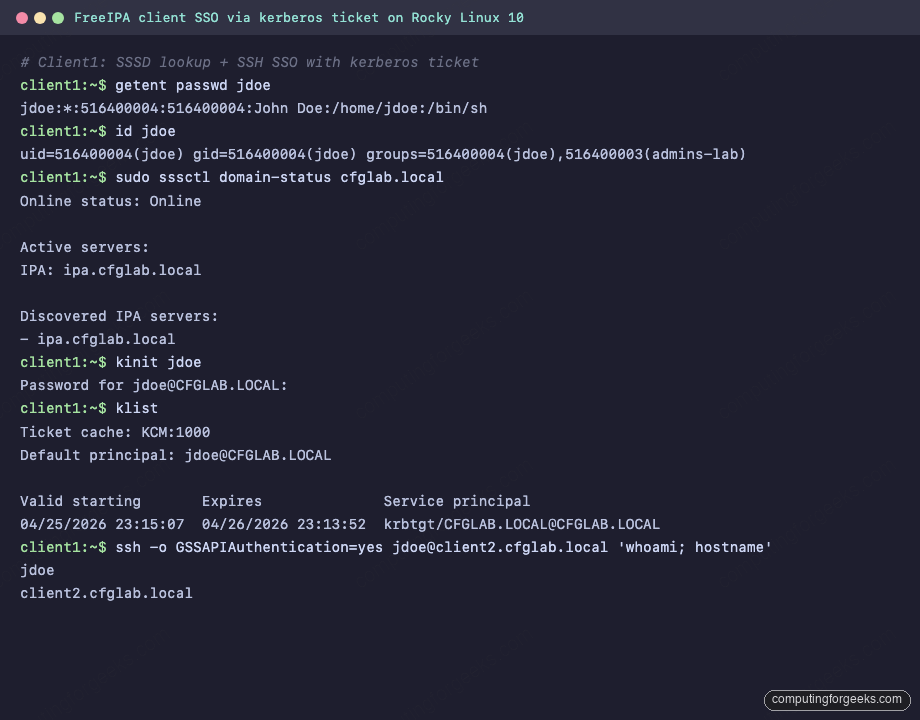
getent passwd jdoe
id jdoe
sudo sssctl domain-status "${IPA_DOMAIN}"
You should see the LDAP-resolved entry, including the central UID/GID and the admins-lab group membership. The sssctl output confirms the client is reaching the IPA server live. sssctl is the first-line debug tool for any SSSD trouble; running it once per fresh enrollment is a good habit:
jdoe:*:516400004:516400004:John Doe:/home/jdoe:/bin/sh
uid=516400004(jdoe) gid=516400004(jdoe) groups=516400004(jdoe),516400003(admins-lab)
Online status: Online

Active servers:
IPA: ipa.cfglab.local

Discovered IPA servers:
- ipa.cfglab.local
Online status reading “Online” plus a populated “Active servers” list confirms SSSD finished its initial bind to the IPA backend. With one client done, the second enrollment is a copy-paste with a different hostname.
Step 7: Enroll the second client
The flow on client2 is identical, just with the matching hostname. Set DNS, install, enroll:
sudo nmcli -t -f NAME con show | while read CON; do
  sudo nmcli con mod "${CON}" ipv4.dns "${IPA_SERVER_IP}" ipv4.ignore-auto-dns yes
done
sudo systemctl restart NetworkManager
sudo dnf install -y ipa-client bind-utils
sudo ipa-client-install \
  --domain="${IPA_DOMAIN}" \
  --server="${IPA_SERVER}" \
  --realm="${IPA_REALM}" \
  --principal=admin \
  --password="${ADMIN_PASS}" \
  --mkhomedir \
  --no-ntp \
  --unattended
Back on the IPA server, confirm both clients are enrolled. Three host principals should appear: the server itself plus both clients:
echo "${ADMIN_PASS}" | kinit admin
ipa host-find --pkey-only
The output confirms the realm:
---------------
3 hosts matched
---------------
  Host name: client1.cfglab.local

  Host name: client2.cfglab.local

  Host name: ipa.cfglab.local
----------------------------
Number of entries returned 3
----------------------------
With both clients in the directory, bind the host group to the HBAC rule and add both hosts to it. The same rule can govern any future client just by adding to the host group:
ipa hostgroup-add-member servers --hosts="${CLIENT1}" --hosts="${CLIENT2}"
ipa hbacrule-add-host jdoe-ssh-clients --hostgroups=servers
That ties the policy together. With the hosts now bound to the rule, jdoe is the only IPA user who can SSH into either client. Time to prove it works.
Step 8: Test centralized auth and SSH SSO
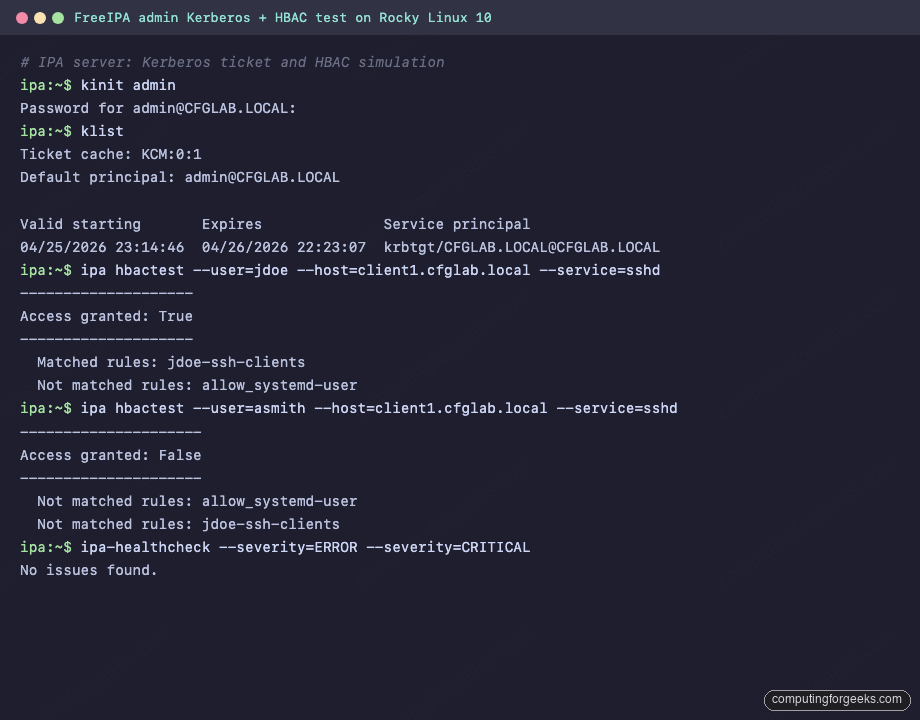
This is where the realm pays off. Pick any enrolled host, get a TGT for jdoe, then SSH to the other host with no password prompt. ipa hbactest simulates the access decision before you touch sshd, which makes the rule layout easier to debug:
ipa hbactest --user=jdoe --host=client1.cfglab.local --service=sshd
ipa hbactest --user=asmith --host=client1.cfglab.local --service=sshd
The first run grants access (jdoe is in the rule), the second denies it (asmith isn’t):
--------------------
Access granted: True
--------------------
  Matched rules: jdoe-ssh-clients
  Not matched rules: allow_systemd-user
---------------------
Access granted: False
---------------------
  Not matched rules: allow_systemd-user
  Not matched rules: jdoe-ssh-clients
Capturing both runs in one terminal session looks like this. The healthcheck call at the end is a quick smoke test that the LDAP, KDC, CA, and DNS subsystems are all happy:
From client1, force the first-login password change and grab a TGT, then jump to client2 with GSSAPI. The first kinit on a fresh account uses the temporary password; FreeIPA forces an immediate change:
kinit jdoe
# enter Cfg9LabPass2026! once, then a new password twice when prompted
klist
ssh -o GSSAPIAuthentication=yes [email protected] 'whoami; hostname; id'
The SSH command returns jdoe‘s real identity on client2 with no password and no key prompt. That is Kerberos SSO end to end: the client got a TGT from the KDC, requested a service ticket for host/client2.cfglab.local, and sshd accepted it via mod_auth_gssapi-equivalent OpenSSH GSSAPI handlers. Capturing the round-trip on the wire looks like this:
You can also push a public SSH key into IPA and let the clients pull it via SSSD without ever touching ~/.ssh/authorized_keys on every host. Generate a key on client1 and attach it to jdoe:
ssh-keygen -t ed25519 -N '' -f ~/jdoe_key
JDOE_KEY=$(cat ~/jdoe_key.pub)
ipa user-mod jdoe --sshpubkey="${JDOE_KEY}"
ipa user-show jdoe --all | grep -A1 'SSH public'
SSSD on every enrolled host now serves that key for jdoe‘s SSH logins via AuthorizedKeysCommand /usr/bin/sss_ssh_authorizedkeys in /etc/ssh/sshd_config.d/04-ipa.conf. Add the key once, every host accepts it.
Step 9: HBAC and sudo verification
HBAC and sudo decisions on the client come from SSSD, which caches IPA results. Force a refresh and verify the sudo rule landed:
sudo sssctl cache-expire -E
sudo -l -U jdoe
The output should show jdoe’s sudo entitlement coming from IPA, not from /etc/sudoers:
Matching Defaults entries for jdoe on client1:
    !visiblepw, always_set_home, match_group_by_gid, ...

User jdoe may run the following commands on client1:
    (ALL : ALL) ALL
If sudo -l shows nothing, the SSSD sudo provider didn’t pick up the rule. sudo journalctl -u sssd -f usually surfaces it; common causes are a missing cn=sudo base DN config (RHEL 10 sets it automatically; older clones did not) or the LDAP search filter on the rule being unintentionally narrow.
Step 10: FreeIPA web UI tour
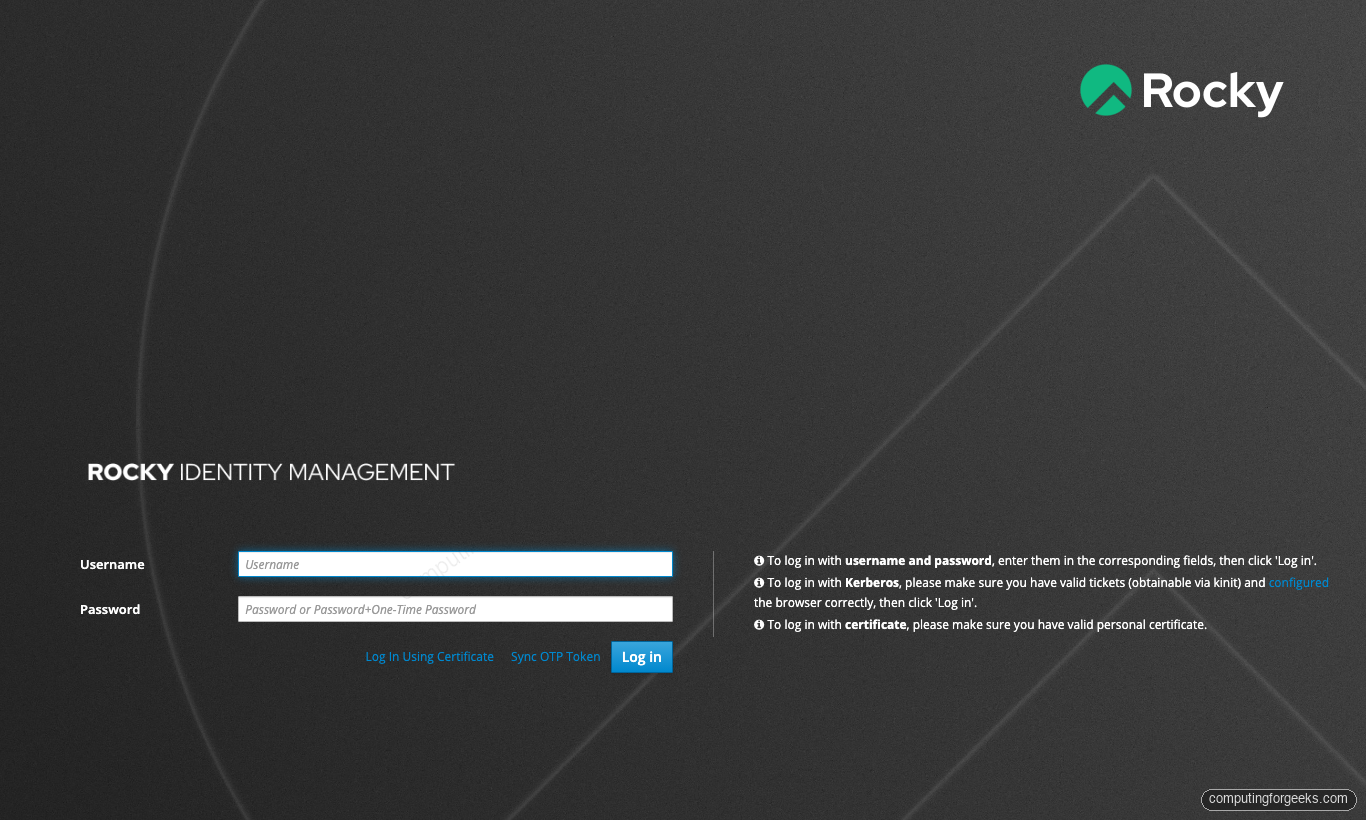
The web UI lives at https://ipa.cfglab.local/ipa/ui/. The certificate is issued by the IPA-internal Dogtag CA, so on the first visit your browser will warn unless you’ve imported /etc/ipa/ca.crt from the server into the system trust store. For the lab, accept the cert and log in as admin with the password from Step 1:
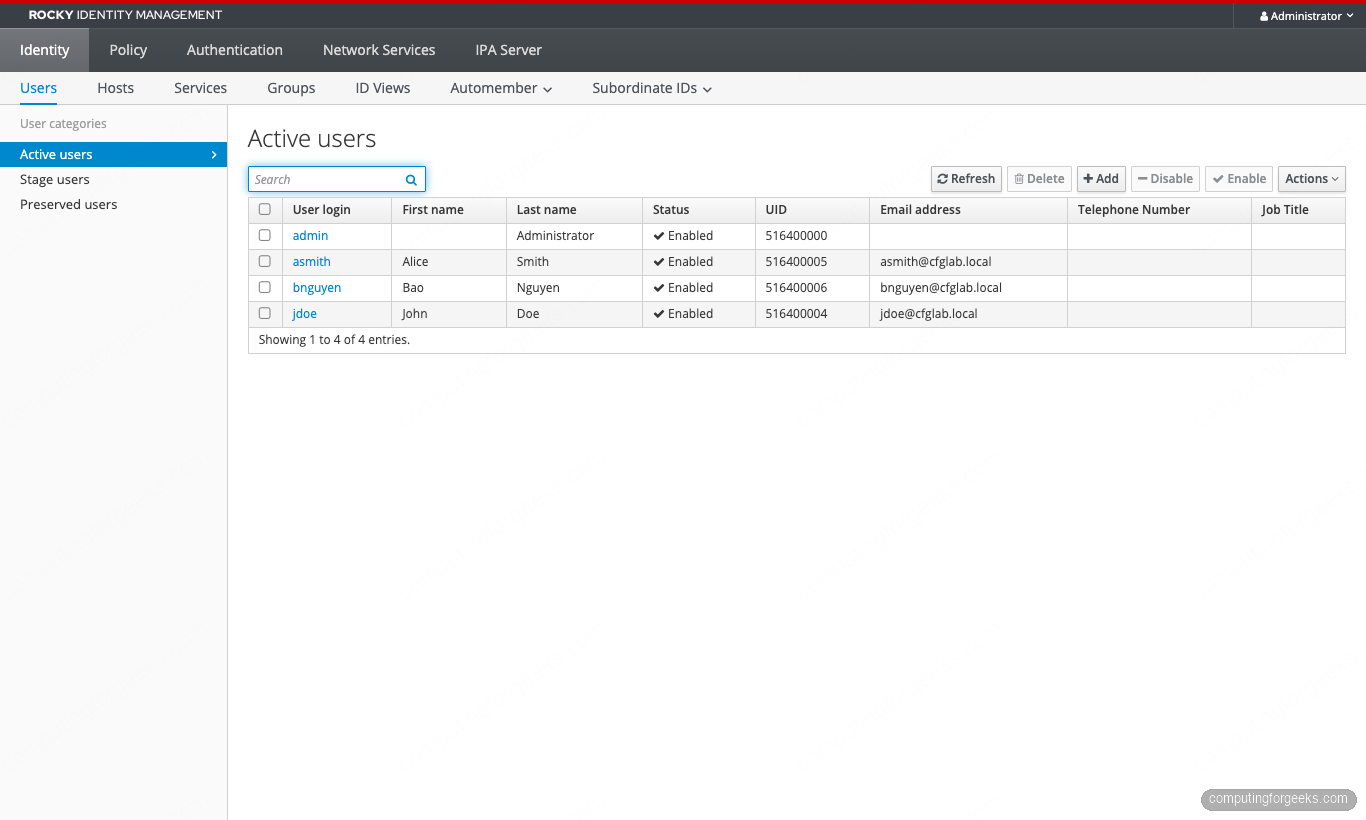
The Identity tab opens on Active users. Every CLI account is here: admin plus the three test users created in Step 5. UID 516400000+ is the default IPA range for the realm; primary GID matches UID for new users:
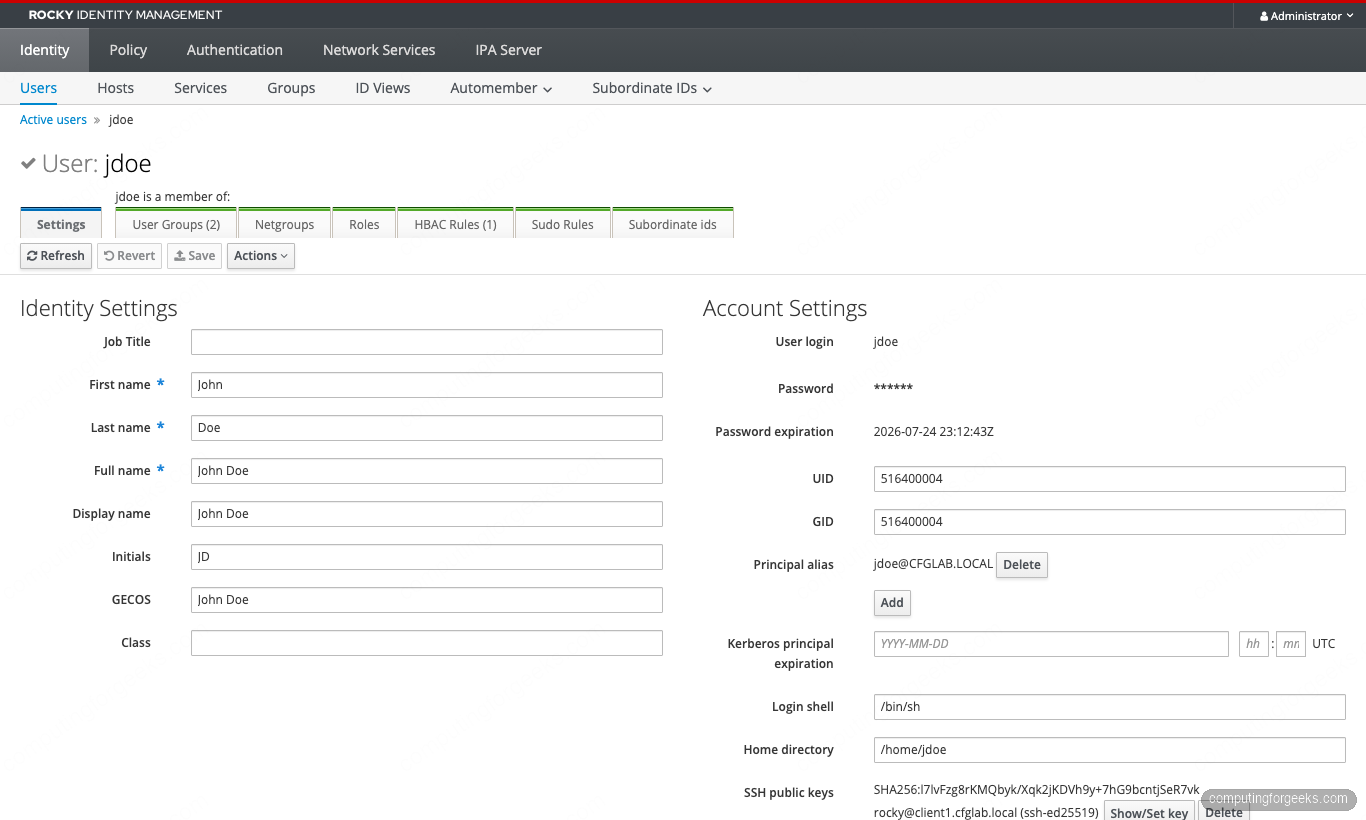
Open jdoe‘s row to land on the user-detail page. Settings and Account are both visible; the SSH public key registered in Step 8 shows up under Account Settings, and the HBAC Rules tab counter on top reflects the rule binding. Edits made here apply immediately on every enrolled client (after the SSSD cache expires, which is 90 minutes by default):
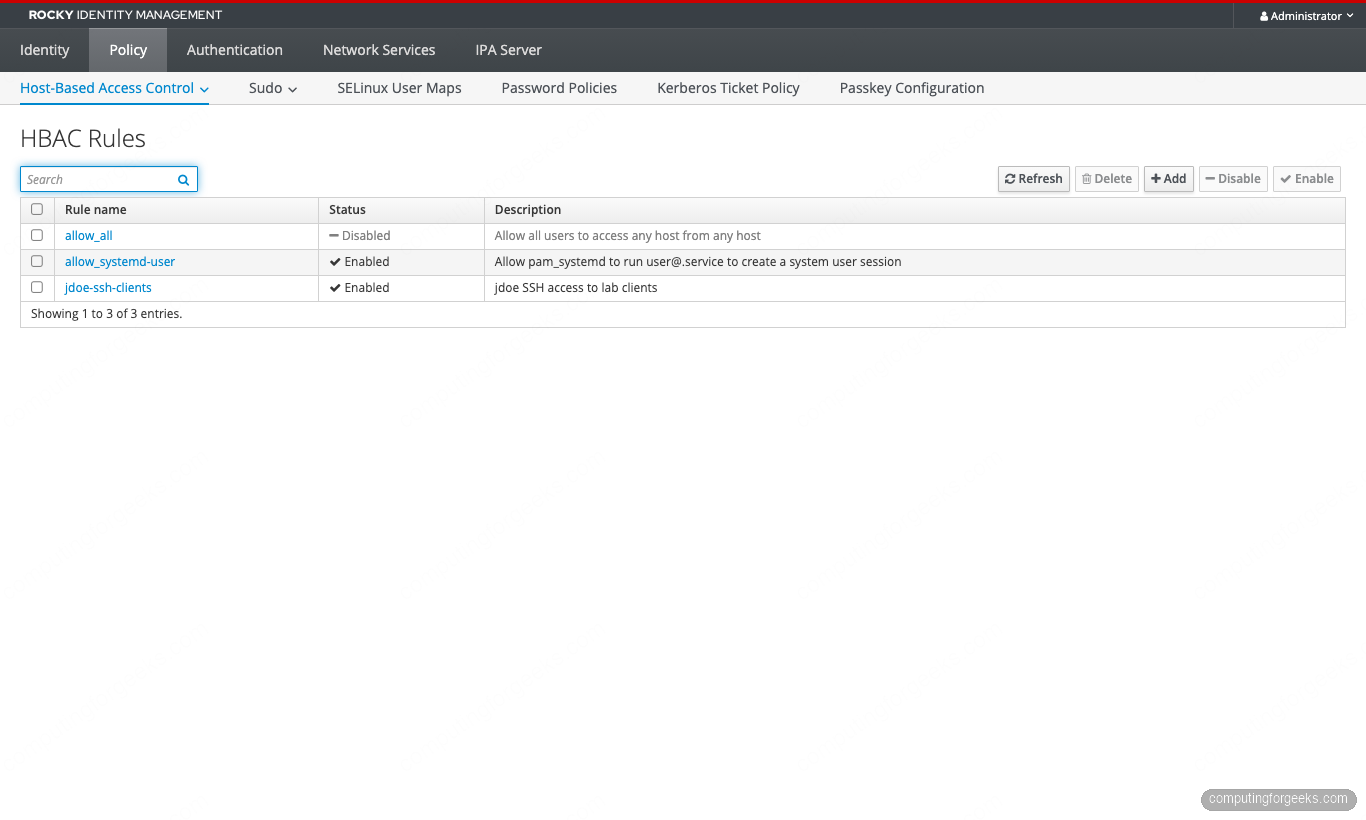
Policy → Host-Based Access Control → HBAC Rules shows three rows: allow_all disabled (good), allow_systemd-user still enabled (a default rule that lets pam_systemd create [email protected] sessions; leave it alone), and the custom jdoe-ssh-clients rule we built. New rules get added here or via the CLI; both routes write to the same LDAP entries:
Identity → Hosts confirms enrollment from the server’s perspective. All three hosts show Enrolled = True; the column is the truth source for whether SSSD on that host can fetch its keytab from the KDC. A row marked False usually means a stuck host principal that needs ipa host-disable + ipa host-del, then a fresh ipa-client-install:
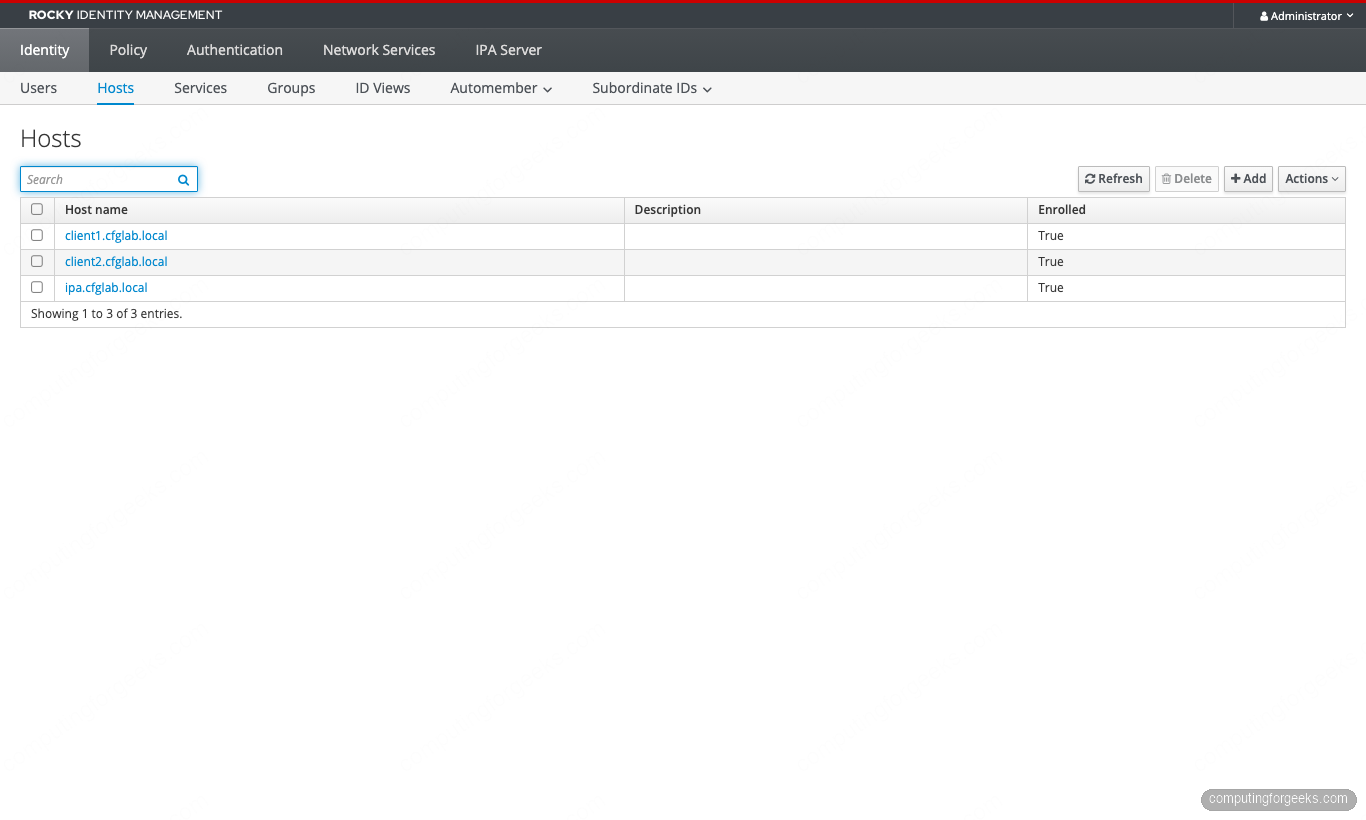
Three rows, three “True” values, no orphaned principals. The lab is fully wired. The next concern is the one most identity stacks defer until the moment they need it.
Step 11: Backup and recovery
FreeIPA ships its own backup tool that captures everything: 389-DS data, custodia secrets, Dogtag CA, KRA if installed, BIND zones, and the kerberos key material. Run it once now to confirm the path works before you need it:
sudo ipa-backup
sudo ls -lh /var/lib/ipa/backup/
The directory contains a timestamped folder per backup. Pin one to a working backup location off the host (S3, Restic, Borg) and rotate them. The matching restore command is ipa-restore /var/lib/ipa/backup/ipa-full-2026-04-25-23-59-32; it must run on a freshly installed but un-promoted host with the same FQDN, realm, and IP. The “rebuild” path is part of the formal disaster-recovery runbook for any FreeIPA deployment, and it’s where the 4.13 series will add the IdM-to-IdM migration tooling on top.
For an unlocked-out admin account, the project keeps a separate writeup on resetting the FreeIPA admin password as root. Worth bookmarking before you ever need it.
Production hardening
The lab build above is correct, but it stops at “works on three Rocky 10 boxes”. Production deployments add four more layers:
Replicas, not a single master. A standalone IPA server is a single point of failure for every login on every enrolled host. Once the realm has more than ~5 clients, add a replica using the FreeIPA replication setup. Two replicas plus the master is the cheapest survivable topology; four-way replication agreements per replica is the upper bound that the project recommends.
Public certificate on the web UI. The Dogtag-issued certificate is fine for IPA-internal mTLS but produces ugly browser warnings for anyone without the IPA CA in their trust store. Either replace the web UI cert with a public certificate from Let’s Encrypt or your organization’s PKI, or distribute the IPA CA cert via configuration management to every operator’s machine. Whichever path you pick, the certmonger daemon on the IPA server tracks expiry and auto-renews the internal certs without intervention.
Stronger password policy and lockout. The default global_policy applies to every user. Either tighten it (length, history, complexity) or attach group-specific policies for high-value accounts. The lockout defaults are 6 failures in 60 seconds = 10-minute lockout; for a public-facing IPA server those numbers should be tighter and the kerberos pre-auth indicators should disable RC4 explicitly (RHEL 10.1 already removed RSA PKINIT).
Healthcheck on a timer. ipa-healthcheck --severity=ERROR --severity=CRITICAL --output-type=json dumps a structured health summary you can pipe into Prometheus textfile collector, push into ELK, or alert on with a 10-line shell script. Schedule it via systemd timer once an hour. Lab output looks like this when everything is fine:
No issues found.The first time it returns anything else, you’ll thank yourself for setting it up before the realm started carrying real users.
That covers the build, the verification, and the immediate gaps to close. The same lab carries forward into the rest of the FreeIPA series: replication, AD trust, the containerized FreeIPA flavor, the user and group management CLI patterns, and the harder identity work (passkey, ACME, external IdP, Vault PKI integration). Two clients today, fifty tomorrow, and the only thing that changes is which articles you reach for next.


![Install Kali Linux 2026.1 Step by Step [Full Guide]](https://computingforgeeks.com/wp-content/uploads/2026/03/install-kali-linux-20261-step-by-step-768x403.png "Install Kali Linux 2026.1 Step by Step [Full Guide] 10")