A single FreeIPA server handles authentication and identity for Linux shops just fine, right up until it reboots for a kernel update during business hours. That’s when the second replica earns its keep. FreeIPA was built for multi-master replication, and standing up a second server on Rocky Linux or AlmaLinux takes about 25 minutes of real work if DNS is in order.
This guide walks through a full replication setup on both Rocky Linux 10.1 and Rocky Linux 9.7, using FreeIPA 4.12.2 with the integrated BIND DNS and Dogtag CA. The exact same commands work on AlmaLinux 10 and AlmaLinux 9. You get a working CA master pair, bidirectional user replication, and the commands to manage and troubleshoot replication agreements afterwards.
Verified working: April 2026 on Rocky Linux 10.1 (FreeIPA 4.12.2) and Rocky Linux 9.7 (FreeIPA 4.12.2). AlmaLinux 10/9 steps are identical.
Why multi-master replication, not a cold standby
FreeIPA replicas aren’t failover nodes sitting idle. Every replica is a full read-write master: clients can authenticate against any of them, and writes on any node propagate to the others over a 389 Directory Server replication agreement. That gives you load distribution and high availability in the same box. Lose one node and the others keep issuing Kerberos tickets without a blip.
Two things to keep straight before you start. The domain replication (users, groups, hosts, sudo rules) runs between any two replicas once you enroll them. The CA replication (certificate issuance) only runs between replicas that were installed with --setup-ca. A replica without a CA can still authenticate users, but it can’t issue or renew host certificates. For anything beyond a tiny lab, install at least two CA masters.
Prerequisites
Two fresh VMs per release (master + replica), 4 GB RAM and 2 vCPU each. Less works, but the Dogtag CA install on the second host is miserable with 2 GB. This guide uses:
- Rocky Linux 10.1:
ipa1.r10.example.com(10.0.1.21) andipa2.r10.example.com(10.0.1.22) - Rocky Linux 9.7:
ipa1.r9.example.com(10.0.1.23) andipa2.r9.example.com(10.0.1.24) - Realm:
IPALAB.LOCAL, domain:ipalab.local - Both hosts resolvable by each other via
/etc/hostsbefore IPA starts its own DNS
FreeIPA is strict about hostnames. Each host needs a fully qualified name that matches hostname -f and resolves forward and reverse. Short names cause the installer to abort. If you plan to run IPA as the DNS authority (recommended), the replica needs to query the master’s BIND during enrollment, so set /etc/resolv.conf to point at the master before enrolling.
Step 1: Prepare the hosts
On every host, set the FQDN. Cloud images usually ship with a short or synthesized hostname that the FreeIPA installer will reject.
sudo hostnamectl set-hostname ipa1.r10.example.comAdd forward entries for both the master and the replica so they can find each other before the IPA DNS zone exists. Do this on both nodes.
echo "10.0.1.21 ipa1.r10.example.com ipa1.r10
10.0.1.22 ipa2.r10.example.com ipa2.r10" | sudo tee -a /etc/hosts
Rocky cloud images don’t include firewalld. Install it and open the IPA ports. Ports 80/443 for the web UI, 389/636 for LDAP, 88/464 for Kerberos, 53 for DNS.
sudo dnf install -y firewalld
sudo systemctl enable --now firewalld
sudo firewall-cmd --permanent --add-service={freeipa-ldap,freeipa-ldaps,dns,kerberos,http,https}
sudo firewall-cmd --reload
SELinux stays enforcing. FreeIPA ships its own policy and needs no changes. Confirm before continuing:
getenforceThe output should read Enforcing. If it says Disabled, fix that before continuing. Disabling SELinux on an IPA server is a standing footgun.
Step 2: Install the FreeIPA master on the first host
On Rocky Linux 10 and Rocky Linux 9, FreeIPA 4.12.2 ships directly in AppStream. There is no idm:DL1 module stream anymore; the older dnf module enable idm:DL1 incantation from RHEL 8 articles is gone.
sudo dnf install -y ipa-server ipa-server-dns bind-dyndb-ldapRun the unattended install. The --setup-dns flag stands up the integrated BIND with a Google public resolver as the forwarder. --no-host-dns skips the check that wants the hostname already present in public DNS (it won’t be, because the IPA DNS zone is about to be created).
sudo ipa-server-install --unattended \
  --realm=IPALAB.LOCAL \
  --domain=ipalab.local \
  --ds-password='DirMgr2026Pass' \
  --admin-password='Admin2026Pass' \
  --hostname=ipa1.r10.example.com \
  --ip-address=10.0.1.21 \
  --setup-dns \
  --forwarder=8.8.8.8 \
  --no-ntp \
  --no-host-dns
Give it 15 to 25 minutes. The installer runs through 33 steps across Directory Server, KDC, named, Apache, Dogtag CA, and certificate provisioning. On a 4 GB VM with SSD storage, expect around 18 minutes. You can follow progress in another terminal with tail -f /var/log/ipaserver-install.log.
When it finishes, verify services are all running.
echo Admin2026Pass | kinit admin
sudo ipactl status
All nine services should read RUNNING:
Directory Service: RUNNING
krb5kdc Service: RUNNING
kadmin Service: RUNNING
named Service: RUNNING
httpd Service: RUNNING
ipa-custodia Service: RUNNING
pki-tomcatd Service: RUNNING
ipa-otpd Service: RUNNING
ipa-dnskeysyncd Service: RUNNING
ipa: INFO: The ipactl command was successful
With --no-host-dns set, the installer skips the A record for the master itself inside the new IPA zone. Add it now so ipa-replica-manage and dig queries resolve cleanly:
ipa dnsrecord-add example.com ipa1.r10 --a-rec=10.0.1.21Confirm resolution against the server’s own BIND:
dig @127.0.0.1 ipa1.r10.example.com +shortThe output should return 10.0.1.21. If it returns blank or SERVFAIL, named is not authoritative for the zone yet. See the troubleshooting section.
Step 3: Enroll the second host and promote it to a replica
On the second host, point DNS at the master before doing anything else. Without this, the replica install fails at the client-enrollment phase because it can’t find _ldap._tcp SRV records.
sudo rm -f /etc/resolv.conf
echo "nameserver 10.0.1.21
search example.com" | sudo tee /etc/resolv.conf
sudo chattr +i /etc/resolv.conf
The chattr +i makes the file immutable so NetworkManager doesn’t clobber it on the next DHCP lease renewal. Reverse the flag with chattr -i if you need to edit it later.
Install both the client and server packages. The server packages are needed for replica promotion; the client packages handle enrollment.
sudo dnf install -y ipa-client ipa-server ipa-server-dns bind-dyndb-ldap firewalld
sudo systemctl enable --now firewalld
sudo firewall-cmd --permanent --add-service={freeipa-ldap,freeipa-ldaps,dns,kerberos,http,https}
sudo firewall-cmd --reload
Enroll as a regular IPA client first. This creates the host object and drops a Kerberos keytab that the replica installer will use:
sudo ipa-client-install --unattended \
  --domain=example.com \
  --server=ipa1.r10.example.com \
  --realm=IPALAB.LOCAL \
  --principal=admin \
  --password='Admin2026Pass' \
  --hostname=ipa2.r10.example.com \
  --force-join
Now promote the client to a full replica with its own CA and DNS service:
sudo ipa-replica-install --unattended \
  --setup-ca \
  --setup-dns \
  --forwarder=8.8.8.8 \
  --principal=admin \
  --admin-password='Admin2026Pass'
This takes 8 to 12 minutes. The installer creates a new Dogtag CA clone, sets up a second BIND instance that replicates the IPA DNS zone, and stands up a replication agreement with the master for the 389 DS suffix. When it finishes, the last line should read The ipa-replica-install command was successful.
One quirk: do not pass --no-ntp to ipa-replica-install. That flag is only valid on the first server install. On promotion, chrony is already configured from the client-install phase, and the flag triggers the error shown in the troubleshooting section.
Step 4: Verify replication works both ways
Create a user on the master and look for it on the replica. This proves the 389 DS replication agreement is live.
echo Admin2026Pass | kinit admin
ipa user-add alice10 --first=Alice --last=Ten [email protected]
On the replica, kinit as admin and query the same user:
echo Admin2026Pass | kinit admin
ipa user-find alice10
The replica should return the full record within a second:
--------------
1 user matched
--------------
  User login: alice10
  First name: Alice
  Last name: Ten
  Home directory: /home/alice10
  Login shell: /bin/sh
  Principal name: [email protected]
  UID: 684200003
  GID: 684200003
  Account disabled: False
----------------------------
Number of entries returned 1
----------------------------
Now prove it goes the other direction. Create a user on the replica:
ipa user-add bob10 --first=Bob --last=TenBack on the master, verify bob10 landed. Replication is asynchronous but generally sub-second on a LAN:
ipa user-find bob10Show the replication agreements themselves. ipa-replica-manage needs the Directory Manager password:
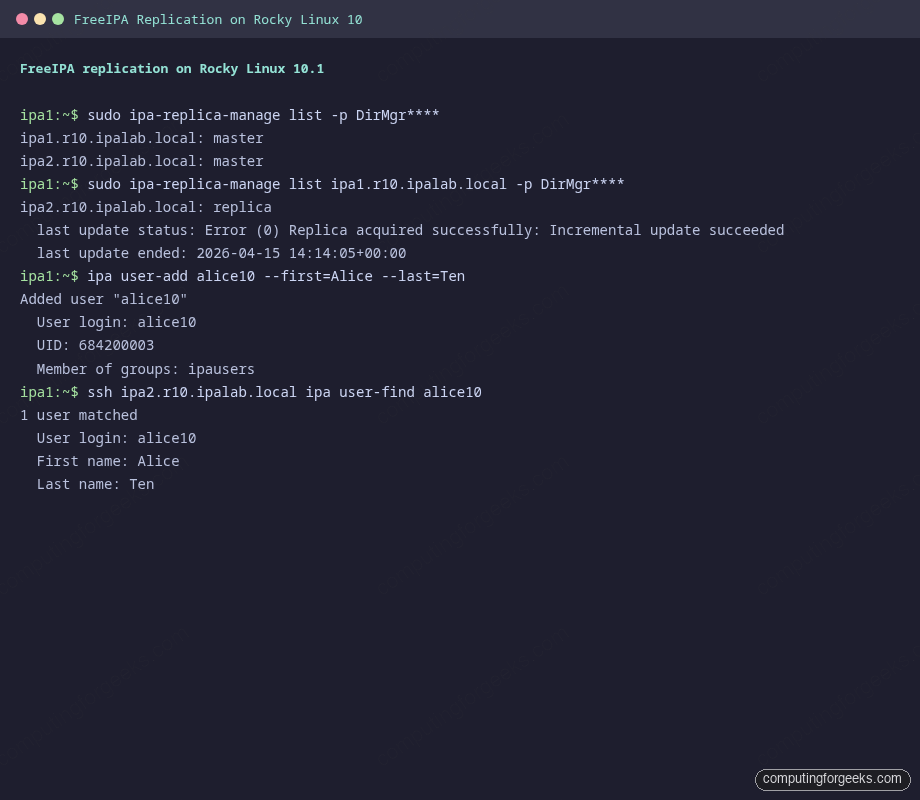
sudo ipa-replica-manage list -p DirMgr2026PassBoth hosts should appear as master, confirming peer-to-peer replication:
ipa1.r10.example.com: master
ipa2.r10.example.com: master
Drill into the agreement from the master’s perspective with verbose output, which shows the last update status and timestamp:
sudo ipa-replica-manage list ipa1.r10.example.com -p DirMgr2026Pass -vHealthy output looks like this. The Error (0) prefix is misleading naming in 389 DS; it means zero errors, not a failure:
ipa2.r10.example.com: replica
  last init status: Error (0) Total update succeeded
  last init ended: 2026-04-15 14:04:37+00:00
  last update status: Error (0) Replica acquired successfully: Incremental update succeeded
  last update ended: 2026-04-15 14:14:05+00:00
Check the CA replication agreements separately. These cover certificate issuance and are critical if either replica runs its own CA:
sudo ipa-csreplica-manage list -p DirMgr2026PassThe same peer-to-peer status appears in the terminal output from the Rocky Linux 10 lab, shown below:
Step 5: Same procedure on Rocky Linux 9
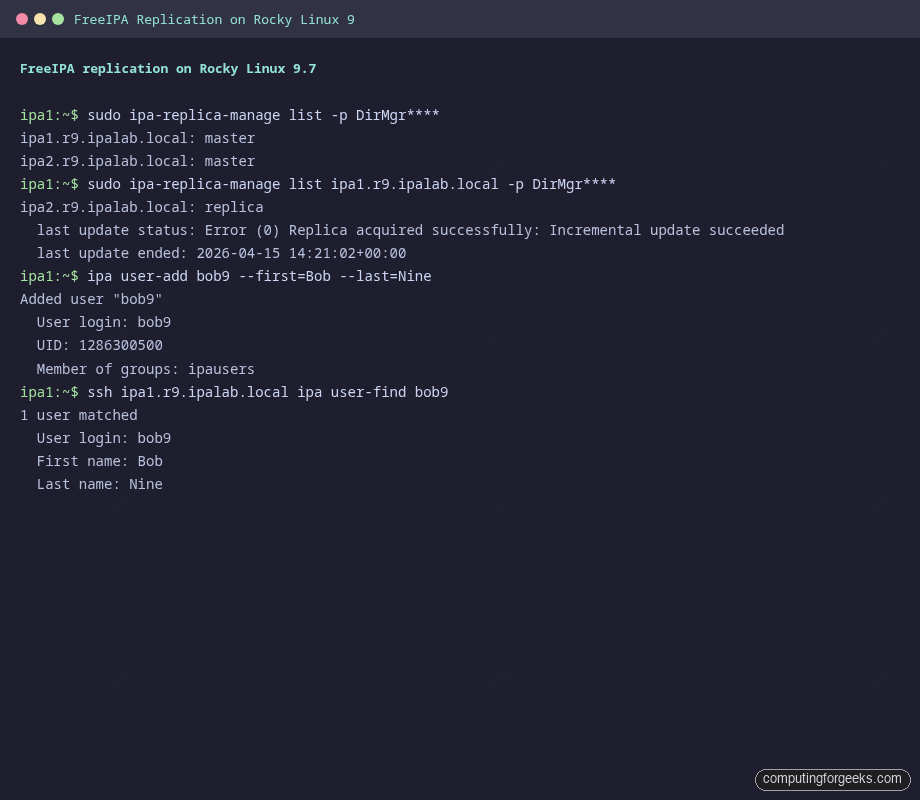
Everything above runs identically on Rocky Linux 9.7 and AlmaLinux 9. The FreeIPA version is the same (4.12.2), the installer flags are unchanged, and the service list is the same. The single difference worth noting is the underlying Python stack: Rocky 9 uses Python 3.9, Rocky 10 uses Python 3.12. That shows up in stack traces if something goes wrong, not in anything you type.
A fresh Rocky 9 install plus replica promotion completed in 19 minutes during testing. User creation and lookups replicate in under a second on both OS families.
Managing replication agreements after setup
Once the pair is up, a few ipa-replica-manage subcommands cover daily operations. Everything runs against the Directory Manager, so keep the DS password handy (or use -p and read from a protected file).
Re-initialize a lagging replica by wiping its database and pulling a fresh copy from a peer. Useful when a replica has been offline long enough that incremental replication can’t catch up:
sudo ipa-replica-manage re-initialize --from=ipa1.r10.example.com -p DirMgr2026PassForce a replication cycle immediately, rather than waiting for the next scheduled update:
sudo ipa-replica-manage force-sync --from=ipa1.r10.example.com -p DirMgr2026PassRemove a replica permanently. This runs on the master and deletes the replication agreement, the host entry, and the CA clone’s agreements in one go:
sudo ipa-replica-manage del ipa2.r10.example.com -p DirMgr2026PassAlways run del from a surviving replica, never from the one being decommissioned. If the dead host is already gone, add --cleanup to scrub orphaned references.
Promoting a third host as an additional CA master
Two CA masters is the practical minimum for production. Adding a third spreads certificate renewal work and gives you a survivor if one CA dies during maintenance. The procedure is the same ipa-client-install plus ipa-replica-install --setup-ca, run from any enrolled host.
Before you run it, make sure the future replica can reach an existing CA master on ports 443, 389, 636, and 8443. If you have a firewall between subnets, 8443 is the one people forget. It’s used for PKI replication bootstrapping.
Verify CA masters after promotion:
ipa config-show | grep "IPA CA servers"All CA-capable replicas should list. If you’re going to deprecate the original CA master, promote its CA renewal role to a surviving replica first: ipa-cacert-manage --promote and ipa config-mod --ca-renewal-master-server=ipa2.r10.example.com.
Rocky Linux 10 vs Rocky Linux 9 differences
Almost everything is identical, but the few points below can trip you up if you’re copying commands between the two:
| Item | Rocky / AlmaLinux 10.1 | Rocky / AlmaLinux 9.7 |
|---|---|---|
| FreeIPA server version | 4.12.2 | 4.12.2 |
| Python stack | 3.12 | 3.9 |
| Default BIND version | 9.18 | 9.16 |
| Module stream needed | No (direct AppStream) | No (direct AppStream) |
| firewalld pre-installed on cloud image | No | No |
| SELinux default | Enforcing | Enforcing |
| Service names | ipa, dirsrv@REALM | ipa, dirsrv@REALM |
| Kernel | 6.12 | 5.14 |
The big gotcha people hit: the idm:DL1 module stream that RHEL 8 articles tell you to enable does not exist on Rocky 9 or Rocky 10. Running dnf module enable idm:DL1 returns No matching Modules to list. Just install the packages directly.
Troubleshooting real errors
These are the issues that came up during this exact build, in the order they appeared.
Error: “NTP configuration cannot be updated during promotion”
This hits when you pass --no-ntp to ipa-replica-install. The flag is valid on the initial server install but rejected during promotion, because chrony is already set up by the preceding ipa-client-install. Drop the flag and rerun:
sudo ipa-replica-install --unattended --setup-ca --setup-dns --forwarder=8.8.8.8 --principal=admin --admin-password='Admin2026Pass'The previous failed attempt leaves no partial state to clean up, because the check runs in the validator phase before anything is committed.
Error: “All nameservers failed to answer the query … SERVFAIL”
Seen when running ipa-replica-manage list on the master. The cause is that --no-host-dns during the server install skips adding the master’s own A record into the new IPA zone. Add it manually:
ipa dnsrecord-add example.com ipa1.r10 --a-rec=10.0.1.21A dig @127.0.0.1 ipa1.r10.example.com +short should return the IP immediately afterwards.
Error: “Invalid IP address fe80::… cannot use link-local IP address”
The replica installer warns about IPv6 link-local addresses during the last few steps. It’s cosmetic and does not stop the install from succeeding: the final line still reads The ipa-replica-install command was successful. The warning appears because IPA looks at every interface address when populating DNS and sensibly refuses to register fe80::/10 addresses.
Replica cannot find the master during client enrollment
The installer aborts with discovery was successful yet none of the servers could be contacted. The usual cause is that /etc/resolv.conf on the replica is still pointing at the LAN DHCP resolver, which has no SRV records for _ldap._tcp.example.com. Fix it by pointing DNS at the master before running ipa-client-install, and make the file immutable so NetworkManager doesn’t overwrite it:
sudo chattr -i /etc/resolv.conf 2>/dev/null
echo "nameserver 10.0.1.21
search example.com" | sudo tee /etc/resolv.conf
sudo chattr +i /etc/resolv.conf
Clock skew errors during replica enrollment
Kerberos rejects requests with a clock difference beyond 5 minutes. If ipa-client-install fails with Preauthentication failed or KRB5KDC_ERR_PREAUTH_FAILED, check chronyc tracking on both nodes. On a freshly provisioned cloud VM, it sometimes takes a minute after boot for chrony to finish slewing. Wait, then retry.
Production hardening checklist
The lab build above proves replication works. Before putting it in front of real users, a handful of changes are worth making.
Replace the self-signed IPA CA certificate with a Let’s Encrypt certificate on the web UI so admins don’t train themselves to click through browser warnings. The internal CA stays in place for host certificates; only the httpd-facing cert changes.
Harden the admin password policy. The defaults allow 8-character passwords with no expiration. Tighten them with ipa pwpolicy-mod to match whatever your InfoSec team writes down. While you’re at it, consider enabling 2FA for admin accounts using ipa user-mod admin --user-auth-type=otp.
Set up at least three replicas, not two. Two-replica setups are vulnerable during maintenance: reboot one for a kernel update and you have a single point of failure until it comes back. Three lets you patch one at a time without losing redundancy. Promote at least two of them to CA masters.
Schedule regular backups with ipa-backup and copy the tarballs off the IPA servers. A full backup runs in seconds on a small deployment. Restore is tested by standing up a disposable VM and running ipa-restore against a recent tarball; if you’ve never tested the restore path, assume your backups don’t work.
Lastly, watch the replication health. ipa-healthcheck ships with the server and covers agreement status, certificate expiration, DNS integrity, and SSSD config. Run it weekly from cron and pipe failures into your alerting stack:
sudo ipa-healthcheck --source ipahealthcheck.ipa.topologyFrom here, the usual next steps are enrolling clients against the new realm (see the Rocky 10 FreeIPA server install guide for client enrollment notes), managing users and groups from the CLI, and optionally trusting an Active Directory forest for mixed environments. For a single-server walkthrough without replication, see the Rocky 9 install guide or the earlier replica setup article. If you’d rather run the whole stack in containers, there’s a Podman-based FreeIPA guide as well. Official docs live at the FreeIPA project site.



![Install Kali Linux 2026.1 Step by Step [Full Guide]](https://computingforgeeks.com/wp-content/uploads/2026/03/install-kali-linux-20261-step-by-step-768x403.png "Install Kali Linux 2026.1 Step by Step [Full Guide] 5")