

FreeIPA is what you reach for when a Linux estate grows past the point where flat /etc/passwd files and per-host sudoers stop being tenable. It ties together 389 Directory Server, MIT Kerberos, a Dogtag CA, BIND, and SSSD into one domain that handles authentication, authorization, host enrollment, certificate issuance, and DNS in a single install pass. On Rocky Linux 10 and AlmaLinux 10 the stack ships as a regular package set (no DNF module, no subscription), which makes it one of the fastest identity servers you can stand up on a RHEL rebuild.
This guide walks through a fresh FreeIPA server install on Rocky Linux 10.1 with integrated DNS, the embedded IPA CA for TLS cert issuance inside the realm, a first testuser and group, sudo rules, DNS SRV record verification, and the web UI smoke test. The steps are identical on AlmaLinux 10 and RHEL 10.
Verified working: April 2026 on Rocky Linux 10.1 (kernel 6.12) with FreeIPA 4.12.2, 389-ds-base 3.1.3, krb5-server 1.21.3, BIND 9.18.33, SELinux enforcing.
Sibling guides on the site: configure FreeIPA replication on Rocky / AlmaLinux once this primary is up, manage users and groups in FreeIPA using the CLI for day-two work, and reset the FreeIPA admin password as root for the day you lock yourself out.
Prerequisites
FreeIPA wants a box it can own. Running it alongside another DNS resolver, a second LDAP, or a reverse proxy on port 443 never ends well, so build this on a clean VM.
- Rocky Linux 10.1 (or AlmaLinux 10 / RHEL 10) with at least 2 vCPU and 4 GB RAM. The installer spawns Dogtag (pki-tomcatd) which will time out on 1.5 GB hosts with a confusing
DBus.Error.NoReply. Add swap if your test VM is tight, which is what we did here. - A static IPv4 address that will not change. The realm’s Kerberos tickets are bound to the hostname-to-IP mapping at install time.
- A fully qualified domain name for the server (e.g.,
ipa.example.internal), NOT a bare short name. Use a subdomain you control; a sub-realm likeipa.example.internalavoids collisions with publicexample.comDNS. - Root or sudo access to run the installer. The bootstrap touches
/etc/resolv.conf,/etc/hosts, systemd units, and every LDAP/Kerberos config path on the host. - Ports 53 (UDP/TCP), 80, 88 (UDP/TCP), 123/UDP, 389, 443, 464 (UDP/TCP), 636 reachable from the clients that will enroll. Open them in firewalld, plus any cloud security group in front.
- SELinux left at enforcing. FreeIPA’s own policy ships with the package; turning SELinux off is a security regression and not required.
If you need a disposable VPS to test this on, DigitalOcean 4 GB droplets run FreeIPA without the memory issue described above, and Hetzner Cloud CX22 instances are the cheapest 4 GB EU option we tested. Either works fine for a homelab directory.
For password storage, keep the FreeIPA Directory Manager password, the admin password, and the CA backup passphrase in a password manager. 1Password handles the shared secrets with its CLI (op) if you script replica rollouts later.
Step 1: Set reusable shell variables
Every command below uses shell variables so you swap the values once and paste the rest. Export them at the top of your root shell:
export IPA_DOMAIN="example.internal"
export IPA_REALM="EXAMPLE.INTERNAL"
export IPA_HOST="ipa.example.internal"
export IPA_IP="192.168.1.144"
export DS_PASS='ChangeMe1Strong2026'
export ADMIN_PASS='ChangeMe1Strong2026'
Swap these for your real domain, realm (conventionally the domain in uppercase), FQDN, server IP, and two strong passwords. Avoid # and $ in password strings because the installer parses them as flag terminators or shell expansions. Double-check the variables are set:
echo "Domain: ${IPA_DOMAIN}"
echo "Realm:  ${IPA_REALM}"
echo "Host:   ${IPA_HOST}"
echo "IP:     ${IPA_IP}"
These exports hold for the current shell session only. If you re-SSH or open a new sudo -i, re-run the export block before continuing.
Step 2: Set the hostname and /etc/hosts entry
FreeIPA refuses to install on a short hostname. Set the FQDN and point /etc/hosts at the server IP so hostname -f resolves even without external DNS:
sudo hostnamectl set-hostname "${IPA_HOST}"
grep -q "${IPA_HOST}" /etc/hosts || \
  echo "${IPA_IP} ${IPA_HOST} ${IPA_HOST%%.*}" | sudo tee -a /etc/hosts
hostname -f
The output of the last command must exactly match ${IPA_HOST}. If it prints only the short name, the installer will abort with Unable to resolve host name before doing anything useful.
Step 3: Sort out DNS on the host
Rocky 10 Server ships without systemd-resolved, so there is no stub listener fighting for port 53 in a minimal install. If you are on a cloud image that does have it, disable the stub before going further because the integrated BIND server cannot bind to 53 while the stub holds it:
sudo systemctl disable --now systemd-resolved 2>/dev/null || true
sudo rm -f /etc/resolv.conf
printf 'nameserver 1.1.1.1\nnameserver 8.8.8.8\n' | sudo tee /etc/resolv.conf
The two nameservers are upstreams that will be re-used as BIND forwarders once FreeIPA installs. Pick the ones that make sense for your network (internal recursors, cloud metadata DNS, or public resolvers).
Step 4: Install and enable firewalld
Minimal Rocky 10 images do not ship firewalld by default. Install it and enable the FreeIPA service bundles plus the supporting protocols:
sudo dnf install -y firewalld
sudo systemctl enable --now firewalld
sudo firewall-cmd --add-service={freeipa-4,freeipa-ldap,freeipa-ldaps,dns,ntp,http,https} --permanent
sudo firewall-cmd --reload
The freeipa-4 service covers Kerberos (88, 464), Kadmin, and the OTP port. freeipa-ldap and freeipa-ldaps open 389 and 636. dns opens both UDP and TCP 53 which the embedded BIND needs. Verify the final ruleset:
sudo firewall-cmd --list-servicesYou should see the FreeIPA services and the DNS/HTTP/HTTPS/NTP entries listed together:
cockpit dhcpv6-client dns freeipa-4 freeipa-ldap freeipa-ldaps http https ntp sshStep 5: Install the FreeIPA server packages
On Rocky 10 and AlmaLinux 10 the IPA server is a regular AppStream package, no dnf module dance required. RHEL 10 previously shipped IPA via the idm:DL1 module on 9.x; that module is gone in 10.x and the direct install works everywhere:
sudo dnf install -y ipa-server ipa-server-dnsThe ipa-server-dns package pulls BIND plus the bind-dyndb-ldap plugin that keeps the zone synced with the LDAP tree. Without it the --setup-dns flag in the next step will fail. Confirm the version that landed:
rpm -q ipa-server ipa-server-dns ipa-clientThe output should show the three packages pinned to the same release:
ipa-server-4.12.2-24.el10_1.2.x86_64
ipa-server-dns-4.12.2-24.el10_1.2.noarch
ipa-client-4.12.2-24.el10_1.2.x86_64
Step 6: Run ipa-server-install with integrated DNS and the CA
The unattended install is one long command with a realm, a domain, two passwords, the FQDN, the static IP, and two DNS forwarders. This takes roughly 5 to 10 minutes and produces a full IPA stack in one pass:
sudo ipa-server-install \
  --realm="${IPA_REALM}" \
  --domain="${IPA_DOMAIN}" \
  --ds-password="${DS_PASS}" \
  --admin-password="${ADMIN_PASS}" \
  --hostname="${IPA_HOST}" \
  --ip-address="${IPA_IP}" \
  --setup-dns \
  --forwarder=1.1.1.1 \
  --forwarder=8.8.8.8 \
  --no-host-dns \
  --no-ntp \
  --unattended
The flags worth knowing: --setup-dns installs the integrated BIND, --forwarder supplies upstream resolvers for anything outside the realm, --no-host-dns skips a reverse-DNS sanity check that fails in many lab networks, and --no-ntp tells the installer to leave Chrony alone (if you want FreeIPA to drive NTP, drop this flag). The --unattended flag lets the rest run without prompts, which is what you want for scripted builds.
The installer prints its stage progress as it configures the directory server, Kerberos, Dogtag CA, BIND, and SSSD. A successful run ends with a “Setup complete” banner:
The ipa-server-install command was successful

==============================================================================
Setup complete

Next steps:
	1. You must make sure these network ports are open:
		TCP Ports:
		  * 80, 443: HTTP/HTTPS
		  * 389, 636: LDAP/LDAPS
		  * 88, 464: kerberos
		  * 53: bind
		UDP Ports:
		  * 88, 464: kerberos
		  * 53: bind
	2. You can now obtain a kerberos ticket using the command: 'kinit admin'
	   This ticket will allow you to use the IPA tools (e.g., ipa user-add)
	   and the web user interface.
Back up /root/cacert.p12 immediately after the install finishes. It is the PKCS12 bundle containing the IPA CA private key, needed to spin up replicas later. The passphrase is your Directory Manager password.
Step 7: Verify all FreeIPA services are running
Run ipactl status to confirm the nine FreeIPA-managed services are up. This is the single command to check the overall server health:
sudo ipactl statusEvery row should read RUNNING. If anything is STOPPED, sudo ipactl start brings it back; if the restart fails, check journalctl -u <service> --since "10 min ago" for the real error.
Directory Service: RUNNING
krb5kdc Service: RUNNING
kadmin Service: RUNNING
named Service: RUNNING
httpd Service: RUNNING
ipa-custodia Service: RUNNING
pki-tomcatd Service: RUNNING
ipa-otpd Service: RUNNING
ipa-dnskeysyncd Service: RUNNING
ipa: INFO: The ipactl command was successful
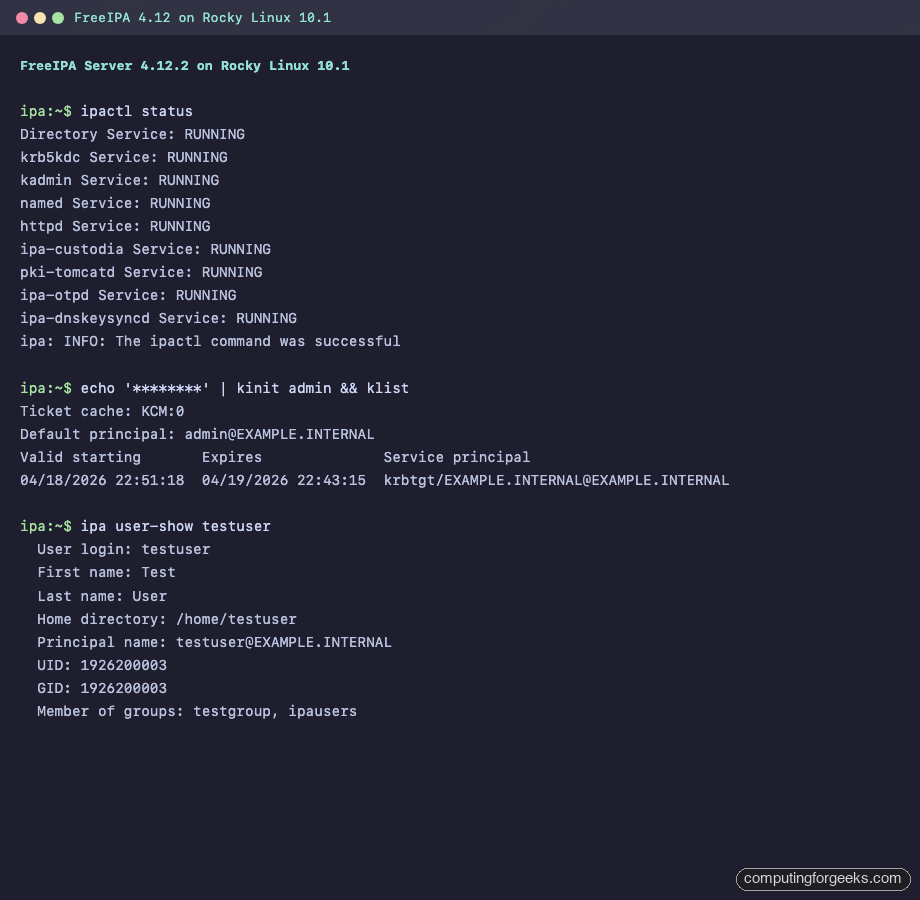
Captured on the test box after the admin ticket was obtained, the same terminal shows ipactl status plus the ipa user-show testuser output used in Step 9:
Step 8: Get a Kerberos ticket as admin
Before the ipa CLI will let you make any changes, you need a Kerberos ticket for the admin principal. Request one:
echo "${ADMIN_PASS}" | kinit admin
klist
The klist output shows the krbtgt ticket valid for 24 hours by default:
Ticket cache: KCM:0
Default principal: [email protected]

Valid starting       Expires              Service principal
04/18/2026 22:51:18  04/19/2026 22:43:15  krbtgt/[email protected]
Once you have this ticket, every ipa subcommand authenticates as admin without prompting. When the ticket expires, re-run kinit.
Step 9: Create the first user and group
Directories with no users are just an expensive Kerberos setup. Create a test user and a group to confirm the directory is writable and the automatic private group membership works:
ipa user-add testuser \
  --first=Test \
  --last=User \
  --email=testuser@${IPA_DOMAIN}
FreeIPA prints the new user object with an auto-assigned UID, the full principal name, and the starter ipausers group membership:
---------------------
Added user "testuser"
---------------------
  User login: testuser
  First name: Test
  Last name: User
  Full name: Test User
  Home directory: /home/testuser
  Login shell: /bin/sh
  Principal name: [email protected]
  Email address: [email protected]
  UID: 1926200003
  GID: 1926200003
  Member of groups: ipausers
  Kerberos keys available: False
Kerberos keys available: False means the user has no password yet and cannot log in. Set one with ipa passwd, then add the user to a custom group:
ipa group-add testgroup --desc="Test group"
ipa group-add-member testgroup --users=testuser
The group-add-member output confirms the membership count:
  Group name: testgroup
  Description: Test group
  GID: 1926200004
  Member users: testuser
-------------------------
Number of members added 1
-------------------------
For production user/group workflows, including bulk CSV imports and role-based access rules, see the companion manage users and groups in FreeIPA using CLI guide which covers the full ipa user-* and ipa group-* surface area.
Step 10: Verify the integrated DNS is answering
The --setup-dns flag handed BIND its zone plus SRV records that clients use for auto-discovery. Point dig at the loopback to confirm BIND is resolving the A record for the server and the Kerberos/LDAP SRV records for the realm:
dig @127.0.0.1 "${IPA_HOST}" A +short
dig @127.0.0.1 "_ldap._tcp.${IPA_DOMAIN}" SRV +short
dig @127.0.0.1 "_kerberos._tcp.${IPA_DOMAIN}" SRV +short
The expected output: the A record returns the server IP, and the SRV records point to ${IPA_HOST} on the standard ports (389 for LDAP, 88 for Kerberos):
192.168.1.144
0 100 389 ipa.example.internal.
0 100 88 ipa.example.internal.
Clients that point /etc/resolv.conf at this server (or inherit it via DHCP) can find the IPA services without extra configuration. That is the feature that makes ipa-client-install a one-liner on the enrollee side.
Step 11: Smoke-test the Web UI
The management Web UI lives at https://${IPA_HOST}/ipa/ui/. Hit it with curl from the server itself to confirm Apache plus mod_auth_gssapi are healthy:
curl -sI -k "https://${IPA_HOST}/ipa/ui/" | head -5A healthy install returns HTTP 200 with the mod_auth_gssapi and mod_wsgi modules loaded:
HTTP/1.1 200 OK
Date: Sat, 18 Apr 2026 19:51:48 GMT
Server: Apache/2.4.63 (Rocky Linux) OpenSSL/3.5.1 mod_auth_gssapi/1.6.5 mod_wsgi/5.0.0 Python/3.12
X-Frame-Options: DENY
Content-Security-Policy: frame-ancestors 'none'
From a browser, open https://ipa.example.internal/ipa/ui/ and sign in as admin. The first browser load will warn about the self-signed IPA CA until you import /etc/ipa/ca.crt into your OS trust store or (better) issue the server a public TLS cert per the secure FreeIPA with Let’s Encrypt guide.
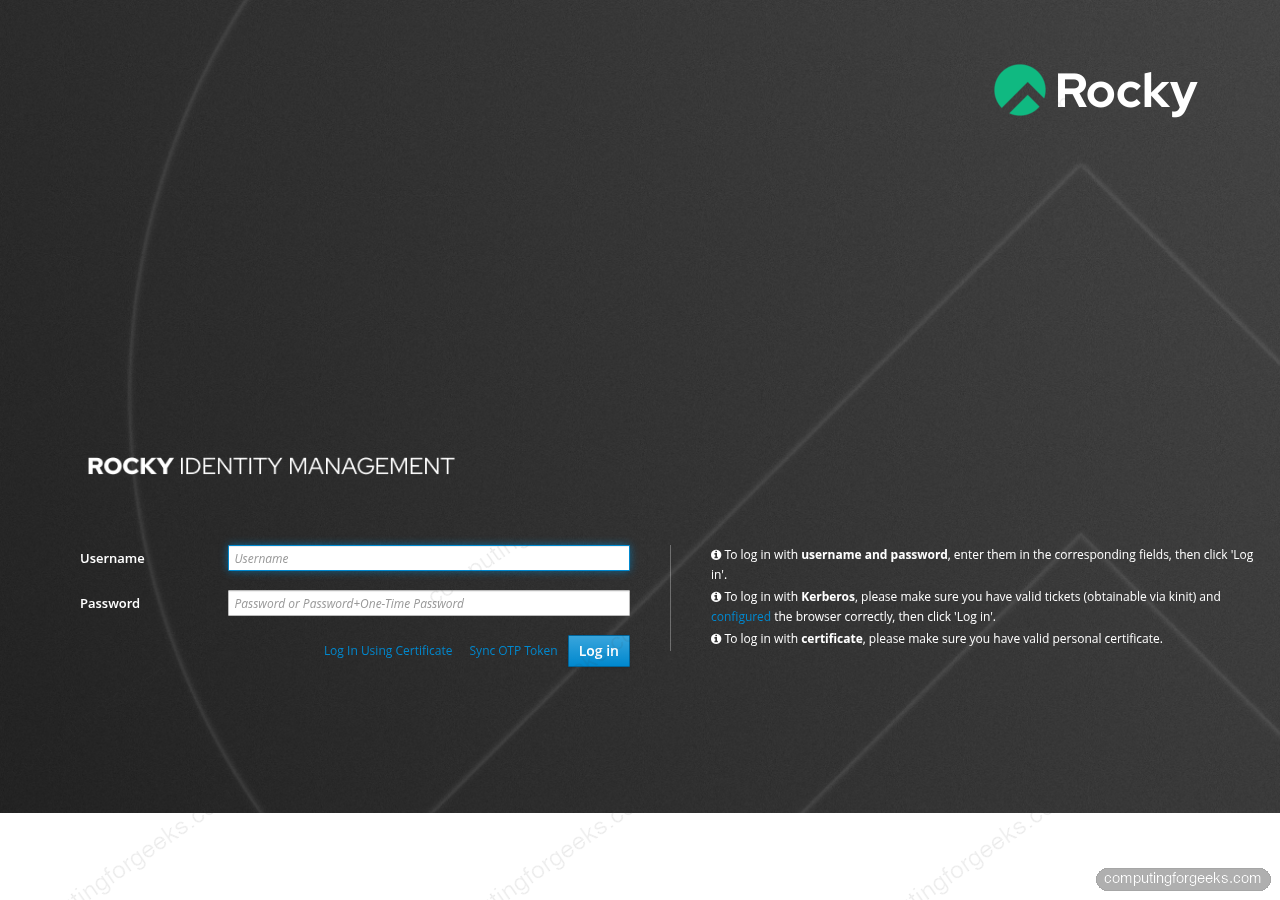
Here is the login screen as served by Apache with mod_auth_gssapi handling Kerberos and form-fallback for browser users:
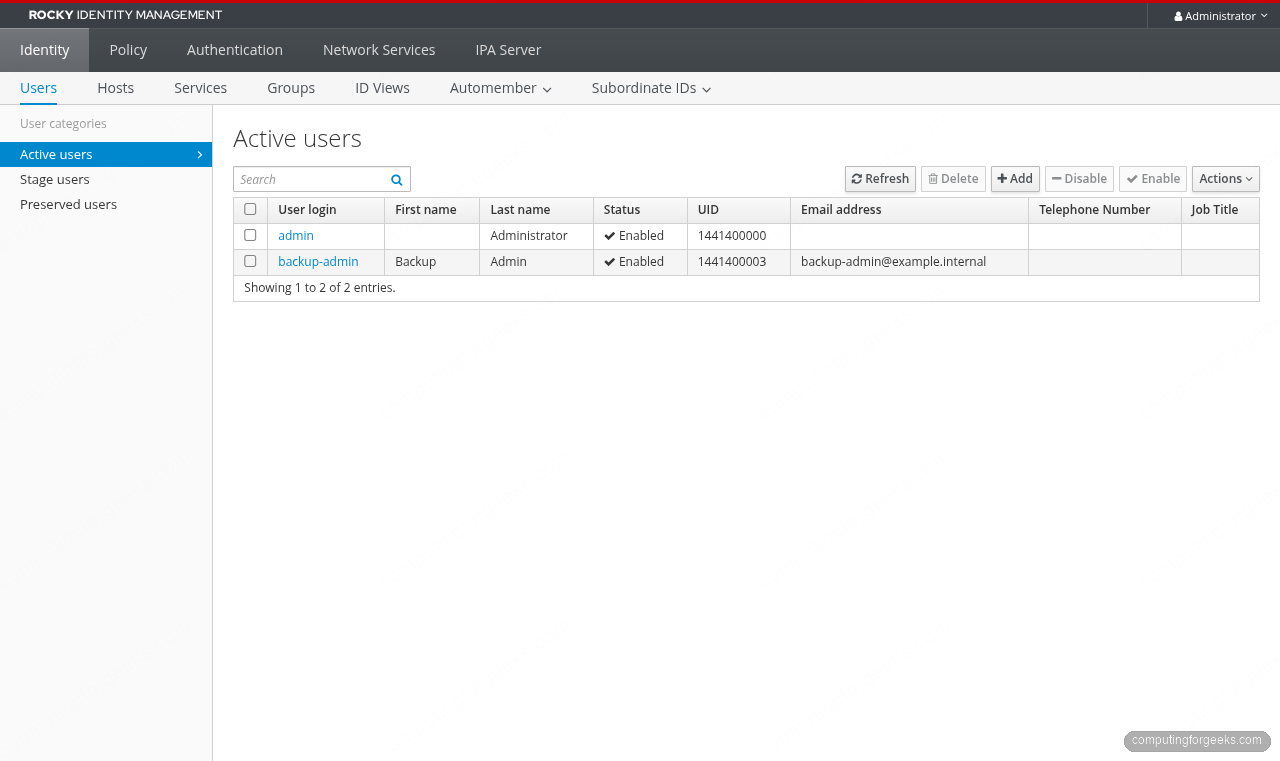
After signing in as admin, the Active Users panel is the landing page. A fresh install shows only the admin account; create the first regular user from the CLI with ipa user-add (shown below) or straight from this screen with the + Add button:
Step 12: Add a sudo rule tied to the group
Sudo rules in FreeIPA centralize who can run what on which enrolled host. A minimal “allow-all” rule for the test group is fine for a lab; tighten it with --hostcat, --runasusercat, and explicit command sets in production:
ipa sudorule-add allsudo --desc="Allow sudo to members of testgroup"
ipa sudorule-add-user allsudo --users=testuser
The rule is created in an enabled state and shows up in the Web UI under Policy > Sudo > Sudo Rules. Clients fetch these rules through SSSD on enrollment:
-------------------------
Added Sudo Rule "allsudo"
-------------------------
  Rule name: allsudo
  Description: Allow sudo to members of testgroup
  Enabled: True
  Users: testuser
-------------------------
Number of members added 1
-------------------------
Step 13: Inspect the IPA CA certificates
The embedded Dogtag CA issued short-lived service certs the moment the installer finished. ipa-getcert list shows every tracked cert, where it lives, who issued it, and when it renews:
sudo ipa-getcert list | head -20Two of the certs worth knowing about: the Directory Server cert (served on 636) and the Apache httpd cert (served on 443). Both auto-renew through certmonger every two years:
Number of certificates and requests being tracked: 9.
Request ID '20260418193802':
	status: MONITORING
	stuck: no
	certificate: type=NSSDB,location='/etc/dirsrv/slapd-EXAMPLE-INTERNAL',nickname='Server-Cert'
	CA: IPA
	issuer: CN=Certificate Authority,O=EXAMPLE.INTERNAL
	subject: CN=ipa.example.internal,O=EXAMPLE.INTERNAL
	issued: 2026-04-18 22:38:03 EAT
	expires: 2028-04-18 22:38:03 EAT
	profile: caIPAserviceCert
	track: yes
	auto-renew: yes
For services running on enrolled hosts you can request new certs through this CA with ipa-getcert request which saves running a separate public CA for internal TLS.
Step 14: Enroll a client (one-line preview)
A FreeIPA server without clients is only half useful. On any Rocky / Alma / RHEL host that can resolve the IPA FQDN (either via DNS or /etc/hosts), run:
sudo dnf install -y ipa-client
sudo ipa-client-install --mkhomedir --no-ntp
The client installer discovers the realm via DNS SRV records, prompts for the admin password, registers the host in the directory, configures SSSD, and PAM-enables mkhomedir. Full flags, enrollment pre-creation, and bulk-join tokens are covered in the dedicated FreeIPA client install guide.
Step 15: Plan for backups
FreeIPA has a dedicated backup tool that snapshots LDAP plus Kerberos keytabs plus CA keys in one call. The command to know, run with admin ticket active:
sudo ipa-backup --data--data produces an online backup that does not stop the directory server. For a full offline backup (LDIF + CA key export) drop the flag and schedule a maintenance window. The archive lands in /var/lib/ipa/backup/ with a timestamped directory name. Rotate those off-box to S3, B2, or a NAS before you need them.
Troubleshooting: ipa-server-install fails at pki-tomcatd
The most common install failure on small VMs looks like this in /var/log/ipaserver-install.log:
DBusException: org.freedesktop.DBus.Error.NoReply: Did not receive a reply.
Possible causes include: the remote application did not send a reply,
the message bus security policy blocked the reply, the reply timeout expired,
or the network connection was broken.
The ipa-server-install command failed. See /var/log/ipaserver-install.log for more information
Certmonger called out to Dogtag (pki-tomcatd) over DBus and Tomcat never came back. On 1.5 GB VMs the JVM and Directory Server starve each other for memory and the DBus reply times out. Fix: give the box 4 GB, or add swap as a stopgap:
sudo fallocate -l 2G /swapfile
sudo chmod 600 /swapfile
sudo mkswap /swapfile
sudo swapon /swapfile
echo '/swapfile none swap sw 0 0' | sudo tee -a /etc/fstab
Then uninstall the partial IPA state with sudo ipa-server-install --uninstall -U and run the installer from Step 6 again. The second pass completes because the JVM and 389-ds have room to breathe.
Troubleshooting: hostname -f returns the short name
If hostname -f prints ipa instead of ipa.example.internal, the installer aborts immediately. Two fixes:
- Ensure
/etc/hostshas a line with the IP, FQDN, and short alias in that order. The column order matters becausegetent hostsreturns the first canonical name field. - If DNS already has the A record, check that
/etc/nsswitch.confreadshosts: files dns(files first). Cloud images sometimes put dns first, and a misconfigured upstream returns the short name.
Troubleshooting: port 53 already in use
The installer reports [Errno 98] Address already in use when BIND tries to bind to 53. Something on the box is holding it. The usual suspects:
sudo ss -tulpn | grep ':53 'Running that tells you whether systemd-resolved, dnsmasq, or a pihole container is parked on the port. Stop and disable whatever it is, rerun sudo ipa-server-install --uninstall -U, then retry the install.
Next steps
With the primary FreeIPA server running, the logical follow-ups are adding a replica for HA per the FreeIPA replication guide, enrolling Linux hosts with ipa-client-install, and issuing a public TLS cert so the Web UI stops throwing browser warnings via the Let’s Encrypt for FreeIPA walkthrough. For mixed Windows estates, IPA-AD trust lets AD users sign in to IPA-managed hosts without migrating accounts.



![Install Kali Linux 2026.1 Step by Step [Full Guide]](https://computingforgeeks.com/wp-content/uploads/2026/03/install-kali-linux-20261-step-by-step-768x403.png "Install Kali Linux 2026.1 Step by Step [Full Guide] 6")

Everything is good. But in addition, you can use freeipa-4 service to allow all relevant services in Rocky Linux 9 firewall.