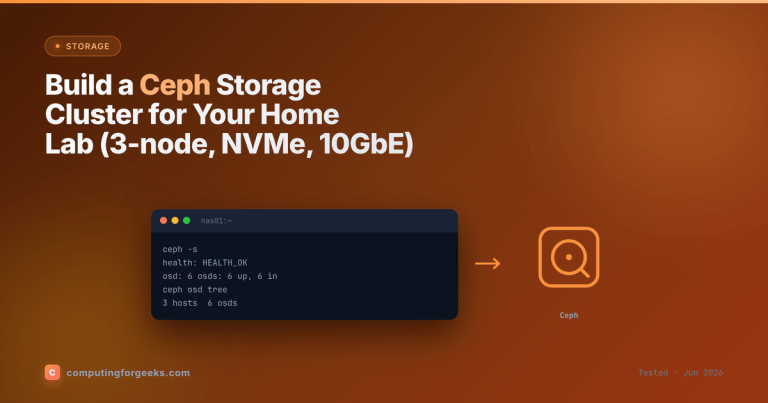
Most storage guides start with a single box. Ceph breaks that habit on the first page, because Ceph is distributed by design. You are not sizing one machine, you are sizing a cluster, and the number that matters most is how many nodes you spread the data across. Get the node count and the network right and a Ceph home lab cluster is genuinely pleasant to run. Get them wrong and you end up with a slow, fragile pile that scares you away from the technology.
This guide answers the question people actually search for before they spend any money: how many nodes, how many drives, how much RAM, which CPU, and what network does a Ceph home lab really need. The numbers below come from Ceph’s official hardware recommendations and how small three to five node clusters behave once real data lands on them.
Sized from Ceph’s official hardware recommendations and how three- and five-node clusters actually behave in a home lab, current as of June 2026.
Start with node count, not drives
Ceph keeps multiple copies of every object on different machines. The default and recommended replication policy is three copies with a write minimum of two, written as size = 3 and min_size = 2. In a small cluster the failure domain is the node, so those three copies land on three separate nodes. That single rule sets the floor: three nodes is the practical minimum for a real Ceph cluster.
Three nodes works, and it works well, but it has one honest limitation worth understanding before you buy. With exactly three nodes and triple replication, the cluster runs healthy and survives a node going down for maintenance in a degraded state. What it cannot do is self-heal after losing a node, because there is no fourth machine for the missing third copy to rebuild onto. You stay degraded until the node comes back. That is fine for a lab where you control the maintenance window, but it is the reason a fourth or fifth node changes the experience completely.
A four or five node cluster can actually rebalance around a dead node and return to full redundancy on its own. Five nodes also lets you lose two machines and still hold quorum. If you have the budget and the rack space, an odd number of nodes (three or five) is the sweet target for a home lab. Two nodes is not Ceph, it is a way to corrupt data: skip it.
Drives and OSDs: one per drive, dedicated, and not the cheap ones
Each drive you hand to Ceph becomes an OSD (Object Storage Daemon), and the rule is one OSD per physical drive. Those drives must be dedicated to Ceph. Do not carve an OSD out of the same disk that holds the operating system, and do not colocate OSD data with the monitor database. Every node therefore wants at least two drives: a small one for the OS (a 250 to 500 GB SSD is plenty) and one or more separate drives for OSDs.
For a home lab, use SSDs or NVMe for the OSDs, not spinning disks. Ceph spreads small writes across the whole cluster and adds its own replication overhead, so HDD latency stacks up fast and makes a small cluster feel sluggish. Ceph recommends a minimum OSD size of 1 TiB, which also keeps your usable-to-raw math sane.
The single biggest mistake in home lab Ceph is the wrong kind of NVMe. Consumer drives without power loss protection (PLP) handle Ceph’s synchronous writes badly, because Ceph asks the drive to flush every write to stable media and a consumer drive without a capacitor honours that request the slow way. The result is throughput that collapses to a fraction of the drive’s rated speed, and consumer-grade endurance that wears out far faster under Ceph’s write pattern. Used enterprise NVMe or SATA SSDs with PLP (the kind that show up cheaply secondhand) outperform shiny consumer QLC drives in Ceph every time. Our guide to SSDs and NVMe for servers covers which enterprise models to look for, and the NVMe versus SATA comparison explains where each fits.
How many OSD drives per node? One per node is the entry point and it works. Two or three per node gives the cluster more parallelism and more failure isolation within a host, and is the better target once you are past the proof of concept. Remember that usable capacity with triple replication is roughly one third of raw, and you should plan to fill no more than about 80 percent of that, so a cluster with 6 TB of raw NVMe lands near 1.5 to 1.6 TB of comfortable usable space.
RAM: budget per OSD, then add the rest
RAM is where hyperconverged home labs get squeezed, because the same machines often run virtual machines as well as Ceph. Each BlueStore OSD targets 4 GiB of memory by default (the osd_memory_target setting), and Ceph never recommends dropping it below 2 GB. The official sizing rule is blunt: total node RAM should be greater than the number of OSDs times osd_memory_target times two.
That math is easy to apply. A node with three OSDs at the default target wants north of 24 GB just for the OSDs, before the operating system, the monitor and manager daemons, and any VMs. In practice, 32 GB per node is a sensible floor for a three OSD node that does nothing but storage, and 64 GB is where you want to be if the same nodes also host workloads. The monitor daemon itself is modest; budget around 5 GB per monitor (Ceph’s recommended minimum), which still adds up alongside everything else. If you are also running Proxmox VMs on these boxes, size the memory with the Proxmox RAM guide and add the Ceph budget on top.
CPU: more threads for NVMe, fewer for HDD
Ceph scales with cores, and the faster your OSD drives, the more CPU each one wants. Ceph suggests around 4 to 6 threads per NVMe OSD, against 1 to 3 threads per HDD OSD. NVMe is fast enough that the CPU, not the disk, becomes the limit, so a node packed with NVMe OSDs needs real cores to feed them.
For a home lab this is rarely the binding constraint, because the small mini-PCs and used workstations people build clusters from already ship 6 to 16 threads. A modern 8-core, 16-thread mini-PC comfortably drives two or three NVMe OSDs and still has headroom for a few VMs. If you intend to run a hyperconverged cluster where the same nodes serve storage and compute, lean toward more cores, and pick the node hardware from the mini-PC for homelab and Proxmox shortlist, which already flags the models with the core counts and NIC options that suit clustering.
Network: this is where labs succeed or fail
Ceph is a network filesystem in the most literal sense. Every write travels to other nodes to satisfy replication, and recovery after a failure moves large amounts of data between machines. Ceph’s official recommendation is at least 10 Gb/s networking among the cluster nodes, rising to 25 Gb/s for heavier workloads.
For a home lab, 2.5 Gb/s is the absolute floor and only acceptable on a tiny three node cluster with light use, where you accept that recovery and large writes will crawl. Treat 1 Gb/s as a non-starter: a single gigabit link turns Ceph into a frustrating experience and is the most common reason people give up on it. The practical home lab target in 2026 is 10 Gb/s, which has become affordable thanks to mini-PCs with built-in SFP+ or 10GbE and cheap used switches. Many of the small machines people cluster, like the Minisforum MS-01 class, ship dual SFP+ ports specifically for this. For nodes without built-in 10GbE, a cheap add-in card does the job; our guide to the best 10GbE NICs for Proxmox covers which ones just work on the cluster.
Ideally Ceph splits traffic into a public network (clients to cluster) and a separate cluster network (replication and recovery between nodes). In a small lab you can run both on one fast link to keep things simple, and split them later if recovery traffic starts to hurt client performance. The 10GbE and 25GbE switch guide covers the affordable switches that make this practical without datacenter prices.
What a sensible Ceph home lab cluster looks like at three budgets
Putting the pieces together, here are three node profiles. Build three (or five) identical nodes from one of these rows. Identical hardware matters in Ceph: the cluster balances data evenly, so a mismatched node either wastes capacity or becomes the bottleneck.
| Per-node spec | Entry (proof of concept) | Mid (the real target) | Serious (rebalancing room) |
|---|---|---|---|
| Nodes | 3 | 3 | 5 |
| CPU | 6 to 8 threads | 8 to 16 threads | 16+ threads |
| RAM | 16 to 32 GB | 32 to 64 GB | 64 to 128 GB |
| OS drive | 250 GB SATA SSD | 500 GB NVMe | 500 GB NVMe |
| OSD drives | 1 x 1 TB SSD | 2 x 1 to 2 TB enterprise NVMe (PLP) | 3+ x 2 TB enterprise NVMe (PLP) |
| Network | 2.5 GbE | 10 GbE (SFP+) | 10 to 25 GbE, split public/cluster |
| Survives a node loss? | Degraded, no self-heal | Degraded, no self-heal | Self-heals after one loss |
The entry row is for learning the commands and watching how placement groups move. The mid row is what most people should actually build: three matched mini-PCs with 10GbE and a pair of enterprise NVMe OSDs each is a quiet, fast, dependable cluster. The serious row earns its cost only when you want the cluster to ride out a real hardware failure unattended.
The mistakes that waste money
A few errors show up again and again, and every one of them is avoidable before you buy. Running consumer QLC NVMe without power loss protection is the classic one, and it produces a cluster that benchmarks far below the drives’ ratings. Wiring nodes together on 1 GbE is the second, and it caps the whole cluster regardless of how fast the drives are. Building exactly two nodes is the third, because triple replication cannot be satisfied and the cluster never reaches a healthy state. Mixing wildly different node specs is the fourth, since Ceph distributes data by capacity and weight and an oddball node drags on the rest.
Match the nodes, give them dedicated PLP SSDs, put them on at least 10GbE, and use three or five of them. That combination, on hardware you can buy used for the price of one mid-range NAS, is what separates a Ceph cluster people keep from one they tear down in a weekend.
Where to go from here
Once the hardware is decided, the build is the easy part. If you run Proxmox, Ceph is hyperconverged directly into the cluster you already have, so the same three nodes serve VMs and storage together. Start from the Proxmox homelab server build for the node assembly, then follow our step-by-step Ceph deployment on Rocky Linux and AlmaLinux or Ubuntu to bring the cluster up, and wire in Prometheus and Grafana monitoring so you can watch it behave. If you are still weighing Ceph against the alternatives for a lab, the Ceph versus GlusterFS, MooseFS, HDFS and DRBD comparison lays out where each one earns its place. Buy for three matched nodes, fast drives, and a fast network, and the rest is just following the steps.