Hard drive prices are the worst they have been in a decade. AI datacenters bought out the supply chain: Western Digital’s entire hard drive output for 2026 is sold out, Seagate is fulfilling roughly half to two thirds of orders, and the squeeze reached consumer externals months ago. The 28TB Seagate Expansion went from $390 in early 2025 to gone from shelves, and 18TB drives from first-party sellers have been replaced by third-party listings at double their old price.
That reality reshapes what the best external hard drives for backups look like on a Linux machine in 2026. This guide ranks the drives that are verifiably CMR, verifiably buyable, and verifiably recoverable when an enclosure dies, using manufacturer datasheets and live listings rather than year-old assumptions. It also walks through the exact UUID automount and restic workflow that turns one of these drives into an automated backup target.
Specs verified July 2026 against WD and Seagate datasheets; the backup workflow ran on restic 0.16.4 (Ubuntu 24.04).
Quick picks
Three drives cover the realistic use cases. Every listing linked in this guide was loaded live on July 6, 2026 with a US delivery address, and the price situation per pick is stated plainly because it is not normal right now.
| Award | Drive | Why it wins |
|---|---|---|
| Best overall | WD Elements Desktop | CMR from 8TB up with helium Ultrastar-class drives at high capacities, no encryption chip between you and your data, 2-year warranty |
| Best value in stock | Seagate Expansion Desktop | Lowest cost per terabyte actually buyable in July 2026 (16TB and 20TB in stock) |
| Best portable | Seagate Portable 5TB | Bus-powered offsite rotation drive; honest about being SMR |
How these picks were chosen
Every capacity, interface, warranty, and recording-technology claim below traces to the manufacturer’s own datasheet or an official CMR/SMR disclosure, cross-checked against at least one independent source. Every Amazon link was verified on the live listing the same day: exact model, buy box present, seller identity, and the price actually shown.
No throughput numbers are quoted because none were measured; these drives were not on a bench for this guide. What was tested end to end is the Linux side: the partition, format, UUID automount, and restic sequence in the workflow section ran on a real Ubuntu 24.04 host against a USB-attached lab disk, and every output block is the unedited capture. Drive-specific behavior such as SMR write characteristics and USB bridge quirks is cited from vendor documentation and documented reports, not guessed.
The three picks at a glance
| Spec | WD Elements Desktop | Seagate Expansion Desktop | Seagate Portable |
|---|---|---|---|
| Capacities | 4TB to 26TB | 4TB to 28TB | 1TB to 5TB |
| Recording tech | CMR documented at 8TB+; treat 4TB to 6TB as SMR risk | CMR at 10TB+; 4TB to 8TB are documented SMR Barracudas | Drive-managed SMR at 4TB to 5TB |
| Drive inside (documented) | Helium white-label, Ultrastar class at high capacities | Barracuda 5400rpm class (2025+ production); earlier batches shipped Exos | Barracuda 2.5-inch, 15mm |
| Interface | USB 3.2 Gen 1 (5Gbps), micro-B | USB 3.0 (5Gbps), micro-B (newest stock may ship USB-C; check listing photos) | USB 3.0 (5Gbps), micro-B |
| Power | External adapter | External adapter (18W) | Bus-powered |
| Hardware encryption | None (good for recovery) | None | None |
| US warranty | 2 years | 1 year | 1 year |
1. WD Elements Desktop
The default backup target, and the one with the cleanest failure story. The plastic is boring; what is inside is not.
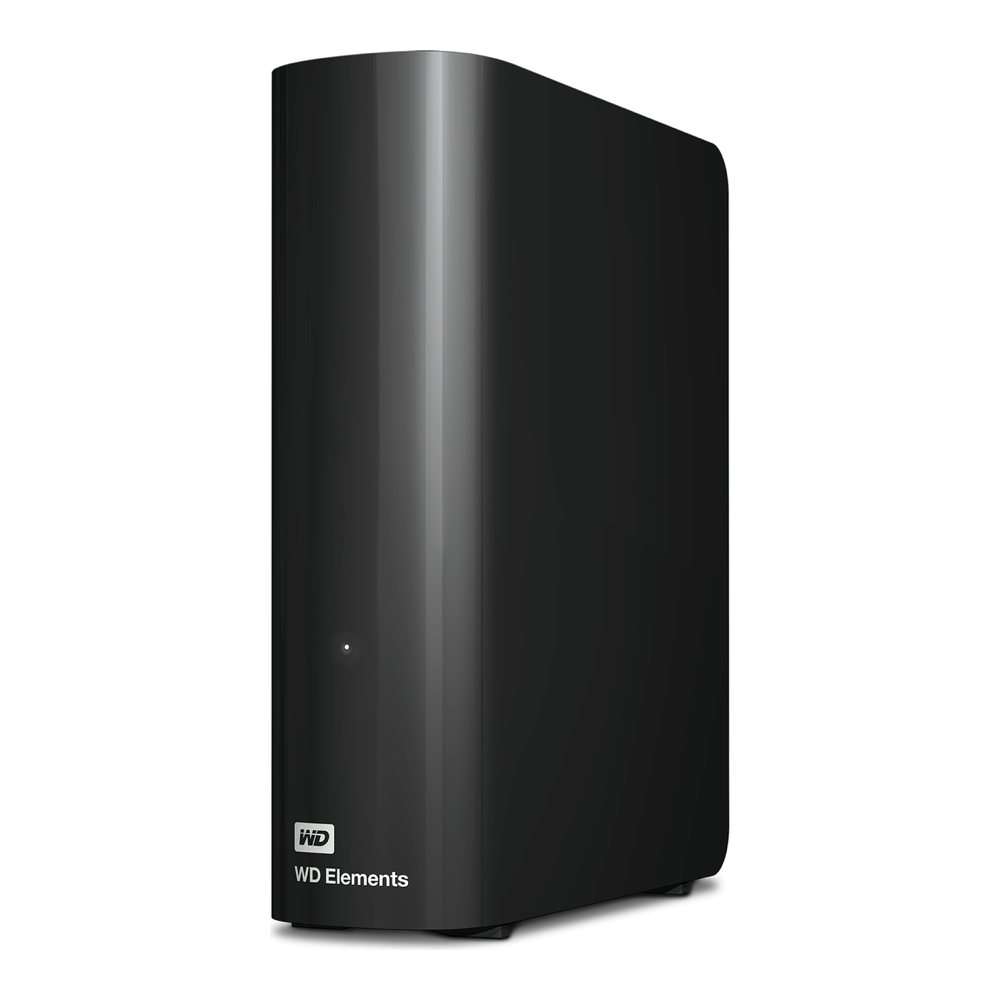
The line runs from 4TB to 26TB over USB 3.2 Gen 1 with a micro-B port and an external power adapter, preformatted NTFS. From 8TB up the mechanism is documented CMR, and teardowns of the mid and high capacities consistently find helium-filled white-label drives of Ultrastar class; 18TB units have been identified as the same hardware as the datacenter DC HC550. The warranty is 2 years worldwide, double what Seagate gives the Expansion in the US.
The detail that matters most for a backup drive: the Elements bridge has no hardware encryption. If the enclosure electronics die, the bare drive comes out and reads in any SATA dock or spare bay, plain and intact. That is exactly the property you want from the device holding your last copy, and it is the main reason this pick beats the prettier WD My Book (more on that below).
Two Linux quirks are worth knowing. The USB bridge runs its own idle spindown timer and mostly ignores hdparm -B and hdparm -S; if you want controlled spindown behavior, hd-idle is the tool that works, and the systemd automount in the workflow below plays into this by unmounting the filesystem when idle. Neither affects backup reliability.
Buy it if you want the safest long-term single-drive backup target with the best odds of painless data recovery. Skip it if you are shopping at 4TB or 6TB, where the SMR risk zone starts and a labeled NAS-class drive in a dock is the better buy, or if cost per terabyte is the deciding factor this month, because WD stock is thin: on verify day the 18TB and 20TB listings were third-party sellers at roughly double their 2024 prices, and the 22TB was the sane in-stock option in the range of $850 to $950. Check the current price on Amazon before deciding; this market moves weekly.
2. Seagate Expansion Desktop
The value pick, and in July 2026 the only big external reliably in stock at a defensible cost per terabyte.
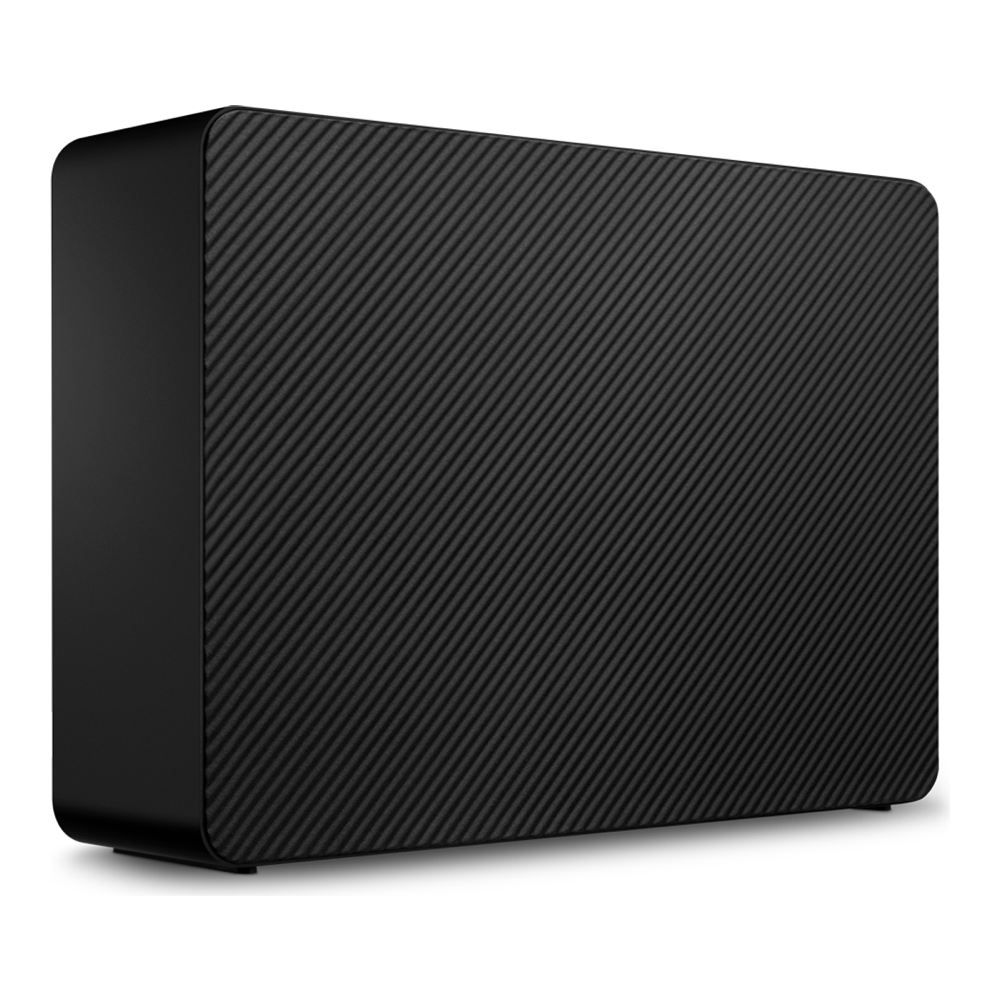
The Expansion Desktop line stretches from 4TB to 28TB, the largest consumer external ever sold, though the 28TB has vanished from retail since the shortage hit. On verify day the 16TB sat near $460 and the 20TB near $630, both in stock, which made them the cheapest buyable terabytes among the desktop externals checked for this guide. Both listings were fulfilled through Amazon’s Global Store rather than a US first-party offer, which is the shortage in miniature.
What is inside depends on the production batch. Units built from 2025 onward ship a Barracuda-class 5400rpm mechanism; earlier stock at the same capacities carried Exos datacenter drives, and Seagate guarantees neither. For a backup target the slower class is irrelevant, since the job is sequential and scheduled. What does matter is the capacity floor: Seagate’s own CMR/SMR disclosure lists the 4TB to 8TB Barracudas as drive-managed SMR, so buy this line at 10TB or above.
The honest downsides: the US warranty is 1 year against WD’s 2 (EMEA gets 2, APAC 3), and the bundled Rescue Data Recovery service is real but Seagate does not state its term on the datasheet, so treat it as a bonus rather than a plan. SMART passes through the bridge cleanly with smartctl -d sat, which the last section covers.
The right buy when you want the most backup terabytes per dollar that can actually ship this month. Look elsewhere if warranty length drives the decision, or you are shopping below 10TB where the SMR models live. Check the current 20TB price on Amazon.
3. Seagate Portable 5TB
The offsite rotation drive. One USB cable, no power brick, small enough to live in a drawer at the office or a relative’s house.
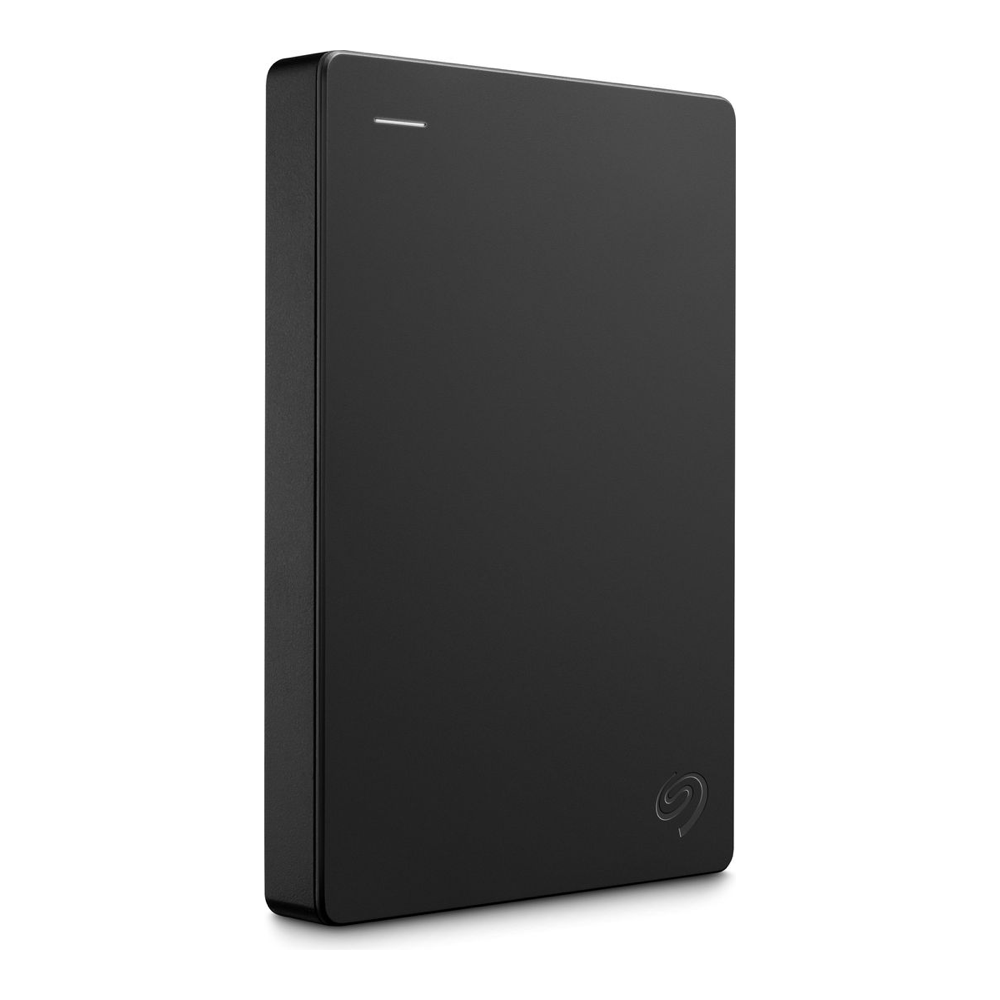
Full disclosure that vendors will not print on the box: every 4TB and 5TB bus-powered 2.5-inch external on the market, Seagate or WD, is drive-managed SMR. The 5TB mechanism here is a 15mm Barracuda 2.5-inch that buffers incoming writes in a CMR cache zone and reshingles them in the background. Fill that cache with sustained random writes and throughput collapses to a crawl until the drive catches up.
That makes this the wrong drive for rsync-heavy churn or a nightly target that rewrites in place, and a perfectly good drive for what a portable should do: receive a mostly sequential restic copy once a week or month, then go offsite. At around $200 to $230 on verify day it was in stock with a 4.6-star average across the portable family; the WD Elements Portable 5TB is the same story at nearly the same price if the Seagate sells out, and it carries a 2-year warranty against the Seagate’s 1.
Get one for the offsite leg of a 3-2-1 setup, where no power adapter is a genuine feature. Do not make it your only backup drive; SMR plus 2.5-inch mechanics is not where the primary copy belongs. Check the current price on Amazon.
Why the WD My Book is not on the list
On paper the My Book beats the Elements: 3-year warranty instead of 2, exFAT from the factory so it mounts on a stock Linux kernel with zero setup, same capacities up to 26TB. The disqualifier is invisible. The My Book’s USB bridge encrypts every block with AES-256 whether or not you ever set a password, and the encryption key lives in the bridge firmware. If the enclosure electronics fail, the platters hold ciphertext, and recovery means sourcing a donor bridge board that matches. Documented recovery cases exist, and none of them are fun.
For general storage that trade-off is defensible. For the drive whose entire job is surviving a bad day, always-on encryption you did not ask for inverts the requirement; the Elements gives you the same platters without the hostage situation. It also barely matters right now in practice: the 18TB My Book had no buy box at all on verify day. If you want encrypted backups, encrypt in software where the key is yours, which restic below does by default.
What matters when buying a backup drive in 2026
CMR versus SMR is a capacity question
Neither vendor labels recording technology on external boxes, but the pattern is consistent: desktop externals at 10TB and above are CMR, WD’s 4TB to 6TB and Seagate’s 4TB to 8TB desktop models fall in documented SMR territory, and all 2.5-inch portables at 4TB and up are SMR. The full mechanics and why it matters for rewrite-heavy workloads are in the CMR versus SMR breakdown. For a scheduled, mostly sequential backup job, SMR is tolerable; for anything that rewrites in place, it is not.
The price reality, stated plainly
Enterprise SATA went from roughly $5 to $7 per terabyte in early 2025 to $9 to $15 by March 2026, and consumer externals followed. Not one high-capacity listing checked for this guide was a first-party Amazon offer at a normal price; stock was third-party sellers and Global Store imports, several showing single-digit units left. The practical advice: buy the in-stock capacity at the least-bad cost per terabyte instead of waiting for a return to 2024 pricing, check B&H and Best Buy against Amazon before paying a shortage premium, and treat every price in this guide as a band that will have moved by the time you read it.
Warranty and recovery services
WD Elements carries 2 years worldwide and the My Book 3; Seagate’s Expansion line is 1 year in the Americas (2 in EMEA, 3 in APAC), and the portables are 1 year. Seagate bundles Rescue Data Recovery with the Expansion and One Touch lines but does not publish the term on the datasheet, so register the drive and confirm rather than assuming. A warranty replaces hardware, not data; the workflow below is what protects the data.
Reformat to ext4 and forget the bundled filesystem
The Elements ships NTFS and the Seagates ship for Windows and macOS too. Linux reads all of it, but a backup target should run a native filesystem: ext4 gets you POSIX permissions, journaling, and none of the NTFS driver overhead. The workflow below wipes the factory format in one command, so whatever filesystem the drive arrives with does not matter.
A tested backup workflow on Ubuntu 24.04
The sequence below ran end to end on an Ubuntu 24.04 lab host against a USB-attached lab disk standing in for the enclosure (the drive shows up as a smaller QEMU device in the captures; the commands and behavior are identical on a physical Elements or Expansion). Every output block is the real capture.
Step 1: Identify, partition, and format the drive
Find the device name by transport type before touching anything:
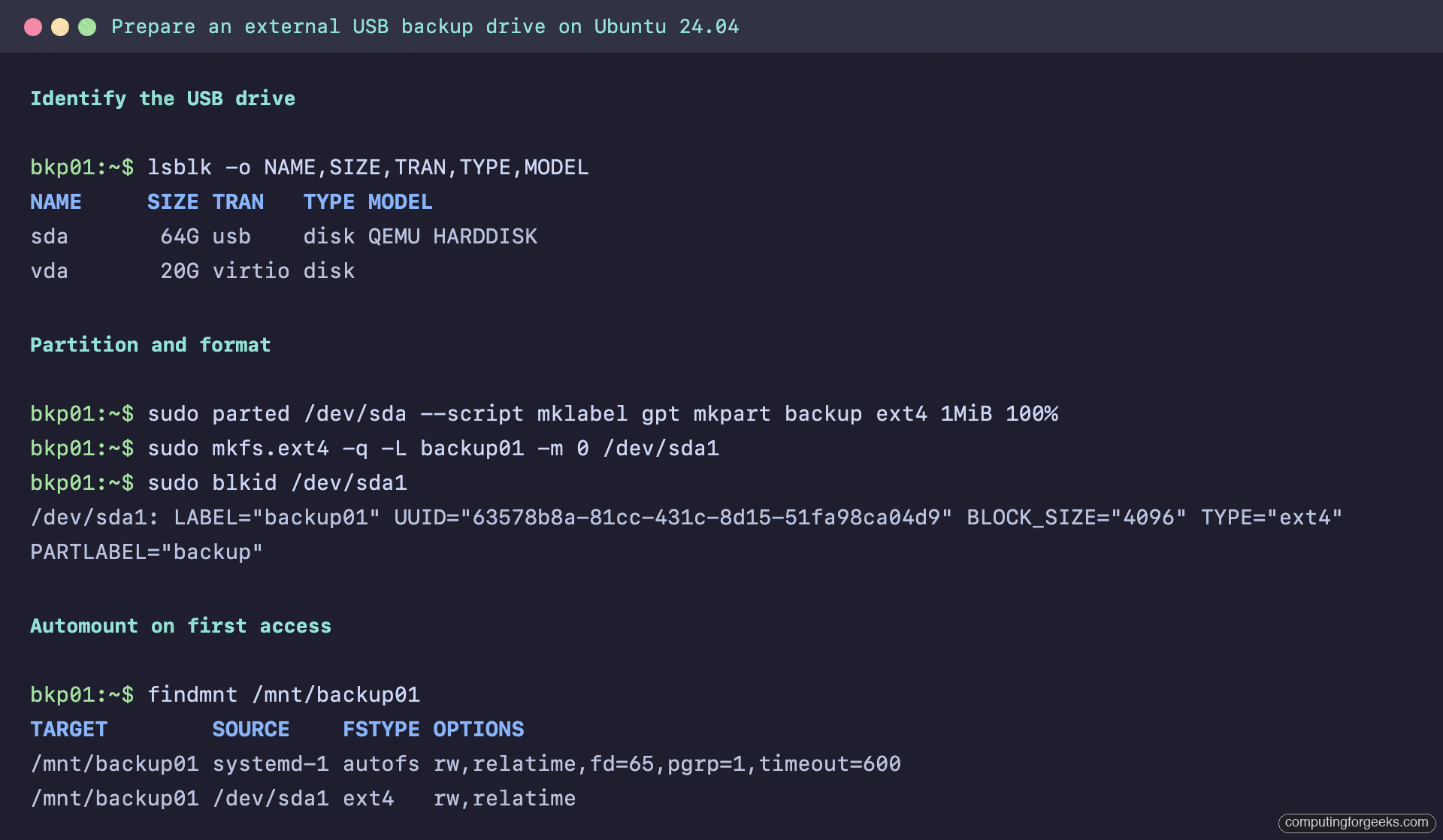
lsblk -o NAME,SIZE,TRAN,TYPE,MODELThe external drive is the one with usb in the TRAN column:
NAME     SIZE TRAN   TYPE MODEL
sda       64G usb    disk QEMU HARDDISK
vda       20G virtio disk
Wipe the factory layout, create a single GPT partition, and format it ext4. The -m 0 drops the root-reserved 5 percent, which on a 20TB drive hands a full terabyte back to backups:
sudo parted /dev/sda --script mklabel gpt mkpart backup ext4 1MiB 100%
sudo mkfs.ext4 -q -L backup01 -m 0 /dev/sda1
Grab the UUID, which stays stable no matter which port the drive lands on:
sudo blkid /dev/sda1The filesystem, label, and UUID come back on one line:
/dev/sda1: LABEL="backup01" UUID="63578b8a-81cc-431c-8d15-51fa98ca04d9" BLOCK_SIZE="4096" TYPE="ext4" PARTLABEL="backup"The whole preparation pass, from identification to a confirmed UUID, looks like this on the lab host:
Step 2: Mount by UUID with a systemd automount
A backup drive should never be able to hang the boot. This fstab entry mounts on first access instead of at boot, tolerates the drive being unplugged, and unmounts after 10 idle minutes so the bridge can spin the platters down between jobs:
sudo mkdir -p /mnt/backup01
echo "UUID=63578b8a-81cc-431c-8d15-51fa98ca04d9 /mnt/backup01 ext4 defaults,nofail,noauto,x-systemd.automount,x-systemd.idle-timeout=600 0 2" | sudo tee -a /etc/fstab
sudo systemctl daemon-reload
sudo systemctl start mnt-backup01.automount
Replace the UUID with the value from your own blkid output. Touching the mountpoint triggers the mount, and findmnt shows both the autofs trigger and the live ext4 mount stacked on it:
ls /mnt/backup01
findmnt /mnt/backup01
Two lines confirm the setup works, the autofs trigger and the real filesystem mounted through it:
TARGET        SOURCE    FSTYPE OPTIONS
/mnt/backup01 systemd-1 autofs rw,relatime,fd=65,pgrp=1,timeout=600
/mnt/backup01 /dev/sda1 ext4   rw,relatime
Step 3: Initialize restic and take the first backup
restic encrypts every block client-side with a key you own, which is the software answer to the My Book’s hardware encryption problem. Install it and store a passphrase where cron and systemd can read it:
sudo apt update && sudo apt install -y restic
sudo mkdir -p /root/.config/restic
openssl rand -base64 24 | sudo tee /root/.config/restic/backup01.pass
sudo chmod 600 /root/.config/restic/backup01.pass
Print that passphrase and keep a copy somewhere that is not this drive; losing it means losing the repository. Then initialize and run the first backup:
sudo restic init --repo /mnt/backup01/restic --password-file /root/.config/restic/backup01.pass
sudo restic -r /mnt/backup01/restic --password-file /root/.config/restic/backup01.pass backup /etc /home
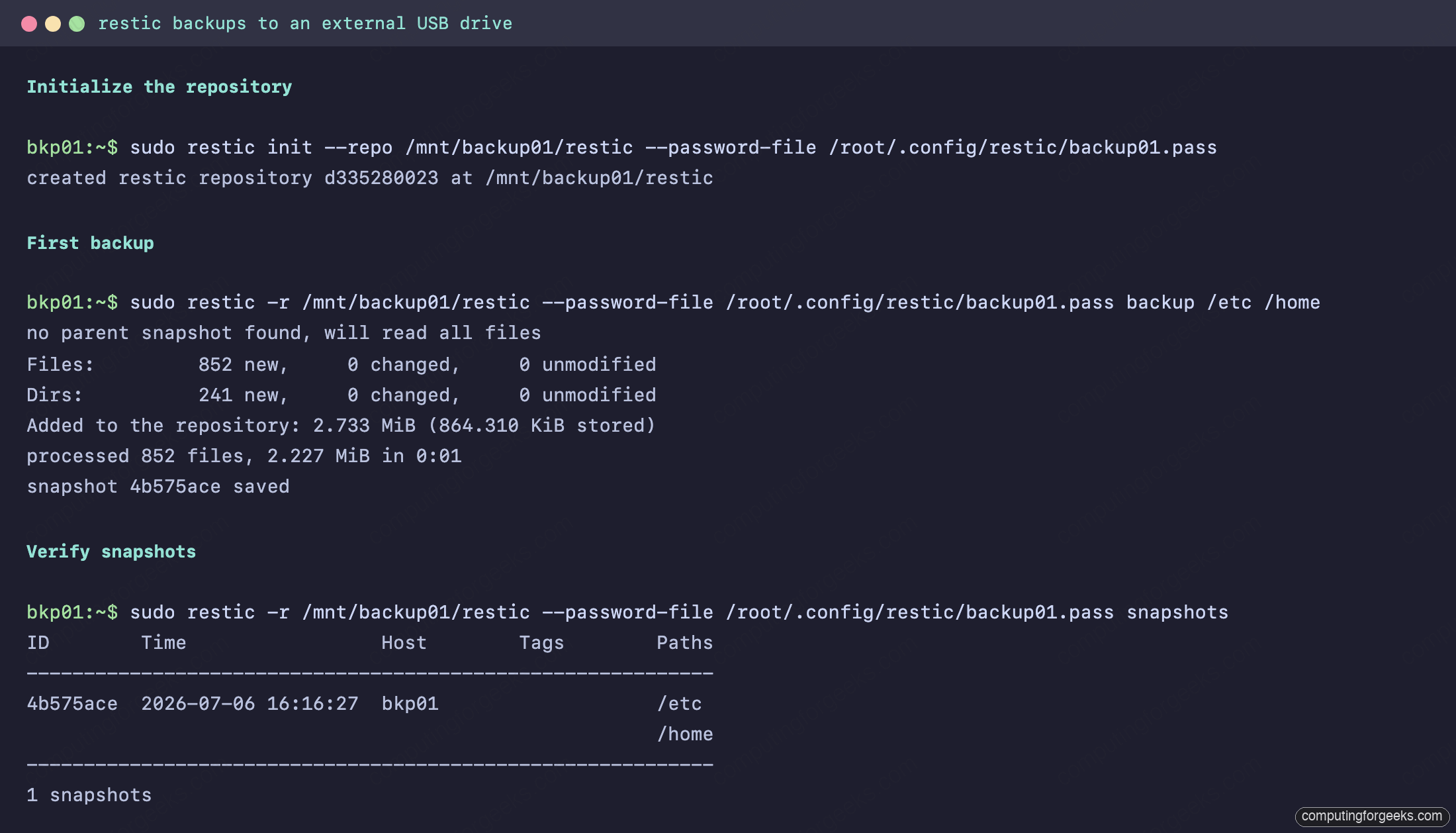
The first run reads everything; later runs upload only changed blocks:
no parent snapshot found, will read all files
Files:         852 new,     0 changed,     0 unmodified
Dirs:          241 new,     0 changed,     0 unmodified
Added to the repository: 2.733 MiB (864.310 KiB stored)
processed 852 files, 2.227 MiB in 0:01
snapshot 4b575ace saved
The full run, including the snapshot listing that proves the repository is readable, captured on the lab host:
Step 4: Set retention and automate it
A retention policy keeps the drive from silently filling. This one holds a week of dailies, a month of weeklies, and half a year of monthlies, and prunes the freed data in the same pass:
sudo restic -r /mnt/backup01/restic --password-file /root/.config/restic/backup01.pass forget --keep-daily 7 --keep-weekly 4 --keep-monthly 6 --pruneWire the backup and forget commands into a systemd timer the same way the rsync backup timer guide does, or hand the scheduling to borgmatic-style tooling per the BorgBackup and borgmatic guide if you prefer that stack. Restores are one command in either ecosystem; restic restore latest --target /tmp/restore-test, run with the same repository and password-file flags, brought back all 1,728 files and directories from this repository in under a second on the lab host.
Keep the drive honest with SMART
A backup drive that is quietly dying is worse than no backup drive, because it removes the urgency. USB bridges hide SMART by default, but the Expansion bridge answers SAT passthrough, and Elements enclosures are widely reported to do the same:
sudo smartctl -d sat -H -A /dev/sdaIf that errors on a Seagate enclosure, the UAS driver is the usual culprit; forcing the drive back to usb-storage with a usb-storage.quirks=0bc2:xxxx:u kernel parameter restores passthrough (substitute the exact vendor and product ID pair from lsusb). Watch reallocated and pending sector counts monthly, run restic check on the same schedule, and pair whichever desktop pick you chose with the portable so one copy is always somewhere else. When ransomware is part of the threat model, the next step is an immutable backup target that an attacker with root on the source cannot rewrite; the external drive then becomes the offline second copy it was always meant to be.