Hard drives are the one NAS component you cannot cheap out on and the one that costs the most to get wrong. A bad drive choice does not just cost money, it costs a weekend rebuilding an array and, in the worst case, the data on it. Two things make the 2026 buying decision different from a couple of years ago: NAS drive prices are climbing hard as the AI build-out soaks up Seagate and Western Digital’s entire nearline output, and the gap between the value tier and the heavy-duty tier is now sharp enough that picking the wrong one wastes real money either way.
If you have not settled on the NAS enclosure itself yet, the best NAS for home and self-hosting roundup pairs each box with the drives that fit it; this guide is the drive half of that decision. This guide covers the best NAS hard drives worth buying in 2026, what actually separates them, and which capacity gives the most storage per dollar right now. Every spec below was checked against each manufacturer’s current datasheet, every drive confirmed as CMR (the recording type you want, never SMR), and every Amazon listing verified against the exact model before it was linked, in June 2026.
Top picks at a glance
If you only want the verdict, here it is. Each pick is a CMR, NAS-rated drive, and the reasoning follows further down.
| Award | Drive | Best for |
|---|---|---|
| Best overall | Seagate IronWolf Pro 12TB | The all-rounder for a 4 to 8 bay home or small-office array |
| Best value | WD Red Plus 8TB | A 2 to 4 bay home NAS where 24/7 heavy writes are not the workload |
| Best high-capacity | Seagate IronWolf Pro 24TB | Maximum storage per bay when slots are the constraint |
| Best for heavy workloads | WD Red Pro 16TB | Busy multi-user arrays, virtualization datastores, constant writes |
| Best budget | WD Red Plus 4TB | A first two-bay NAS or a small backup target |
Prices move week to week in 2026, so the buy links go to the live Amazon listing rather than a number that would be stale by the time you read this. Check the current price before you commit, and buy the capacity you need now, because waiting is not getting cheaper this year.
How we picked
This is a specifications and reliability guide, not a multi-year endurance test, and it is honest about that. What went into each pick:
- Specs verified against the manufacturer datasheet, not a retailer’s copy. Workload rating, warranty, cache, RPM, and recording type all come from Seagate’s, WD’s, and Toshiba’s own current documents.
- CMR confirmed for every drive against the manufacturers’ published CMR/SMR lists. None of the picks here is shingled. If you are unsure why that matters, the CMR vs SMR explainer walks through how a drive-managed SMR disk turns an array rebuild into a multi-day stall.
- Reliability cross-referenced against Backblaze. Backblaze’s 2025 Drive Stats (published February 2026, across 344,196 drives) put fleet-wide annual failure at 1.36%, down from 1.55% the year before. Backblaze runs enterprise drives, not consumer NAS models, so treat its numbers as a directional read on a brand and platform family, not a literal prediction for your home NAS. It is still the best large-sample data anyone publishes.
- Amazon listings checked live. Each ASIN was confirmed to resolve to the exact model and capacity and to be currently sold new, not a renewed or grey-market relisting.
NAS hard drives compared
The specifications that actually change the buying decision, side by side. Workload rate and warranty are what separate the value tier from the pro tier, not raw speed.
| Drive | RPM | Cache | Workload | Warranty | Data recovery |
|---|---|---|---|---|---|
| IronWolf Pro 12TB | 7200 | 256 MB | 550 TB/yr | 5 years | 3 yr included |
| WD Red Plus 8TB | 5640 | 256 MB | 180 TB/yr | 3 years | None |
| IronWolf Pro 24TB | 7200 | 512 MB | 550 TB/yr | 5 years | 3 yr included |
| WD Red Pro 16TB | 7200 | 512 MB | 550 TB/yr | 5 years | None |
| WD Red Plus 4TB | 5400 | 256 MB | 180 TB/yr | 3 years | None |
One line worth pulling out of that table: only Seagate’s IronWolf and IronWolf Pro bundle free data-recovery service (three years). Western Digital and Toshiba do not include recovery on any of these drives. If the data on the array is irreplaceable, that bundled service has real value, though it is never a substitute for a proper backup.
Best overall: Seagate IronWolf Pro 12TB
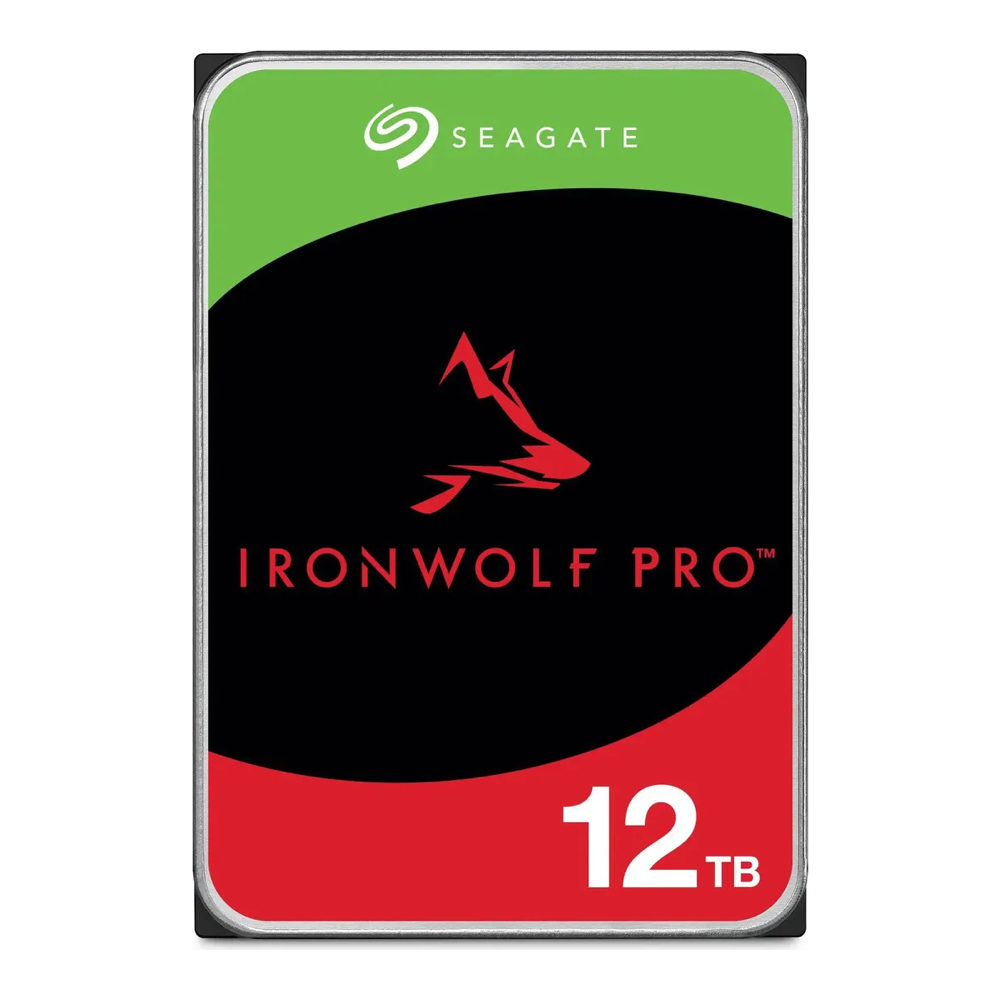
The 12TB IronWolf Pro hits the spot where capacity, workload headroom, and price per terabyte all line up for a typical home or small-office array. It is a 7200 RPM CMR drive rated for 550TB of writes a year, carries a five-year warranty, and includes three years of Seagate’s Rescue recovery service. At 12TB you get enough usable space in a four-bay RAIDZ or a mirror to be useful for years without paying the steep premium the 20TB-plus drives now command.
Who it is for: anyone building or expanding a 4 to 8 bay NAS who wants pro-grade endurance without buying the largest, most expensive capacities. It is the safe default.
Skip it if: you are filling a two-bay box for light home use, where the cheaper Red Plus saves money you will not miss in performance, or if you genuinely need 20TB-plus per bay because you are out of slots.
Best value: WD Red Plus 8TB
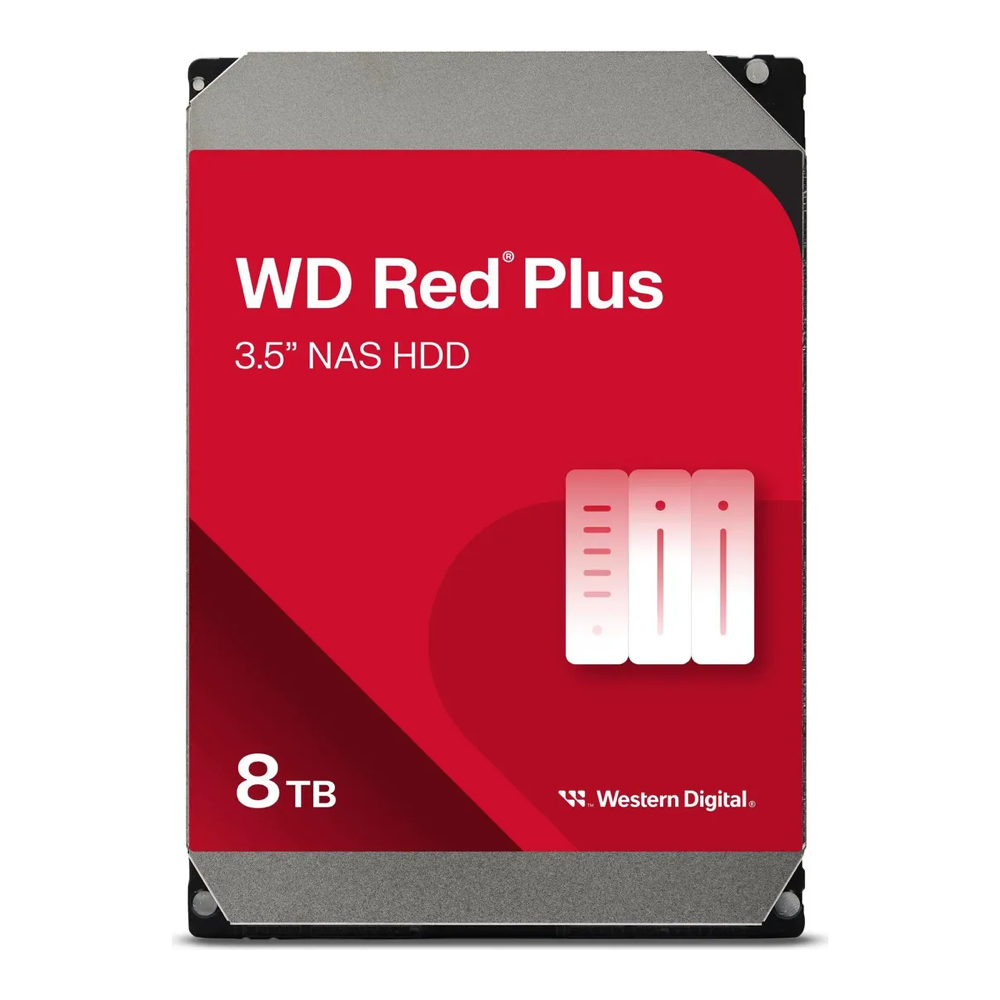
WD Red Plus is the line Western Digital created specifically to be the CMR home-NAS drive after the SMR controversy, and the 8TB is the capacity to buy. It spins at a quieter, cooler 5640 RPM, carries a 180TB/year workload rating, and comes with a three-year warranty. That workload number is lower than the Pro drives, but for a home NAS that streams media, holds backups, and serves files, you will never come close to the limit.
Who it is for: a 2 to 4 bay home NAS where the priorities are quiet operation, low power, and cost per terabyte, not sustained enterprise write loads.
Skip it if: the array backs a busy office, runs VMs, or takes constant writes. That is what the workload rating exists to warn you about, and it is where the Pro drives earn their premium.
Best high-capacity: Seagate IronWolf Pro 24TB
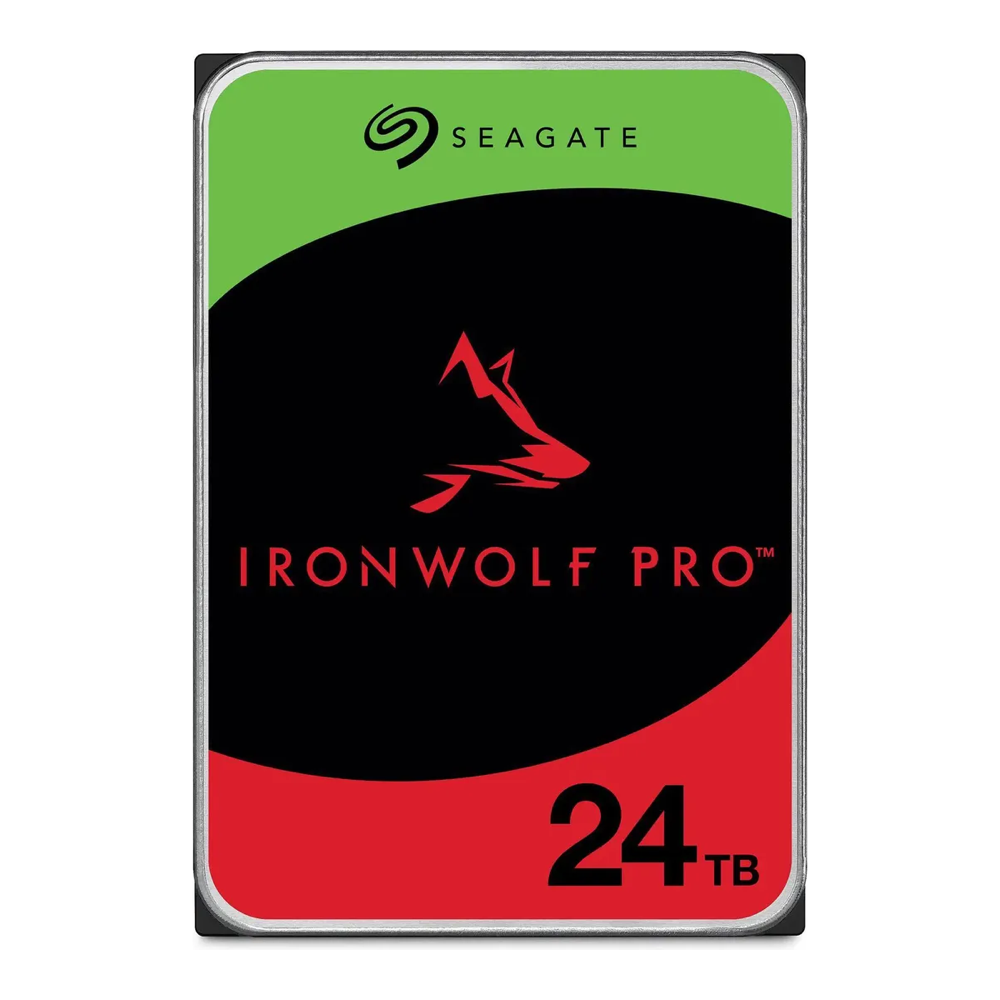
When bays are the bottleneck, capacity per drive is what matters, and the 24TB IronWolf Pro is the largest mainstream CMR drive that still sells at a sane price per terabyte. It is a helium-filled 7200 RPM drive with a 512MB cache, the same 550TB/year rating and five-year warranty as the smaller Pro, and the included Rescue service. In a four-bay enclosure, four of these build a serious pool without expanding the chassis.
Who it is for: anyone out of physical bays who needs to pack the most storage into each one, or who is building a high-capacity media or archive array.
Skip it if: you have free bays and a budget. Two or three mid-capacity drives almost always cost less per terabyte than one giant one, and they spread risk across more spindles. The 24TB is about density, not value.
Best for heavy workloads: WD Red Pro 16TB
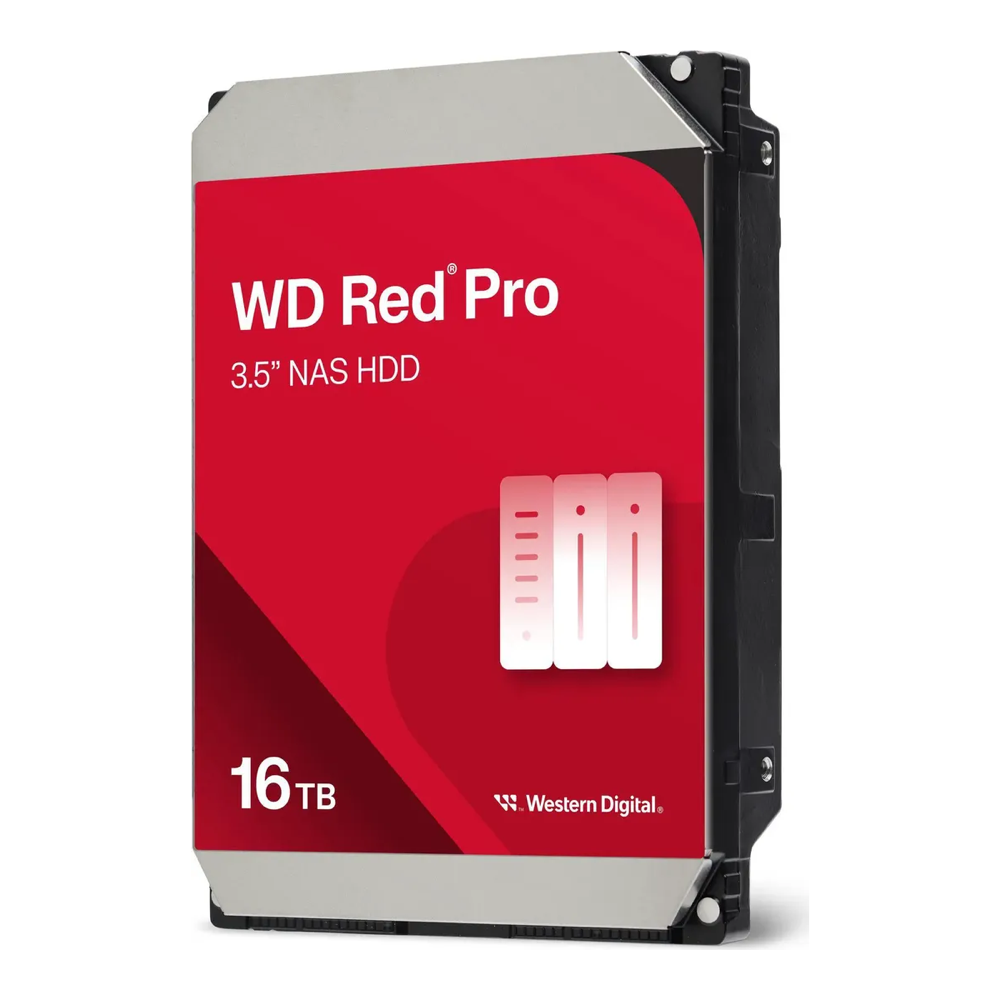
The Red Pro is Western Digital’s answer to the IronWolf Pro, and at 16TB it is the natural pick if your array runs hard. It is a 7200 RPM helium drive with a 512MB cache, a 550TB/year workload rating, and a five-year warranty, built for the same 24/7 multi-user duty as Seagate’s Pro line. The practical difference between the two Pro families comes down to price on the day and brand preference, with the caveat that WD does not bundle a recovery service the way Seagate does.
Who it is for: busy NAS boxes with many users, a virtualization datastore, surveillance recording, or any role with constant writes that would chew through a Red Plus’s workload budget.
Skip it if: your NAS is a quiet home file and media server. You would be paying for endurance headroom you will never use, and a Red Plus does the same job for less.
Best budget: WD Red Plus 4TB
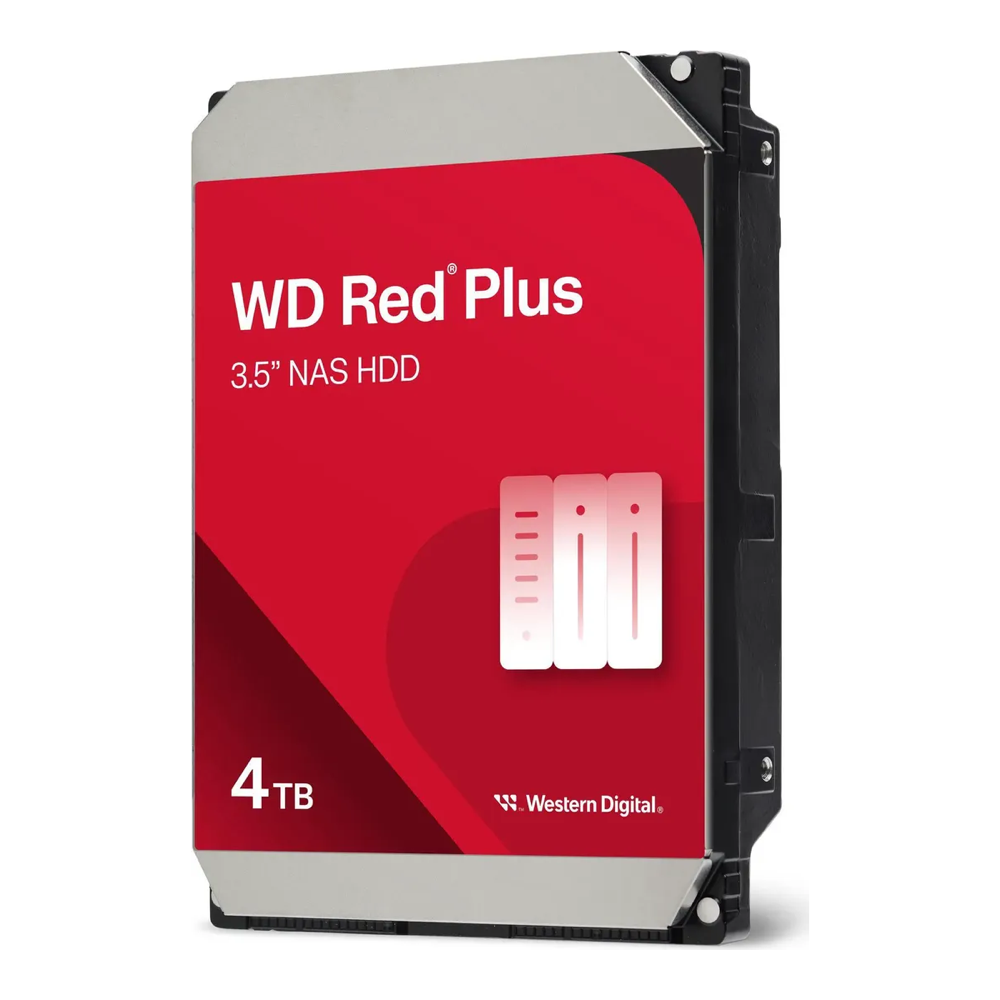
Not every NAS needs double-digit terabytes. The 4TB Red Plus is the drive for a first two-bay box, a small backup target, or anyone who wants a known-good CMR drive without spending much. It is a 5400 RPM, low-power, low-noise drive with the same NASware firmware and three-year warranty as its bigger siblings, and it is one of the most-reviewed NAS drives on the market, which says something about how many small builds it lands in.
Who it is for: a starter two-bay NAS, a dedicated backup volume, or topping up an older array with matching small drives.
Skip it if: you are buying more than two or three of them. Past that point the price per terabyte of an 8TB or 12TB drive wins easily, and you save bays for the future.
How to choose a NAS hard drive in 2026
The picks above cover most builds, but the reasoning behind them is worth understanding so you can adjust for your own situation.
Always CMR, never SMR. This is the one non-negotiable rule. A drive-managed SMR disk can take days to rebuild into an array and can drop out mid-rebuild, turning one failed drive into a data-loss event. Every drive in this guide is CMR. Stay inside the NAS-branded lines (IronWolf, IronWolf Pro, Red Plus, Red Pro, Toshiba N300) and you are safe. The full reasoning is in the CMR vs SMR breakdown.
Workload rating and warranty separate the tiers, not speed. The Plus drives are rated for 180TB of writes a year, the Pro drives for 550TB. For a home media and backup NAS, 180TB/year is far more than you will ever write, so the cheaper Plus is the right call. For a busy multi-user array, a VM datastore, or surveillance, the Pro’s higher rating and five-year warranty are the point. Match the tier to the workload and you stop overpaying or underbuying.
Buy where storage is cheapest per terabyte. The cheapest storage per terabyte in 2026 sits in the 16 to 18TB band for NAS-rated drives. Smaller drives cost more per terabyte; the very largest carry a density premium. If you have free bays, two or three mid-capacity drives usually beat one huge one on both price and risk spreading. If bays are scarce, pay the premium and go big.
Plan around rising prices. Hard drive prices climbed sharply through the first half of 2026 as AI data centers booked out Seagate’s and Western Digital’s nearline production, with both makers effectively sold out of 2026 capacity and channel prices up double digits. The practical takeaway is to buy the capacity you need when you need it rather than waiting for a price drop that is not coming this year.
The third brand worth a look. Toshiba’s N300 is the value alternative to the Seagate and WD lines, also CMR, often a few dollars per terabyte cheaper, with the N300 Pro covering the heavy-workload tier. It lacks the bundled recovery service and the same level of NAS-vendor compatibility testing, but on raw price per terabyte it is frequently the cheapest CMR drive in a given capacity.
Match the tier to how hard the array works, keep every drive CMR, and size for the cheapest terabytes, and any of these drives will outlast the NAS you put it in. Once the drives are chosen, the next decision is how to arrange them: the ZFS RAID levels guide covers how mirror and RAIDZ layouts trade capacity against rebuild safety, and pairing the array with the right SSD for cache or a SLOG is what turns a pile of spinning disks into a responsive pool.