Capacitor Next is a single-binary Kubernetes UI focused on FluxCD. Its pitch is short: k9s in the browser, the Argo CD UI for Flux. After Weave GitOps stalled on a 2023 release and ducked behind a “transitioning to community driven” notice, Capacitor became the most active dashboard option for teams running Flux in production. This guide walks through the full local install, every Flux feature in the dashboard, Helm release diffing, secret handling, and the self-host path. Every command and screenshot was captured against a real cluster on May 1, 2026.
The biggest thing readers need to know up front: Capacitor Next has two distinct deployment modes. The local-first CLI is Apache 2.0 and free, takes 30 seconds to install, and uses your kubeconfig. The self-hosted version is in private beta and requires a license key from the maintainer. Most teams will use the local CLI. The self-host path makes sense once you need a URL-accessible dashboard for your whole team. We tested both and show what each looks like, including the LICENSE_KEY block when you try to self-host without joining the beta.
Tested May 1, 2026 on Ubuntu 24.04 LTS with k3d 5.8.3, Kubernetes 1.34.5+k3s1, Flux 2.8.6, Capacitor Next 0.14.0, and Helm 3.20.2.
What Capacitor Next is, and how it differs from the old Capacitor
The original Capacitor was an in-cluster dashboard that you installed via Helm into the flux-system namespace. The current product, Capacitor Next, replaces that model with a single statically linked binary that runs on your laptop. Open it, point it at your kubeconfig, and a browser tab pops up showing every cluster in the file. You navigate by keyboard the same way you would in k9s, but with a richer UI for Flux-specific resources like Kustomizations and HelmReleases.
The maintainer also publishes a self-hosted version of the same binary wrapped in a backend that supports OIDC, multi-cluster agents, RBAC impersonation, and Backstage integration. That layer is in private beta and gated by a license key. The local CLI is fully open source under Apache 2.0, with no telemetry and no license check.
- Local-first CLI: Apache 2.0, single binary, kubeconfig-based, free, no signup. Install in one command.
- Self-hosted: same binary plus a backend wrapper for teams. OIDC, static auth, agents for multi-cluster. License-gated, get one by emailing the maintainer.
Both modes share the same Flux features: GitRepository and Bucket source views, Kustomization detail with diff, HelmRelease with full release history, values diffing, manifest diffing, rollback, secret base64 decode, multi-cluster context switching, and keyboard-first navigation. If you read the Weave GitOps status report and decided to migrate, this article walks the next step. Readers still weighing Flux against Argo CD as the underlying engine should start with the Flux vs Argo CD comparison first.
Prerequisites
- A Kubernetes cluster, any flavor. We used k3d on Ubuntu 24.04 because it stands up in 30 seconds. Flux 2.8 requires Kubernetes 1.33 or newer; k3d’s default tag pulls 1.31, so we pin a 1.34 image.
- FluxCD 2.8.x installed on the cluster. Capacitor Next is purely a UI; the reconciler must already be there.
- A working kubeconfig that points at the cluster.
kubectl get nodesmust succeed before you start. - Linux or macOS for the local binary. Windows works through WSL2.
- For the self-host walkthrough, Helm 3.x and a license key from the maintainer if you want the dashboard to actually start.
Step 1: Set reusable shell variables
Pull the values that repeat across commands into a variable block once, change them once, paste the rest as-is.
export CLUSTER_NAME="capacitor-lab"
export K3S_VERSION="v1.34.5-k3s1"  #https://github.com/k3s-io/k3s/releases
export CAP_VERSION="0.14.0"        #https://github.com/gimlet-io/capacitor/releases
export CAP_NAMESPACE="flux-system"
export PORT="3333"
Confirm the values stuck before doing anything else.
echo "Cluster:    ${CLUSTER_NAME}"
echo "K3s image:  ${K3S_VERSION}"
echo "Capacitor:  ${CAP_VERSION}"
Step 2: Stand up a k3d cluster and install Flux
If you already have a Flux-enabled cluster, skip ahead to step 3. Otherwise, install Docker, kubectl, Helm, k3d, and the flux CLI on a fresh Ubuntu 24.04 box:
curl -fsSL https://get.docker.com | sh
curl -fsSLo /usr/local/bin/kubectl \
  "https://dl.k8s.io/release/$(curl -L -s https://dl.k8s.io/release/stable.txt)/bin/linux/amd64/kubectl"
chmod +x /usr/local/bin/kubectl
curl -fsSL https://raw.githubusercontent.com/helm/helm/main/scripts/get-helm-3 | bash
curl -fsSL https://raw.githubusercontent.com/k3d-io/k3d/main/install.sh | bash
curl -fsSL https://fluxcd.io/install.sh | bash
Create a three-node k3d cluster pinned to a Kubernetes version Flux supports, then install the Flux controllers:
k3d cluster create "${CLUSTER_NAME}" \
  --image "rancher/k3s:${K3S_VERSION}" \
  --servers 1 --agents 2 \
  --port "8080:80@loadbalancer" \
  --port "8443:443@loadbalancer" \
  --k3s-arg "--disable=traefik@server:0" \
  --wait

flux check --pre
flux install
Confirm the four Flux controllers are running before moving on:
kubectl -n flux-system get podsStep 3: Install Capacitor Next as a local binary
The fastest path is the official install script. It detects your OS and architecture, downloads the matching next-{Linux,Darwin}-{x86_64,arm64} asset from GitHub releases, and drops the binary into the first writable directory on your PATH:
wget -qO- https://gimlet.io/install-capacitor | bashThe script writes to /usr/local/bin/next when that path is writable, otherwise it falls back to ~/.local/bin/next or $HOME/bin. macOS users can also tap the Gimlet Homebrew formula:
brew install gimlet-io/capacitor/capacitorEither way, the binary you end up with is statically linked and roughly 200 MB. Run it with the kubeconfig already set up in step 2:
next --port "${PORT}"The full installer output and first run on the lab looks like this:
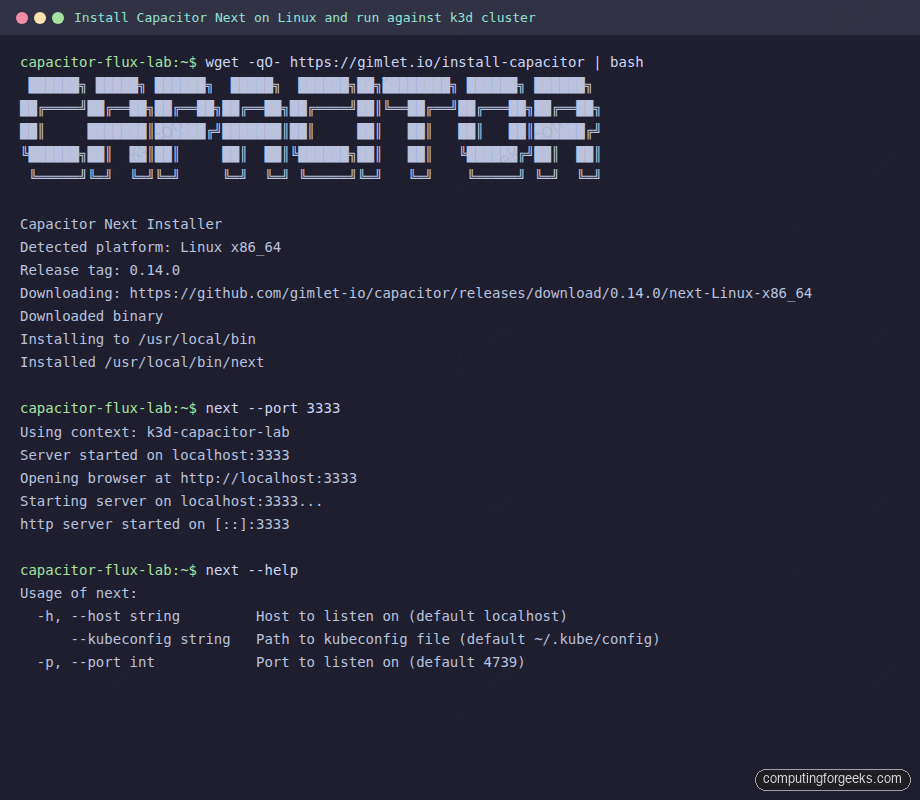
Default port if you omit --port is 4739. We use 3333 in the article because it lines up with the upstream quickstart. Open http://localhost:3333 in a browser. The dashboard reads ~/.kube/config by default and respects the KUBECONFIG environment variable when you have multiple files.
Step 4: Tour the resource list and keyboard-first filters
The landing view is a list of pods across every namespace in the current context. The top row shows the active filters as chips: View, Resource Type, Namespace. Each chip carries a single-character keyboard shortcut so you can change filters without touching the mouse.
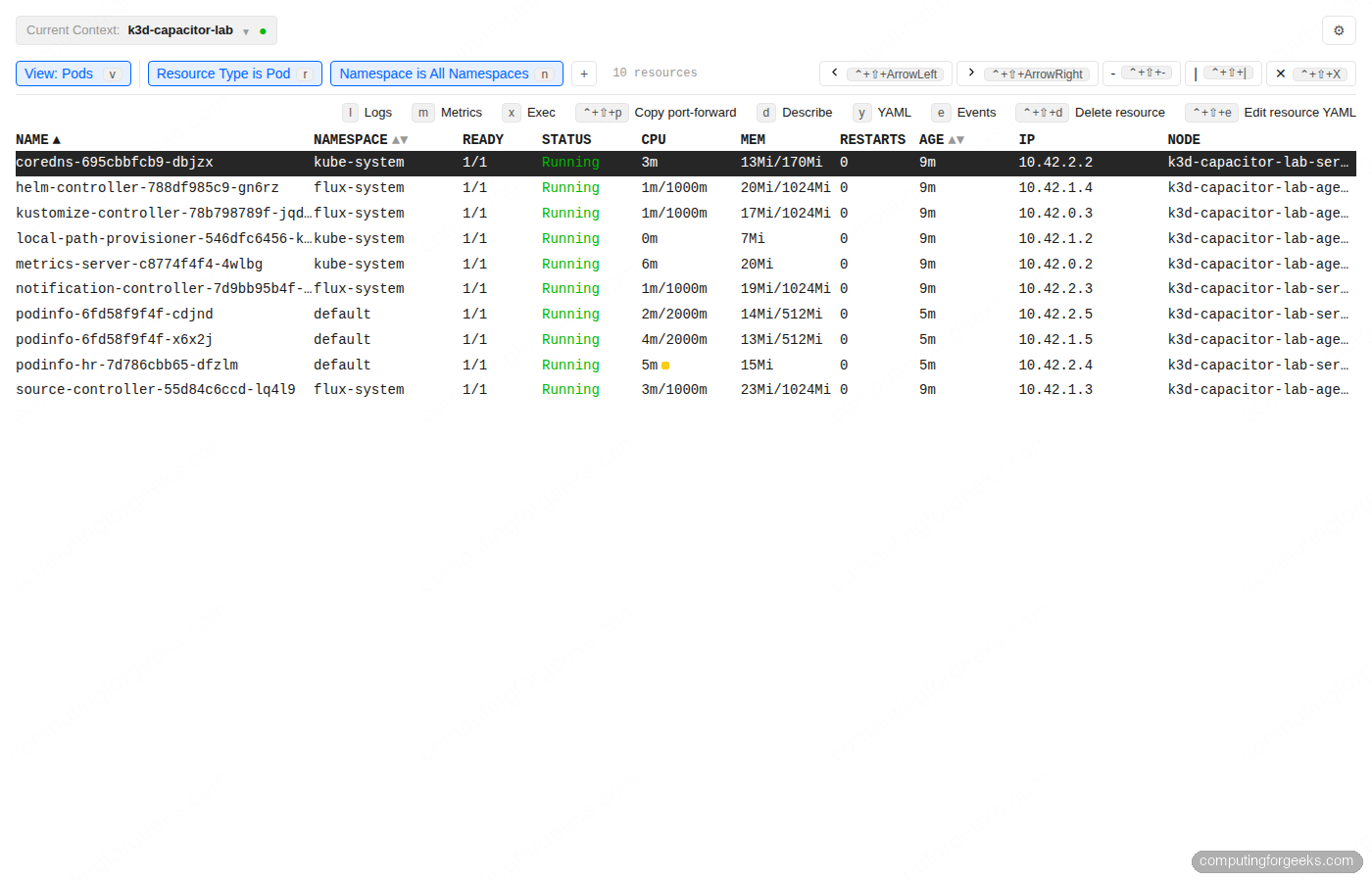
Press r to switch the resource type. The picker is fuzzy-searchable, listing every Kubernetes kind the API server exposes, with check marks against the currently selected type:
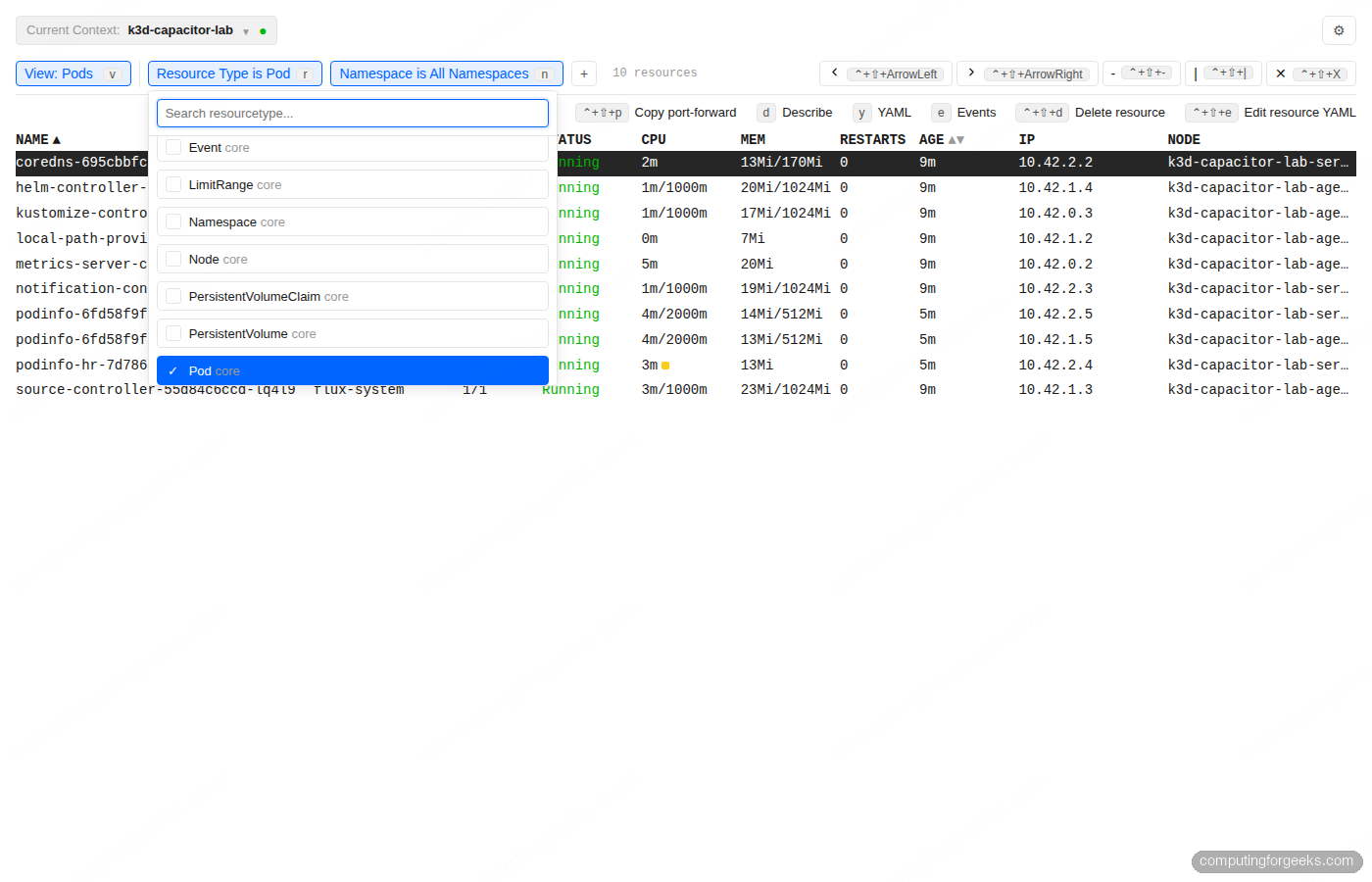
The full per-resource shortcut set is consistent across kinds: d describes, y opens YAML, e shows events, l tails logs, m opens metrics, x execs, ctrl+shift+p copies a port-forward command, ctrl+shift+d deletes, ctrl+shift+e edits the YAML in place. The Enter key opens a detail view on rows that support one (Namespaces, Secrets, Kustomizations, HelmReleases). Every filter combination is reflected in the URL, which means you can paste a Capacitor URL into Slack and your colleague lands on the same view.
Step 5: Inspect a Kustomization with the Flux resource tree
Filter to kustomize.toolkit.fluxcd.io/Kustomization. The list view shows reconciliation state, source readiness, and the latest events panel pinned below the table:
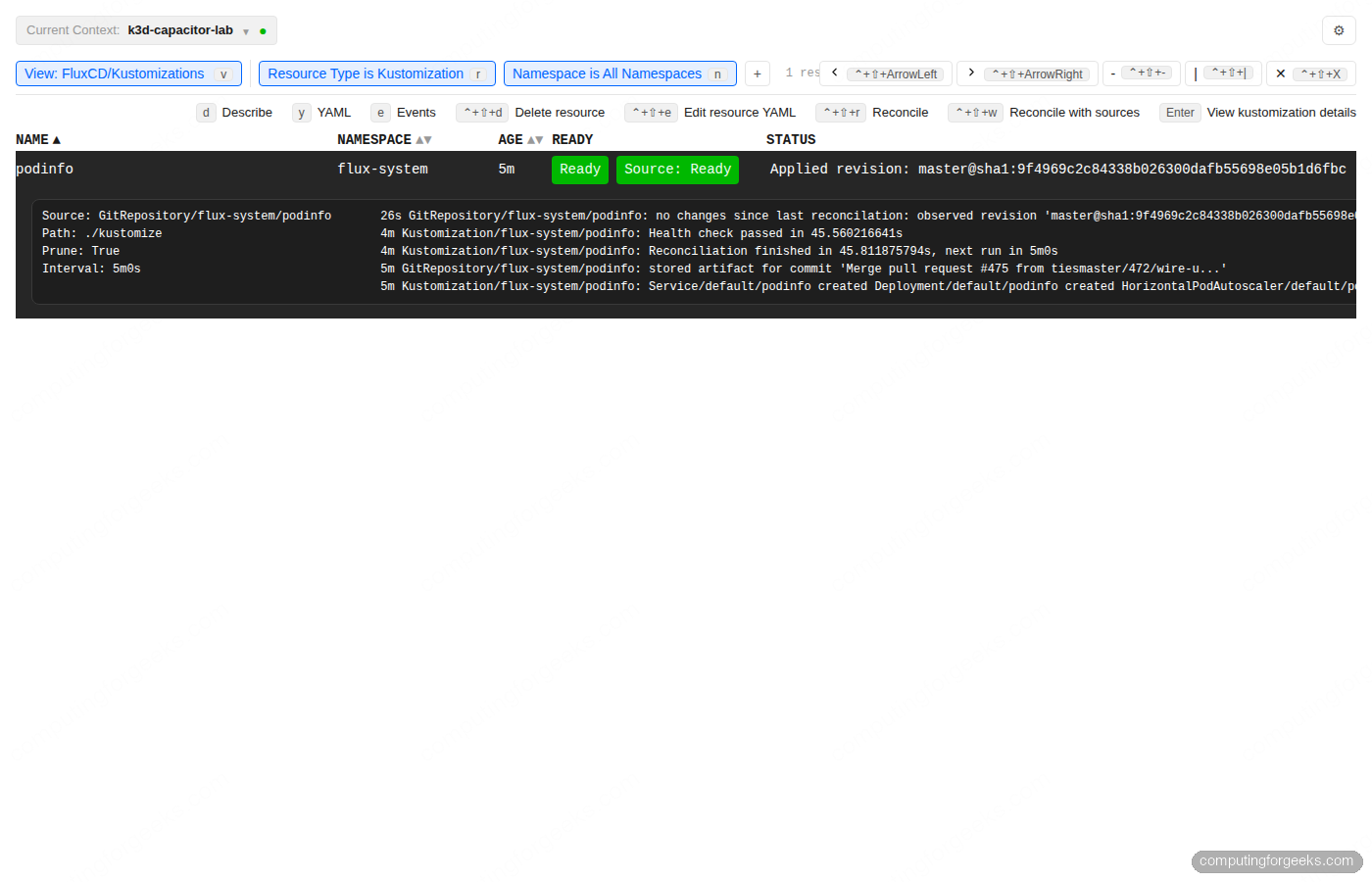
Press Enter on the podinfo row to open the detail page. You get the source repo, the path inside the repo, the reconciliation interval, the last applied revision SHA linked to the commit, and an Events panel showing the last few reconciliations. The Resource Tree tab below visualises every workload Flux deployed from this Kustomization, with health colours that match the Argo CD topology view people are used to:
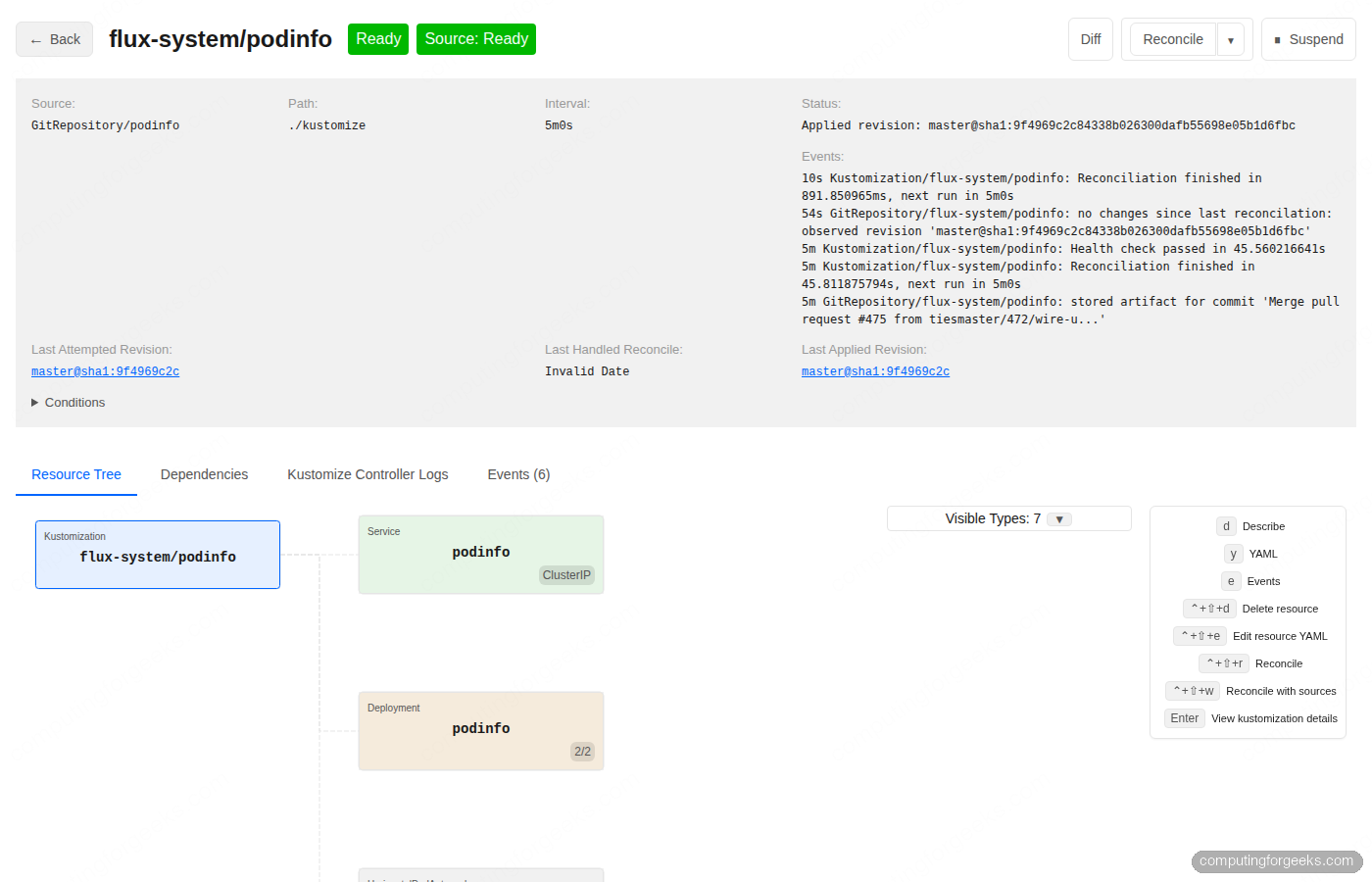
The action buttons in the top right are Diff, Reconcile, Reconcile with sources, and Suspend. Diff renders the difference between what is in Git and what is currently applied to the cluster, which is the single feature most often missing from kubectl alone. The two Reconcile variants matter when a Kustomization is stuck: regular Reconcile re-applies the manifests, “Reconcile with sources” first refreshes the GitRepository to pull new commits.
Step 6: HelmRelease detail with values, manifest, and rollback
HelmReleases get a richer detail page than Kustomizations because Helm has a release history concept Kustomize does not. Filter to helm.toolkit.fluxcd.io/HelmRelease and press Enter on a release. The header shows chart, source, version, release name, status, last attempted and last applied revisions:
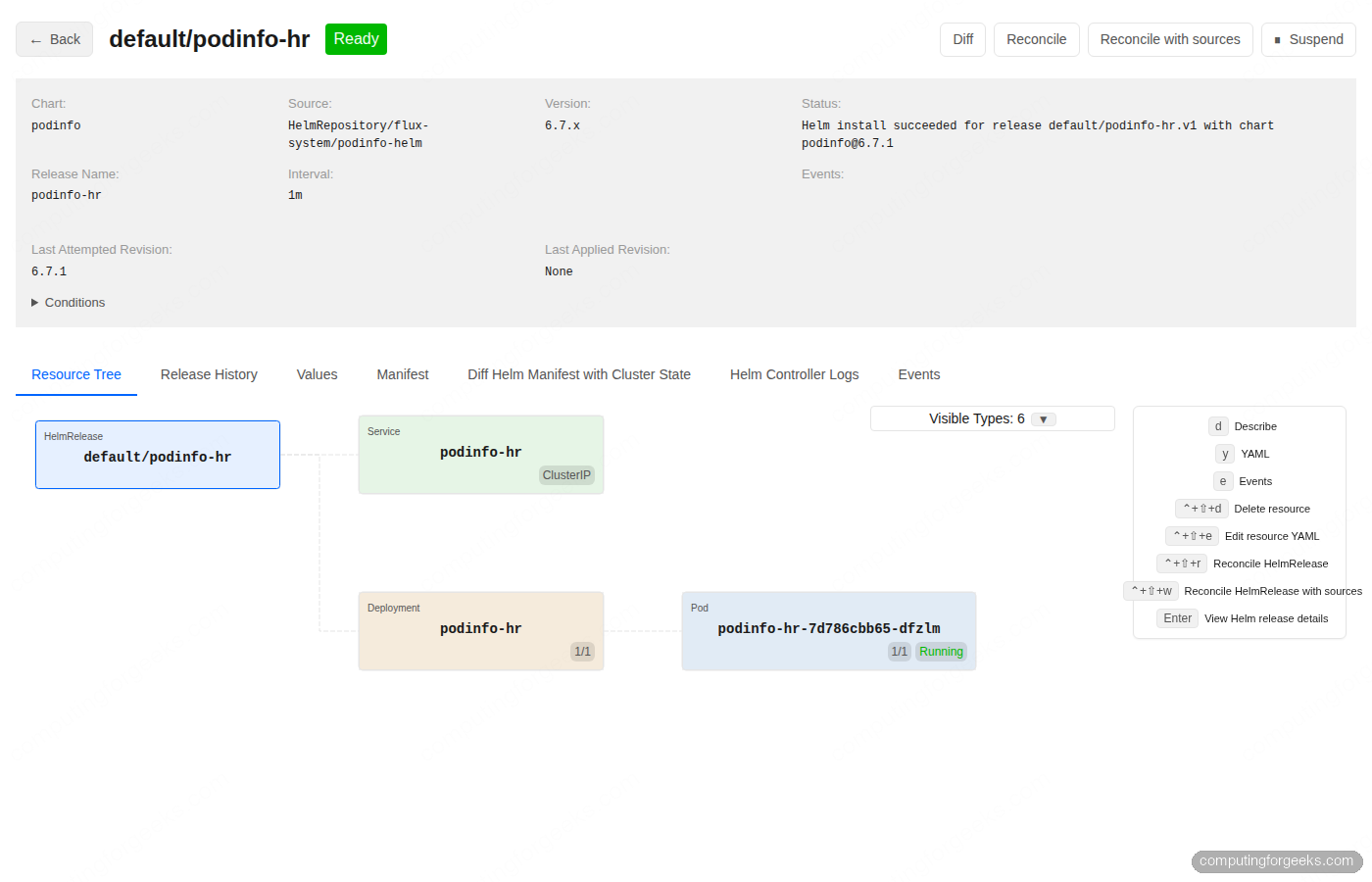
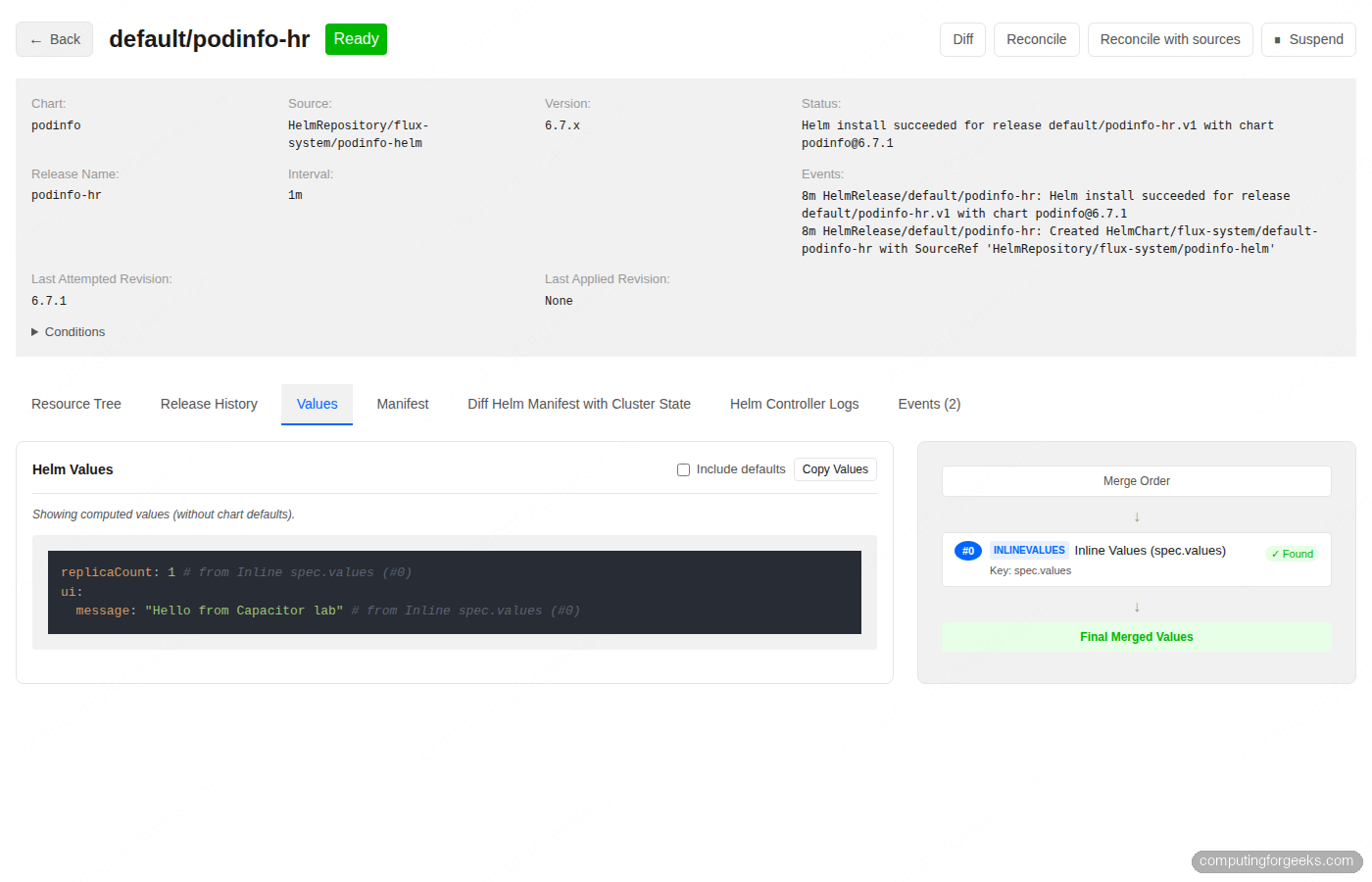
Six tabs sit below the header. Resource Tree is the default. Release History lists every Helm revision so you can roll back to a known-good release in one click. Values shows the merged values that produced the current release, with toggles for “include defaults” and a merge order panel that proves which source contributed what:
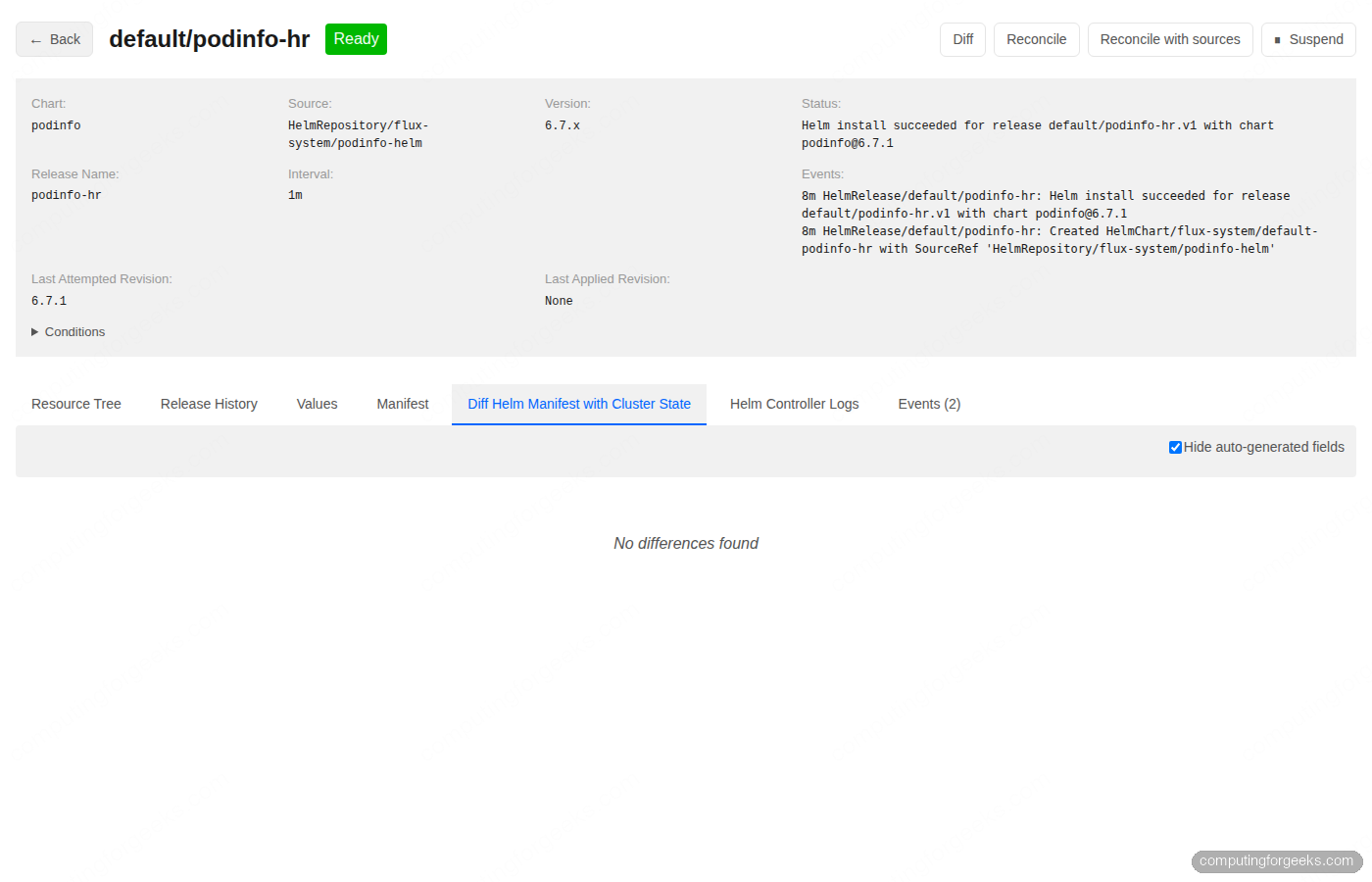
Manifest renders the full rendered template for the release. Diff Helm Manifest with Cluster State compares what Helm thinks should be there against what is actually there. On a healthy release the answer is “No differences found”; the moment something drifts because somebody ran kubectl edit or a controller mutated a field, the diff lights up:
Helm Controller Logs streams the relevant controller logs filtered to this release, and Events shows the Kubernetes event timeline. The four tabs together cover the full debugging loop most teams hit when a HelmRelease misbehaves.
Step 7: Secrets, base64 decode, and selective key visibility
Capacitor Next treats Secrets as first-class. Filter to core/Secret in the default namespace, press Enter on demo-secret, and you see one row per key. Each row has a Decrypt button that base64-decodes the value in place and replaces the button with Encrypt to roll back the visibility. You can decode keys individually rather than dumping the whole Secret:
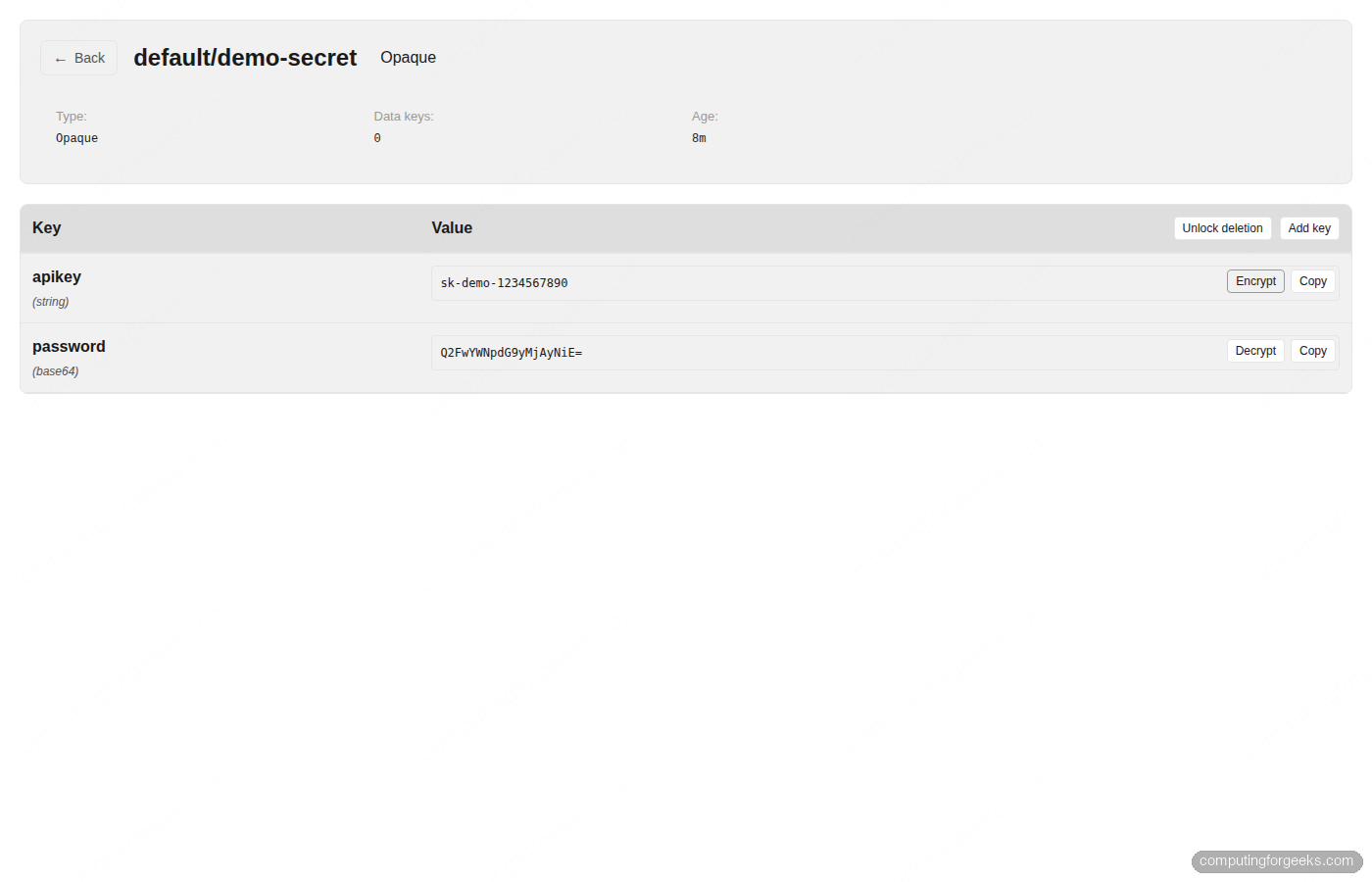
Add key creates a new entry without dropping into a YAML editor. Unlock deletion is a deliberate two-step gate before the per-key Delete buttons appear, which prevents accidental key loss. The combination is a real day-2 win for platform teams who used to crack open kubectl get secret -o jsonpath or pull values into vault just to read them.
Step 8: Multi-cluster from one binary
The Current Context selector at the top left lists every cluster defined in your kubeconfig. Switching contexts reloads the resource list against the new cluster’s API server. There is no in-app cluster registry to maintain; whatever kubectl config get-contexts shows is what Capacitor sees.
If you split clusters across multiple kubeconfig files, the binary respects the standard colon-separated KUBECONFIG variable:
export KUBECONFIG=~/.kube/config:~/.kube/prod:~/.kube/staging
next --port "${PORT}"
This is the local-first version’s answer to multi-cluster. Teams that want a shared dashboard with one URL per environment use the self-hosted version’s cluster registry plus agents instead, which we cover next.
Step 9: Self-host with Helm (and the LICENSE_KEY gate)
The local CLI is enough for most engineers. Once a team wants a single URL where everyone can see the same Flux state, with OIDC login and read-only support, you reach for the self-hosted Helm chart. The chart lives in the same repo at self-host/charts/capacitor-next. Clone the repo and prepare a values file:
git clone https://github.com/gimlet-io/capacitor /tmp/cap-src

cat > /tmp/cap-values.yaml <<EOF
env:
  AUTH: noauth
  IMPERSONATE_SA_RULES: "noauth=flux-system:capacitor-next-preset-clusteradmin"
  FLUXCD_NAMESPACE: flux-system
service:
  type: ClusterIP
EOF
Capacitor needs a cluster registry secret that tells it how to reach the Kubernetes API. For a single-cluster install where Capacitor runs inside the same cluster it manages, point at the in-cluster service account:
cat > /tmp/registry.yaml <<EOF
clusters:
  - id: in-cluster
    name: in-cluster
    apiServerURL: https://kubernetes.default.svc
    certificateAuthorityFile: /var/run/secrets/kubernetes.io/serviceaccount/ca.crt
    serviceAccount:
      tokenFile: /var/run/secrets/kubernetes.io/serviceaccount/token
EOF

kubectl -n "${CAP_NAMESPACE}" create secret generic capacitor-next \
  --from-file=registry.yaml=/tmp/registry.yaml \
  --dry-run=client -o yaml | kubectl apply -f -
Install the chart:
helm upgrade --install capacitor-next \
  /tmp/cap-src/self-host/charts/capacitor-next \
  -n "${CAP_NAMESPACE}" \
  -f /tmp/cap-values.yaml
The chart deploys cleanly. The pod, however, refuses to start. Check the logs and you see a private-beta gate:
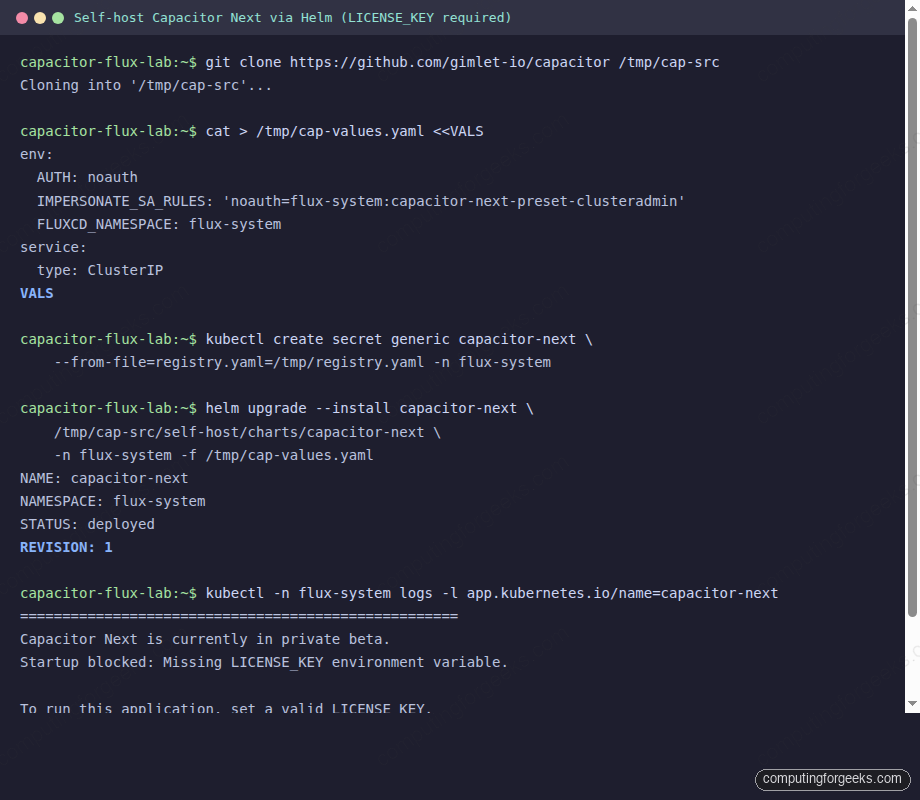
The exact log message reads Capacitor Next is currently in private beta. Startup blocked: Missing LICENSE_KEY environment variable. The maintainer runs the self-host beta by hand and asks you to email laszlo at gimlet.io to join. As of May 2026 there are about 60 companies in the beta. Once you have a key, set it on the chart values:
env:
  LICENSE_KEY: "your-beta-license-key"
  AUTH: noauth
  IMPERSONATE_SA_RULES: "noauth=flux-system:capacitor-next-preset-clusteradmin"
If you just want to evaluate the dashboard right now, stop at step 8 and use the local binary. The features are identical; the self-host wrapper adds OIDC, agent-based multi-cluster, Backstage proxying, and read-only mode on top of the same engine.
Step 10: Authentication modes and RBAC impersonation
The self-hosted version exposes four authentication modes via the AUTH environment variable. Pick one based on team size and identity provider:
AUTH=noauth: no authentication. Useful for homelabs and read-only dashboards behind another auth layer. Pair withIMPERSONATE_SA_RULESto map the implicitnoauthidentity to a ServiceAccount.AUTH=static: HTTP basic against a list in theUSERSenv var. Each entry isemail:bcrypt_password, with bcrypt hashes generated byhtpasswd -bnBC 12 x 'mypassword' | cut -d: -f2.AUTH=oidc: per-user identities. SetOIDC_ISSUER,OIDC_CLIENT_ID,OIDC_CLIENT_SECRET,OIDC_REDIRECT_URL, andAUTHORIZED_EMAILS. Capacitor passes the email and group claims as Kubernetes impersonation headers, so cluster RBAC roles bind to real user identities.AUTH=trusted_proxy: only used with the Backstage plugin. Backstage signs and forwards the user identity viaX-Onurl-*headers;CAPACITOR_PROXY_SHARED_SECRETvalidates the signature.
Whatever auth mode you pick, every Kubernetes API call from Capacitor is an impersonation call. That is the design choice that makes RBAC simple: the dashboard never holds elevated privileges by itself, it just funnels requests as the authenticated user. The chart ships three preset ServiceAccounts you can map identities to with IMPERSONATE_SA_RULES:
flux-system:capacitor-next-preset-readonly: view workloads, logs, metrics. No secrets, no writes.flux-system:capacitor-next-preset-editor: read-only plus modify workloads, modify Flux resources, exec, port-forward. Cannot touch RBAC or namespaces.flux-system:capacitor-next-preset-clusteradmin: full cluster admin, what we used in the no-auth example.
For read-only dashboards there is a dedicated permission elevation pattern. Set PERMISSION_ELEVATION_WORKLOAD_RESTART_NAMESPACES and PERMISSION_ELEVATION_FLUX_RECONCILIATION_NAMESPACES to a list of namespaces where users without write RBAC can still trigger pod restarts and Flux reconciliations. The namespaced approach is safer than granting blanket write access just to get the “restart pod” button working.
Step 11: Migrate from Weave GitOps without breaking Flux
Teams arriving here from the Weave GitOps status report care about the cutover steps. The good news is that Weave GitOps was always a UI on top of Flux, and so is Capacitor. The two never reconcile anything themselves; only the underlying Flux controllers do that. You can run both UIs against the same cluster during the transition, then drop Weave GitOps when you are confident.
- Inventory the Weave GitOps install. Run
kubectl get deploy,svc,clusterrole,clusterrolebinding -n flux-system | grep ww-gitopsso you know exactly what gets removed later. - Stand up Capacitor in parallel. Either run the local binary on your laptop while the team continues using Weave’s URL, or self-host Capacitor in the same namespace on a different Service port.
- Validate feature parity. The Kustomization detail, source list, and Flux Runtime view in Capacitor render the same data Weave GitOps does. Crucially, Capacitor handles the modern
helm.toolkit.fluxcd.io/v2HelmRelease API that Weave’s stale binary cannot read. - Switch DNS or Ingress over. If you self-host Capacitor and have a license key, point the team URL at
capacitor-next‘s Service. If you stay on the local binary, share the install script link with the team. - Uninstall Weave GitOps.
helm uninstall ww-gitops -n flux-systemremoves the deployment, service, and bound roles. Flux keeps reconciling without missing a beat.
The single biggest reason this migration is low risk is that the GitOps engine, Flux, never moved. We tested the Weave GitOps uninstall in the linked article and the Flux controllers, the GitRepository, the Kustomization, and the workload pods kept running.
Common errors and fixes from this lab
Error: Kubernetes version v1.31.5+k3s1 does not match >=1.33.0-0
Flux 2.8 requires Kubernetes 1.33 or newer. k3d’s default rancher/k3s tag still pulls 1.31. Pin a 1.34 image with --image rancher/k3s:v1.34.5-k3s1 on cluster create. We hit this exact error during testing and fixed it by destroying the cluster and recreating with the pinned image.
Error: secret “capacitor-next” not found, MountVolume.SetUp failed
The self-host chart hard-mounts a Secret named capacitor-next with a registry.yaml key, even when you only want a single in-cluster setup. The chart does not create the Secret; you do. Apply the Secret yaml shown in step 9 before installing the chart, or restart the deployment after applying the Secret if you installed first.
Error: Capacitor Next is currently in private beta. Startup blocked: Missing LICENSE_KEY
Self-hosted only. Email laszlo at gimlet.io to join the beta and obtain a license, then set env.LICENSE_KEY in the chart values. The local binary has no such gate.
Error: Browser opens but the resource list is empty
The default kubeconfig path is ~/.kube/config. If yours lives elsewhere, pass --kubeconfig /path/to/config or set the KUBECONFIG environment variable before running next. The Current Context dropdown at the top left will be empty when no kubeconfig is found.
Error: x509 certificate signed by unknown authority on the local CLI
For development clusters with self-signed API server certificates, run with --insecure-skip-tls-verify or set KUBECONFIG_INSECURE_SKIP_TLS_VERIFY=true. Production clusters with a proper CA never need this flag.
Decision matrix
| Situation | Pick |
|---|---|
| Solo developer or homelabber, single cluster | Local binary, run on laptop |
| Small team, shared dashboard, willing to email for a license | Self-host with AUTH=oidc or AUTH=static |
| Multi-cluster fleet, central control plane | Self-host with the agent chart deployed on each remote cluster, or follow the ApplicationSet pattern on Argo CD for a similar result |
| Backstage shop already in production | Self-host with AUTH=trusted_proxy + the Backstage plugin |
| Already on Argo CD and happy | Skip Capacitor; Argo CD‘s UI covers the same ground, and the Argo CD CLI guide covers the keyboard-first workflow |
| Migrating off Weave GitOps and only run Flux Kustomizations | Local binary, then evaluate self-host once you outgrow it |
The lab tears down with one command: k3d cluster delete capacitor-lab. The Helm release, the Flux controllers, the podinfo workloads, and any port-forwards vanish with the cluster. After cleanup, decide whether the local binary is enough for your situation or whether the self-host beta is worth pursuing. For most teams the local CLI plus a quick flux get all -A on the side covers the day-to-day; the self-host wrapper earns its place when read-only dashboards, OIDC, or Backstage integration become hard requirements.