ArgoCD is the declarative, pull-based continuous delivery controller for Kubernetes. It watches a Git repository, reconciles the desired state into the cluster, and flags any drift through a fast web UI and a CLI that behaves like kubectl for applications. This guide walks the full install on any Kubernetes cluster, covers the two methods that matter in production (plain manifests and the official Helm chart), wires up Ingress with TLS, and ends with a working first application deployed from Git.
The steps below were tested on a fresh k3s cluster and validated against upstream manifests from the stable branch, so the same commands work on kubeadm, EKS, GKE, AKS, OpenShift, or any distribution that tracks Kubernetes 1.24 or newer. Where a cloud-specific detail matters (LoadBalancer pricing on EKS, Workload Identity on GKE), the guide points to a dedicated article rather than repeating the work.
Tested April 2026 with ArgoCD 3.3.x, Kubernetes 1.34 on k3s, and argocd CLI 3.3.x. Verified on Ubuntu 24.04 LTS, Rocky Linux 10 (kubeadm), and against the upstream argoproj docs.
Prerequisites
You need a running Kubernetes cluster and a workstation with kubectl pointed at it. ArgoCD itself is lightweight, but the repo-server, application-controller, and Redis together want real CPU and RAM during syncs.
- A Kubernetes cluster running 1.24 or later (any flavour: kubeadm, k3s, EKS, GKE, AKS, OpenShift)
kubectlinstalled and connected withcluster-adminprivileges- At least 2 vCPU and 4 GB of free capacity across the cluster (2 GB is fine for a lab)
- A default StorageClass if you want Redis to use a PVC (optional, in-memory Redis also works)
- Outbound internet from the cluster to pull images from
quay.io/argoproj - A Git repository ArgoCD can reach (public or with credentials you can supply)
If the cluster itself is still in the wish list, pick one of kubeadm on Ubuntu or the Proxmox install guide first, then come back here.
Pick Your Install Method
ArgoCD ships three supported installation paths. They all converge on the same Deployments and CRDs; the difference is how you declare and upgrade them. Pick one and stay on it. Mixing manifests with Helm on the same cluster causes conflicts the first time you upgrade.
| Method | Best for | Upgrade | Config surface |
|---|---|---|---|
Plain manifests (kubectl apply) | Labs, learning, GitOps-of-GitOps where ArgoCD manages itself | kubectl apply -f new release URL | Patch argocd-cm and argocd-cmd-params-cm directly |
Helm (argo/argo-cd) | Teams that already use Helm for everything; fine-grained values | helm upgrade | One values.yaml drives every component |
| Argo CD Operator (OperatorHub) | OpenShift, or fleets that need multiple ArgoCD instances | Operator handles it | ArgoCD CR plus ConfigMaps |
This guide uses plain manifests as the primary path because that is what the upstream getting_started docs teach and what most tutorials assume. The Helm section below covers the equivalent install in case that fits your existing tooling better.
Install ArgoCD with Kubernetes Manifests
Create the namespace first. ArgoCD install manifests assume the namespace argocd; changing the namespace means editing every ClusterRoleBinding and Service reference, which is more work than it saves.
kubectl create namespace argocdApply the stable manifests. The URL below tracks the latest stable release; pin a specific tag (for example v3.3.7) in production so you control when upgrades happen.
kubectl apply -n argocd -f https://raw.githubusercontent.com/argoproj/argo-cd/stable/manifests/install.yamlOn first apply you will see roughly 50 resources created: CRDs, ClusterRoles and bindings, ServiceAccounts, ConfigMaps, Secrets, Services, Deployments, and a StatefulSet for the application controller. The CRDs are large, which hits a common gotcha on slightly older clusters. If the apply bails with a metadata size error, the fix is --server-side apply:
kubectl apply -n argocd --server-side=true --force-conflicts \
  -f https://raw.githubusercontent.com/argoproj/argo-cd/stable/manifests/install.yaml
Wait for the pods to settle. The repo-server and application-controller are usually the last to go Ready because they wait on Redis.
kubectl wait --for=condition=Ready pods --all -n argocd --timeout=300sOn a small cluster the wait finishes in about 90 seconds. If it times out, the likely culprit is image pulls from a slow link or a missing StorageClass that leaves Redis stuck; the next section shows how to verify which pod is blocked.
Alternative: Install ArgoCD with Helm
The official Helm chart lives under the argo repo on CNCF's registry. It supports every configuration the manifests do, plus a few quality-of-life knobs like server.insecure that would otherwise require editing the params ConfigMap by hand.
helm repo add argo https://argoproj.github.io/argo-helm
helm repo update
helm install argocd argo/argo-cd -n argocd --create-namespace
To tune the install, pass a values file instead. A common production starter enables Ingress, disables the built-in TLS so an upstream Ingress can terminate it, and scales the repo-server to 2 replicas:
cat > argocd-values.yaml <<YAML
server:
  service:
    type: ClusterIP
  extraArgs:
    - --insecure
  ingress:
    enabled: true
    ingressClassName: nginx
    hostname: argocd.example.com
    tls: true
repoServer:
  replicas: 2
redis-ha:
  enabled: false
YAML

helm upgrade --install argocd argo/argo-cd -n argocd \
  --create-namespace -f argocd-values.yaml
If you go the Helm path, skip the kubectl apply step above. The rest of this guide applies to both install methods.
Verify the Installation
Seven pods should reach Ready: application-controller (StatefulSet), applicationset-controller, dex-server, notifications-controller, redis, repo-server, and server. The matching Services map cluster-internal ports.
kubectl get pods -n argocd
kubectl get svc -n argocd
All pods should show Running with 1/1 ready. The argocd-server Service starts as ClusterIP by default, which is correct: you switch it to NodePort, LoadBalancer, or front it with Ingress in the next step.
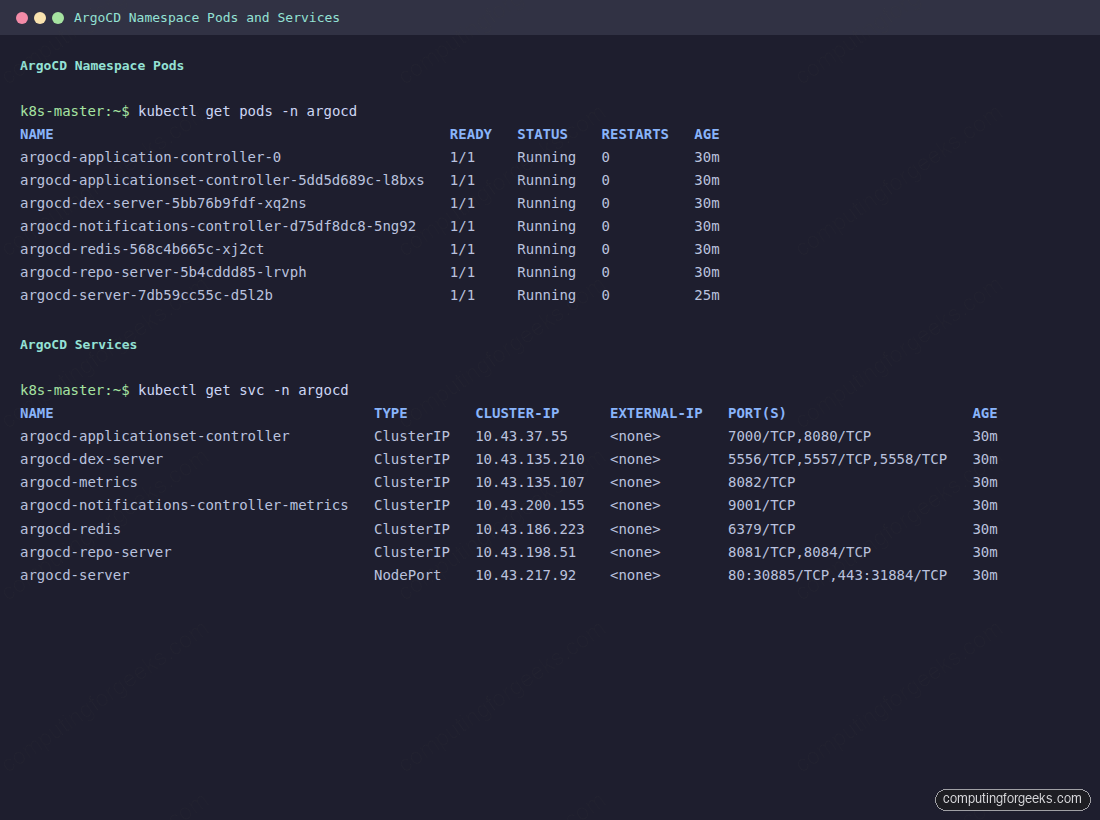
If a pod stays in Pending, describe it to find the real cause. The usual suspects on a fresh cluster are missing image pull secrets (private registries), no CNI running, or insufficient CPU/memory quota on the namespace.
kubectl describe pod -n argocd <pod-name> | tail -30With every pod Running and the Services in place, the server is healthy but unreachable from outside the cluster. Exposing the UI is the next step.
Expose the ArgoCD Server
Four common ways to reach the UI, each with a real tradeoff. Pick one now and plan to swap to Ingress when you outgrow the first choice.
| Method | When | TLS | Cost |
|---|---|---|---|
| kubectl port-forward | Bootstrap, first-time CLI login, debugging | Self-signed only | None |
| NodePort | Lab or single-node cluster on a VM | Self-signed | None |
| LoadBalancer | Managed Kubernetes (EKS, GKE, AKS) or MetalLB | Self-signed or terminated on the LB | Per-LB cloud fee |
| Ingress | Production, shared domain, multiple apps | Automatic via cert-manager | Ingress controller only |
The quickest way to test end-to-end is port-forward. It runs in the foreground, so open a second terminal for the rest of the work.
kubectl port-forward -n argocd svc/argocd-server 8080:443The UI is now at https://localhost:8080 with a self-signed cert. For a lab on a separate VM, NodePort is less fiddly because it survives the shell exiting:
kubectl patch svc argocd-server -n argocd \
  -p '{"spec":{"type":"NodePort"}}'
kubectl get svc argocd-server -n argocd
Note the two port values in the output (for example 80:30885/TCP,443:31884/TCP) and browse to http://NODE_IP:30885 or the HTTPS equivalent. On managed Kubernetes, switch the type to LoadBalancer instead and wait for the cloud provisioner to assign an external IP. For bare metal or Proxmox, pair MetalLB with an NGINX Ingress Controller; the MetalLB and NGINX Ingress walkthrough covers every YAML.
One quirk worth remembering: the argocd-server pod terminates its own TLS on port 443 by default. If you front it with an Ingress that also terminates TLS, you end up double-encrypting and the gRPC traffic breaks. Either set server.insecure: true in argocd-cmd-params-cm so the pod serves plain HTTP internally, or annotate the Ingress with backend-protocol: HTTPS so the upstream connection stays encrypted end-to-end.
Install the ArgoCD CLI
Everything you do in the UI has a CLI equivalent, and the CLI is the only sane way to script user creation, sync hooks, and cluster registration. Install the binary that matches your workstation.
curl -sSL -o /usr/local/bin/argocd \
  https://github.com/argoproj/argo-cd/releases/latest/download/argocd-linux-amd64
chmod +x /usr/local/bin/argocd
argocd version --short --client
On macOS with Homebrew, brew install argocd is equivalent. Windows users can grab the argocd-windows-amd64.exe asset from the GitHub release page.
First Login and Change the Admin Password
ArgoCD seeds the initial admin password as a randomly generated string in the argocd-initial-admin-secret. Fetch it:
kubectl -n argocd get secret argocd-initial-admin-secret \
  -o jsonpath='{.data.password}' | base64 -d; echo
Open the UI. The login page serves the username and password form plus a friendly Argo octopus splash.
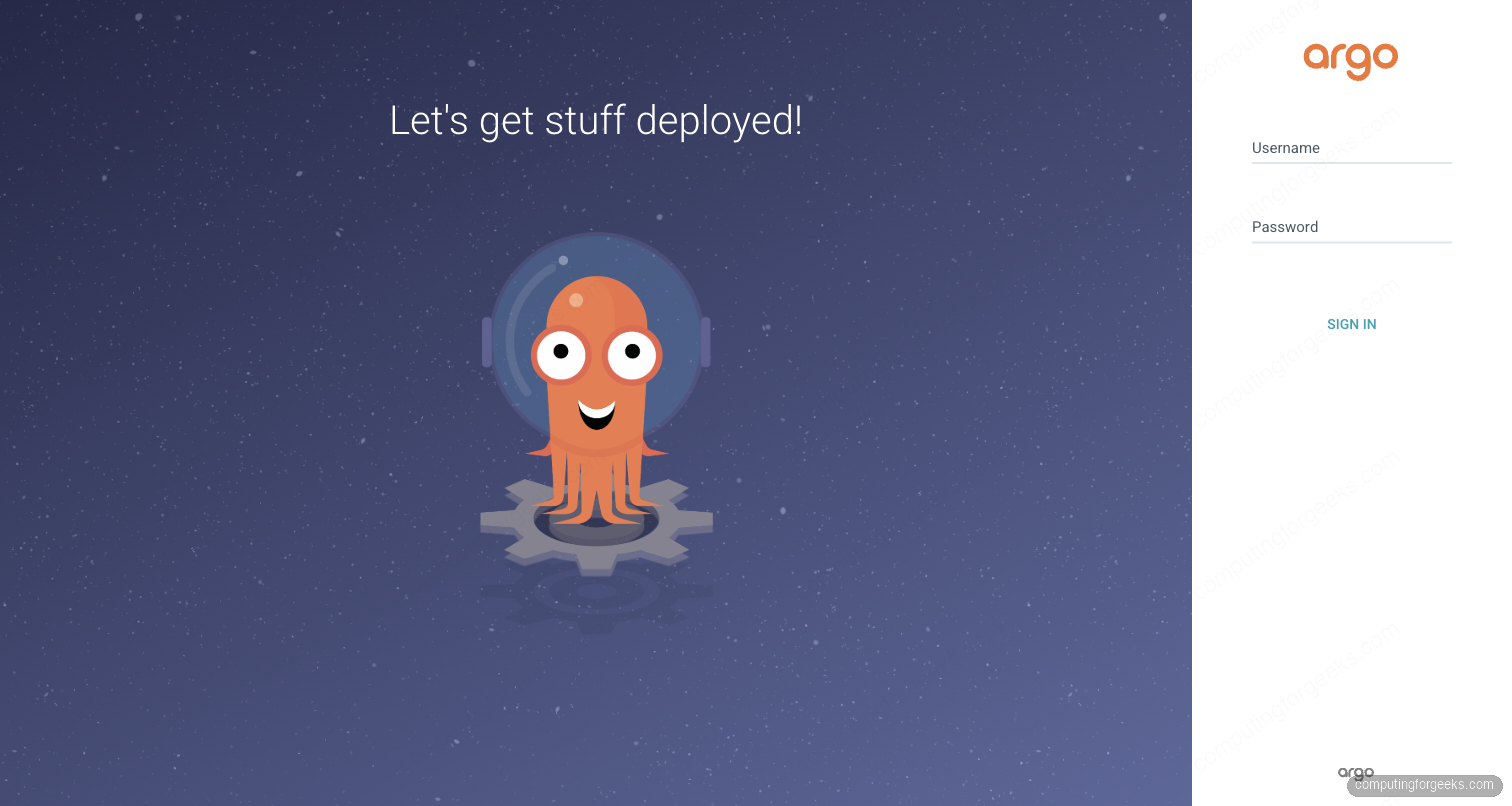
Sign in with admin and the password from the secret. The landing view is the Applications dashboard, and on a fresh install it is empty with a Create Application prompt. That is what you want to see: the next step fills it.
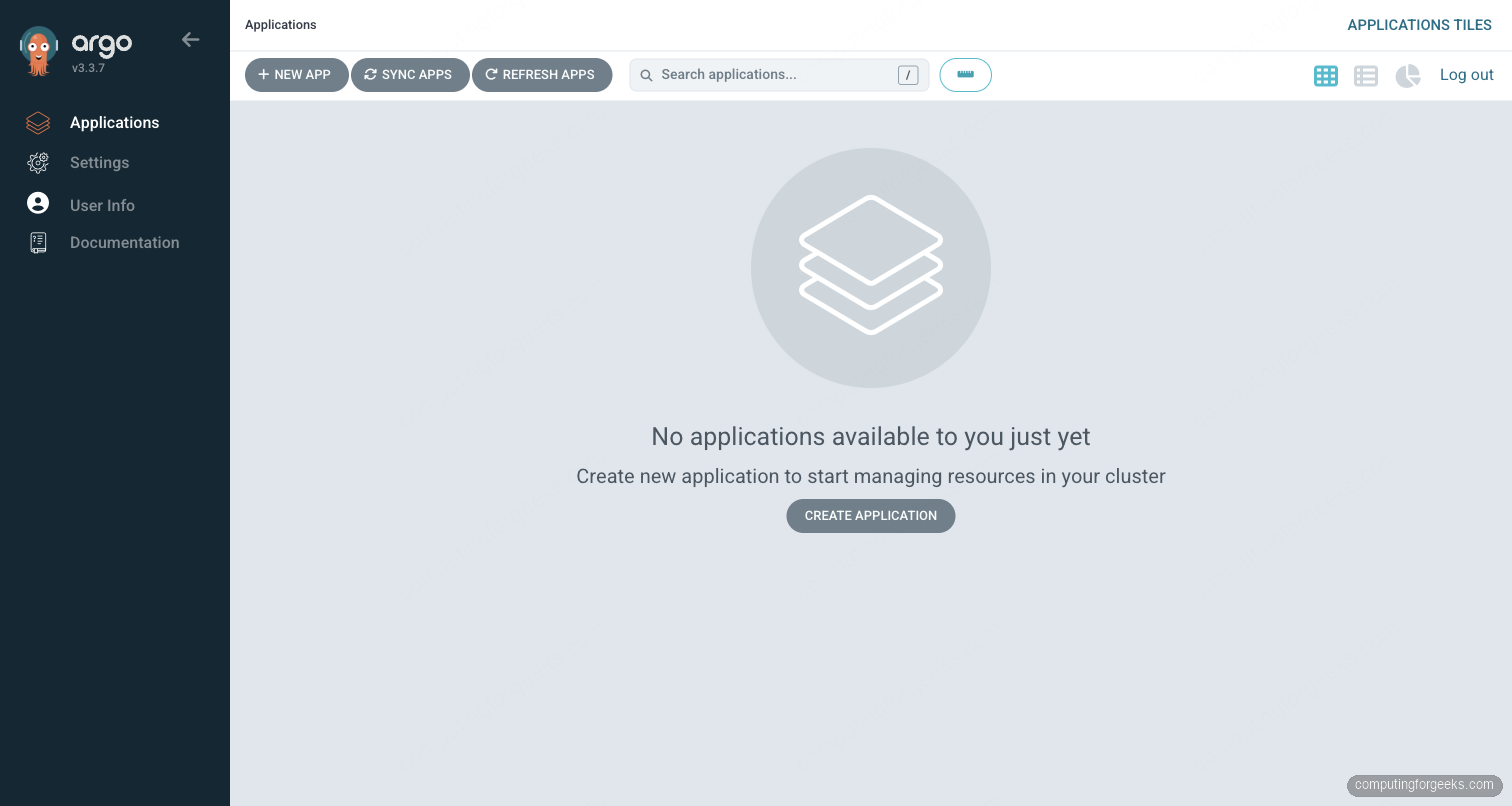
Rotate the bootstrap password immediately. The initial secret ships unencrypted and the wider ops team can read it with kubectl get secret until you change it.
argocd login NODE_IP:30885 --insecure \
  --username admin --password <bootstrap-password>
argocd account update-password
The command prompts for the old password, then the new one twice. After it succeeds, delete the bootstrap secret so nobody tries to reuse it; ArgoCD never reads it again.
kubectl -n argocd delete secret argocd-initial-admin-secretIf you lose the password later, the admin password reset guide covers the bcrypt patch on the argocd-secret object.
For automation, generate per-service API tokens rather than reusing the admin password. The argocd account generate-token --account <name> command returns a JWT scoped to that account, and rotating it is a one-command operation that does not touch anyone else's login.
Deploy Your First Application
The whole point of ArgoCD is to turn a Git commit into cluster state. The fastest way to prove the install is working is to point it at a small public repo and watch it sync. The demo repo cfg-labs/argocd-getting-started contains a two-replica nginx Deployment plus a Service under guestbook/.
Declare it as an Application resource in the argocd namespace. Save the YAML below as guestbook-app.yaml:
apiVersion: argoproj.io/v1alpha1
kind: Application
metadata:
  name: guestbook
  namespace: argocd
spec:
  project: default
  source:
    repoURL: https://github.com/cfg-labs/argocd-getting-started.git
    targetRevision: main
    path: guestbook
  destination:
    server: https://kubernetes.default.svc
    namespace: default
  syncPolicy:
    automated:
      prune: true
      selfHeal: true
Apply it and watch ArgoCD pull the manifests, create the Deployment, and reconcile the Service.
kubectl apply -f guestbook-app.yaml
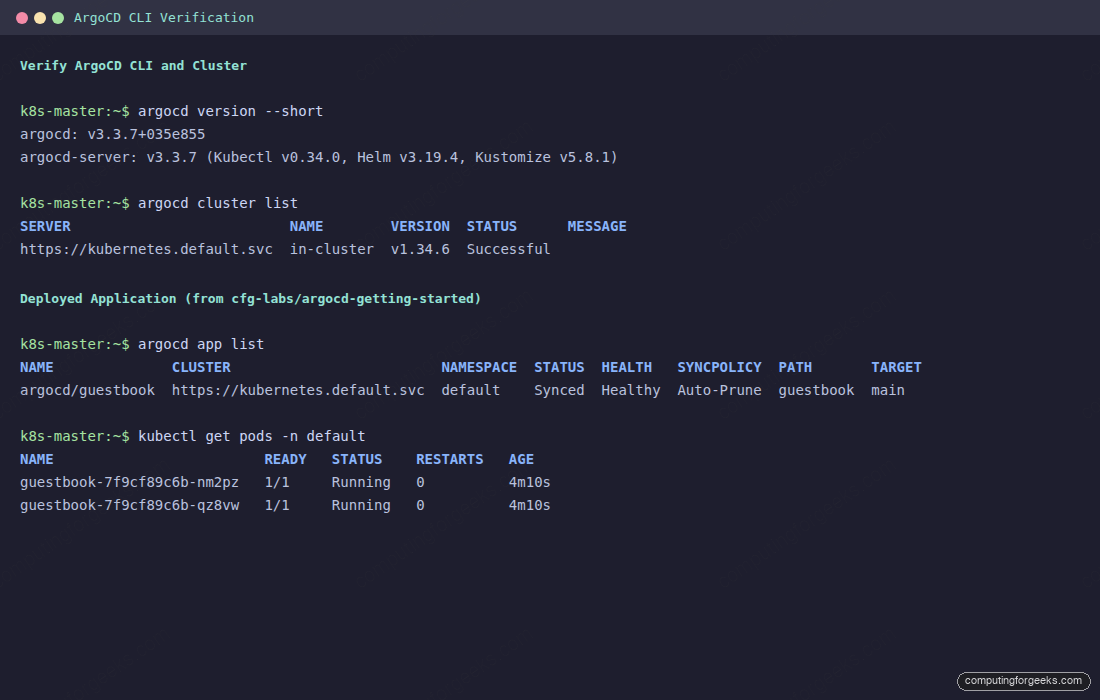
argocd app get guestbook
argocd app list
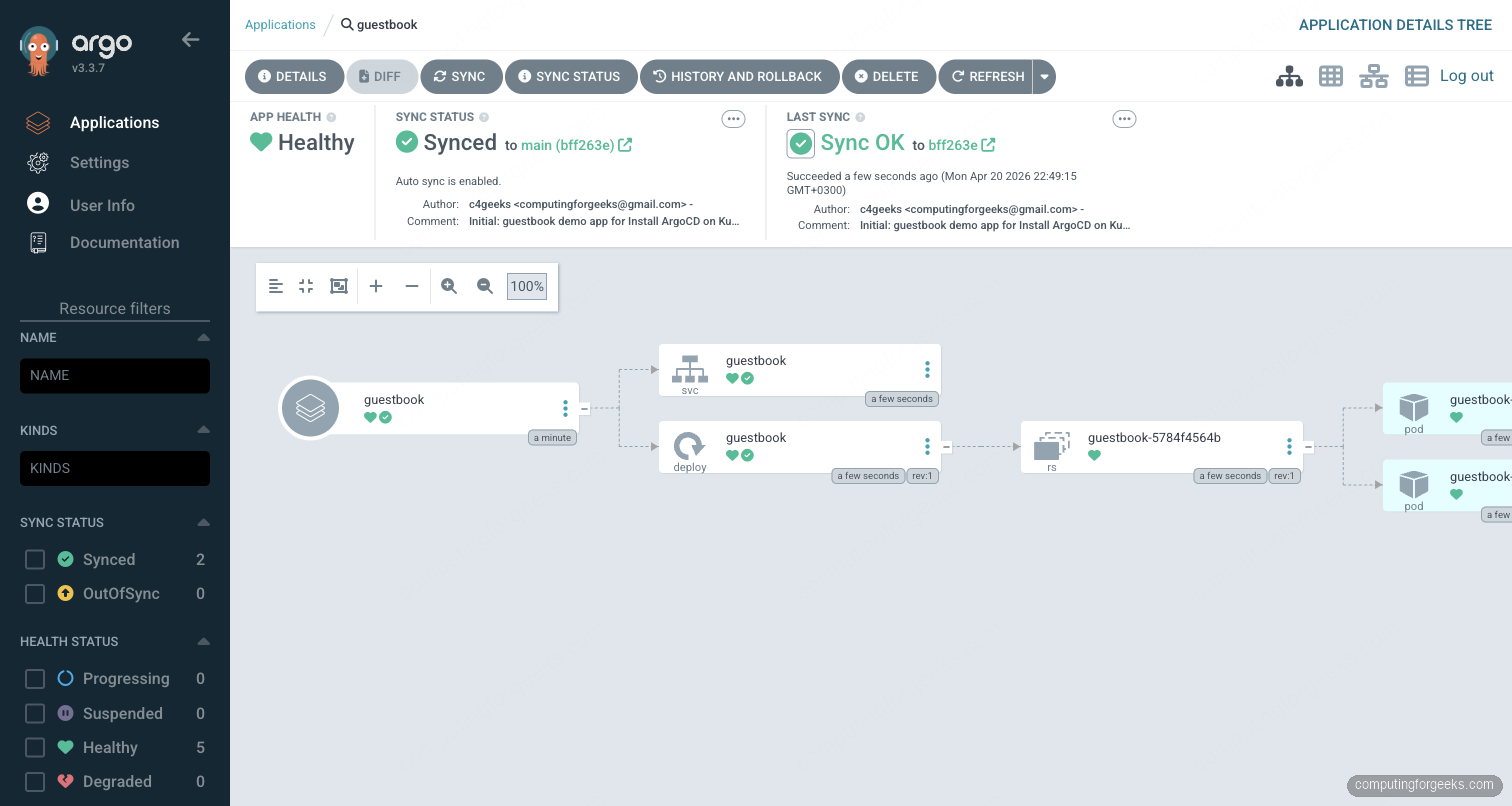
Within seconds the dashboard shows the new Application tile with a green Synced and Healthy indicator. The source panel confirms the repo URL, target revision, and the path inside the repo.
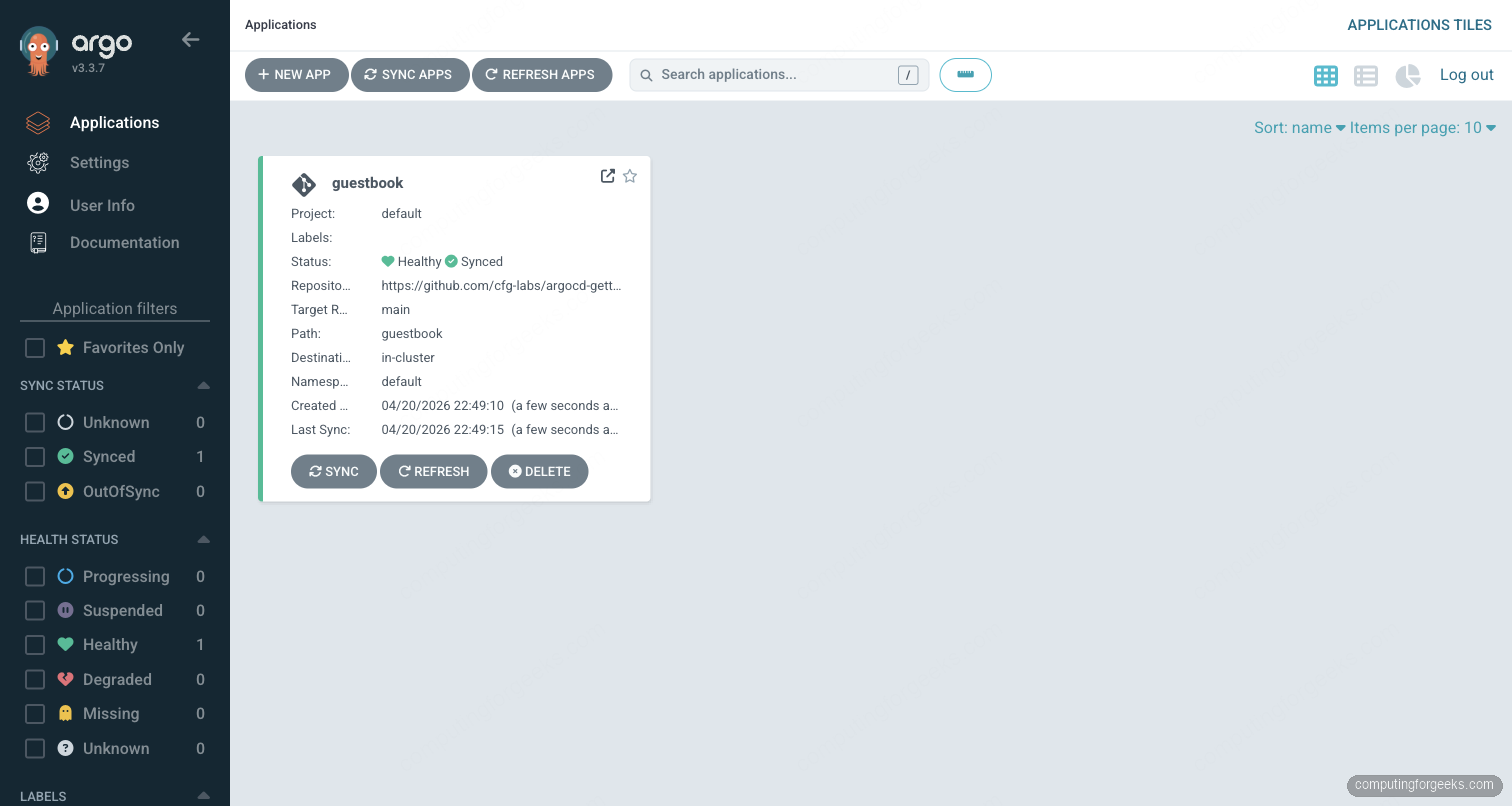
Click into the Application for the resource tree. This is the single most useful view in ArgoCD during an incident: it renders the parent Application, the Kubernetes resources it owns, and the live pods, all colour-coded by sync and health state. Drift shows up as a yellow Out of Sync, degraded pods as red.
Confirm the pods landed in the default namespace on the cluster itself:
kubectl get pods -n default
kubectl get svc -n default
Two guestbook pods should be Running, backed by a ClusterIP Service on port 80. From this point, every commit to the main branch of the demo repo reconciles automatically because the syncPolicy.automated block is enabled.
Once a single Application is clean, the next step is to manage dozens or hundreds of them from one manifest. That is what ApplicationSet is for: Git, Cluster, List, and Helm generators let you render one template into many Applications across a hub-and-spoke cluster topology.
Enable TLS with Let's Encrypt
Self-signed certs are fine for a port-forward test. For any shared instance the UI must be served over HTTPS with a real certificate. The cleanest path on Kubernetes is cert-manager plus an Ingress annotation that triggers certificate issuance.
Install cert-manager once per cluster if it is not already there (the cert-manager install guide covers CRDs and RBAC). Then create a ClusterIssuer that uses the Let's Encrypt production endpoint:
apiVersion: cert-manager.io/v1
kind: ClusterIssuer
metadata:
  name: letsencrypt-prod
spec:
  acme:
    server: https://acme-v02.api.letsencrypt.org/directory
    email: [email protected]
    privateKeySecretRef:
      name: letsencrypt-prod
    solvers:
      - http01:
          ingress:
            class: nginx
The Ingress pointing at argocd-server then carries the annotations that trigger the HTTP-01 challenge and attach the issued cert:
apiVersion: networking.k8s.io/v1
kind: Ingress
metadata:
  name: argocd-server
  namespace: argocd
  annotations:
    cert-manager.io/cluster-issuer: letsencrypt-prod
    nginx.ingress.kubernetes.io/backend-protocol: HTTPS
spec:
  ingressClassName: nginx
  tls:
    - hosts:
        - argocd.example.com
      secretName: argocd-server-tls
  rules:
    - host: argocd.example.com
      http:
        paths:
          - path: /
            pathType: Prefix
            backend:
              service:
                name: argocd-server
                port:
                  number: 443
cert-manager picks up the Ingress, completes the ACME challenge, stores the cert in the argocd-server-tls Secret, and the next reload serves HTTPS with a valid chain.
Authentication Options
ArgoCD supports three authentication paths and you will end up using all of them at different points.
- Local users. Defined in
argocd-cmunder theaccountskey. Each user gets a password hash stored inargocd-secret. Fine for service accounts and a break-glass admin, not for per-person access. - Dex-based SSO. The bundled Dex instance brokers OIDC, GitHub, GitLab, SAML, and LDAP. Configure the upstream provider once in
argocd-cmand users land on the ArgoCD UI already authenticated. - Native OIDC. Skip Dex entirely and point ArgoCD at an OIDC issuer directly. Faster, fewer moving parts, required on large GKE and EKS deployments where Workload Identity is already in play.
Whatever path you choose, wire RBAC through the argocd-rbac-cm ConfigMap. The default policy gives authenticated users read-only access; promoting a user to admin is a one-line g, [email protected], role:admin entry under the policy.csv key.
A working GitHub SSO setup through Dex takes three fields in argocd-cm. Register an OAuth App in the GitHub organisation settings first and grab the client ID and secret:
apiVersion: v1
kind: ConfigMap
metadata:
  name: argocd-cm
  namespace: argocd
data:
  url: https://argocd.example.com
  dex.config: |
    connectors:
      - type: github
        id: github
        name: GitHub
        config:
          clientID: Iv1.xxxxxxxxxxxxxxxx
          clientSecret: $dex.github.clientSecret
          orgs:
            - name: myorg
              teams:
                - platform
                - devops
Store the client secret in argocd-secret under the dex.github.clientSecret key so it never leaks into Git. Members of the platform team can then authenticate against ArgoCD with their GitHub credentials, and you map role:admin to that team in argocd-rbac-cm.
Upgrade ArgoCD
Upgrading the manifest-based install is the same command you used to install, but pinned to a new release tag. Always pin explicitly for upgrades; never re-apply stable on a running cluster unless you want whatever is current at that moment.
export ARGOCD_NEW=v3.3.7    # pick the exact release you want to upgrade to
kubectl apply -n argocd --server-side=true --force-conflicts \
  -f "https://raw.githubusercontent.com/argoproj/argo-cd/${ARGOCD_NEW}/manifests/install.yaml"
kubectl rollout status -n argocd deployment/argocd-server
Check the release notes before a minor version bump (for example 3.3 to 3.4). Skew between the server and the application-controller is supported across one minor version, so rollbacks are low-risk if something breaks. The Helm path is helm upgrade argocd argo/argo-cd -n argocd -f argocd-values.yaml --version NEW_CHART_VERSION; check the chart's changelog for breaking values keys.
If the new version misbehaves, roll back by re-applying the previous manifest URL. The Application objects are stored as CRDs, so they survive the server restart and pick up the older binary without losing sync state:
export ARGOCD_PREV=v3.3.6   # the exact release you ran before this upgrade
kubectl apply -n argocd --server-side=true --force-conflicts \
  -f "https://raw.githubusercontent.com/argoproj/argo-cd/${ARGOCD_PREV}/manifests/install.yaml"
For the Helm install, pin the previous chart version with helm rollback argocd or pass an explicit --version. Store the exact chart version you ran in Git next to your values file so the rollback target is never guesswork.
Back Up ArgoCD Configuration
ArgoCD stores every Application, AppProject, repo credential, and RBAC rule as Kubernetes resources, so a namespace-level backup is enough to rebuild the controller on a new cluster. The two objects that actually carry the state are the CRDs under argoproj.io and the argocd-* ConfigMaps and Secrets.
kubectl get -n argocd applications.argoproj.io,appprojects.argoproj.io \
  -o yaml > argocd-apps-backup.yaml
kubectl get -n argocd cm,secret -l app.kubernetes.io/part-of=argocd \
  -o yaml > argocd-config-backup.yaml
For scheduled backups, wrap those two commands in a CronJob that writes to an object store. A better long-term answer is to declare every Application and AppProject in Git from day one, which is the app-of-apps pattern. If ArgoCD is the only writer, the Git repo is the backup and disaster recovery means kubectl apply of the root Application against a fresh cluster.
For disaster-recovery drills, spin up a second cluster, install ArgoCD with the same manifests, restore the two YAML files, and let the controller reconcile everything from the original Git sources. Because Applications are declarative, the restored controller pulls identical state; nothing needs to be replayed from logs or snapshots.
Troubleshooting
Error: CustomResourceDefinition applicationsets.argoproj.io is invalid: metadata.annotations: Too long
On older clusters and any managed Kubernetes that defaults to client-side apply, the ApplicationSet CRD trips the 262144-byte annotation limit. The upstream manifest embeds the whole schema into the kubectl.kubernetes.io/last-applied-configuration annotation, which busts the limit. Use server-side apply, which stores the full object in its own field:
kubectl apply -n argocd --server-side=true --force-conflicts \
  -f https://raw.githubusercontent.com/argoproj/argo-cd/stable/manifests/install.yaml
Server-side apply works because Kubernetes tracks field ownership in the resource itself rather than the annotation. The flag is safe to keep on every ArgoCD install going forward.
Error: argocd login fails with x509: certificate signed by unknown authority
The default ArgoCD server certificate is self-signed. Either pass --insecure during login, or point ArgoCD at your TLS-terminating Ingress and trust the Let's Encrypt chain. For the self-signed path:
argocd login argocd.example.com --insecureThe --insecure flag skips server cert verification for this session only; the bearer token cached in ~/.config/argocd/config is unaffected. For a permanent fix, terminate TLS on the Ingress using the cert-manager recipe above.
Error: rpc error: code = PermissionDenied desc = repository not accessible
The repo-server cannot reach the Git repo. For public repos, that is almost always a cluster egress problem (check NetworkPolicies and any corporate proxy). For private repos, register the credentials in ArgoCD once:
argocd repo add https://github.com/myorg/my-private-repo \
  --username git --password ghp_xxxxx
Use a fine-grained personal access token scoped only to that repo, and store it in a Kubernetes Secret referenced from argocd-cm rather than on the command line. On EKS and GKE, the managed Kubernetes walkthroughs cover IAM-based credentials through IRSA and Workload Identity so the repo-server needs no long-lived secret at all.
Error: Application stuck in OutOfSync after a manual kubectl edit
ArgoCD detects the drift but does not revert because selfHeal is off by default. Either revert the manual change in Git, or let ArgoCD overwrite it by flipping selfHeal on in the Application spec. For a one-off manual sync that re-applies Git state:
argocd app sync guestbook --pruneDrift is the most common first-week issue. Teams graduate from manual kubectl edit to proper pull requests within a few incidents; ArgoCD is at its best when Git is the only writer.