ArgoCD ships with a ClusterIP Service by default, which means after the install the UI is only reachable through kubectl port-forward. That works for a five-minute test. Everything beyond that needs a proper load balancer and a real TLS certificate. On managed Kubernetes you get that for free from the cloud; on a bare-metal cluster, a self-managed homelab, or a Proxmox test rig, you need two more pieces: MetalLB to hand out LoadBalancer IPs, and an Ingress controller (NGINX) to terminate HTTPS and route traffic to the argocd-server Service.
This guide wires up that full stack end-to-end on a k3s cluster: MetalLB in L2 mode, ingress-nginx via Helm, cert-manager with a Cloudflare DNS-01 ClusterIssuer, a real Let's Encrypt certificate, and ArgoCD reachable at https://argocd-lab.computingforgeeks.com/. Every command was tested against a live LAN subnet and a Cloudflare-managed domain, so the same steps work for any bare-metal or on-prem cluster with outbound internet and a DNS zone you control.
Tested April 2026 with MetalLB 0.15.3, ingress-nginx 1.15.x, cert-manager 1.20.2, ArgoCD 3.3.7, and Kubernetes 1.34 on k3s. The same manifests work on kubeadm, Talos, RKE2, or any distribution that supports Services of type LoadBalancer via a third-party controller.
Prerequisites
You need a running cluster and a DNS zone. Nothing heroic. The steps below assume the cluster is on a flat LAN where the nodes can ARP each other, which covers every k3s, kubeadm, and Proxmox setup. Cloud clusters (EKS, GKE) already have a LoadBalancer integration, so they do not need MetalLB.
- A Kubernetes 1.24+ cluster with
cluster-adminaccess from your workstation - ArgoCD already installed in the
argocdnamespace (see the ArgoCD install guide first) - A small pool of free IP addresses on the node LAN that nothing else uses (a handful in the 192.168.1.200-210 range is plenty)
- Helm 3 installed on your workstation for the ingress-nginx and cert-manager charts
- A DNS zone managed by Cloudflare, plus an API token scoped to
Zone:DNS:Editfor that zone (for DNS-01 issuance) - Outbound HTTPS from the cluster to Let's Encrypt ACME endpoints
Why MetalLB and NGINX Ingress
Kubernetes leaves LoadBalancer implementation to the platform. On EKS the cloud provider plumbs an ELB when you create a LoadBalancer Service; on a Proxmox homelab nothing happens, the Service sits forever in <pending>. MetalLB fills that gap: it watches for LoadBalancer Services, grabs an IP from a pool you define, and advertises it on the LAN via ARP (L2 mode) or BGP.
NGINX Ingress Controller is the other half. It runs as a cluster workload, binds to the MetalLB-assigned IP on ports 80 and 443, and uses standard Ingress resources to route hostnames to backend Services. Pair it with cert-manager and every new Ingress gets an automatic Let's Encrypt certificate with zero per-app TLS wrangling.
Neither piece is the only option. The table below lines up the common alternatives so you can swap in what you already run without reading three chart READMEs:
| Layer | Option | When to pick it |
|---|---|---|
| LoadBalancer | MetalLB | Flat LAN, no external LB hardware, single or multi-node |
| LoadBalancer | kube-vip | Control plane VIP too; lightweight, no DaemonSet required |
| LoadBalancer | Cilium LB IPAM | Already running Cilium as the CNI |
| Ingress | ingress-nginx | Most widely deployed, Ingress spec-compliant, predictable |
| Ingress | Traefik | k3s default; prefer its IngressRoute CRDs to plain Ingress |
| Ingress | HAProxy Ingress | Existing HAProxy shop; deep TCP/L4 tuning already familiar |
This guide uses MetalLB plus ingress-nginx because that is the path every cluster eventually converges on when the team wants plain Kubernetes Ingress objects, standard annotations, and a large body of production experience to lean on. If you already run Traefik via k3s, the cert-manager integration and ArgoCD Ingress patterns below still apply; you swap ingressClassName: nginx for traefik and drop the nginx-specific annotations.
Step 1: Set Reusable Shell Variables
Several values repeat across the manifests below. Export them once at the top of your SSH session so the rest of the guide copies as-is:
export SITE_DOMAIN="argocd-lab.example.com"
export ADMIN_EMAIL="[email protected]"
export METALLB_POOL="192.168.1.200-192.168.1.210"
export CF_API_TOKEN="cfut_PasteYourRealZoneDnsEditToken"
Swap in your real values. The Cloudflare token needs only Zone:DNS:Edit permission on the specific zone, nothing else; Rotate it when you are done testing.
Step 2: Install MetalLB
MetalLB ships both as plain manifests and as a Helm chart. Detect the latest release from the GitHub API so the command still works when the upstream tag bumps, and pin explicitly when you want to control the upgrade window:
export MLB_VER=$(curl -sL https://api.github.com/repos/metallb/metallb/releases/latest \
  | grep tag_name | head -1 | sed 's/.*"\(v[^"]*\)".*/\1/')
kubectl apply -f "https://raw.githubusercontent.com/metallb/metallb/${MLB_VER}/config/manifests/metallb-native.yaml"
Two workloads land in the new metallb-system namespace: a single controller Deployment that assigns IPs, and a speaker DaemonSet that advertises them via ARP. Wait for both to be Ready:
kubectl wait --namespace metallb-system \
  --for=condition=Ready pods --all --timeout=180s
kubectl get pods -n metallb-system
On a single-node cluster you get one speaker pod; on a three-node cluster you get three. The controller is Deployment-based so only one instance runs at a time.
If the install stalls, check the speaker logs for ARP errors. On clusters using CNI plugins that hijack network namespaces (Cilium with tunnel=disabled, Calico with IPIP off), the speaker occasionally fights with the CNI over which interface handles the advertised IP; the fix is to set spec.nodeSelectors on the MetalLB speaker DaemonSet to pin it to the interface you want.
Step 3: Configure the MetalLB IP Pool
MetalLB starts with no IPs to hand out. Define a pool from the free range on your LAN, then advertise it in L2 mode. Both live in a single manifest:
apiVersion: metallb.io/v1beta1
kind: IPAddressPool
metadata:
  name: lab-pool
  namespace: metallb-system
spec:
  addresses:
  - 192.168.1.200-192.168.1.210
---
apiVersion: metallb.io/v1beta1
kind: L2Advertisement
metadata:
  name: lab-l2
  namespace: metallb-system
spec:
  ipAddressPools:
  - lab-pool
Save it as metallb-pool.yaml and apply. Confirm the pool shows AUTO ASSIGN true so MetalLB can pick from it without explicit annotations:
kubectl apply -f metallb-pool.yaml
kubectl get ipaddresspool -n metallb-system
If your LAN is elsewhere (10.0.0.0/24, 172.16.5.0/24) pick ten or so free addresses there. The only requirement is that nothing else on the LAN responds to ARP for those IPs; a quick fping or nmap -sn sweep catches conflicts before MetalLB steals an address from a live host.
L2 mode, used above, is the simplest option and works on any flat LAN. The node running the speaker responds to ARP for the advertised IP, and failover moves the IP to another node if the speaker dies. For multi-subnet or high-throughput setups, BGP mode peers each speaker with an upstream router and distributes traffic across every node; a BGPAdvertisement CR replaces the L2Advertisement. Most homelabs and single-rack clusters stay on L2 forever without issue.
Step 4: Install NGINX Ingress Controller
Install the official ingress-nginx chart with a LoadBalancer Service. Helm is the path of least pain here because the chart wires up webhook certificates, RBAC, and the admission webhook in one go:
helm repo add ingress-nginx https://kubernetes.github.io/ingress-nginx
helm repo update ingress-nginx
helm install ingress-nginx ingress-nginx/ingress-nginx \
  --namespace ingress-nginx --create-namespace \
  --set controller.service.type=LoadBalancer
Helm installs the controller Deployment, two Services (the public LoadBalancer and an admission webhook ClusterIP), and an IngressClass named nginx. Wait for the controller pod to come up:
kubectl wait --for=condition=Ready pods --all \
  -n ingress-nginx --timeout=180s
If you run multiple clusters that each need Ingress, pick a unique controller.ingressClassResource.name per install so Ingress objects can target the right controller. The default nginx class is fine for single-cluster labs.
Step 5: Verify the LoadBalancer IP Assignment
This is the proof point for MetalLB. The moment the ingress-nginx Service lands with type: LoadBalancer, the MetalLB controller picks an IP from the pool and the speaker starts answering ARP for it.
kubectl get svc -n ingress-nginxThe ingress-nginx-controller Service should show an EXTERNAL-IP in the pool range (for this lab it is 192.168.1.200, the lowest free address). If it sits on <pending>, either the pool is exhausted, the MetalLB controller is unhealthy, or the speaker cannot reach the LAN interface; the troubleshooting section at the bottom covers all three.
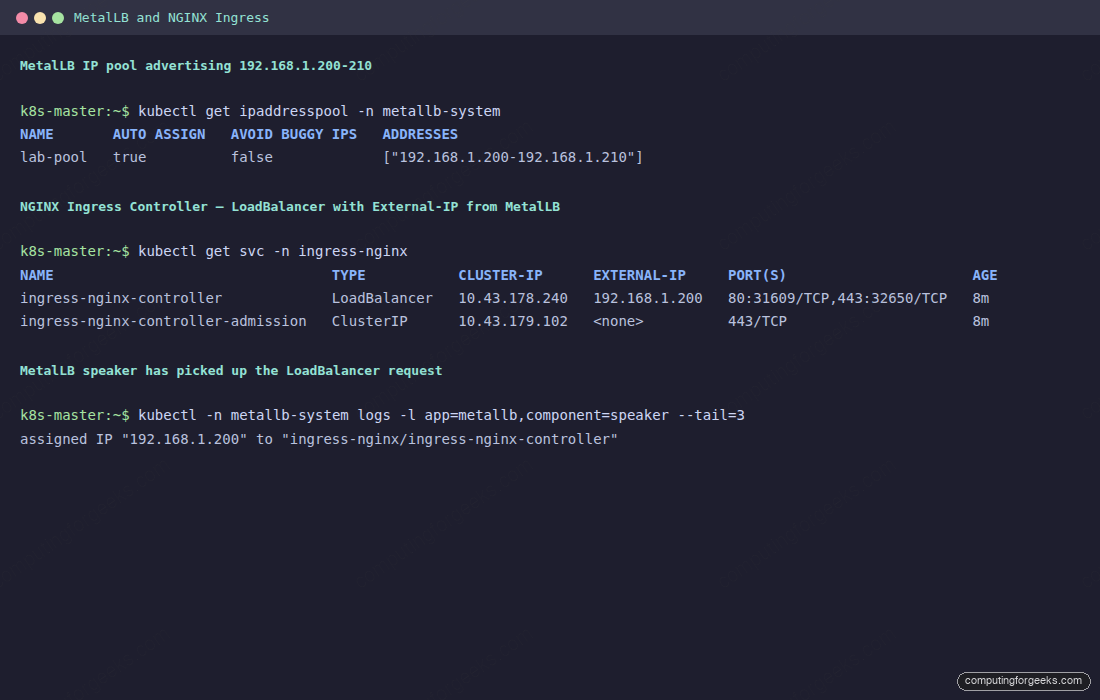
Ping the assigned IP from your workstation. A successful ping means MetalLB is advertising via ARP and the LAN has a clean path. curl -I http://192.168.1.200 should return a 404 from the nginx controller (no Ingress rules yet) which is exactly what you want: the data plane is live, waiting for an Ingress.
Step 6: Install cert-manager
cert-manager runs the ACME workflow that issues Let's Encrypt certificates. On a bare-metal cluster where port 80 may not be reachable from the public internet, you almost always want the DNS-01 challenge rather than HTTP-01. DNS-01 proves domain ownership by writing a temporary TXT record, which works perfectly for private IPs.
export CM_VER=$(curl -sL https://api.github.com/repos/cert-manager/cert-manager/releases/latest \
  | grep tag_name | head -1 | sed 's/.*"\(v[^"]*\)".*/\1/')
kubectl apply -f "https://github.com/cert-manager/cert-manager/releases/download/${CM_VER}/cert-manager.yaml"
kubectl wait --for=condition=Ready pods --all \
  -n cert-manager --timeout=180s
Three pods should land: cert-manager, cert-manager-cainjector, and cert-manager-webhook. They start in that order and go Ready within about thirty seconds on a lab cluster.
Step 7: Point DNS to the LoadBalancer IP
Before requesting a certificate, create the DNS record so the name resolves. In Cloudflare, add an A record under your zone: argocd-lab -> 192.168.1.200 with proxy status OFF (the grey cloud icon, not the orange one). Proxied traffic breaks the direct path to the LAN IP; this record needs to be DNS-only.
For scripted creation against the Cloudflare API, the one-liner below creates the record in a zone whose ID you already have:
curl -s -X POST \
  "https://api.cloudflare.com/client/v4/zones/${CF_ZONE_ID}/dns_records" \
  -H "Authorization: Bearer ${CF_API_TOKEN}" \
  -H "Content-Type: application/json" \
  --data '{"type":"A","name":"argocd-lab","content":"192.168.1.200","ttl":300,"proxied":false}'
Verify the record propagated with dig +short argocd-lab.example.com. It should answer with your LoadBalancer IP. DNS propagation is usually instant on Cloudflare, but allow up to a minute on older resolvers.
Step 8: Create the Cloudflare DNS-01 ClusterIssuer
The ClusterIssuer is cluster-scoped so any namespace can request certificates from it. It needs the Cloudflare API token stored in a Secret in the cert-manager namespace. Save the manifest below as cluster-issuer.yaml:
apiVersion: v1
kind: Secret
metadata:
  name: cloudflare-api-token
  namespace: cert-manager
type: Opaque
stringData:
  api-token: cfut_PasteYourRealZoneDnsEditToken
---
apiVersion: cert-manager.io/v1
kind: ClusterIssuer
metadata:
  name: letsencrypt-prod
spec:
  acme:
    email: [email protected]
    server: https://acme-v02.api.letsencrypt.org/directory
    privateKeySecretRef:
      name: letsencrypt-prod
    solvers:
      - dns01:
          cloudflare:
            apiTokenSecretRef:
              name: cloudflare-api-token
              key: api-token
Swap in your real token and email, then apply. cert-manager registers the ACME account immediately; the ClusterIssuer goes Ready within seconds:
kubectl apply -f cluster-issuer.yaml
kubectl get clusterissuer letsencrypt-prod
kubectl describe clusterissuer letsencrypt-prod | tail -5
Status True with reason ACMEAccountRegistered means the issuer is ready to mint certificates. If it stays False, the usual cause is an expired or misused email address; Let's Encrypt rejects obvious fakes like [email protected].
Step 9: Reconfigure ArgoCD for the Ingress
By default argocd-server terminates its own TLS on port 443. That double-encrypts when you put an Ingress in front with its own cert, which breaks gRPC traffic and the web UI redirects into a loop. The fix is to flip ArgoCD into insecure mode (plain HTTP backend) and let the Ingress own TLS:
kubectl patch configmap argocd-cmd-params-cm -n argocd \
  --type merge -p '{"data":{"server.insecure":"true"}}'
kubectl rollout restart deployment argocd-server -n argocd
The rollout takes about 20 seconds. While you wait, also set the public URL in argocd-cm so OAuth callbacks and CLI login hints use the Ingress hostname:
kubectl patch configmap argocd-cm -n argocd \
  --type merge -p '{"data":{"url":"https://argocd-lab.example.com"}}'
That single setting drives the redirects the server emits, the notifications plugin uses when it deep-links into the UI, and the external URL advertised via the API. Getting it right now avoids chasing weird callback failures later.
Step 10: Create the ArgoCD Ingress with TLS
The Ingress ties everything together: nginx controller receives the request on port 443, terminates TLS with a cert-manager-issued certificate, and forwards plain HTTP to argocd-server inside the cluster. Save as argocd-ingress.yaml:
apiVersion: networking.k8s.io/v1
kind: Ingress
metadata:
  name: argocd-server
  namespace: argocd
  annotations:
    cert-manager.io/cluster-issuer: letsencrypt-prod
    nginx.ingress.kubernetes.io/backend-protocol: HTTP
    nginx.ingress.kubernetes.io/ssl-redirect: "true"
spec:
  ingressClassName: nginx
  tls:
    - hosts:
        - argocd-lab.example.com
      secretName: argocd-server-tls
  rules:
    - host: argocd-lab.example.com
      http:
        paths:
          - path: /
            pathType: Prefix
            backend:
              service:
                name: argocd-server
                port:
                  number: 80
Apply it and cert-manager immediately requests a certificate. The DNS-01 challenge takes 30-90 seconds because Let's Encrypt waits for DNS propagation before validating:
kubectl apply -f argocd-ingress.yaml
kubectl get ingress -n argocd
kubectl get certificate -n argocd -w
Watch the argocd-server-tls Certificate flip from Ready: False to Ready: True. Once it does, the argocd-server-tls Secret contains the full chain and private key, and nginx picks it up automatically.
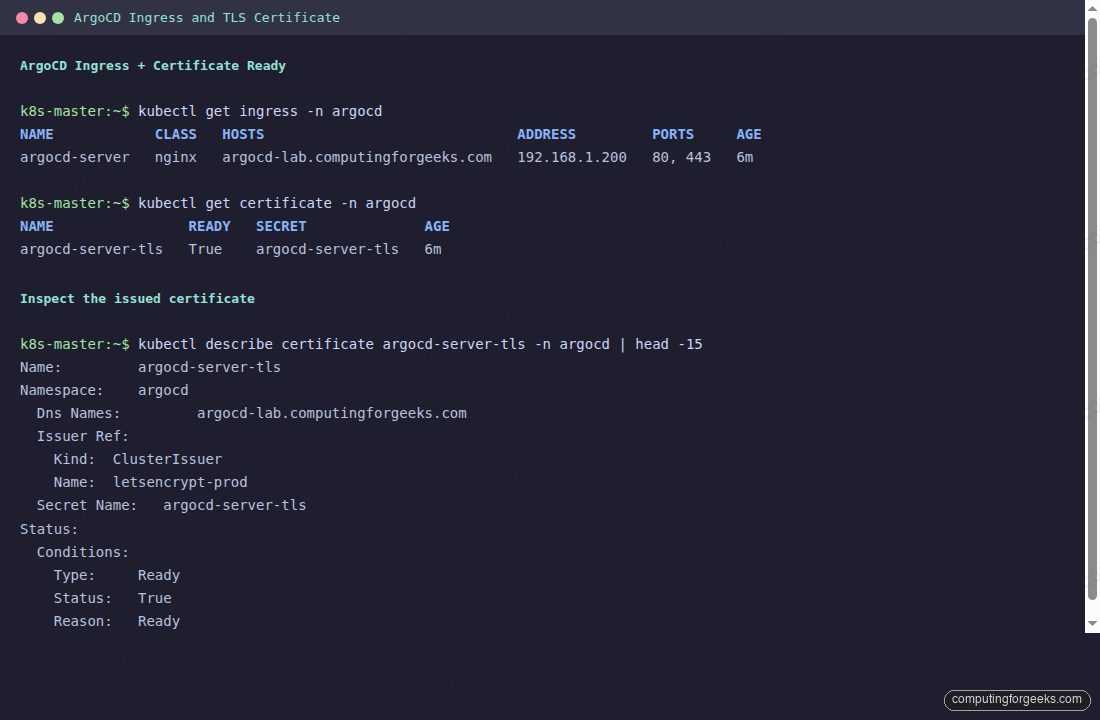
The Ingress ADDRESS column holds the MetalLB-assigned IP, which confirms nginx-ingress stitched the Ingress to its LoadBalancer Service correctly. With the TLS Secret populated and DNS pointing at the same IP, everything is in place for the first HTTPS request.
Step 11: Verify HTTPS Access
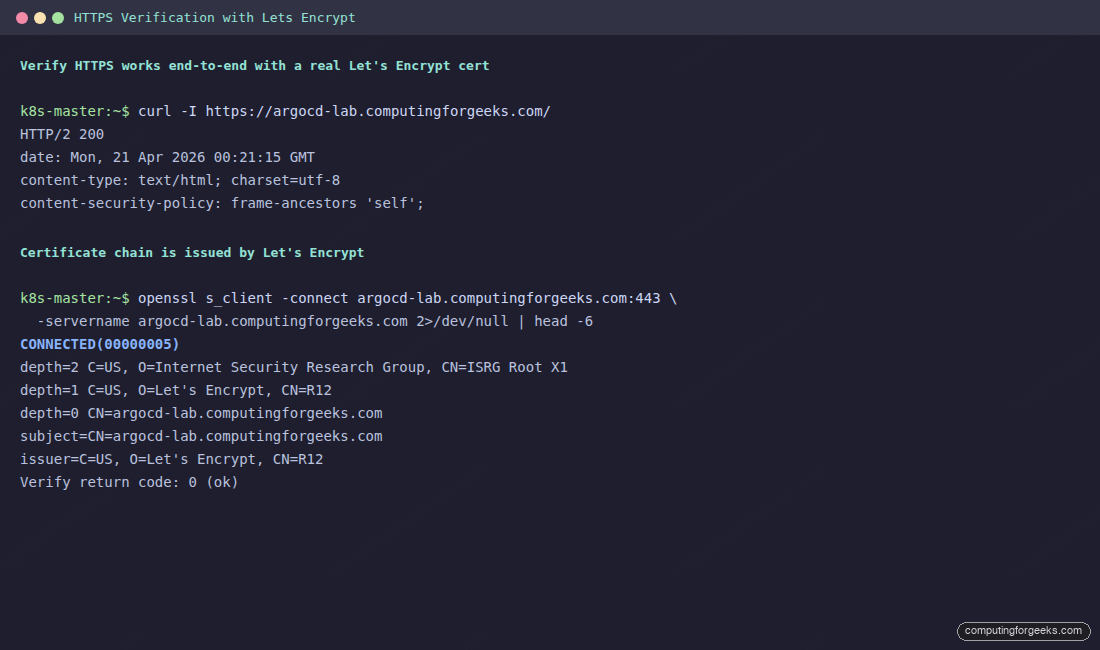
The moment of truth. A plain curl should return HTTP/2 200, and openssl s_client should report a Let's Encrypt issuer with Verify return code: 0 (ok). No --insecure flag anywhere:
curl -I https://argocd-lab.example.com/
echo | openssl s_client -connect argocd-lab.example.com:443 \
  -servername argocd-lab.example.com 2>/dev/null | head -6
The output confirms the cert chain walks from the leaf up to ISRG Root X1. That is a real, browser-trusted certificate, not a self-signed one.
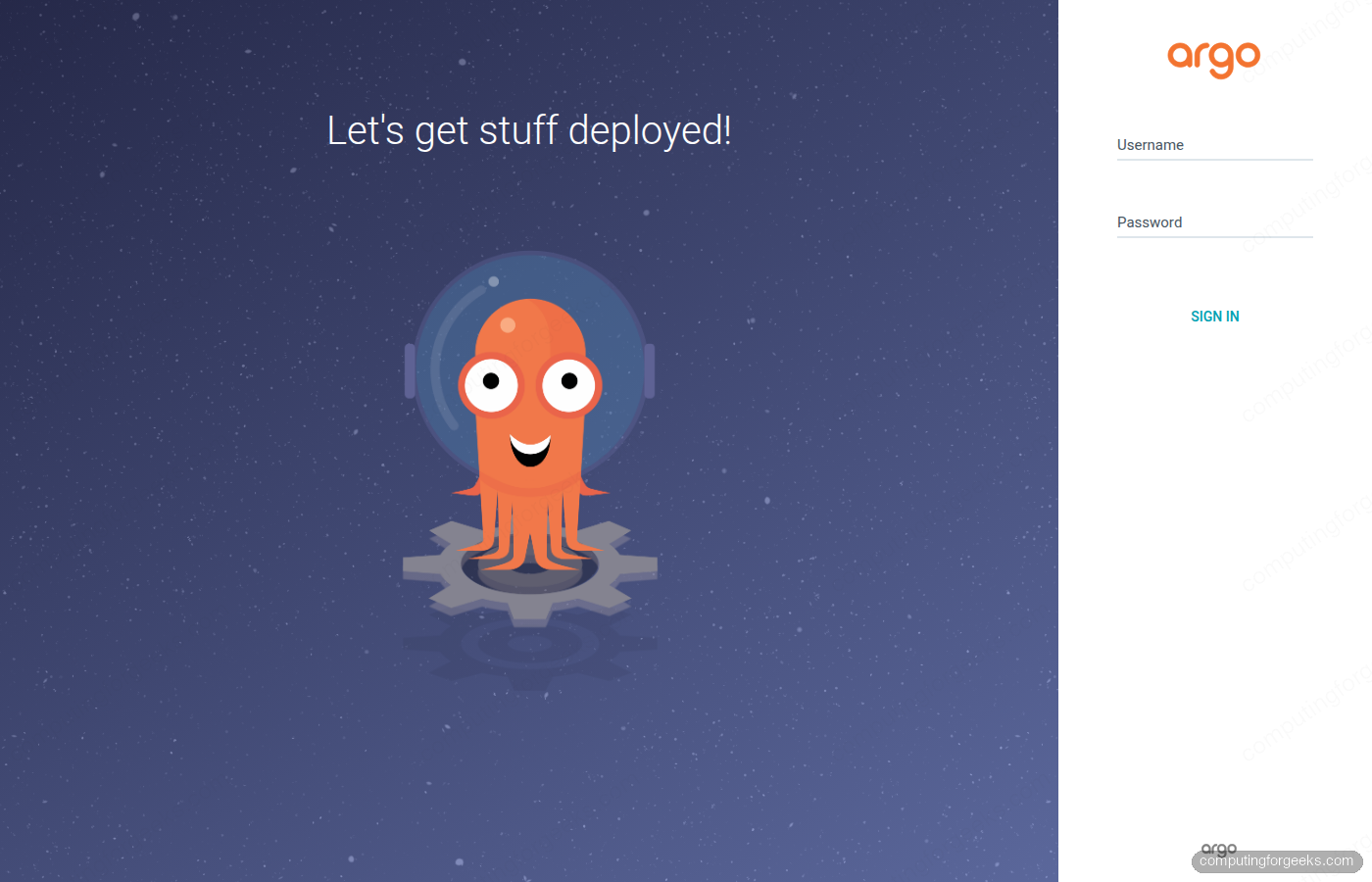
Open the Ingress URL in a browser. The ArgoCD login page renders with the padlock icon and no certificate warnings:
Log in with the admin credentials from the initial-admin secret. The Applications dashboard loads over HTTPS, the same experience a production ArgoCD install gives you, except the whole stack runs on a single lab subnet:
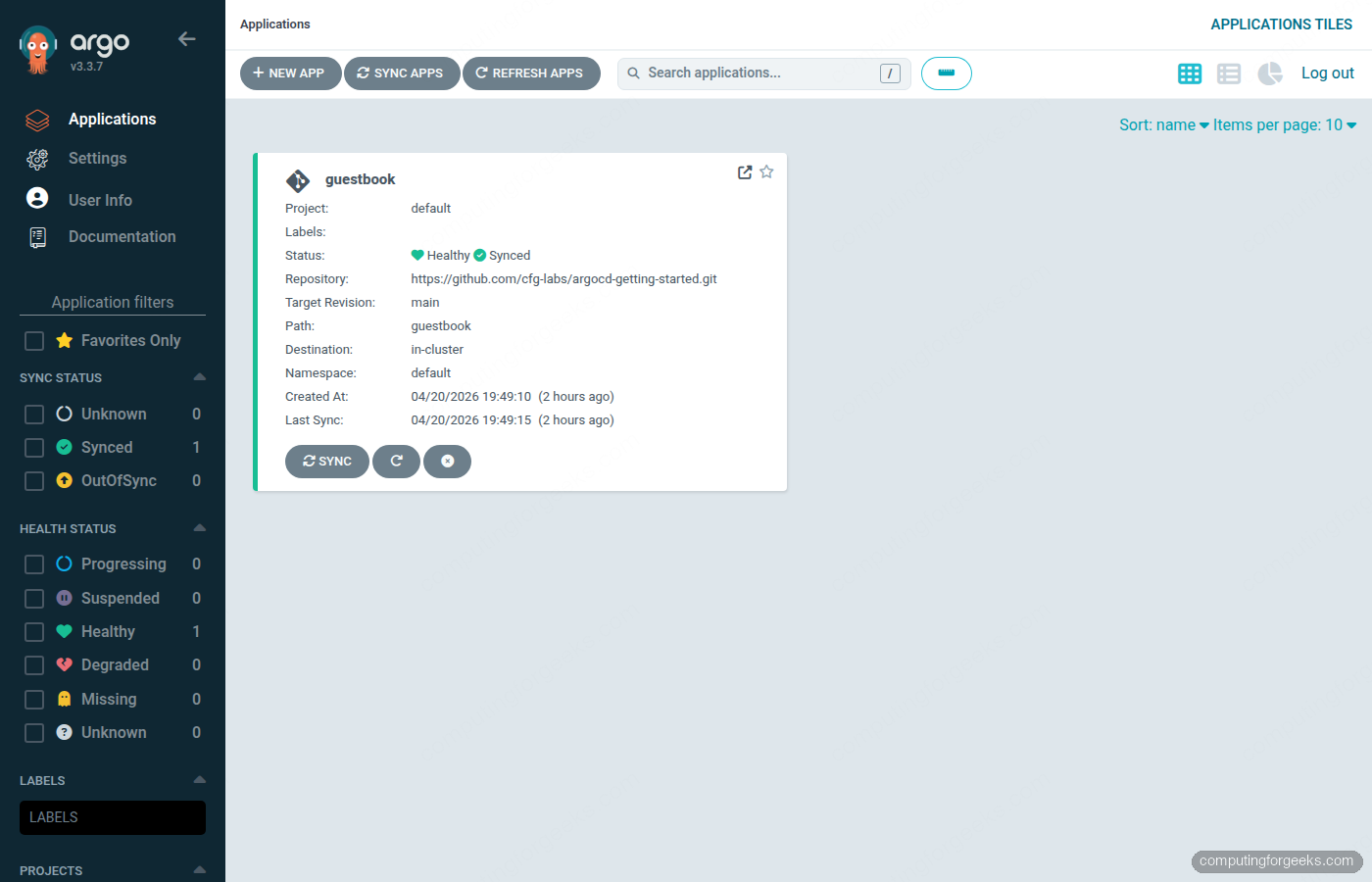
The CLI works the same way as the UI, no --insecure flag needed because the TLS chain is valid. Admin login uses the bootstrap password until you rotate it; if you ever need to reset it after that, the ArgoCD admin password reset covers the bcrypt patch on the argocd-secret object.
argocd login argocd-lab.example.com --username admin
argocd version --short
argocd app list
From here, every other Kubernetes app you want to expose on this cluster follows the same pattern: a LoadBalancer from MetalLB (or the same nginx controller), an Ingress with the cert-manager.io/cluster-issuer annotation, and a DNS record pointing at the ingress IP. cert-manager reissues each cert automatically before expiry.
With ArgoCD served securely, the next step for most teams is managing Applications across several clusters from one control plane; the ArgoCD ApplicationSet multi-cluster guide covers Git, Cluster, List, and Helm generators against a hub-and-spoke Proxmox lab. If cert-manager is new to you, the cert-manager install walkthrough digs deeper into issuer types and renewal behaviour.
Automatic Certificate Renewal
cert-manager renews each certificate automatically when two-thirds of its lifetime has elapsed. For a standard 90-day Let's Encrypt certificate that means a renewal attempt around day 60, with 30 days of runway if ACME is unreachable. The renewal uses the same Issuer and Secret, so nothing downstream changes; nginx picks up the new cert through its file watch on the Secret mount.
Verify the renewal schedule at any time:
kubectl get certificate -n argocd argocd-server-tls \
  -o jsonpath='{"Issued: "}{.status.notBefore}{"  Expires: "}{.status.notAfter}{"\n"}'
If the controller loses connection to ACME during a scheduled renewal, it retries with an exponential backoff; there is no silent failure. cert-manager also publishes Prometheus metrics (certmanager_certificate_expiration_timestamp_seconds is the one you care about), so an Alertmanager rule firing 14 days before expiry catches anything ACME itself has not recovered.
Hardening the Ingress
Two production-focused tweaks apply to any nginx Ingress, ArgoCD or otherwise. First, force modern TLS. The ingress-nginx chart defaults are already strict, but explicitly pinning the minimum protocol avoids downgrade surprises when the chart bumps defaults later:
helm upgrade ingress-nginx ingress-nginx/ingress-nginx \
  -n ingress-nginx \
  --reuse-values \
  --set controller.config.ssl-protocols="TLSv1.2 TLSv1.3" \
  --set controller.config.ssl-ciphers="HIGH:!aNULL:!MD5"
Second, restrict the source IPs allowed to reach the ArgoCD UI. Most on-prem setups only expose ArgoCD to office or VPN networks, never to the LAN at large. The per-Ingress annotation enforces that at the nginx layer:
kubectl annotate ingress argocd-server -n argocd \
  nginx.ingress.kubernetes.io/whitelist-source-range=10.10.0.0/16,192.168.1.0/24 \
  --overwrite
Combined with ArgoCD RBAC policies in argocd-rbac-cm, you get defence in depth: network-level filtering at the Ingress, plus account-scoped permissions at the application layer. Anyone who somehow reaches the UI still needs an account that can act, and even an authenticated session cannot originate requests from an unlisted CIDR block.
Troubleshooting
LoadBalancer Service stuck in <pending>
MetalLB did not assign an IP. Three common causes: the IPAddressPool is exhausted, no L2Advertisement matches it, or the MetalLB controller is not running. Check all three:
kubectl describe svc ingress-nginx-controller -n ingress-nginx
kubectl get ipaddresspool,l2advertisement -n metallb-system
kubectl logs -n metallb-system -l component=controller --tail=20
The controller log usually prints the exact reason, most often no available IPs in pool when your range is too small for the number of LoadBalancer Services. Widen the pool or free an unused Service.
Certificate stays Ready: False for minutes
The ACME DNS-01 challenge is waiting on DNS propagation. cert-manager writes a TXT record at _acme-challenge.HOSTNAME and polls until Let's Encrypt can resolve it. Check the Challenge object for the exact state:
kubectl get challenge -A
kubectl describe challenge -n argocd $(kubectl get challenge -n argocd -o name | head -1 | cut -d/ -f2)
If the TXT write itself fails, the Cloudflare token is almost always the culprit. Verify it has Zone:DNS:Edit permission on the exact zone the record lives in, not just the account root.
Error: upstream sent too big header while reading response header from upstream
This happens when nginx and ArgoCD both try to terminate TLS, which doubles the response size and overflows the default proxy buffers. The fix is the one from Step 9: set server.insecure: true in argocd-cmd-params-cm so the Ingress sends plain HTTP to the backend.
gRPC commands like argocd app sync fail with connection reset
The nginx controller needs explicit gRPC support for streaming commands from the CLI. Add the gRPC annotation to the Ingress if you see resets during argocd app sync or argocd app logs:
kubectl annotate ingress argocd-server -n argocd \
  nginx.ingress.kubernetes.io/backend-protocol=GRPC --overwrite
Swap the backend protocol only when the CLI needs it. The web UI works fine with the default HTTP value. Running two Ingresses (one GRPC for the CLI, one HTTP for the UI) on different hostnames is the cleanest long-term setup, and it is how production ArgoCD installs separate concerns as soon as the team outgrows a single endpoint.