An LXC container gives you a full Debian or Ubuntu userland on Proxmox VE without the weight of a virtual machine. It shares the host kernel, starts in about a second, and an idle container holds onto 30 to 100 MB of RAM instead of the half a gigabyte a VM reserves before it does any work. For Linux services on a homelab or a busy node, a Proxmox LXC container is almost always the right unit to reach for first.
This guide creates containers two ways: the Create CT wizard in the web interface, and the pct command line for repeatable, scriptable builds. It then goes past the install into the parts most guides skip: unprivileged security, resizing CPU and disk live, static addressing, bind mounts, running Docker inside a container, snapshots, backups, and turning a working container into a reusable template. Every command here was run on Proxmox VE 9.2 in June 2026, building Debian 13 and Ubuntu 24.04 containers on a real node.
When to use an LXC container instead of a VM
Use an LXC container when the workload is Linux and you want density and speed. Use a virtual machine when you need a different kernel, a non-Linux guest, or hard isolation between tenants. The split comes down to the kernel: a container borrows the host’s, a VM boots its own.
| Aspect | LXC container | Virtual machine |
|---|---|---|
| Kernel | Shares the host kernel | Runs its own kernel |
| Boot time | About a second | 20 to 60 seconds |
| Idle memory | 30 to 100 MB | 512 MB or more reserved |
| Isolation | Namespace and cgroup level | Full hardware virtualization |
| Guest OS | Linux only | Linux, Windows, BSD, anything |
| Live migration | Restart on the target node | Live migration supported |
| Best for | Linux services, density, homelab apps | Windows, custom kernels, strict isolation |
There is one practical consequence of the shared kernel worth stating up front. A container cannot run a kernel module the host does not have, and it cannot run Windows. If you are moving workloads off VMware and some of them are Windows, those stay as VMs. Our guide on migrating from VMware ESXi covers that path. Everything Linux is a candidate for a container.
Prerequisites
- A working Proxmox VE node. If you are starting from bare metal, follow the Proxmox VE install guide first, or the install on top of Debian walkthrough.
- Root shell access to the node, by SSH or the web console.
- A network bridge. A default install gives you
vmbr0connected to your LAN. - Storage with space for templates and container root filesystems. The defaults
local(for templates) andlocal-lvm(for disks) are enough.
LXC is built into Proxmox. There is nothing to install on the node. Confirm the version you are on:
pveversionThe node used for this guide reports the current release and kernel:
pve-manager/9.2.2/b9984c6d90a4bd80 (running kernel: 7.0.2-6-pve)Download a Debian or Ubuntu container template
A container is built from a template, which is a compressed root filesystem. Proxmox ships a catalog of them through the appliance manager, pveam. Refresh the catalog first:
pveam updateList what is available for Debian and Ubuntu:
pveam available --section system | grep -E 'debian|ubuntu'On a current node the catalog carries both supported Debian releases and every Ubuntu LTS plus the latest interim:
system          debian-12-standard_12.12-1_amd64.tar.zst
system          debian-13-standard_13.1-2_amd64.tar.zst
system          ubuntu-22.04-standard_22.04-1_amd64.tar.zst
system          ubuntu-24.04-standard_24.04-2_amd64.tar.zst
system          ubuntu-25.04-standard_25.04-1.1_amd64.tar.zst
system          ubuntu-26.04-standard_26.04-1_amd64.tar.zst
The catalog is not limited to Debian and Ubuntu. Rocky, AlmaLinux, Alpine, Fedora, and more are all there, and the steps below are identical whichever you pick. If you want a RHEL-family base, the Rocky and AlmaLinux template guide covers the specifics.
Pull the two we will build with. Templates download to the local storage:
pveam download local debian-13-standard_13.1-2_amd64.tar.zst
pveam download local ubuntu-24.04-standard_24.04-2_amd64.tar.zst
Each download finishes with a checksum verification. Confirm both landed:
pveam list localBoth templates are now cached on the node, ready to build from:
NAME                                                         SIZE
local:vztmpl/debian-13-standard_13.1-2_amd64.tar.zst         123.70MB
local:vztmpl/ubuntu-24.04-standard_24.04-2_amd64.tar.zst     135.03MB
Create a Proxmox LXC container in the web interface
The graphical path is the fastest way to get a feel for the options. Click Create CT in the top right of the web interface. The wizard opens on the General tab, where you set the container ID, hostname, and root credentials. Two checkboxes matter here. Leave Unprivileged container ticked, which is the safe default and is covered below. Tick Nesting if you plan to run Docker or systemd-in-systemd workloads inside.
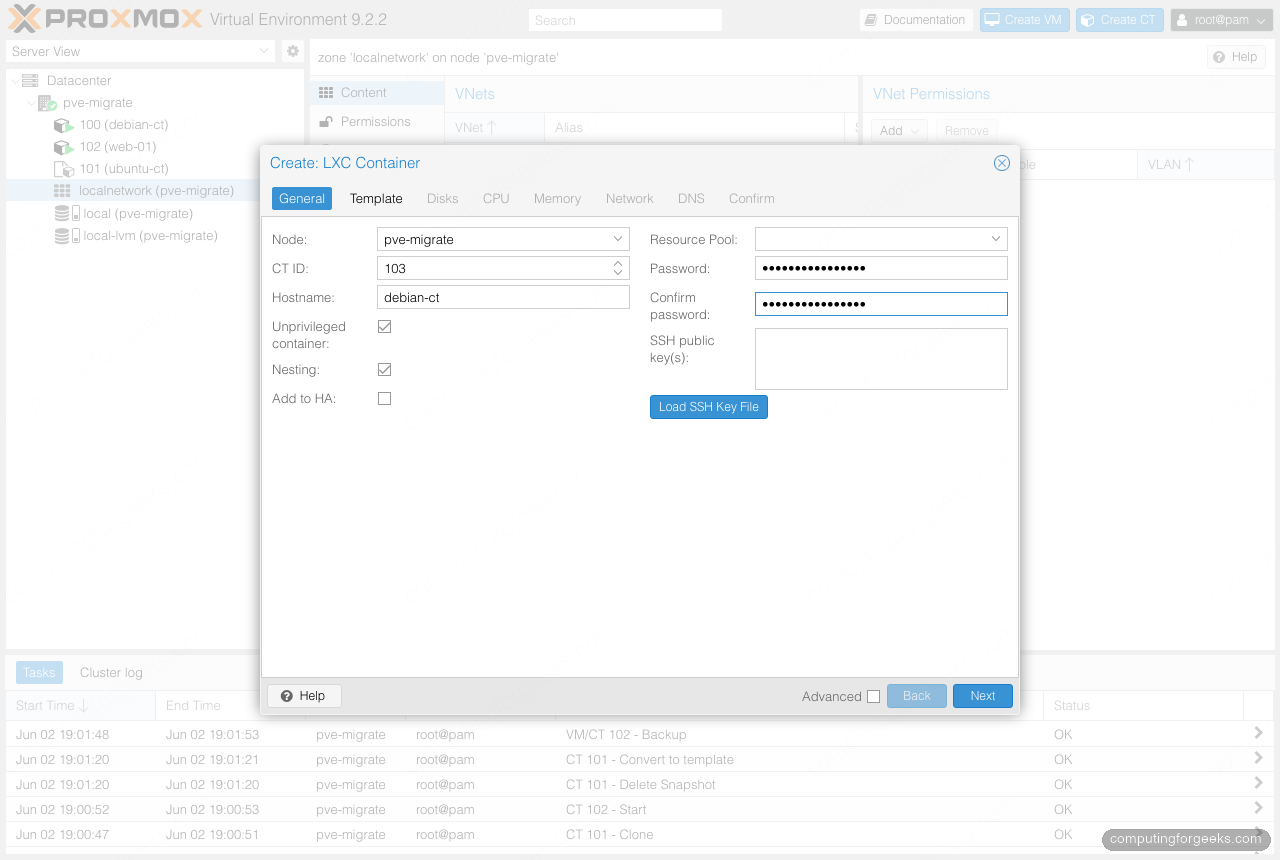
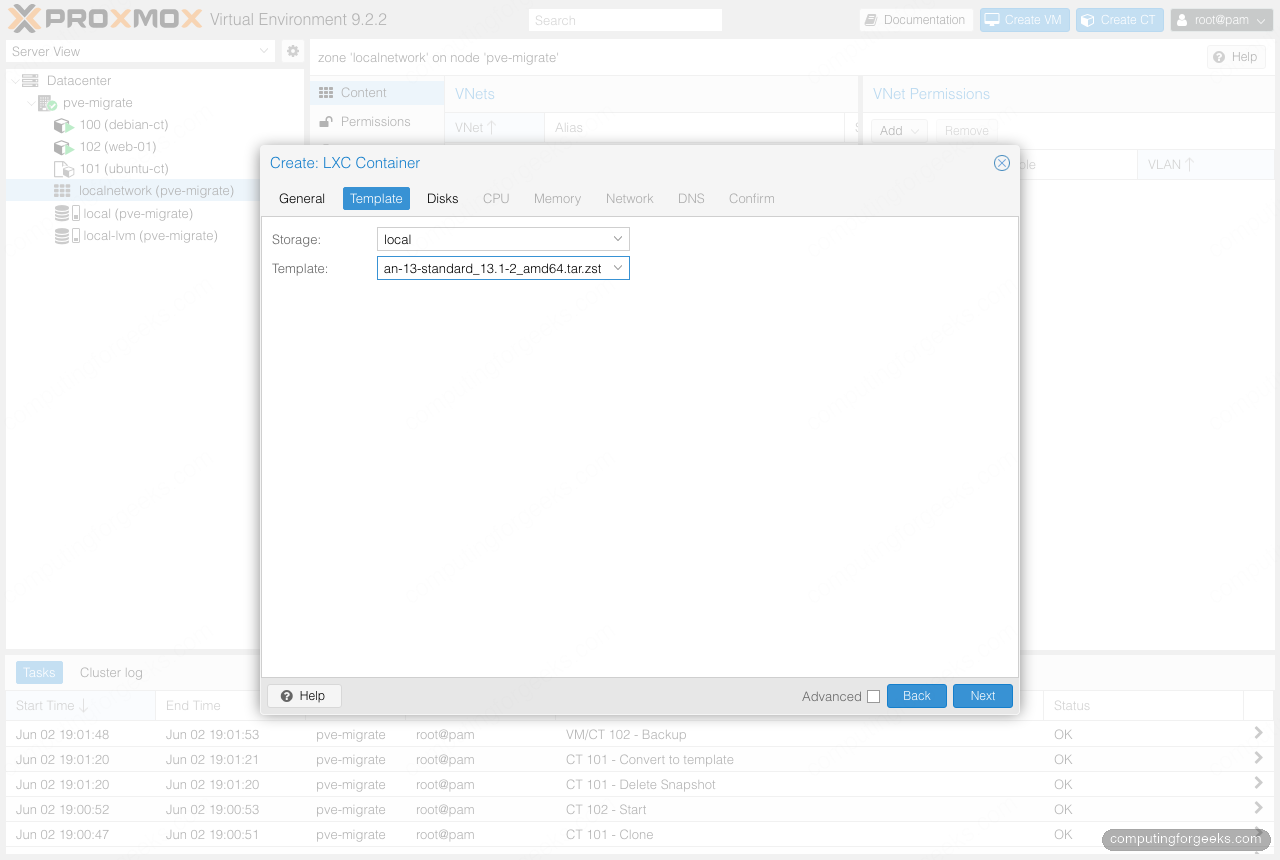
The Template tab is where the earlier pveam download pays off. Pick the local storage, then choose the Debian or Ubuntu template from the dropdown. If the list is empty, the template did not download to that storage.
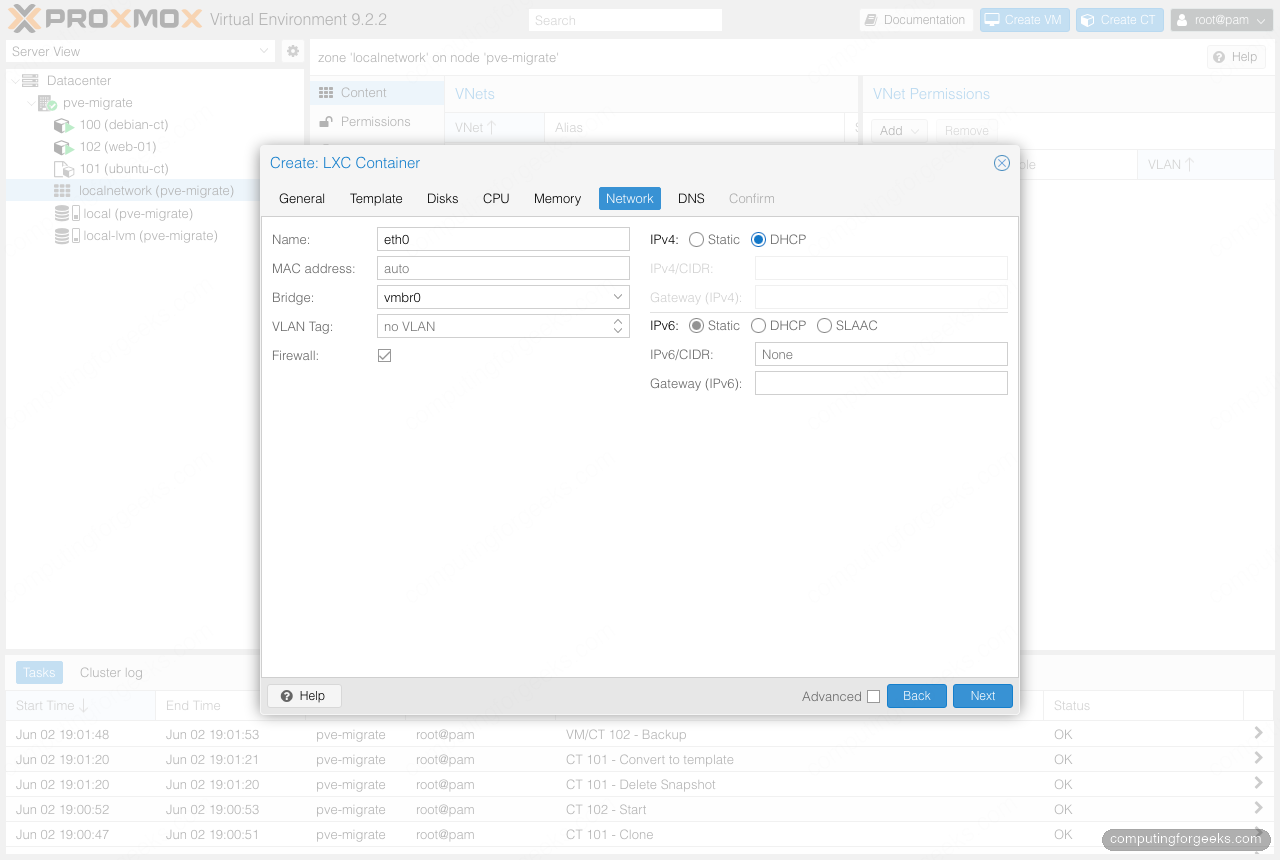
Step through Disks (root filesystem size and storage), CPU (cores), and Memory (RAM and swap in MB). The Network tab is the one to slow down on. Set the bridge to vmbr0, leave IPv4 on DHCP for a quick start, or select Static and enter an address in CIDR form with a gateway. The firewall checkbox enables the per-container Proxmox firewall.
The Confirm tab prints every setting as a key and value table. Read it. This is exactly the configuration the pct create command in the next section produces, which makes the wizard a good way to learn the CLI flags by name.
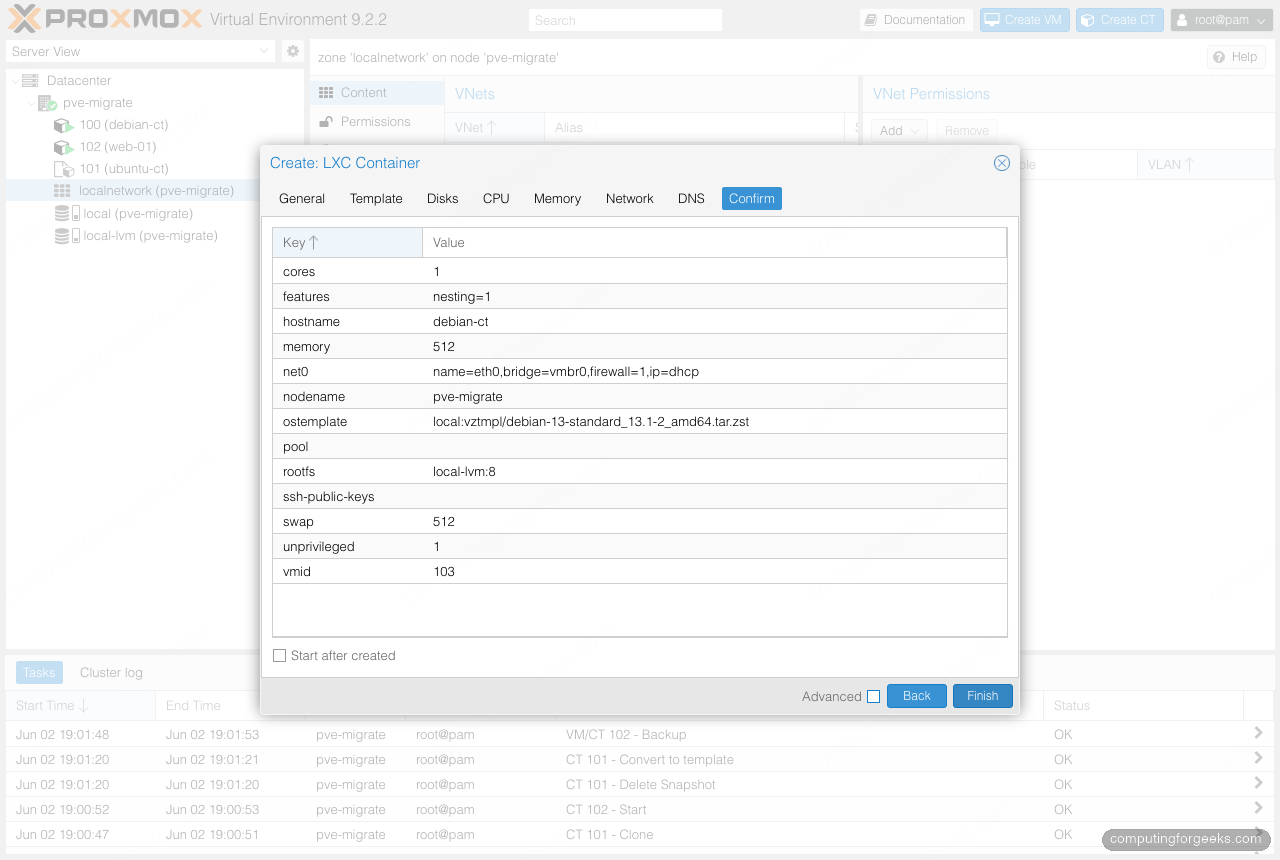
Tick Start after created and click Finish. The container is up in a couple of seconds.
Create the container from the command line with pct
The wizard is fine for one container. For repeatable builds, the pct create command is the tool. Every wizard field maps to a flag. Here is the Debian build, an unprivileged container with nesting enabled, a DHCP address, and an 8 GB root disk on local-lvm. Replace 100 with any unused ID on your node; run pct list to see what is taken.
pct create 100 local:vztmpl/debian-13-standard_13.1-2_amd64.tar.zst \
  --hostname debian-ct \
  --cores 2 --memory 2048 --swap 512 \
  --rootfs local-lvm:8 \
  --net0 name=eth0,bridge=vmbr0,ip=dhcp,firewall=1 \
  --unprivileged 1 \
  --features nesting=1 \
  --password \
  --onboot 1 \
  --start 1
The --password flag with no value prompts for the root password instead of leaving it in your shell history. To inject an SSH key instead, swap it for --ssh-public-keys /root/.ssh/id_ed25519.pub. The Ubuntu build is the same command with a different template:
pct create 101 local:vztmpl/ubuntu-24.04-standard_24.04-2_amd64.tar.zst \
  --hostname ubuntu-ct \
  --cores 2 --memory 2048 --swap 512 \
  --rootfs local-lvm:8 \
  --net0 name=eth0,bridge=vmbr0,ip=dhcp,firewall=1 \
  --unprivileged 1 --features nesting=1 \
  --password --onboot 1 --start 1
Read back the full configuration of a container at any time with pct config:
pct config 100The output mirrors every flag from the create command, including the unprivileged and nesting settings:
arch: amd64
cores: 2
features: nesting=1
hostname: debian-ct
memory: 2048
net0: name=eth0,bridge=vmbr0,firewall=1,hwaddr=BC:24:11:A3:7B:F1,ip=dhcp,type=veth
onboot: 1
ostype: debian
rootfs: local-lvm:vm-100-disk-0,size=8G
swap: 512
unprivileged: 1
Privileged vs unprivileged containers
An unprivileged container maps its root user (UID 0) to an unprivileged host UID, starting at 100000. Root inside the container is nobody special on the host, so a container breakout lands an attacker as an unprivileged user rather than host root. This is the default and it is the right default. Only choose a privileged container when something genuinely needs it, such as certain kernel-level mounts, and only when you trust everything that runs inside. The UID mapping has one visible side effect on bind mounts, covered further down.
Start and access the container
Containers created with --start 1 are already running. The lifecycle verbs are what you would expect:
pct start 100
pct reboot 100
pct shutdown 100
pct stop 100
To get a root shell inside the container with no password, use pct enter from the node:
pct enter 100To run a single command without an interactive shell, use pct exec with a -- separator. This checks the OS release, the kernel, and the address the container picked up:
pct exec 100 -- bash -c 'cat /etc/os-release | grep PRETTY; uname -r; ip -4 addr show eth0 | grep inet'The container reports its Debian release, the running kernel, and the address it leased:
PRETTY_NAME="Debian GNU/Linux 13 (trixie)"
7.0.2-6-pve
    inet 192.168.1.136/24 brd 192.168.1.255 scope global dynamic eth0
Notice the kernel reported inside the Debian container is the host’s Proxmox kernel, not a Debian one. That is the shared-kernel model in one line of output. For a serial console (handy when networking is broken), use pct console 100 and exit with Ctrl+a q. Once SSH is configured inside, you reach the container over the network like any other host.
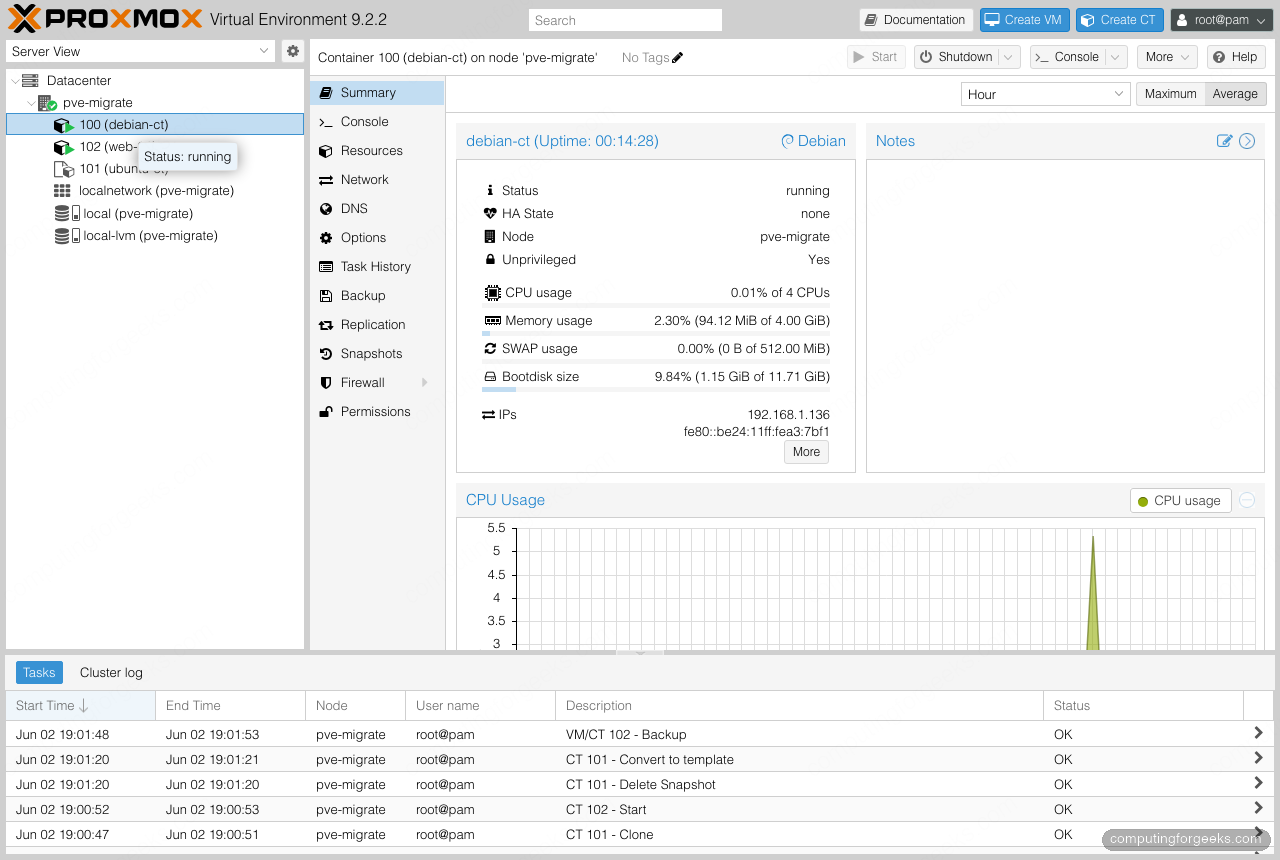
Every container also has a Summary page in the web interface with live CPU, memory, and disk graphs, its status, and its address.
Resize CPU, memory, and disk
Containers resize without a rebuild. CPU and memory changes apply live, no reboot needed:
pct set 100 --cores 4 --memory 4096Growing the root disk uses pct resize with a + increment. This adds 4 GB to the existing disk and expands the filesystem in one step:
pct resize 100 rootfs +4GCheck it from inside the container:
pct exec 100 -- df -h /The root filesystem now reads 12 GB, with the extra space already usable:
Filesystem                        Size  Used Avail Use% Mounted on
/dev/mapper/pve-vm--100--disk--0   12G  571M   11G   6% /
Disks only grow. Passing a smaller size returns unable to shrink disk size and changes nothing, which is the safe behaviour. To make a container smaller, back it up, restore into a new container with a smaller root, and delete the old one.
Give the container a static IP
DHCP is fine for throwaway containers. Anything that other machines connect to wants a fixed address. Rewrite net0 with a static IP in CIDR form and a gateway:
pct set 100 --net0 name=eth0,bridge=vmbr0,ip=192.168.1.50/24,gw=192.168.1.1,firewall=1A running container needs a reboot to apply a changed address. After pct reboot 100, confirm it from inside:
pct exec 100 -- ip -4 addr show eth0 | grep inetSet DNS at the same time with --nameserver and --searchdomain on pct set if your network does not hand those out over DHCP.
Share a host directory with a bind mount
Bind mounts pass a directory from the host straight into the container, which is how you share media libraries, datasets, or a backup target without copying anything. Add one with a mount point flag:
mkdir -p /opt/ct-shared
pct set 100 --mp0 /opt/ct-shared,mp=/mnt/shared
The container can now read /mnt/shared. Writing is where the unprivileged UID mapping bites. A fresh host directory is owned by host root (UID 0), but the container’s root is host UID 100000, so it cannot write:
pct exec 100 -- bash -c 'echo test > /mnt/shared/ct-note.txt'
bash: line 1: /mnt/shared/ct-note.txt: Permission denied
The fix is to give the host directory to the mapped UID range. Container root maps to host UID 100000, so chown the directory to match:
chown 100000:100000 /opt/ct-sharedNow the container writes, and the host sees the file owned by 100000, which is container root viewed from outside:
-rw-r--r-- 1 100000 100000 18 Jun 2 15:59 /opt/ct-shared/ct-note.txtFor a non-root user inside the container, add that user’s container UID to 100000 and chown to the result. This UID arithmetic is the price of the security an unprivileged container buys you.
Run Docker inside the container
Running Docker inside an LXC container is a popular pattern for keeping container workloads off a full VM. It needs two features set on the LXC container: nesting and keyctl. Update the features and reboot for them to take effect:
pct set 100 --features nesting=1,keyctl=1
pct reboot 100
Install Docker inside the container the same way you would on any Debian box. The distribution package is enough for most uses, or follow the Docker install guide for Debian for the upstream repository:
pct exec 100 -- bash -c 'apt-get update && apt-get install -y docker.io'Confirm the daemon is up and run the test image, all from inside the container:
pct exec 100 -- docker run --rm hello-worldDocker pulls the image and runs it cleanly from inside the container:
Unable to find image 'hello-world:latest' locally
latest: Pulling from library/hello-world
Status: Downloaded newer image for hello-world:latest

Hello from Docker!
This message shows that your installation appears to be working correctly.
This works, and many homelabs run this way for years. Be honest about the trade though. Proxmox staff recommend a VM for Docker because the nesting relaxes some isolation, and a few storage drivers behave differently on top of a container filesystem. For a personal node it is fine. For multi-tenant or security-sensitive hosts, give Docker its own VM.
Snapshot and back up the container
Snapshots capture a point in time you can roll back to. They need a storage that supports them, such as LVM-thin or ZFS, which the default local-lvm is. Take one before a risky change:
pct snapshot 101 clean-base --description 'fresh install'
pct listsnapshot 101
Roll back with pct rollback 101 clean-base. One gotcha catches people: a container that has a bind mount cannot be snapshotted, and Proxmox returns snapshot feature is not available. Bind-mounted host directories live outside the container’s storage, so there is nothing consistent to snapshot. Keep stateful data you want in snapshots on the container’s own root or a managed volume, not a bind mount.
Snapshots are not backups. For a real backup, vzdump writes a portable archive you can restore on any node:
vzdump 100 --storage local --mode snapshot --compress zstdThe whole container compresses to a single portable archive in a few seconds:
INFO: creating vzdump archive '/var/lib/vz/dump/vzdump-lxc-100-2026_06_02-16_01_48.tar.zst'
INFO: Total bytes written: 601292800 (574MiB, 133MiB/s)
INFO: archive file size: 167MB
INFO: Finished Backup of VM 100 (00:00:05)
Restore that archive into a new container with pct restore 105 /var/lib/vz/dump/vzdump-lxc-100-...tar.zst. For scheduled, deduplicated backups across many containers, point the node at a Proxmox Backup Server instead of dumping to local storage.
Turn a container into a template and clone it
Once a container is configured the way you like, the way you build the next ten is to clone it. Convert a stopped container into a template:
pct stop 101
pct template 101
Templating fails with unable to create template, because CT contains snapshots if any snapshots remain. Remove them first with pct delsnapshot 101 clean-base, then template. From the template, clone as many containers as you need, each with its own ID and hostname:
pct clone 101 102 --hostname web-01Start the clone and it comes up as an independent container with a fresh DHCP lease and the hostname you set. This is the golden-image workflow: build once, snapshot the base, template it, and stamp out copies in seconds. You can also clone a regular stopped container directly without templating it first, which is handy for one-off duplicates.
Faster path: the Proxmox VE community scripts
For ready-to-run application containers, the community-maintained helper scripts wrap container creation and app install into one command. The original tteck scripts were handed off and now live at the community-scripts ProxmoxVE project. They are convenient, but they run as root on your node, so read the script before you pipe it into a shell. The native pveam and pct path in this guide is what those scripts automate for you, and it is the one that does not break when a project moves.
Troubleshooting
“unable to open file … template … No such file or directory”
The template name in your pct create command does not match a downloaded template. Run pveam list local and copy the exact local:vztmpl/... string. A version in the filename changes between catalog updates, so do not assume an old command still matches.
“snapshot feature is not available”
The container has a bind mount, or its root filesystem is on storage that cannot snapshot (plain directory storage). Remove the bind mount, or move the container to LVM-thin or ZFS, then snapshots work.
Docker fails to start inside the container
The container is missing the keyctl feature, or it is privileged when it should be unprivileged with nesting. Set --features nesting=1,keyctl=1 and reboot the container. Check journalctl -u docker inside the container for the exact failure.
Permission denied writing to a bind mount
An unprivileged container’s root is host UID 100000. Chown the host directory to 100000:100000, or to the mapped UID of whichever user writes inside the container.
pct command quick reference
Most container management on a node comes down to a handful of pct subcommands. Keep this within reach:
| Task | Command |
|---|---|
| List containers | pct list |
| Create from template | pct create ID TEMPLATE --options |
| Start / stop / reboot | pct start|stop|reboot ID |
| Root shell inside | pct enter ID |
| Run one command | pct exec ID -- command |
| Show configuration | pct config ID |
| Change CPU / RAM | pct set ID --cores N --memory MB |
| Grow the disk | pct resize ID rootfs +NG |
| Snapshot / roll back | pct snapshot ID name / pct rollback ID name |
| Convert to template | pct template ID |
| Clone | pct clone SRC NEWID --hostname name |
| Back up | vzdump ID --storage local --compress zstd |
With the template downloaded once and these commands in muscle memory, a new Debian or Ubuntu container is a five-second job, and a tested base container clones into a fleet just as fast. That speed is the whole reason to reach for a container before a VM on Proxmox.