Broadcom’s licensing changes turned a slow trickle of VMware departures into a flood, and Proxmox VE is where most of those workloads are landing. The good news is that you do not have to rebuild every guest by hand. Proxmox ships a built-in import wizard that pulls VMs straight off a running ESXi host, and for everything else there is a reliable OVF and VMDK path. This guide covers how to migrate VMware ESXi VMs to Proxmox VE three different ways, which one to pick, and the post-migration steps that decide whether the guest actually boots.
We start with the native ESXi import wizard, the fastest route when the source host is still online, then cover importing an exported OVF or OVA, and finally the manual VMDK import with qemu-img and qm disk import for the cases the wizard cannot reach. The last section is the one nobody skips twice: swapping the disk controller and network model, pulling VMware Tools, and getting VirtIO drivers in place so a migrated Windows guest does not blue-screen on first boot.
Everything below was run on Proxmox VE 9.2 in June 2026, including a full import from a live VMware ESXi 8.0.3 host. The commands, error messages, and screenshots come from that run.
Prerequisites
- A working Proxmox VE 9 host with enough free storage to hold the migrated disks. If you do not have one yet, start with the guide to install Proxmox VE 9 on bare metal.
- Network reachability from Proxmox to the ESXi host on TCP 443 for the wizard path, or enough disk space to copy an exported OVF/OVA across for the offline path.
- Administrative credentials on the ESXi host (root or an account with datastore and VM read access).
- The source VMs powered off. The wizard reads the flat VMDK files directly, so a running VM gives an inconsistent copy.
- The VirtIO driver ISO downloaded on the Proxmox host for any Windows guests (covered in the post-migration section).
Three ways to move a VMware VM to Proxmox
There is no single correct method. The right one depends on whether the ESXi host is still reachable, how big the disks are, and whether you are moving one VM or fifty. This table is the decision you make before touching anything.
| Method | Use when | Source needed | Effort |
|---|---|---|---|
| ESXi import wizard | Source ESXi host is online and reachable | Live ESXi/vCenter on TCP 443 | Lowest, GUI-driven |
| OVF / OVA import | You exported the VM, or the host is gone | An .ovf + .vmdk set or a single .ova | Medium, one CLI command |
| Manual VMDK import | You have raw disk files and want full control | The flat .vmdk disk files | Highest, explicit per-disk |
The wizard is the obvious first choice for a live migration because it copies and converts disks in one pass and pre-fills most of the VM config from the source. The OVF and VMDK routes exist for when the wizard cannot connect: an ESXi host that was already decommissioned, a VM exported to a USB drive, or a disk format the wizard refuses, such as vSAN-backed or encrypted volumes.
Set reusable shell variables
The CLI methods below reuse the same handful of values. Export them once at the top of your SSH session so you change one block and paste the rest as-is. Swap the values for your real target VM ID, storage pool, and bridge:
export VMID="200"
export STORAGE="local-lvm"
export BRIDGE="vmbr0"
Confirm they are set before running anything that creates a VM:
echo "VM ${VMID} -> storage ${STORAGE} on bridge ${BRIDGE}"Pick a VM ID that is not already in use. Proxmox refuses to create a guest on an ID that exists, which is a useful guard against clobbering a running VM.
Method 1: The built-in ESXi import wizard
This is the path Proxmox built specifically for the VMware exodus. It adds the ESXi host as a special read-only storage, lists every VM on it, and imports the one you pick directly into Proxmox, converting the disks on the way in. Import was tested by Proxmox from ESXi 6.5 through 8.0.
In the web interface, go to Datacenter > Storage > Add and choose ESXi. Give the storage an ID, the ESXi host’s IP or hostname, and an admin account. Tick Skip Certificate Verification if the host uses the default self-signed certificate, which almost all standalone ESXi hosts do.
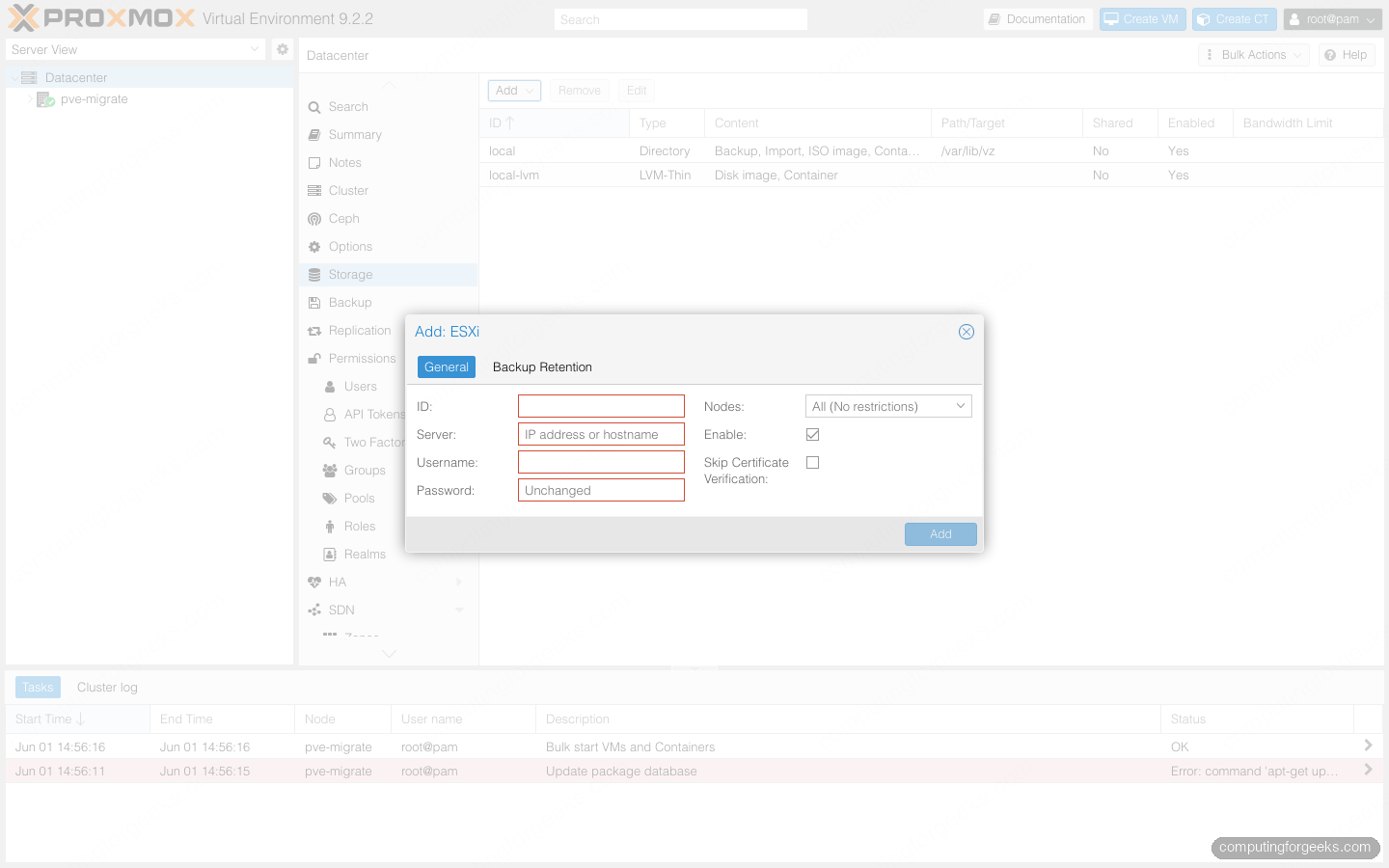
You can point the wizard at a vCenter instead of a single host, which is convenient for a large estate, but it runs noticeably slower than connecting straight to the ESXi host that owns the VM. For anything more than a handful of guests, add each ESXi host directly.
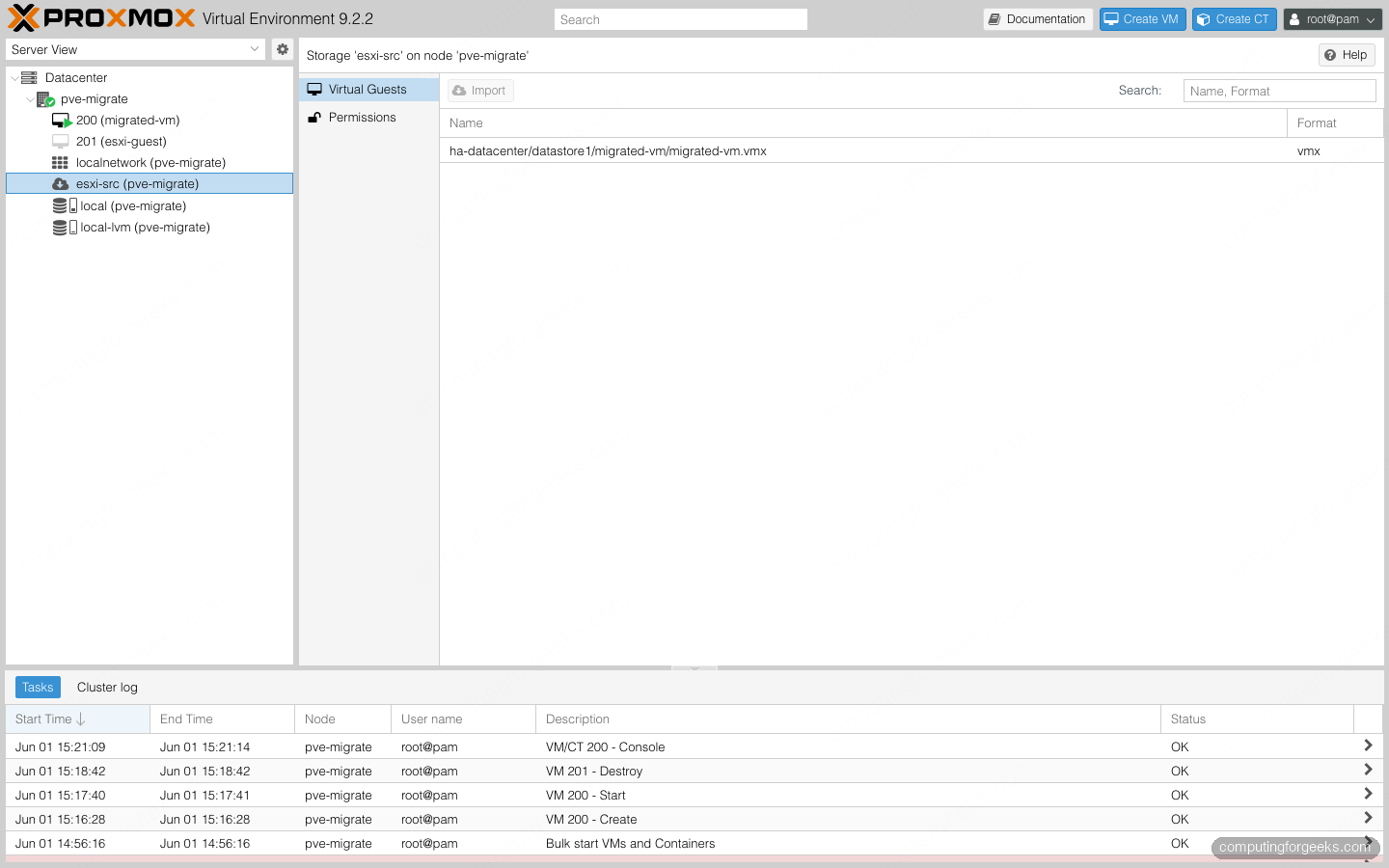
Once the storage is added, select it in the resource tree on the left. Proxmox connects to the host and the Virtual Guests tab lists every VM it finds, each shown by its .vmx path:
Pick a VM and click Import. The Import Guest dialog reads the source VM’s hardware and pre-fills it. On the live ESXi 8.0.3 host we tested against, Proxmox detected the two sockets, the memory, and the Linux OS type on its own. The General tab is where you set the target VM ID, storage, and bridge; Advanced lets you place each disk on a different storage, change the network model, or skip a device; and Resulting Config shows the exact configuration Proxmox will write before you commit.
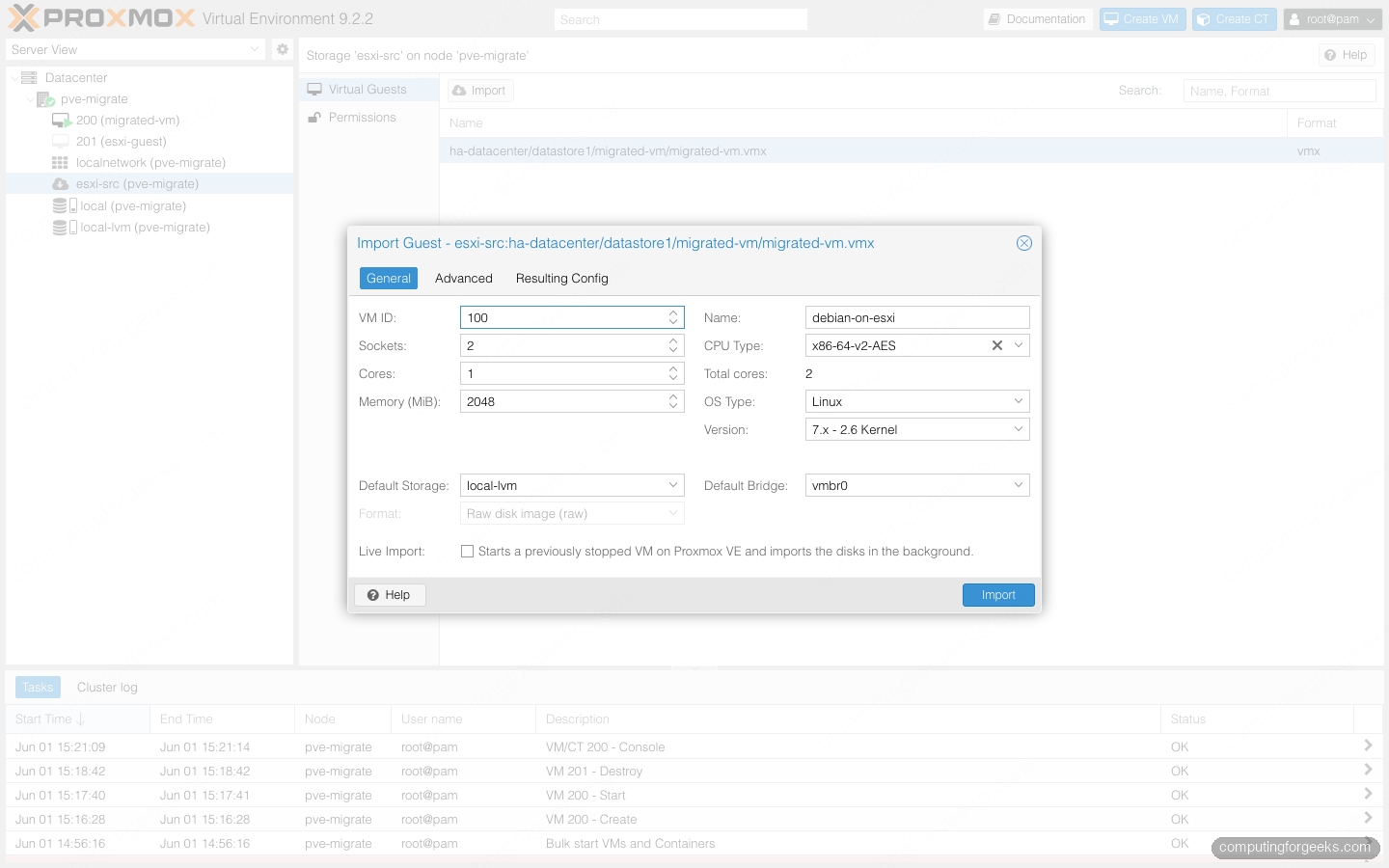
Power the source VM down first, then start the import. A few limitations are worth knowing up front: VMs whose disks live on vSAN cannot be imported, encrypted disks (for example through a VMware storage policy) cannot be read, and a VM carrying snapshots imports much more slowly because each delta has to be collapsed. A datastore name with a + in it can also break the import; rename the datastore on the ESXi side if you hit that.
If you prefer the command line, the same storage can be added with pvesm:
pvesm add esxi esxi-source --server 10.0.1.20 --username root --skip-cert-verification 1Supply the root password as a parameter or add the storage from the GUI, which keeps it out of your shell history. Either way the import itself runs from the GUI, where the per-disk and per-NIC options are far easier to set.
Method 2: Import an exported OVF or OVA
When the ESXi host is already gone, or you exported the VM with the vSphere client’s Export OVF Template, you end up with an OVF descriptor plus one or more VMDK files (or a single OVA tarball that bundles them). Proxmox parses the OVF and builds the VM config from it in one command.
If you have an OVA, unpack it first. An OVA is just a tar archive:
tar -xvf exported-vm.ova -C /var/lib/vz/import/That gives you the .ovf descriptor and its .vmdk disks side by side. Point qm importovf at the descriptor, and Proxmox reads the CPU, memory, and disk layout out of it and creates the VM:
qm importovf ${VMID} /var/lib/vz/import/exported-vm.ovf ${STORAGE}Proxmox parses the descriptor, creates the VM, and converts each disk to the target storage. The tail of the import shows the transfer completing:
transferred 2.9 GiB of 3.0 GiB (97.45%)
transferred 3.0 GiB of 3.0 GiB (100.00%)
Confirm the result with qm config:
qm config ${VMID}The disk is attached as scsi0 and the boot order already points at it, so the guest is ready to start without any further hardware changes:
boot: order=scsi0
cores: 2
memory: 2048
name: esxi-guest
scsi0: local-lvm:vm-201-disk-0
OVF import is the cleanest offline path because the descriptor carries the VM’s shape with it. The catch is that some OVF files written by older VMware tooling reference disk paths that Proxmox cannot resolve. When that happens, fall back to the manual VMDK route below, which sidesteps the descriptor entirely.
Method 3: Import a raw VMDK by hand
The manual route is the one that always works. You create an empty VM shell, import the VMDK into it as a disk, attach the disk, and mark it bootable. Every step is explicit, so nothing surprises you halfway through a fifty-disk migration.
Create the shell first. Match the core and memory count to the source, and use the VirtIO SCSI controller for the best performance on Linux guests:
qm create ${VMID} --name migrated-vm --memory 4096 --cores 2 \
  --net0 virtio,bridge=${BRIDGE} --scsihw virtio-scsi-single --ostype l26
Import the VMDK into that VM. The qm disk import command reads the VMware disk and converts it to the target storage’s native format in one step, so you do not need a separate qemu-img pass for a normal flat VMDK:
qm disk import ${VMID} /var/lib/vz/import/migrated-vm-disk1.vmdk ${STORAGE}The import streams the disk to the target storage and converts it on the way in. The final line confirms the volume landed:
importing disk '/var/lib/vz/import/migrated-vm-disk1.vmdk' to VM 200 ...
  Logical volume "vm-200-disk-0" created.
transferred 0.0 B of 3.0 GiB (0.00%)
transferred 1.5 GiB of 3.0 GiB (50.23%)
transferred 3.0 GiB of 3.0 GiB (100.00%)
unused0: successfully imported disk 'local-lvm:vm-200-disk-0'
The disk lands as an unused volume on the VM. Attach it to the VirtIO SCSI controller and set it as the boot device:
qm set ${VMID} --scsi0 ${STORAGE}:vm-${VMID}-disk-0
qm set ${VMID} --boot order=scsi0
For a disk that is split across multiple VMDK extents, or one in a format qm disk import stumbles on, convert it to qcow2 yourself first and import the result:
qemu-img convert -f vmdk -O qcow2 migrated-vm-disk1.vmdk migrated-vm-disk1.qcow2Then run the same qm disk import against the qcow2 file. The conversion is lossless and gives Proxmox a disk it always understands.
Post-migration: the steps that decide if it boots
A freshly imported disk is a VMware guest sitting on KVM hardware it has never seen. Most migrations that “fail” actually imported fine and then fell over on the first boot because of one of these. Work through them before you power on.
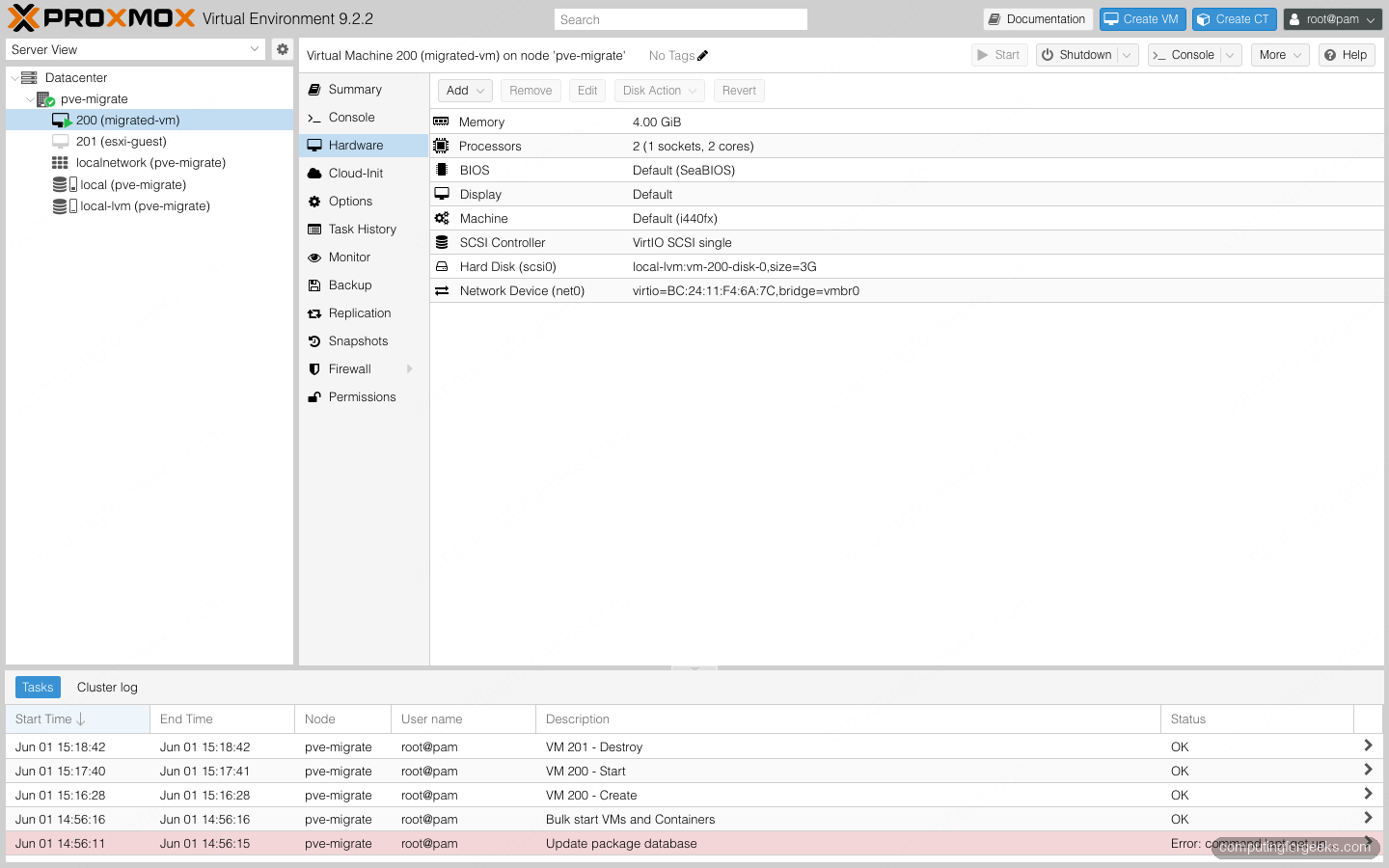
Disk controller. Linux guests handle the VirtIO SCSI controller out of a stock kernel, so scsi0 on virtio-scsi-single is fine. An ESXi import, though, usually lands on an LSI controller carried over from VMware, and a minimal cloud image whose initramfs lacks that driver hangs at boot hunting for its root disk. We hit exactly that on a wizard-imported guest: it stalled probing storage until we set scsihw to virtio-scsi-single, after which it booted straight to a login prompt. Windows does not ship VirtIO drivers either, so a Windows boot disk attached to VirtIO will bluescreen with INACCESSIBLE_BOOT_DEVICE. For Windows, attach the boot disk as SATA first, get into the OS, install the VirtIO drivers, then switch the disk to VirtIO SCSI.
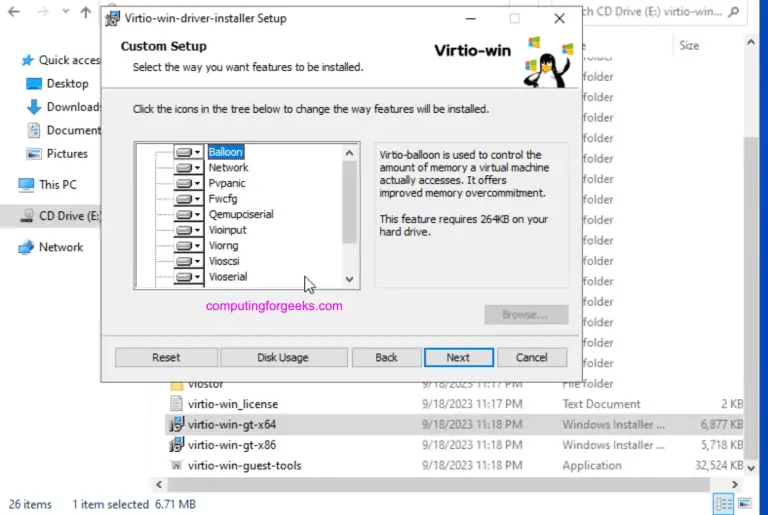
VirtIO drivers for Windows. Download the signed VirtIO driver ISO onto the host and attach it as a second CD-ROM, then run the installer inside the guest before changing any hardware to VirtIO:
wget -O /var/lib/vz/template/iso/virtio-win.iso \
  https://fedorapeople.org/groups/virt/virtio-win/direct-downloads/stable-virtio/virtio-win.iso
Network adapter. The migrated config keeps a network card, but the interface name inside the guest almost always changes because the underlying hardware did. On Linux that means a netplan or ifcfg file still references the old ens name and the VM comes up with no network. Update the interface name in the guest, or switch the guest to predictable naming. The model should be VirtIO (virtio) for throughput; VMware’s VMXNET3 has no equivalent on KVM.
Remove VMware Tools. Pull VMware Tools or open-vm-tools out of the guest while you still can. Left in place it keeps trying to talk to hypervisor channels that no longer exist, and on Windows it can be stubborn to remove later. Replace it with the QEMU guest agent: install qemu-guest-agent in the guest and enable the agent on the VM with qm set ${VMID} --agent enabled=1.
Firmware and CPU. If the source VM booted UEFI, the Proxmox VM needs an EFI disk and the OVMF firmware, not the default SeaBIOS, or it will not find the bootloader. Match the BIOS type to the source. The default CPU type x86-64-v2-AES is a safe baseline; only set host if the guest will never live-migrate to a different CPU.
Boot and verify the migrated VM
With the controller, network, and firmware sorted, start the guest and open its console:
qm start ${VMID}The migrated guest boots straight to its login prompt, the same Debian install that was running under VMware moments earlier, now on KVM hardware:
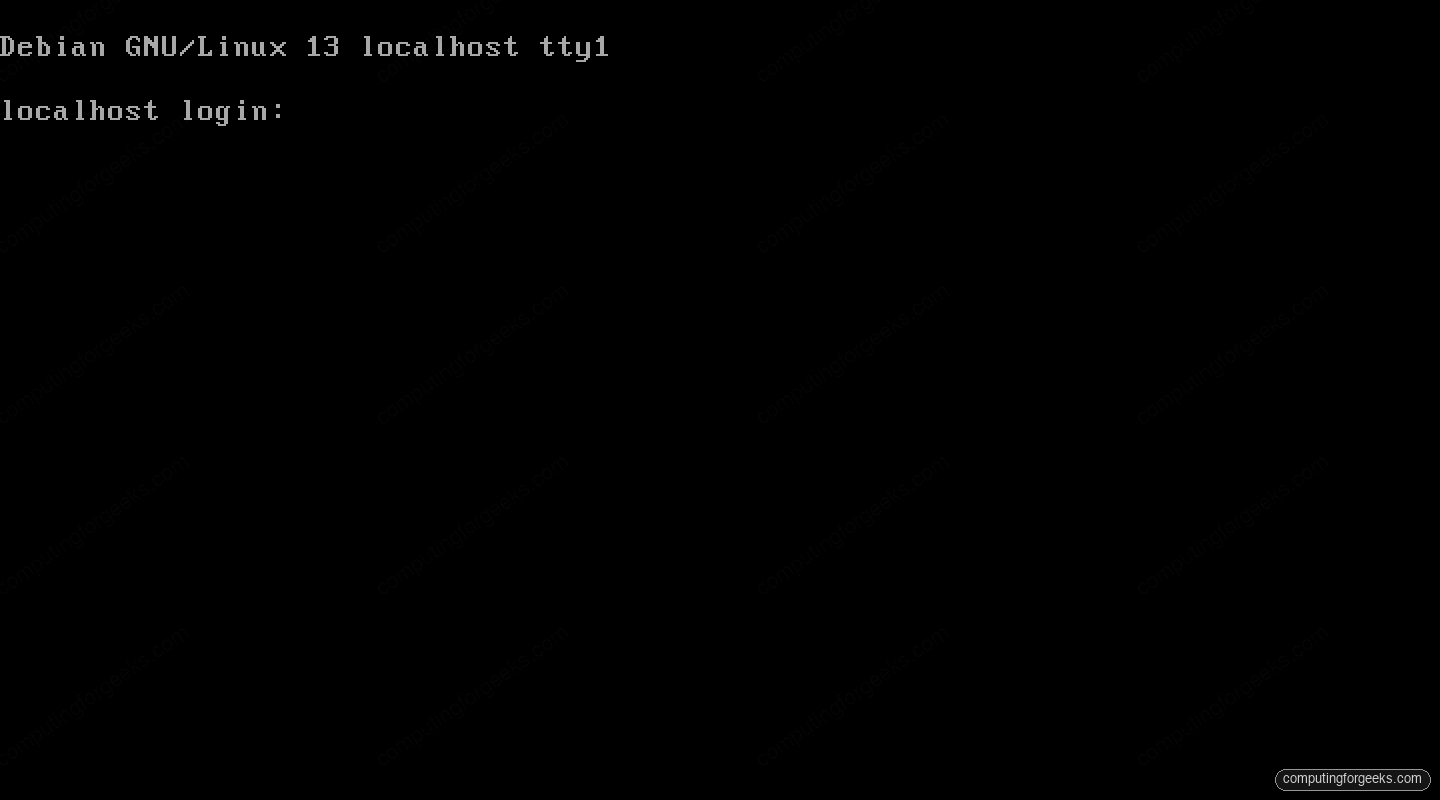
A Linux guest should reach its login prompt on the first try once the boot disk is attached and bootable. Log in, confirm the network is up, and check that the QEMU guest agent is reporting back by watching the VM’s Summary page show the guest IP. If the agent shows the IP, the agent and the network are both working, which is the fastest single confirmation that the migration landed cleanly.
From here the migrated guest is a first-class Proxmox VM. You can snapshot it, back it up, and template it like any other. If you are rebuilding a fleet rather than lifting individual guests, it is often faster to stop migrating and start stamping fresh ones from cloud-init templates instead.
Troubleshooting common migration errors
These are the failures that come up most often during a VMware to Proxmox move, with the fix for each.
The VM boots to “No bootable device” or the BIOS shell. The disk imported but is not marked bootable, or it is attached to a controller the firmware does not scan. Confirm the disk is attached (not sitting as an unused volume) and that qm set ${VMID} --boot order=scsi0 points at the right disk. If the source was UEFI, add an EFI disk and switch the VM to OVMF.
Windows bluescreens with INACCESSIBLE_BOOT_DEVICE. The boot disk is on VirtIO before the VirtIO storage driver is installed. Attach the disk as SATA, boot, install the VirtIO drivers from the ISO, shut down, then move the disk to VirtIO SCSI.
The guest boots but has no network. The NIC name changed during migration and the guest’s network config still names the old interface. Edit the guest’s netplan or ifcfg file to match the new interface, or move the guest to predictable interface naming and re-create the config.
The ESXi import wizard lists no VMs or fails to connect. Check that Proxmox can reach the ESXi host on TCP 443 and that you ticked Skip Certificate Verification for a self-signed host. If the datastore name contains a +, rename it on the ESXi side; the wizard cannot parse it. Remember that VMs on vSAN and encrypted disks are not importable through the wizard, so those need the OVF or VMDK route after an export.
For a deeper comparison of where the two platforms differ before you commit a whole estate, the VMware ESXi vs Proxmox comparison lays out the feature and licensing trade-offs, and the rundown of what is new in Proxmox VE 9 covers the cluster features that make the switch worthwhile. If you are coming from plain KVM rather than ESXi, the KVM to Proxmox migration guide covers that path.