KVM and Proxmox VE run the same hypervisor underneath: QEMU/KVM. Moving a virtual machine from KVM to Proxmox is therefore a disk copy plus a rebuilt VM definition, not a format conversion. The disk already boots under QEMU. What changes is the management layer wrapped around it.
This guide covers three tested ways to migrate KVM/libvirt VMs to Proxmox VE: a manual disk import with qm disk import, an appliance import with qm importovf, and an automated conversion with virt-v2v. Each one was run end to end on Proxmox VE 9 in June 2026, migrating real Debian and Windows Server guests off a libvirt host onto a fresh Proxmox node.
Linux guests are the easy case. They already ship the virtio drivers Proxmox uses, so they boot on the other side with nothing extra to do. Windows needs attention only when it came from a hypervisor that never used virtio. That case is covered too.
Pick a migration method
Three methods, three different trade-offs. The disk import gives you the most control and works for any guest. The OVF import reads the CPU, memory, and disk geometry straight out of an appliance file. virt-v2v is the automated converter that also injects drivers, which matters when the source was VMware, Hyper-V, or Xen.
| Method | Best for | Preserves config | Notes |
|---|---|---|---|
qm disk import | Single VMs, full manual control, any libvirt guest | No, you set CPU and memory | The workhorse. Copy the disk, build a shell, import. |
qm importovf | VMs exported as OVA/OVF, often from VMware or VirtualBox | Yes, CPU, memory, and disk read from the OVF | One command builds the VM. Does not import the NIC. |
virt-v2v | Foreign hypervisors, Windows needing virtio drivers, batch jobs | Yes, plus driver injection | Inspects the guest, fixes drivers and firmware automatically. |
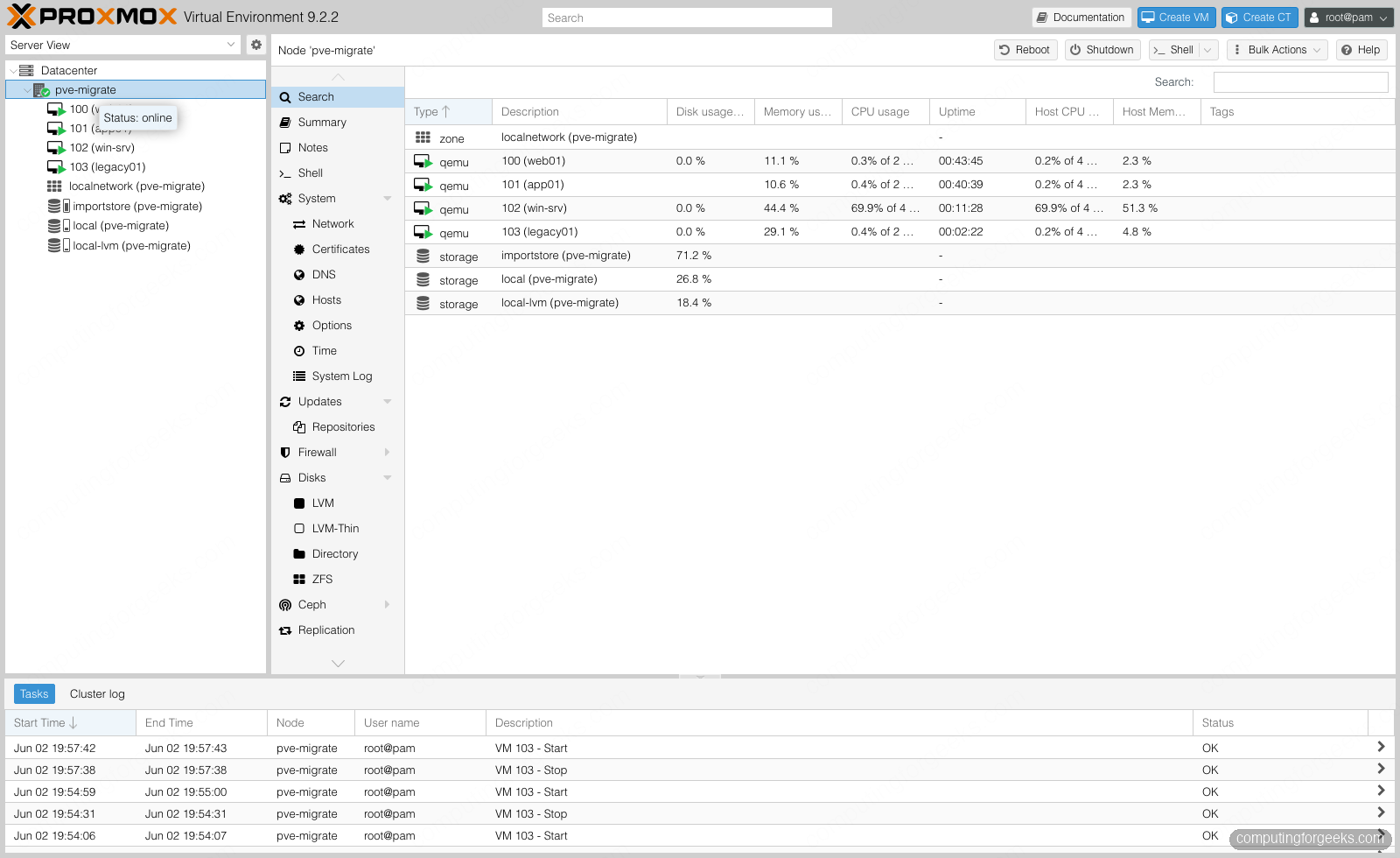
All three end the same way: the guest running as a native Proxmox VM. Here are four guests that started on a libvirt host, migrated by the methods below, now live on a single Proxmox node.
Prerequisites
You need a working Proxmox node. If you do not have one yet, the Proxmox VE 9 install guide walks through it. Beyond that:
- Network reachability between the old libvirt host and the Proxmox node, so you can copy disk images across.
- Free space on the target storage at least the size of the source disk. Thin pools only consume the allocated blocks, but plan for the full virtual size.
- A cold copy of the VM. Shut the guest down before copying its disk, or take a snapshot first. A live qcow2 that is still being written produces a corrupt copy.
Take a backup before you touch anything. If the Proxmox side will hold production workloads, stand up a Proxmox Backup Server first so the migrated guests have somewhere to land their backups.
Method 1: Import the disk with qm disk import
This is the method to reach for first. It works for every libvirt guest, gives you full control of the target hardware, and has no dependencies beyond qemu-img and scp. The shape is always the same: find the disk, copy it over, build an empty VM, import the disk into it.
Find the disk and shut the VM down
On the libvirt host, list the guests and ask libvirt where each one keeps its disk:
virsh list --all
virsh domblklist web01
The domblklist output points at the backing file you care about:
 Target   Source
 vda      /var/lib/libvirt/images/web01.qcow2
Shut the guest down cleanly so the filesystem is consistent on disk:
virsh shutdown web01Flatten any backing chains first
Here is the gotcha that bites most first migrations. Many libvirt disks are thin overlays on a shared base image, the same way a linked clone works. Copy only the overlay and the import fails on the far side with “Could not open backing file”, because the base it depends on was left behind. Check before you copy:
qemu-img info --backing-chain /var/lib/libvirt/images/web01.qcow2If the output lists a backing file, collapse the whole chain into one standalone image before moving it:
qemu-img convert -O qcow2 web01.qcow2 web01-flat.qcow2On the source host the whole sequence runs together: list the guests, find the disk, check the chain, collapse it.
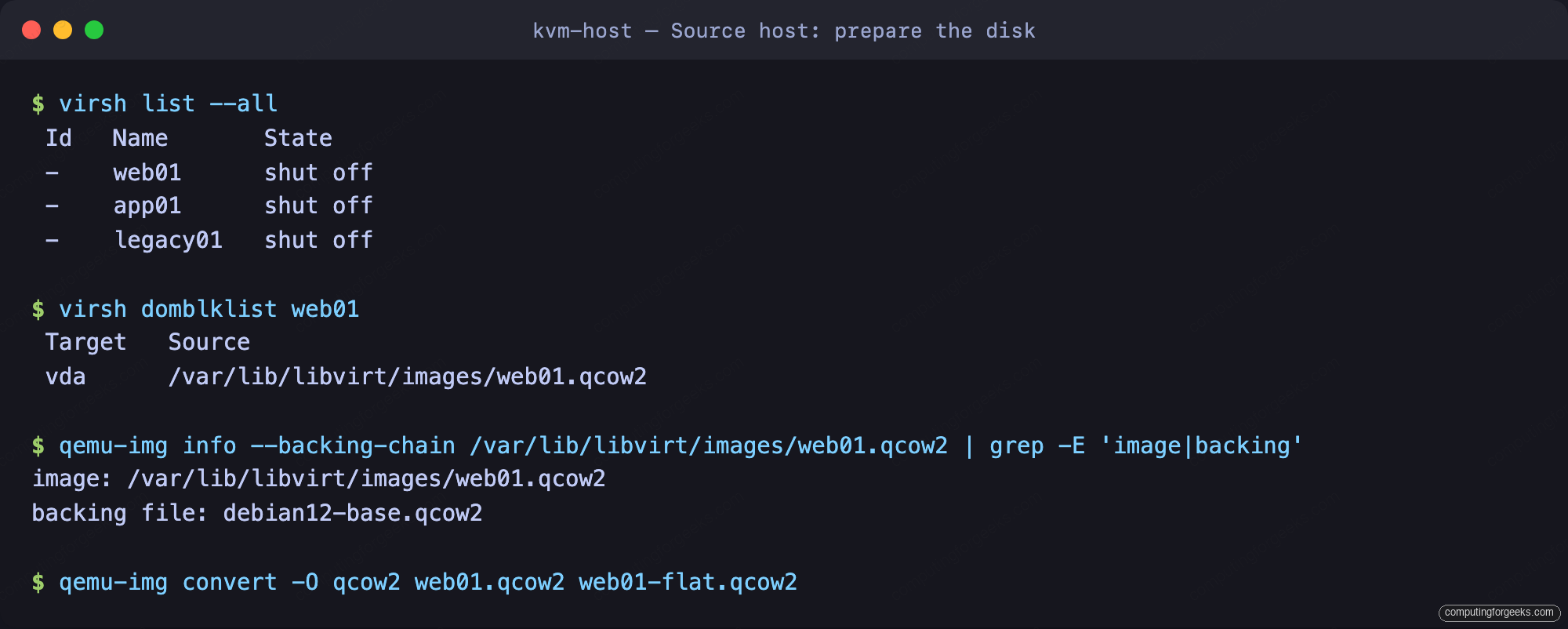
The flattened web01-flat.qcow2 carries everything the guest needs. That is the file you copy.
Copy the disk to Proxmox
Set a couple of shell variables so you change one block and paste the rest as-is. Run these on the libvirt host:
PVE_NODE="10.0.1.10"
DISK="web01-flat.qcow2"
Push the image to a staging directory on the Proxmox node. rsync resumes a broken transfer, which matters for large disks over a slow link:
rsync -a --info=progress2 "${DISK}" "root@${PVE_NODE}:/var/lib/vz/import/"Build the VM and import the disk
The rest runs on the Proxmox node. Pick a free VM ID and a target storage, then create an empty VM with the hardware the guest expects:
VMID=100
STORAGE=local-lvm

qm create $VMID --name web01 --memory 1536 --cores 2 --cpu host \
  --net0 virtio,bridge=vmbr0 --scsihw virtio-scsi-single --ostype l26
Import the qcow2 into that VM. Proxmox converts it to the target storage format automatically, so a qcow2 lands on LVM-thin as a raw volume with no extra flags:
qm disk import $VMID /var/lib/vz/import/web01-flat.qcow2 $STORAGEThe disk arrives as an unused volume. Attach it on the virtio-scsi controller, then tell the VM to boot from it:
qm set $VMID --scsi0 ${STORAGE}:vm-${VMID}-disk-0
qm set $VMID --boot order=scsi0
The hardware tab now shows the imported disk, the virtio-scsi controller, and the CPU type carried over from the source:
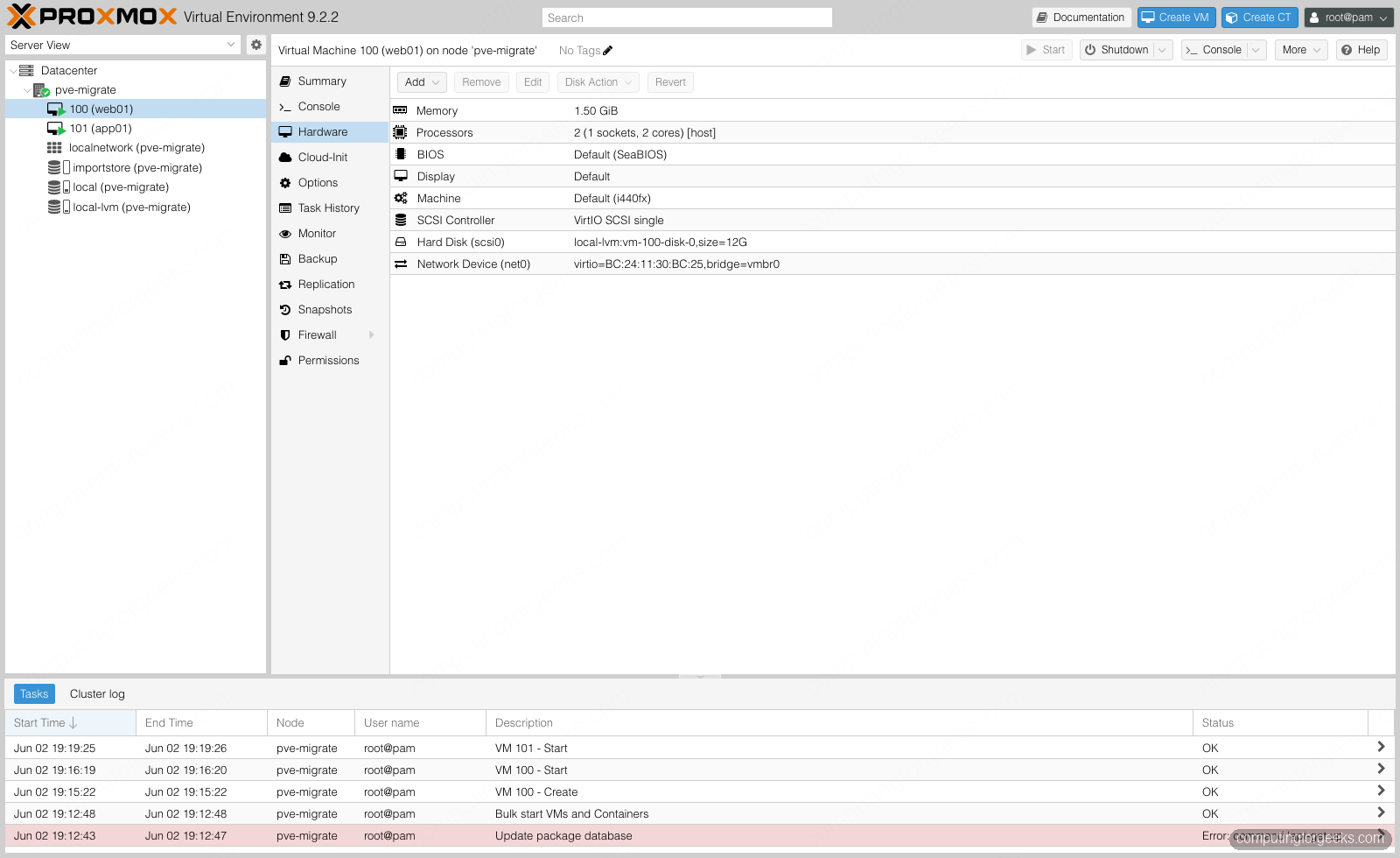
One detail worth knowing: the source disk was vda on virtio-blk, and it landed on scsi0 here. That bus change is fine for Linux because the guest mounts its root by UUID, not by device name, and the Debian image already carries both drivers in its initramfs.
Start and verify
Boot it:
qm start $VMIDThe guest comes up on the Proxmox bridge, pulls a lease, and presents the same login it had on libvirt:
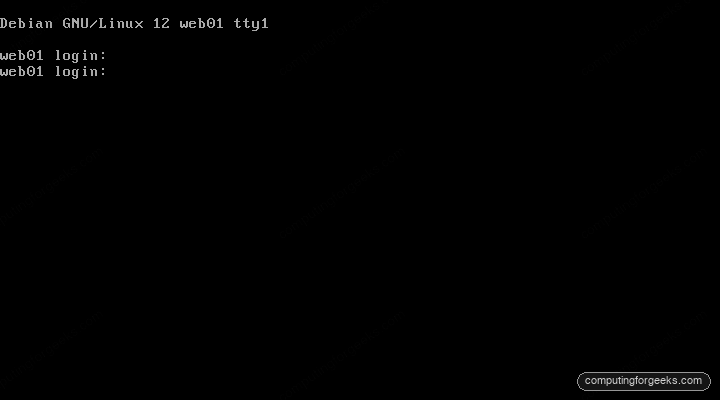
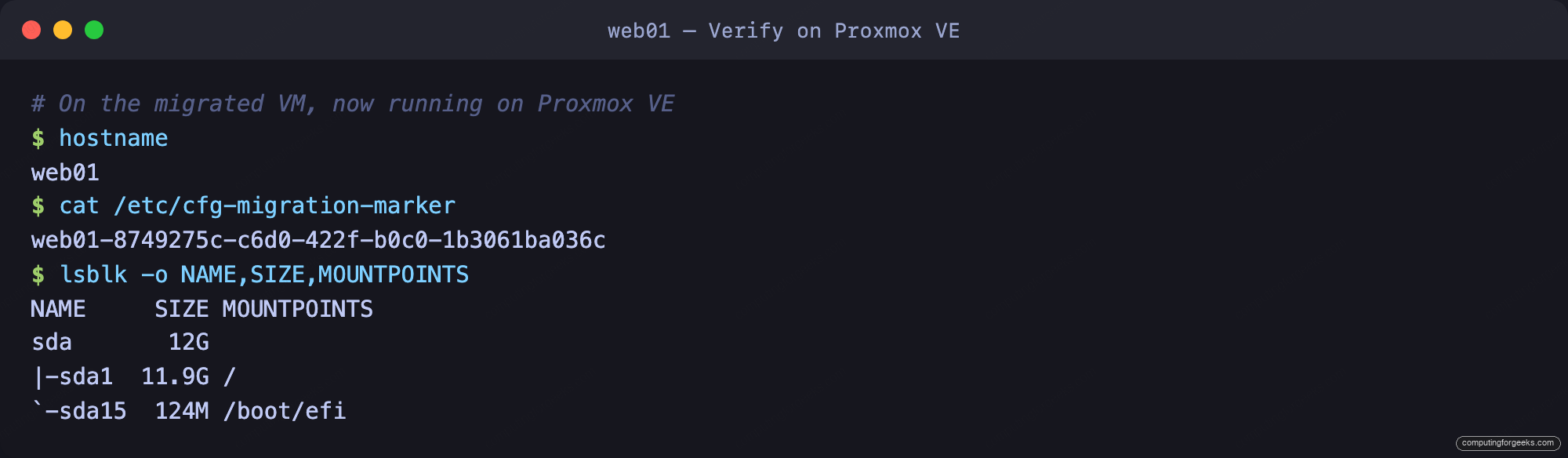
To prove the data came across intact rather than trusting that it looks right, drop a marker file on the source before migrating and read it back afterwards. The hostname and the marker match, and the disk that was vda is now sda under virtio-scsi:
Migrating a Windows guest the same way
A Windows guest that was already running on KVM/libvirt almost always uses virtio storage and networking, because that is the standard libvirt setup. That makes it the smooth case: the same disk import works, the virtio drivers are already installed, and Windows boots on Proxmox without a single driver prompt.
The difference is the firmware. A modern Windows Server or Windows 11 guest boots UEFI with Secure Boot and a TPM, so the Proxmox VM has to match. Create it with OVMF, an EFI disk, and a TPM state volume before importing the disk:
VMID=102
STORAGE=local-lvm

qm create $VMID --name win-srv --bios ovmf --machine q35 --ostype win11 \
  --cpu host --cores 4 --memory 6144 --scsihw virtio-scsi-single \
  --net0 virtio,bridge=vmbr0 --agent 1
qm set $VMID --efidisk0 ${STORAGE}:1,efitype=4m,pre-enrolled-keys=1
qm set $VMID --tpmstate0 ${STORAGE}:1,version=v2.0
Then import the Windows disk and attach it, exactly as before but with discard and an IO thread for a guest that does real disk work:
qm disk import $VMID /var/lib/vz/import/win-srv.qcow2 $STORAGE
qm set $VMID --scsi0 ${STORAGE}:vm-${VMID}-disk-2,discard=on,iothread=1
qm set $VMID --boot order=scsi0
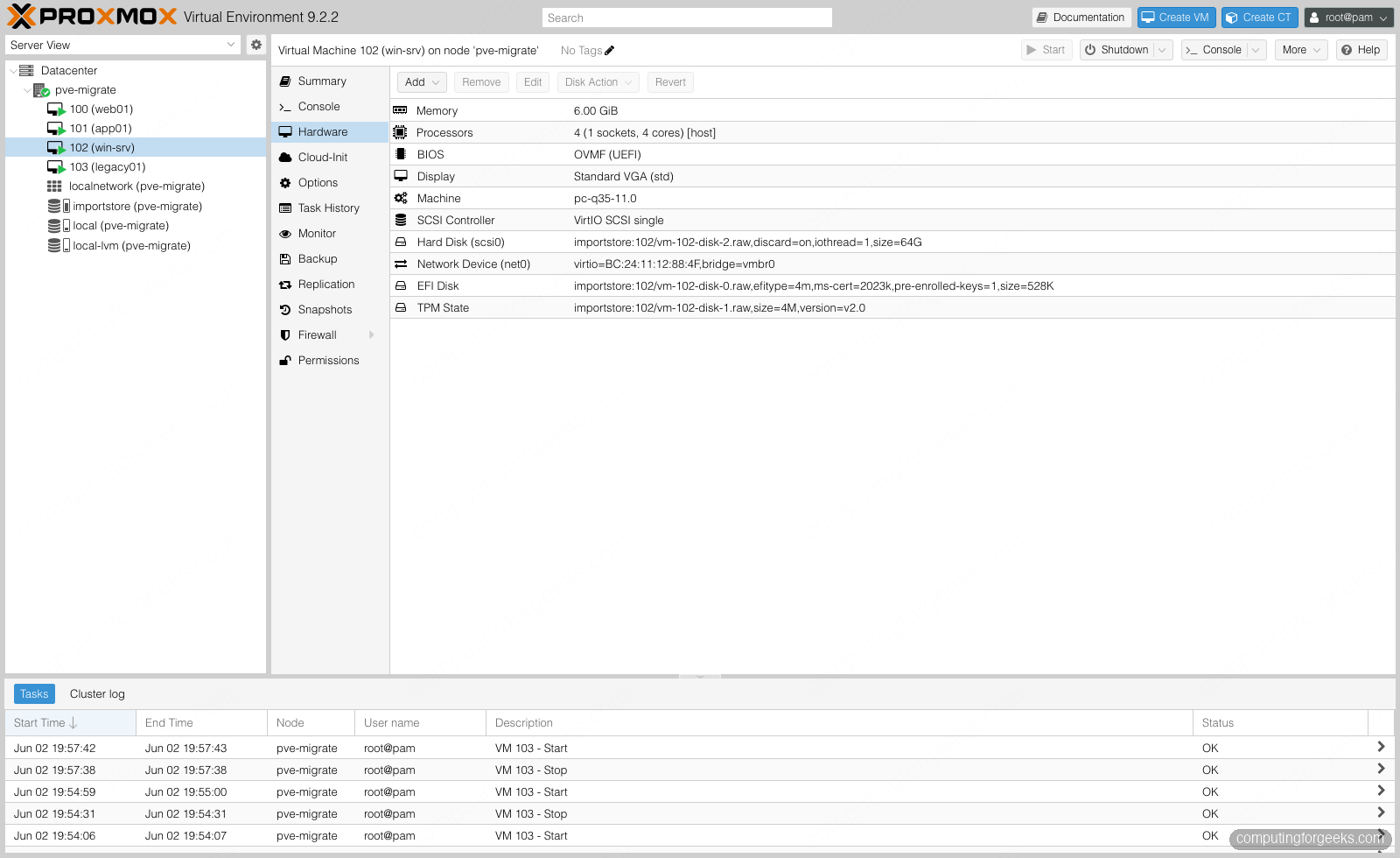
The hardware now reads OVMF, an EFI disk, a version 2.0 TPM, and the virtio-scsi controller. This is the layout a UEFI Windows guest needs to boot:
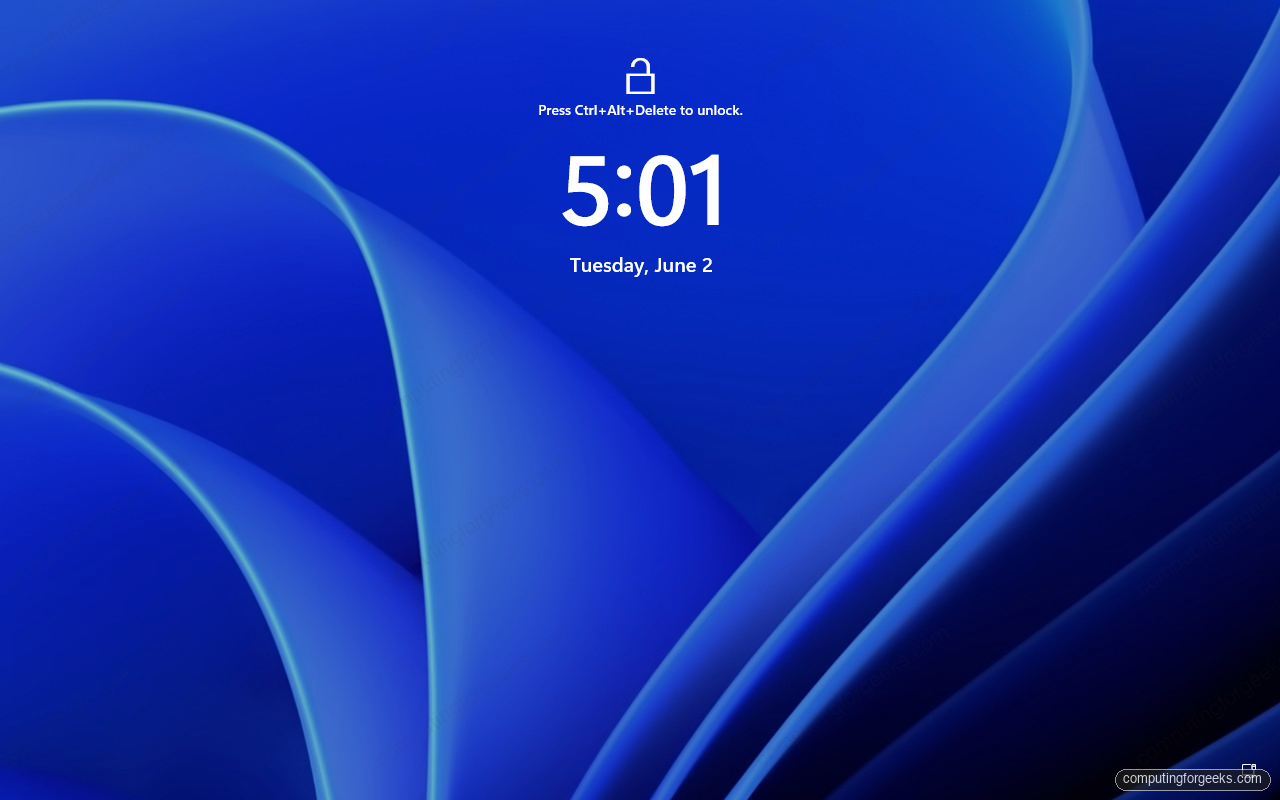
Start it and the migrated Windows Server reaches its lock screen, running on Proxmox with the virtio storage driver it already carried:
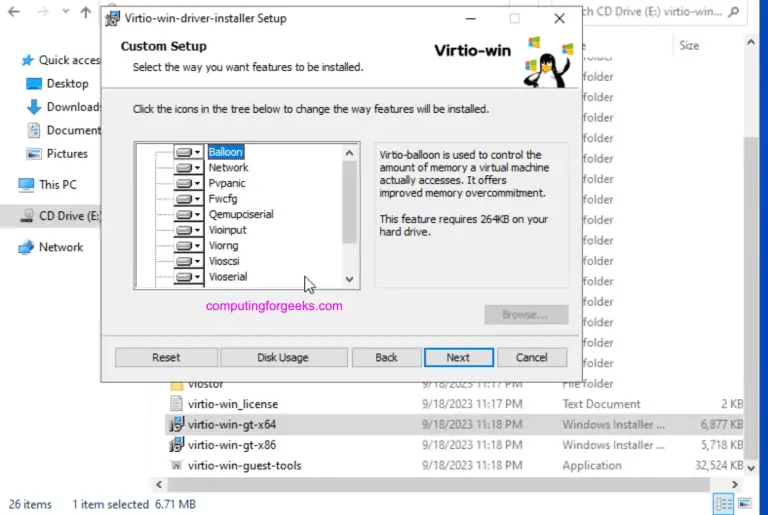
If the source Windows used emulated SATA or IDE instead of virtio, this naive disk import bluescreens with INACCESSIBLE_BOOT_DEVICE. That is the one case where you reach for virtio-win drivers or virt-v2v, covered below.
Method 2: Import an appliance with qm importovf
OVF is the portable appliance format. When a VM arrives as an OVA or OVF, usually exported from VMware or VirtualBox, Proxmox builds the whole VM from it in one command and reads the CPU count, memory, and disk size out of the descriptor. You do not type those by hand.
libvirt has no native OVA export, so to produce one from a plain KVM host you convert the disk to VMDK and wrap it in an OVF descriptor. Convert the disk first:
qemu-img convert -O vmdk -o subformat=streamOptimized app01.qcow2 app01-disk1.vmdkPair it with a minimal OVF descriptor that references the VMDK and declares the hardware. This is the same structure a VMware or VirtualBox export writes, trimmed to the essentials:
<Envelope xmlns="http://schemas.dmtf.org/ovf/envelope/1"
  xmlns:ovf="http://schemas.dmtf.org/ovf/envelope/1"
  xmlns:rasd="http://schemas.dmtf.org/wbem/wscim/1/cim-schema/2/CIM_ResourceAllocationSettingData">
  <References><File ovf:href="app01-disk1.vmdk" ovf:id="file1"/></References>
  <DiskSection>
    <Disk ovf:capacity="12" ovf:capacityAllocationUnits="byte * 2^30"
      ovf:diskId="vmdisk1" ovf:fileRef="file1"/>
  </DiskSection>
  <VirtualSystem ovf:id="app01">
    <Name>app01</Name>
    <VirtualHardwareSection>
      <Item><rasd:ResourceType>3</rasd:ResourceType><rasd:VirtualQuantity>2</rasd:VirtualQuantity></Item>
      <Item><rasd:ResourceType>4</rasd:ResourceType><rasd:AllocationUnits>byte * 2^20</rasd:AllocationUnits><rasd:VirtualQuantity>1536</rasd:VirtualQuantity></Item>
      <Item><rasd:ResourceType>17</rasd:ResourceType><rasd:HostResource>ovf:/disk/vmdisk1</rasd:HostResource></Item>
    </VirtualHardwareSection>
  </VirtualSystem>
</Envelope>
Bundle the descriptor and the VMDK into an OVA, which is just a tar archive with the OVF first, and copy it to the Proxmox node:
tar cf app01.ova app01.ovf app01-disk1.vmdkOn Proxmox, unpack it and point qm importovf at the descriptor. The command creates the VM and pulls the disk in one shot:
tar xf app01.ova
qm importovf 101 app01.ovf local-lvm
The new VM already has the right core count, memory, and a disk attached on scsi0, all read from the OVF. Two things it does not set: the network card and the SCSI controller type. Add a virtio NIC and switch the controller to virtio-scsi before booting:
qm set 101 --net0 virtio,bridge=vmbr0 --scsihw virtio-scsi-single --ostype l26
qm start 101
The guest boots with the exact CPU and memory it had before, because the appliance carried that detail with it. That is the reason to use OVF over a bare disk import when you have an appliance file: less to retype, less to get wrong.
Method 3: Convert with virt-v2v
virt-v2v is the automated converter. It inspects the guest, fixes the disk and network drivers for KVM, sorts out the firmware, schedules the QEMU guest agent to install on first boot, and writes out a ready-to-import disk plus a config file. For a pure KVM-to-Proxmox move it is overkill, since the guest already runs virtio. Its real value shows when the source was VMware, Hyper-V, or Xen, or when a Windows guest needs virtio drivers injected so it does not bluescreen.
Install it on a Linux box that can read the source. For Windows guests it also needs the virtio-win drivers available so it can inject them:
sudo apt install -y virt-v2v libguestfs-tools
# Windows guests also need the virtio-win drivers:
sudo VIRTIO_WIN=/usr/share/virtio-win/virtio-win.iso virt-v2v --version
Point it at the source guest in libvirt and tell it to write the result to a local directory. Here the source legacy01 was deliberately built with an emulated SATA disk and an e1000 NIC, the profile of a guest that came from a non-virtio hypervisor:
sudo virt-v2v -i libvirt legacy01 -o local -os /var/lib/libvirt/v2v-outThe conversion log tells you what it did. It inspected the OS, confirmed the virtio drivers, queued the guest agent, switched the disk to virtio, and copied the image:
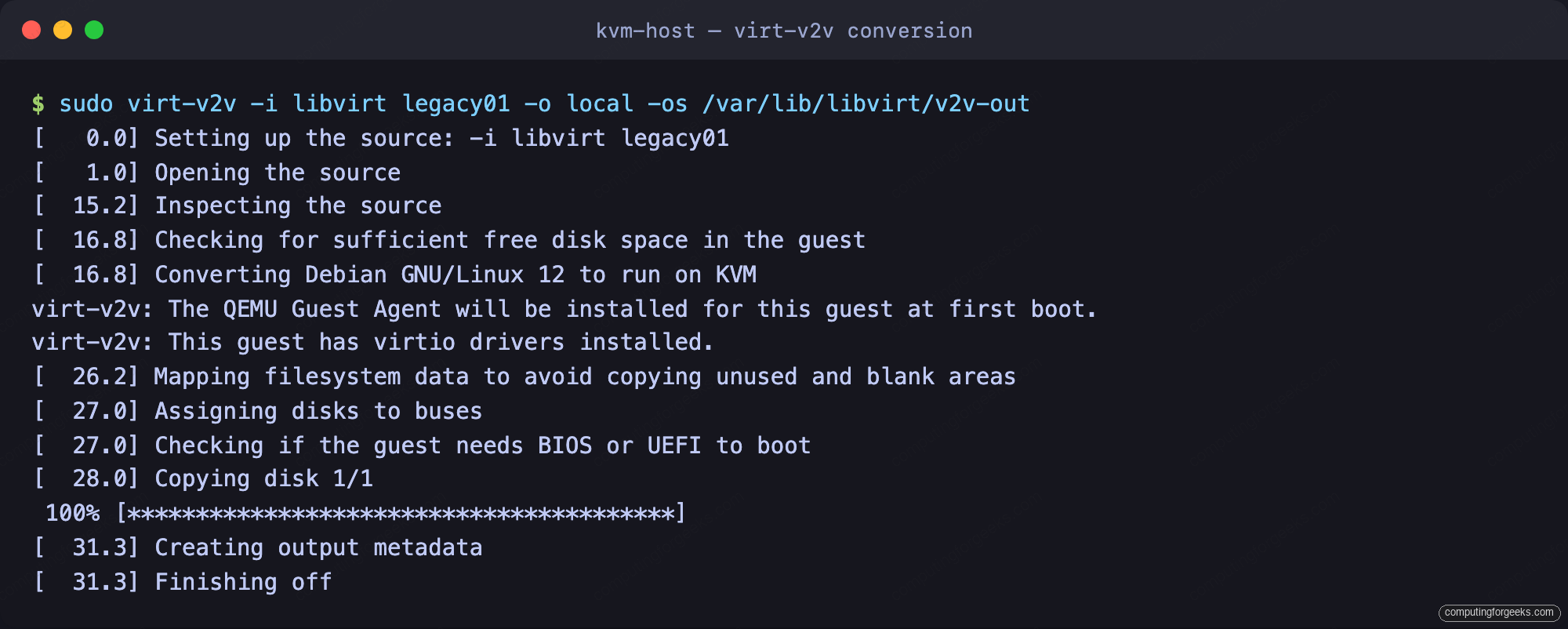
It leaves two files behind: the converted disk and an XML describing the hardware it chose. Copy the disk to Proxmox and import it. The output is raw, so name it accordingly when you stage it:
qm create 103 --name legacy01 --memory 1536 --cores 2 --cpu host \
  --net0 virtio,bridge=vmbr0 --scsihw virtio-scsi-single --ostype l26
qm disk import 103 /var/lib/vz/import/legacy01.raw local-lvm --format raw
One thing to watch: virt-v2v assigns the boot disk to virtio-blk (vda) in the config it writes. Attach the imported disk on virtio0 rather than scsi0 to match what the converted initramfs expects, or it can panic on the way up:
qm set 103 --virtio0 local-lvm:vm-103-disk-0 --boot order=virtio0
qm start 103
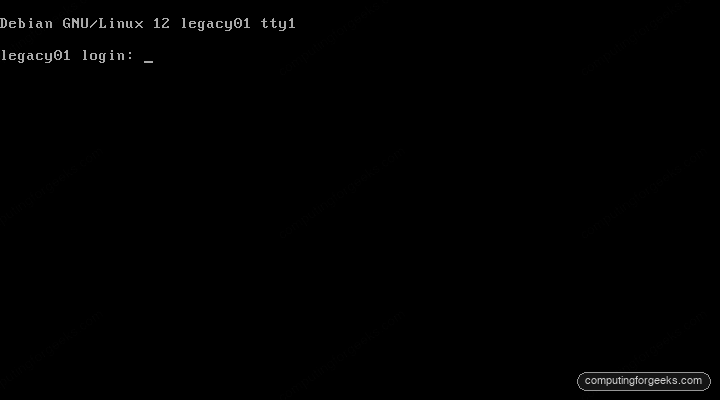
The converted guest boots on Proxmox, now running virtio storage and networking instead of the emulated SATA and e1000 it started with. The QEMU guest agent it scheduled is installed and active:
For VMware sources specifically, virt-v2v can pull straight from an ESXi host or a vCenter, which pairs well with the native import wizard covered in the VMware ESXi to Proxmox migration guide.
KVM to Proxmox migration errors and fixes
These are the failures that actually came up during testing, with the fix for each.
“Could not open backing file” on import
The disk you copied is a thin overlay and its base image stayed behind. Flatten the chain on the source with qemu-img convert -O qcow2 src.qcow2 flat.qcow2, then copy the flattened file. This is the single most common first-migration failure.
Linux guest panics with “Attempted to kill init”
The disk is attached on a controller the guest was not converted for. A virt-v2v output expects virtio-blk, so attach it on virtio0, not scsi0. A plain disk import is happiest on virtio-scsi. Match the bus to the source and the panic clears.
Windows bluescreens with INACCESSIBLE_BOOT_DEVICE
Windows cannot load its boot disk because the virtio storage driver is missing or not set to start at boot. This only happens when the source Windows never used virtio, typically a VMware or Hyper-V guest. Either attach the disk on SATA in Proxmox so Windows boots on its inbox driver, then install the virtio drivers from the virtio-win ISO and switch to virtio-scsi, or let virt-v2v inject the drivers during conversion. A Windows guest that already ran on KVM/libvirt does not hit this.
virt-v2v: “inspection could not detect the source guest”
libguestfs found the disk but could not promote it to a bootable OS root. On Windows this often means a generalized or sysprepped image, or a leftover Windows.old directory from an in-place upgrade, both of which confuse OS detection. Clean up the stray Windows.old, or skip virt-v2v for that guest and use a plain disk import instead, since a libvirt Windows guest already carries virtio.
UEFI guest shows “no bootable device”
A guest that booted UEFI on the old host needs OVMF and an EFI disk on Proxmox. Create the VM with --bios ovmf and add --efidisk0 before importing the disk. Windows 11 and Server 2022 or newer also need a TPM, so add --tpmstate0 as well. A BIOS guest, by contrast, wants the default SeaBIOS and no EFI disk.
Post-migration checklist
The guest boots. Now make it a proper Proxmox citizen before you call the migration done.
- Storage: confirm the disk is on virtio-scsi-single with
discard=onso trimmed space is returned to a thin pool, and addiothread=1for busy guests. - Guest agent: install
qemu-guest-agentinside the VM and confirm--agent 1is set, so Proxmox can read the IP, quiesce backups, and shut the guest down cleanly. - Networking: the interface name often changes on the new hardware, for example
ens18in place ofeth0, and the MAC is new. Re-pin static addresses and check that DHCP reservations follow the new MAC. - Source tooling: remove anything tied to the old platform.
open-vm-toolsand VMware drivers on a former VMware guest, leftover cloud-init seed config, stalefstabmounts that no longer exist. - Cleanup: delete the staged disk copies under
/var/lib/vz/importonce the VM is confirmed healthy, and keep the source VM powered off but intact for a few days as a rollback.
That covers a one-host move. If the job is the other direction, taking a VM back off Proxmox onto a plain libvirt host, the Proxmox to KVM/libvirt guide reverses these steps. And once the guests are on Proxmox, moving them between nodes is a built-in feature rather than a disk copy, covered in migrating VMs between Proxmox servers. Start with the disk import, keep the source around until the new VM has run a full day, and the migration is clean.