The first command anyone runs against a fresh ArgoCD install is argocd login. The second is usually argocd login again, with a different flag, because the first attempt died on a TLS error, a gRPC error, or “authentication required”. The login surface is small but every flag means something specific, and the choice of auth mode shapes the rest of your day-2 experience: is the credential a session cookie that expires, a long-lived bearer token a CI runner can use, an OIDC group claim flowing in from Keycloak, or a kubeconfig context driving the Kubernetes API straight through?
This guide covers all four authentication modes, the real argocd login output captured against a tested cluster, JWT token issuance for CI service accounts (with the decoded payload), the ~/.config/argocd/config file the CLI writes for you, and how multi-context sessions let you point at several ArgoCD instances side by side. It’s the auth-and-credentials half of the argocd CLI reference, broken out so it can go deep where the pillar stays brisk.
Tested May 2026 against ArgoCD server 3.3.9 on k3s 1.35.4. CLI 3.3.8 (macOS Apple Silicon, Homebrew). Lab cluster reachable on a NodePort on port 30443.
The four ways to authenticate to argocd
ArgoCD’s CLI talks to a backend over gRPC (or gRPC-Web through a reverse proxy). That backend accepts authentication in four distinct shapes. Picking the right one matters because each maps to a different lifetime, a different rotation pattern, and a different audit story.
| Mode | Best for | Lifetime | Where the credential lives |
|---|---|---|---|
| Username + password | Local admin tasks, single-user labs, the very first login after install | JWT session, default 24h, configurable per account | Token written to ~/.config/argocd/config after a successful login |
| SSO (OIDC, OAuth2, SAML) | Real teams. Group claims drive RBAC; revocation is centralised at the IdP | Whatever the IdP issues; ArgoCD respects token expiry | Bearer token in the same config file; refreshed via argocd relogin |
| Bearer JWT (project or local account) | CI runners, scripts, robot accounts. Long-lived, scoped, revocable by JTI | Custom (no expiry, days, weeks). Set with --expires-in | Wherever your secret manager keeps it (CI variable, sealed secret, Vault) |
| Kubernetes API server (port-forward fallback) | Bootstrap, break-glass, debugging when the API server route is broken | Whatever your kubeconfig grants | Standard kubeconfig; argocd login --core bypasses the ArgoCD API entirely |
For day-to-day operator work, password (or SSO) is correct. For anything automated, bearer JWT is the only sane choice because it is scoped to a single non-human account you can revoke without touching a person’s session. The K8s API mode is rarely the right answer outside of bootstrap, but it saves you when the ingress goes sideways.
Standard argocd login walkthrough
The minimum information argocd login needs is the server endpoint. Everything else (username, password, TLS posture, transport) it will either prompt for or accept as a flag. The lab cluster exposes the API on a NodePort, so the endpoint is 192.168.1.126:30443. The first login pulls the initial admin password (more on that in the next section) and writes a context to ~/.config/argocd/config:
argocd login 192.168.1.126:30443 \
  --username admin \
  --grpc-web \
  --insecure
The CLI prompts for the password (paste the initial admin password), then prints two lines that confirm both sides of the handshake worked:
'admin:login' logged in successfully
Context '192.168.1.126:30443' updated
That second line is the one that matters. It tells you a context was created (or refreshed) under the server name 192.168.1.126:30443, and that the session JWT is now persisted on disk. Every subsequent argocd command implicitly uses this context until you switch with argocd context or log in to a different server.
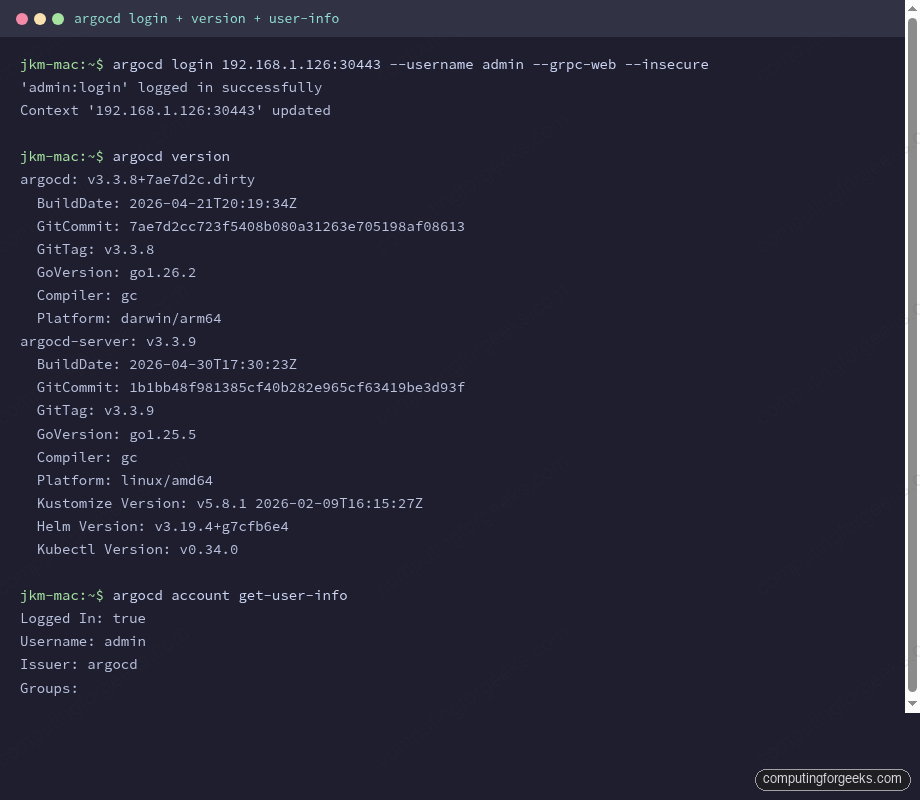
Right after a fresh login, three commands are worth running because they tell you whether the session actually works and which version skew you’re dealing with. argocd version prints both the CLI build (your machine) and the server build (the cluster). argocd account get-user-info tells you which identity the server thinks you are. argocd account can-i tests RBAC against a specific verb. The output above shows a 3.3.8 CLI talking to a 3.3.9 server, an admin user with no group memberships (login auth doesn’t carry groups), and a clean session.
When you need –insecure and –grpc-web
These two flags trip up more first-time users than any other part of the login flow. They mean different things and they fix different problems.
--insecure tells the CLI to accept the server’s TLS certificate even if it can’t verify it against a CA in your trust store. ArgoCD ships a self-signed certificate by default. On a freshly installed cluster you have two options: trust the self-signed cert by feeding the CA to your system trust store (production-correct), or pass --insecure and move on (fine for a lab). If you skip both, you get x509: certificate signed by unknown authority and the login dies before it ever reaches the auth path.
--grpc-web changes the transport. Native gRPC requires HTTP/2 end-to-end, which most cloud load balancers (AWS ALB in particular) and many Kubernetes ingress controllers cannot route cleanly. gRPC-Web wraps the same RPC payload inside a normal HTTP/1.1 request so it passes through anything that speaks HTTP. The ArgoCD server understands both. Use --grpc-web when:
- Your ArgoCD sits behind an ALB, NLB, or any proxy that doesn’t terminate HTTP/2 cleanly.
- You’re hitting it on a NodePort or LoadBalancer service where the L4 route is fine but L7 hopefulness is not.
- You see
rpc error: code = Unavailableon what should be a routine login.
The lab cluster fits both descriptions, so the reusable form is --grpc-web --insecure. Once the flag combo is set, it persists in the per-server entry of ~/.config/argocd/config so subsequent argocd commands inherit it automatically. You don’t need to repeat the flags.
Get the initial admin password
The first argocd login needs a password. ArgoCD generates one at install time and stashes it in a Kubernetes secret. There are two equally valid ways to retrieve it.
The argocd binary has a dedicated subcommand for it. It needs kubectl access to the cluster (so it talks straight to the secret, not through the API server you can’t authenticate to yet):
argocd admin initial-password -n argocdOutput is a single line, the raw password. The plain kubectl path does the same thing without the argocd binary, useful when you’re SSH’d to a jump host that only has kubectl:
kubectl -n argocd get secret argocd-initial-admin-secret \
  -o jsonpath="{.data.password}" | base64 -d
Both return the same value. It’s a 16-character random string, something like your-initial-admin-password in the docs (the real one is unique per install). The argocd-initial-admin-secret secret is supposed to be deleted after you change the password. ArgoCD won’t enforce the deletion, but leaving the original secret around defeats the rotation.
Change the admin password
Right after the first login, change the password and delete the bootstrap secret. The change runs through the API, not kubectl:
argocd account update-passwordThe CLI prompts for the current password, then the new password twice. To change another account’s password (only an account with the p, role:admin, accounts, update, *, allow RBAC entitlement can do this), pass --account explicitly:
argocd account update-password \
  --account alice \
  --current-password "$ADMIN_PASSWORD" \
  --new-password "$NEW_PASSWORD"
Once the change succeeds, delete the bootstrap secret so the original password is no longer recoverable from the cluster. If you ever need to start over, the ArgoCD admin password reset guide walks through the recovery path.
kubectl -n argocd delete secret argocd-initial-admin-secretWhat login actually gets you (the dashboard)
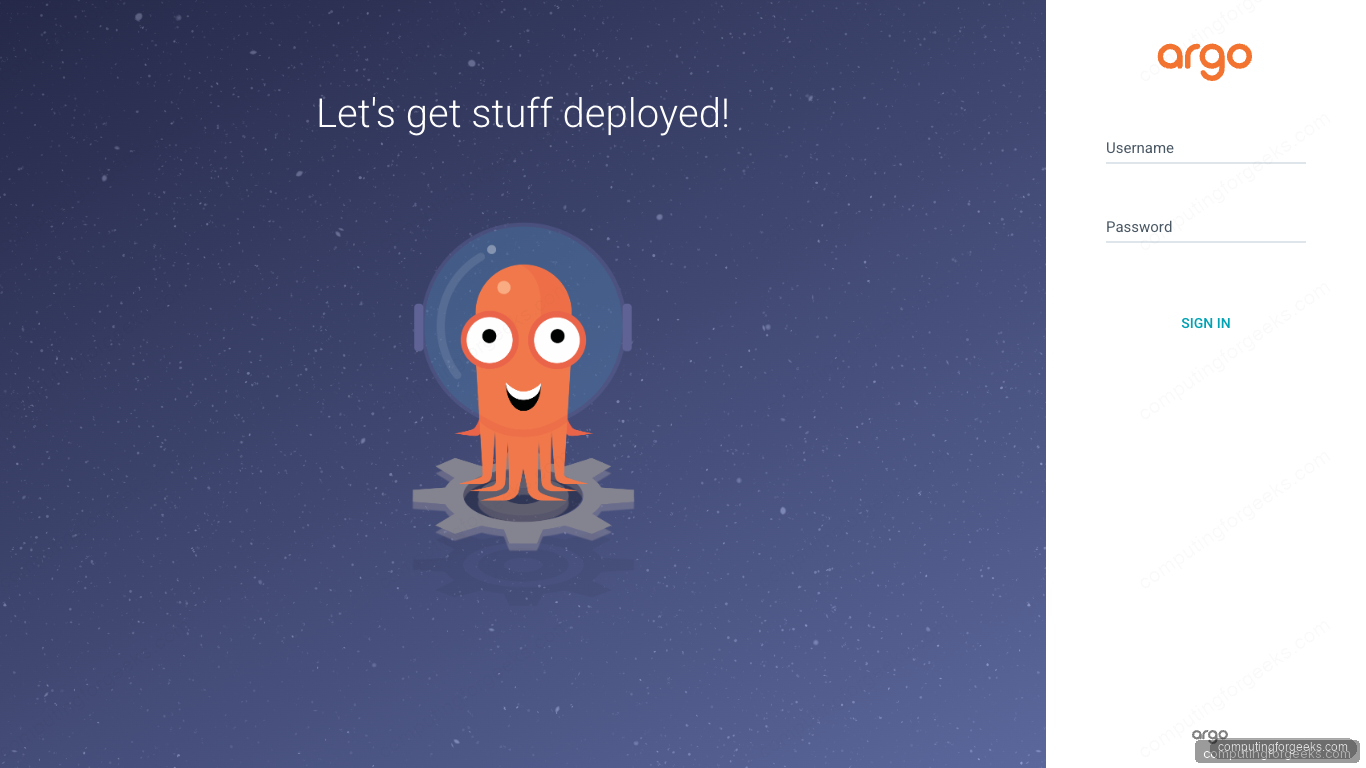
The CLI session and the browser session are equivalent. Both sit on top of the same JWT-bearing API calls. After the CLI login succeeds, the same credentials drive the web UI. On first hit, the login page accepts the same admin / password combo:
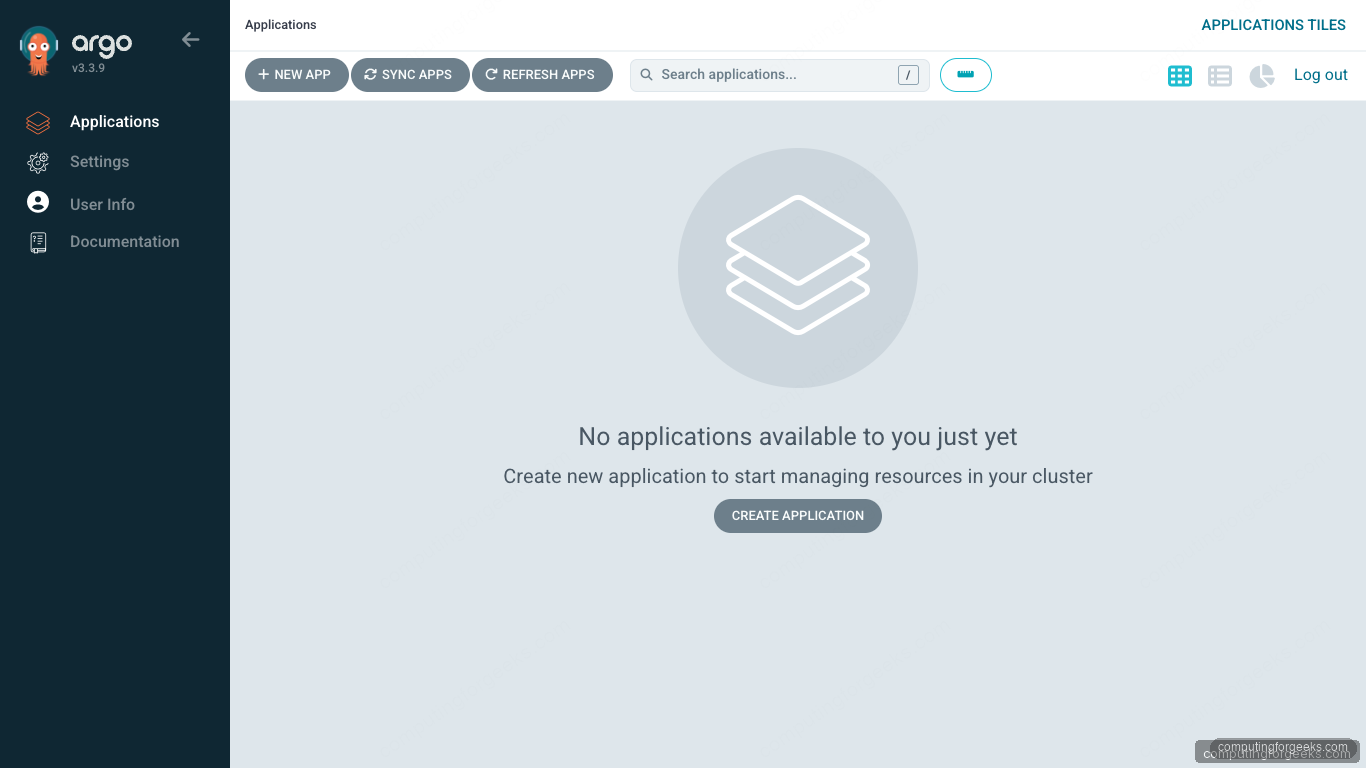
Right after that first login the dashboard is empty. It’s a clean view that confirms the auth worked and you have an admin context, with the “New App” button waiting for the first Application manifest:
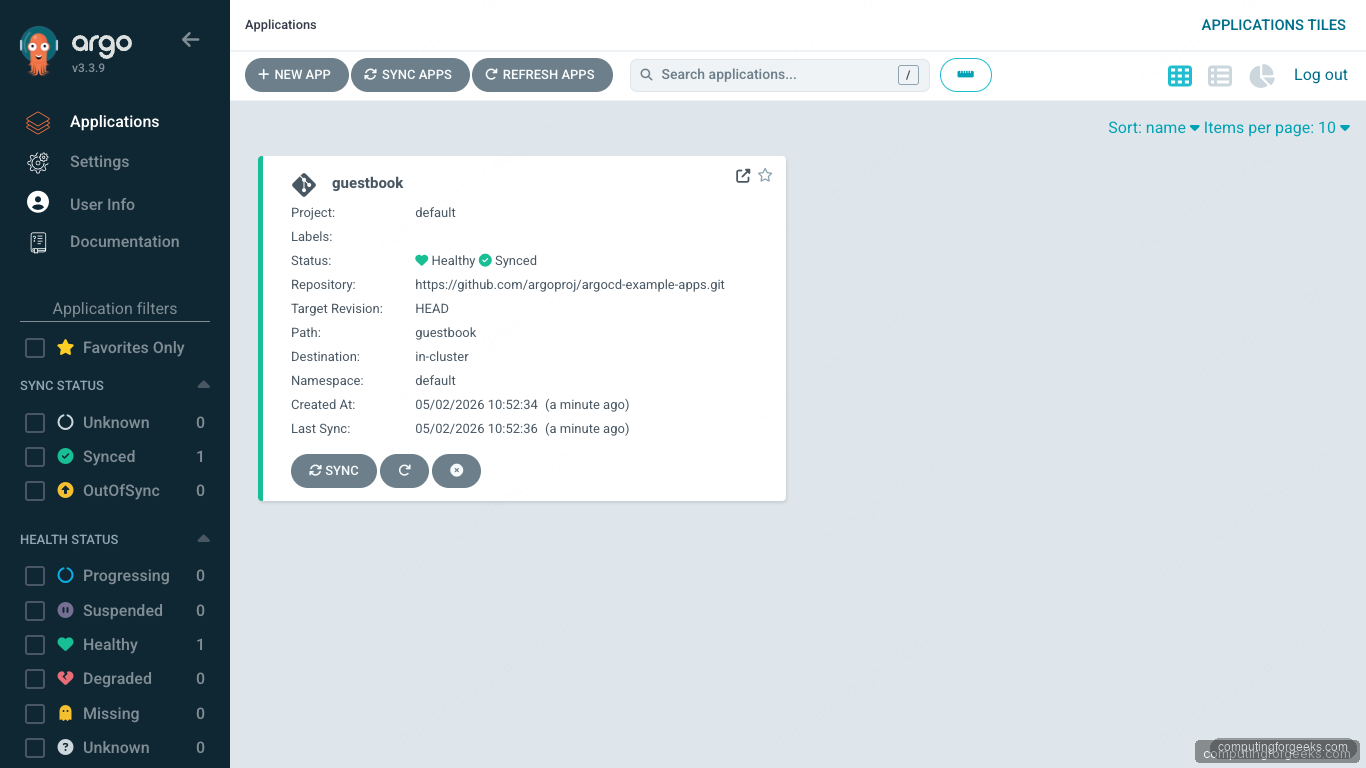
Once you create an Application (the canonical first one is the upstream guestbook), the dashboard fills in. The card shows sync state, health state, and the live source revision. The same view is reachable from argocd app get guestbook -o tree on the CLI side, which is useful when you want hierarchy without leaving the terminal:
JWT tokens for CI and service accounts
Pipelines should not log in with a human’s password. They need long-lived bearer tokens scoped to a non-human account that you can revoke without affecting any operator. ArgoCD calls these “local accounts with the apiKey capability”, and the flow is three steps: enable the account in the argocd-cm ConfigMap, grant it RBAC, then issue a token.
Add the account to argocd-cm. The capability list (apiKey, login, or both) decides what the account can do. apiKey alone means the account exists only to mint tokens; it cannot log in interactively:
kubectl -n argocd patch configmap argocd-cm \
  --type merge \
  -p '{"data":{"accounts.cicd":"apiKey"}}'
Grant RBAC. Edit argocd-rbac-cm and add policy lines that match the verbs the pipeline will run. The example below lets cicd sync any application in any project but blocks everything else:
kubectl -n argocd edit configmap argocd-rbac-cm
# Inside the policy.csv data block, add:
#   p, role:cicd, applications, sync, */*, allow
#   p, role:cicd, applications, get, */*, allow
#   g, cicd, role:cicd
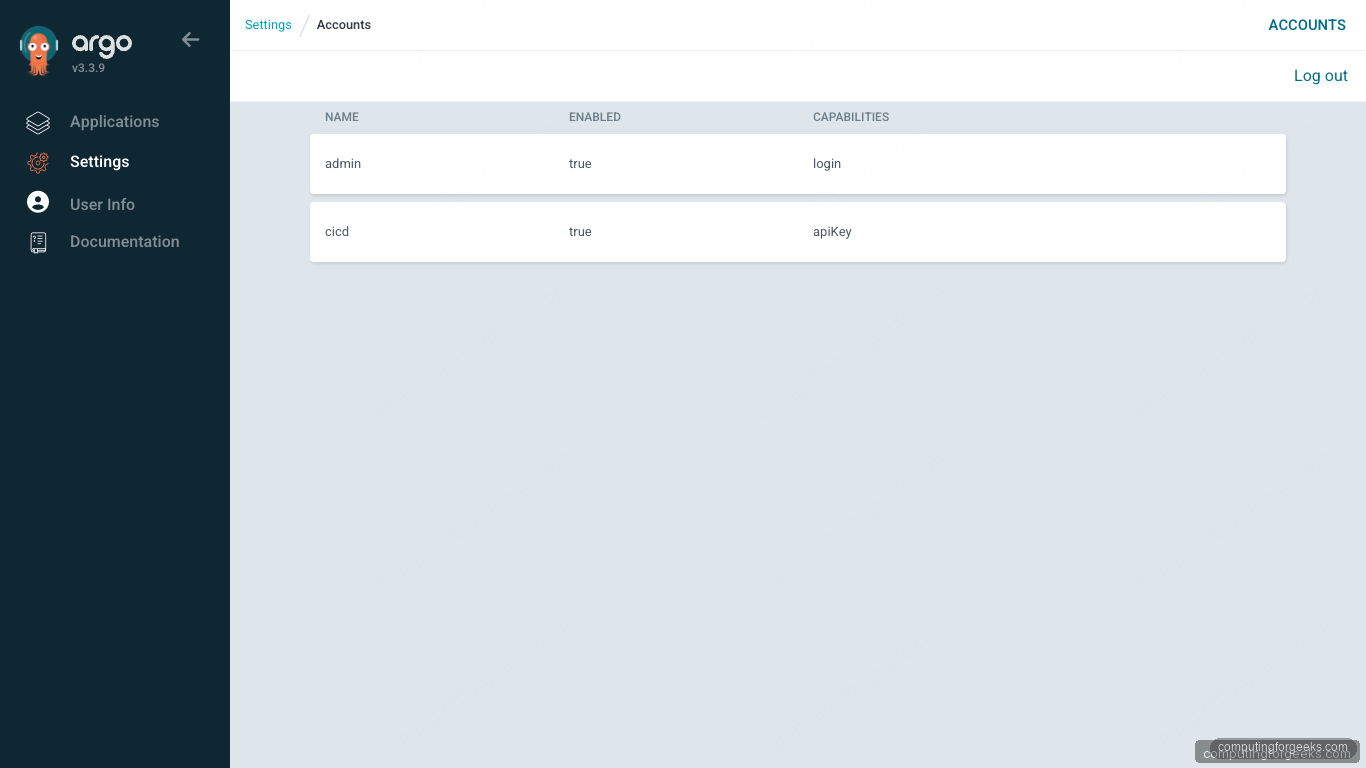
The argocd-server pods reload the RBAC ConfigMap automatically; no restart is needed. Verify the account is enabled and shows the right capabilities by listing accounts. The cicd entry should now appear next to admin:
argocd account listThe capabilities column tells you exactly what the account can do. admin still has login only because no apiKey was added; cicd has apiKey only because that’s all it needs:
NAME   ENABLED  CAPABILITIES
admin  true     login
cicd   true     apiKey
Same view in the UI under Settings -> Accounts. The browser confirms the same two rows the CLI just printed:
Now mint the token. The --account flag picks the local account; --expires-in is optional and accepts Go duration strings (720h for 30 days, 0s for “no expiry, ever”). The output is the raw JWT, on stdout, on a single line. Capture it directly into a secret manager rather than a shell variable:
argocd account generate-token --account cicdThat single line of JWT is everything a CI runner needs. It carries the account, the issuer, and a unique JTI that ArgoCD uses to revoke individual tokens without touching the account. Decoding the payload (the middle base64 segment) shows what the server stores:
{
  "iss": "argocd",
  "sub": "cicd:apiKey",
  "nbf": 1777707681,
  "iat": 1777707681,
  "jti": "1b2bda03-c176-4cc3-95f8-2dda34cc1ebe"
}
The sub field is the account plus its capability. iat and nbf are the issued-at and not-before unix timestamps. jti is the token’s unique identifier, the value you pass to argocd account delete-token when you rotate. There’s no exp field in this token because --expires-in was not passed, which means it lives until you revoke it. Production tokens should always carry an expiry.
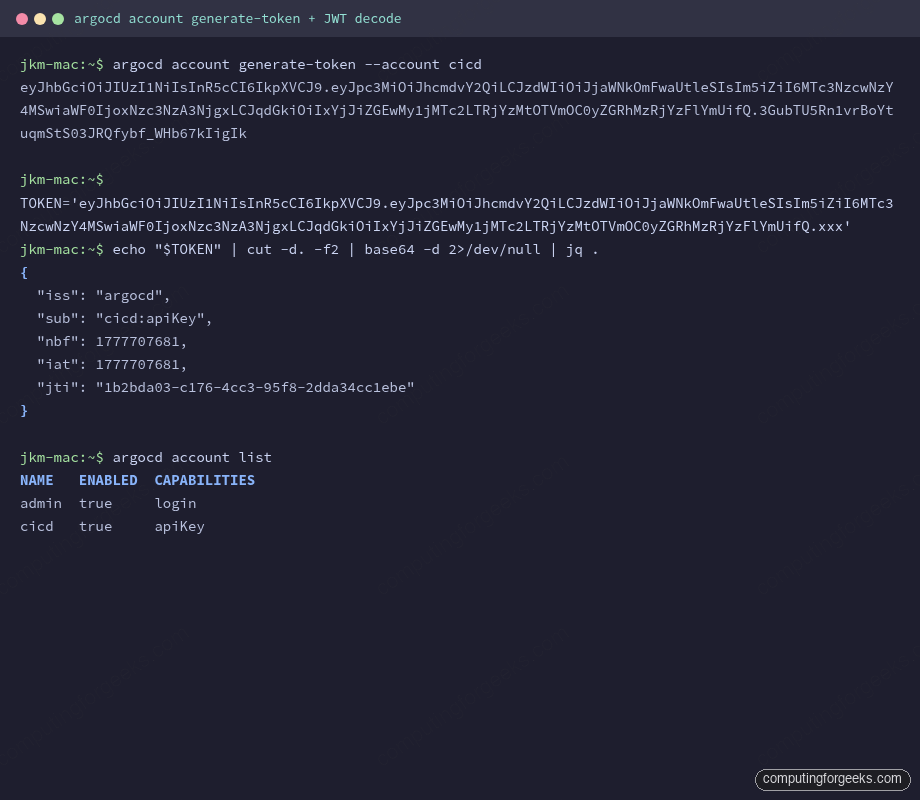
To use the token from a CI runner, pass it via --auth-token and skip the argocd login step entirely. Pipelines should call:
argocd app sync myapp \
  --server argocd.example.com \
  --auth-token "$ARGOCD_TOKEN" \
  --grpc-web
This is the pattern every GitHub Actions, GitLab CI, and Jenkins job should use. Storing a JWT in a CI secret and binding it via environment variable means rotation is a one-line update; revoking the token via argocd account delete-token immediately stops the pipeline from acting, even if the variable is still set.
SSO login (OIDC, OAuth2, SAML)
Real teams should not be sharing the admin password. ArgoCD bundles Dex as an identity broker so it can federate with anything that speaks OIDC, OAuth2, or SAML: Keycloak, Okta, Auth0, Google Workspace, GitHub, Azure AD, you name it. Once the IdP is wired up, the CLI login flow becomes browser-based:
argocd login argocd.example.com --sso --grpc-webThe CLI opens a local browser at a one-time callback URL, hands off to the IdP, and waits for the OAuth2 redirect to come back with an ID token. The token gets stored in ~/.config/argocd/config exactly like the password-flow JWT. The difference is the token now carries group claims from your IdP, which means argocd account get-user-info shows non-empty Groups: and the RBAC engine can match policy lines like g, sre-team, role:operator.
Wiring the IdP itself lives in argocd-cm under the oidc.config key. The official ArgoCD user management docs have provider-specific examples for Keycloak, Okta, Google, and GitHub. The CLI side stays the same regardless of which provider you wire in. The only thing that changes is what shows up in the group claim.
One trap to know: the SSO flow needs your CLI machine to reach a localhost callback (default port 8085). On a remote shell over SSH, that doesn’t work without port-forwarding. The fix is either to log in from your laptop and copy ~/.config/argocd/config to the remote box, or to use a JWT bearer token (the --auth-token path) for non-interactive use. SSO is for humans on workstations; it’s not the right tool for jump-host shells.
argocd relogin and argocd logout
Sessions expire. The default for password-based JWTs is 24 hours; SSO tokens follow whatever your IdP issued. The error you’ll see when a token has aged out is rpc error: code = Unauthenticated on a command that worked an hour ago. The fix is one command:
argocd reloginrelogin reuses the auth method (password or SSO) recorded for the current context and refreshes the token in place. It does not need a server argument because the context already knows where to point. If the underlying password has changed, relogin reprompts. If the SSO IdP is unreachable, relogin hangs on the browser callback waiting for a redirect that never comes; cancel with Ctrl-C and try again once the IdP is back.
To explicitly end a session, use argocd logout. It deletes the token from the local config and removes the auth-token entry from ~/.config/argocd/config:
argocd logout 192.168.1.126:30443Logout is local-only. The server-side JWT is still valid until it expires or is revoked; logout just removes it from your machine. To kill a JWT server-side (the right move when a laptop walks off), use argocd account delete-token against its JTI.
Multi-context: managing several ArgoCD instances
Operators usually deal with more than one ArgoCD: a dev cluster, a staging cluster, a production cluster, plus whatever lab is running this week. The CLI keeps each one as its own context inside ~/.config/argocd/config, and argocd context is how you switch between them. Listing what’s currently configured is a single command:
argocd contextThe output shows every context with the active one marked. The lab has three configured: a port-forward to localhost, a stale dev cluster, and the current k3s lab:
CURRENT  NAME                 SERVER
         localhost:8080       localhost:8080
         192.168.1.162:30443  192.168.1.162:30443
*        192.168.1.126:30443  192.168.1.126:30443
Switch to a different context by passing its name:
argocd context localhost:8080Each argocd login against a new server creates a new context automatically; you don’t need to manage them by hand unless you’re cleaning up. To remove one, edit ~/.config/argocd/config and delete the matching entries from the contexts, servers, and users sections (all three keep that server’s data).
Where credentials live: ~/.config/argocd/config
Every successful login writes to ~/.config/argocd/config (or %LOCALAPPDATA%\argocd\config on Windows). The file is plain YAML and easy to inspect:
cat ~/.config/argocd/configThe structure is three parallel lists: contexts (named server bindings), servers (per-endpoint transport options), and users (the actual auth tokens). One entry per server appears in each list:
contexts:
- name: 192.168.1.126:30443
  server: 192.168.1.126:30443
  user: 192.168.1.126:30443
current-context: 192.168.1.126:30443
prompts-enabled: false
servers:
- grpc-web: true
  grpc-web-root-path: ""
  insecure: true
  server: 192.168.1.126:30443
users:
- auth-token: <REDACTED-JWT>
  name: 192.168.1.126:30443
The auth-token is the JWT. Anyone who reads this file can act as you against ArgoCD until the token expires. Treat it like an SSH key: chmod 600 and never commit it to a repo. The file is created with mode 0600 by default.
Two patterns are worth knowing for backup and CI:
- Backup before reinstalling the CLI by copying the file:
cp ~/.config/argocd/config ~/.config/argocd/config.bak. Restoring is just copying it back. - CI alternative: skip the file entirely and pass
--server,--auth-token, and any transport flags on each call. This is cleaner in pipelines because there is no on-disk state to manage between job steps.
Token rotation and revocation
JWTs without expiry feel convenient until the day a contractor’s laptop is lost or a CI runner is compromised. Rotation policy boils down to two patterns. First, set --expires-in on every token, so even if you forget to rotate, the worst case is the token aging out:
argocd account generate-token \
  --account cicd \
  --expires-in 720h \
  --id "ci-runner-pipeline-2026q2"
The --id flag sets the JTI to a meaningful string instead of a random UUID, which makes audit trails much easier to follow. The token still works the same way; only the JTI in its payload changes.
Second, keep an inventory of issued tokens and revoke them by JTI when they’re no longer needed. List active tokens for an account:
argocd account get --account cicdThe output shows account capabilities and a list of token IDs with their issued-at and expiry timestamps. Revoke a specific token immediately:
argocd account delete-token \
  --account cicd \
  ci-runner-pipeline-2026q2
Revocation is server-side and effective immediately. Any in-flight request authenticated with that token starts returning rpc error: code = Unauthenticated within seconds. The token’s bytes still exist in whatever CI variable you stored them in, but they’re now useless. The rotation procedure for a CI pipeline is: generate the new token first, push it into the CI secret store, run a smoke job to confirm the new token works, then delete the old one. The sequence matters because reversing it strands the pipeline.
Kubernetes API mode (–core fallback)
When the ArgoCD API server is unreachable (broken ingress, dead pods, certificate disaster), the CLI can talk straight to the Kubernetes API server and read ArgoCD CRDs directly. This mode skips the ArgoCD authentication layer entirely; it uses your kubeconfig credentials. Run:
argocd login --coreNo server, username, or token needed. The CLI reads ~/.kube/config (or honors $KUBECONFIG), picks the current context, and treats Application and AppProject CRDs as the source of truth. From here, argocd app list, argocd app get, argocd app diff, and most read commands work normally. argocd app sync works too because the controller still watches the CRDs.
The other use case is local development: argocd login --core against a kind/k3d cluster lets you skip running the full argocd-server pod entirely. You lose the UI but the CLI is intact. For port-forward scenarios where the API server is reachable but the ArgoCD ingress isn’t, the simpler fix is:
kubectl -n argocd port-forward svc/argocd-server 8080:443 &
argocd login localhost:8080 --insecure --grpc-web
This keeps you on the normal API path (so RBAC, audit, and SSO still apply) but routes through kubectl’s port-forwarder instead of the broken ingress. The first context in the lab config (localhost:8080) is exactly this pattern.
Login troubleshooting matrix
The error string is usually enough to find the fix. The matrix below covers the failure modes the lab has hit during testing of the full series, plus the ones that come up in production support tickets. Each row maps the exact CLI error to the actual root cause.
| Error | Root cause | Fix |
|---|---|---|
x509: certificate signed by unknown authority | Self-signed ArgoCD cert not in your trust store | Pass --insecure, or add the server’s CA to /etc/ssl/certs (Linux) / Keychain (macOS) |
rpc error: code = Unavailable | HTTP/2 routing broken (ALB, ingress without gRPC support) | Add --grpc-web; on AWS ALB also confirm the target group protocol is HTTPS not gRPC |
FATA[0000] dial tcp ... no such host | DNS doesn’t resolve the server name | Verify with dig +short argocd.example.com; for lab use, add an entry to /etc/hosts |
FATA[0000] connection refused | Server pod not running, or NodePort/LoadBalancer not actually listening | kubectl -n argocd get pods,svc; check the port matches |
rpc error: code = PermissionDenied desc = permission denied | Login succeeded but RBAC blocks the action you tried | Inspect the user with argocd account get-user-info; fix the policy in argocd-rbac-cm |
rpc error: code = Unauthenticated | Token expired or revoked | argocd relogin; if it persists, the token’s JTI was deleted server-side and you need to reissue |
FATA[0000] Invalid username or password | Wrong password, or account is disabled | Reset with argocd admin initial-password path, or check argocd account list for ENABLED=false |
failed to load initial config: invalid character ... | Corrupt ~/.config/argocd/config | Move it aside (mv ~/.config/argocd/config{,.broken}) and run argocd login again to recreate |
| SSO redirect lands on a blank page | Callback URL in IdP doesn’t match what ArgoCD advertises (url in argocd-cm) | Set url in argocd-cm to the externally-reachable URL and reapply the IdP client config |
SSO works but groups are empty in get-user-info | Group claim missing or wrong scope requested | Add requestedScopes with groups in oidc.config; verify the claim name matches what your IdP issues (some use groups, some use cognito:groups) |
For deeper sync errors that surface after authentication has succeeded, the patterns continue in the argocd CLI command reference and the broader cluster-side picture is in the ArgoCD on Kubernetes install guide. For platform-specific deployments, the Ubuntu 26.04 walkthrough and the EKS GitOps guide both inherit the same CLI auth flow described here.