Keel is a Kubernetes operator that automates container image updates for Deployments, StatefulSets, DaemonSets, and Helm releases. Instead of manually editing manifests and running kubectl apply every time a new image lands in your registry, Keel watches for new tags and rolls out updates based on policies you define through annotations. It supports semver-aware policies, webhook triggers from Docker Hub, GCR, ECR, and Quay, polling schedules, approval workflows, and notifications through Slack, Microsoft Teams, and other channels.
This guide covers installing Keel with Helm, configuring update policies, setting up triggers (polling and webhooks), enabling the approval workflow, using the Keel web dashboard, configuring notifications, managing Helm releases with Keel, and comparing Keel with Flux and ArgoCD image automation.
Prerequisites
- A running Kubernetes cluster (v1.22 or later) with
kubectlconfigured - Helm 3 installed on your workstation – follow our guide on installing and using Helm 3 on Kubernetes
- A container registry account (Docker Hub, GCR, ECR, or Quay) with at least one image repository
- Cluster admin or namespace-level RBAC permissions to create Deployments, Services, and ServiceAccounts
- For webhook triggers: ability to configure webhooks on your container registry
- For notifications: Slack workspace, Microsoft Teams channel, or a webhook-compatible chat platform
What is Keel and How Does It Work
Keel runs as a single pod inside your cluster. It monitors container registries for new image tags, evaluates them against policies you define in resource annotations, and triggers rolling updates when conditions are met. The core workflow is straightforward: a new image tag appears in your registry, Keel detects it (through polling or a webhook), checks whether the tag satisfies the configured policy, optionally waits for approval, then patches the resource to use the new image.
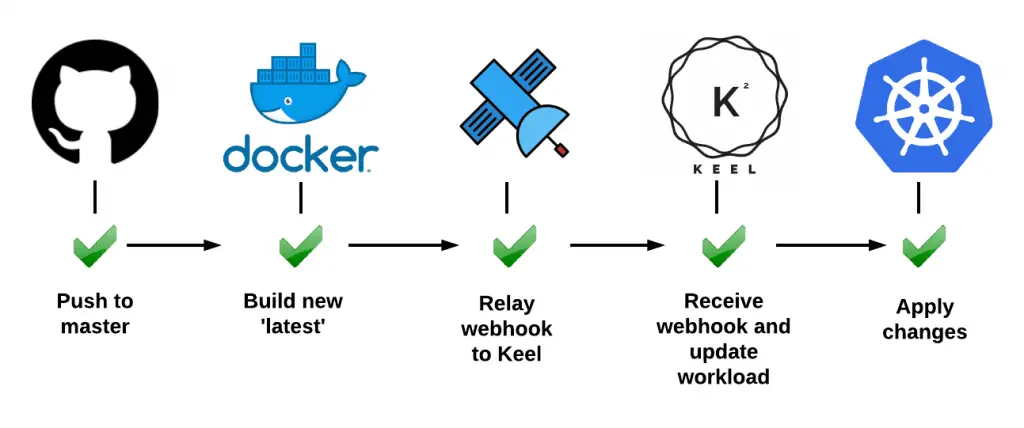
Keel has three main components:
- Triggers – entry points that detect new images. These include registry polling, Docker Hub webhooks, GCR pub/sub notifications, and native webhook endpoints for ECR and Quay
- Policies – rules that decide whether a detected image version qualifies for deployment. Policies range from strict semver patch-only updates to force updates on non-semver tags like
latest - Providers – the mechanism that applies the update. Keel supports native Kubernetes resources (Deployments, StatefulSets, DaemonSets) and Helm releases
Step 1: Install Keel on Kubernetes Using Helm
Add the Keel Helm chart repository and update your local cache.
$ helm repo add keel https://charts.keel.sh
$ helm repo update
Create a dedicated namespace for Keel.
$ kubectl create namespace keelInstall Keel with the Helm provider enabled (for managing Helm releases), the web UI dashboard, and polling turned on.
$ helm upgrade --install keel keel/keel \
  --namespace keel \
  --set helmProvider.enabled=true \
  --set basicauth.enabled=true \
  --set basicauth.user=admin \
  --set basicauth.password=changeme \
  --set service.enabled=true \
  --set service.type=ClusterIP \
  --set polling.enabled=true
Key Helm values explained:
helmProvider.enabled=true– lets Keel update Helm releases, not just plain Kubernetes manifestsbasicauth.enabled=true– protects the web UI with username/password authenticationservice.enabled=true– creates a ClusterIP Service so the web UI and webhook endpoints are reachable inside the clusterpolling.enabled=true– enables the polling trigger globally (individual resources still need the polling annotation)
Verify the installation by checking that the Keel pod is running.
$ kubectl get pods -n keel
NAME                    READY   STATUS    RESTARTS   AGE
keel-6b9d8f7c4f-xm2tq  1/1     Running   0          45s
Confirm the Helm release is deployed.
$ helm list -n keel
NAME    NAMESPACE  REVISION  UPDATED                                 STATUS    CHART         APP VERSION
keel    keel       1         2026-03-19 10:15:22.123456 +0000 UTC    deployed  keel-1.0.3    1.0.0
Step 2: Understand Keel Update Policies
Keel policies control which image tag changes trigger an update. You set the policy through the keel.sh/policy annotation on your Deployment, StatefulSet, or DaemonSet. Every policy except force and glob expects semver-formatted tags (e.g., 1.2.3, v2.0.0).
Here is a breakdown of all available policies:
| Policy | What It Updates | Example Trigger |
|---|---|---|
all | Any version bump including pre-releases | 1.0.0 to 1.0.1-rc1, 1.0.0 to 2.0.0 |
major | Major, minor, and patch versions | 1.0.0 to 2.0.0, 1.0.0 to 1.1.0 |
minor | Minor and patch versions only | 1.0.0 to 1.1.0, 1.0.0 to 1.0.5 |
patch | Patch versions only | 1.0.0 to 1.0.1 (ignores 1.1.0 or 2.0.0) |
force | Any change, even non-semver tags | latest to latest (digest change), dev to dev |
glob | Tags matching a wildcard pattern | glob:release-* matches release-20260319 |
Choosing the Right Policy
For production workloads, patch or minor policies offer a safe balance between automation and stability. Use patch when you only want bug fixes deployed automatically. Use minor when you trust that minor releases are backward-compatible. Reserve major and all for development or staging environments where breaking changes are acceptable.
The force policy is designed for workflows that use non-semver tags like latest, dev, or staging. When a new image is pushed with the same tag, Keel detects the digest change and triggers an update. Pair it with keel.sh/match-tag=true to ensure only matching tags get updated (e.g., dev updates only from dev, not prod).
The glob policy is useful for date-based or custom tagging schemes. Set it with keel.sh/policy: glob:release-* to match any tag starting with release-.
Step 3: Annotate Deployments and StatefulSets
Keel reads its configuration from annotations on your Kubernetes resources. No separate config file or CRD is needed. Add annotations to the metadata section of your Deployment, StatefulSet, or DaemonSet.
Here is a Deployment with semver minor policy and polling enabled.
apiVersion: apps/v1
kind: Deployment
metadata:
  name: myapp
  labels:
    app: myapp
  annotations:
    keel.sh/policy: minor
    keel.sh/trigger: poll
    keel.sh/pollSchedule: "@every 5m"
    keel.sh/approvals: "1"
    keel.sh/notify: slack-alerts
spec:
  replicas: 3
  selector:
    matchLabels:
      app: myapp
  template:
    metadata:
      labels:
        app: myapp
    spec:
      containers:
        - name: myapp
          image: myregistry/myapp:1.0.0
          ports:
            - containerPort: 8080
Save this as deployment.yaml and apply it.
$ kubectl apply -f deployment.yamlHere is the full list of supported annotations:
| Annotation | Description | Example |
|---|---|---|
keel.sh/policy | Update policy | minor, patch, force, glob:v1.* |
keel.sh/trigger | How Keel detects new images | poll (or omit for webhook-only) |
keel.sh/pollSchedule | Cron or interval for polling | @every 2m, @every 1h |
keel.sh/approvals | Number of approvals required | “1”, “2” |
keel.sh/match-tag | Only update matching tags (for force policy) | “true” |
keel.sh/notify | Notification channels | slack-ops, teams-deploy |
keel.sh/approvalDeadline | Hours before pending approval expires | “24” |
For a StatefulSet, the annotations work identically. Apply them to the StatefulSet metadata section.
apiVersion: apps/v1
kind: StatefulSet
metadata:
  name: redis-cluster
  annotations:
    keel.sh/policy: patch
    keel.sh/trigger: poll
    keel.sh/pollSchedule: "@every 10m"
spec:
  serviceName: redis
  replicas: 3
  selector:
    matchLabels:
      app: redis
  template:
    metadata:
      labels:
        app: redis
    spec:
      containers:
        - name: redis
          image: redis:7.2.1
          ports:
            - containerPort: 6379
When Keel detects redis:7.2.2 in the registry, it updates the StatefulSet automatically. A tag like redis:7.3.0 or redis:8.0.0 would be ignored because only patch bumps are allowed.
Step 4: Configure Trigger Types
Keel supports two primary trigger mechanisms: polling and webhooks. You can use one or both simultaneously.
Polling Trigger
Polling makes Keel check the registry at a defined interval. Enable it globally during Helm installation with polling.enabled=true, then add the keel.sh/trigger: poll annotation to each resource you want polled.
The schedule uses Go cron syntax. Common values:
@every 1m– check every minute (aggressive, use for dev/staging only)@every 5m– good default for most workloads@every 1h– suitable for production where speed is less critical
For private registries, Keel uses image pull secrets already configured in your pod spec. If you use Harbor as your container registry, ensure the pull secret is referenced in the Deployment’s imagePullSecrets field.
Webhook Triggers
Webhooks give instant updates without the delay of polling intervals. When a new image is pushed, the registry sends a POST request to Keel’s webhook endpoint. Keel exposes different webhook paths for each registry type.
Docker Hub Webhooks
Docker Hub sends a webhook when any tag is pushed to a repository. Configure the webhook URL in your Docker Hub repository settings under Webhooks.
The Keel endpoint for Docker Hub webhooks is:
http://keel.keel.svc.cluster.local:9300/v1/webhooks/dockerhubIf Keel is not directly reachable from the internet, use a webhook relay service or an Ingress controller to expose the endpoint. Create an Ingress resource for the Keel service.
apiVersion: networking.k8s.io/v1
kind: Ingress
metadata:
  name: keel-webhooks
  namespace: keel
  annotations:
    nginx.ingress.kubernetes.io/rewrite-target: /
spec:
  rules:
    - host: keel-webhooks.example.com
      http:
        paths:
          - path: /v1/webhooks
            pathType: Prefix
            backend:
              service:
                name: keel
                port:
                  number: 9300
Then set the Docker Hub webhook URL to https://keel-webhooks.example.com/v1/webhooks/dockerhub.
Google Container Registry (GCR) and Artifact Registry
GCR and Google Artifact Registry use Google Cloud Pub/Sub to notify about new images. Keel subscribes to the Pub/Sub topic automatically when configured. Enable it during Helm installation.
$ helm upgrade --install keel keel/keel \
  --namespace keel \
  --set googleApplicationCredentials=/path/to/credentials.json \
  --set gcr.enabled=true \
  --set gcr.projectId=my-gcp-project \
  --set gcr.clusterName=my-cluster
Keel creates a Pub/Sub subscription to the gcr topic in your project. Every image push to GCR or Artifact Registry fires a notification that Keel processes.
Amazon ECR
Amazon ECR uses CloudWatch Events (EventBridge) to notify about image pushes. Configure an EventBridge rule that forwards ECR Image Action events to Keel’s webhook endpoint through an API Gateway or ALB.
The Keel webhook path for ECR is:
http://keel.keel.svc.cluster.local:9300/v1/webhooks/nativeAlternatively, enable ECR polling. Keel authenticates to ECR using the AWS credentials provided through environment variables or IAM roles for service accounts (IRSA) on EKS.
Quay.io
Quay supports repository notifications that fire on image push events. In the Quay web UI, go to your repository settings, select Notifications, and add a new notification with the webhook URL pointing to Keel.
http://keel.keel.svc.cluster.local:9300/v1/webhooks/quayStep 5: Set Up the Approval Workflow
For production workloads, you rarely want fully automatic updates without a human checkpoint. Keel’s approval workflow requires one or more people to approve an update before it rolls out.
Enable approvals by adding the keel.sh/approvals annotation to your resource.
  annotations:
    keel.sh/policy: minor
    keel.sh/approvals: "2"
    keel.sh/approvalDeadline: "24"
This configuration requires 2 approvals and expires the request after 24 hours if not approved. When Keel detects a qualifying image update, it creates a pending approval and sends notifications to configured channels.
Approvals Through Slack
When Slack notifications are configured (covered in Step 7), Keel sends an interactive message with Approve and Reject buttons. Team members click directly in Slack to approve or reject the update. Each click counts as one approval toward the required count.
Approvals Through Microsoft Teams
Microsoft Teams integration works similarly. Keel sends an Adaptive Card with approval buttons to your Teams channel. Each team member’s approval counts toward the threshold.
Approvals Through the Web UI
The Keel web dashboard (covered in Step 6) shows all pending approvals. Navigate to the Approvals section, review the proposed image change, and click Approve or Reject. This is the simplest option for teams not using Slack or Teams.
List pending approvals from the command line using the Keel API.
$ kubectl port-forward svc/keel 9300:9300 -n keelIn another terminal, query the approvals endpoint.
$ curl -u admin:changeme http://localhost:9300/v1/approvals
[
  {
    "id": "a1b2c3d4",
    "identifier": "default/myapp",
    "currentVersion": "1.0.0",
    "newVersion": "1.1.0",
    "votesRequired": 2,
    "votesReceived": 0,
    "deadline": "2026-03-20T10:15:00Z"
  }
]
Approve through the API.
$ curl -u admin:changeme -X POST \
  http://localhost:9300/v1/approvals \
  -d '{"id":"a1b2c3d4","voter":"ops-engineer","approved":true}'
Step 6: Access the Keel Web UI Dashboard
Keel includes a built-in web dashboard for monitoring tracked images, reviewing pending approvals, viewing audit logs, and checking update history. The dashboard was enabled during installation with the basicauth.enabled=true flag.
Access the dashboard through port-forwarding.
$ kubectl port-forward svc/keel 9300:9300 -n keelOpen http://localhost:9300 in your browser and log in with the credentials set during installation (admin / changeme).
The dashboard provides these views:
- Tracked Images – lists all images Keel is monitoring, their current tags, and the configured policy
- Approvals – shows pending update requests with approve/reject buttons
- Audit Log – records every action Keel has taken, including successful updates and rejected approvals
- Settings – displays the current Keel configuration and connected notification channels
For production access, expose the dashboard through an Ingress with TLS termination rather than relying on port-forwarding.
apiVersion: networking.k8s.io/v1
kind: Ingress
metadata:
  name: keel-ui
  namespace: keel
  annotations:
    cert-manager.io/cluster-issuer: letsencrypt-prod
spec:
  tls:
    - hosts:
        - keel.example.com
      secretName: keel-tls
  rules:
    - host: keel.example.com
      http:
        paths:
          - path: /
            pathType: Prefix
            backend:
              service:
                name: keel
                port:
                  number: 9300
Step 7: Configure Notification Channels
Keel sends notifications when it detects a new image, starts an update, completes a rollout, or when an approval is needed. Configure notification channels during Helm installation or by updating the Helm values.
Slack Notifications
Create a Slack bot token through the Slack API portal. The bot needs the chat:write scope. Then install Keel with Slack enabled.
$ helm upgrade --install keel keel/keel \
  --namespace keel \
  --set slack.enabled=true \
  --set slack.botName=keel \
  --set slack.token=xoxb-your-slack-bot-token \
  --set slack.channel=k8s-deploys \
  --set slack.approvalsChannel=k8s-approvals
Keel sends deployment notifications to the k8s-deploys channel and approval requests (with interactive buttons) to k8s-approvals.
Microsoft Teams Notifications
Teams notifications use an Incoming Webhook connector URL. Create a webhook in your Teams channel settings, then pass it to Keel.
$ helm upgrade --install keel keel/keel \
  --namespace keel \
  --set msteams.enabled=true \
  --set msteams.webhookUrl=https://outlook.office.com/webhook/your-webhook-url
Webhook Notifications
For custom integrations (PagerDuty, Opsgenie, or any HTTP endpoint), use the generic webhook notification.
$ helm upgrade --install keel keel/keel \
  --namespace keel \
  --set webhook.enabled=true \
  --set webhook.endpoint=https://hooks.example.com/keel-events
Keel sends a JSON payload to the endpoint for every event, making it straightforward to integrate with any alerting or logging system. You can also combine this with existing Prometheus alerting workflows for unified monitoring.
Step 8: Use Keel with Helm Releases
Keel can manage Helm releases in addition to plain Kubernetes resources. When the Helm provider is enabled, Keel watches for image tags referenced in Helm release values and triggers helm upgrade when a new qualifying tag appears.
Annotate your Helm release values in the Helm chart’s values.yaml or through the --set flag. Keel looks for specific annotation patterns in the Helm release metadata.
Create a HelmRelease-compatible values file.
# values.yaml for your application Helm chart
image:
  repository: myregistry/myapp
  tag: 1.2.0
  pullPolicy: IfNotPresent

keel:
  policy: minor
  trigger: poll
  pollSchedule: "@every 5m"
  approvals: 1
  images:
    - repository: image.repository
      tag: image.tag
Install the chart with these values.
$ helm upgrade --install myapp ./myapp-chart \
  --namespace default \
  -f values.yaml
When Keel detects a new minor or patch version of myregistry/myapp, it runs helm upgrade automatically, updating the image.tag value in the release. The Helm provider preserves all other values and only changes the image tag.
Verify Keel is tracking your Helm release.
$ curl -u admin:changeme http://localhost:9300/v1/tracked | python3 -m json.tool
[
  {
    "provider": "helm",
    "identifier": "default/myapp",
    "image": "myregistry/myapp:1.2.0",
    "policy": "minor",
    "trigger": "poll",
    "pollSchedule": "@every 5m"
  }
]
Step 9: Test the End-to-End Workflow
Create a test Deployment that uses a public Docker Hub image with semver tags. We will use the nginx image as an example.
apiVersion: apps/v1
kind: Deployment
metadata:
  name: nginx-test
  annotations:
    keel.sh/policy: patch
    keel.sh/trigger: poll
    keel.sh/pollSchedule: "@every 1m"
spec:
  replicas: 1
  selector:
    matchLabels:
      app: nginx-test
  template:
    metadata:
      labels:
        app: nginx-test
    spec:
      containers:
        - name: nginx
          image: nginx:1.25.0
          ports:
            - containerPort: 80
Apply the Deployment.
$ kubectl apply -f nginx-test.yamlKeel will detect that nginx:1.25.1, nginx:1.25.2, etc. are available (since they already exist in Docker Hub) and trigger an update within the polling interval. Check the rollout history to confirm.
$ kubectl rollout history deployment/nginx-test
deployment.apps/nginx-test
REVISION  CHANGE-CAUSE
1         <none>
2         keel automated update of nginx-test
Verify the image was updated.
$ kubectl get deployment nginx-test -o jsonpath='{.spec.template.spec.containers[0].image}'
nginx:1.25.5
Check the Keel logs for detailed event information.
$ kubectl logs -n keel deployment/keel --tail=20Step 10: Force Update for Non-Semver Tags
Many CI/CD pipelines push images with the latest tag or environment-specific tags like staging and production. These are not semver-compatible, so standard policies cannot evaluate them. The force policy solves this. If you are building container images with kaniko in your pipeline, you can push to the same tag and let Keel handle the rollout.
apiVersion: apps/v1
kind: Deployment
metadata:
  name: api-server
  annotations:
    keel.sh/policy: force
    keel.sh/trigger: poll
    keel.sh/pollSchedule: "@every 2m"
    keel.sh/match-tag: "true"
spec:
  replicas: 2
  selector:
    matchLabels:
      app: api-server
  template:
    metadata:
      labels:
        app: api-server
    spec:
      containers:
        - name: api
          image: myregistry/api-server:latest
          imagePullPolicy: Always
The imagePullPolicy: Always setting is required for force updates. Without it, Kubernetes may use a cached image layer and the new code would not deploy. The keel.sh/match-tag: "true" annotation ensures Keel only triggers on digest changes for the exact same tag, preventing cross-tag updates.
Keel vs Flux vs ArgoCD Image Automation
Keel is not the only option for automating container image updates. Flux Image Automation Controller and ArgoCD with its Image Updater offer similar capabilities with different tradeoffs.
| Feature | Keel | Flux Image Automation | ArgoCD Image Updater |
|---|---|---|---|
| Setup complexity | Low – single Helm chart | Medium – requires Flux controllers | Medium – requires ArgoCD + updater sidecar |
| GitOps native | No – patches resources directly | Yes – commits to Git | Yes – commits to Git or updates in-place |
| Semver policies | Yes | Yes | Yes |
| Non-semver tags | Yes (force policy) | Yes (alphabetical, regex sorting) | Yes (regex, latest strategy) |
| Approval workflow | Built-in (Slack, Teams, web UI) | Via Git PR process | Via Git PR process |
| Web dashboard | Built-in | Weave GitOps UI (separate) | ArgoCD UI (built-in) |
| Helm release support | Yes (native) | Yes (via HelmRelease CRD) | Yes (via Application CRD) |
| Webhook support | Docker Hub, GCR, ECR, Quay | Image reflector polling only | Polling only |
| Resource footprint | Single pod | Multiple controllers | ArgoCD + updater pods |
Choose Keel when you want a lightweight, standalone solution that does not require a full GitOps framework. It excels in teams that want fast image automation with built-in approvals and notifications but do not need Git-commit-based audit trails.
Choose Flux Image Automation or ArgoCD Image Updater when you already use a GitOps workflow and want image updates to go through the same Git-based review and merge process as all other changes. The tradeoff is additional infrastructure and configuration complexity.
Troubleshooting Common Issues
If Keel is not updating your Deployments, check these common causes.
Keel is not tracking the resource. Verify annotations are on the Deployment metadata, not the pod template metadata. Check tracked images via the API.
$ curl -u admin:changeme http://localhost:9300/v1/trackedPolling is not working. Confirm polling.enabled=true was set during Helm install and that the resource has keel.sh/trigger: poll. Check Keel logs for polling errors.
$ kubectl logs -n keel deployment/keel | grep -i pollPrivate registry authentication fails. Keel uses the same imagePullSecrets defined in your pod spec. Ensure the secret exists and contains valid credentials.
$ kubectl get secret myregistry-creds -o jsonpath='{.data.\.dockerconfigjson}' | base64 -dApproval is pending but no notification received. Verify notification channel configuration in the Helm values. Check if the Slack bot token has the correct scopes and is invited to the channel.
Force policy not detecting digest changes. Ensure imagePullPolicy: Always is set on the container spec. Without it, Kubernetes caches the image and Keel cannot detect that the underlying digest changed.
Conclusion
Keel automates Kubernetes container image updates with minimal configuration. By adding a few annotations to your Deployments, StatefulSets, or Helm releases, you get policy-based image updates, approval gates, and notifications without deploying a full GitOps stack. For production environments, combine the minor or patch policy with at least one approval required and Slack or Teams notifications to maintain control over what gets deployed.
Harden your setup by exposing the Keel web UI through HTTPS-only Ingress, rotating the basic auth credentials regularly, and using RBAC to restrict which namespaces Keel can modify. Monitor Keel itself with your existing Kubernetes pod metrics tooling to catch any issues before they affect deployment workflows.
Related Guides
- How To Install ArgoCD on Kubernetes / OpenShift
- How To Install Harbor Registry on Kubernetes / OpenShift
- Build container images from Dockerfile using kaniko in Kubernetes
- Scan Docker Container Images for Vulnerabilities with Trivy
- Install and Use Helm 3 on Kubernetes Cluster