Guest tools are what turn a Debian VM from a sluggish, awkward-to-manage guest into a first-class citizen of whatever hypervisor it runs on. Without them you get glitchy cursor handoff, flaky time, no clean shutdown from the host, and backups that cannot quiesce the filesystem. With them, time syncs, the hypervisor can freeze the disk for a consistent snapshot, and shutdowns flow from UI or API instead of a hard power-off.
The question most guides skip: which tools do you actually install? That depends entirely on which hypervisor is under the VM. Debian on VMware ESXi needs open-vm-tools. Debian on Oracle VirtualBox needs Guest Additions. Debian on KVM (bare libvirt, Proxmox VE, oVirt, OpenStack) needs qemu-guest-agent, and optionally spice-vdagent for desktop integration. Installing the wrong package for your hypervisor is a no-op at best and clutter on disk at worst. This guide walks through detecting which platform you are on, then installing and verifying the right tools for VMware, VirtualBox, and KVM, on Debian 13 (trixie) with notes for Debian 12 (bookworm).
Last verified: April 2026 | Tested on Debian 13 (trixie, kernel 6.12) with open-vm-tools 12.5.0, qemu-guest-agent 10.0.8, spice-vdagent 0.22.1, virtualbox-guest-additions-iso 7.0.20
Need a VPS to test this?
Prerequisites
- A running Debian 13 (trixie) or Debian 12 (bookworm) VM. All commands work identically on both unless called out.
- Root access, or a user with sudo. Examples use
sudo. - Network connectivity to Debian mirrors (
deb.debian.org). - Knowledge of which hypervisor hosts the VM. If you are unsure, the next step will tell you.
If you are starting from a brand-new Debian VM, our guide on installing Debian step by step covers the base install, and the things to do after installing Debian 13 checklist handles the usual post-install hardening before you layer guest tools on top.
Step 1: Detect which hypervisor Debian is running on
Before installing anything, confirm the hypervisor. The simplest tool is systemd-detect-virt, which ships with systemd on every modern Debian:
systemd-detect-virtThe command prints a short string. On the Debian 13 VM used to test this guide, running on Proxmox VE, it returned:
kvmExpected values and what they map to:
| systemd-detect-virt output | Hypervisor | Install |
|---|---|---|
kvm | KVM, libvirt, Proxmox VE, oVirt, OpenStack, Hetzner Cloud, DigitalOcean, Linode, Vultr | qemu-guest-agent (+ spice-vdagent on desktops) |
vmware | VMware ESXi, Workstation, Fusion | open-vm-tools (+ open-vm-tools-desktop on desktops) |
oracle | Oracle VirtualBox | VirtualBox Guest Additions |
microsoft | Hyper-V | hyperv-daemons (already pulled by Debian cloud images; not covered here) |
xen | Xen / AWS EC2 Xen instances | xe-guest-utilities-xenserver (not covered here) |
none | Bare metal | Nothing, you do not need guest tools |
A second opinion helps when systemd-detect-virt returns an unexpected value. Pull the DMI product string with dmidecode:
sudo dmidecode -s system-product-name
sudo dmidecode -s system-manufacturer
On the Proxmox VE test VM this printed Standard PC (i440FX + PIIX, 1996) and QEMU, the classic QEMU signature. On VMware the product name is usually VMware Virtual Platform or VMware20,1. On VirtualBox it is VirtualBox. On Hyper-V it is Virtual Machine with manufacturer Microsoft Corporation.
Use the two outputs together. If systemd-detect-virt and dmidecode agree, follow the matching section below. If they disagree, dmidecode is usually right because it reads the SMBIOS directly rather than inferring from kernel hints.
Step 2: Install qemu-guest-agent on Debian under KVM and Proxmox
If systemd-detect-virt returned kvm, the guest tool you care about is qemu-guest-agent. It opens a virtio-serial channel (/dev/virtio-ports/org.qemu.guest_agent.0) so the hypervisor can:
- Trigger an ACPI shutdown cleanly from
qm shutdown,virsh shutdown, or the Proxmox UI instead of a hard power-off. - Run
fsfreezeandfsthawbefore and after a disk snapshot, so your live VM backups are application-consistent rather than crash-consistent. - Report the guest’s IP addresses back to the host so Proxmox shows them in the GUI.
- Set or reset the root password from the host via
qm guest passwd.
The package is in Debian main. Install it directly:
sudo apt update
sudo apt install -y qemu-guest-agent
The service unit ships as a static unit that activates when the virtio-serial device appears. Start it now so you do not have to reboot:
sudo systemctl start qemu-guest-agent
systemctl is-active qemu-guest-agent
You should see active. Confirm it is actually talking to the host by looking at the full status:
systemctl status qemu-guest-agent --no-pagerOn the test VM the recent log lines include entries like qemu-ga: info: guest-ping called. That guest-ping is Proxmox or libvirt polling the agent to confirm it is alive. If you see it, the agent is wired through to the hypervisor.
One common gotcha: the agent is installed in the guest, but the VM’s hardware config on the host has to expose the virtio-serial device too. On Proxmox VE the checkbox is VM -> Options -> QEMU Guest Agent -> Enabled, and the VM must be rebooted once after toggling it. On plain libvirt (virsh edit <vm>) add:
<channel type='unix'>
  <target type='virtio' name='org.qemu.guest_agent.0'/>
</channel>
If you skip the host-side step, the package installs fine and the service runs, but the host cannot talk to it and backups will still fall back to crash-consistent. Our Proxmox VE install guide covers the host bring-up end to end, and the Proxmox cloud-image template guide shows how to bake qemu-guest-agent into a cloud-init template so every new VM ships with it.
Optional: SPICE integration for Debian desktops on KVM
If the KVM guest is a Debian desktop and your hypervisor console uses SPICE (Proxmox, virt-manager), install the SPICE vdagent as well. It adds clipboard sharing between host and guest and dynamic desktop resize when you resize the SPICE window:
sudo apt install -y spice-vdagentLike qemu-guest-agent, the spice-vdagentd.service is socket-activated and starts automatically the first time the SPICE session negotiates the virtio channel. On a headless server VM you do not need spice-vdagent. Installing it on a server is harmless but pulls X11 dependencies, so skip it there.
Step 3: Install open-vm-tools on Debian under VMware
If systemd-detect-virt returned vmware, install open-vm-tools. Skip Oracle’s proprietary VMware Tools tarball: Debian has explicitly shipped the open-source reimplementation since Debian 10 and VMware itself recommends open-vm-tools over the proprietary package on Linux guests. Two packages matter:
open-vm-tools: headless features (time sync, clean shutdown, heartbeat, guest info, quiesced snapshots via vmtoolsd). Install this on every VMware-hosted Debian server.open-vm-tools-desktop: adds X11 drag-and-drop, copy-paste, and dynamic resolution. Only install on Debian with a graphical desktop.
For a server, one command does it:
sudo apt update
sudo apt install -y open-vm-tools
For a desktop, include the desktop extras:
sudo apt install -y open-vm-tools open-vm-tools-desktopThe systemd unit is gated on a virtualization check. Look at the unit:
systemctl status open-vm-tools --no-pagerOn a real VMware host you will see active (running). On any other hypervisor the unit ships as inactive (dead) with a line reading Condition: start condition unmet. That is the on-purpose behaviour from this stanza in the unit:
ConditionVirtualization=vmwareThe test VM used for this guide runs on KVM, so installing open-vm-tools there and checking the status produced exactly:
○ open-vm-tools.service - Service for virtual machines hosted on VMware
     Loaded: loaded (/usr/lib/systemd/system/open-vm-tools.service; enabled; preset: enabled)
     Active: inactive (dead)
  Condition: start condition unmet at Sat 2026-04-18 20:27:48 EAT; 505ms ago
Apr 18 20:27:48 debian-trixie systemd[1]: open-vm-tools.service was skipped because of an unmet condition check (ConditionVirtualization=vmware).
That is useful: you cannot accidentally run open-vm-tools in a non-VMware VM and break something. You can also not use vmware-toolbox-cmd there:
vmware-toolbox-cmd -vPrints vmware-toolbox-cmd must be run inside a virtual machine. on a KVM host. Inside a VMware guest the same command returns the tools version and (once per VM) the underlying VMware product.
On a real VMware guest, confirm things worked with:
vmware-toolbox-cmd stat uptime
vmware-toolbox-cmd stat hosttime
sudo systemctl is-active vmtoolsd
stat uptime prints guest uptime in seconds, stat hosttime prints the host clock, and vmtoolsd is the alias unit for open-vm-tools.service. Both should report active. Any non-zero exit from these commands means the virtio-style VMware RPC channel is not up; check that VMware Tools status in vSphere reads “Running (current)”.
Step 4: Install VirtualBox Guest Additions on Debian
If systemd-detect-virt returned oracle, you are on VirtualBox and the goal is the Guest Additions kernel modules plus user tooling. Two bits of Debian-specific news you should know:
- The standalone
virtualbox-guest-utils/virtualbox-guest-x11packages, which used to live in Debiancontribin older releases, are not in Debian 13. Use the Oracle-shipped Guest Additions ISO method instead. - The
virtualbox-guest-additions-isopackage, which simply drops the ISO onto the guest for you, is in Debiannon-free. You have to enable that component to pull it.
On Debian 12 (bookworm), virtualbox-guest-utils is still available in contrib and is the cleanest option. On Debian 13 (trixie) use the ISO path.
Debian 13: install Guest Additions via the shipped ISO
First add contrib and non-free to the repository components. On Debian 13 the apt config lives in /etc/apt/sources.list.d/debian.sources. Edit the file and make sure every Components: line reads:
Components: main contrib non-free non-free-firmwareRefresh the package cache:
sudo apt updateInstall the ISO package plus the kernel headers and build tools needed to compile the vboxguest, vboxsf, and vboxvideo modules against your current kernel:
sudo apt install -y virtualbox-guest-additions-iso build-essential dkms linux-headers-$(uname -r)The ISO lands at /usr/share/virtualbox/VBoxGuestAdditions.iso. Mount it and run the Linux installer:
sudo mkdir -p /mnt/vboxga
sudo mount -o loop /usr/share/virtualbox/VBoxGuestAdditions.iso /mnt/vboxga
sudo /mnt/vboxga/VBoxLinuxAdditions.run
The installer compiles the kernel modules and drops vboxadd and vboxadd-service units into systemd. On success the final line reads VirtualBox Guest Additions: running kernel modules will not be replaced until the system is restarted. Reboot once so the new modules load cleanly:
sudo systemctl rebootUnmount the ISO when you are done:
sudo umount /mnt/vboxgaFor an alternative source of the ISO, see our VirtualBox install guide. Or download the latest Guest Additions ISO directly from Oracle and mount it the same way, which is what you want if you want to match your VirtualBox host version exactly instead of the slightly older ISO Debian ships.
Debian 12: simpler path via virtualbox-guest-utils
Debian 12 keeps the older flow. Enable contrib, update, and install the packaged tools:
sudo apt update
sudo apt install -y virtualbox-guest-utils virtualbox-guest-x11
Skip virtualbox-guest-x11 on a server (it pulls the X stack). Reboot to load the modules. No ISO or manual installer to run.
Verify Guest Additions
After reboot, three quick checks confirm the modules are alive and the userspace tools are in place:
lsmod | grep ^vbox
VBoxClient --version
sudo systemctl status vboxadd.service --no-pager
You should see vboxguest, vboxsf, and (on a desktop) vboxvideo in lsmod, a version string from VBoxClient such as 7.0.20 r163906, and active (exited) for vboxadd.service. Shared folders, bidirectional clipboard, and drag-and-drop work once VirtualBox is configured on the host side.
Step 5: Verify which kernel modules are loaded
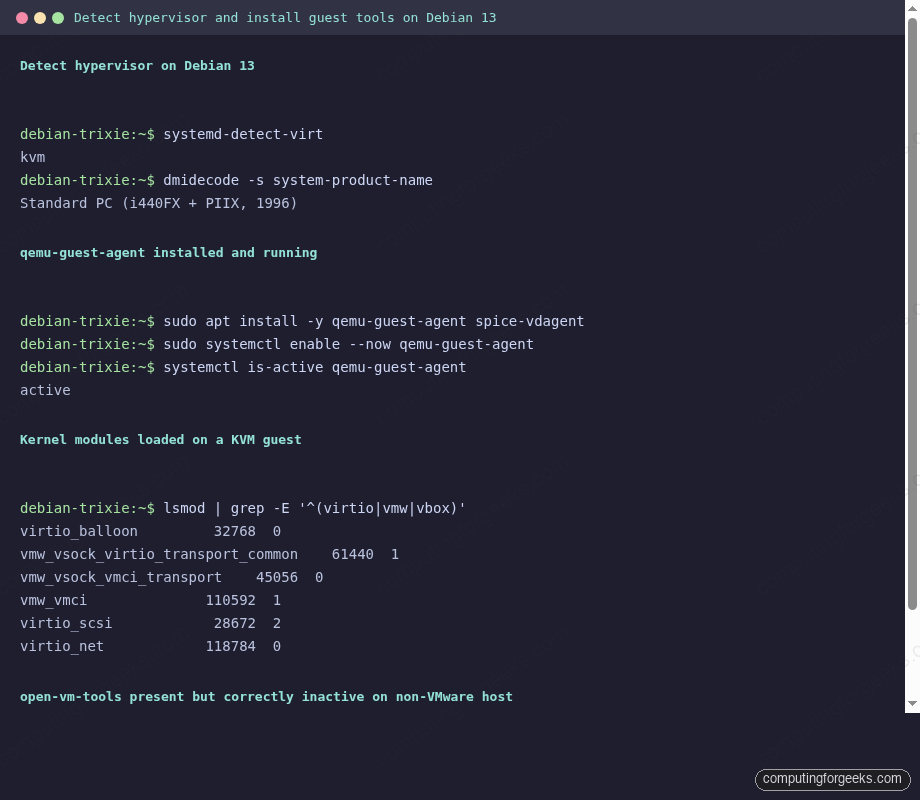
Each hypervisor loads a distinct family of kernel modules into the guest. Listing them is the fastest way to confirm, independent of systemd-detect-virt, that the right tooling is in place. Run:
lsmod | grep -E '^(virtio|vmw|vbox)'On the Debian 13 / Proxmox KVM test VM this returned:
virtio_balloon         32768  0
vmw_vsock_virtio_transport_common    61440  1 vsock_loopback
vmw_vsock_vmci_transport    45056  0
vmw_vmci              110592  1 vmw_vsock_vmci_transport
virtio_scsi            28672  2
virtio_net            118784  0
The virtio_* modules are the KVM paravirt stack (disk, NIC, memory balloon). The vmw_* modules here are the generic VMCI / vsock transport that Linux ships regardless of hypervisor, not a sign of a VMware host. What to expect per hypervisor:
| Hypervisor | Expected modules |
|---|---|
| KVM / Proxmox / libvirt | virtio_net, virtio_scsi or virtio_blk, virtio_balloon, virtio_rng |
| VMware | vmw_balloon, vmw_pvscsi, vmxnet3, vmw_vmci |
| VirtualBox | vboxguest, vboxsf, vboxvideo (desktop only) |
If you installed guest tools and the corresponding modules are missing, it is almost always one of two things: you skipped the kernel headers during the VirtualBox ISO install, or the hypervisor is not actually what you thought and you installed the wrong package.
Step 6: Clean up after a hypervisor mismatch
Migrating a VM between hypervisors (export from VMware, import into Proxmox; convert a VirtualBox VDI to qcow2) is common, and it is also the most common way you end up with the wrong guest tools. The fix is straightforward: purge the old, install the new.
Removing open-vm-tools after migrating away from VMware:
sudo systemctl stop open-vm-tools
sudo apt purge -y open-vm-tools open-vm-tools-desktop
sudo apt autoremove -y
Removing VirtualBox Guest Additions that were installed via VBoxLinuxAdditions.run:
sudo /opt/VBoxGuestAdditions-*/uninstall.sh
sudo rm -rf /opt/VBoxGuestAdditions-*
sudo apt purge -y virtualbox-guest-additions-iso
Removing qemu-guest-agent when moving off KVM:
sudo systemctl stop qemu-guest-agent
sudo apt purge -y qemu-guest-agent spice-vdagent
Then install the right package for the new hypervisor per Steps 2, 3, or 4 above, and reboot once so stale modules drop and fresh ones load. If you use VDI-to-qcow2 conversion when shifting VMs from VirtualBox to KVM, walk through the cleanup before the first boot on the new host so the first successful boot already has qemu-guest-agent running.
Feature matrix: qemu-guest-agent, open-vm-tools, and VirtualBox Guest Additions
Guest tools are not interchangeable. Each project solves a different subset of the same problem. The table below maps feature-by-feature what each agent gives you on Debian, so you can tell at a glance what you gain (or lose) by moving a workload between VMware, VirtualBox, and KVM.
| Feature | qemu-guest-agent (KVM) | open-vm-tools (VMware) | VirtualBox Guest Additions |
|---|---|---|---|
| License | GPLv2 | GPLv2 / LGPLv2.1 | GPLv2 (PUEL for proprietary extras) |
| In Debian main | Yes | Yes | No (ISO in non-free; Debian 13 has no *-utils binary) |
| Clean ACPI shutdown from host | Yes | Yes | Yes |
| Time sync from host clock | Partial (NTP preferred) | Yes (toolbox-cmd timesync) | Yes (vboxadd-timesync) |
| Quiesced / fsfreeze snapshots | Yes (guest-fsfreeze-freeze) | Yes (VSS-style quiesce) | Limited (relies on host-side pause) |
| Guest IP reported to host | Yes (guest-network-get-interfaces) | Yes | Yes |
| Shared clipboard (GUI) | Via spice-vdagent | Via open-vm-tools-desktop | VBoxClient –clipboard |
| Drag & drop (GUI) | No | Yes (desktop) | Yes (desktop) |
| Dynamic display resize | spice-vdagent on SPICE | Yes (desktop) | Yes (desktop) |
| Shared folders | virtiofs (not via guest agent) | HGFS (deprecated) | vboxsf |
| Runs script in guest from host | Yes (guest-exec) | Yes (RunProgramInGuest) | VBoxManage guestcontrol run |
| Password reset from host | Yes (qm guest passwd) | Yes (vmware-cmd / PowerCLI) | Limited |
| Default on Debian 13 cloud images | Yes | No (install on demand) | N/A |
The practical takeaway: if your workload is Debian on KVM or Proxmox, qemu-guest-agent plus (for desktops) spice-vdagent is the full story. On VMware, open-vm-tools covers both server and desktop needs. On VirtualBox the Guest Additions are the only path; there is no non-Oracle alternative. For tuning and hardening after the tools are in, our Debian 13 post-install checklist is the natural next stop.
Credential hygiene on hand-built VMs
One side effect of running personal VMs across VMware, VirtualBox, and Proxmox is that you accumulate a lot of root and service credentials scattered across shell history, Notes files, and VM snapshot descriptions. If you are doing this, put them behind a proper vault. 1Password SSH agent integrates with OpenSSH on Debian and replaces the sprawl of ad-hoc ~/.ssh keys with a single audited vault, which is especially useful when a VM moves between hosts and you want to rotate credentials cleanly.
Want us to set this up for you?
Rolling qemu-guest-agent, open-vm-tools, or VirtualBox Guest Additions into a golden image for dozens or hundreds of Debian VMs is work we do routinely. If you would rather not hand-build Packer templates or cloud-init snippets for each hypervisor, [email protected] is the fastest way to get a fixed-price quote for an automated golden image pipeline.