Your playbook calls community.general.ufw and Ansible answers with couldn't resolve module/action. The module exists, it is well maintained, thousands of people use it, but your control node has never heard of it. That gap is what Ansible collections fill. A collection is the unit Ansible ships modules, roles, plugins, and filters in, and ansible-galaxy is the tool that pulls one onto your control node so the playbook can find it.
This guide wires the whole flow together end to end: what a collection is and how the namespace.collection.module name resolves, every way to install one (Ansible Galaxy, a pinned version, a requirements.yml file, a Git repo, an offline tarball, a private Automation Hub), where the files land and which copy wins when two paths hold the same collection, how dependencies get pulled in automatically, and how to call the content from a real playbook. We also cover the one thing that trips people up most on a fresh server: matching a collection version to the ansible-core you actually have. Every command below was run on a live two-node lab, with the real output.
Confirmed working in June 2026 on a Rocky Linux 10 control node (ansible-core 2.16.16, Python 3.12) managing a Rocky Linux 10 and an Ubuntu 24.04 host.
Prerequisites
You need a working Ansible control node and at least one managed host with SSH access. If Ansible is not on the box yet, follow install Ansible on Rocky Linux and Ubuntu first, then come back. The lab here uses:
- A control node running ansible-core 2.16.16 (the version in the Rocky Linux 10 AppStream repo)
- Two managed nodes, one Rocky Linux 10 (10.0.1.11) and one Ubuntu 24.04 (10.0.1.12), reachable over SSH
- Outbound HTTPS to
galaxy.ansible.comfrom the control node (only the control node downloads collections, never the managed hosts) - Comfort with Ansible playbooks and ad-hoc commands
What Ansible collections actually are
A collection is a packaged bundle of related content under a two-part name: a namespace and a collection, like community.general or ansible.posix. Inside it are modules, roles, plugins (lookup, filter, inventory, connection), and their docs. When you reference content, you use the fully qualified collection name (FQCN), which is three parts: namespace.collection.content. So community.general.ufw means the ufw module, in the general collection, under the community namespace.
Here is the part that surprises people. ansible-core on its own ships almost no modules. It carries the ansible.builtin namespace (things like copy, template, service, file) and nothing else. Confirm it on a fresh control node:
ansible localhost -m ansible.builtin.pingThe builtin namespace is always there, so the ping answers immediately:
localhost | SUCCESS => {"changed": false, "ping": "pong"}Everything beyond that base, every community.*, ansible.posix, kubernetes.core, amazon.aws module, lives in a collection you install separately. The older “batteries-included” ansible package bundles around a hundred of them at fixed versions, but the modern, deliberate way to manage them is one collection at a time with ansible-galaxy. That is what keeps a project reproducible.
| Collection | What it lets Ansible reach |
|---|---|
community.general | A grab-bag of modules: ufw, timezone, package managers, cloud helpers |
ansible.posix | POSIX system bits: firewalld, sysctl, mount, authorized_key |
community.crypto | TLS keys, CSRs, and certificates |
community.docker | Manage Docker containers, images, networks |
kubernetes.core | Apply manifests and manage Kubernetes objects |
Install a collection from Ansible Galaxy
Ansible Galaxy is the default public source. Installing a single collection is one command:
ansible-galaxy collection install community.generalansible-galaxy resolves the dependency map, downloads the tarball from Galaxy, and unpacks it into your collections path:
Starting galaxy collection install process
Process install dependency map
Starting collection install process
Downloading https://galaxy.ansible.com/.../community-general-10.7.9.tar.gz
Installing 'community.general:10.7.9' to '.../collections/ansible_collections/community/general'
community.general:10.7.9 was installed successfully
To see what is installed and exactly where it landed, list it. The list subcommand prints the path header followed by each collection and its version:
ansible-galaxy collection listThe screenshot below captures the whole loop on the Rocky control node, the install followed by the listing of every collection sitting in the project path:
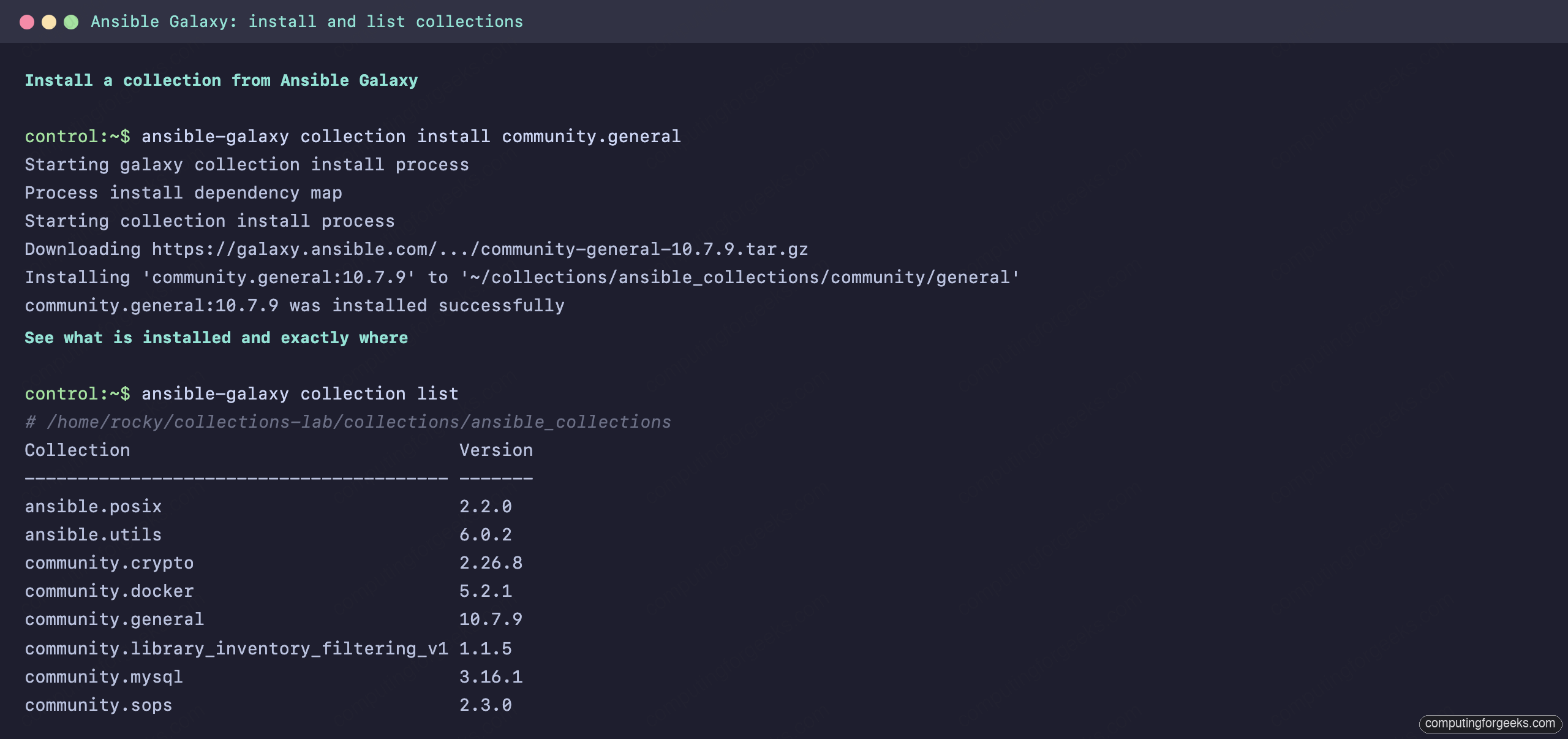
One quirk worth knowing: if no collections path exists yet, ansible-galaxy collection list prints the command’s usage text instead of an empty table. Once a single collection is installed, the listing behaves normally.
Pin versions and install several at once
Reproducibility starts with version control. You can install several collections in one call, and pin any of them. Install two together:
ansible-galaxy collection install ansible.posix community.cryptoBoth install in sequence, each reporting its resolved version:
ansible.posix:2.2.0 was installed successfully
community.crypto:2.26.8 was installed successfully
The version syntax attaches to the collection name after a colon. An exact pin uses ==, and a range uses comma-separated comparators:
# exact version
ansible-galaxy collection install 'community.docker:==3.10.0'

# a range: at least 3.10, but stay on the 3.x line
ansible-galaxy collection install 'community.mysql:>=3.10.0,<4.0.0'
Quote the argument so the shell does not try to interpret the > and < characters. The range form is the one to reach for in real projects: it lets patch and minor releases through while blocking the next major version that might break your playbooks.
Manage collections with requirements.yml
Installing by hand is fine for one box. For a project that a team shares, the source of truth is a requirements.yml file checked into the repo next to your playbooks. It can declare both collections and roles in one place. Create the file with this content:
---
collections:
  - name: community.mysql
    version: ">=3.10.0,<4.0.0"
  - name: ansible.utils

roles:
  - name: geerlingguy.ntp
The install subcommand (no collection keyword) pulls both content types in a single run:
ansible-galaxy install -r requirements.ymlRoles download first, then collections, each honoring its version constraint:
- downloading role 'ntp', owned by geerlingguy
- geerlingguy.ntp (4.0.0) was installed successfully
Installing 'community.mysql:3.16.1' to '.../community/mysql'
community.mysql:3.16.1 was installed successfully
Installing 'ansible.utils:6.0.2' to '.../ansible/utils'
ansible.utils:6.0.2 was installed successfully
Note that community.mysql resolved to 3.16.1, the newest release still inside the >=3.10.0,<4.0.0 window. Anyone who clones the repo and runs that one command lands on the same content set you tested with. If you only want the collections and not the roles, use ansible-galaxy collection install -r requirements.yml instead. The roles guide covers the role side in depth.
Where collections live, and which copy wins
Ansible searches an ordered list of directories for collections. By default that is the project-adjacent ./collections, then ~/.ansible/collections, then the system-wide /usr/share/ansible/collections. The first directory in that order that holds a given collection is the one that loads. You can see the search order with ansible-config:
ansible-config dump | grep COLLECTIONS_PATHOn this lab the project path comes first, which means a project-local collection always overrides a user or system copy:
COLLECTIONS_PATHS(.../ansible.cfg) = ['.../collections-lab/collections', '/home/rocky/.ansible/collections']To prove the precedence, put an older release in the user path while the project path holds a newer one, then list the collection. Both copies show up under their own path headers:
# /home/rocky/.ansible/collections/ansible_collections
Collection        Version
----------------- -------
community.general 9.5.7

# /home/rocky/collections-lab/collections/ansible_collections
Collection        Version
----------------- -------
community.general 10.7.9
Because the project path is first in the search order, the newer copy is the one a playbook uses. The user-path copy is shadowed. This is the piece that ties a project together: commit your collections (or your requirements.yml) alongside the playbooks and every run uses that exact set, regardless of what is installed globally on the box.
Two ways to target a specific path. The -p flag installs into a directory you name:
ansible-galaxy collection install kubernetes.core -p ~/extra-collectionsWatch for the catch here: if that directory is not part of your configured collections path, Ansible installs the files but never loads them at runtime. ansible-galaxy warns you about exactly that, so read the output rather than assuming success. The ANSIBLE_COLLECTIONS_PATH environment variable is the other lever, and it overrides the config file for a single command:
ANSIBLE_COLLECTIONS_PATH=~/.ansible/collections ansible-galaxy collection list community.generalThat call ignores the project path entirely and reports the older copy from the user directory. Handy for testing how a playbook behaves against a different installed set without editing ansible.cfg.
Install from Git, a tarball, or Automation Hub
Galaxy is the default, not the only source. Three others come up constantly.
Straight from a Git repository
When you need an unreleased fix, a fork, or an internal collection that never goes to Galaxy, install from Git with the git+ prefix. Append ,<branch> or ,<tag> to pin a ref:
ansible-galaxy collection install git+https://github.com/ansible-collections/community.sops.gitIt clones the repo, reads the galaxy.yml at the root to learn the collection name and version, and installs it like any other:
Cloning into '.../community.sops...'
Installing 'community.sops:2.3.0' to '.../collections/ansible_collections/community/sops'
community.sops:2.3.0 was installed successfully
Offline, for an air-gapped control node
A control node with no internet still needs collections. The pattern is two steps: download on a connected machine, then install on the isolated one. The download subcommand fetches the tarballs and writes a matching requirements.yml that points at them:
ansible-galaxy collection download community.crypto -p ~/airgapLook at what it produced. The directory holds the tarball plus a generated requirements file:
community-crypto-2.26.8.tar.gz
requirements.yml
Copy that whole directory to the air-gapped node (a USB drive, an internal artifact store, whatever your process allows), then install straight from the generated file with no network at all:
cd ~/airgap
ansible-galaxy collection install -r requirements.yml
The install reads the tarball off local disk:
Installing 'community.crypto:2.26.8' to '.../community/crypto'
community.crypto:2.26.8 was installed successfully
From a private Automation Hub
Teams that run Red Hat Automation Hub or a private Galaxy server point ansible-galaxy at it through the [galaxy] section of ansible.cfg. List your servers in priority order and give each one its URL and token:
[galaxy]
server_list = private_hub, release_galaxy

[galaxy_server.private_hub]
url = https://hub.internal.example.com/api/galaxy/content/published/
token = YOUR_HUB_TOKEN

[galaxy_server.release_galaxy]
url = https://galaxy.ansible.com/
With that in place, ansible-galaxy tries the private hub first and falls back to public Galaxy. You can also force a single source for one command with the --server flag. Keep the token out of the file itself where you can, by reading it from an environment variable or, better, from Ansible Vault.
Dependencies resolve on their own
Collections can depend on other collections, and ansible-galaxy pulls the chain in for you. Installing cisco.ios into a fresh path drags in the network plumbing it needs:
ansible-galaxy collection install cisco.ios -p ~/dep-demoTwo collections land even though you asked for one. ansible.netcommon came along as a dependency:
Installing 'cisco.ios:11.4.1' to '.../cisco/ios'
cisco.ios:11.4.1 was installed successfully
Installing 'ansible.netcommon:8.5.2' to '.../ansible/netcommon'
ansible.netcommon:8.5.2 was installed successfully
You saw the same thing earlier without realizing it: installing community.docker quietly added community.library_inventory_filtering_v1. If you are populating an offline bundle and want only the named collection, --no-deps turns the automatic resolution off:
ansible-galaxy collection install cisco.ios -p ~/nodep-demo --no-depsThat installs cisco.ios alone, leaving you to supply ansible.netcommon yourself. Use it deliberately, because a collection without its dependencies will fail at runtime, not at install time.
Use a collection in a playbook
Installed content is reached by its FQCN. Always spell out the full namespace.collection.module name in tasks. It removes ambiguity, makes the playbook self-documenting about where each module comes from, and avoids the name clashes that bite you when two collections ship a module with the same short name.
Here is where collections earn their keep as an integration layer. The same job, opening port 80, uses a different module per OS family: ansible.posix.firewalld on the Rocky host, community.general.ufw on the Ubuntu host. A second play generates a self-signed certificate on the control node with community.crypto. Save this as site.yml:
---
- name: Open a firewall port using the right collection per OS
  hosts: web
  become: true
  tasks:
    - name: Allow HTTP on RHEL-family hosts (ansible.posix)
      ansible.posix.firewalld:
        service: http
        permanent: true
        immediate: true
        state: enabled
      when: ansible_os_family == "RedHat"

    - name: Allow HTTP on Debian-family hosts (community.general)
      community.general.ufw:
        rule: allow
        port: "80"
        proto: tcp
      when: ansible_os_family == "Debian"

- name: Generate a self-signed TLS cert with community.crypto
  hosts: localhost
  connection: local
  gather_facts: false
  vars:
    cert_dir: /home/rocky/pki
  tasks:
    - name: Ensure the PKI directory exists
      ansible.builtin.file:
        path: "{{ cert_dir }}"
        state: directory
        mode: "0755"

    - name: Create a private key
      community.crypto.openssl_privatekey:
        path: "{{ cert_dir }}/web.key"
        size: 2048

    - name: Create a self-signed certificate
      community.crypto.x509_certificate:
        path: "{{ cert_dir }}/web.crt"
        privatekey_path: "{{ cert_dir }}/web.key"
        provider: selfsigned
        selfsigned_not_after: "+365d"
Run it against the inventory:
ansible-playbook site.ymlThe when conditions route each host to the module that fits it. The Rocky host changes through firewalld and skips the ufw task, the Ubuntu host does the reverse, and the control node mints the key and certificate:
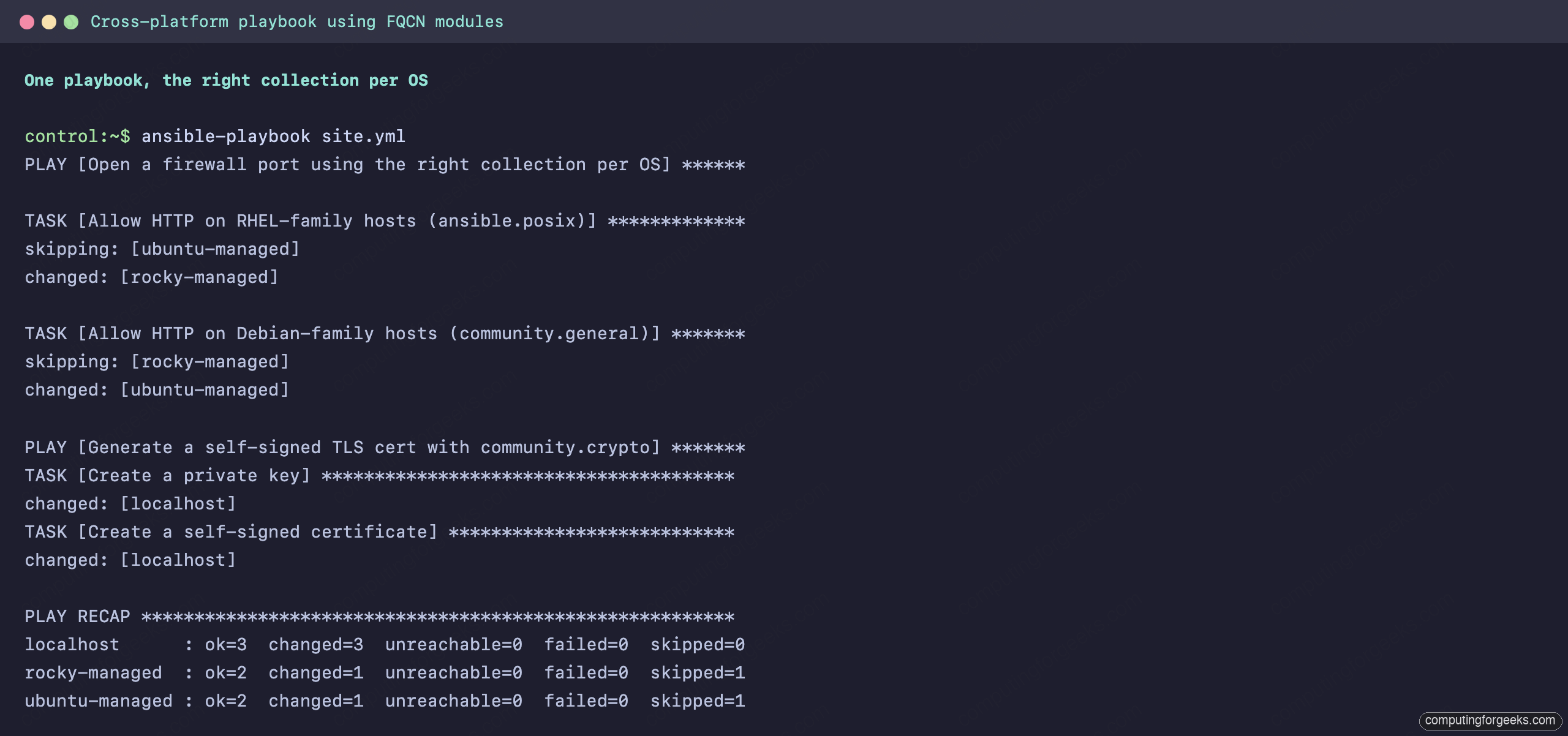
One playbook, two operating systems, three collections doing the work. Run it a second time and the firewall tasks report ok instead of changed, because the modules are idempotent and the rules already exist. To explore what a collection offers before you write tasks, list its modules with ansible-doc -l community.general and read any one of them with ansible-doc community.general.timezone.
Match the collection version to your ansible-core
This is the single most common stumbling block on a freshly provisioned server, and it is worth slowing down for. Distributions ship an ansible-core that lags the newest releases. Rocky Linux 10 and Ubuntu 24.04 both package ansible-core 2.16, while the current community.general targets a newer core. Install the latest and then look at any module:
ansible-galaxy collection install community.general
ansible-doc community.general.timezone
Ansible loads the module but warns that the pairing is unsupported:
[WARNING]: Collection community.general does not support Ansible version 2.16.16The module may still run today, but you are off the tested path and a future task can break in ways nobody upstream is checking for. Two clean fixes. The first, and the one most readers want, is to pin the collection to the line that supports your core. The 10.x line of community.general is built for ansible-core 2.16:
ansible-galaxy collection install 'community.general:>=10.0.0,<11.0.0' --forceThat resolves to the newest 10.x release and the warning is gone:
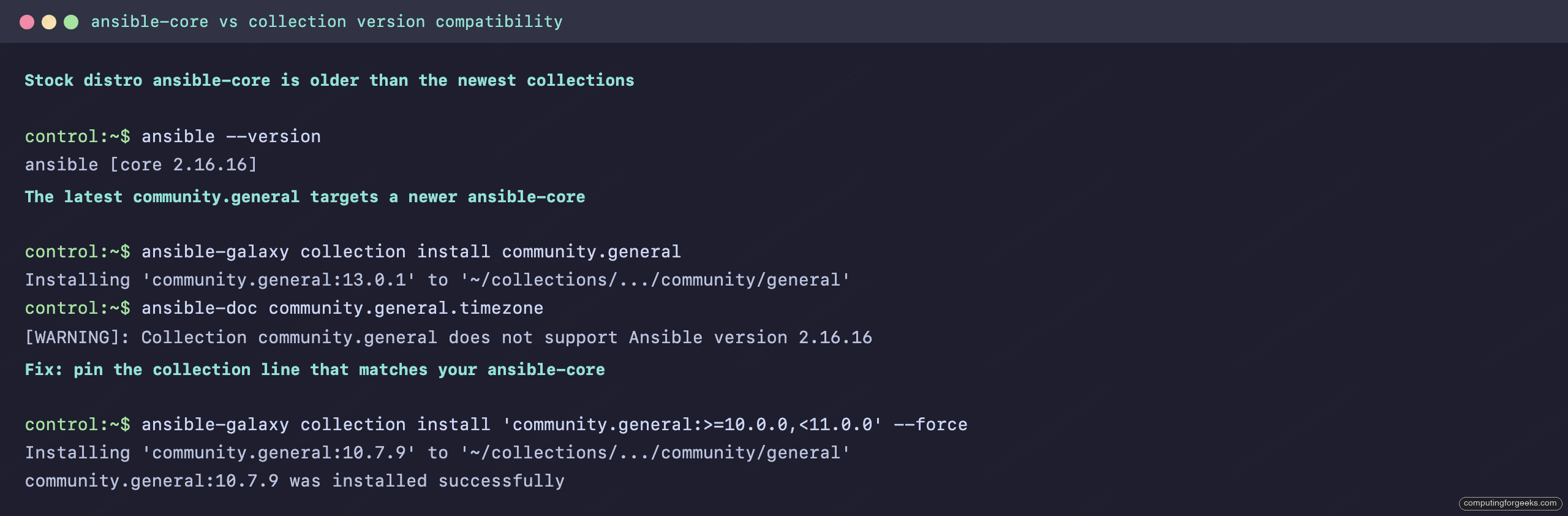
The second fix is to upgrade ansible-core itself so you can run the newest collections. Do it in an isolated environment rather than fighting the system package:
python3 -m pip install --user --upgrade ansible-corePick one approach per project and write it down. A pinned collection set plus a known ansible-core is what makes a run on your laptop match a run in CI. The same compatibility check matters when you wire collections into role tests with Molecule.
Verify and trust what you installed
Before a collection runs with root on every host you manage, it is fair to ask whether the files on disk are the files the author published. The verify subcommand checks the installed content against the checksums on Galaxy:
ansible-galaxy collection verify community.generalA clean install confirms the match in one line:
Successfully verified that checksums for 'community.general:10.7.9' match the remote collection.To see that the check has teeth, edit one installed file and verify again. The command names the file that no longer matches:
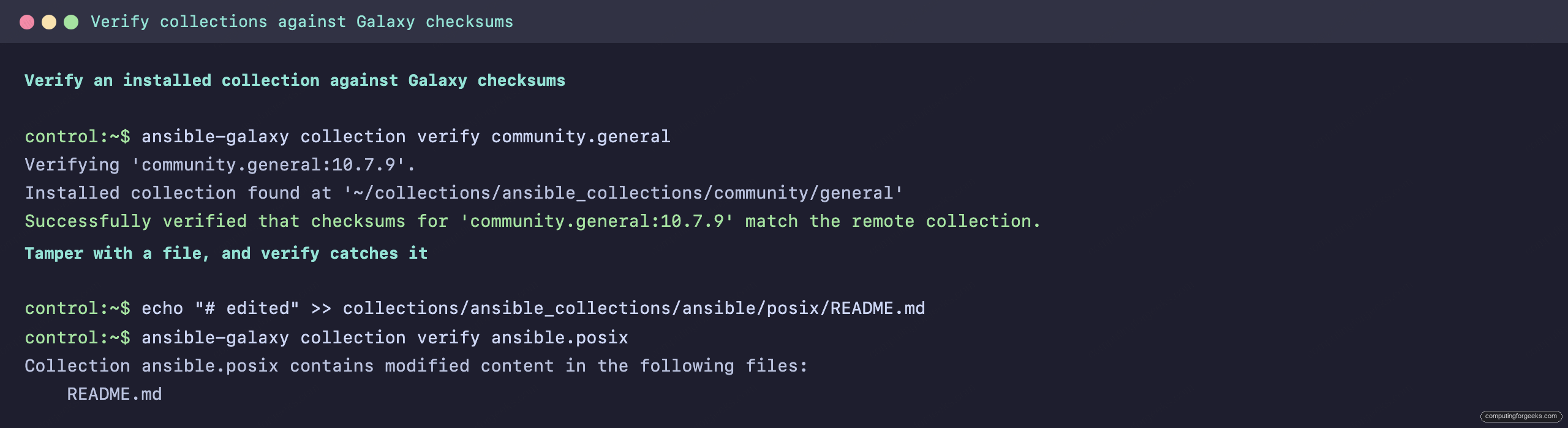
That tamper detection is the round trip you want before trusting third-party automation: install, verify against the source, and only then run. Wire ansible-galaxy collection verify into CI alongside the install step and a modified or corrupted collection fails the pipeline instead of reaching production.
Troubleshooting collection resolution
Most collection problems are really resolution problems: Ansible cannot find the content, or it finds the wrong copy. These are the failures that came up while building this guide and how each one resolves.
“couldn’t resolve module/action”
The collection is not installed in any configured path, or the FQCN is misspelled. Confirm the collection is present with ansible-galaxy collection list, then check the namespace and name in your task against the list output. A task that says community.docker.docker_container needs community.docker installed, not community.general.
A playbook uses an old version you thought you upgraded
Two paths hold the same collection and the earlier one in the search order wins. Run ansible-galaxy collection list and read every path header, not just the first. If the project ./collections directory holds an old copy, that copy shadows the freshly upgraded one in ~/.ansible/collections. Remove the stale copy or upgrade it in place with --force.
“does not support Ansible version”
The collection is newer than your ansible-core. Pin the collection to the line that matches your core, or upgrade ansible-core, as shown above. Check the requirement with ansible --version and the collection’s own runtime.yml or its Galaxy page.
“installed collection will not be picked up”
You installed with -p into a directory outside your configured collections path. Either add that directory to collections_path in ansible.cfg, set ANSIBLE_COLLECTIONS_PATH, or reinstall without -p so it lands somewhere Ansible already searches. The fastest habit that avoids all of this is to keep a requirements.yml in the repo and let ansible.cfg point collections_path at a project-local directory, so every clone resolves the same content the same way. Keep the Ansible cheat sheet within reach and the Ansible automation guide open for where collections fit in the bigger workflow.