

Visual Studio Code remains the most-used code editor on Linux, and Microsoft maintains an official Fedora-compatible RPM repository that makes installation a three-command affair. The Microsoft repo carries the proprietary code build (with GitHub Copilot and the Microsoft marketplace), updates roll in through normal dnf upgrades, and the package integrates cleanly with the GNOME and KDE application menus.
This guide installs VS Code on Fedora 44, 43, and 42 through the official Microsoft RPM repo, covers extension management from the command line, points out the open-source Flatpak alternative (VSCodium) when telemetry-free is a hard requirement, and walks through settings sync, the remote-development extensions, and the clean-uninstall path. Every command was run on a fresh Fedora 44 install.
Prerequisites
You need a Fedora 44, 43, or 42 desktop with sudo access. The repo install path works on Workstation, Spins (KDE, Sway, etc.), and on Server when you want the CLI plus the Remote-SSH or Remote-Tunnels workflow. Internet access to packages.microsoft.com is required; the package itself is around 690 MiB on disk.
Step 1: Import the Microsoft GPG key
The Microsoft repo signs every package with Microsoft’s release key. Import it once so DNF can verify signatures without prompting on every install:
sudo rpm --import https://packages.microsoft.com/keys/microsoft.ascThe command exits silently on success. Confirm the key landed in the RPM keyring:
rpm -qa gpg-pubkey | xargs -I{} rpm -qi {} | grep -E 'Summary|Packager' | grep -i microsoftStep 2: Add the VS Code repository
Microsoft publishes a single generic RPM repo for VS Code that works across Fedora, RHEL, Rocky, and AlmaLinux. Drop the repo definition into /etc/yum.repos.d/:
sudo vi /etc/yum.repos.d/vscode.repoPaste the following and save:
[code]
name=Visual Studio Code
baseurl=https://packages.microsoft.com/yumrepos/vscode
enabled=1
gpgcheck=1
gpgkey=https://packages.microsoft.com/keys/microsoft.asc
Refresh the DNF cache and confirm the repo is recognised:
sudo dnf check-update --refresh
sudo dnf repolist | grep -i code
Step 3: Install VS Code
Install the editor and its handful of dependencies:
sudo dnf install -y codeThe transaction pulls down the editor itself (under 200 MiB compressed, 687 MiB installed) along with the desktop integration helpers:
Installing:
 code                  x86_64    1.121.0-...    code      193.7 KiB
Installing dependencies:
 desktop-file-utils    x86_64    221.7 KiB
 xdg-utils             noarch    349.5 KiB
 libxkbfile            x86_64    203.0 KiB
 emacs-filesystem      noarch    812.0   B
 socat                 x86_64    1.4 MiB

Complete!
Step 4: Verify the install
Confirm the code binary is on the path and reporting the version:
code --version
which code
Output shows the version, the commit hash, and the architecture:
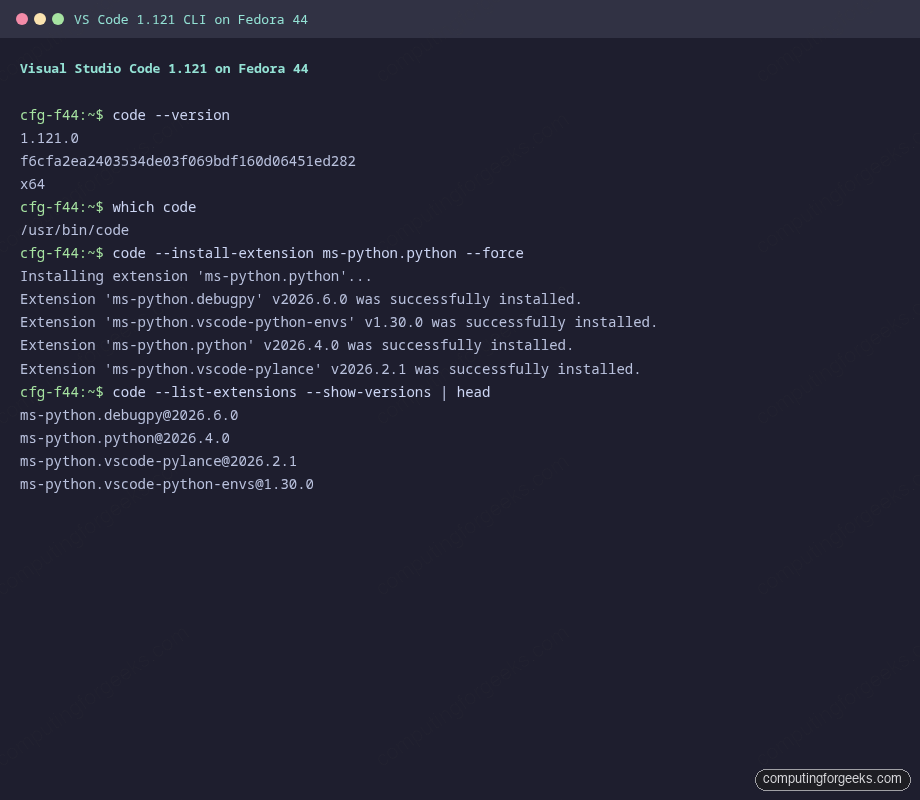
1.121.0
f6cfa2ea2403534de03f069bdf160d06451ed282
x64
/usr/bin/code
The full CLI verification, including the headless extension install that the next step covers, looks like this on the test box:
Launch VS Code from the application menu (look for “Visual Studio Code” under Programming) or directly from a terminal:
code &Step 5: Install extensions from the command line
Installing extensions through the CLI is faster than clicking through the UI, and reproducible for dotfiles or new-machine bootstrapping. Each extension is identified by its publisher.name id from the marketplace.
Install the Python stack (Python, debugpy, env tools, and Pylance) in one shot:
code --install-extension ms-python.python --forceThe Python extension declares its own dependencies, so VS Code resolves the chain and installs them in order:
Installing extension 'ms-python.python'...
Extension 'ms-python.debugpy' v2026.6.0 was successfully installed.
Extension 'ms-python.vscode-python-envs' v1.30.0 was successfully installed.
Extension 'ms-python.python' v2026.4.0 was successfully installed.
Extension 'ms-python.vscode-pylance' v2026.2.1 was successfully installed.
List installed extensions:
code --list-extensions --show-versionsExport a dotfiles-friendly list of extension ids you can pipe back in on a fresh machine:
code --list-extensions > ~/vscode-extensions.txt
cat ~/vscode-extensions.txt | xargs -L1 code --install-extension
Remove an extension by id:
code --uninstall-extension ms-python.pythonStep 6: Settings sync across machines
VS Code has built-in Settings Sync that pushes preferences, keybindings, snippets, UI state, and the installed extension list to a GitHub or Microsoft account. The first time you sign in, the editor backfills your config from the cloud; from then on, anything you change locally propagates to your other VS Code installs automatically.
Turn it on from the command palette (Ctrl+Shift+P) by running “Settings Sync: Turn On” and picking which categories to sync. The configuration data lives under ~/.config/Code/User/ on the local box and the cloud-stored state mirrors that directory.
For dotfile-managed setups, settings sync is optional. ~/.config/Code/User/settings.json, keybindings.json, and the snippets/ directory cover everything you need to put under version control yourself.
Step 7: Remote development
VS Code’s remote-dev story is the reason many engineers stick with it on Linux. The editor runs locally; the actual interpreter, terminal, and language services run inside an SSH host, a container, a WSL distro, or a tunnel. Three first-party extensions cover the cases:
code --install-extension ms-vscode-remote.remote-ssh
code --install-extension ms-vscode-remote.remote-containers
code --install-extension ms-vscode.remote-server
The remote-ssh extension is the everyday workhorse: open a remote folder over SSH and the entire editor behaves as if it were local. Combine with the bundled code-tunnel binary for connecting to machines behind NAT without opening any inbound ports:
code tunnelThe remote-containers extension pairs nicely with Distrobox or Toolbox on Fedora for isolating per-project toolchains, or with Docker on Fedora for full Dev Containers.
Step 8: Keep VS Code updated
Microsoft pushes a new VS Code release roughly once a month and the RPM repo gets the new build within a day or two. Because the repo is in your DNF list now, updates ride along with normal system upgrades:
sudo dnf upgrade -y codeOr as part of a full system update:
sudo dnf upgrade -yIf you want notifications when a new VS Code is available without immediately upgrading, query the repo for the current version and compare to what is installed:
dnf check-update codeAlternative: VS Code via Flatpak (or VSCodium)
The RPM build is Microsoft’s proprietary distribution with telemetry, the Microsoft marketplace, and GitHub Copilot bundled. For a fully open-source build with telemetry disabled by default and the open-vsx marketplace, install Flatpak from Flathub, then:
flatpak install -y flathub com.vscodium.codiumVSCodium is built from the same upstream sources as VS Code, minus the proprietary Microsoft customisations. Extensions install from the open-vsx marketplace, which has fewer extensions than the Microsoft one (notably no Pylance, no Remote-SSH from Microsoft, no Live Share). For most editor workflows, the gap is small. For Python or remote dev specifically, the RPM is still the practical choice.
If you want VS Code itself but sandboxed, the official Flathub build is at com.visualstudio.code:
flatpak install -y flathub com.visualstudio.codeThe Flatpak build sandboxes file system access (you grant per-directory using Flatpak portals), which trips up tasks like Docker volume editing or system-wide format-on-save tools. The RPM build is friction-free for those.
Step 9: Uninstall cleanly
Remove the package, the repo definition, and the user-state directories in one go:
sudo dnf remove -y code
sudo rm -f /etc/yum.repos.d/vscode.repo
rm -rf ~/.config/Code ~/.vscode
The third command is the one beginners miss: it deletes user settings, the extension cache, and any open workspace state. Skip it if you plan to reinstall and want to keep your customisations.
Troubleshooting
Error: Cannot retrieve repository metadata (repomd.xml) for repository: code
Usually a corporate proxy stripping the SSL or your DNS not resolving packages.microsoft.com. Test with curl -I https://packages.microsoft.com/yumrepos/vscode/repodata/repomd.xml and fix the network path. As a last resort, set sslverify=0 in /etc/yum.repos.d/vscode.repo only after confirming the proxy is the cause and the org accepts that tradeoff.
VS Code launches but the window is blank or solid white on Wayland
Electron’s Wayland support on Mesa drivers occasionally regresses on a major mesa update. Force the X11 backend as a workaround until VS Code ships a new Electron build:
code --ozone-platform=x11To make it permanent, edit /usr/share/applications/code.desktop and append the flag to the Exec= line.
Extension install hangs or fails with a network error
The marketplace API has rate limits per IP. Wait 5 minutes and retry. If the issue persists, check whether your network blocks marketplace.visualstudio.com. The Microsoft marketplace is geo-fenced from a few jurisdictions; if you hit a region restriction, switch to the open-vsx mirror by setting the extensions.gallery.serviceUrl in settings.json.
GPU process crashes filling the journal
Common on virtual machines without hardware acceleration. Disable the GPU process:
code --disable-gpuFor a permanent fix on a VM, add "disable-hardware-acceleration": true to ~/.config/Code/User/settings.json.
Useful VS Code CLI commands
The code binary is more than a window launcher. A short reference of the flags worth bookmarking:
| Command | What it does |
|---|---|
code . | Open the current directory as a workspace |
code file.py | Open a file in the existing or a new window |
code -d a.txt b.txt | Side-by-side diff of two files |
code --goto file:42:10 | Jump to line 42, column 10 of file |
code --new-window | Always open in a fresh window |
code --add /path/to/dir | Add a folder to the current multi-root workspace |
code --list-extensions | Print installed extensions |
code --install-extension <id> | Install an extension by marketplace id |
code --uninstall-extension <id> | Remove an extension |
code tunnel | Start a Microsoft-hosted tunnel to this machine |
code --user-data-dir /tmp/test | Launch with a clean profile for debugging |
For a paired backend stack, follow the Docker on Fedora guide so VS Code’s Dev Containers extension has something to attach to. To run multiple Linux distros side by side from within VS Code, set up Distrobox or Toolbox first. If you want to swap the proprietary Microsoft build entirely for the open-vsx Flatpak path, the Flatpak setup guide covers Flathub onboarding.



Thank you so much! I needed a quick answer and you provided one. I am grateful
We appreciate at n0nex
Nice and concise, exactly what i needed