Pick the CPU platform first and the rest of a homelab build falls into place around it. The socket decides your motherboard, the motherboard decides your RAM and PCIe layout, and the chip’s iGPU decides whether media transcoding is free or needs a separate card. So choosing AMD vs Intel for a homelab is not really about which brand is faster in a benchmark. It is about matching a platform to what the box will actually do all day.
The honest one-line answer: build on Intel when the machine transcodes video or has to sip power around the clock, and build on AMD when you want the most cores per dollar, a long upgrade runway, or ECC without paying workstation-chipset prices. Everything below is the reasoning behind that split, with real output from the boxes here rather than a spec-sheet paste.
The QuickSync capture and IOMMU counts below come from Intel machines we run day to day, pulled in July 2026; the AMD idle-power and transcode figures are from current vendor specs and independent tests, not a box on our own bench.
The short answer, by what you run
Most homelab builds fall into one of four buckets, and the platform choice is close to decided the moment you know which one you are in.
- A media box (Plex, Jellyfin, Frigate): Intel. QuickSync is the most mature, most power-efficient hardware transcoder you can get without adding a GPU, and it is why the Frigate NVR appliance and most home media servers lean Intel.
- A heavy virtualization or compute host: AMD. More cores and threads per dollar, and full SMT on every core makes VM allocation simple. This is the road the DevOps workstation build takes.
- A cheap always-on node: Intel, usually as an N-series mini PC. It idles in single-digit watts and runs a dozen light services without noticing. The homelab mini PC guide is the shortcut here.
- A box you want to upgrade for years, on a budget, with ECC: AMD AM5. The socket is supported into 2029, and ECC works on the right consumer board without a pricey workstation chipset.
If your build spans more than one of those, weight the one that costs the most to get wrong. A media server that cannot transcode is useless; a compute host that is two cores short is merely slower. The rest of this guide fills in why each call lands where it does.
Cores: AMD’s uniform threads vs Intel’s P and E cores
For a virtualization host, core and thread count is the headline number, and the two brands hand it to you in very different shapes.
AMD keeps it simple. Every core on a Ryzen chip is the same, and every core runs two threads through SMT, so a 16-core desktop part gives you 32 identical threads to carve into VMs. There are no fast and slow cores to reason about, which makes CPU pinning and NUMA-aware layouts easy on a hypervisor. When you need more than a desktop offers, Threadripper and EPYC scale the same uniform design to 32, 64, and beyond, which is exactly why the big-iron tiers of our builds reach for them.
Intel’s current desktop line took a different turn. The Core Ultra 200 series pairs a handful of performance (P) cores with a larger set of efficiency (E) cores, and it dropped HyperThreading entirely, so a 14-core chip is 14 threads, not 28. For a lot of light VMs the E-cores are genuinely useful, since a firewall VM or a small container does not need a P-core. But the asymmetry means you think harder about which workload lands on which core type, and a naive scheduler can park a latency-sensitive VM on an E-core. On a Proxmox host that runs a mix, the mental overhead is real, and it is one reason the mid and upper tiers of the Proxmox server build favour AMD.
The practical read: if the box exists to run many VMs, AMD’s uniform threads are the easier and usually cheaper path to a high count. If it runs a few VMs alongside desktop or media duty, Intel’s mixed cores are fine and the other Intel advantages start to matter more.
QuickSync: the Intel advantage that decides media homelabs
This is the single feature that sends most media-focused homelabs to Intel. Intel’s integrated graphics carry QuickSync, a fixed-function video engine that decodes H.264, HEVC, VP9, and AV1, and hardware-encodes H.264 and HEVC (plus AV1 on the newest Arrow Lake chips), all at a few watts. Plex, Jellyfin, and Frigate all support it well, and it has years of driver maturity behind it.
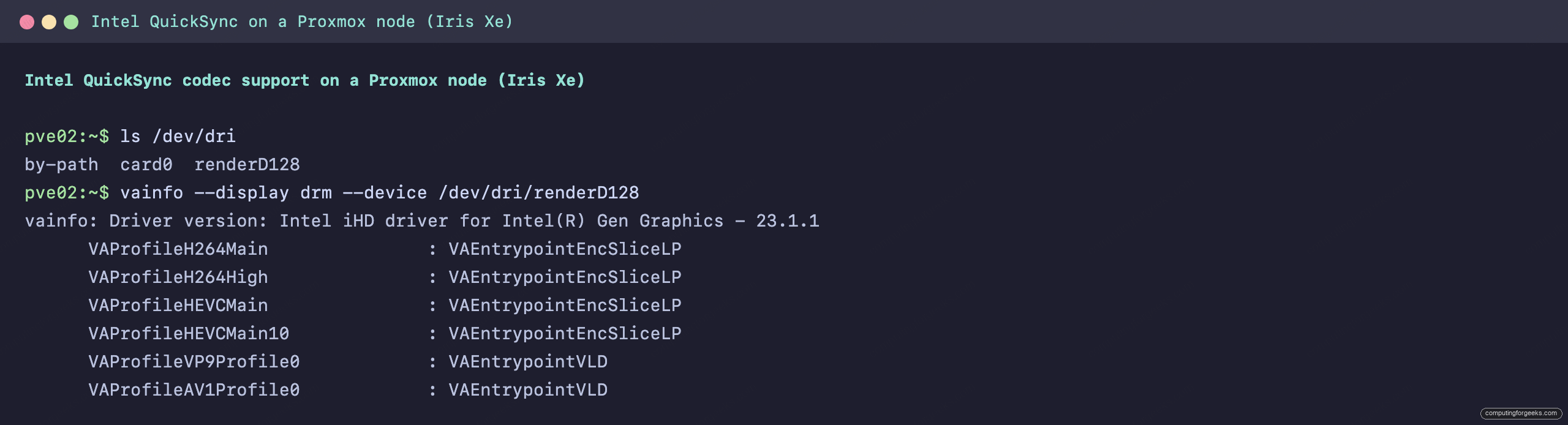
You can see exactly what a chip accelerates from Linux. On one of the Proxmox nodes here, an 11th-gen Core with Iris Xe graphics, the render device shows up under /dev/dri and vainfo lists the codecs:
vainfo --display drm --device /dev/dri/renderD128The driver loads and the profile list names each codec the chip can decode (VLD) and encode (EncSliceLP):
vainfo: Driver version: Intel iHD driver for Intel(R) Gen Graphics - 23.1.1
      VAProfileH264Main               : VAEntrypointEncSliceLP
      VAProfileH264High               : VAEntrypointEncSliceLP
      VAProfileHEVCMain               : VAEntrypointEncSliceLP
      VAProfileHEVCMain10             : VAEntrypointEncSliceLP
      VAProfileVP9Profile0            : VAEntrypointVLD
      VAProfileAV1Profile0            : VAEntrypointVLD
Both the H.264 and HEVC lines carry an encode entry point, so this chip transcodes those in hardware. AV1 shows a decode entry point only, which is right for this generation; hardware AV1 encode arrived on Intel’s newer Arrow Lake desktop graphics. The full capture side by side makes the point:
AMD is not shut out here, but it trails. Nearly every AM5 Ryzen desktop chip includes a small two-compute-unit RDNA2 iGPU with a VCN video engine, so it can drive a display and do basic hardware transcode. VCN has improved a lot, yet independent tests still put QuickSync ahead on transcode efficiency, often by 20 to 30 percent, and it draws less power for the same job, with app support that skews toward Intel. Worse, the older AM4 generation’s non-G chips had no iGPU at all, so a Plex box on that platform needed a discrete card just to transcode. If media is the point of the build, Intel is the answer and it is not especially close.
IOMMU and PCIe passthrough: both work, with a caveat
Passing a GPU, an HBA, or a NIC straight through to a VM needs IOMMU, and both platforms have it: Intel calls it VT-d, AMD calls it AMD-Vi. Neither brand has an edge on whether passthrough works at all. Enable it in the BIOS, add the kernel flag, and the groups appear. On the Intel nodes here, counting them is one line:
find /sys/kernel/iommu_groups -maxdepth 1 -type d | wc -lThe newer board reports plenty of distinct groups, which is what you want:
18The caveat is about grouping quality, not the feature. A device can only be passed through cleanly if it sits in its own IOMMU group. Some consumer boards, on both platforms but historically more often on cheaper AMD boards, lump several devices into one group, which forces you to pass them all through together or fall back to the pcie_acs_override kernel workaround, and that override weakens the isolation IOMMU exists to provide. The fix is to choose the board for its layout, not the CPU brand. Workstation-class boards from either camp separate their slots properly, so if passthrough matters, read the board reviews rather than the CPU spec sheet.
Idle power: what running it 24/7 actually costs
A homelab node is on all the time, so idle draw, not peak draw, is the number that shows up on your electricity bill. This is where Intel’s desktop chips quietly win.
Intel’s monolithic desktop dies idle very low. Independent testing puts a current Core Ultra desktop chip around 10 to 13 watts at idle, and the well-known low-power Intel 12th and 13th-gen NAS builds reach roughly 7 watts at the wall for the whole system. AMD’s desktop chiplet design pays a tax here: the separate I/O die keeps drawing power even when the cores are asleep, so a Ryzen 9 desktop part idles north of 20 watts and climbs toward the high 30s once a browser or a background service keeps it lightly busy. We did not put a meter on these ourselves; the figures come from vendor specs and independent reviews, so treat them as a range, not a guarantee for your exact board.
The gap sounds small until you annualise it. Fifteen extra watts, running every hour of the year, is about 130 kWh, which is real money on top of a machine that never turns off. If the build is an always-on box first and a workhorse second, that math favours Intel, and it favours a low-power mini PC even more. For anything where raw compute justifies the draw, the difference stops mattering.
ECC on a budget: where AMD quietly wins
If you want error-correcting memory without buying into a server platform, AMD is the cheaper door. AM5 (and AM4 before it) supports ECC unofficially on the right consumer board, so a workstation-class desktop board plus ECC UDIMMs gets you real, reporting ECC for the price of a normal build. Intel locks ECC out of its consumer chipsets entirely; to get it you step up to a W680 or W880 workstation board, which costs noticeably more.
That is a genuine reason to lean AMD for a storage or Proxmox host that you want protected but do not want to spend workstation money on. The full breakdown of which platforms report ECC, and which module type each takes, is in the ECC RAM for a homelab guide, and the sizing side is covered in how much RAM a Proxmox host needs.
What to actually buy
Once you know your bucket, the pick is short. Prices swing hard in the current market, so treat these as bands and check the live price before you commit.
- Cores and upgrade path (AMD): the 16-core, 32-thread Ryzen 9 9950X is the desktop ceiling for a virtualization host, drops into any AM5 board, and inherits the socket’s long support life. Roughly $500 to $600 depending on the week. A cheaper Ryzen 7 covers a lighter host on the same platform.
- Media plus efficiency (Intel): the Core Ultra 5 245K keeps its integrated graphics, so you get modern QuickSync (including AV1) and low idle power in one chip, usually in the $200 to $270 range. Pair it with a board that exposes the iGPU.
- Cheap always-on (Intel N-series): skip the tower entirely and buy a mini PC. The picks and the reasoning are in the mini PC guide, and it is the lowest-power, lowest-fuss way to run a stack of light services.
Whichever chip you land on, the build it goes into is the next step: the Proxmox host build for a general virtualization box, the local AI workstation if a GPU is the point, or the three-node Kubernetes cluster if you are going wide instead of tall.
The AMD vs Intel myths that trip up homelab builders
A few claims get repeated in every homelab thread and send people down the wrong path.
“AMD desktop chips have no graphics.” True on AM4’s non-G parts, false on AM5 (the graphics-disabled F models aside). Nearly every AM5 Ryzen has a small RDNA2 iGPU that drives a display and does basic transcode. It just is not as good at it as QuickSync.
“Intel’s E-cores are useless for a server.” The opposite, for the right load. E-cores are excellent homes for the many small VMs and containers a homelab accumulates. The catch is scheduling awareness, not the cores themselves.
“You must have QuickSync.” Only if you transcode. A pure compute, storage, or Kubernetes node never touches the video engine, and on those the extra AMD cores and the AM5 upgrade path matter far more than an iGPU you will never use.
“AMD always uses more power.” Under sustained load, modern Ryzen is very efficient per unit of work. The idle penalty is real and matters for an always-on box, but a machine that is actually doing something erases most of the gap. Match the claim to how the box spends its day, and the platform picks itself.