A Thunderbolt 4 dock turns a Linux laptop into a full workstation with one cable: two monitors, wired Ethernet, a keyboard and mouse, external drives, and charging, all through a single port. On Windows and macOS that story mostly just happens. On Linux there are two extra questions that decide whether a dock is a joy or a headache: does the kernel authorize it cleanly, and can you update its firmware without borrowing a Windows machine.
Those two questions are what separates the docks below. All three are proper Thunderbolt 4 docks that light up on a modern Linux desktop through the kernel’s thunderbolt subsystem and boltctl, no vendor driver required. Where they differ is charging wattage, whether the Ethernet is 2.5GbE or plain gigabit, and, crucially, whether the manufacturer ships firmware to the Linux Vendor Firmware Service so fwupdmgr can flash it. This guide ranks the best Thunderbolt 4 dock for Linux, then walks the exact commands to authorize a dock and keep it patched.
Current as of July 2026.
The quick picks
- Best overall: CalDigit TS4. Eighteen ports, 98W charging, and 2.5GbE. Nothing else comes close on connectivity.
- Best for firmware you can actually update on Linux: Lenovo ThinkPad Universal Thunderbolt 4 Dock. Its firmware ships on LVFS, so
fwupdmgrflashes it with no Windows machine in sight. - Best simple, mountable dock: Kensington SD5700T. Clean 90W dock with a full set of Thunderbolt ports. Its one catch is gigabit, not 2.5GbE, Ethernet.
How we picked
Every spec here was pulled from the manufacturer’s own product pages and cross-checked against the live retailer listings, not from memory. We confirmed each dock is the current model on sale with real review counts in the hundreds to low thousands. Prices on docks swing with sales, so we quote bands and point you at the live price.
The Linux behavior is where we spent the effort. Thunderbolt authorization and firmware updates go through two standard tools, boltctl (part of the bolt project) and fwupd, and their behavior is documented and predictable regardless of the specific dock. The firmware claims are checked against what each vendor actually publishes to the Linux Vendor Firmware Service. We did not have all three docks on the bench, so the command walkthrough below reflects the documented boltctl and fwupd workflow and the real firmware history these docks show on LVFS, not a staged capture.
The three docks compared
The columns that decide it: how much power the dock pushes back to the laptop, whether the wired network is 2.5GbE or gigabit, and whether the firmware is on LVFS so you can flash it from Linux.
| Dock | Ports | Charging | Ethernet | Displays | Firmware on LVFS | Price band |
|---|---|---|---|---|---|---|
| CalDigit TS4 | 18 | 98W | 2.5GbE | 1x 8K@30 or 2x 6K@60 | No | ~$400 |
| Lenovo ThinkPad Universal TB4 | 11 | Up to 100W | 1GbE | 1x 8K@30 or 4x 4K@60 | Yes (fwupd) | ~$250 |
| Kensington SD5700T | 11 | 90W | 1GbE | 1x 8K@60 or 2x 4K@60 | No | ~$180 to $230 |
1. CalDigit TS4
The standout for sheer connectivity. The TS4 carries 18 ports: three downstream Thunderbolt 4 (40Gb/s), three USB-C and five USB-A at 10Gb/s, a DisplayPort 1.4, both SD and microSD UHS-II card slots, and a 2.5GbE jack. It pushes 98W back to the laptop and drives a single 8K display at 30Hz or dual 6K at 60Hz on capable hosts. It is the dock people buy when they want every peripheral on the desk to have a home.
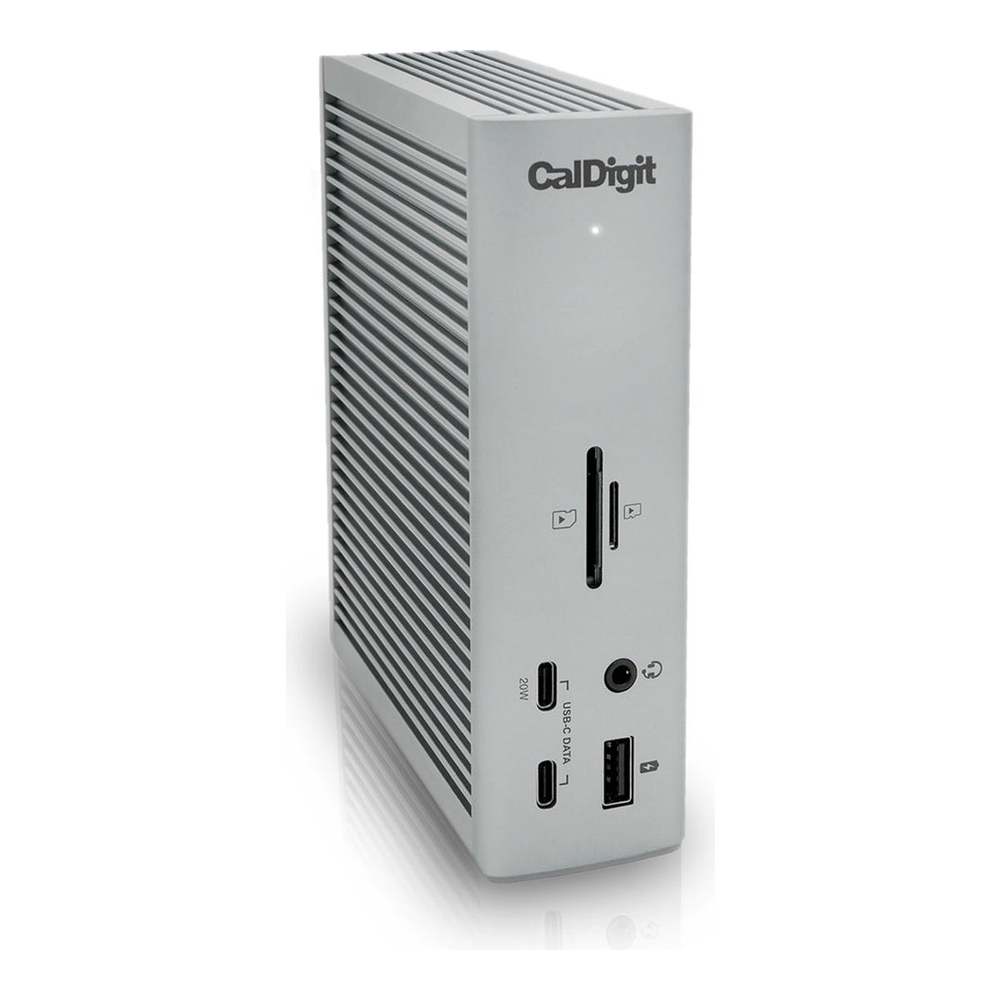
Who it is for: anyone running a heavy desk on Linux who wants 2.5GbE to a NAS, plenty of 10Gb/s USB, and card readers built in. It authorizes cleanly through boltctl and is widely run on Linux.
Where it falls short: it is the priciest here, and its firmware is not on LVFS, so a firmware bump means CalDigit’s own updater rather than fwupdmgr. In practice the TS4 rarely needs one, but if managing everything from Linux matters to you, the Lenovo wins that point. Check the current price on Amazon.
2. Lenovo ThinkPad Universal Thunderbolt 4 Dock
If you only pick one thing to care about on Linux, make it firmware you can update, and this is the dock that nails it. The ThinkPad Universal Thunderbolt 4 Dock (type 40B0) publishes its firmware to LVFS, so fwupdmgr sees it, downloads the update, and flashes it in place. No Windows VM, no vendor tool. It drives one 8K display at 30Hz or four 4K displays over two DisplayPort 1.4 outputs and an HDMI port, charges up to 100W, and despite the ThinkPad name it works with any Thunderbolt 4 or USB4 host, not just Lenovo laptops.
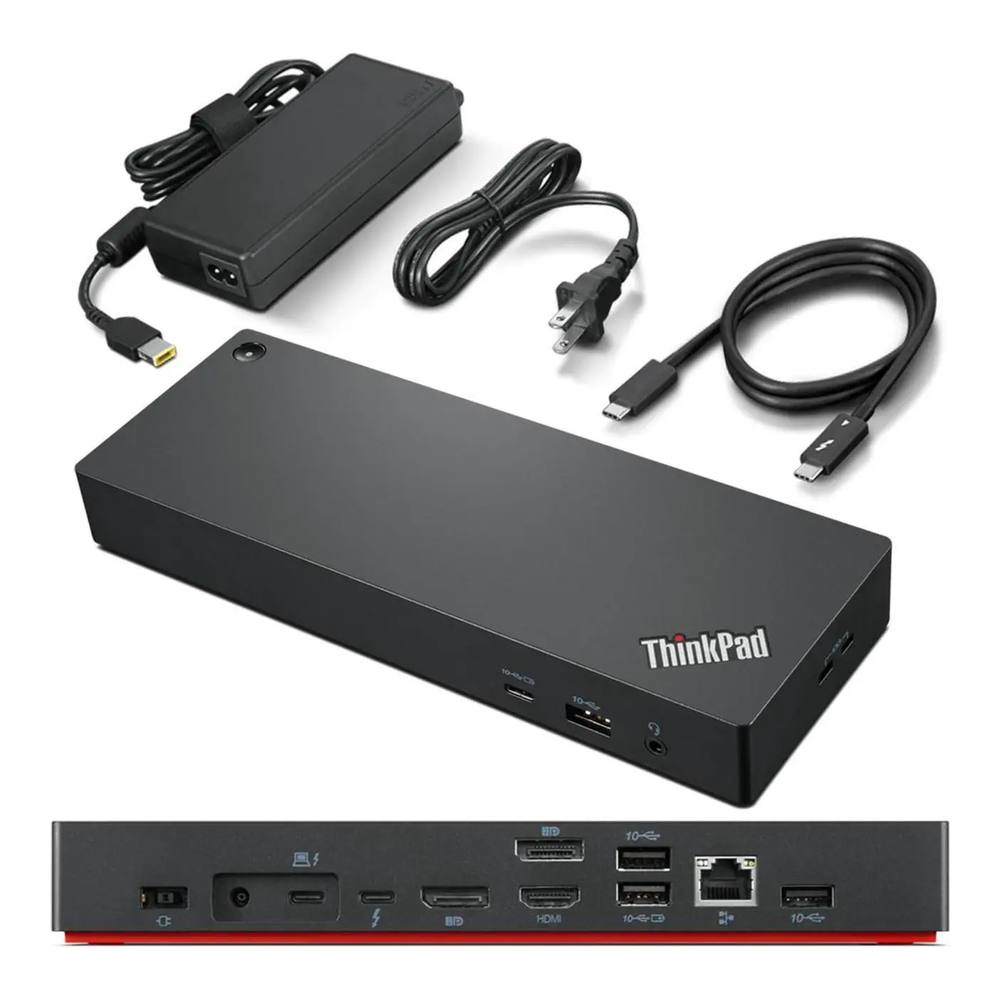
Who it is for: Linux users who want a dock they can fully manage from the OS, and anyone driving three or four screens. Linux users have flashed it successfully through fwupdmgr, and being able to say that at all about dock firmware is rare. It is not bulletproof on either OS, the SPI flash can occasionally time out and need a retry, but the Linux path is a first-class one here rather than an afterthought.
Where it falls short: the wired port is plain gigabit, not 2.5GbE, so it trails the CalDigit on network speed. Fewer total ports, too. For a NAS-heavy setup the TS4 is the better fit, but for manageability this is the pick. Check the current price on Amazon.
3. Kensington SD5700T
For most people who just want a clean, reliable dock without paying flagship money, this is the one. The SD5700T gives you four Thunderbolt 4 ports, four USB-A (three at 10Gb/s plus a front charging port), a UHS-II SD reader, and audio, and it was the first TB4 dock to deliver its full 90W of charging no matter how many devices are plugged in. It drives a single 8K or dual 4K display and comes with mounting brackets, which is handy behind a monitor arm.
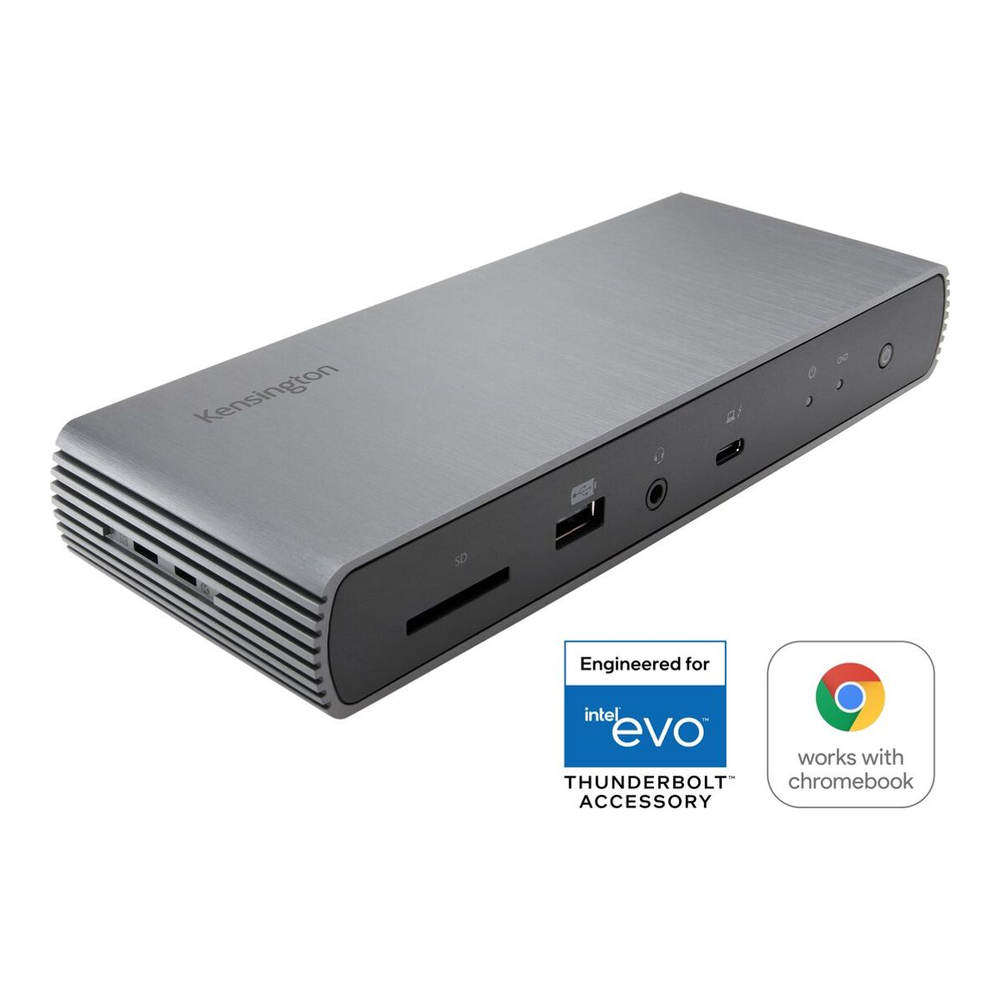
Who it is for: a single-monitor or dual-4K desk that wants Thunderbolt reliability and 90W charging without the TS4’s price. It authorizes through boltctl like the others.
Where it falls short: gigabit Ethernet again, and firmware is not on LVFS. If your switch and NAS are 2.5GbE, you are leaving speed on the table here and the CalDigit is worth the jump. Check the current price on Amazon.
Make a Thunderbolt 4 dock work on Linux
Thunderbolt devices are not trusted automatically. The kernel holds a new dock in an unauthorized state until you approve it, which is a security feature that stops a malicious device from reaching memory over the bus. On a desktop with GNOME or KDE you usually get a prompt to authorize the dock on first plug. From a terminal, boltctl is the tool. On Debian and Ubuntu it lives in the bolt package:
sudo apt install boltList what the daemon can see. Each connected Thunderbolt device shows up with a UUID and a status of authorized or connected-but-unauthorized:
boltctl listTo trust the dock for this session only, authorize it by its UUID. To trust it permanently so it comes up automatically on every future plug, enroll it with the auto policy instead:
boltctl authorize <uuid>
boltctl enroll --policy auto <uuid>
The UUID is the long identifier from the list output, so run boltctl list first and copy it. If you ever want to revoke that trust, boltctl forget <uuid> removes the stored record. One thing worth knowing: the level of protection depends on the machine’s Thunderbolt security mode, which the firmware sets to user, secure, or none. On user or secure you get the authorization gate above. On none everything is trusted on plug, which is convenient and less safe.
Keep the dock firmware updated with fwupd
This is the part most dock guides skip, and it is exactly where the Lenovo earns its spot. Dock firmware fixes real problems: display dropouts, a flaky Ethernet controller, power negotiation quirks. When a dock publishes to the Linux Vendor Firmware Service, you update it with the same fwupd tooling that handles the rest of your machine. Refresh the metadata, list what is connected, and check for updates:
fwupdmgr refresh
fwupdmgr get-devices
fwupdmgr get-updates
If the Lenovo dock has a newer firmware on LVFS than what it is running, it appears in the list and you apply it with one command:
fwupdmgr updateThe ThinkPad Universal Thunderbolt 4 Dock has a real track record here. Its firmware has moved through LVFS over time, sitting at version 10.13 in early 2023 and 10.16 by mid-2024, and users have flashed those releases straight from Linux. A few practical rules the fwupd project and Lenovo both stress: run fwupd 1.8.6 or newer, keep the laptop battery above 25 percent, do not unplug the dock or let the machine sleep during the flash, and give it up to 15 minutes. The CalDigit and Kensington are not on LVFS, so their firmware updates go through the vendor’s own tool instead, which usually means finding a Windows or macOS machine.
What to look for in a Linux dock
A few things matter more than the port count on the box.
- Native Thunderbolt or USB4 video, not DisplayLink. Some cheaper “universal” docks drive their extra monitors with DisplayLink, which needs a userspace driver and has a rough history on Wayland, the default session on current Fedora and Ubuntu. Every dock above uses native Thunderbolt DisplayPort, so the monitors just work. If a listing leans on DisplayLink for its display outputs, treat it as a red flag for a modern Linux desktop.
- 2.5GbE if your network is ready for it. Only the CalDigit here does 2.5GbE. The Lenovo and Kensington are gigabit. If your 2.5GbE switch and NAS are already faster than gigabit, the CalDigit is the one that keeps up.
- Charging wattage that matches your laptop. 90W to 100W covers most 14-inch and many 16-inch laptops, but a power-hungry mobile workstation can want more than a dock supplies, in which case it charges slowly under load. Check your laptop’s draw.
- Firmware on LVFS if you want to manage it from Linux. Lenovo and Dell both ship dock firmware to LVFS, so their docks update through
fwupdmgr. A Dell Thunderbolt dock is the other solid pick if you want that and prefer Dell’s ecosystem. - Skip the vendor-unsupported ones. Plugable’s Thunderbolt docks are capable hardware, but Plugable explicitly lists Linux as “not supported” for them. They generally work as standard Thunderbolt devices through
boltctl, but you are on your own if something misbehaves, so only buy one if you are comfortable being unsupported.
Which dock to pick
For most Linux desks, buy the CalDigit TS4. The port count, the 2.5GbE, and the 98W charging make it the one you will not outgrow, and it authorizes on Linux without fuss. If updating firmware from the OS matters to you, or you drive three or four monitors, the Lenovo ThinkPad Universal Thunderbolt 4 Dock is the smarter buy, because it is the only one here you can flash with fwupdmgr. And if you want a clean, reliable dock at the lowest price and gigabit Ethernet is fine, the Kensington SD5700T does the job and mounts neatly out of sight.
Whichever you land on, the Linux side is the same two habits: authorize the dock once with boltctl enroll so it comes up automatically, and check fwupdmgr for firmware now and then. A dock is also the right moment to sort out the rest of the desk. If you are hardening the machine it plugs into, a hardware key for SSH is the natural companion, covered in our guide to the best security keys for SSH, and if the dock is feeding a compact desktop rather than a laptop, our homelab mini PC picks pair well with it.