A NAS build is really one decision wearing a lot of disguises: how many drives do you need to spin, now and in three years? Everything else, the board, the RAM, the power supply, the chassis, follows from the bay count. Get that number right and the rest of the parts list almost writes itself. Get it wrong and you either overpay for empty bays or outgrow the box in a year.
This guide lays out three tested ZFS storage server builds around that one question. A quiet four-bay box for backups and a media library, an eight-bay mid tower with ECC and 10GbE for a serious homelab, and a used-enterprise rackmount that drives 24 hot-swap bays off a single card. All three run TrueNAS SCALE on ZFS, all three use ECC memory, and none of them put an SMR drive anywhere near the pool. The one thing that has changed the math this year is RAM: the 2026 DDR5 shortage has pushed ECC kits to two and three times their 2025 price, so on the mid and high tiers memory is now the single most expensive and most volatile line on the list. Buy it first and check the live price the day you order.
Current as of June 2026.
The three builds at a glance
The standout for most people is the eight-bay mid tower. It clears 64GB of ECC, runs an IT-mode HBA, and gets you onboard dual 10GbE without an add-in card, which is the sweet combination for a homelab that runs apps and VMs off the pool rather than just storing files. The four-bay starter is the right call if you want a quiet, low-power box for backups and Plex and you are learning ZFS on real hardware for the first time. The rackmount beast is for the person who already knows they want 100TB-plus and is comfortable buying used server gear off eBay.
- Quiet 4-bay starter (~$875 to $1,170 excl. drives): Ryzen 5 7600, ASRock Rack ECC board, 32GB ECC UDIMM, Fractal Node 804. Backups, media, learning ZFS.
- Eight-bay mid tower (~$1,590 to $2,215 excl. drives): Ryzen 7 7700, ASRock Rack board with dual 10GbE, 64GB ECC UDIMM, 9300-8i HBA, Fractal Define 7. The all-rounder.
- Rackmount beast (~$1,610 to $2,375 excl. drives): used EPYC 7302, ASRock Rack ROMED8-2T, 128GB ECC RDIMM, 24-bay Supermicro chassis. Big pools, hot-swap, rack.
How we picked, and what the lab showed
Every spec here was checked against the manufacturer datasheet and a live retailer listing, not pulled from memory, because hardware drifts and a NAS build punishes a wrong assumption harder than most. The choices that actually shape these lists came out of testing ZFS on our own hardware, not from a spec sheet.
The clearest result was on synchronous writes. On our test pool, ZFS handled roughly 334,000 IOPS with sync=standard but collapsed to about 2,041 IOPS with sync=always, a penalty of roughly 160x once every write had to hit stable storage before the pool acknowledged it. The same pattern showed up in fsync throughput: an NVMe device cleared about 2,024 fsync operations per second where a SATA SSD managed 642. That gap is the entire argument for a separate log device, and it is also the reason a log device does nothing for the workload most home builders actually have. If you are writing bulk files over SMB, those writes are asynchronous and ZFS batches them in RAM regardless. A log device only earns its slot when the writes are synchronous, which means NFS datastores for virtual machines, iSCSI, or a database living on the pool. We come back to that on the SLOG section below.
The other non-negotiable is the drives themselves. ZFS rebuilds a degraded pool by resilvering, a long sequential-and-random write storm across the surviving disks, and SMR drives stall catastrophically under exactly that load. We have watched an SMR resilver crawl for days where a CMR pool finished in hours. So only CMR and enterprise drives go in a ZFS pool, every time, and ECC memory backs the whole thing because ZFS trusts RAM to be correct. The platform decides which kind of ECC you buy, and that single distinction separates the consumer tiers from the server tier more than anything else on the parts list.
Build comparison: which ZFS server fits you
| Spec | 4-bay starter | 8-bay mid tower | 24-bay rackmount |
|---|---|---|---|
| Platform | AM5, Ryzen 5 7600 | AM5, Ryzen 7 7700 | EPYC SP3 7302 (used) |
| ECC type | UDIMM (unbuffered) | UDIMM (unbuffered) | RDIMM (registered) |
| RAM | 32GB | 64GB | 128GB |
| Data bays | 4 (board SATA) | 8 (IT-mode HBA) | 24 (SAS expander) |
| Network | 2x 1GbE (10GbE optional) | 2x 10GbE onboard | 2x 10GbE onboard |
| Form factor | Compact cube | Mid tower | 4U rackmount |
| Price (excl. drives) | ~$875 to $1,170 | ~$1,590 to $2,215 | ~$1,610 to $2,375 |
| Best for | Backups, media, learning | Apps, VMs, the all-rounder | Big pools, hot-swap, rack |
Quiet 4-bay starter: a low-power ECC NAS for backups and media
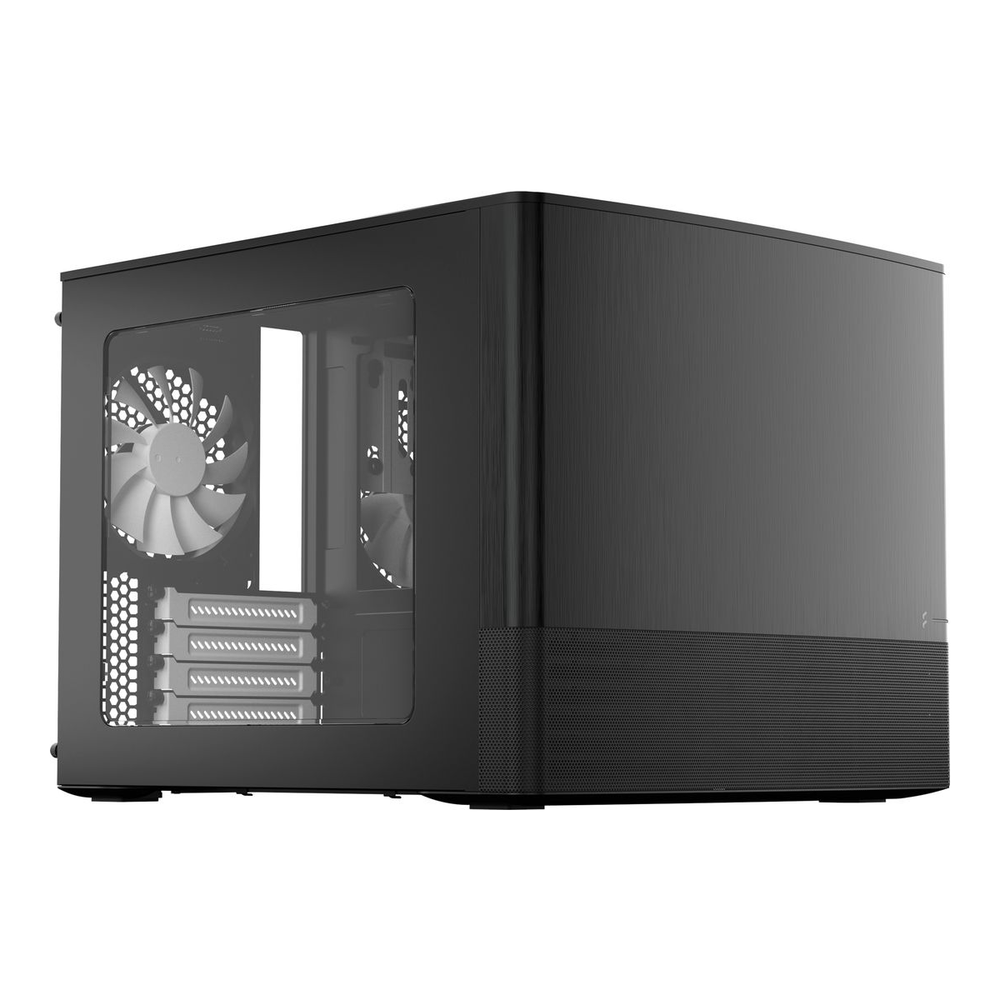
This is a quiet box that draws very little power and sits in a cupboard holding your backups and a media library. It runs on a Ryzen 5 7600, a 65-watt chip with integrated graphics so the build needs no GPU, and an ASRock Rack board that puts ECC UDIMM and IPMI on a small consumer-priced platform. The boot mirror goes on the board’s two M.2 slots, which keeps all four SATA ports free for spinning disks. Build this if you want to learn ZFS on real hardware without a server budget.
Skip it if you already know you want more than four or five drives, or you need 10GbE on day one. The plain board ships with dual 1GbE, and going past four data drives means adding a SATA HBA. Both point you at the mid tower instead.
| Component | Pick | Approx price (Jun 2026) |
|---|---|---|
| CPU | AMD Ryzen 5 7600 (65W, iGPU) | $175-$216 |
| Motherboard | ASRock Rack B650D4U (micro-ATX, ECC UDIMM, IPMI) Newegg/Best Buy | $300-$420 |
| RAM | Kingston 16GB DDR5-4800 ECC UDIMM x2 (32GB) | $120-$160 |
| Boot mirror | WD Red SN700 250GB NVMe x2 | $90-$110 |
| Case | Fractal Design Node 804 (micro-ATX cube) | $110-$160 |
| PSU | Corsair RM550x (550W, 80+ Gold) | $80-$100 |
| Example HDD (separate) | WD Red Plus 4TB (CMR) | $100-$120/drive |
Two things on this build are worth a sentence. The ASRock Rack board is the part that makes ECC work here, because the 7600 supports ECC only when the board enables it, and this one does, with the type confirmed as unbuffered UDIMM on both the board spec page and the Kingston datasheet. And the plain B650D4U has dual 1GbE, not 10GbE. If you want 10GbE in this footprint, the B650D4U-2L2T/BCM variant (ASIN B0BXRFHDQT) adds onboard dual 10GbE for roughly $430 to $480, which pushes the build to the top of its budget but saves a PCIe slot. A four-drive RAIDZ1 of 4TB CMR disks adds about $400 to $480 on top of the figures above.
Eight-bay mid tower: 64GB ECC, an IT-mode HBA, and 10GbE
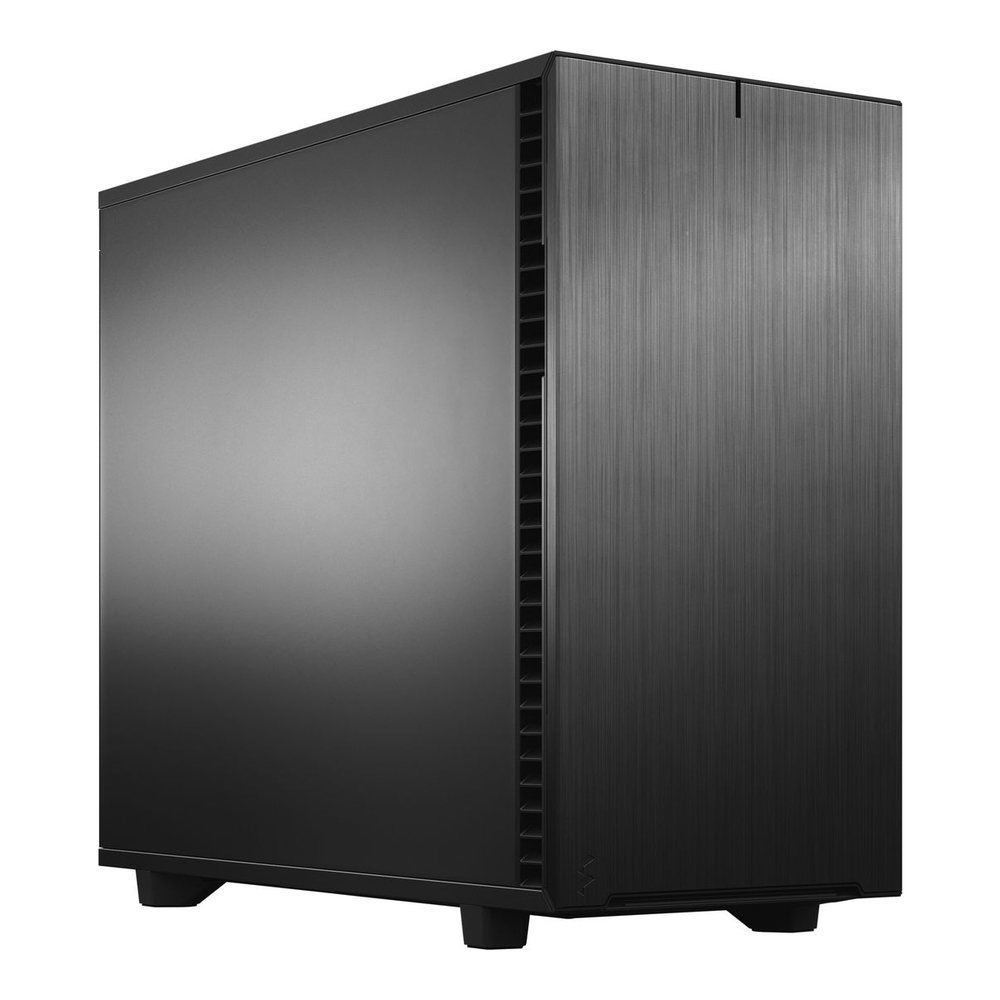
This is the build most homelabbers should buy. It is an eight-bay box with 64GB of ECC, an IT-mode HBA feeding raw disks to ZFS, and onboard dual 10GbE so the network keeps up with the pool. The board is the centerpiece: an ASRock Rack server board that lists ECC UDIMM support on its own spec sheet, carries IPMI for headless management, and folds the 10GbE in so there is no separate NIC to buy or fit. Run apps, containers, and a few VMs straight off the pool, not just file shares.
Skip it if four bays is genuinely all you will ever need, in which case the starter saves you money, or if you are heading for 100TB and a rack, where the 24-bay build is the honest answer. For the broad middle, this is the one.
| Component | Pick | Approx price (Jun 2026) |
|---|---|---|
| CPU | AMD Ryzen 7 7700 (8C/16T, 65W) | $270-$310 |
| Motherboard | ASRock Rack B650D4U-2L2T/BCM (ECC UDIMM, IPMI, 2x 10GbE) | $400-$480 |
| RAM | Kingston 64GB (2x32GB) DDR5-5600 ECC UDIMM Newegg | $480-$900 |
| HBA (IT mode) | LSI 9300-8i (SAS3008, pre-flashed IT) | $80-$170 |
| Network | Onboard dual 10GbE (none to buy) | $0 |
| Boot mirror | Samsung 870 EVO 250GB x2 | $70-$100 |
| SLOG (optional, PLP) | Intel Optane P1600X 118GB used market | $120-$260 |
| Case | Fractal Design Define 7 + tray kit | $195-$225 |
| PSU | Seasonic FOCUS GX-650 (650W, 80+ Gold) | $95-$130 |
| Example HDD (separate) | WD Red Plus 8TB (CMR) | $160-$200/drive |
Where this build’s cost falls or rises is the memory. At 2025 prices the 64GB ECC kit was roughly $250 to $400; the 2026 shortage has pushed it as high as $900, and it is still climbing. If that stings, populate one 32GB stick now and add the second when prices ease, since ZFS is happy with 32GB on a pool this size and the second stick is a drop-in later. The HBA needs a word too: buy a genuine LSI, Broadcom, or Supermicro card flashed to IT-mode firmware, not a cheap clone, because the counterfeit SAS3008 chips on the bargain listings are a known source of dropped drives. Cable it with two SFF-8643 to four-SATA forward-breakout cables to reach eight disks. The Define 7 ships with six trays; one inexpensive tray kit takes it to eight.
Rackmount beast: used EPYC and a 24-bay hot-swap chassis
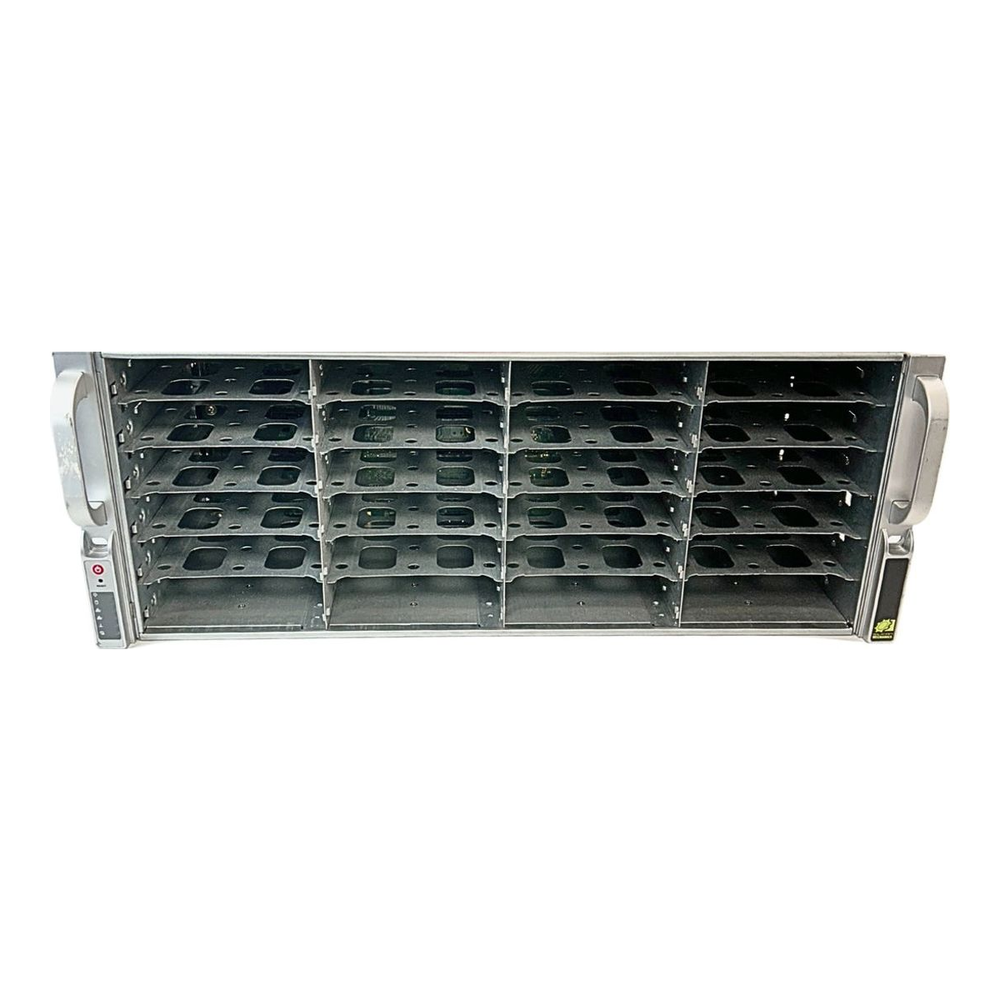
This is the build for someone who already knows they want a big pool and a rack, and who is comfortable buying used server gear. The platform is a second-hand AMD EPYC 7302 on an ASRock Rack ROMED8-2T, which brings 128 PCIe lanes, eight-channel registered ECC, and onboard dual 10GbE. The centerpiece is a used Supermicro CSE-846, a 4U chassis with 24 hot-swap bays and a single SAS3 expander backplane, so one cable from one HBA drives all 24 disks with staggered spin-up. Where this falls short is noise and power: it is a rackmount box with screaming fans and a three-figure idle draw, not something for a living room.
Skip it if you are not ready to source parts from eBay and match an HBA to a backplane, or if quiet matters. The mid tower does almost everything this does, quietly, up to eight drives.
| Component | Pick | Approx price (Jun 2026) |
|---|---|---|
| CPU | AMD EPYC 7302 (16C/32T, SP3) used/eBay | $120-$200 |
| Motherboard | ASRock Rack ROMED8-2T/BCM (onboard dual 10GbE) | $650-$800 |
| ECC RAM | 4x Samsung 32GB DDR4-2933 RDIMM (128GB) used/eBay | $280-$380 |
| HBA (IT mode) | LSI 9305-16i, or 9305-8i with the expander chassis used/eBay | $70-$135 |
| Chassis + PSU | Supermicro CSE-846 24-bay + SAS3 expander + dual PSU used/eBay | $300-$500 |
| Network | Onboard dual 10GbE (Broadcom or Intel, by variant) | $0 |
| Boot mirror | Samsung PM883 240GB x2 (enterprise SATA, PLP) | $100-$220 |
| SLOG (optional) | Intel Optane P1600X 118GB | $90-$140 |
| Example HDD (separate) | Seagate Exos X20 20TB (CMR) | $280-$400/drive |
The one detail that trips people on this tier is matching the HBA to the chassis. With the CSE-846’s single-expander backplane, one SFF-8643 link feeds all 24 bays, so an eight-port 9305-8i is enough and cheaper than the 16-port card. You only need the 16-port 9305-16i for a direct-attach chassis with no backplane, where every port has to be cabled. Two more notes: the ECC here is registered RDIMM, not the unbuffered UDIMM of the smaller builds, because EPYC SP3 requires it, so do not buy the wrong kind. And watch for vendor-locked EPYC chips on used listings; buy one explicitly marked unlocked. The chassis usually ships with dual redundant 80+ Platinum supplies, and for a fully loaded 24-bay pool the 1280-watt pair is the safer choice over the 920-watt. One board note: the base ROMED8-2T carries Intel X550 10GbE, while the readily buyable Amazon listing is the ROMED8-2T/BCM variant with a Broadcom BCM57416. Both are supported by TrueNAS SCALE, so buy whichever is in stock and just confirm which NIC the listing ships.
Pick CMR drives, never SMR
This is the rule that matters more than any board or CPU choice. ZFS resilvers a degraded pool with a sustained write storm, and shingled (SMR) drives stall under that load badly enough to drag a resilver from hours into days, sometimes long enough that a second drive fails first. Only CMR and enterprise drives belong in a ZFS pool. WD Red Plus and Red Pro are CMR; the bare WD Red at small capacities is SMR and is the classic trap. Seagate IronWolf Pro and Exos are CMR. We cover the specifics, including how to confirm a model’s recording technology before you buy, in the CMR versus SMR explainer and the wider NAS hard drive guide. Match the drives to the build above and you will not be the person posting a frozen resilver to a forum at 3am.
ECC RAM: UDIMM on consumer, RDIMM on server
ZFS assumes the memory holding your data is correct, which is why ECC is strongly recommended for any pool you care about. The catch that bites builders is that the two ECC form factors are not interchangeable, and the platform dictates which one you buy. Consumer AM5, the starter and mid builds here, takes unbuffered ECC, called UDIMM. Server EPYC and Xeon, the rackmount build, takes registered ECC, called RDIMM. Putting RDIMM in an AM5 board, or UDIMM in an EPYC board, simply will not post. So the rule is the platform decides: a Ryzen build means ECC UDIMM, an EPYC build means ECC RDIMM, and you never cross the two. As for capacity, 1GB of RAM per usable TB is the old rule of thumb, but for a home pool that is conservative; 32GB comfortably runs a small pool, 64GB suits an apps-and-VMs box, and you only need 128GB once the pool is large or you lean hard on deduplication.
Add a SLOG only if your writes are synchronous
A separate log device, the SLOG, is the most misunderstood part of a ZFS build. It does not cache reads, it does not speed up bulk file copies, and on the wrong workload it sits idle. What it does is absorb the ZFS intent log for synchronous writes, the ones where the client waits for confirmation that data is on stable storage before it continues. Our lab numbers put hard figures on that: the roughly 160x throughput gap between sync=standard and sync=always is exactly the cost a PLP-backed SLOG buys back, and only for sync writes.
That means a SLOG is worth fitting if you serve NFS datastores to a hypervisor, run iSCSI, or host a database on the pool. If your NAS mostly stores files over SMB, those writes are asynchronous and a SLOG changes nothing, so skip it and spend the money on drives or RAM. When you do add one, it must have power-loss protection, because a log device that loses in-flight writes on a power cut defeats its own purpose. Intel Optane was the favourite here for its low latency, and where Optane is now hard to find, a used enterprise NVMe or SATA SSD with explicit PLP is the substitute. The same power-loss-protection thinking is why the boot and special devices on the bigger builds use enterprise SSDs, and it pairs with a good UPS, which we cover in the homelab UPS guide.
Lay out the ZFS pool before you install
Decide the vdev layout before you push a single drive into a bay, because in ZFS you cannot remove a vdev from a pool once it is there, and the layout sets your fault tolerance for the life of the build. For a four-drive starter, a single RAIDZ1 vdev survives one drive failure and gives you three drives of usable space. For eight drives, RAIDZ2 is the standard call, surviving any two failures, which matters because the second failure often happens during the resilver of the first. Large pools on the 24-bay build are usually built from several RAIDZ2 vdevs of six to eight drives each rather than one enormous vdev, which keeps resilver times sane and IOPS reasonable.
Keep the boot devices off the data pool. Every build here mirrors the operating system onto two small SSDs that are separate from the spinning disks, so the pool is purely data and the OS can be rebuilt without touching it. On the rackmount build those boot SSDs are enterprise SATA with PLP; on the smaller builds they are NVMe in the board’s M.2 slots, which is also why the starter keeps all four SATA ports free for HDDs. If you are weighing NVMe against SATA for the supporting devices, the NVMe versus SATA comparison has the latency numbers.
Install TrueNAS SCALE and create the pool
TrueNAS SCALE installs from a USB stick onto the boot mirror, detects both SSDs, and lets you mirror the install across them during setup. Once it boots, the pool is built in the web UI under Storage, but the same result is one command at the shell. Create a RAIDZ2 pool named tank from eight disks like this:
sudo zpool create -o ashift=12 tank raidz2 /dev/sd{b,c,d,e,f,g,h,i}The ashift=12 forces 4K sectors, which is correct for every modern drive and cannot be changed later. Confirm the layout and health before you put data on it:
zpool status tankA healthy RAIDZ2 pool reports every disk as ONLINE with no errors:
  pool: tank
 state: ONLINE
config:
        NAME        STATE     READ WRITE CKSUM
        tank        ONLINE       0     0     0
          raidz2-0  ONLINE       0     0     0
            sdb     ONLINE       0     0     0
            sdc     ONLINE       0     0     0
            sdd     ONLINE       0     0     0
            sde     ONLINE       0     0     0
            sdf     ONLINE       0     0     0
            sdg     ONLINE       0     0     0
            sdh     ONLINE       0     0     0
            sdi     ONLINE       0     0     0
errors: No known data errors
From there the UI handles datasets, SMB and NFS shares, snapshots, and scrub schedules. Set a monthly scrub and enable SMART tests so ZFS surfaces a failing drive before it takes the pool with it. If you are still deciding between rolling your own and a turnkey approach, the TrueNAS versus Unraid comparison weighs the two operating systems, and the home NAS roundup covers the prebuilt boxes if a kit is not your thing.
The mistakes that sink first-time ZFS builds
A handful of errors account for most of the unhappy NAS threads, and every one of them is avoidable at the parts-list stage. Putting SMR drives in a pool is the worst, because it only shows up when a drive fails and the resilver will not finish. Buying a RAID card instead of an IT-mode HBA is next; ZFS wants raw disks, and a RAID controller hiding the drives behind its own logic blinds ZFS to the very errors it exists to catch. Mixing ECC types, RDIMM in a consumer board or UDIMM in a server board, wastes money on parts that will not post. Undersizing the power supply so eight or twenty drives cannot spin up together is a quieter failure that shows up as random boot problems. And adding a SLOG to an SMB-only box spends money for zero benefit. Match the parts to one of the three builds above and you sidestep all of them.
The network is the last thing people underspend. A pool that can sustain several hundred MB/s is wasted behind a single 1GbE link, which caps you at about 110 MB/s. The mid and rackmount builds put 10GbE on the board for exactly this reason, and the 10GbE switch guide covers the other half of that link.
Which build should you actually buy?
Strip away the parts lists and the choice comes down to three honest questions.
- Do you need four bays or fewer, want it quiet, and are learning ZFS? Build the Node 804 starter. It is the cheapest way onto real ECC hardware, and it will happily back up your machines and serve a media library for years.
- Do you want one box that stores files and runs apps and VMs, with room to grow to eight drives? Build the eight-bay Define 7 tower. It is the build most people should buy, and the 10GbE and IT-mode HBA mean you will not rebuild it in a year.
- Do you already know you want 100TB-plus, have a rack, and are comfortable on the used market? Build the 24-bay rackmount. Nothing else gets you that many hot-swap bays per dollar, as long as you can live with the noise.
When you are unsure between two tiers, size for the drives you will own in three years, not today. Empty bays are cheap to leave open and expensive to add later, and a ZFS pool you sized correctly the first time is one you never have to tear down and rebuild. If you would rather start from the storage media, the server SSD guide and the NAS drive guide pair with any of these three builds.