The right graphics card for running large language models locally comes down to one number more than any other: how much VRAM it carries. That single spec decides which models you can load, how much context you get to work with, and whether you run smoothly or fight out-of-memory errors all afternoon. Raw speed, price, and power draw all matter, but they come second to fitting the model in memory in the first place.
This guide ranks the best GPUs for LLM work in 2026, for local inference and fine-tuning, from a used card under a thousand dollars to a 96GB workstation card that swallows a 70B model whole. For each card you get the specs that actually move the needle for LLMs, the model sizes it can run, the going street price, and a plain verdict on who should buy it. The speed numbers are tested, not copied off a spec sheet: every figure here was measured in June 2026 on real rented hardware (an RTX 3090, RTX 4090, RTX 5090, and an L40S) running Ollama.
ComputingForGeeks is reader-supported. When you buy through links on this page we may earn an affiliate commission at no extra cost to you. As an Amazon Associate we earn from qualifying purchases.
VRAM is the whole game: how much do you actually need?
Before any brand or benchmark, work out the memory budget. A model’s weights have to fit in VRAM, and the size depends on the parameter count and the quantization level. Quantization shrinks the weights by storing them at lower precision: Q4_K_M (roughly 4.5 bits per weight) is the level most people run, Q8_0 doubles the size for a small quality bump, and FP16 is the full-precision original.
Here is the memory the weights alone need, by model size and quantization:
| Model size | Q4_K_M | Q8_0 | FP16 | Comfortable on |
|---|---|---|---|---|
| 7B / 8B | ~5 GB | ~8 GB | ~16 GB | Any 8GB+ card |
| 13B / 14B | ~8 GB | ~13 GB | ~26 GB | 12GB card |
| 32B / 34B | ~20 GB | ~32 GB | ~64 GB | 24GB card |
| 70B | ~40 GB | ~70 GB | ~140 GB | 48GB card (or 2x 24GB) |
| 405B | ~230 GB | ~405 GB | ~810 GB | Multiple GPUs |
One catch the size tables usually skip: those figures are weights only. Real usage adds the KV cache (the model’s running memory of the conversation) plus activation buffers, which together add roughly 15 to 20 percent at short context. The KV cache grows linearly with context length, so a long 128K-token prompt on a 70B model can add tens of gigabytes on top of the weights. Size for the weights, then leave headroom. If you plan to run long contexts, leave a lot.
The practical takeaway: 24GB runs anything up to a 32B model and a quantized 70B in a pinch with offload. 48GB runs a 70B comfortably. Going past 70B on a single card means 96GB, and 405B-class models mean a stack of cards. Keep that ladder in mind as you read the picks.
Our top picks at a glance
If you want the short version, here is where each tier wins. The detailed breakdowns follow.
- Best overall (consumer): NVIDIA RTX 5090 (32GB). The fastest single card most people can buy, with enough VRAM for 32B models and long context.
- Best value: a used RTX 3090 (24GB). The cheapest way into 24GB of VRAM, and still plenty fast for everyday local inference.
- Best budget / lowest power: RTX 4060 Ti 16GB. 16GB at 165W gets you into 13B models without a new power supply.
- Best for 70B on one card: RTX 6000 Ada (48GB). 48GB of ECC memory runs a 70B model without quantizing into the floor.
- No-compromise workstation: RTX PRO 6000 Blackwell (96GB). The only sub-five-figure GPU that holds a 70B at high precision with room for huge context.
- Best quiet, low-power big-memory box: Mac Studio with M3 Ultra. 96GB of unified memory runs a 70B in near silence, drawing a fraction of a workstation card’s power.
1. NVIDIA RTX 3090 (24GB): the value pick
The standout budget play in 2026 is still a card from 2020. The RTX 3090 packs 24GB of GDDR6X, and on the used market it is the cheapest path to that much VRAM by a wide margin. For local LLM work, where memory capacity matters more than the last few percent of speed, that makes it the value king.
| Spec | RTX 3090 |
|---|---|
| VRAM | 24GB GDDR6X |
| Memory bandwidth | ~936 GB/s |
| CUDA cores | 10,496 (Ampere) |
| Power (TGP) | 350W (750W PSU) |
| Street price (used) | ~$600 to $1,000 |
It runs 32B models at Q4 at a usable speed (37 tokens per second in our test), though a wide context will spill past 24GB onto the CPU, and two of them on one board give you the 48GB needed for a 70B. Where it falls short: it is a power-hungry, end-of-life card with no warranty on the used market, and its prefill speed trails the Ada and Blackwell generations. But if you want maximum VRAM per dollar to learn on, nothing else is close. Check the current 3090 listings on Amazon, and expect prices to bounce around since stock is entirely secondhand.
2. NVIDIA RTX 4060 Ti 16GB: budget, low power
If a used card makes you nervous and you want something new, cheap, and easy on the wall socket, the 16GB version of the RTX 4060 Ti is the entry ticket. At 165W it runs off a modest 550W power supply, so it drops into almost any existing desktop without an upgrade.
| Spec | RTX 4060 Ti 16GB |
|---|---|
| VRAM | 16GB GDDR6 |
| Memory bandwidth | ~288 GB/s |
| CUDA cores | 4,352 (Ada Lovelace) |
| Power (TGP) | 165W (550W PSU) |
| Street price (new) | ~$400 to $480 |
The 16GB buffer holds a 13B model at Q4 with full context, or a tight 20B. Where it falls short is bandwidth: at 288 GB/s it is the slowest card here per token, so generation feels sluggish next to a 3090 even though both fit the same model. For a first local-LLM box, a quiet home server, or a low-power always-on assistant, it earns its place. Grab the 16GB model on Amazon and double-check it says 16GB, since an 8GB version shares the name and is useless for this.
3. NVIDIA RTX 4090 (24GB): the fast 24GB workhorse
The RTX 4090 holds the same 24GB as a 3090 but moves tokens roughly three times faster thanks to the Ada architecture and 1 TB/s of bandwidth. For most people it is the obvious local-LLM card. The complication in 2026 is price: NVIDIA stopped making it, AI demand never let up, and street prices sit well above the original $1,599.
| Spec | RTX 4090 |
|---|---|
| VRAM | 24GB GDDR6X |
| Memory bandwidth | ~1,008 GB/s |
| CUDA cores | 16,384 (Ada Lovelace) |
| Power (TGP) | 450W (850W PSU) |
| Street price | ~$2,400 to $3,800 new, ~$1,400 to $2,250 used |
It runs the same 32B-class models a 3090 does, but the speed gap is real and you feel it on every generation. Where it falls short is value: with the 5090 available and used 3090s a fraction of the price, a new 4090 occupies an awkward middle. It makes most sense bought used by someone who wants Ada speed without 5090 money. Compare RTX 4090 prices on Amazon against the 5090 before committing.
4. NVIDIA RTX 5090 (32GB): the best single consumer card
If you only pick one card off this list and budget is not the deciding factor, the RTX 5090 is it. Blackwell brings 32GB of GDDR7 and nearly 1.8 TB/s of bandwidth, and in our testing it generated tokens faster than anything else short of a data-center part. The extra 8GB over the 24GB crowd also buys real breathing room for context.
| Spec | RTX 5090 |
|---|---|
| VRAM | 32GB GDDR7 |
| Memory bandwidth | ~1,792 GB/s |
| CUDA cores | 21,760 (Blackwell) |
| Power (TGP) | 575W (1000W PSU) |
| Street price | ~$2,900 to $4,250+ (MSRP was $1,999) |
It runs 32B models with comfortable context headroom and chews through 8B models. Where it falls short: a 70B at Q4 still needs about 40GB, so even 32GB cannot fit one on a single card, and the price has been pushed far above MSRP by a GDDR7 shortage and AI demand. The 575W draw also demands a serious power supply and cooling. For a single-card local rig that does everything short of 70B, it is the one to beat. Check RTX 5090 availability on Amazon, since Founders Edition stock comes and goes.
5. NVIDIA RTX 6000 Ada (48GB): 70B on one card
This is where the conversation shifts from gaming cards to workstation silicon. The RTX 6000 Ada Generation puts 48GB of ECC memory on a single 300W board, which is the first point on this list where a 70B model fits on one card without dropping to a punishing quantization. It is the same Ada architecture as the 4090, tuned for reliability and capacity instead of clock speed.
| Spec | RTX 6000 Ada |
|---|---|
| VRAM | 48GB GDDR6 with ECC |
| Memory bandwidth | 960 GB/s |
| CUDA cores | 18,176 (Ada Lovelace) |
| Power (TGP) | 300W |
| Street price | ~$7,800 to $9,800 |
The 48GB runs a 70B at Q4 with room for the KV cache, and its low 300W draw and dual-slot form make it friendly to multi-GPU workstations. Where it falls short is plain cost-per-token: at this price the newer Blackwell workstation card offers double the memory, so the 6000 Ada mainly makes sense bought used or refurbished, or when 96GB is genuinely overkill. See RTX 6000 Ada listings on Amazon.
6. NVIDIA RTX PRO 6000 Blackwell (96GB): the no-compromise workstation card
For the buyer who wants the most VRAM that fits in a desktop, the RTX PRO 6000 Blackwell is the answer. It carries 96GB of GDDR7 with ECC, which makes it the only GPU under five figures that holds a 70B model at high precision with enormous context headroom, or a 120B-class model at Q4. It ships in a 600W Workstation Edition and a 300W Max-Q variant with the same memory for dense multi-GPU builds.
| Spec | RTX PRO 6000 Blackwell |
|---|---|
| VRAM | 96GB GDDR7 with ECC |
| Memory bandwidth | ~1,792 GB/s |
| CUDA cores | 24,064 (Blackwell) |
| Power (TGP) | 600W (Max-Q: 300W) |
| Street price | ~$8,500 to $13,250 |
It runs a 70B at Q8 with context to spare, or much larger models at Q4, all on one card with no multi-GPU plumbing. Where it falls short is price, and the direction it has moved: NVIDIA raised the list price after launch rather than cutting it, a sign of how hard AI buyers are chasing high-VRAM silicon. For a serious single-user AI workstation, nothing else in a tower comes close. Check the RTX PRO 6000 Blackwell on Amazon; these are often sold through system integrators, so stock varies.
7. Apple Mac Studio (M3 Ultra): the unified-memory alternative
The Mac Studio with M3 Ultra takes a different route to big-model capacity. It uses unified memory shared between CPU and GPU, 96GB of it at 819 GB/s on a current unit, in a complete computer that draws under 500W and runs nearly silent. That 96GB holds a 70B model with room for context, and a roughly 100B-class model at Q4, in a box you can leave on a desk without hearing it.
| Spec | Mac Studio (M3 Ultra) |
|---|---|
| Unified memory | 96GB (max as of June 2026) |
| Memory bandwidth | 819 GB/s |
| GPU | 60 or 80-core |
| Max power (whole machine) | 480W |
| Street price | from $3,999 (96GB, 1TB) |
Where it falls short: prompt processing on Apple silicon is slower than a comparable NVIDIA card, the CUDA software ecosystem is not there (you run llama.cpp and MLX, not vLLM), and the big-memory story shrank during 2026. As DRAM prices climbed, Apple dropped the 512GB option in March 2026 and the 256GB option soon after, so a new M3 Ultra now caps at 96GB. The single Mac that held a 405B model is gone. What remains is a quiet, low-power, all-in-one path to 96GB that handles a 70B comfortably, often for less than a 96GB workstation card alone. Configure one through Mac Studio listings on Amazon and watch the memory tier, since that is the spec that matters for LLMs.
8. AMD Radeon RX 7900 XTX (24GB): the ROCm option
The honest AMD pick is the Radeon RX 7900 XTX. It offers 24GB of GDDR6 at a price that, now that it is end-of-generation, often undercuts a used 3090. The catch has always been software, and the news there is better than it used to be: its gfx1100 architecture is supported in current ROCm, and llama.cpp runs on it through both the ROCm/HIP backend and the vendor-neutral Vulkan backend.
| Spec | RX 7900 XTX |
|---|---|
| VRAM | 24GB GDDR6 |
| Memory bandwidth | ~960 GB/s |
| Compute units | 96 (RDNA 3) |
| Power (TBP) | 355W (800W PSU) |
| Launch price | $999 (now typically below MSRP) |
It runs 32B models at Q4 much like a 3090 does. Where it falls short: outside llama.cpp and Ollama, a lot of the AI tooling assumes CUDA, so you will hit more friction with training frameworks, fine-tuning scripts, and newer inference servers than you would on any NVIDIA card. If you run Ollama or llama.cpp and want 24GB cheaply, it is a real option. If you expect to follow every CUDA-first tutorial unchanged, buy NVIDIA. Browse RX 7900 XTX cards on Amazon.
Tested: tokens per second on real hardware
Spec sheets tell you what fits; they do not tell you how fast it runs. We rented an RTX 3090, RTX 4090, RTX 5090, and L40S (48GB) by the hour and measured generation speed with Ollama on three model sizes, all at Q4_K_M with a fixed 4096-token context. The numbers below are the measured generation rate in tokens per second, warm with the model already loaded.
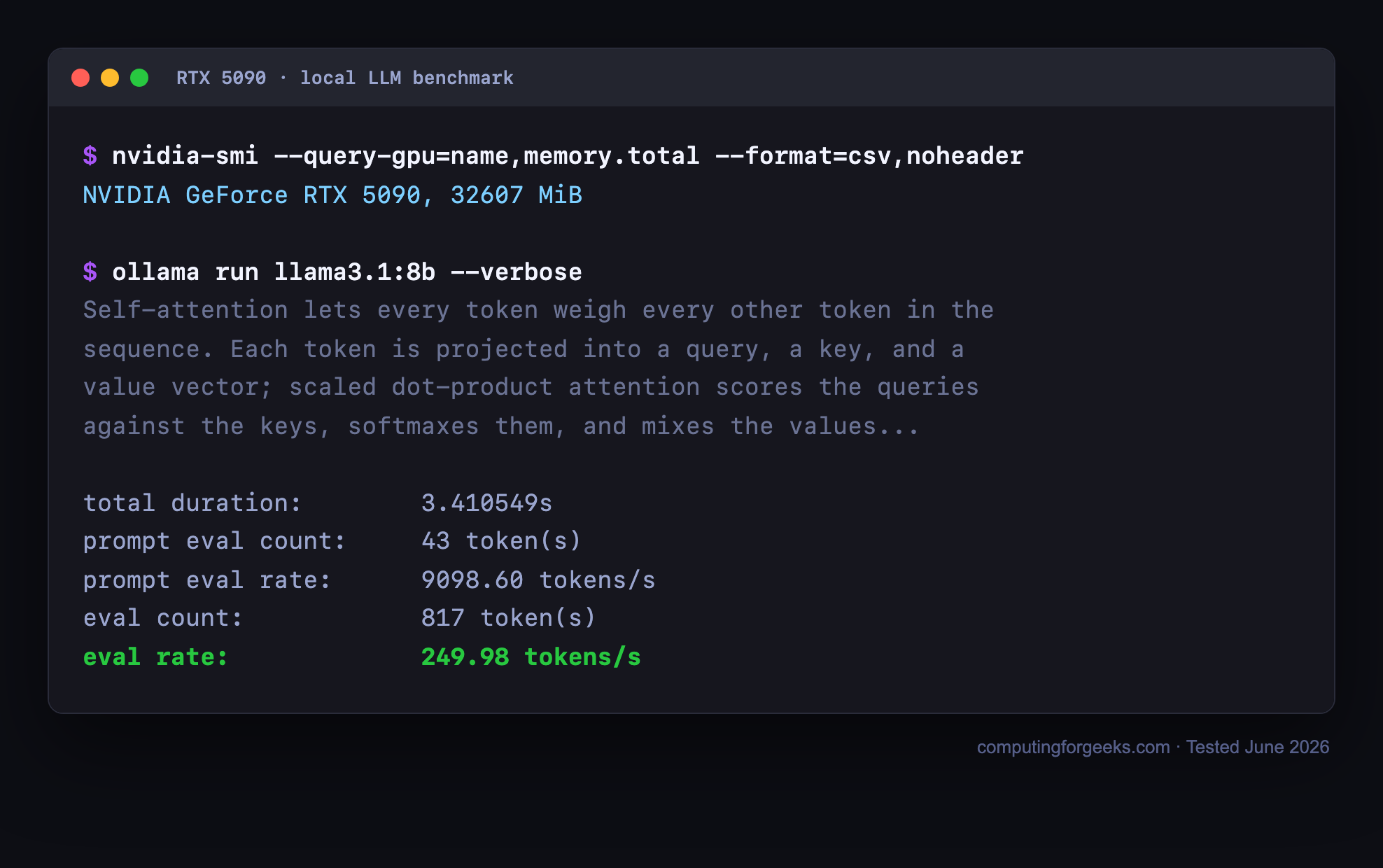
Here is one run on the RTX 5090, the fastest card we tested. The figure that matters is the eval rate at the bottom:
Collecting that eval rate for every card and model size gives the full picture:
| GPU (VRAM) | Llama 3.1 8B | Qwen2.5 32B | Llama 3.3 70B |
|---|---|---|---|
| RTX 3090 (24GB) | 119 tok/s | 37 tok/s | does not fit |
| RTX 4090 (24GB) | 148 tok/s | 43 tok/s | does not fit |
| RTX 5090 (32GB) | 250 tok/s | 71 tok/s | does not fit |
| L40S (48GB) | 113 tok/s | 33 tok/s | 16 tok/s |
Plotted side by side, the spread is easy to read:
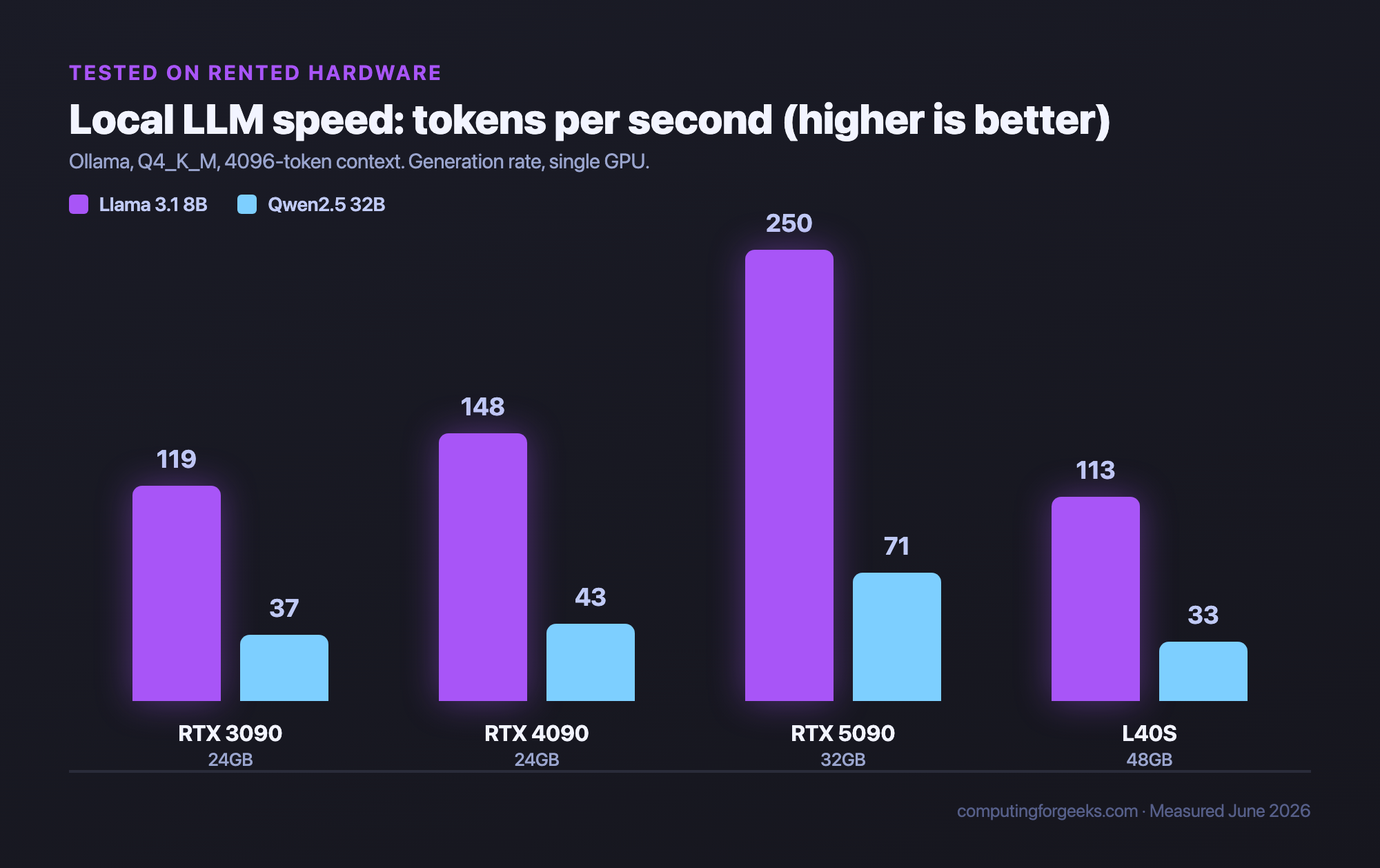
Three things stand out. On the 8B model every card clears 100 tokens per second, well past reading speed, so the difference barely matters for interactive chat. On the 32B model the order changes: the RTX 5090 hit 71 tokens per second, more than double the L40S, even though the L40S has more VRAM. Token generation is bound by memory bandwidth, and the 5090’s GDDR7 is far faster than the L40S’s GDDR6, so more memory does not mean more speed. And the 70B ran only on the 48GB card; the 24GB and 32GB cards cannot hold it at all.
One trap is worth calling out, because it bites people daily. Those 32B numbers used a modest 4096-token context. When we let Ollama fall back to a large context window, the 32B’s KV cache pushed the footprint past 24GB, the 3090 spilled layers onto the CPU, and generation collapsed from 37 tokens per second to under 4. On a 24GB card, keep the context window in check or the model quietly falls off a cliff. A 32GB or larger card sidesteps the problem entirely. You can reproduce any of this with a pull and a verbose run:
ollama pull llama3.1:8b
ollama run llama3.1:8b --verbose
The --verbose flag prints the eval rate (generation tokens per second) after each response, which is the figure in the table. Your own numbers will shift with the backend (llama.cpp, vLLM, and TensorRT-LLM all differ), the quantization, and the context length, but the ranking between cards holds. If you would rather not buy hardware at all, the same models run on CPU too, and our guide on running local LLMs with Ollama on CPU covers that path.
Data-center GPUs: what the cloud actually runs
You cannot sensibly buy these for a desk, but it helps to know what sits above the workstation tier, because it is what you rent when you go to the cloud. These are the parts behind hosted inference APIs and serious training runs.
| GPU | VRAM | Architecture | Bandwidth | Cloud rental (rough) |
|---|---|---|---|---|
| H100 (SXM) | 80GB HBM3 | Hopper | 3.35 TB/s | ~$2 to $3 / hr |
| H200 | 141GB HBM3e | Hopper | 4.8 TB/s | ~$3 to $4 / hr |
| B200 | 192GB HBM3e | Blackwell | 8 TB/s | ~$5 to $6 / hr |
Rental rates move constantly and vary by provider, region, and commitment, so treat these as ballpark. The point is the capability gap: a single B200 holds nearly as much as eight 24GB consumer cards, with memory bandwidth no desktop part approaches. For serving many users at once, that is the tier you scale into, often with vLLM on a Kubernetes cluster.
Buy or rent? Run the break-even math
A large share of “best GPU for LLM” buyers conclude they should rent instead, and for plenty of workloads that is the right call. The math is simple: divide the purchase price by the hourly rental rate of an equivalent cloud card to get the break-even running time.
A new RTX 4090 around $2,450 against a cloud 4090 at roughly $0.40 an hour breaks even near 6,000 hours, which is about eight months of running it 24 hours a day. If your GPU would otherwise sit idle most of the week, renting wins comfortably. If you run inference or fine-tuning jobs continuously, owning pays for itself and then keeps paying. The crossover ignores electricity, the host machine, and resale value, but it frames the decision: steady heavy use favors buying, bursty or occasional use favors renting.
For occasional jobs, renting a cloud GPU by the hour (for example on Vultr’s cloud GPU instances) skips the upfront cost entirely, and you can automate on-demand GPU jobs so you only pay while a job runs. Renting also lets you try an H100 or B200 for an afternoon to see whether the speed is worth it before spending workstation money, and our notes on renting high-end GPUs from cloud providers cover the gotchas.
Frequently asked questions
Can I run a 70B model on a 24GB GPU?
Not entirely in VRAM. A 70B at Q4 needs about 40GB, so a 24GB card has to offload the rest to system RAM, which slows generation to a crawl. To run a 70B properly you want a 48GB card like the RTX 6000 Ada, two 24GB cards together, or Apple unified memory. On a single 24GB card, stick to 32B and smaller.
Is the RTX 5090 worth twice the price of a used 3090?
For speed and the extra 8GB of VRAM, yes, if you can afford it and you generate a lot of tokens. The 5090 is dramatically faster and gives more context room. But a used 3090 fits the same 32B models and costs a fraction as much, so for learning, light use, or a tight budget the 3090 is the smarter buy. Most people are better served by the 3090 or a 4090 than by stretching for a 5090.
Do I need an NVIDIA GPU, or does AMD work?
AMD works for inference. The RX 7900 XTX runs Ollama and llama.cpp through ROCm and Vulkan, and 24GB for the price is attractive. NVIDIA remains the safe default because almost all AI tooling targets CUDA first, so you hit far less friction with training, fine-tuning, and newer inference servers. If you only run Ollama or llama.cpp, AMD is fine. For anything else, choose NVIDIA.
How much system RAM do I need, separate from VRAM?
For pure GPU inference, a comfortable rule is system RAM at least equal to your VRAM, and double it if you ever offload layers to the CPU or load models from disk. A 24GB GPU pairs well with 32 to 64GB of RAM. If you run large models partly on the CPU, or run a Mac where memory is unified, RAM capacity becomes the model-size limit directly.
Does quantization hurt model quality?
A little, and usually not enough to notice. Q4_K_M is the standard local quantization because it cuts memory roughly in half versus FP16 while keeping output quality very close to the original. Q8 is nearly indistinguishable from full precision. Drop below Q4 and quality degradation becomes visible, so Q4_K_M is the floor most people should run.
Which is the best GPU for your LLM build?
Work down this short decision path and you will land on the right card:
- On a tight budget, or just learning? A used RTX 3090. Maximum VRAM per dollar, runs everything up to 32B.
- Want something new, cheap, and low-power? The RTX 4060 Ti 16GB. Good for 13B models and an always-on box.
- Want the fastest single card and run mostly 32B and smaller? The RTX 5090. Buy a 4090 used instead if you want to spend less for similar memory.
- Need to run a 70B at home? The RTX 6000 Ada (48GB), or two 24GB cards if you would rather build than buy a workstation part.
- Want the most memory a desktop can hold, with no plumbing? The RTX PRO 6000 Blackwell (96GB) for raw speed, or a Mac Studio M3 Ultra if a quiet, low-power 96GB box matters more than peak throughput.
- Only need a GPU now and then? Do not buy one. Rent by the hour and put the money toward the jobs that actually need it.
For most people building a local LLM machine in 2026, the honest answer is a used 3090 to start and a 5090 when you have outgrown it. Spend on VRAM first, speed second, and everything else last.