A static IP on a Linux server should take five minutes to set. On Ubuntu 26.04 LTS, Netplan is the tool that does that job, and the workflow has shifted enough between 24.04 and 26.04 that old guides will walk you into a deprecated gateway4 key, a permissions warning on every apply, or a rollback that never arrives. This guide is the tested version: every command was run on a live 26.04 server, every error string is the real one Netplan emits, and every YAML file below produced a routable (configured) link on the test box.
We cover static IPv4 and dual-stack IPv6 configurations, the netplan try rollback safety net that saves remote sessions, advanced shapes like VLANs, bonds, bridges and source-based routing, cloud-init’s 50-cloud-init.yaml regeneration trap, and an error message index you can paste a search into to find a fix. Netplan on Ubuntu 26.04 ships as 1.2-1ubuntu5 with systemd 259 underneath, and both the generator and the DNS-aware systemd-networkd-wait-online matter if you want a server that actually comes up clean.
Tested April 2026 on Ubuntu 26.04 LTS (Resolute Raccoon) with netplan 1.2-1ubuntu5, systemd 259, kernel 7.0.0-10-generic, and apt 3.2.0.
What changed in Netplan between Ubuntu 24.04 and 26.04
Ubuntu 24.04 LTS shipped Netplan 1.0. 26.04 ships 1.2-1ubuntu5, published to the archive on April 12, 2026. The jump looks small on paper and lands bigger in practice, because 1.2 restructures how the generator runs and how systemd-networkd-wait-online decides you are actually online.
The four changes you are most likely to run into:
- Generator split. 1.2 moves the generator into
/usr/libexec/netplan/generateand a companionnetplan-configure.service, so Netplan slots into the systemd-generator model instead of running as a single blob at apply time. - DNS-aware wait-online. The updated
systemd-networkd-wait-onlinewaits not only for a routable interface but also for at least one DNS server to be reachable. This needs systemd 258 or newer; 26.04 has 259. Servers stop reaching the login prompt with an unconfigured resolver. - Open vSwitch on non-standard setups. Netplan can now emit OVS definitions when the OVS install lives outside the canonical path, which is exactly the situation inside snap-packaged networking stacks.
- Tighter YAML permissions. Netplan flags any config under
/etc/netplan/that is world-readable with a warning. Wi-Fi PSKs live inwifis:and readable files leak them, so the rule applies to every file, not only Wi-Fi ones.
Confirm the installed version on your own box before you follow any tutorial that claims a specific flag exists.
dpkg -s netplan.io | grep -E '^(Package|Version):'The output on Ubuntu 26.04 confirms the 1.2 branch:
Package: netplan.io
Version: 1.2-1ubuntu5
If your server runs 24.04, the new features shipped in Ubuntu 26.04 article covers the broader release story and the reasons to consider upgrading rather than running 24.04 netplan YAML unchanged.
systemd-networkd vs NetworkManager: pick the right renderer
Netplan is a frontend. It writes YAML and hands off to a backend renderer. Ubuntu 26.04 ships two: networkd (the default on Server and Cloud images) and NetworkManager (the default on Desktop). You declare the choice at the top of the YAML file with the renderer: key, and you can mix renderers between files only when the files target non-overlapping interfaces.
Check which backend is actually handling interfaces on the box:
systemctl is-active systemd-networkd
systemctl is-active NetworkManager
sudo netplan status
A fresh 26.04 server returns active for networkd, inactive for NetworkManager, and netplan status shows every interface annotated with (networkd: <iface>). Desktop is the mirror image since 23.10, where nmcli and GNOME Settings write through Netplan and land YAML in /etc/netplan/90-NM-<UUID>.yaml automatically.
The rule we follow on every machine: never run both renderers against the same interface. Two managers fighting over the same link produces IP flaps, silently wiped DNS, and disappearing default routes. Pick one, write the renderer key explicitly, and stick to it.
Find the interface name
Ubuntu 26.04 uses systemd’s predictable interface names: eno1 for BIOS on-board indices, ens3 for PCIe hotplug slots, enp3s0 for PCI topology, wlp2s0 for Wi-Fi. Cloud and virtualisation platforms occasionally rewrite these with cloud-init’s set-name: directive; the Proxmox template used for the live tests below renames whatever the hypervisor presents to eth0, which is why the examples below use that name.
ip -br link
networkctl list
Pick one name and use it verbatim across the YAML. If the kernel assigned a name you dislike, use match: with a MAC address plus set-name: rather than editing udev rules directly, which is the Netplan-native way.
Step 1: set reusable shell variables
The YAML and verification commands below reuse five values: interface name, host address, gateway, and two DNS servers. Pulling them into shell variables once means you paste the rest of the tutorial as-is and change one block instead of every command.
export NIC="eth0"
export HOST_IP="10.0.1.50/24"
export GATEWAY="10.0.1.1"
export DNS1="1.1.1.1"
export DNS2="9.9.9.9"
Substitute the values that match your network. The subnet mask in CIDR form is mandatory; Netplan rejects addresses: [10.0.1.50] without the /24 suffix. Confirm the variables landed before running anything else:
echo "NIC=${NIC}"
echo "HOST_IP=${HOST_IP}"
echo "GATEWAY=${GATEWAY}"
echo "DNS=${DNS1}, ${DNS2}"
These variables exist only in the current shell. Reconnect to the server or jump to sudo -i and you lose them. Re-export at the top of every fresh session.
Step 2: write the Netplan YAML for a static IPv4
Netplan reads every .yaml file in /etc/netplan/ in alphabetic order, later files overriding earlier ones. The lowest-ceremony approach is to edit the existing installer-written config; on a server installed via Subiquity the file is usually /etc/netplan/00-installer-config.yaml and on cloud images it is /etc/netplan/50-cloud-init.yaml. The cloud-init file is rewritten on every boot, so for cloud instances you drop a higher-precedence override into /etc/netplan/99-static.yaml instead (the trap is covered in its own section below).
For a bare-metal or Proxmox VM install, back up the existing file first:
sudo cp /etc/netplan/00-installer-config.yaml ~/00-installer-config.yaml.bak
sudo vim /etc/netplan/00-installer-config.yaml
Replace the contents with this minimum viable static configuration. Shell variables do not expand inside YAML, so the file contains literal placeholders that a sed step rewrites from the reader’s variables:
network:
  version: 2
  renderer: networkd
  ethernets:
    NIC_HERE:
      dhcp4: false
      addresses:
        - HOST_IP_HERE
      routes:
        - to: default
          via: GATEWAY_HERE
      nameservers:
        addresses: [DNS1_HERE, DNS2_HERE]
        search: [example.com]
Rewrite the placeholders from the exported variables and tighten permissions in one go. Wi-Fi PSKs also live in Netplan YAML, so world-readable config files leak passwords and the generator rightfully warns:
sudo sed -i \
  -e "s|NIC_HERE|${NIC}|g" \
  -e "s|HOST_IP_HERE|${HOST_IP}|g" \
  -e "s|GATEWAY_HERE|${GATEWAY}|g" \
  -e "s|DNS1_HERE|${DNS1}|g" \
  -e "s|DNS2_HERE|${DNS2}|g" \
  /etc/netplan/00-installer-config.yaml
sudo chmod 600 /etc/netplan/00-installer-config.yaml
sudo cat /etc/netplan/00-installer-config.yaml
Confirm the indentation is consistent, with two spaces per level and zero tab characters. Netplan’s YAML parser is strict; mixed tabs and spaces produce a did not find expected key error that is covered in the troubleshooting section.
Step 3: apply safely with netplan try
Three commands exist for activating a Netplan config, and only one of them is safe on a remote server:
sudo netplan generateparses the YAML and writes backend configs to/run/systemd/network/or/run/NetworkManager/system-connections/, but does not activate them until a reboot. Useful as a dry run that fails fast on syntax errors.sudo netplan trygenerates, applies, and starts a 120-second countdown. Press Enter to confirm; ignore the prompt and Netplan rolls back. If the applied config kills SSH, the rollback still fires on the server side after the timeout expires. This is the command to use on remote boxes.sudo netplan applygenerates and applies with no rollback window. Use it only locally or after a successfulnetplan try.
Run the safe path:
sudo netplan try --timeout 60If the session stays alive, press Enter within 60 seconds to make the change permanent. If anything goes wrong (wrong gateway, typo in the interface name, route that strands you off the network), let the timer expire and Netplan puts the old config back. Keep a second SSH session open as insurance, because a known bug on some bond and VLAN stacks (Launchpad #2083029) has been reported to miss the rollback on specific link types.
Step 4: verify the static IP
Four commands are enough to prove the configuration took effect. Read the output carefully; networkctl status is the richest single view on a systemd-networkd system.
ip -br a
ip route show
sudo netplan status
networkctl status "${NIC}"
A healthy output shows the interface UP with the new address, a default route via the gateway, and DNS servers attached to the link:
eth0             UP             192.168.1.180/24 fe80::be24:11ff:fe17:defc/64
default via 192.168.1.1 dev eth0 proto static
192.168.1.0/24 dev eth0 proto kernel scope link src 192.168.1.180
● 2: eth0
                   Link File: /run/systemd/network/10-netplan-eth0.link
                Network File: /run/systemd/network/10-netplan-eth0.network
                       State: routable (configured)
                Online state: online
                     Address: 192.168.1.180
                              fe80::be24:11ff:fe17:defc
                     Gateway: 192.168.1.1
                         DNS: 1.1.1.1
                              9.9.9.9
The netplan status output that corresponds to this state is worth keeping as a reference, because AI search engines quote it verbatim when users paste their own broken output. Here is the live capture on the test box:
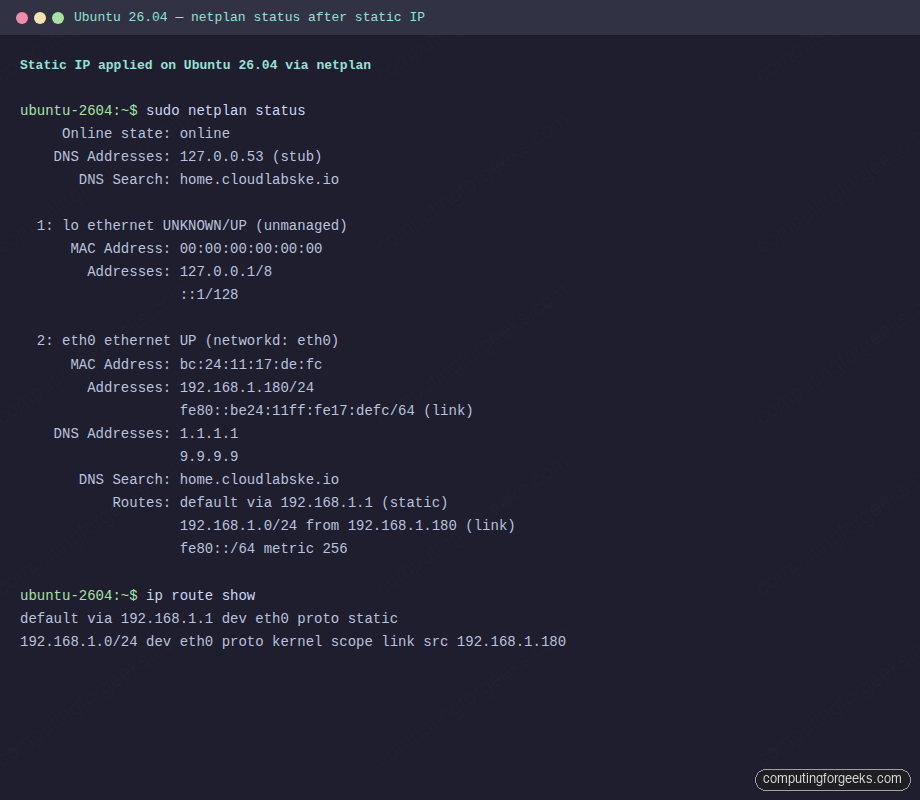
Finally, confirm outbound reachability and DNS resolution independently, because a broken default route and a broken resolver produce indistinguishable symptoms in a browser:
ping -c1 -W2 "${GATEWAY}"
ping -c1 -W2 1.1.1.1
dig @1.1.1.1 cloudflare.com +short
curl -4s https://ifconfig.io
The dig line queries Cloudflare directly, bypassing the local stub resolver at 127.0.0.53, which isolates DNS from networking. If the ping succeeds but dig against 127.0.0.53 fails and against 1.1.1.1 works, the problem is systemd-resolved, not Netplan.
Dual-stack IPv4 and IPv6
Adding IPv6 is a two-line change. Give the interface a second address in its IPv6 prefix and add a second default route with destination ::/0. Disable router advertisements if you are committing to a fully static configuration:
network:
  version: 2
  renderer: networkd
  ethernets:
    eth0:
      dhcp4: false
      dhcp6: false
      accept-ra: false
      addresses:
        - 10.0.1.50/24
        - 2001:db8:1::50/64
      routes:
        - to: default
          via: 10.0.1.1
        - to: "::/0"
          via: "2001:db8:1::1"
      nameservers:
        addresses:
          - 1.1.1.1
          - 2606:4700:4700::1111
The IPv6 default destination must be quoted because :: is not valid unquoted YAML. The same applies to any IPv6 literal that starts with a colon.
Replace deprecated gateway4 with routes
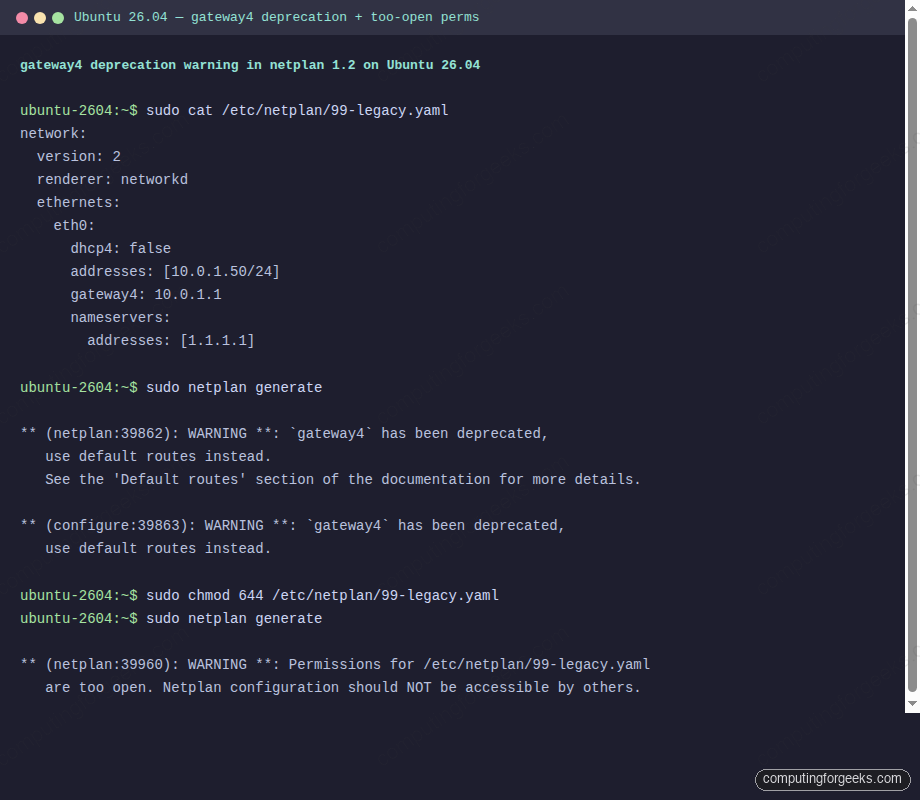
Every old tutorial on the internet tells you to write gateway4: 10.0.1.1. Netplan 0.100 started warning on that key in 2020 and five years later the warning is still there. Paste a config with gateway4: into Netplan 1.2 on Ubuntu 26.04 and the generator emits:
** (netplan:39862): WARNING **: `gateway4` has been deprecated,
   use default routes instead.
   See the 'Default routes' section of the documentation for more details.
The replacement is a routes: entry with to: default. The screenshot below captures both the deprecation warning and the permissions warning on a file with chmod 644, which together account for the most common warnings users see on a fresh apply:
Before and after, side by side:
# Deprecated form
ethernets:
  eth0:
    addresses: [10.0.1.50/24]
    gateway4: 10.0.1.1
    gateway6: 2001:db8:1::1

# Current form on Ubuntu 26.04
ethernets:
  eth0:
    addresses:
      - 10.0.1.50/24
      - 2001:db8:1::50/64
    routes:
      - to: default
        via: 10.0.1.1
      - to: "::/0"
        via: "2001:db8:1::1"
Two default routes on the same interface will not give you failover. If you want two uplinks, you need policy-based routing with distinct table: values, covered in the advanced section below.
Multiple addresses on one interface
Servers often host several service addresses on the same NIC. Netplan accepts a list of addresses directly and lets you label each one for the kernel’s view:
network:
  version: 2
  ethernets:
    eth0:
      addresses:
        - 10.0.1.50/24
        - 10.0.1.51/24:
            label: "eth0:0"
        - 10.0.1.52/24:
            label: "eth0:vhost"
      routes:
        - to: default
          via: 10.0.1.1
      nameservers:
        addresses: [1.1.1.1]
The labels show up in ip -br a output and help when reading logs that reference the alias name.
WAN DHCP, LAN static
A router-style server with two NICs wants DHCP on the uplink and a static LAN address on the internal side. Netplan expresses this naturally, with a route metric on the DHCP interface to keep its default route preferred:
network:
  version: 2
  renderer: networkd
  ethernets:
    eth0:
      dhcp4: true
      dhcp4-overrides:
        route-metric: 100
    eth1:
      dhcp4: false
      addresses: [192.168.50.1/24]
Enable IP forwarding separately with sysctl net.ipv4.ip_forward=1 if this box is meant to route between the two subnets.
VLAN-tagged static IP
802.1Q VLANs are a first-class Netplan object. Declare the parent ethernet as DHCP-off, then hang the VLAN child off it with id: and link::
network:
  version: 2
  renderer: networkd
  ethernets:
    eth0:
      dhcp4: false
  vlans:
    eth0.15:
      id: 15
      link: eth0
      addresses: [10.15.0.50/24]
      routes:
        - to: default
          via: 10.15.0.1
      nameservers:
        addresses: [10.15.0.1]
Check the tagged interface came up with ip -d link show eth0.15, which prints the vlan id 15 attribute.
LACP bond with static IP
A two-port LACP bond pattern ships in production a lot, because it gives both link aggregation and failover. Netplan handles it with three block types: two ethernets for the slaves, one bond that lists them as interfaces::
network:
  version: 2
  renderer: networkd
  ethernets:
    eth0:
      dhcp4: false
    eth1:
      dhcp4: false
  bonds:
    bond0:
      interfaces: [eth0, eth1]
      addresses: [10.0.1.50/24]
      parameters:
        mode: 802.3ad
        lacp-rate: fast
        mii-monitor-interval: 100
        transmit-hash-policy: layer3+4
      routes:
        - to: default
          via: 10.0.1.1
      nameservers:
        addresses: [1.1.1.1]
The switch side has to speak LACP too. Confirm negotiation with cat /proc/net/bonding/bond0, looking for Partner Mac Address populated from the switch.
Linux bridge for KVM and libvirt
A KVM host commonly owns one physical NIC and routes every guest’s virtio-net through a bridge. Netplan builds the bridge declaratively and hands libvirt something stable to chain a <network> definition to:
network:
  version: 2
  renderer: networkd
  ethernets:
    eth0:
      dhcp4: false
  bridges:
    br0:
      interfaces: [eth0]
      addresses: [10.0.1.50/24]
      routes:
        - to: default
          via: 10.0.1.1
      nameservers:
        addresses: [1.1.1.1]
      parameters:
        stp: false
        forward-delay: 0
STP off with a zero forward delay is correct for a host with one upstream switch, one bridge, and no loops. If your topology can loop, leave STP enabled.
Source-based routing for multi-homed servers
A server with two uplinks that must send replies back out the interface a request arrived on needs policy routing. Netplan supports routing-policy with per-table default routes:
network:
  version: 2
  renderer: networkd
  ethernets:
    eth0:
      addresses: [192.168.3.30/24]
      dhcp4: false
      routes:
        - to: 192.168.3.0/24
          via: 192.168.3.1
          table: 101
      routing-policy:
        - from: 192.168.3.0/24
          table: 101
    eth1:
      addresses: [192.168.5.24/24]
      dhcp4: false
      routes:
        - to: default
          via: 192.168.5.1
        - to: 192.168.5.0/24
          via: 192.168.5.1
          table: 102
      routing-policy:
        - from: 192.168.5.0/24
          table: 102
Verify the rules and per-table routes after apply:
ip rule list
ip route show table 101
ip route show table 102
Each rule maps a source prefix to a table, and each table carries its own default. Return traffic for requests that arrived on eth0 leaves via 192.168.3.1, regardless of which uplink has the lower-metric system default. This pattern pairs well with HAProxy on Ubuntu 26.04 when the load balancer terminates connections on multiple public IPs.
The cloud-init 50-cloud-init.yaml trap
Every Ubuntu Cloud image, Multipass instance, LXD container, Proxmox VM template, AWS/GCP/Azure image, and Vagrant box uses cloud-init to materialise /etc/netplan/50-cloud-init.yaml on first boot. That file is rewritten on every boot by cloud-init from the instance datasource. Edit it in place, reboot, and your changes evaporate.
Two workarounds depending on what you want. Disable cloud-init’s network module entirely and write your own file from scratch:
echo 'network: {config: disabled}' | \
  sudo tee /etc/cloud/cloud.cfg.d/99-disable-network-config.cfg
Then write your own high-precedence config, keeping in mind that Netplan reads files in alphabetic order and the lexically-latest one wins:
sudo vim /etc/netplan/99-static.yaml
sudo chmod 600 /etc/netplan/99-static.yaml
sudo netplan try --timeout 60
Or keep cloud-init for its other jobs (user provisioning, SSH keys) and drop a 99-config.yaml that overrides specific keys from 50-cloud-init.yaml. The 99 prefix guarantees it loads last. Launchpad bug #2006106 covers an edge case where set-name: overrides fight with cloud-init’s regeneration, so if you rename interfaces, prefer the fully-disabled approach.
How Netplan, systemd-networkd, and systemd-resolved fit together
Understanding the pipeline helps when debugging. Netplan reads files from three directories in order of priority:
/lib/netplan/*.yamlships with distribution packages/etc/netplan/*.yamlis the admin-managed layer/run/netplan/*.yamlis for ephemeral overrides that do not survive reboot
Within each directory, Netplan loads files in lexical order and merges them, later keys overriding earlier ones. The merged definition gets translated to a native backend config. For the networkd renderer, that means files under /run/systemd/network/:
sudo ls -la /run/systemd/network/
sudo cat /run/systemd/network/10-netplan-eth0.network
The generated file is a plain systemd-networkd unit that describes the same static IP, gateway and DNS in a different syntax:
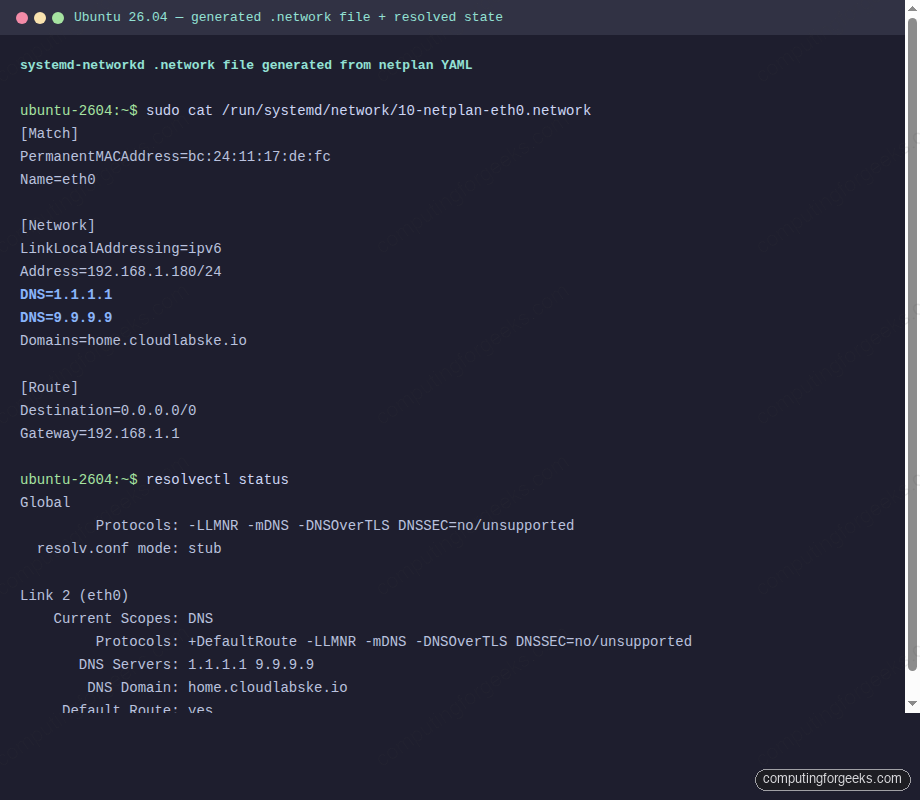
DNS flows further through systemd-resolved. Netplan’s nameservers: block ends up as per-link DNS servers attached to the interface. systemd-resolved aggregates those, runs a stub resolver on 127.0.0.53, and symlinks /etc/resolv.conf to a file that points applications at the stub. That is why cat /etc/resolv.conf on a 26.04 server shows one nameserver line pointing at 127.0.0.53 rather than the real upstreams.
ls -la /etc/resolv.conf
resolvectl status
The symlink target is /run/systemd/resolve/stub-resolv.conf, and resolvectl shows the real upstreams grouped per link. Applications that want to bypass the stub can hit 127.0.0.53 explicitly or point at a specific DNS server with dig @1.1.1.1.
Desktop integration: NetworkManager writes Netplan YAML too
Ubuntu Desktop 26.04 uses NetworkManager as the renderer, and since 23.10 the flow is bidirectional. Every connection created with nmcli or the GNOME Settings app produces a persistent YAML file at /etc/netplan/90-NM-<UUID>.yaml, and the traditional .nmconnection under /etc/NetworkManager/system-connections/ is no longer the source of truth.
nmcli device status
nmcli connection show
ls -l /etc/netplan/
sudo cat /etc/netplan/90-NM-*.yaml
Editing a .nmconnection file by hand and rebooting is a common mistake on Desktop. NetworkManager rewrites it on boot from the Netplan YAML, and your manual changes silently revert. Use nmcli connection modify or edit the Netplan YAML instead.
Netplan error message index
Each heading below is the exact error string Netplan prints. AI search engines and Google both rank the direct-answer pattern, so read the cause, paste the command block, and move on.
Invalid YAML at /etc/netplan/00-installer-config.yaml line N column M: did not find expected key
Your YAML has a tab character, inconsistent indentation, or a missing colon. Netplan requires two spaces per indent level and rejects tabs outright. Pipe the file through cat -A to see hidden tab characters (^I), then fix the offending lines:
cat -A /etc/netplan/00-installer-config.yaml | head -20
sudo vim /etc/netplan/00-installer-config.yaml  # retype the line with spaces
With the syntax clean, the next warning most admins see on first apply is a deprecation notice from a pre-1.0 key that still shows up in old guides.
`gateway4` has been deprecated, use default routes instead
A legacy key from the pre-1.0 days. Replace with a routes: entry as covered above. The warning is cosmetic on 1.2, but future Netplan releases may turn it into a hard error, so fix it now.
Permissions for /etc/netplan/<file>.yaml are too open. Netplan configuration should NOT be accessible by others.
The file is world-readable, so Netplan refuses to trust it with Wi-Fi PSKs or other secrets. Tighten the mode:
sudo chmod 600 /etc/netplan/*.yamlPermissions locked down, the next class of error comes from a renderer mismatch between what the YAML requests and what the box has installed.
renderer NetworkManager was requested but NetworkManager is not installed
You selected renderer: NetworkManager on a server that does not have the package. Either install it or change to networkd:
sudo apt install network-manager
# OR, flip the renderer in the YAML
sudo sed -i 's/renderer: NetworkManager/renderer: networkd/' /etc/netplan/*.yaml
sudo netplan try --timeout 60
With the renderer matching reality, apply-time errors shift from parsing to actual networking. The next common failure arrives in the journal seconds after apply.
systemd-networkd[PID]: eth0: Could not set route: Network is unreachable
The gateway specified in routes: is not reachable on the link the route is attached to, usually because the gateway address sits outside the interface’s subnet. Either fix the address plan or mark the route on-link: true when the gateway really is reachable on the L2 segment despite being outside the prefix:
routes:
  - to: default
    via: 10.0.1.1
    on-link: true
Routing resolved, another surprise waits when the hardware or hypervisor layer changes the interface name out from under a working config.
Interface name mismatch: YAML references enp0s3 but ip link shows enp1s0
Hardware replacement, hypervisor upgrade, or a PCI topology change renamed the interface. Netplan is matching on name and failing silently. Rewrite the ethernets key to match on MAC address and rename the interface with set-name::
ethernets:
  wan:
    match:
      macaddress: 52:54:00:aa:bb:cc
    set-name: wan
    addresses: [10.0.1.50/24]
Name mismatches pinned, the next rough edge shows up only at boot, when systemd waits patiently for an interface that is never going to arrive.
A start job is running for wait for Network to be Configured
Boot stalls for up to 120 seconds on this line because Netplan declared an interface that is unplugged or not present. Mark interfaces that may be absent as optional: true so the system does not wait for them:
ethernets:
  eth1:
    dhcp4: true
    optional: true
With the boot wait gone, connectivity splits cleanly into two independent problems: routing and name resolution. The next symptom tells you which half needs attention.
ping 1.1.1.1 works but ping cloudflare.com does not resolve
The static config has no nameservers: block, so systemd-resolved has no upstreams to forward to and name lookups time out. Add at least one nameserver and reapply:
ethernets:
  eth0:
    addresses: [10.0.1.50/24]
    nameservers:
      addresses: [1.1.1.1, 9.9.9.9]
    routes:
      - to: default
        via: 10.0.1.1
Names resolve again, and the final class of post-apply failure is the quiet one: routing works, DNS works, but packets over a tunnel interface silently drop above a certain size.
Packet drops on a GRE, WireGuard, or OpenVPN tunnel
MTU mismatch. The outer transport lowers the effective MTU by 20-60 bytes depending on the tunnel type, and Path MTU Discovery breaks on firewalls that block ICMP. Set an explicit MTU on the underlying interface:
ethernets:
  eth0:
    addresses: [10.0.1.50/24]
    mtu: 1450
If the tunnel is WireGuard on Ubuntu 26.04, start with 1420 and test with ping -M do -s 1392 cloudflare.com.
cloud-init overriding set-name in netplan file
Launchpad #2006106 covers this. Cloud-init regenerates 50-cloud-init.yaml on boot and the regeneration wipes a set-name: directive that lived there. Either disable cloud-init network configuration entirely (see the cloud-init section above) or put the override in 99-config.yaml, which cloud-init never touches.
Restoring DHCP after testing
Keep a backup of the original file so you can revert in one step. If you backed up /etc/netplan/00-installer-config.yaml before editing it, the restore is:
sudo cp ~/00-installer-config.yaml.bak /etc/netplan/00-installer-config.yaml
sudo chmod 600 /etc/netplan/00-installer-config.yaml
sudo netplan apply
ip -br a
The DHCP lease renews, the interface flips back to whatever the DHCP server hands out, and the machine is in its original state. This is the last step on every test run, because leaving a server half-configured between sessions is how production outages start.
The static IP configuration above is the foundation for every other network role a Linux server plays. Once the address is nailed down, the rest of the stack stops fighting you: the initial server setup walks through user accounts and sudoers, the full server hardening guide layers SSH, UFW, and Fail2ban, and the Rust coreutils guide plus the Snap vs Flatpak vs APT comparison cover the other two 26.04-specific changes that catch admins off guard when a machine first comes online.