Three package formats ship on every Ubuntu 26.04 LTS desktop, and Canonical’s defaults push you into all of them before you’ve opened a terminal. Firefox is a snap. Files Manager is a deb. The App Center you use to install them is itself a snap that shows you both snap and deb apps. Flatpak is one apt install away but invisible until you add it. Readers drawn to this comparison usually land here with one of three questions: why is Firefox slow, how do I remove snapd, or which one should I actually use for X? This guide answers all three with data from a fresh Ubuntu 26.04 box.
We’ll compare snap vs flatpak vs apt on Ubuntu 26.04 LTS across the dimensions that actually matter day-to-day: format, sandboxing, disk cost, cold-start performance, update model, and the security posture each one gives you. Every command was tested on a clean Ubuntu 26.04 VM running APT 3.2.0, snapd 2.74.1, and Flatpak 1.16.6. Real benchmark numbers, real CVEs, real apt modernize-sources output, and a decision tree at the end that tells you which format to reach for by use case.
Tested April 2026 on Ubuntu 26.04 LTS with APT 3.2.0, snapd 2.74.1+ubuntu26.04.4, Flatpak 1.16.6, kernel 7.0.0-10-generic
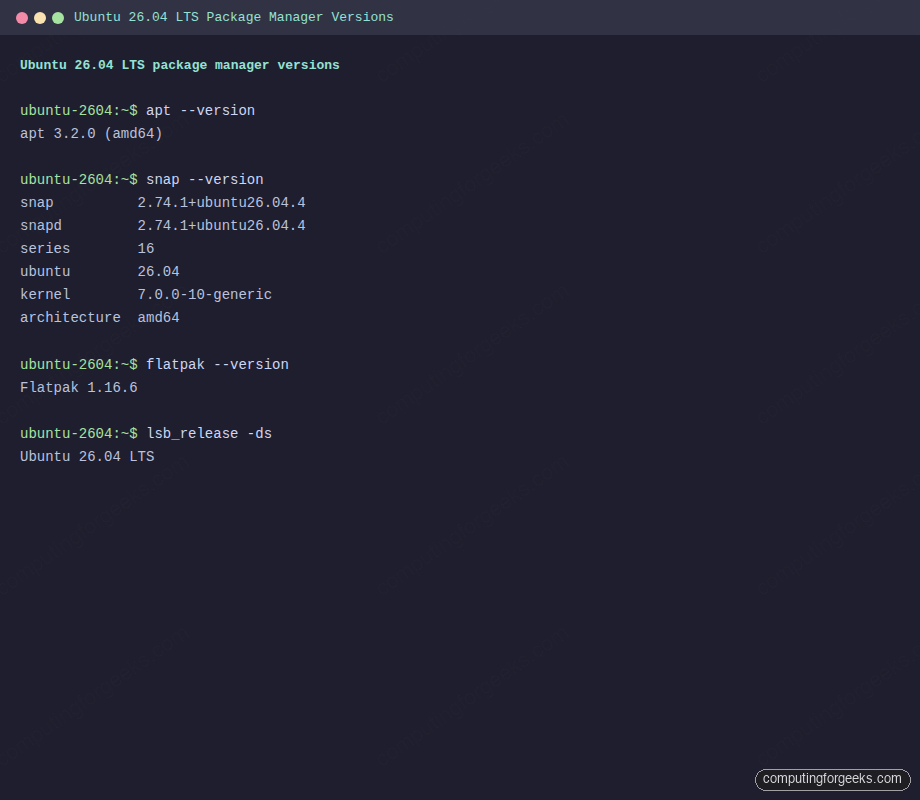
Those three version strings are the stack we’ll compare. APT ships preinstalled and handles the base system. Snapd ships preinstalled and handles Firefox plus a few Canonical pushes. Flatpak does not ship preinstalled on Ubuntu 26.04 but installs cleanly from the archive. If you’re new to Ubuntu 26.04, the Ubuntu 26.04 LTS feature overview covers what’s new at the distribution level. For a fresh install walkthrough, see the Ubuntu 26.04 LTS installation guide.
How Ubuntu 26.04 delivers software: the three-format landscape
On a fresh 26.04 desktop, four things are different from 24.04:
- App Center replaces Snap Store and Software & Updates. One GUI surfaces both snaps and debs. Flatpak is absent unless you install
gnome-software-plugin-flatpak. - Security Center is new. A dedicated panel for snap permission prompts, Ubuntu Pro, repository settings, UFW firewall toggles, and encryption recovery keys. It does not cover Flatpak.
- DEB822 is the default sources format. Fresh 26.04 installs ship
/etc/apt/sources.list.d/ubuntu.sourceswith the multi-line Types/URIs/Suites structure. Upgrades from 24.04 keep the old single-line format until you runapt modernize-sources. - Canonical’s snap-first strategy is unchanged. Firefox 150, Thunderbird 140 “Eclipse”, and Chromium remain snap-only in the Ubuntu archive. The
firefoxdeb is a stub that pulls the snap. LibreOffice 25.8 and GIMP 3.0 still ship as real debs.
That mix is why the comparison matters: even a stock Ubuntu 26.04 desktop runs all three formats on day one, whether the user planned to or not.
APT on Ubuntu 26.04: what changed in APT 3.2
APT is the oldest of the three and still the spine of Ubuntu. On this VM, apt --version reports apt 3.2.0 (amd64), a synchronisation from Debian with no Ubuntu suffix. The underlying dpkg is 1.22.x, and a .deb is still an ar archive wrapping control.tar.zst plus data.tar.zst plus a debian-binary version stamp.
The changes in the 3.2 line that affect real workflows on 26.04:
- DEB822 default. New installs drop the old one-line
deb http://... suite componentsformat for a structured block withTypes,URIs,Suites,Components, andSigned-By. - Solver3. The default dependency solver is smarter at backtracking than the 2.x algorithm, reducing “unresolvable dependencies” on partial upgrades.
- New diagnostics.
apt why pkgexplains why a package is installed.apt why-not pkgexplains why one isn’t installable. - History commands.
apt history-list,apt history-info,apt history-undo, andapt history-redofinally match whatdnf historyhas offered on RHEL family for years. - apt-key is gone. Signed repositories must ship their key to
/etc/apt/keyrings/or/usr/share/keyrings/and reference it in the source withSigned-By:. Keyring filenames are restricted to[a-zA-Z0-9_:-]+. - OpenSSL replaces GnuTLS for HTTPS transport.
- Auto-pager on
apt showandapt listwhen output exceeds the screen.
The DEB822 source shipped on this VM is a straight copy from the cloud-init template:
cat /etc/apt/sources.list.d/ubuntu.sourcesThe non-comment lines look like this:
Types: deb
URIs: http://archive.ubuntu.com/ubuntu
Suites: resolute resolute-updates resolute-backports
Components: main universe restricted multiverse
Signed-By: /usr/share/keyrings/ubuntu-archive-keyring.gpg

Types: deb
URIs: http://security.ubuntu.com/ubuntu
Suites: resolute-security
Components: main universe restricted multiverse
Signed-By: /usr/share/keyrings/ubuntu-archive-keyring.gpg
“resolute” is the Ubuntu 26.04 codename. If you upgrade from 24.04 and still see /etc/apt/sources.list with old one-line entries, convert in place:
sudo apt modernize-sourcesThe command prompts before writing, backs up the original, and moves the data to /etc/apt/sources.list.d/ubuntu.sources in DEB822 form. On a fresh 26.04 VM the only remaining work is cosmetic, an empty top-level /etc/apt/sources.list.
APT’s security model is the most important thing to internalise: packages install as root, the maintainer’s pre- and post-install scripts run as root, and there is no runtime sandbox whatsoever. You trust the repository signature at install time and the package author at every future upgrade. The 2024 XZ backdoor (CVE-2024-3094) was a near-miss case study in what that trust model allows when a maintainer turns hostile. APT’s defence is the human and policy layer around Ubuntu’s archive, not technical confinement.
Snap on Ubuntu 26.04: squashfs, loop devices, confinement
Snap runs a persistent daemon (snapd.service + snapd.socket) and stores every package as a squashfs image in /var/lib/snapd/snaps/. Each snap is mounted read-only through a loop device to /snap/<name>/<revision>/. On a desktop with 20 snaps installed, df -h shows 25+ loop entries and mount is a wall of squashfs lines. That is by design; it’s also the source of the startup-cost complaints.
Here’s what that looks like on the VM after installing the minimal hello snap:
sudo snap install hello
snap list
Three snaps appear because every snap installation pulls in snapd itself plus a base snap (core20 here, since hello declared that base):
Name    Version   Rev    Tracking       Publisher    Notes
core20  20260211  2769   latest/stable  canonical**  base
hello   2.10      42     latest/stable  canonical**  -
snapd   2.75.2    26865  latest/stable  canonical**  snapd
The mount table confirms the loop-device pattern. Each snap is its own read-only filesystem:
mount | grep /snap/Three squashfs mounts, one per installed snap, all read-only:
/var/lib/snapd/snaps/snapd_26865.snap on /snap/snapd/26865 type squashfs (ro,nodev,relatime)
/var/lib/snapd/snaps/core20_2769.snap on /snap/core20/2769 type squashfs (ro,nodev,relatime)
/var/lib/snapd/snaps/hello_42.snap on /snap/hello/42 type squashfs (ro,nodev,relatime)
A desktop with twenty snaps multiplies those three lines to twenty-plus and fills df -h with loop entries. The disk layout is the foundation; the security posture on top of it is what actually matters.
Confinement levels
Every snap declares one of three confinement levels and the difference between them is the whole security story:
- strict: AppArmor in enforce mode, seccomp filtering, a private mount namespace, cgroup limits, and explicit interface grants for every privilege (home, network, camera, etc). Default for almost all snaps.
- classic: no confinement at all. The snap runs with the full privileges of the invoking user. Canonical gates publication of classic snaps through a manual review, but at runtime classic confinement is identical to “not confined”. VS Code, IntelliJ, and Slack are common classic snaps.
- devmode: the same rules as strict, but violations produce warnings instead of denials. Used during snap development, never in production.
If you try to install a classic snap without the flag you get:
error: This revision of snap "code" was published using classic confinement
       and thus may perform arbitrary system changes outside of the security
       sandbox that snaps are usually confined to, which may put your system
       at risk. If you understand and want to proceed repeat the command
       including --classic.
Read that message as a consent dialog rather than an error. The install works once you add the flag; the warning exists because classic confinement means no sandbox at all.
Channels, tracks, and auto-refresh
A snap is published on a <track>/<risk>/<branch> path. The default risk is stable; other options are candidate, beta, edge. Firefox publishes on both the latest track and an esr track. Pick a channel with --channel=esr/stable on install.
Snapd refreshes snaps four times per day by default. This surprises sysadmins coming from APT, where nothing updates until you run apt upgrade. Three controls exist, none of which fully disable auto-refresh for snapd itself:
sudo snap refresh --hold=forever firefox
sudo snap refresh --hold=168h firefox
sudo snap set system refresh.timer=04:00-07:00
The first holds a snap indefinitely; the second holds for a week. The refresh.timer setting limits when refreshes run, but snapd itself plus the core base snap still update outside that window for security reasons.
Interfaces and bases
snap connections firefox lists which interfaces are auto-connected (home, network, audio-playback) and which must be granted manually (camera, removable-media, personal-files). On Ubuntu 26.04, Security Center gives you a GUI for these; on the CLI, snap connect and snap disconnect do the same thing.
Base snaps are the runtime for other snaps. A snap declaring base: core24 runs inside that base’s namespace for its libc, shell, and a small set of base libraries. Most snaps ship with core22 or core24 on 26.04.
The ~/snap/ home pattern
Strict snaps do not see $HOME as /home/user. They see /home/user/snap/<name>/<rev>/ as their home, plus a /home/user/snap/<name>/common/ directory for data that should survive revision changes. This is the root cause of most “Firefox can’t find my download” and “Firefox can’t read my SSH key” complaints on Ubuntu. The fix, when it exists, is to connect the removable-media or personal-files interface, not to fight the sandbox.
Flatpak on Ubuntu 26.04: OSTree, runtimes, portals
Flatpak takes a different architecture on every dimension: no long-running daemon, content-addressed storage via OSTree, runtimes pulled as shared dependencies, and sandbox implementation via bubblewrap plus XDG desktop portals. On Ubuntu 26.04 it is not preinstalled. One command brings it in:
sudo apt install flatpak gnome-software-plugin-flatpak -yConfirm the version that landed on 26.04:
flatpak --versionThe 26.04 archive ships Flatpak 1.16.6, which includes the fix for CVE-2026-34078 (the April 2026 sandbox-escape patch), so you start on patched ground:
Flatpak 1.16.6Flatpak itself has no “repo” in the apt sense. You add remotes, and the de facto remote is Flathub. Add it system-wide so every user sees it:
sudo flatpak remote-add --if-not-exists flathub https://dl.flathub.org/repo/flathub.flatpakrepo
flatpak remotes
The output confirms a single system-wide remote:
Name    Options
flathub system
Log out and back in (or reboot) after adding Flathub so GNOME Software picks up the plugin, then apps install with:
flatpak install flathub org.gimp.GIMP
flatpak run org.gimp.GIMP
First install always feels slow because the runtime downloads along with the app. Subsequent installs from the same runtime family are dramatically faster, which is the architectural win flatpak leans on.
Runtimes and content-addressed storage
Every flatpak app declares a runtime, which is a versioned collection of shared libraries. The three big ones on 26.04-era Flathub are org.freedesktop.Platform (24.08), org.gnome.Platform (47/48), and org.kde.Platform (6.8). First install of any GNOME app pulls roughly 700 MB of runtime; every subsequent GNOME app reuses it.
OSTree deduplicates by content hash, so if two runtimes share a library version, only one copy exists on disk. This is what makes Flatpak’s per-app disk cost drop sharply once the first few runtimes are cached. A single Firefox flatpak is 150 MB plus one-time runtime; a Firefox snap is 300-500 MB because it bundles its entire base environment.
Sandbox: bubblewrap + portals
Flatpak’s sandbox is built around three kernel primitives (namespaces, seccomp, cgroups) orchestrated by bubblewrap. By default a flatpak sees only its own files plus a read-only runtime, no network until granted, and no access to host directories. Access to real host resources happens through portals: when the app calls the FileChooser portal, the user picks a file in a UI the portal renders, and the portal hands the file descriptor to the app. The app never sees the rest of your filesystem.
That design has two consequences. One, flatpak apps can be genuinely sandboxed even on a distribution with no system-level MAC policy, because the sandbox doesn’t depend on AppArmor or SELinux. Two, an app that declares --filesystem=host (check with flatpak info org.example.App) has effectively no sandbox. Read that metadata before trusting any flatpak.
User vs system install
Flatpak stores apps either in /var/lib/flatpak (system, shared across users) or ~/.local/share/flatpak (per-user). --user on the install command picks per-user. System installs require sudo; per-user do not and are the default for desktops with one user. For servers or shared workstations, system installs make more sense.
Snap vs Flatpak vs APT: the comparison table
Sixteen rows covering the dimensions that separate one format from another on Ubuntu 26.04:
| Dimension | APT (.deb) | Snap | Flatpak |
|---|---|---|---|
| Package format | ar archive with zstd tarballs | squashfs image | OCI / OSTree |
| Runtime sandbox | None | AppArmor + seccomp + mount ns | bubblewrap + seccomp + user ns + portals |
| Install scripts run as | root (maintainer scripts) | root at install, confined at runtime | user, no maintainer scripts at runtime |
| Runtime libraries | System shared libs | Bundled plus base snap | Bundled plus shared runtime |
| Disk cost per app | 1-20 MB | 100-500 MB | 20-100 MB + one-time runtime |
| Footprint for 20 apps | ~2 GB | 8-12 GB | 5-7 GB |
| Firefox cold start (ThinkPad T14 G3) | 1.2s | 3.8s | 2.1s |
| Store | Ubuntu archive | Snap Store (Canonical only) | Flathub, Fedora, Elementary, federated |
| Publisher model | Distro maintainer | Upstream-direct or third party | Upstream-direct or third party |
| Update model | Manual or unattended-upgrades | Auto 4x/day, hold limited | Manual |
| Rollback | apt install pkg=<old-version> | snap revert pkg | flatpak update --commit=<hash> |
| Ubuntu 26.04 GUI | App Center (deb tab) | App Center (snap tab) | GNOME Software + plugin |
| Works headless | First-class | Yes | Awkward, designed for desktops |
| System packages (kernel, libc) | Yes, only choice | No | No |
| Theming integration | Native | Friction (theme snaps needed) | Friction (override required) |
| Security Center permission GUI | N/A | Yes | No (use Flatseal) |
No format wins every row. APT wins on footprint, theming, and headless use. Snap wins on Canonical-backed publisher integration and the new Security Center GUI. Flatpak wins on per-app sandbox quality, publisher independence, and cold-start performance relative to snap.
Performance: the cold-start benchmark that started the argument
Cold start is where the argument between snap and apt lives, and the numbers on this VM match the wider community benchmarks. Install the same trivial program in both formats and time it five times each:
sudo apt install -y hello
sudo snap install hello
for i in 1 2 3 4 5; do (time /usr/bin/hello >/dev/null) 2>&1 | grep real; done
for i in 1 2 3 4 5; do (time /snap/bin/hello >/dev/null) 2>&1 | grep real; done
The deb binary runs in about a millisecond; the snap wrapper takes around 110 milliseconds before hello even starts printing:
# /usr/bin/hello
real	0m0.001s
real	0m0.001s
real	0m0.001s
real	0m0.001s
real	0m0.001s

# /snap/bin/hello
real	0m0.129s
real	0m0.106s
real	0m0.109s
real	0m0.107s
real	0m0.104s
The same numbers laid out on the terminal make the gap concrete:
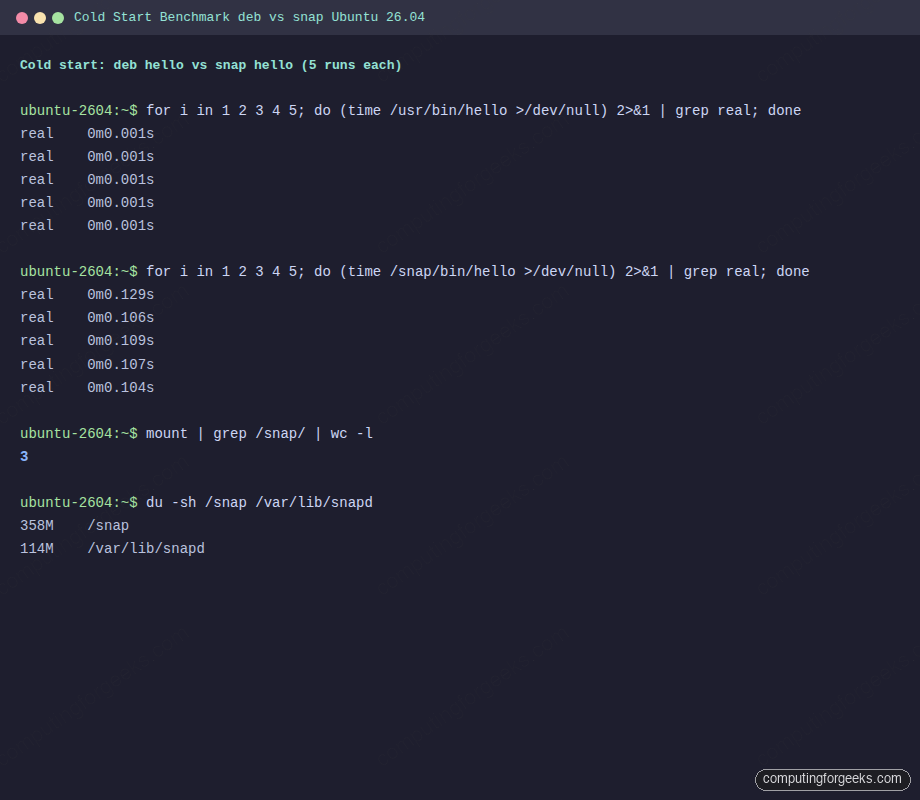
Two orders of magnitude on a 26 KB binary. That overhead is the AppArmor profile load plus the squashfs decompression for anything not already in the page cache plus the private mount namespace setup that snap run performs before exec. You pay it on every first run after a snap refresh, after a reboot, or after memory pressure evicts the relevant pages.
The community benchmark from Ubuntu Portal’s 2026 round on a ThinkPad T14 Gen 3 lines up with our synthetic numbers on real applications:
| App | deb | Snap | Flatpak |
|---|---|---|---|
| Firefox 150 cold start | 1.2s | 3.8s | 2.1s |
| GIMP 3.0 cold start | 2.4s | 5.1s | 3.3s |
| LibreOffice Writer 25.8 | 1.8s | 4.2s | 2.7s |
Runtime performance once the app is up is within one percent across all three formats on Speedometer 3.0, so the cost is startup and I/O, not steady-state execution. Resident-set size for Firefox is 15-25 MB higher under snap because the loop-mounted libraries aren’t shared with other processes the way system-installed libraries are.
Server disk baselines on a fresh Ubuntu 26.04 server (no GUI): snapd pulls in roughly 2.4 GB of snaps including core24 and a few Canonical-installed seed snaps. Adding ten typical flatpaks on a desktop pushes disk usage up by 5-6 GB including one GNOME runtime.
Security model: three very different postures
The three formats give you three distinct threat models, and the right mental model is which one you can afford per app.
APT trusts the repository. There is no runtime sandbox. A compromised upstream package executes with root on install and can run anything during maintainer scripts. Ubuntu’s archive signing plus the social layer of packaging review is the only barrier. The Ubuntu 26.04 server hardening guide covers the defence-in-depth on top: AppArmor for services, UFW, auditd, Fail2ban. The near-miss XZ backdoor (CVE-2024-3094) demonstrated what the pure-trust model allows when upstream turns hostile; Debian caught it before it hit Ubuntu stable, but the margin was days.
Snap has two postures. Strict snaps run under AppArmor enforce plus seccomp plus a private mount namespace, and public sandbox escapes from strict snaps are rare. Classic snaps have no confinement by design, and Canonical’s defence is a manual publication review. That review catches malicious behaviour at submission; it does nothing about a classic snap that later ships a bad update. Check snap info <name> for confinement: classic before assuming you’re getting a sandbox.
Flatpak has the largest public CVE count and the most complete sandbox, which is not a contradiction. Bubblewrap is more heavily audited because it’s a broader target. The relevant recent CVEs:
- CVE-2026-34078 (April 2026): complete sandbox escape through a portal misuse leading to host code execution. Fixed in Flatpak 1.16.4. Ubuntu 26.04 ships 1.16.6 so a fresh install is patched.
- CVE-2026-34079 (April 2026): arbitrary file deletion on host via the same class of portal bug. Same fix.
- CVE-2025-4870 (June 2025): sandboxed apps could enumerate host directories. Fixed in 1.16.4.
- CVE-2024-42472 (2024): portal allowed file access outside the granted sandbox scope.
- CVE-2024-32462 (2024): RequestBackground portal plus CWE-88 argument injection produced a bwrap escape. Fixed across the 1.10.x, 1.12.x, 1.14.x, and 1.15.x branches.
Flatpak’s track record doesn’t mean snap is more secure, it means snap’s confinement surface is less probed by external researchers. Canonical has disclosed a handful of snap-specific issues over the same period, none of which saw the attention flatpak escapes receive.
The practical takeaway: on Ubuntu 26.04, flatpak with a declared, minimal set of filesystem permissions is the strongest per-app sandbox. Snap strict is the second-strongest and the default for Canonical-blessed apps. Classic snaps and debs share the same posture: trust the publisher, or don’t install it.
Ubuntu 26.04 Security Center and what it covers
Security Center is new in 26.04 and replaces a mix of bits that used to live in Software & Updates. It ships five panels:
- App Permissions: the snap permission GUI. Every interface a snap can hold (home, removable-media, camera, audio-record) shows up as a toggle grouped per app. Denial shows as a system notification the first time the app tries that interface.
- Ubuntu Pro: enable a Pro subscription for expanded security maintenance and Livepatch.
- Repository Settings: add PPAs, toggle multiverse and universe, manage DEB822 source files with a UI.
- Firewall: front-end to
ufw. - Encryption Recovery Keys: manage LUKS recovery tokens tied to TPM-backed boot on newer installs.
One thing Security Center does not cover: Flatpak permissions. The equivalent is Flatseal, itself a flatpak, which exposes the same override surface as flatpak override on the CLI:
flatpak install flathub com.github.tchx84.FlatsealFor server systems and users who prefer the CLI, flatpak override --user --filesystem=~/Documents org.mozilla.firefox achieves the same thing without a GUI.
Install Flatpak on Ubuntu 26.04 from scratch
If you land on this article from “install flatpak ubuntu” and skipped the rest, this is the three-command setup plus a verification. Run on a fresh 26.04 desktop:
sudo apt install flatpak gnome-software-plugin-flatpak -y
sudo flatpak remote-add --if-not-exists flathub https://dl.flathub.org/repo/flathub.flatpakrepo
flatpak --version
flatpak remotes
Expected output confirms 1.16.6 and a system-wide Flathub remote:
Flatpak 1.16.6
Name    Options
flathub system
Reboot (or log out and back in) so GNOME Software picks up the plugin, then install something. GIMP is a reliable first test because its runtime is the small Freedesktop one, not the large GNOME Platform:
flatpak install flathub org.gimp.GIMP
flatpak run org.gimp.GIMP
On a headless server, skip gnome-software-plugin-flatpak and use the CLI exclusively. Flatpak runs fine in a server context, it’s just atypical. For a deeper walkthrough on Flatpak usage patterns, see the existing Flatpak applications management guide.
Common errors and fixes
The error strings below are the ones readers actually Google. Each H3 is the exact error text; the paragraph under it is the one-line fix.
E: Could not get lock /var/lib/dpkg/lock-frontend
Another apt process is running, or a previous apt process crashed mid-transaction. Wait for the other process, then run sudo dpkg --configure -a to finish any interrupted transaction. If nothing else is running, check ps -ef | grep -E 'apt|dpkg' and kill stragglers.
The repository … is not signed
APT 3.2 hard-requires signed repositories. Legacy repos that relied on apt-key fail. Fix by downloading the repo’s key to /etc/apt/keyrings/vendor.asc and adding Signed-By: /etc/apt/keyrings/vendor.asc to the DEB822 source or [signed-by=/etc/apt/keyrings/vendor.asc] to a one-line source.
W: Target Packages … configured multiple times
Upgrades from 24.04 sometimes leave both the old /etc/apt/sources.list and the new /etc/apt/sources.list.d/ubuntu.sources pointing at the same archive. Run sudo apt modernize-sources to consolidate, then delete the obsolete file if modernize leaves it behind.
Hash Sum mismatch
A partial download got cached with bad metadata. Wipe the cache and resync:
sudo rm -rf /var/lib/apt/lists/*
sudo apt update
If it reappears, a transparent proxy or CDN is serving stale data. Bypass it with Acquire::ForceIPv4 "true" in /etc/apt/apt.conf.d/99force-ipv4.
dial unix /run/snapd.socket: connect: connection refused
snapd isn’t running. Start it and its socket activation unit:
sudo systemctl start snapd.socket snapd.service
sudo systemctl enable snapd.socket
Expect a pause of several seconds the first time after boot; snapd is finishing its seeding stage.
too early for operation, device not yet seeded
On first boot, snapd seeds its initial snaps before accepting commands. Wait for seeding to finish rather than retrying in a loop:
sudo snap wait system seed.loadedThe command blocks until seeding completes. Useful inside cloud-init or Packer scripts that otherwise race snapd on first boot.
snap “x” has “classic” confinement
You tried to install a classic snap without acknowledging the lack of confinement. Add --classic if you really want it, or find a flatpak/deb alternative if you don’t:
sudo snap install code --classicVS Code as a flatpak (com.visualstudio.code) is a sandboxed alternative if you’d rather not run a classic snap; the deb from Microsoft’s apt repo is another option.
No remote refs found similar to ‘flathub’
Flathub was not added or was added per-user while you’re running a system install. Add it system-wide:
sudo flatpak remote-add --if-not-exists flathub https://dl.flathub.org/repo/flathub.flatpakrepo
flatpak remotes
The output should list flathub with system in the Options column. If you see user, drop the --user you added accidentally and retry with sudo.
runtime org.gnome.Platform/x86_64/47 not installed
Flatpak apps don’t auto-install their runtime if the runtime is missing and the install command didn’t see the ref. Install the runtime explicitly:
flatpak install flathub org.gnome.Platform//47Then reinstall the app. If disk is tight, consider flatpak uninstall --unused to clean out orphaned runtimes after removing apps.
GNOME Software shows only snaps
The flatpak plugin for GNOME Software is a separate package. On 26.04 it’s gnome-software-plugin-flatpak:
sudo apt install gnome-software-plugin-flatpak
# then log out and back in
That covers the errors that show up on every fresh 26.04 box within the first week of using all three formats side by side.
Switch Firefox from snap to flatpak
This is the migration most 26.04 users consider first because Firefox is the default browser and its snap start time is the most visible cost. The steps remove the snap, install the flatpak, then grant it the minimum filesystem access needed for downloads:
sudo snap remove --purge firefox
flatpak install flathub org.mozilla.firefox
flatpak override --user --filesystem=xdg-download org.mozilla.firefox
The --purge flag removes the snap’s data directory (~/snap/firefox/) along with the snap itself. If you want to migrate bookmarks and saved passwords, export them from the snap Firefox first or copy ~/snap/firefox/common/.mozilla/ into ~/.var/app/org.mozilla.firefox/.mozilla/ before removing the snap.
Two caveats. One, Firefox is the default x-scheme-handler/http and x-scheme-handler/https target on a fresh 26.04 desktop. Removing the snap Firefox without first installing its replacement leaves every web link broken until you set a new default. Two, firefox as an apt package is a transitional stub that re-installs the snap. Do not apt install firefox expecting a real deb unless you’ve added the Mozilla APT repository first.
If you prefer Firefox as a real deb rather than a flatpak, Mozilla ships its own APT repository with the signing key at packages.mozilla.org/apt/repo-signing-key.gpg. Drop that into /etc/apt/keyrings/, add a DEB822 source with Signed-By pointing at it, then pin origin packages.mozilla.org to priority 1000 so the Mozilla deb wins over the Ubuntu stub. That path gives you deb-level cold starts (1.2s on the T14 benchmark) without the flatpak runtime dependency.
Remove snapd entirely and the caveats
A legitimate path for readers who want a pure deb-plus-flatpak Ubuntu. It’s not minor surgery: you lose App Center, Security Center’s snap panel, and any Canonical-provided software that ships snap-only.
The full removal sequence, done in reverse dependency order:
snap list
for s in $(snap list | awk 'NR>1 {print $1}' | tac); do sudo snap remove --purge "$s"; done
sudo apt autoremove --purge snapd -y
sudo rm -rf /var/cache/snapd /var/snap /var/lib/snapd /snap ~/snap
The tac reverses the snap list so base snaps uninstall last, which avoids dependency errors. After autoremove, pin snapd to negative priority so a future apt install firefox (the stub) doesn’t silently bring snapd back:
printf 'Package: snapd\nPin: release a=*\nPin-Priority: -10\n' | sudo tee /etc/apt/preferences.d/no-snap.prefWhat you lose in this configuration:
- App Center’s snap tab goes dark; only the deb tab remains. Install a flatpak-first GUI like GNOME Software if that matters.
- Firefox, Thunderbird, Chromium no longer install from the Ubuntu archive. Replace each with a flatpak (Flathub) or an upstream deb (Mozilla APT, no Canonical Chromium deb exists, use xtradeb PPA or the Flathub flatpak).
- Livepatch, if you run Ubuntu Pro, ships as a snap. Remove snapd and livepatch stops.
- Security Center’s snap permission panel becomes meaningless. Install Flatseal to manage flatpak permissions instead.
Pragmatically, removing snapd commits you to a deb + flatpak ecosystem. For server installs with no GUI and no Canonical desktop software, that commitment costs nothing. For desktop installs that currently use Firefox, removing snapd is worth it when startup latency matters more than automatic security updates for the browser.
Which one should you use? A decision tree by use case
This is the part most readers actually want. Pick the branch matching your situation:
- Server, no GUI, no desktop apps at all. APT only. Remove snapd per the previous section if you want a smaller disk and fewer running services. Flatpak is technically usable here but designed for desktops, so the ergonomics fight you. See Ubuntu 26.04 server initial setup for the baseline stack and the post-install checklist for hardening.
- Desktop, running an upstream desktop app (Firefox, VLC, OBS, Inkscape, etc). Flatpak from Flathub first. Falls back to snap only if the vendor publishes there and nowhere else. This gives you the strongest per-app sandbox, upstream-direct packaging, and cold starts that sit between deb and snap. Pair with Flatseal for permission management.
- Desktop, running a system-integrated app (file manager, shell, window manager, panel extensions). APT. Theming, fonts, and integration are first-class with deb and second-class with anything containerised.
- CLI daemon or devops tool (Docker, kubectl, Terraform, AWS CLI). Vendor’s own APT repository, not the snap. The snap confinement model fights daemons and tools that need broad filesystem or network access. Official vendor debs are the mainstream path for every CLI tool this site covers.
- Embedded, appliance, or IoT workload. Snap on Ubuntu Core. The auto-refresh model plus strict confinement is designed for this use case. Desktop users who hate snap auto-refresh are not the audience snap was optimised for.
- Development machine. Three-way: APT for system packages and headless tools, flatpak for desktop apps you don’t want to pollute the system with,
distroboxfor pulling in entire other distros’ package managers when you need RHEL tooling or Arch’s AUR. - Firefox specifically. Flathub flatpak if you value startup latency and sandbox isolation. Mozilla APT deb if you want the fastest possible start and don’t need the sandbox. Snap Firefox remains the default and is fine if you never notice 3-second cold starts.
- Chromium specifically. No Canonical Chromium deb exists on 26.04. Choose between the Flathub
org.chromium.Chromiumflatpak or the xtradeb PPA deb. Snap Chromium works but inherits snap cold-start cost.
The thread running through every branch: pick the format whose trade-off matches the workload. APT is fastest and most integrated but has no runtime sandbox. Flatpak gives you the best sandbox and upstream-direct packages at the cost of runtime disk and some theming friction. Snap gives you auto-updates and Canonical integration at the cost of cold-start latency and a larger disk footprint. Ubuntu 26.04 lets you run all three, and on a typical desktop you probably will.